Engineer App guides
Engineer App · Working offline
Offline mode and sync
Last updated 17 Aug 2026
Fire doors are often in basements, stairwells and plant rooms where mobile signal is poor or non-existent. The app is built for this: it keeps a copy of your doors and buildings on your phone so you can keep scanning and inspecting, and everything you complete is saved to the device first and uploaded automatically when a connection returns. This guide covers how to prepare for a day without signal, what happens to work you complete offline, and how to keep an eye on syncing.
Downloading offline data
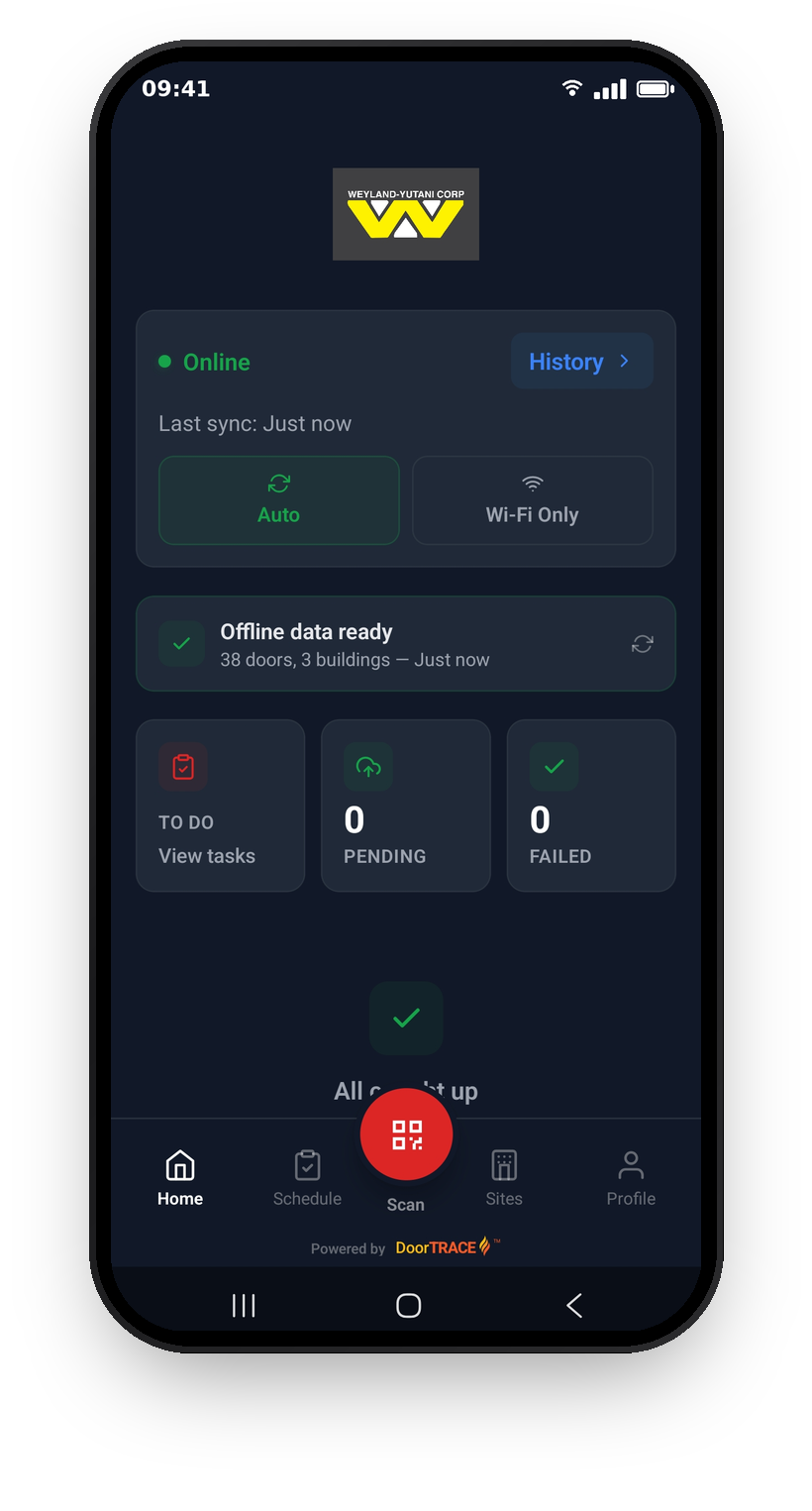
The card below the sync panel on the Home screen shows the state of your offline data: a copy of your doors, buildings and floors, the inspection checklist, defects, your authorised names list and your organisation's spare tag codes. The app refreshes it automatically whenever you open the app or come back to it while online, so on a normal day it looks after itself. The card shows one of five states: Offline data not downloaded (tap to download), Downloading offline data..., Offline data ready with a count of doors and buildings, Offline data stale (your copy is more than 12 hours old), and Download failed. Tap the card at any time to download a fresh copy.
Tip: Before heading into a building where you know signal is poor, check the card says Offline data ready and that the download is recent. Tap it once to refresh if in doubt.
The Last sync line in the sync panel above shows when the app last refreshed your schedule data from the server. If you are online with nothing waiting to upload and it is more than 12 hours old, a Stale - tap to refresh badge appears. You can also pull down on the Home screen to refresh.
Working without a connection
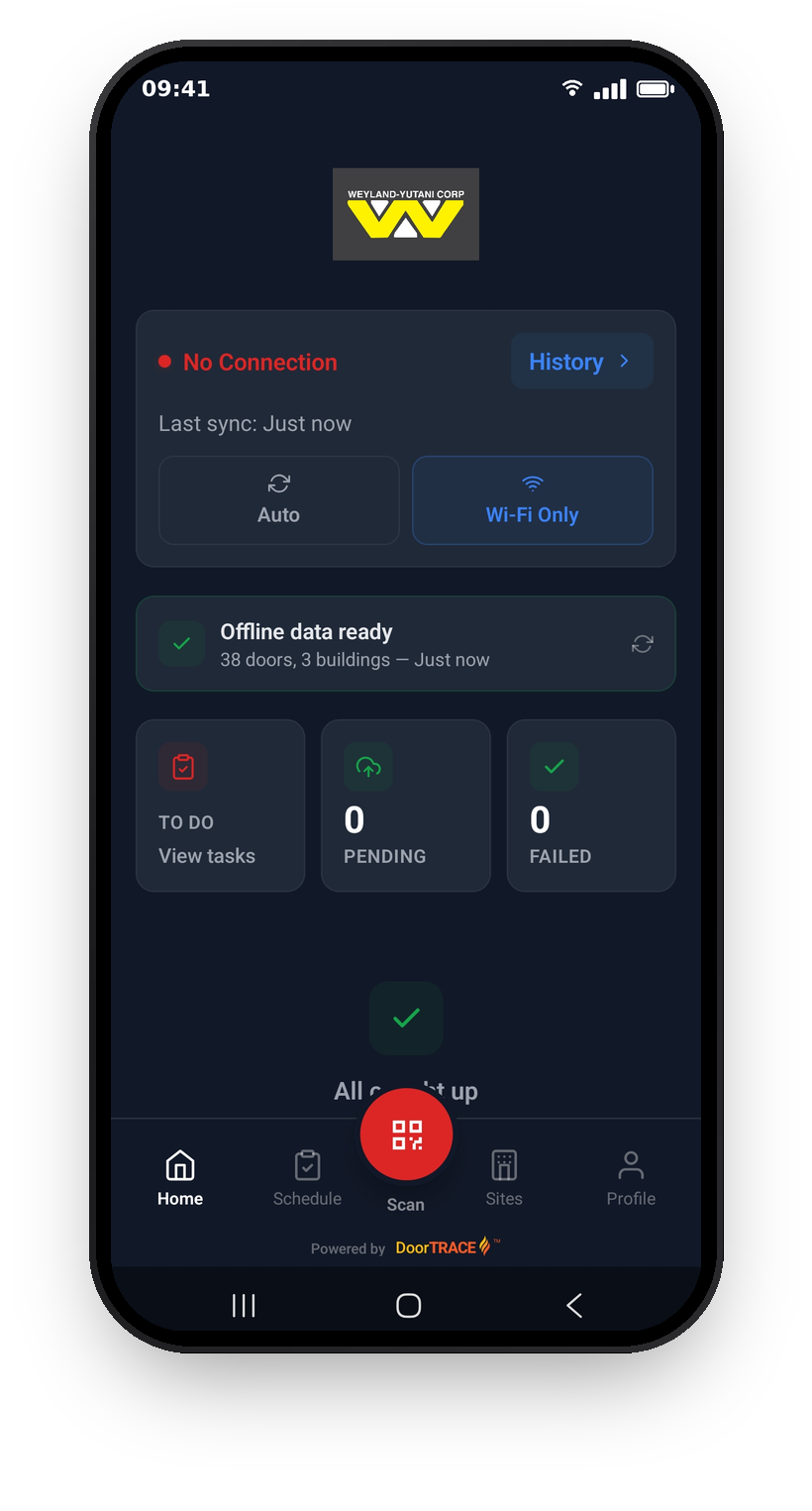
The dot at the top of the sync panel shows your connection: green for Online, red for No Connection. While you are offline, scanning still works: point the camera at a tag (or type the code in manually) and the app looks the door up in your downloaded data instead of on the server. You can run inspections, register doors on your organisation's spare tags, and complete scheduled remedial work exactly as you would online: the checklist, photos and signatures all work without a connection.
Important: A door can only be found offline if it was in your last download. If it was not, you will see "Door Not Available Offline: You're offline and this door isn't in your downloaded cache. Connect to the internet or download offline data from the Home screen first."
Your work waits in the upload queue
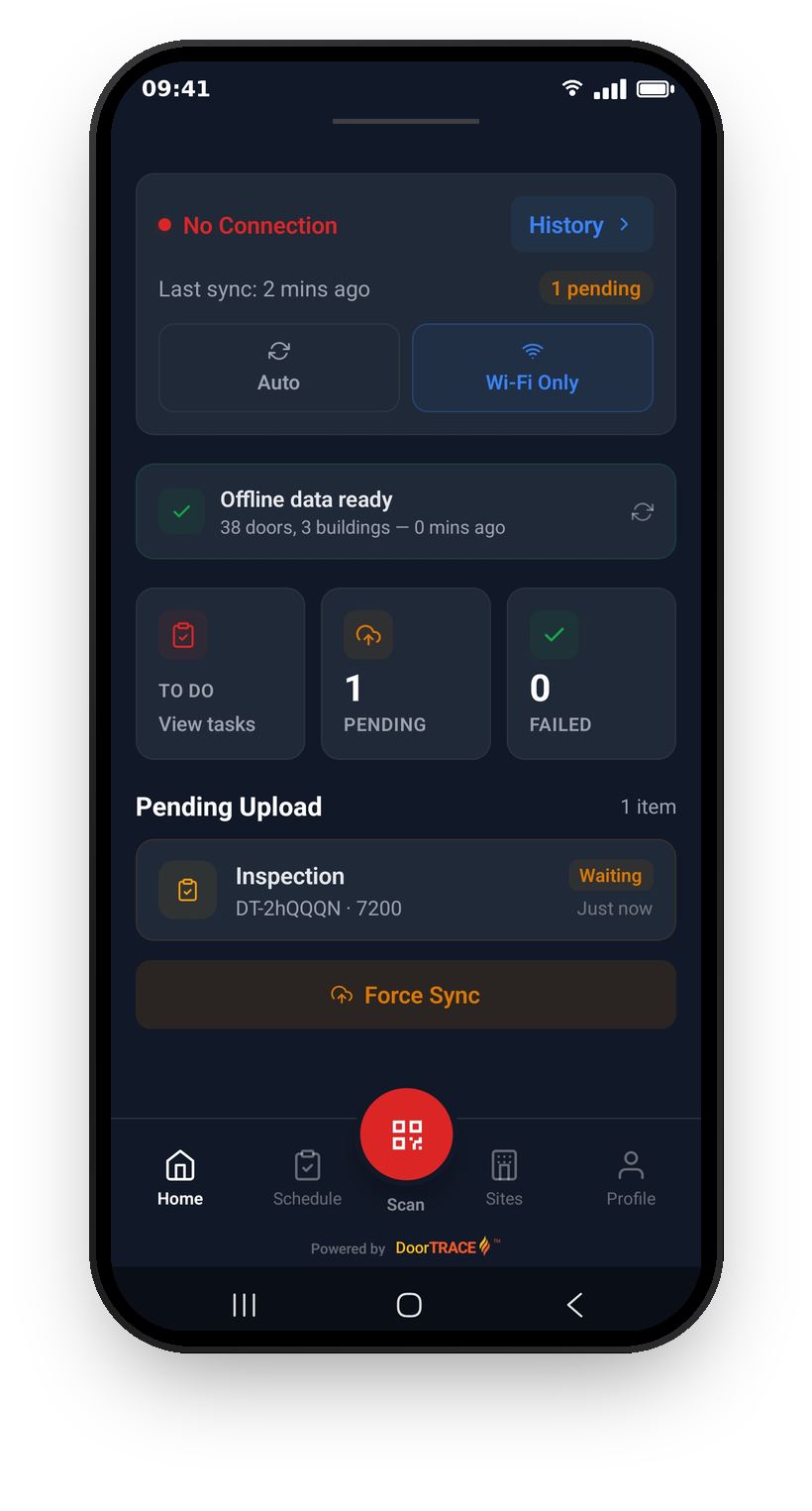
Every piece of work you complete - an inspection, a registration, remedial work or a tag replacement - is saved to your phone first, then uploaded. Anything not yet uploaded appears in the Pending Upload list on the Home screen, and the PENDING and FAILED counters at the top give you the totals at a glance. Each item shows the door code, the building, when it was saved, and a status: Waiting, Uploading..., a retry count such as Retry 1/3 after a connection problem, or Synced. Photos are kept safely on your phone until their upload succeeds. If an upload is interrupted partway through - even by closing the app - it carries on from where it got to on the next attempt, so nothing is lost and nothing is sent twice. When there is nothing waiting, the Home screen simply shows All caught up.
Sync modes
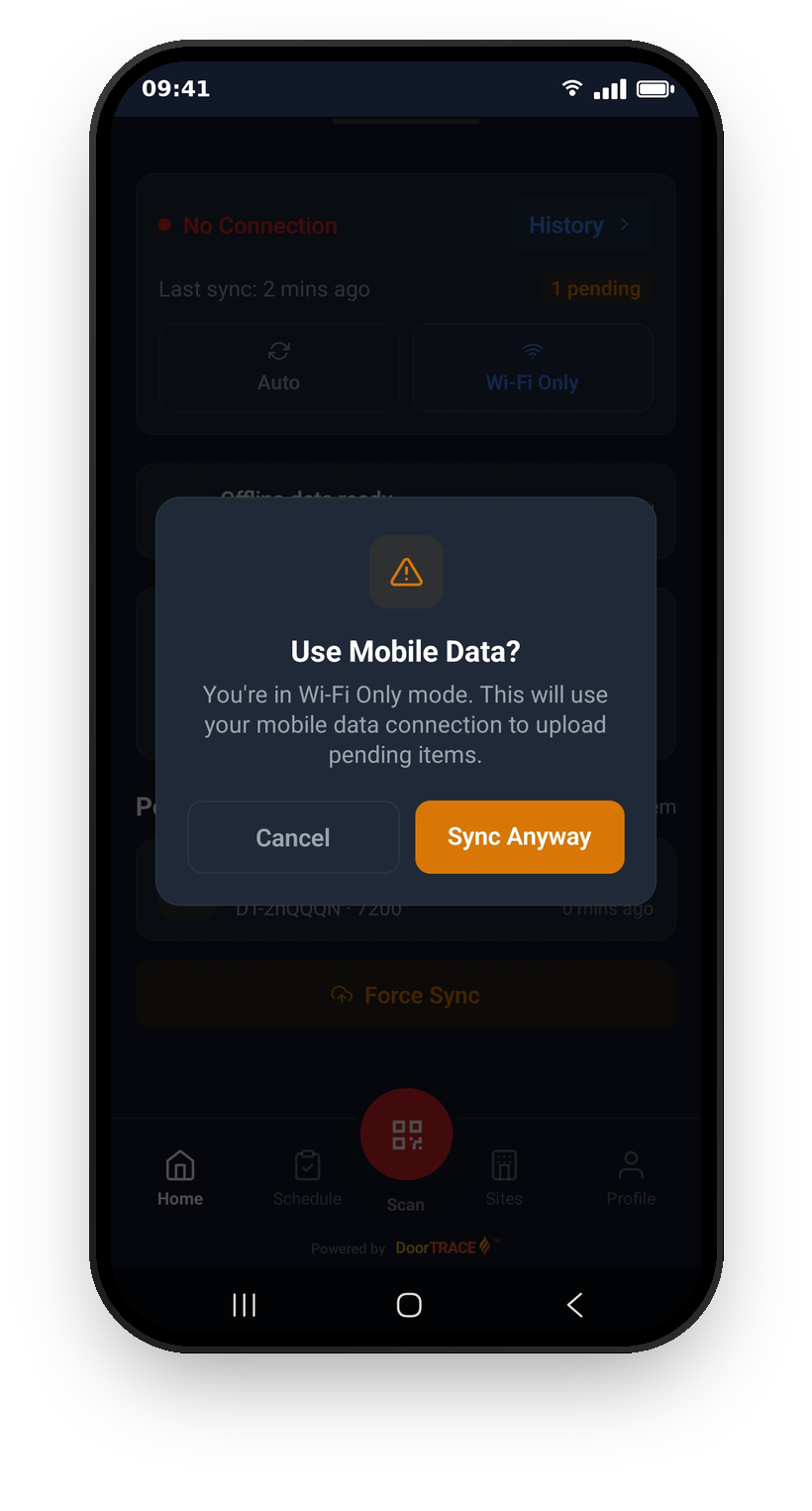
The two buttons at the bottom of the sync panel control when uploads happen. Auto uploads whenever you have any connection. Wi-Fi Only holds your uploads until you are on Wi-Fi, which is useful if you have a limited mobile data allowance - inspection photos can add up. The mode only affects uploads: the app still downloads fresh data on any connection. Your choice is remembered between sessions.
If uploads cannot happen right now, the button under the queue reads Force Sync instead of Sync Now. In Wi-Fi Only mode, tapping it shows Use Mobile Data? - "You're in Wi-Fi Only mode. This will use your mobile data connection to upload pending items." Choose Sync Anyway to upload over mobile data, or Cancel to keep waiting for Wi-Fi.
When uploads happen
You rarely need to think about syncing: the app uploads waiting items as soon as you complete a piece of work (if your mode allows it), the moment a connection comes back, when you join Wi-Fi in Wi-Fi Only mode, and whenever you open or return to the app. While items are waiting it also syncs in the background roughly every 15 minutes, even if the app is closed or your phone has been restarted - your phone decides the exact timing. Items upload one at a time, oldest first. You can always trigger an upload yourself with Sync Now.
If you close the app with items still waiting, a reminder notification arrives after an hour: "Inspections waiting to sync". When a background sync finishes uploading you will see a "Sync complete" notification; if something could not be uploaded you will see "Sync incomplete", and opening the app lets it retry.
If an upload fails
A failed connection is nothing to worry about: the app retries each item up to three times, and the item shows its retry count in the queue while this happens. If an item still cannot be sent after all three attempts, it stops appearing in your queue and the app automatically sends a report to DoorTRACE with the door code and building, so we will already know something has gone wrong. If you notice this happen, please get in touch with us too, so we can make sure your work reaches your company's records. Your work stays saved on your phone; nothing is ever deleted because an upload failed.
Sync History
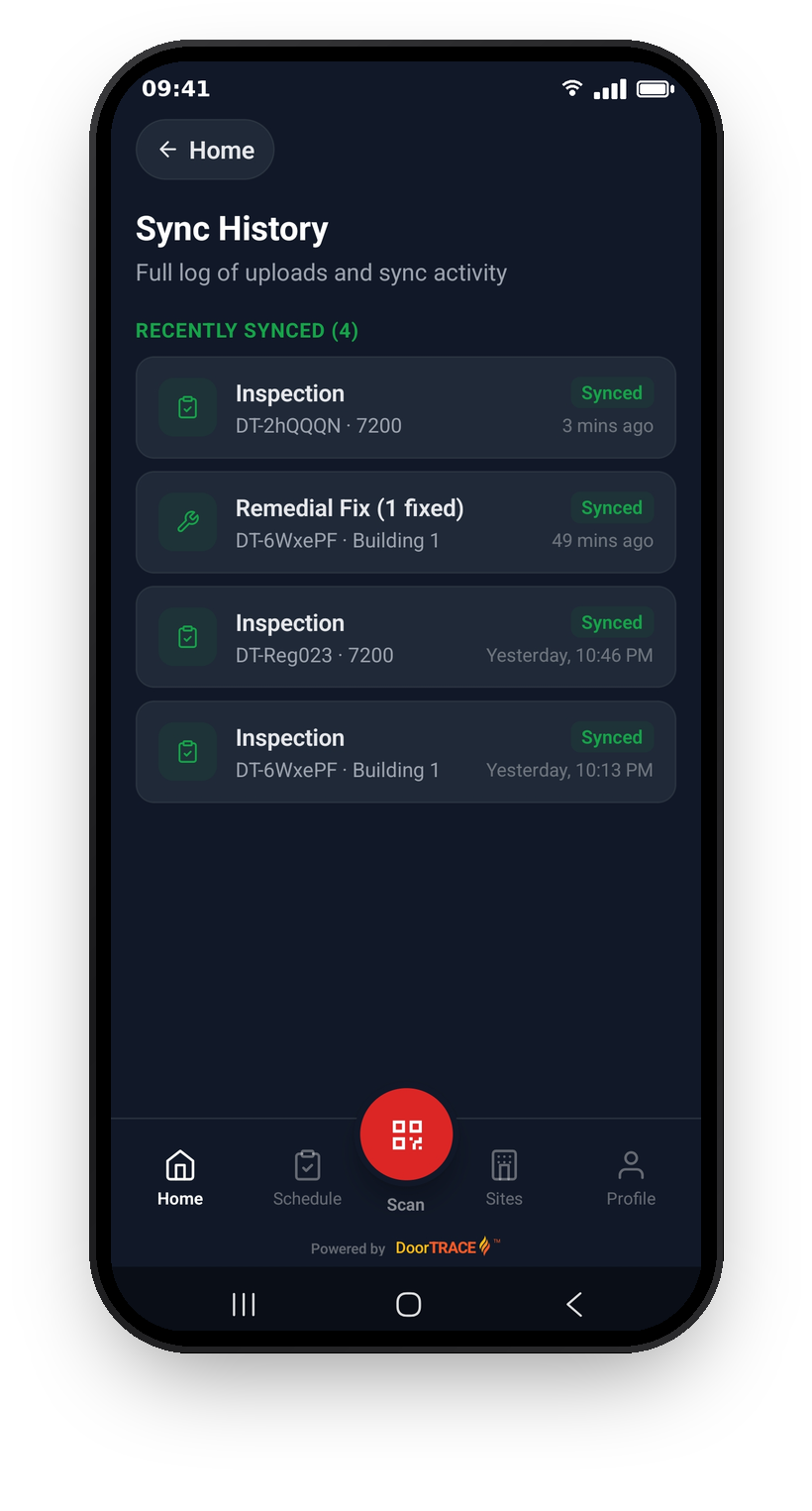
Tap History at the top of the sync panel to open Sync History, a full log of uploads and sync activity. Items waiting to upload appear under PENDING, and successfully uploaded items stay under RECENTLY SYNCED for 24 hours before being tidied away. Tap Home to go back.
What's next
Offline mode leans on scanning, so if you have not read it yet, Scanning QR tags covers the full scanning flow, including manual code entry.
Still can't find the answer?
Send us a message and we'll help. We respond within one working day.