Engineer App guides
Engineer App · QR tags and doors
Scanning QR tags
Last updated 10 Aug 2026
Almost every job starts the same way: scan the QR tag on the door. The app looks the door up, shows you its history, and works out what needs doing next. This guide covers the scan itself and every result you might see.
Scanning a tag
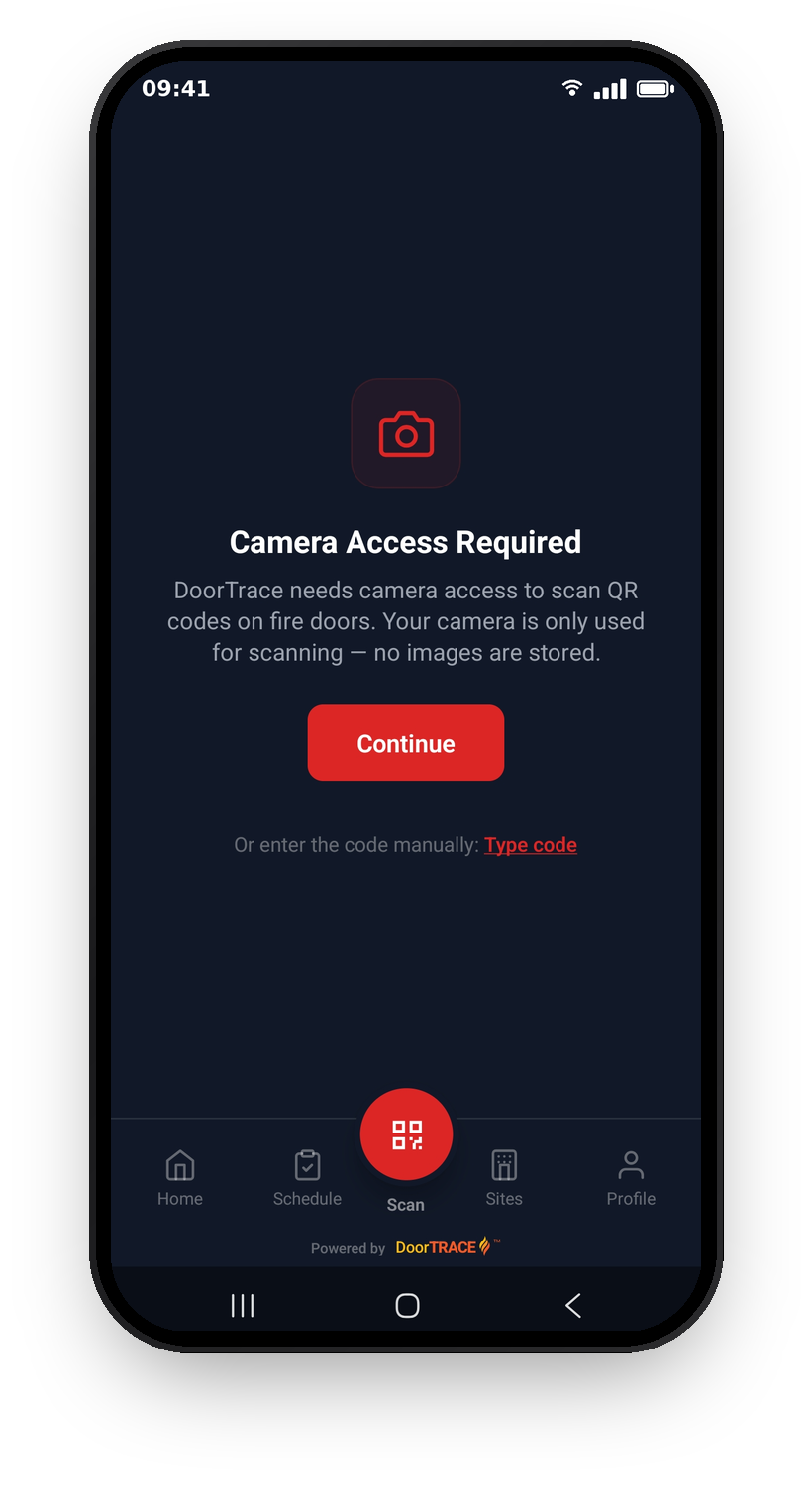
The first time you open the Scan tab, the app asks for camera access - tap Continue and allow it. The camera is essential to the job: scanning the tag on the door is part of the record that you were there, and the photos you capture during inspections form part of the legal evidence in reports.
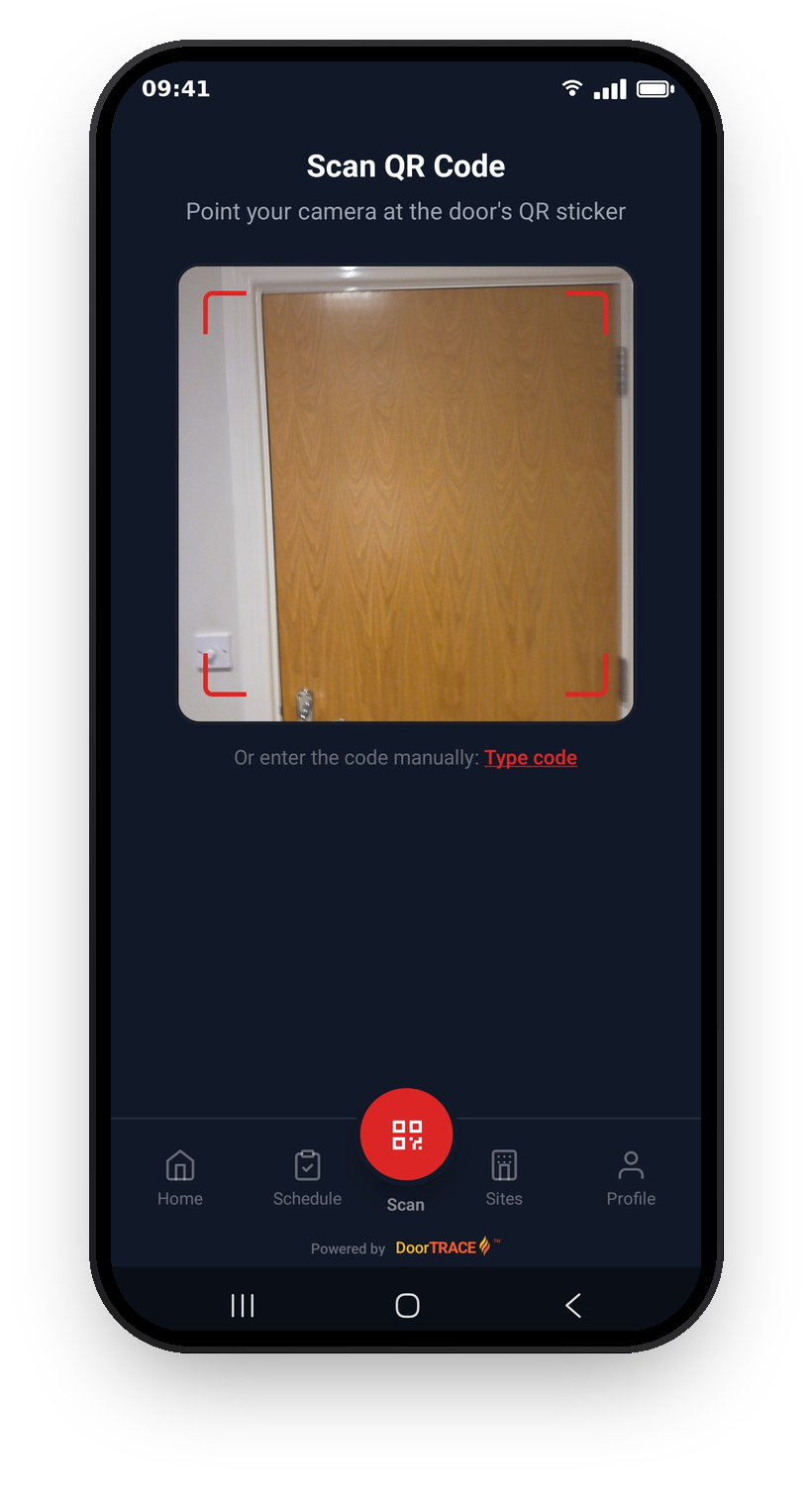
With camera access granted, tap the red Scan button in the middle of the tab bar and point your camera at the door's QR sticker - line it up inside the corner markers and the app reads it automatically.
Always scan when you can - the scan itself is part of the proof you were at the door. If a sticker is damaged or unreadable, tap Type code below the camera as a fallback. Enter the code printed below the QR sticker (the part after DT-) and tap Look Up. Type it exactly as printed, matching upper and lower case - the capital and small letters are part of the code, so DT-AbC123 and DT-ABC123 are different codes.
The door summary
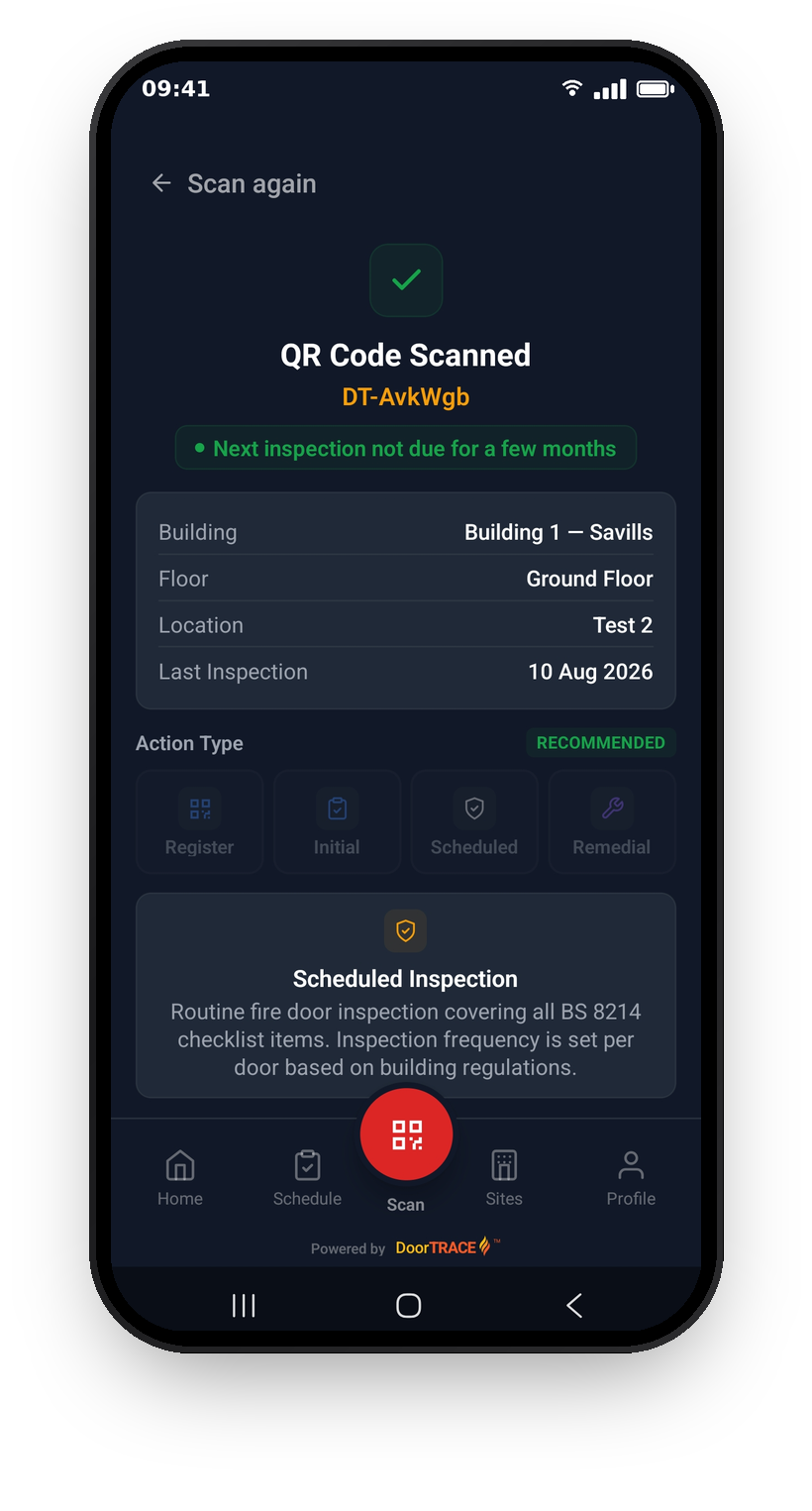
When the app recognises a registered door you'll see QR Code Scanned with the door's code, a badge explaining what needs doing, and the door's details: building, floor, location, and when it was last inspected.
Below that is the Action Type selector with four options - Register, Initial, Scheduled, and Remedial. The app pre-selects the right one for the door's situation and marks it Recommended:
- A brand new tag gets Register - putting a new door onto the system.
- A registered door that's never been inspected gets Initial - its first full inspection.
- A door with scheduled remedial work gets Remedial.
- Otherwise it's Scheduled - the routine inspection, available once the door is due (within the next 3 months) or overdue.
Options that don't apply are greyed out. Tap one and the app tells you why - for example "Already registered", "Needs initial inspection first", or that a defect's remedial work hasn't been scheduled in the portal yet.
Tap the big button at the bottom - Start Registration, Start Initial Inspection, Start Scheduled Inspection, or Start Post Remedial Inspection - to begin. Or tap Scan again at the top to go back.
Scanning a brand new tag
A tag that hasn't been put on a door yet comes up with Register selected and the badge "This door hasn't been registered yet". That's your cue to register the door - the Registering a door guide covers the whole flow.
Scanning a replaced tag
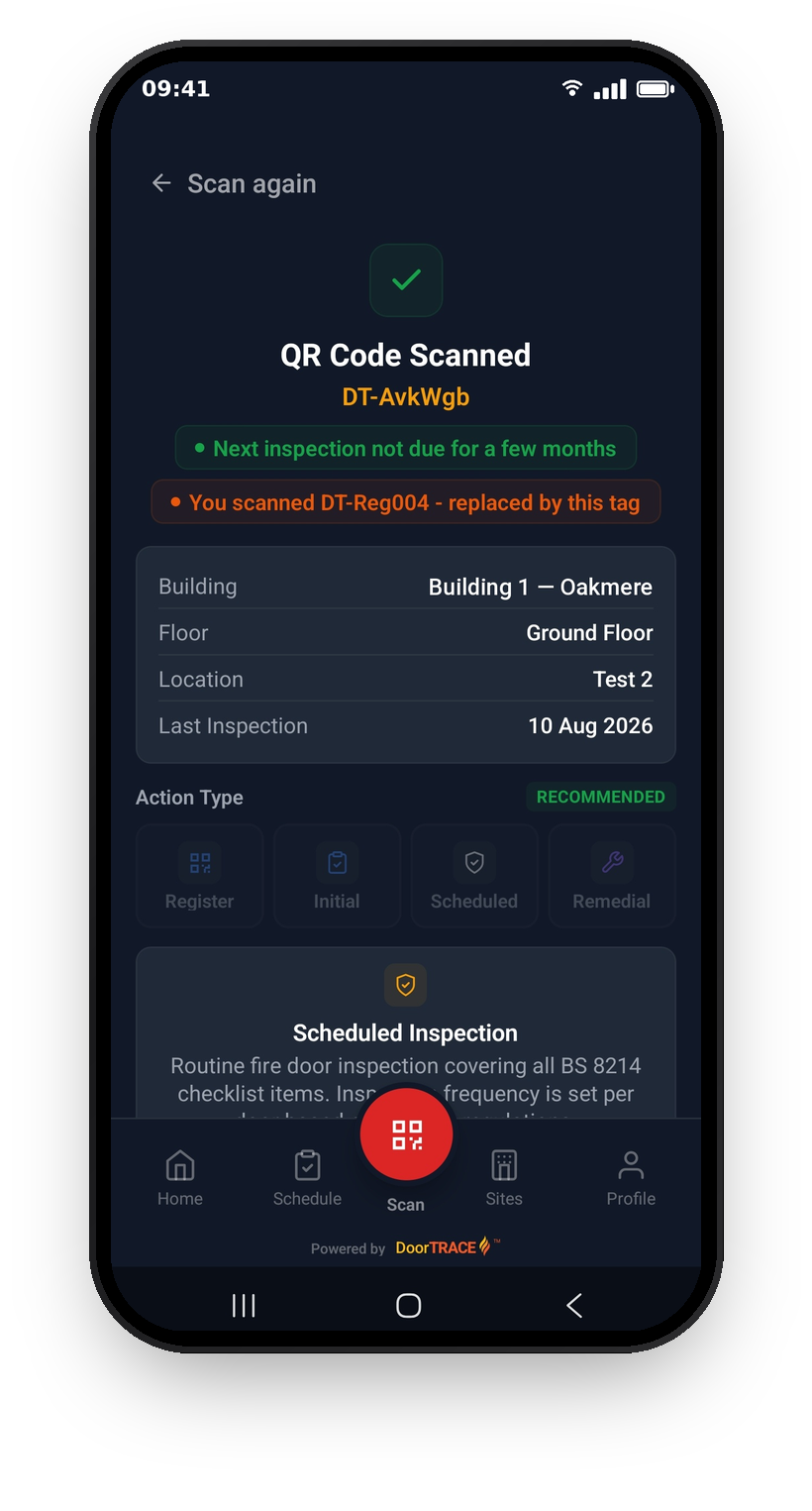
Sometimes a door's tag gets swapped for a new one, but the old sticker is still physically on the door. Scanning it still works: the app resolves it to the right door and shows an orange notice - "You scanned DT-XXXXXX - replaced by this tag". Everything you do from here is recorded against the door's current tag, so you can carry on as normal. It's worth removing the old sticker when you spot one. How a tag gets swapped in the first place is covered in Replacing a damaged QR tag.
Other results
- QR Code Not Recognised - the code wasn't issued by DoorTRACE, it doesn't belong to your organisation, or a typed code doesn't exactly match the printed one (check the upper and lower case letters). Check the sticker and try again.
- Wrong Organisation - the tag belongs to a door managed by a different company. You can only scan doors managed by the company you're signed in under - if you work with more than one, check you've picked the right company (see Getting started and signing in).
- Door Not Available Offline - you're offline and this door isn't in your downloaded data. Connect to the internet, or download offline data from the Home screen before you go into the building - the Offline mode and sync guide covers this.
What's next
The most common job on a brand new tag is putting a door onto the system. The next guide, Registering a door, walks through it end to end.
Still can't find the answer?
Send us a message and we'll help. We respond within one working day.