Engineer App guides
Engineer App · Getting started
Your dashboard
Last updated 10 Aug 2026
When you sign in you land on the Home tab. It's your control centre: which company you're working for, whether your completed work has uploaded, and whether you're ready to work somewhere without signal. This guide walks through everything on it.
Getting around
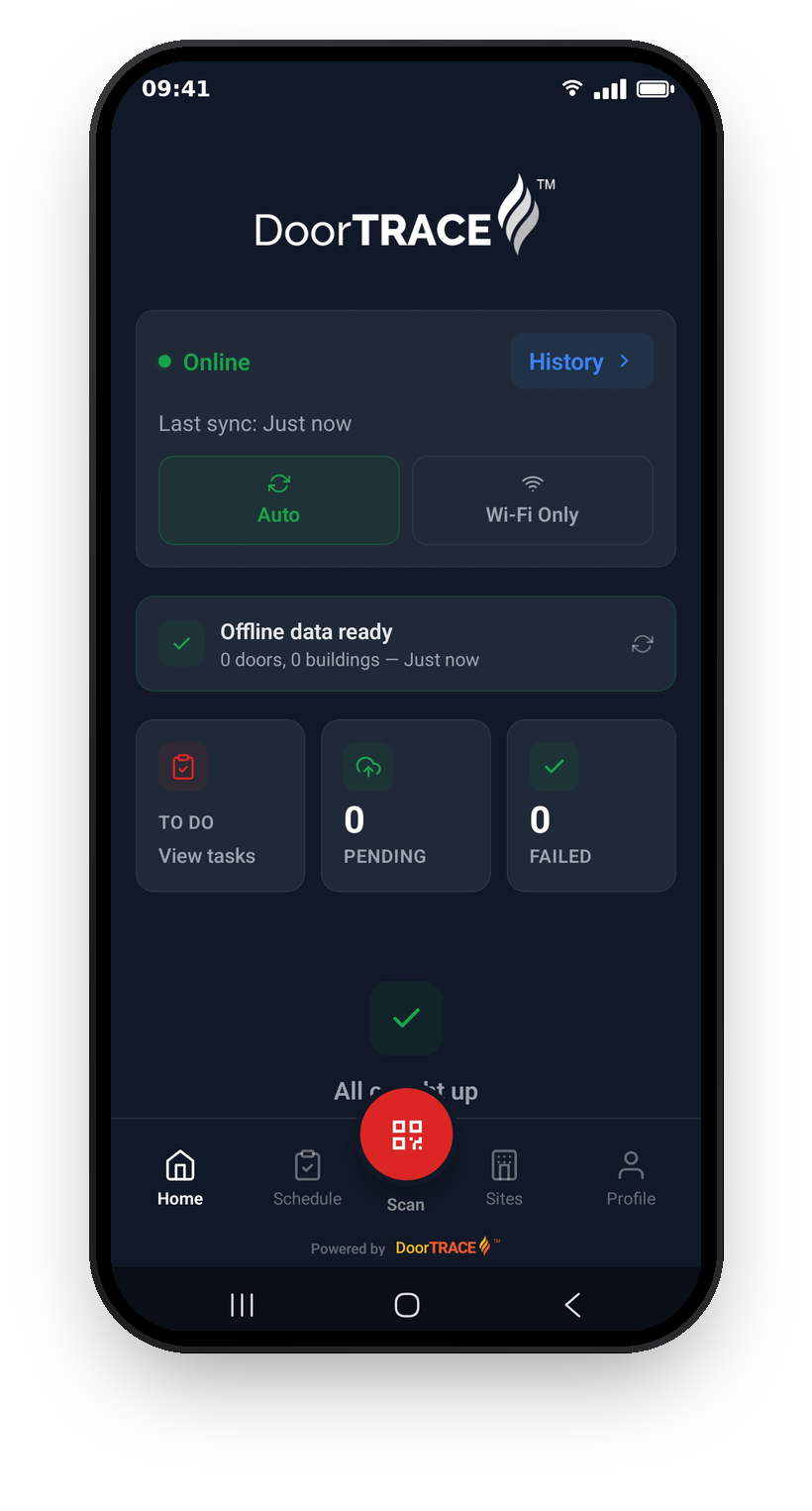
The bar at the bottom has five tabs:
- Home - this screen
- Schedule - your task list: what's due and overdue
- Scan - the raised red button in the middle. Scanning a door's QR tag is how most work starts
- Sites - the clients and buildings you can work in
- Profile - your details, documents, and settings
At the top of Home you'll see the logo (or name) of the company you're currently working under. If you work with more than one company, this is the quickest way to check which one you're signed in to.
Pull down anywhere on the screen to refresh.
The sync panel
The panel below the company name tells you whether your work is safely uploaded:
- The dot and label show Online or No Connection.
- Last sync shows when the app last talked to the platform. A badge appears next to it when items are waiting to upload, and if it says "Stale - tap to refresh", tap it to fetch fresh data.
- Auto and Wi-Fi Only control when uploads happen. Auto uploads whenever you have any connection. Wi-Fi Only holds everything until you're on Wi-Fi, so a day of inspection photos doesn't go through your mobile data.
- History opens the full sync log.
Offline data
Below the sync panel is the offline data card. Fire doors are often in basements and risers with no signal, so the app pre-downloads your buildings and doors. The card shows the current state - Offline data ready with a count of doors and buildings and when they were downloaded, Offline data stale when it's time to refresh, or Offline data not downloaded. Tap the card at any time to download or refresh. The Offline mode and sync guide covers working offline in full.
The three cards
- TO DO opens your Schedule tab - the same as tapping Schedule in the bar.
- PENDING counts completed work still waiting to upload.
- FAILED counts items that couldn't upload after several attempts. Zero is what you want to see here.
Pending uploads and Sync Now
When you've completed work that hasn't uploaded yet, a Pending Upload list appears below the cards showing each item - inspections, registrations, remedial work, and tag replacements - with the door code, building, and a status: Waiting, Uploading, or Failed with a retry count.
Tap Sync Now to upload immediately. If you're in Wi-Fi Only mode without Wi-Fi, the app asks Use Mobile Data? first - Sync Anyway uploads over mobile data, Cancel keeps waiting for Wi-Fi.
When everything has uploaded you'll see All caught up instead. Completed work appearing here and then moving to synced is normal - it means the app is doing its job.
Sync History
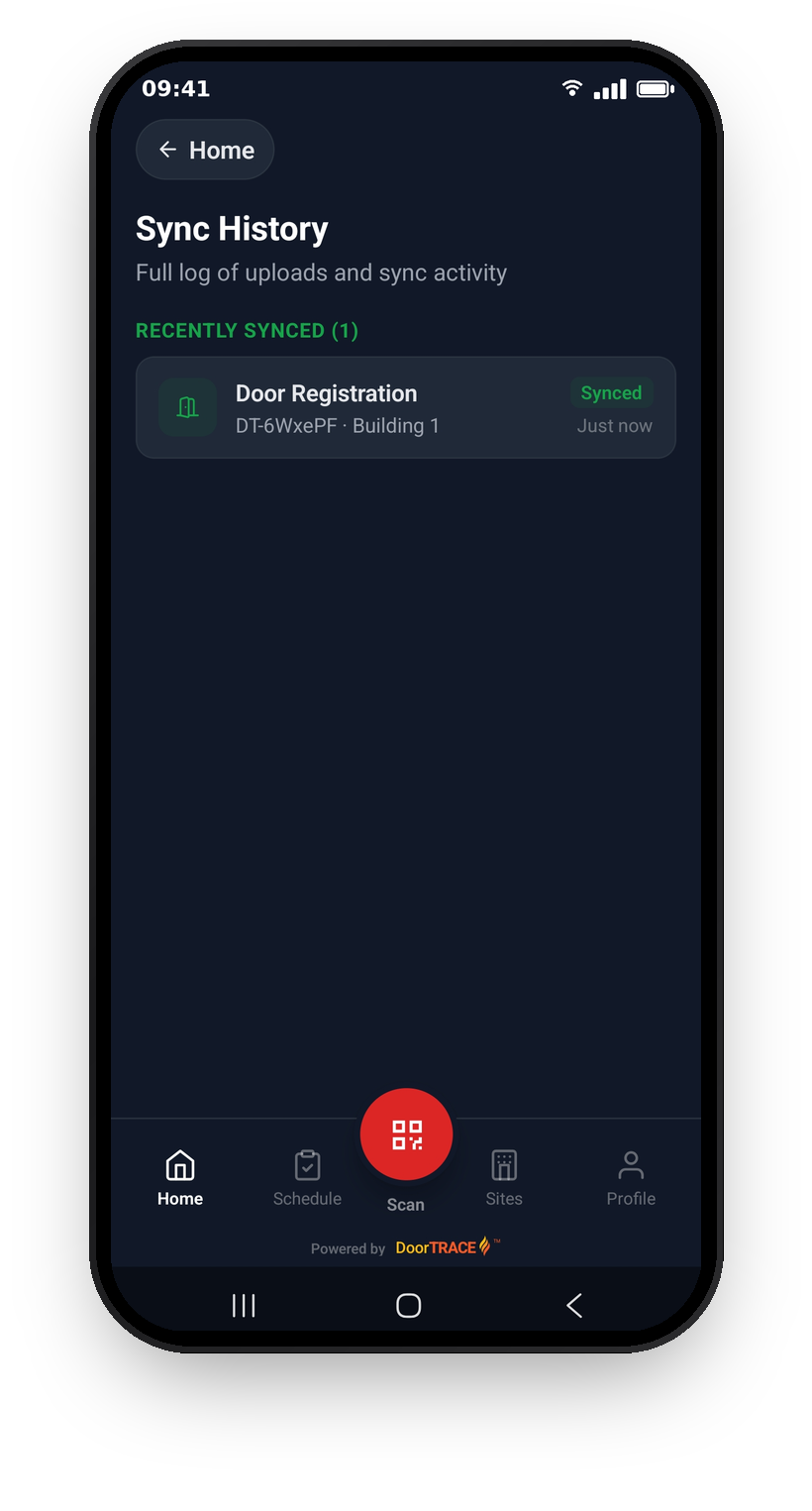
Tap History in the sync panel for the full log: anything still pending at the top, then everything recently synced with when it went up. If you ever need to confirm a particular inspection made it to the platform, this is where to look. Before you've completed any work it simply shows "No sync activity yet".
Tap Home at the top to go back.
What's next
Most jobs start at a door. The next guide, Scanning QR tags, covers the Scan button and what each scan result means.
Still can't find the answer?
Send us a message and we'll help. We respond within one working day.