Engineer App guides
Engineer App · QR tags and doors
Replacing a damaged QR tag
Last updated 17 Aug 2026
QR tags live a hard life on a fire door. Stickers get scratched, fade in sunlight, or peel - and sometimes the whole door gets replaced. When that happens you swap the tag for a fresh plaque. The door's record, history, photos, and inspection schedule all stay exactly where they are: only the tag changes. This guide covers the whole flow, including how to unlock it - tag replacement is deliberately tucked behind a hidden gesture so it can never happen by accident.
Before you start
- You need a fresh, unused plaque. The app checks the new tag before you can go any further and refuses one that's already on a door.
- The door must already be registered. A tag that was never put on a door has nothing to replace - if that's your situation, you want the Registering a door guide instead.
- Replacing a tag never touches the door itself. If the record is wrong (wrong building, wrong location), that's fixed in the portal, not by retagging.
Opening Tag Replacement mode
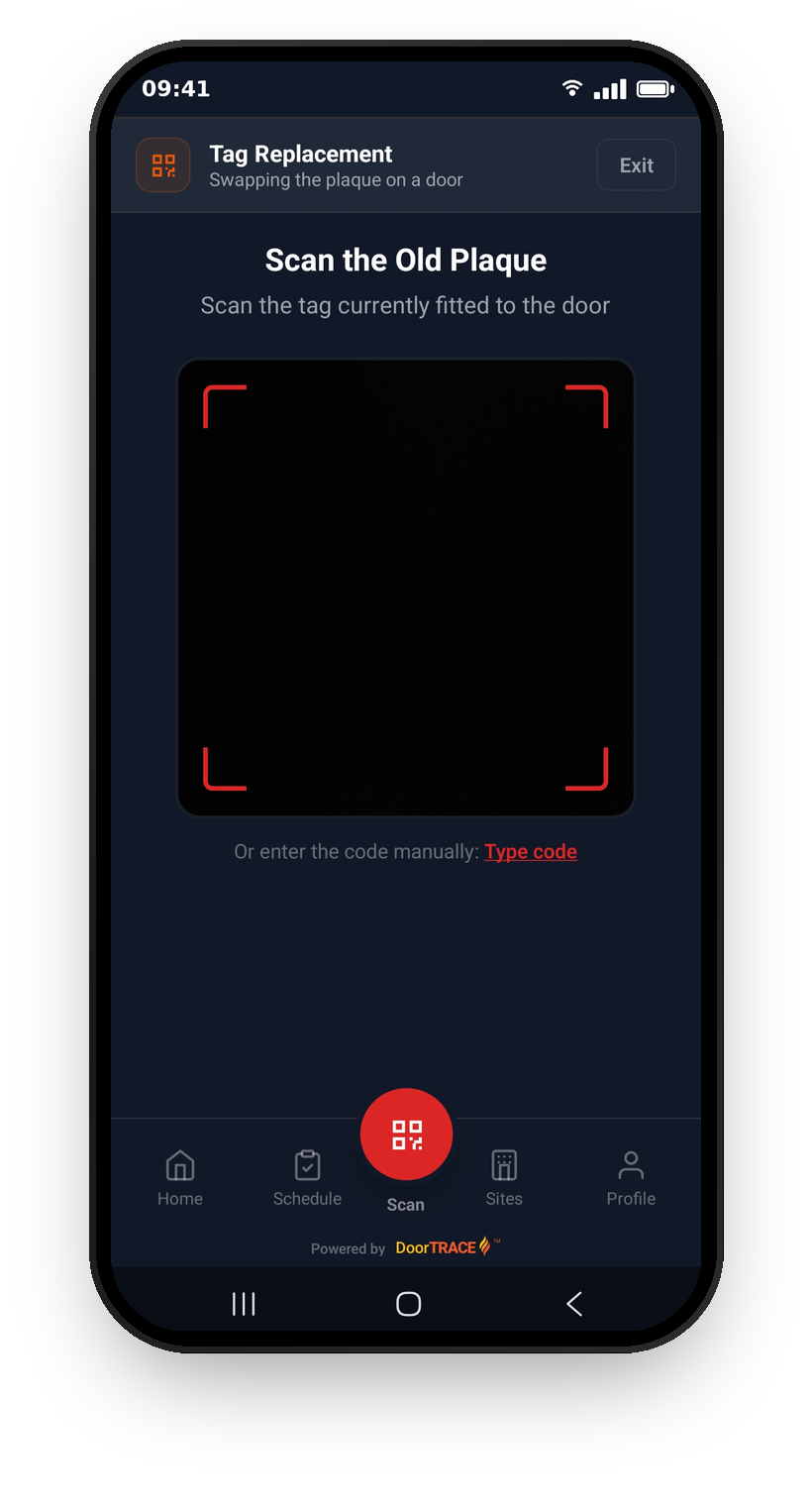
There's no menu entry for this - it's opened with a hidden gesture, so a stray tap can't retire a working tag. On the Scan tab, tap the blank space below the camera box 5 times within 3 seconds. An orange Tag Replacement header appears at the top of the screen - "Swapping the plaque on a door" - with an Exit button to leave the mode at any time.
The mode always starts switched off. If you move to another tab and come back, the header will be gone - just tap 5 times again.
Scanning the old tag
With the mode on, the scan screen changes to Scan the Old Plaque - scan the tag currently fitted to the door whose plaque you're swapping. If the old sticker is too damaged to scan, tap Type code below the camera and enter the code printed under the QR instead.
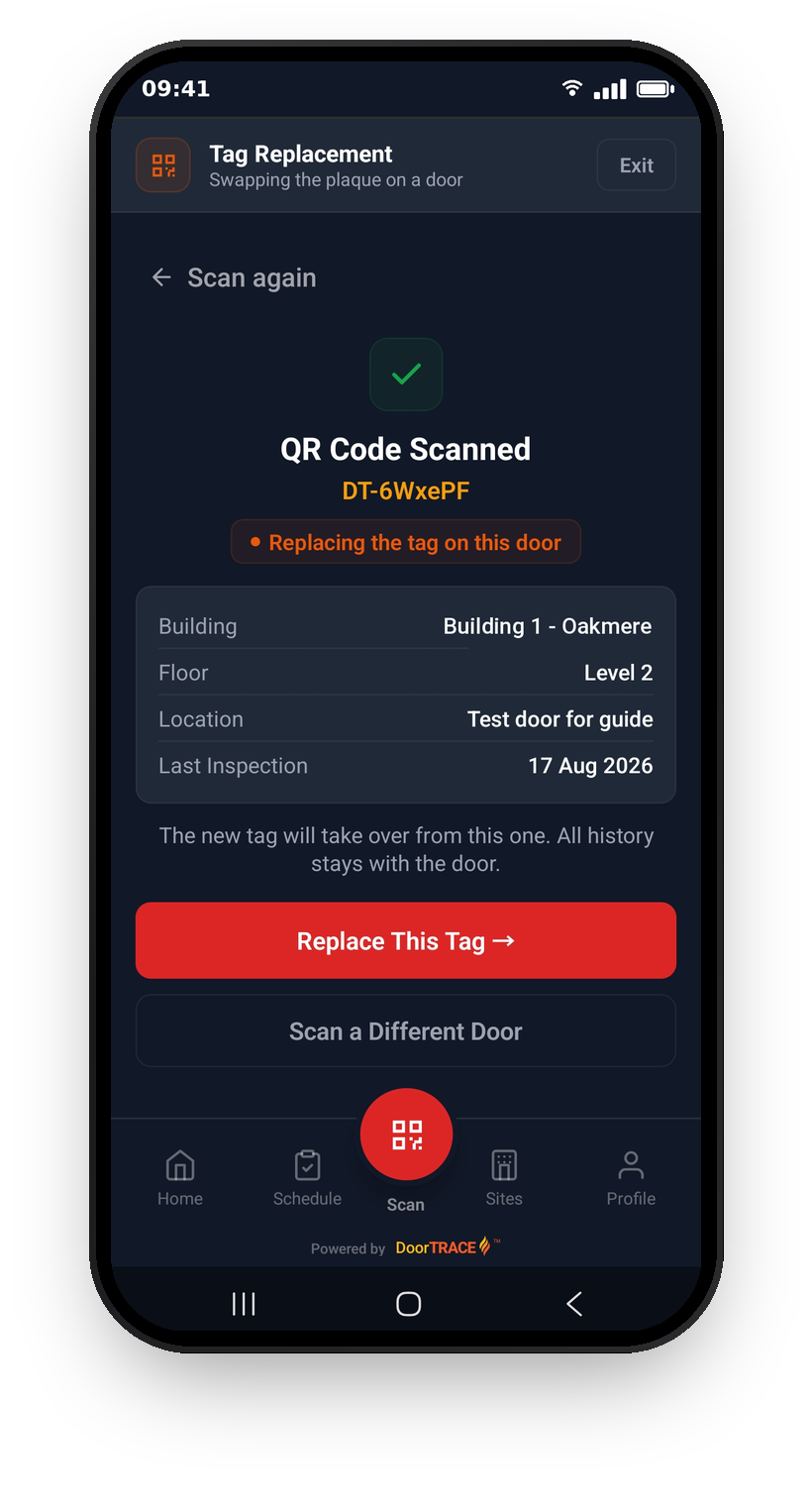
The app looks the door up and shows QR Code Scanned with an orange badge - "Replacing the tag on this door" - and the door's details: building, floor, location, and when it was last inspected. Check it's the right door, then tap Replace This Tag to continue, or Scan a Different Door to go back.
Two situations worth knowing about:
- If the tag isn't registered to a door, you'll see Tag Not On A Door - there's nothing to replace, so scan the tag that's actually fitted to the door you want to swap.
- If the sticker you scanned was itself replaced in the past, the app still resolves it to the right door and shows "You scanned DT-XXXXXX - replaced by this tag". The replacement is recorded against the door's current tag, so you can carry on as normal.
Scanning the new plaque
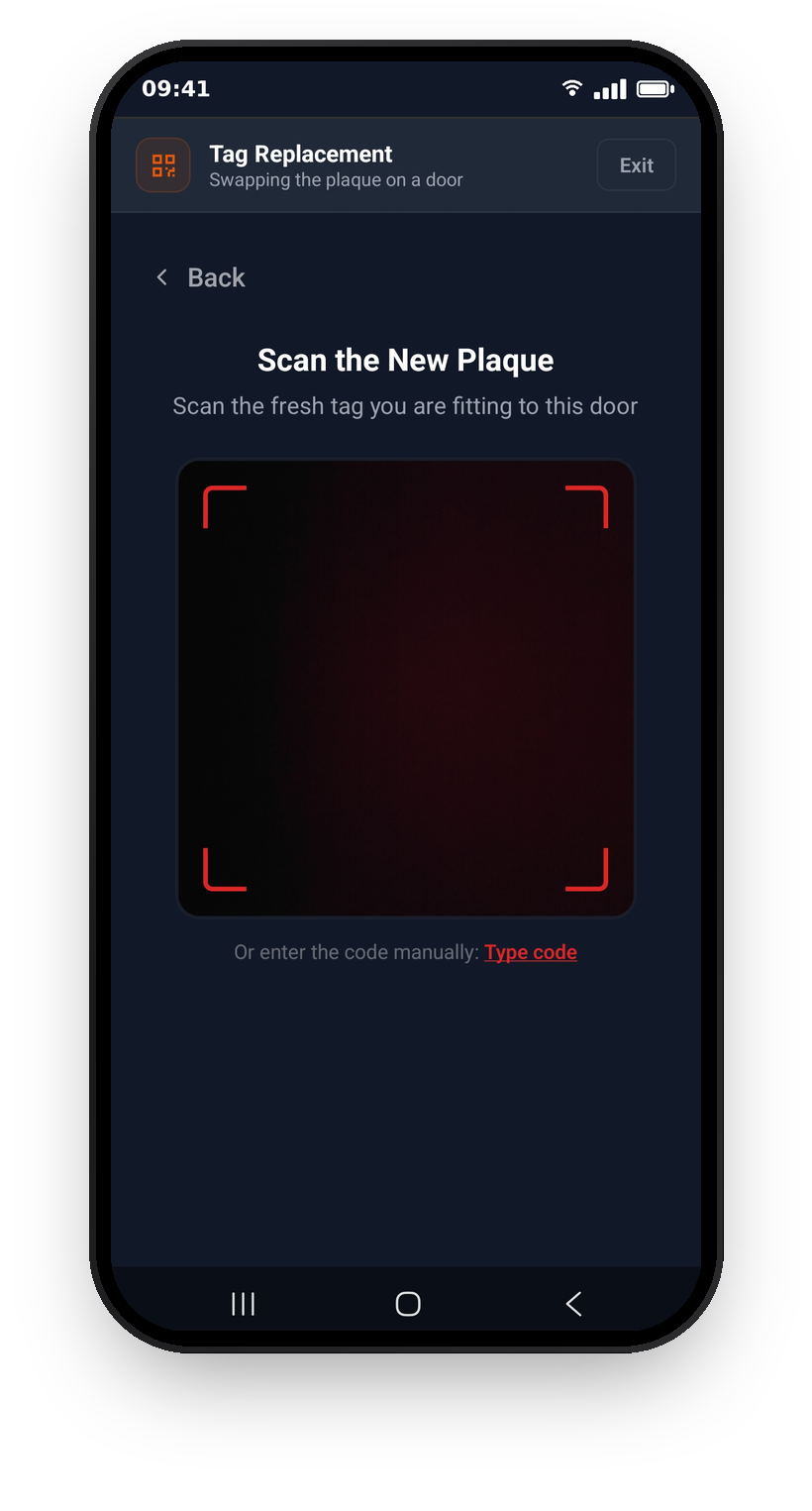
Next, scan the fresh tag you're fitting to the door - or tap Type code and enter it manually. The app checks the plaque is genuinely unused before letting you continue. Scanning the tag that's already on the door gets you Same Plaque Scanned; a plaque that's already registered elsewhere gets Plaque Not Available - use a fresh one.
This check works offline too: the app validates the plaque against your downloaded list of spare plaques, so you can replace tags in a basement with no signal. If a plaque isn't in your downloaded list, the app plays it safe and asks you to use a different one or reconnect.
Step 1 - Reason
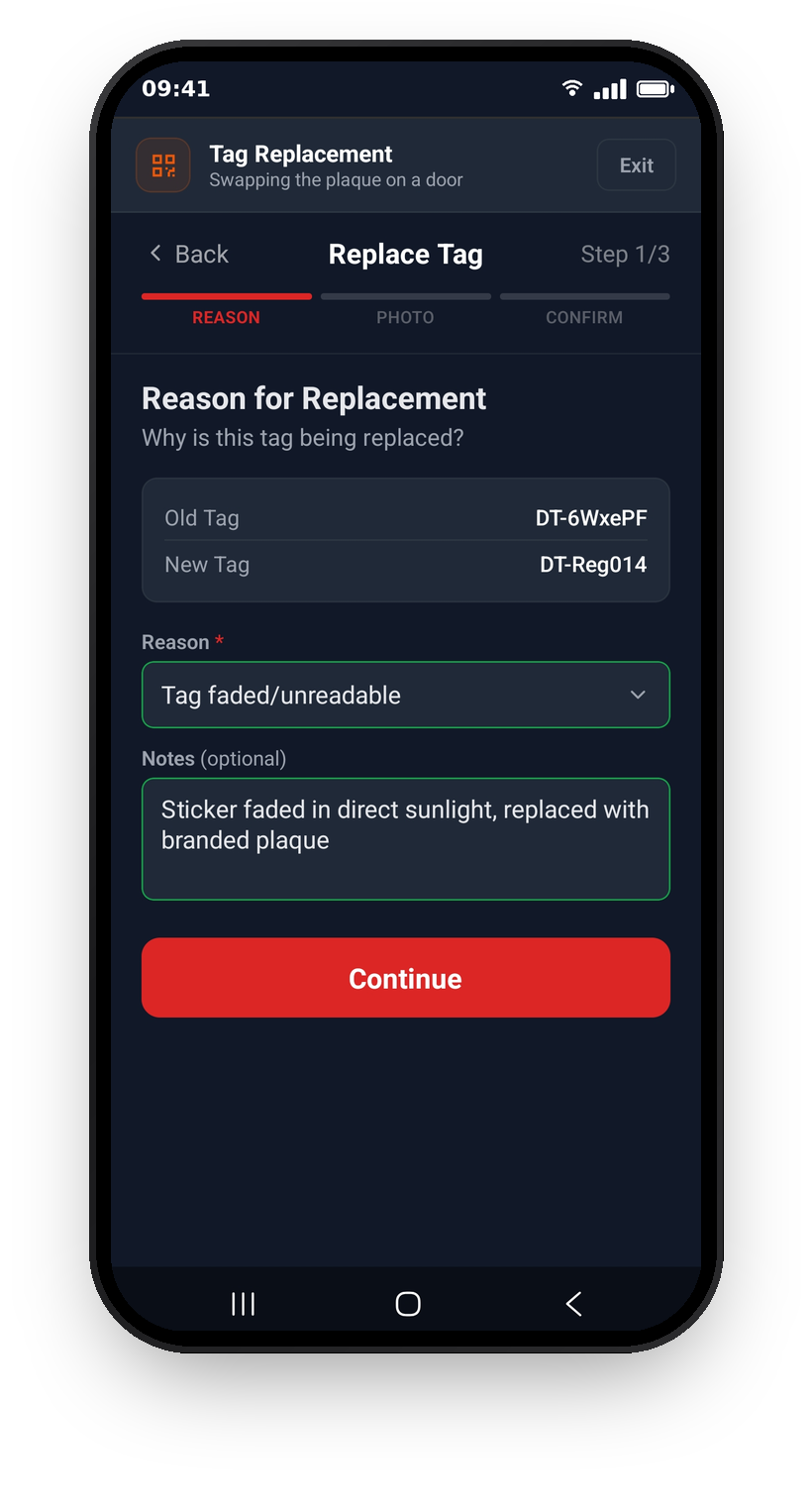
The wizard is headed Replace Tag and has three steps: Reason, Photo, and Confirm. You can go back with Previous at the top left without losing anything.
The first step shows the swap - Old Tag and New Tag side by side - and asks why the tag is being replaced. Pick from the Reason dropdown: New Plaque, Tag damaged, Tag faded/unreadable, Door replaced, or Other. Notes are optional unless the reason is Other, in which case a short note is required - the reason and notes go on the door's permanent record, so a line like "Old sticker peeling at the corner, replaced with branded plaque" is exactly right.
Step 2 - Photo
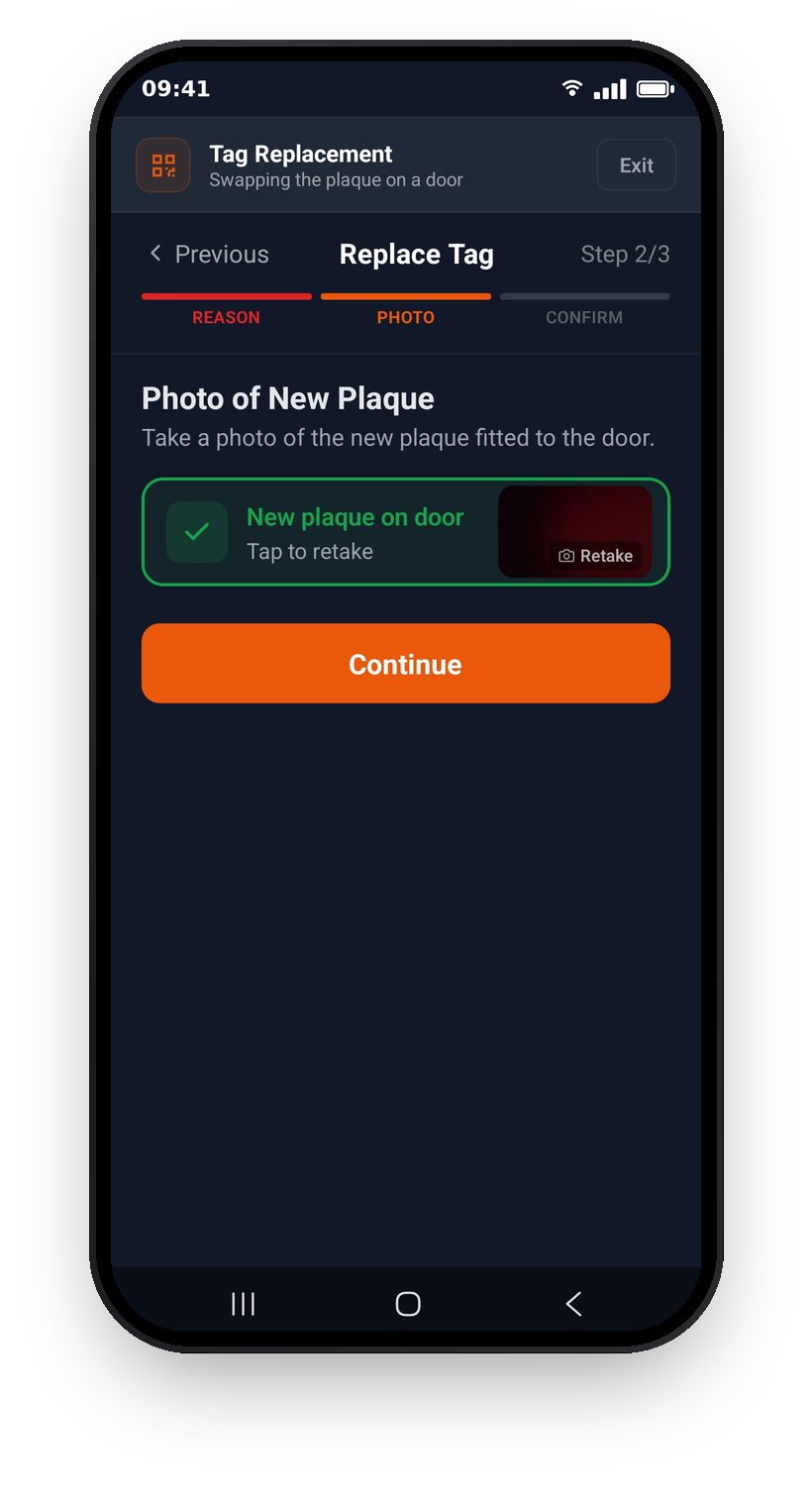
One required photo: a close-up of the new plaque fitted to the door. Tap the New plaque on door row to take it - the row turns green with a thumbnail once it's captured, and you can tap again to retake. This photo is the evidence that the new tag is physically on the door.
Step 3 - Confirm and sign
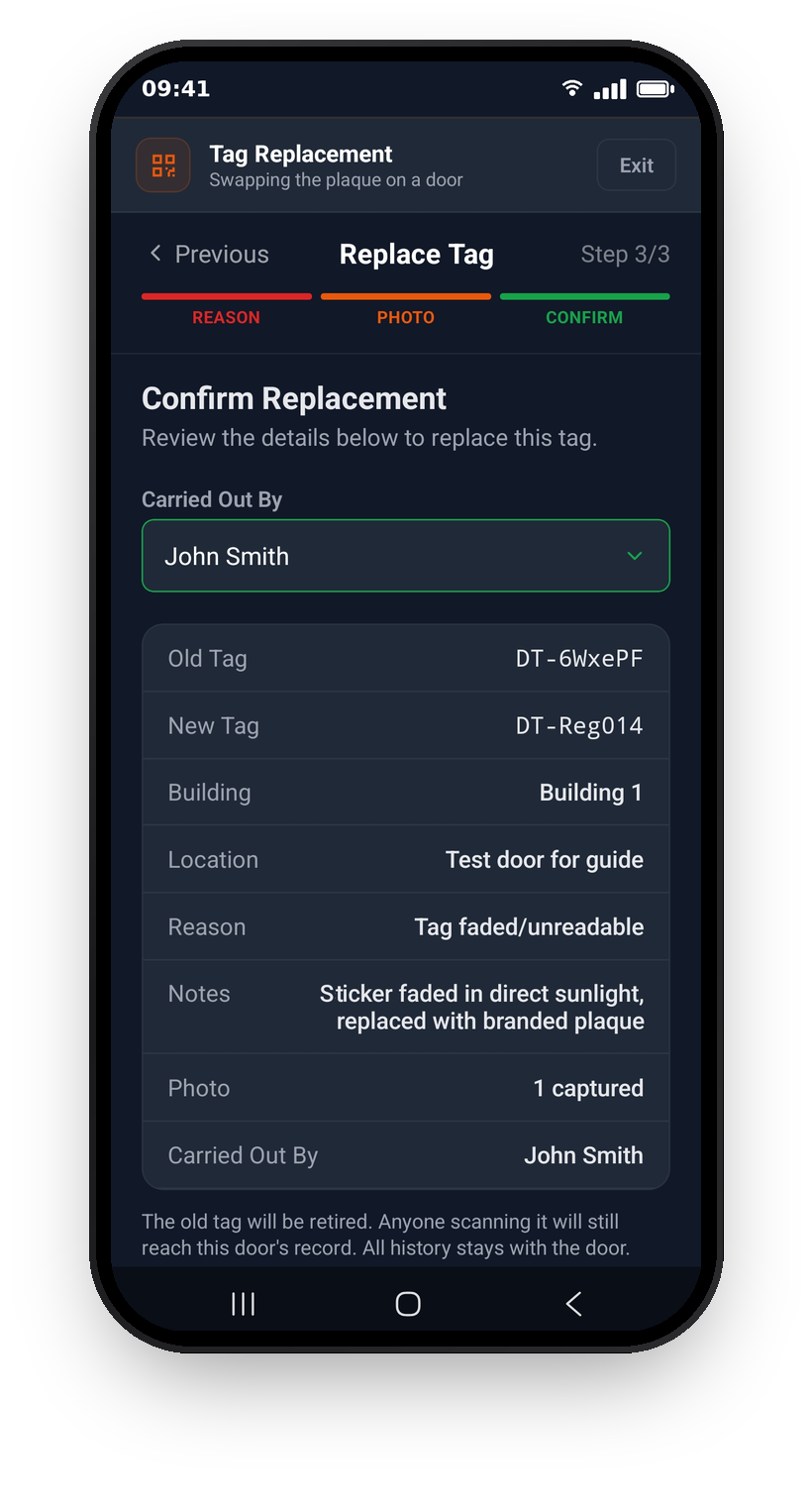
The final step shows Carried Out By and a summary of the whole replacement: old tag, new tag, building, location, reason, notes, photo, and the name carrying it out. If more than one authorised name is set up, Carried Out By is a dropdown - pick the right one. Below the summary the app spells out what's about to happen: the old tag will be retired, anyone scanning it will still reach this door's record, and all history stays with the door.
Scroll down to the Signature box and draw your signature - by signing you confirm the tag was replaced by you and the details above are accurate. Tap Clear signature for a second attempt if needed, then tap Replace Tag.
Important: Leaving the wizard part-way through discards the replacement. The app warns you first - "Leave Tag Replacement?" - but there's no draft saved, so finish a replacement in one go.
After the swap
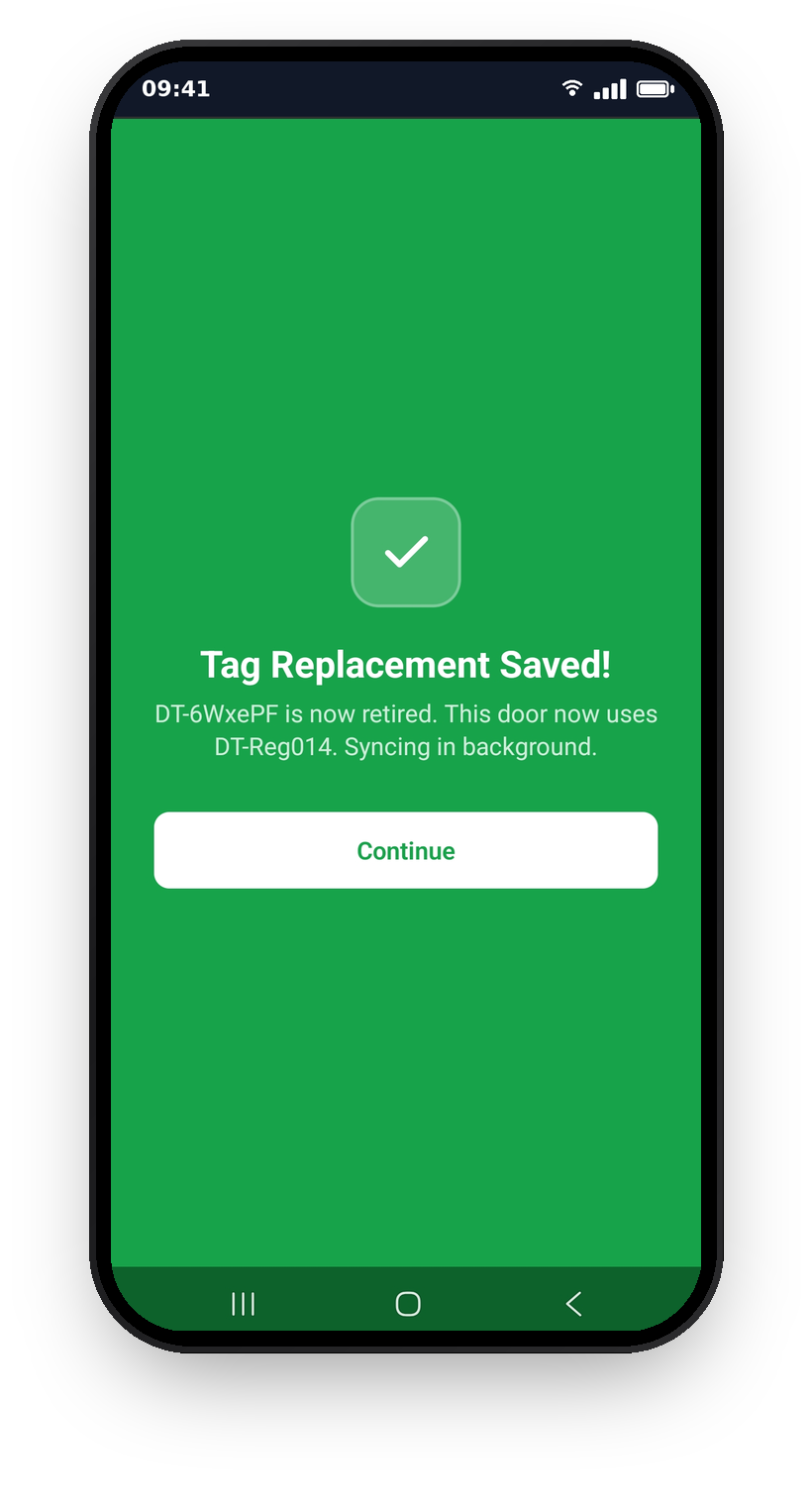
A green Tag Replacement Saved! screen confirms it. Connected, you'll see the swap spelled out - the old code is now retired and the door now uses the new one, syncing in the background. Offline, it says "Saved to device. Will sync automatically when connected" and uploads itself next time you have signal.
From this point the door answers to its new tag, even before the sync completes - scanning either code on your device resolves correctly. The old tag is retired for good: it can never be reused on another door, but anyone who scans a leftover old sticker still reaches this door's record. It's worth peeling the old sticker off when you fit the new plaque, so there's only one tag on the door.
The replacement itself becomes part of the door's permanent record - the reason, your photo, your signature, and the name that carried it out - which is exactly the kind of change history the Golden Thread is about.
If something goes wrong
- Plaque Not Available - the new tag is already registered to a door, or you're offline and it isn't in your downloaded list of spare plaques. Use a different plaque, or connect and try again.
- Same Plaque Scanned - you scanned the tag that's already on the door. Scan the fresh plaque you're fitting instead.
- QR Code Not Recognised - the code wasn't issued by DoorTRACE or doesn't belong to your organisation. Check the plaque and try again.
- The orange header has disappeared - you left the Scan tab. Tag Replacement mode always starts switched off, so tap the blank space below the camera 5 times to turn it back on.
What's next
Tag replacement works fully offline, right down to checking the spare plaque against your downloaded data. The Offline mode and sync guide covers how to set that up before you head into a building with no signal.
Still can't find the answer?
Send us a message and we'll help. We respond within one working day.