Engineer App guides
Engineer App · Your account
Certifications and insurance documents
Last updated 17 Aug 2026
DoorTRACE keeps a record of your certifications and insurance policies, and the app shows you their status at a glance. This guide covers where to find your documents, how the expiry warnings work, how renewal reminders reach you, and what happens if your documents lapse.
Where to find your documents
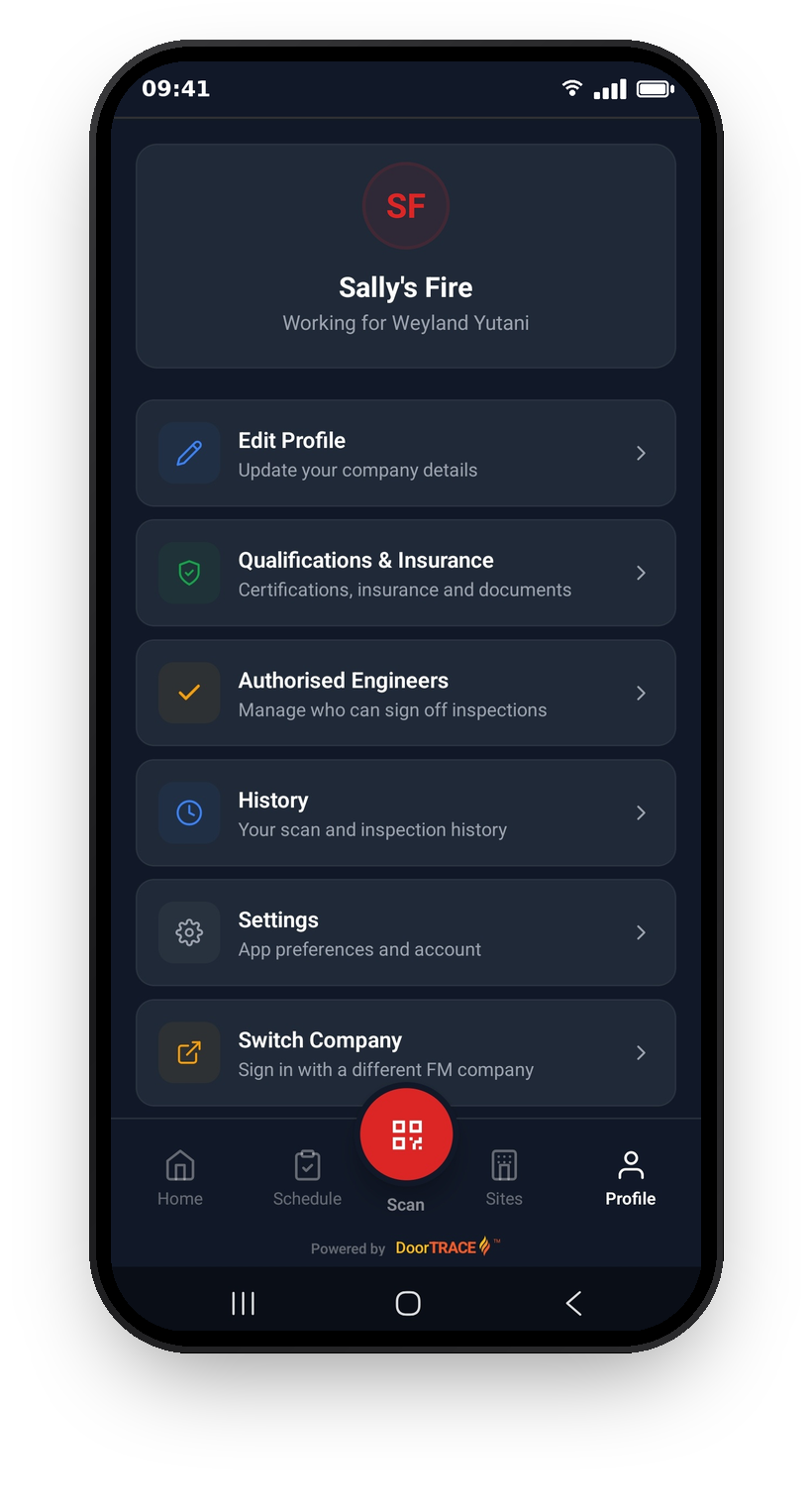
Open the Profile tab and tap Qualifications & Insurance (labelled "Certifications, insurance and documents"). This opens a screen listing every certification and insurance policy DoorTRACE holds for you. You cannot edit these in the app: documents are added and updated by the DoorTRACE compliance team, so what you see here is the record the companies you work with see too. If something looks wrong or out of date, email compliance@doortrace.co.uk with the correct document.
Your certifications
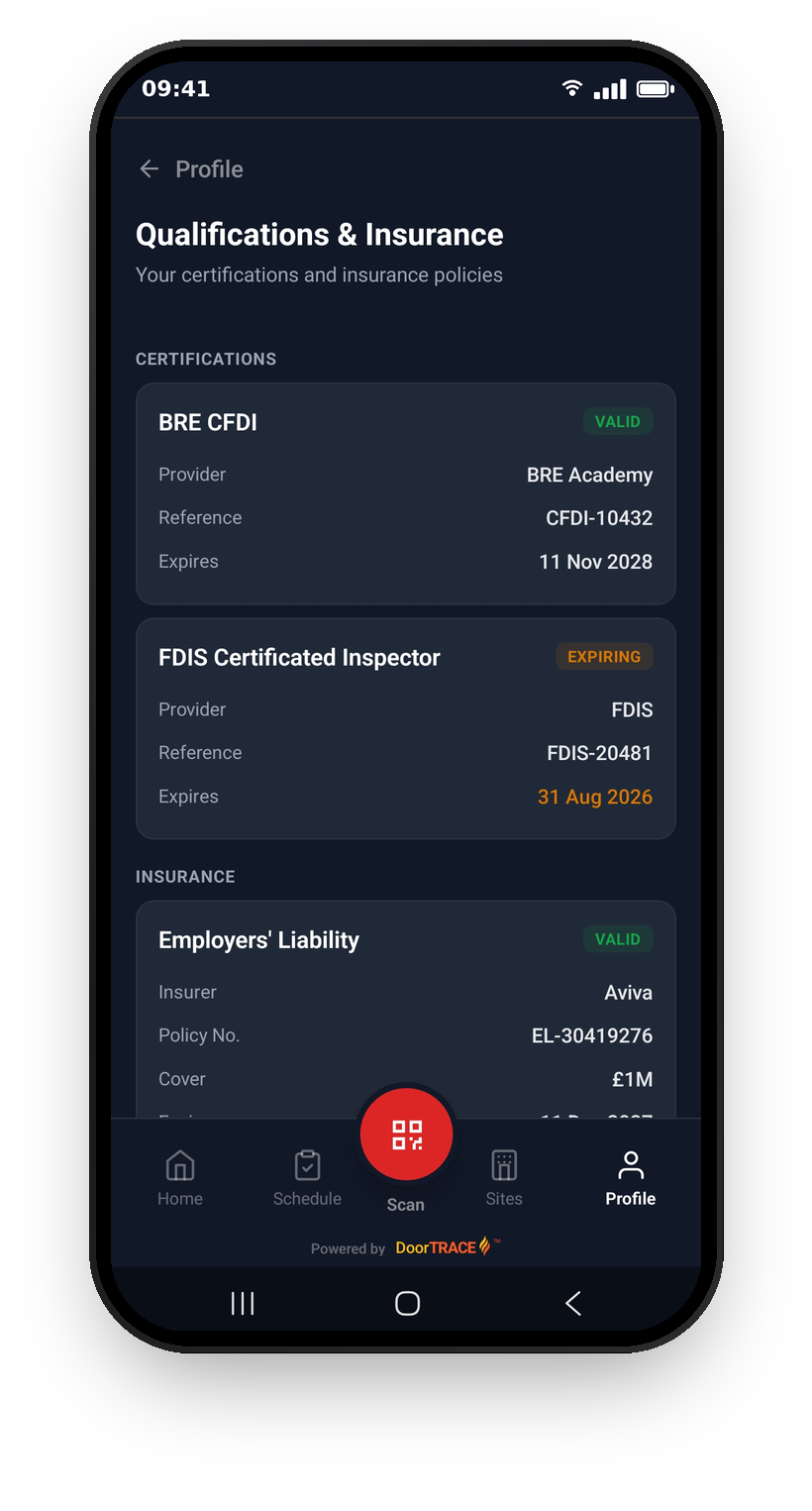
The Certifications section shows one card per certification, with the provider, the reference number, and the expiry date. Each card carries a status badge: green VALID, amber EXPIRING when the expiry date is within the next 30 days, or red EXPIRED once the date has passed. The expiry date itself turns amber or red to match, so a document that needs attention stands out as soon as you open the screen.
Your insurance policies
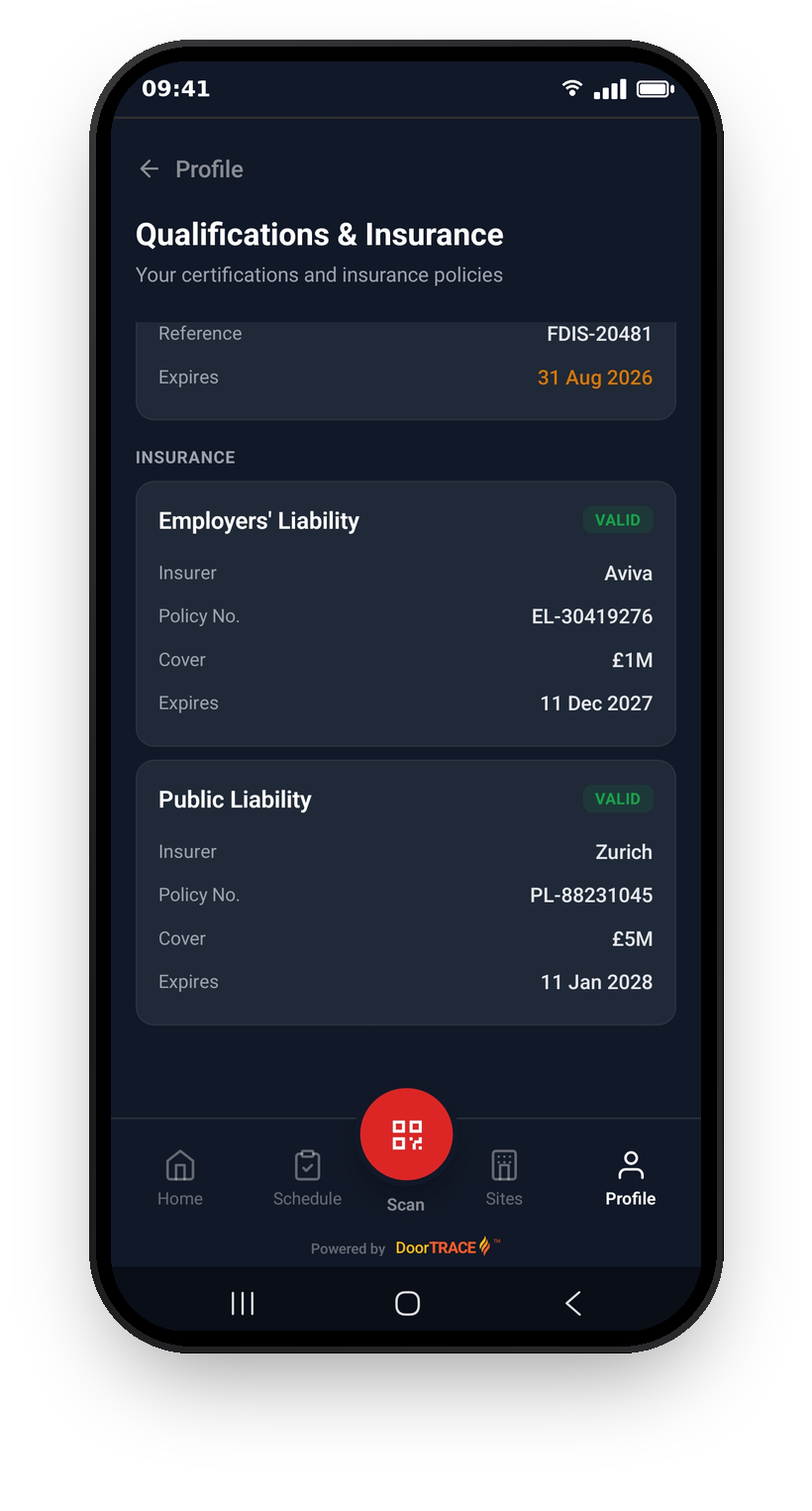
The Insurance section works the same way. Each policy card shows the insurer, the policy number, the cover amount, and the expiry date, with the same VALID, EXPIRING, and EXPIRED badges. Cover amounts are shown in shortened form, so a £5,000,000 policy appears as £5M. The companies you work with can set their own insurance requirements, so keeping these records current matters for staying eligible for work.
When a document is close to expiry
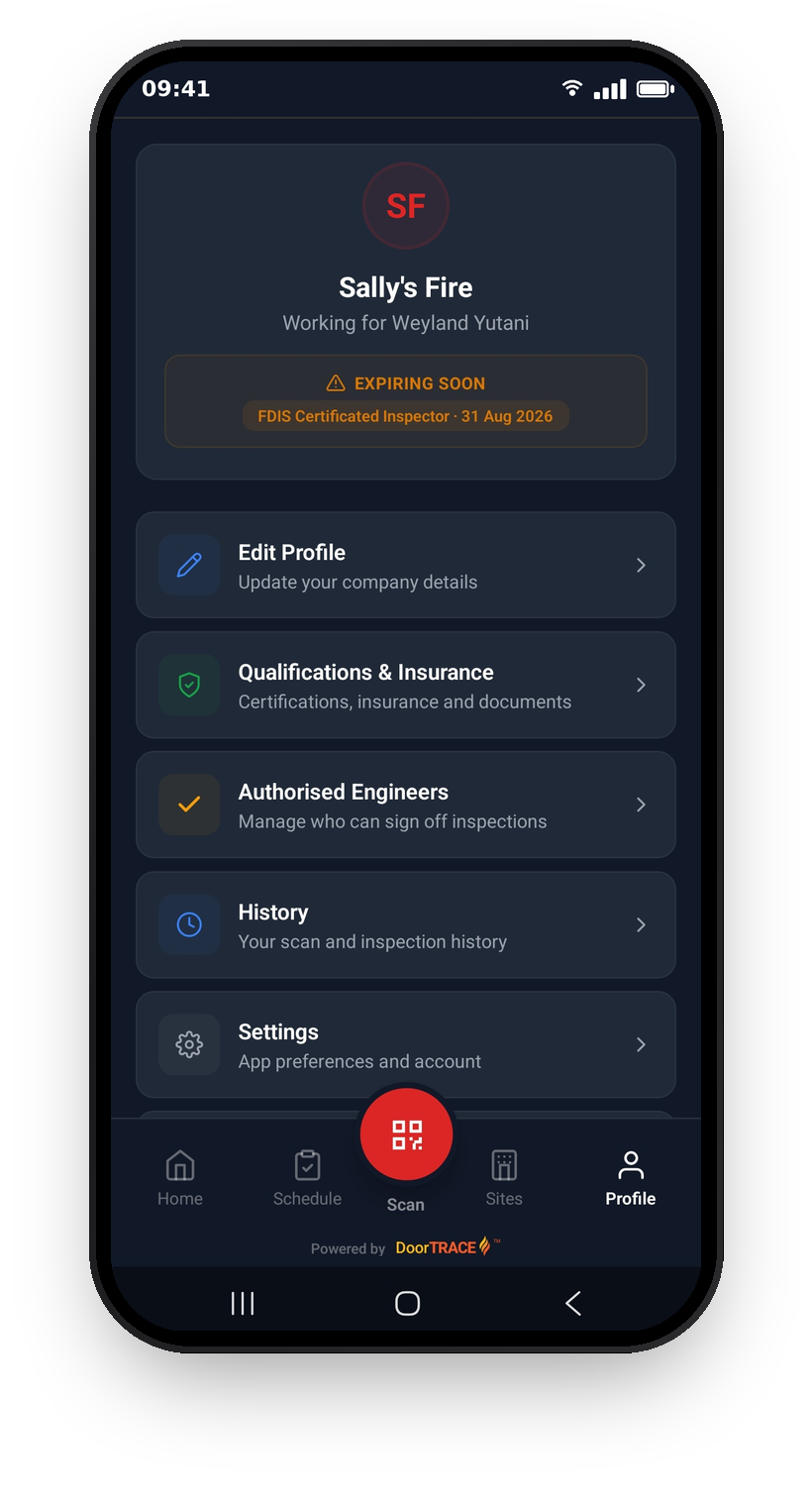
When any document is within 30 days of expiry, a banner appears at the top of your Profile screen listing each affected document and its expiry date. An amber EXPIRING SOON banner means everything listed is still in date but running out; a red banner appears once something has actually expired, labelled EXPIRED, or ACTION REQUIRED if expired and expiring documents are shown together. Tap the banner to jump straight to Qualifications & Insurance.
Renewal reminder emails
You do not need to watch the app to catch a renewal. For every document with an expiry date, DoorTRACE emails you from compliance@doortrace.co.uk at 30 days, 15 days, and 5 days before expiry, with a final reminder on the day itself. The warning emails are titled "Your [document type] expires in 30 days - please send a renewal" (with the matching number of days), and the final one "Your [document type] expires today - please send a renewal". Reply to any of them with a copy of your renewed document, or send it to compliance@doortrace.co.uk, and your record will be updated.
If your documents lapse
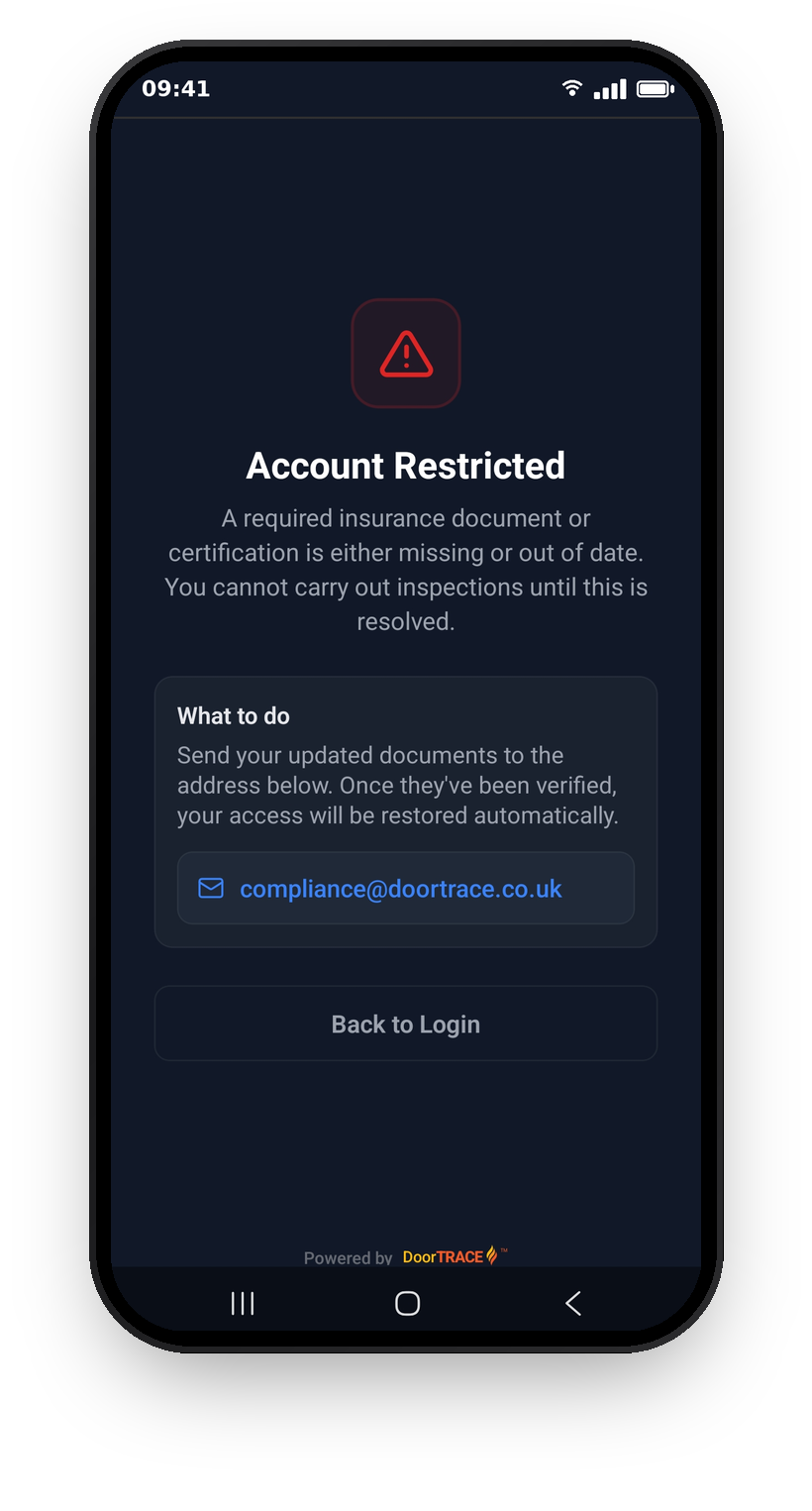
You need at least one in-date certification and at least one in-date insurance policy to carry out inspections. If either category is missing or entirely out of date, the app shows the Account Restricted screen when you tap Scan, instead of opening the camera. The screen explains what to do: send your updated documents to compliance@doortrace.co.uk (the email address on screen is tappable and opens your mail app), and once they have been verified your access is restored automatically. Back to Login returns you to the sign-in screen.
If you have no certifications or no insurance on file at all, you will also be unable to sign in until a replacement document has been added.
Important: existing records are never affected. A restriction only stops new work; your completed inspections and history stay exactly as they are.
Tip: this rule does not apply to engineers whose company runs DoorTRACE. Their company is responsible for its own people, so their access is not gated on uploaded documents.
Other emails you might receive
A few other document emails come from compliance@doortrace.co.uk. If your access is paused because a document category has dropped off your file, you will get an email titled "Your DoorTRACE access has been paused". When a company you work with approves your documents, you will get "Approved by [company name]". If a company declines a document during review, you will get "Document review update from [company name]", which includes the reason so you know what to fix.
What's next
Your documents are first collected when you join DoorTRACE. If you are new to the platform, Getting started and signing in covers sign-up and your first login.
Still can't find the answer?
Send us a message and we'll help. We respond within one working day.