Engineer App guides
Engineer App · Your account
Your authorised engineers
Last updated 24 Aug 2026
When the app records who carried out or signed off a piece of work, it offers a list of names to choose from: your authorised engineers. You manage this list yourself, straight from the app, and every change is confirmed with your password. This guide covers how to add and remove names, and everywhere they appear.
Where to find the list
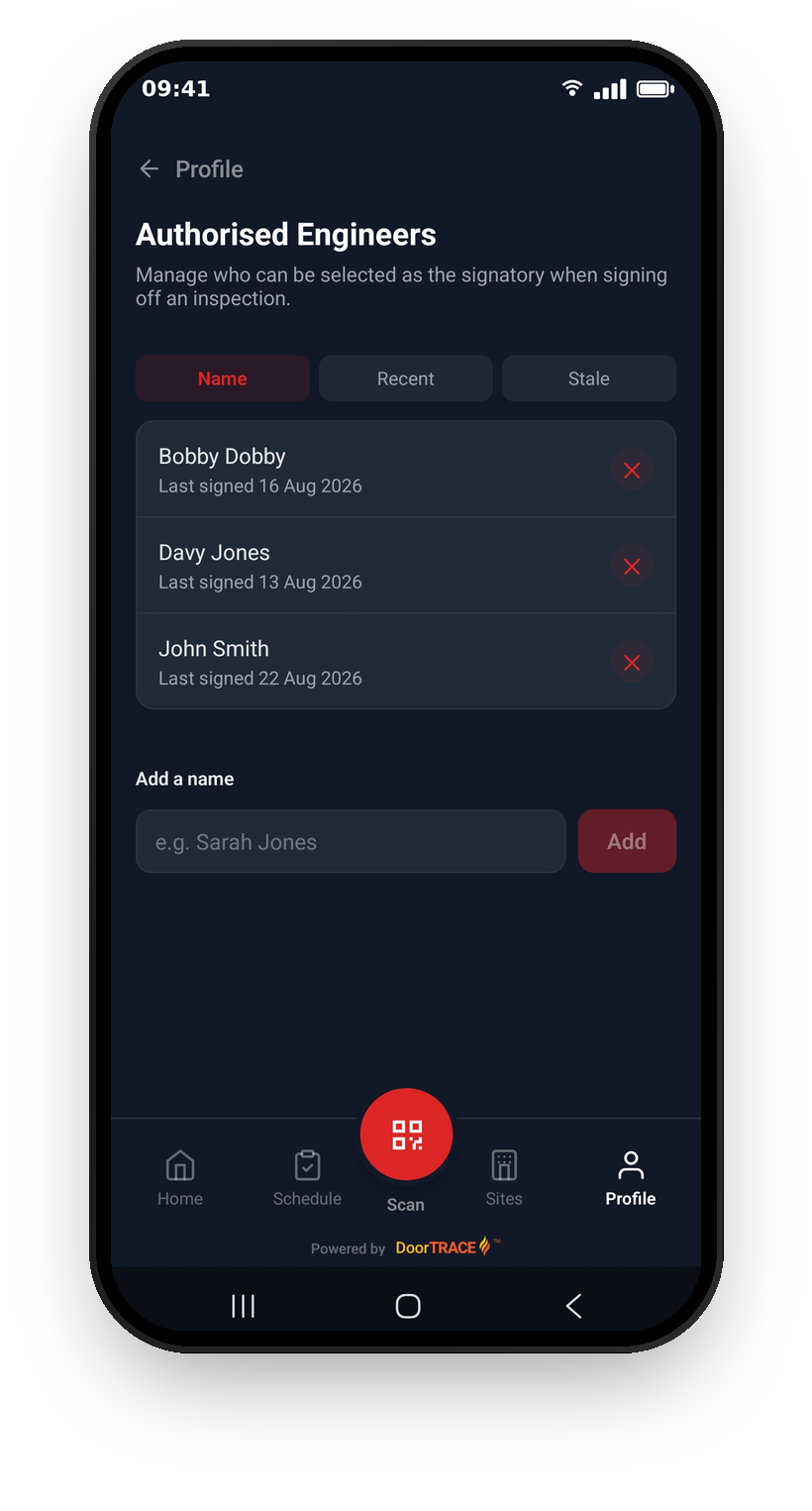
Open the Profile tab and tap Authorised Engineers (labelled "Manage who can sign off inspections"). Each name in the list shows when it last signed off one of your surveys, for example "Last signed 22 Aug 2026", or "Never used" if it has not signed anything yet.
The list starts empty, and that is fine: whenever the list is empty, the app simply uses your own name. You only need this screen if work under your company is recorded under more than one name.
Tip: your own name is only offered as a choice when the list is empty. If you add colleagues to the list and still sign work off yourself, add your own name too.
Adding a name
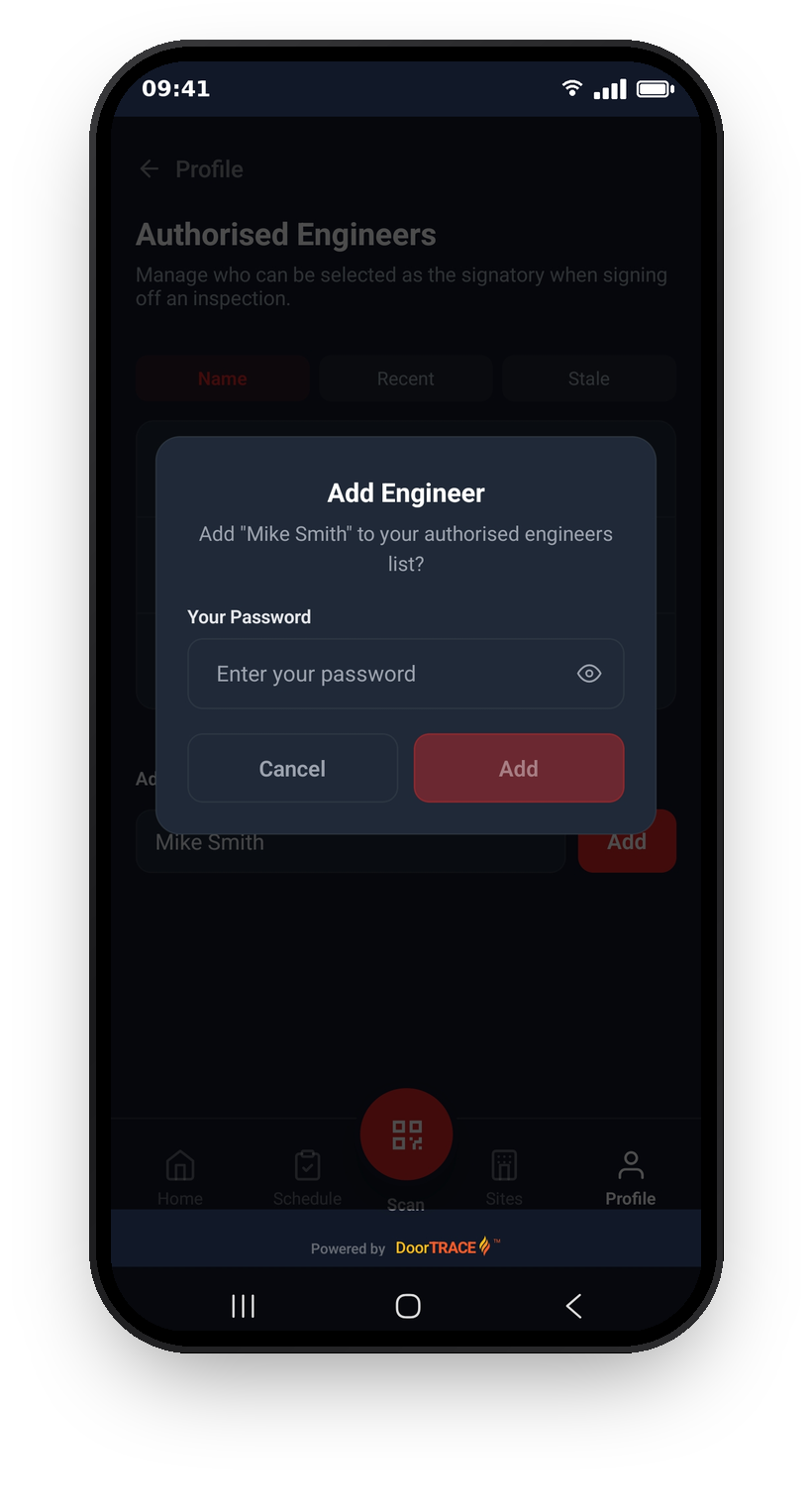
Under Add a name, type the person's name and tap Add. The app asks you to confirm with your account password: enter it and tap Add again. If the password is wrong, nothing changes and you can try again.
A few rules apply: each name can only appear once, names can be up to 80 characters, and the list holds a maximum of 50 names. If you reach the limit, remove a name before adding another.
Removing a name
Tap the ✕ next to a name, confirm with your password, and it is gone. Removing a name does not change anything already completed: surveys and other records keep the name they were signed with.
Where the names appear
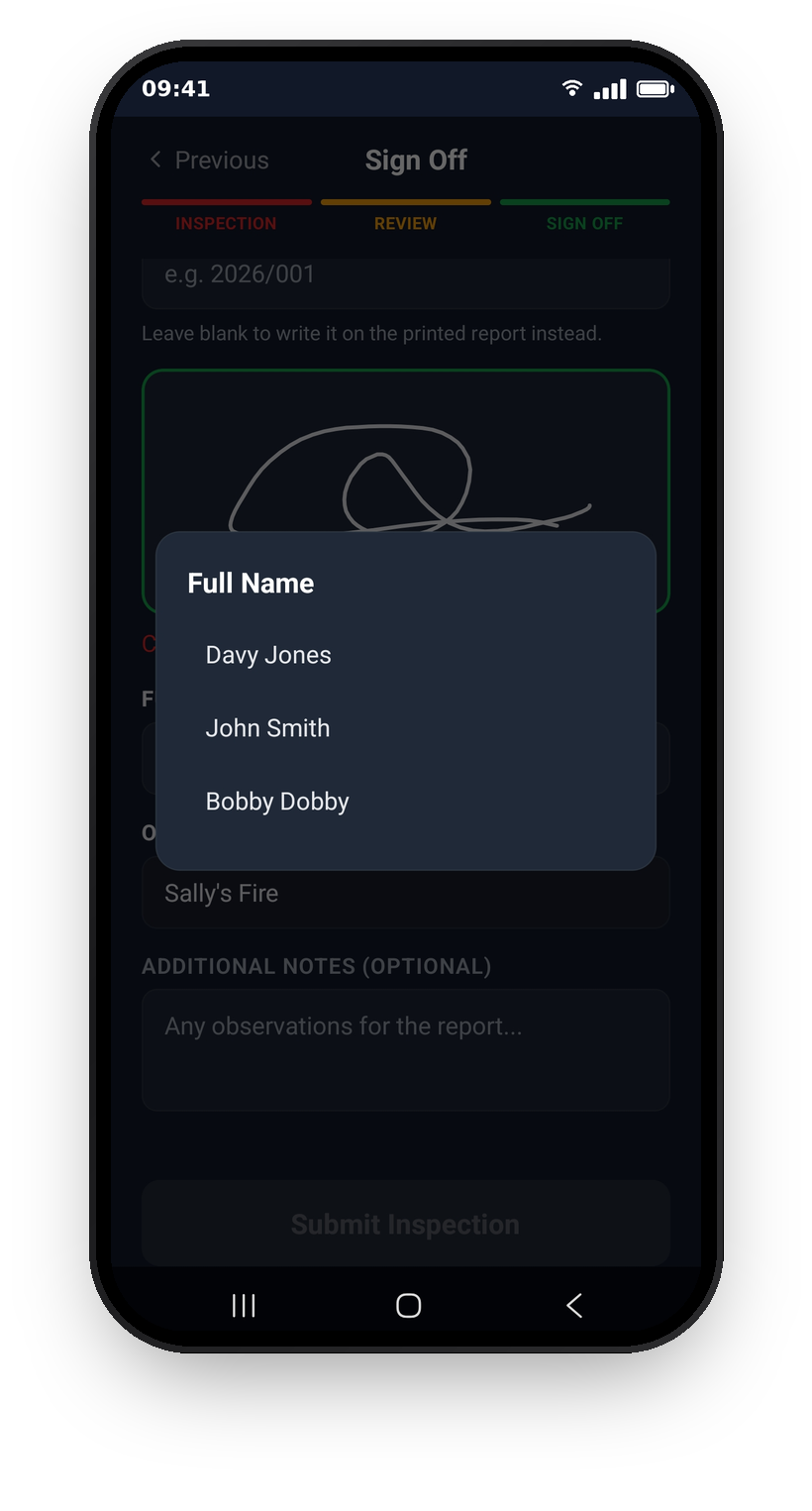
Your authorised engineers appear as the choices in four places:
Signing off a survey. At the Sign Off step of an initial or routine inspection, the Full Name field ("Select signatory") lists your authorised engineers.
Completing remedial work. The post-remedial form's sign-off has the same Full Name field, offering the same names.
Registering a door. At the Confirm Registration step, the Registered By field lists your names. If your list has exactly one name, it is filled in for you.
Replacing a QR tag. At the Confirm Replacement step, the Carried Out By field works the same way, including the auto-fill when there is only one name.
In every case, an empty list means your own name is used instead.
Sorting the list
Once the list has more than one name, three sort options appear at the top of the screen. Name sorts alphabetically, Recent puts the most recently used names first, and Stale puts never-used names first, then the least recently used. Stale is handy for spotting names that can probably be removed.
Working offline
The list is saved to your phone as part of your offline data, so the name choices still appear when you have no signal. If you change the list, do it while connected so the change reaches DoorTRACE.
If you work directly for a DoorTRACE company
If you are part of a company that runs DoorTRACE, your authorised engineers list is managed by your company, not in the app. The screen still shows the list, and the app will tell you this if you try to add or remove a name.
What's next
The names on this list appear whenever you record work, so it pairs naturally with the day-to-day guides: Running a scheduled inspection for the survey flow, and Registering a door for new doors.
Still can't find the answer?
Send us a message and we'll help. We respond within one working day.