FM Portal guides
FM Portal · Clients and buildings
Adding a building
Last updated 14 Sept 2026
Every fire door on DoorTRACE belongs to a building, and every building belongs to a client. This guide walks through the Add Building flow: six short pages covering the building's details, its regulatory classification, the Responsible Person, the engineer who will look after it, and the site notes engineers see before they arrive. Nothing is saved until you confirm with your password on the last page, so you can move back and forth freely.
Before you start
- The client must already exist. If not, see Adding a client first.
- If you want to assign an engineer company as part of this flow, they need to have accepted your invitation and had their documents approved on the Engineers page. Only engineers who are ready to be given work appear in the list; you can always assign one later from the building's page.
Open the wizard
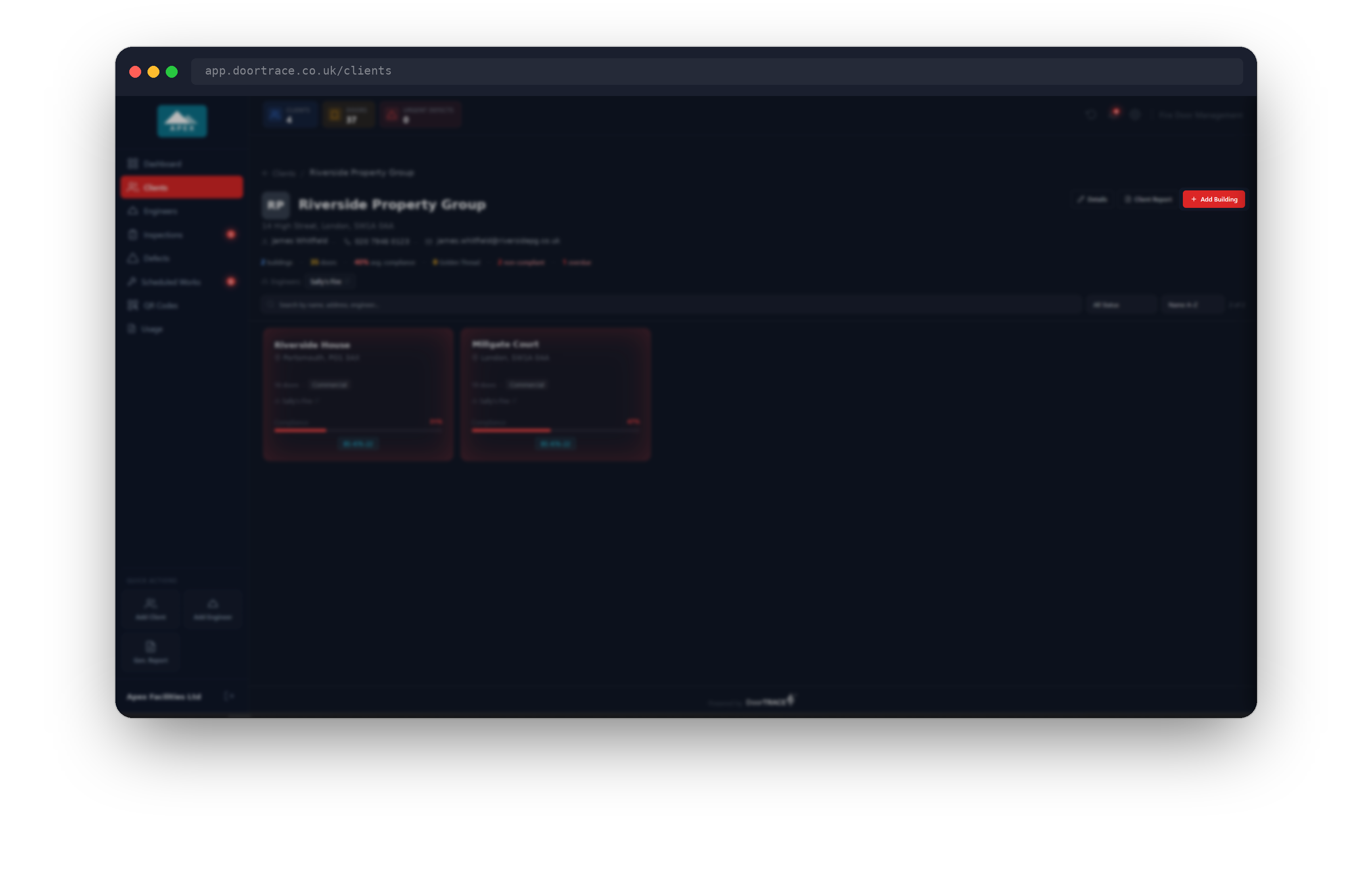
Go to Clients, open the client, and click Add Building at the top right of the client page. The wizard opens full screen with the client's name in the corner and a progress bar that fills as you move through the six pages. Use Next to move forward and Back to return; on the first page, Cancel takes you back to the client page without saving anything.
Page 1: Building details
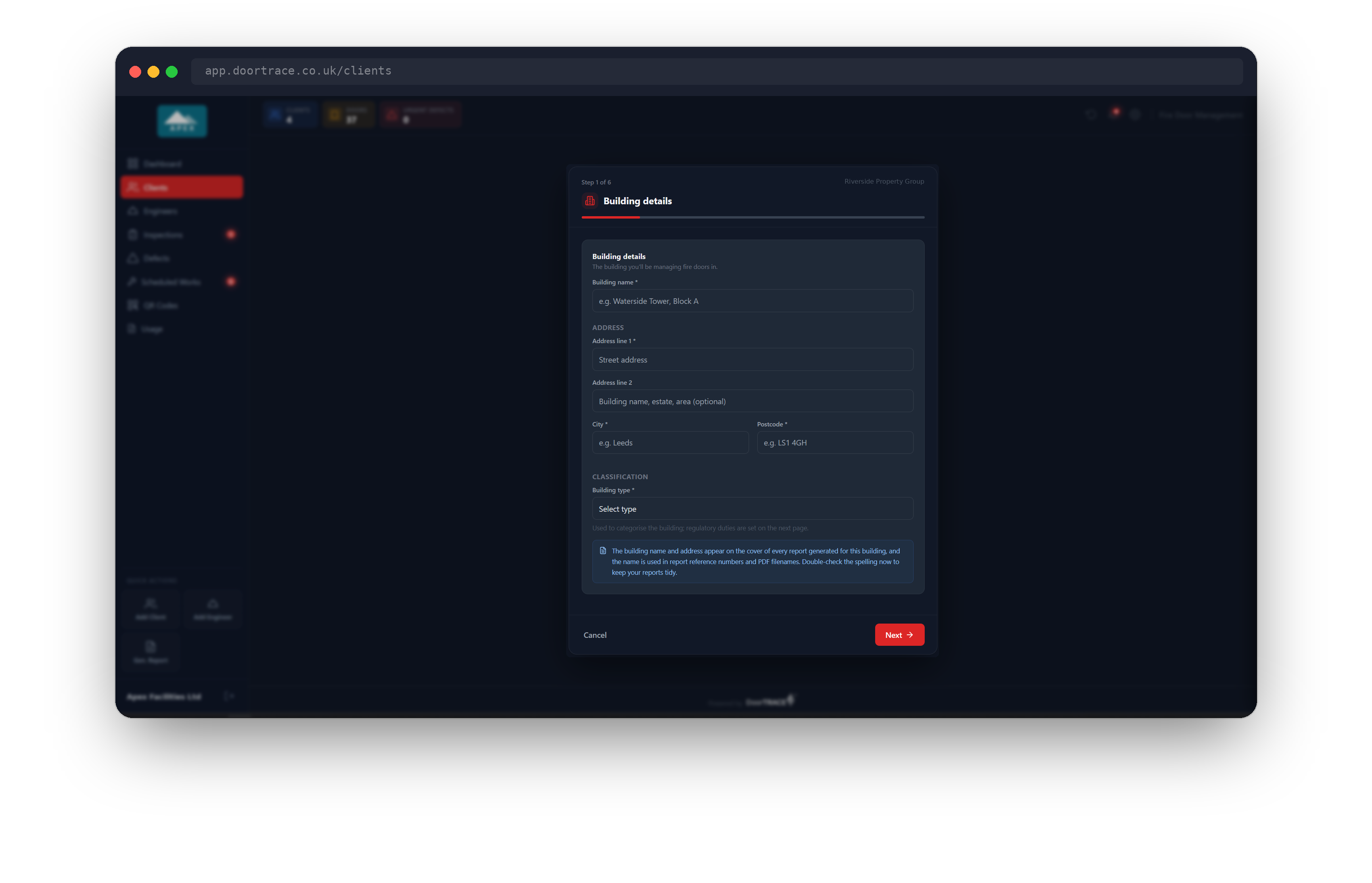
Enter the Building name, the address (Address line 1, optional Address line 2, City and Postcode) and choose a Building type from Residential, Commercial, Mixed Use, Education, Healthcare or Other. The postcode is typed in capitals automatically and must be a valid UK postcode. Fields marked with an asterisk are required and you cannot move on until they are filled in.
Tip: The building name and address appear on the cover of every report generated for this building, and the name is used in report reference numbers and PDF filenames. Check the spelling now to keep your reports tidy.
Page 2: Regulatory & compliance
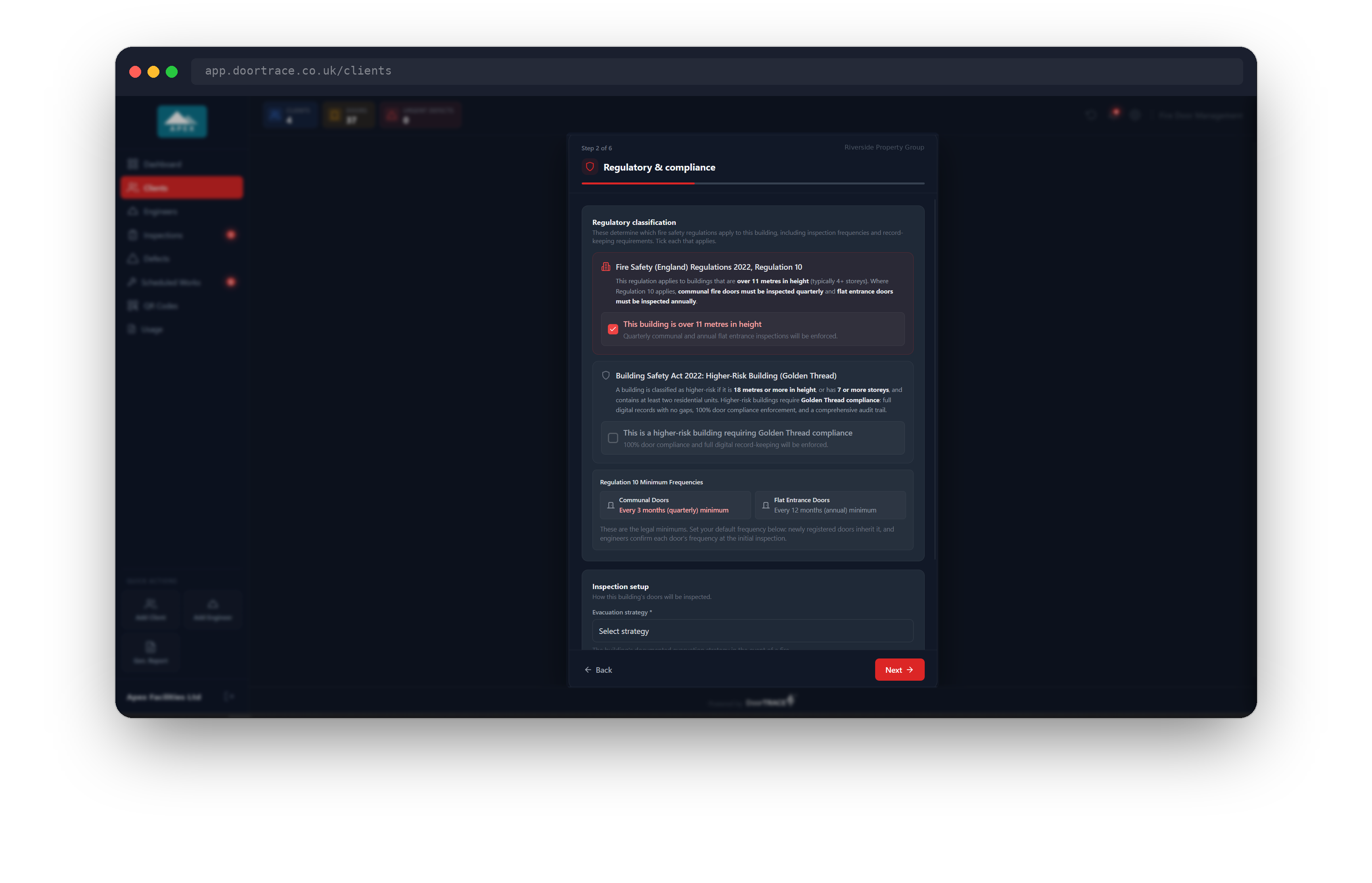
Tick each classification that applies. This building is over 11 metres in height brings the building under Regulation 10 of the Fire Safety (England) Regulations 2022: communal fire doors must be inspected quarterly and flat entrance doors annually. This is a higher-risk building requiring Golden Thread compliance is for buildings 18 metres or more, or with 7 or more storeys, that contain at least two residential units. Ticking Golden Thread also ticks the over 11 metres box for you, because a higher-risk building is always over 11 metres. When either box is ticked, a panel shows the Regulation 10 minimum frequencies for communal and flat entrance doors.
Under Inspection setup, choose the building's Evacuation strategy (Stay Put, Simultaneous Evacuation, Phased Evacuation or Other) and the Default inspection frequency: every month, every 3 months, every 6 months or every 12 months. Both are required. Newly registered doors inherit the default frequency, and engineers confirm or adjust each door's frequency at its initial inspection.
Important: If you tick over 11 metres and then choose a default of every 6 or 12 months, an amber notice reminds you that Regulation 10 requires communal doors to be checked at least quarterly. The portal lets you continue, so check the frequency of communal doors individually as they are registered.
Page 3: Responsible Person
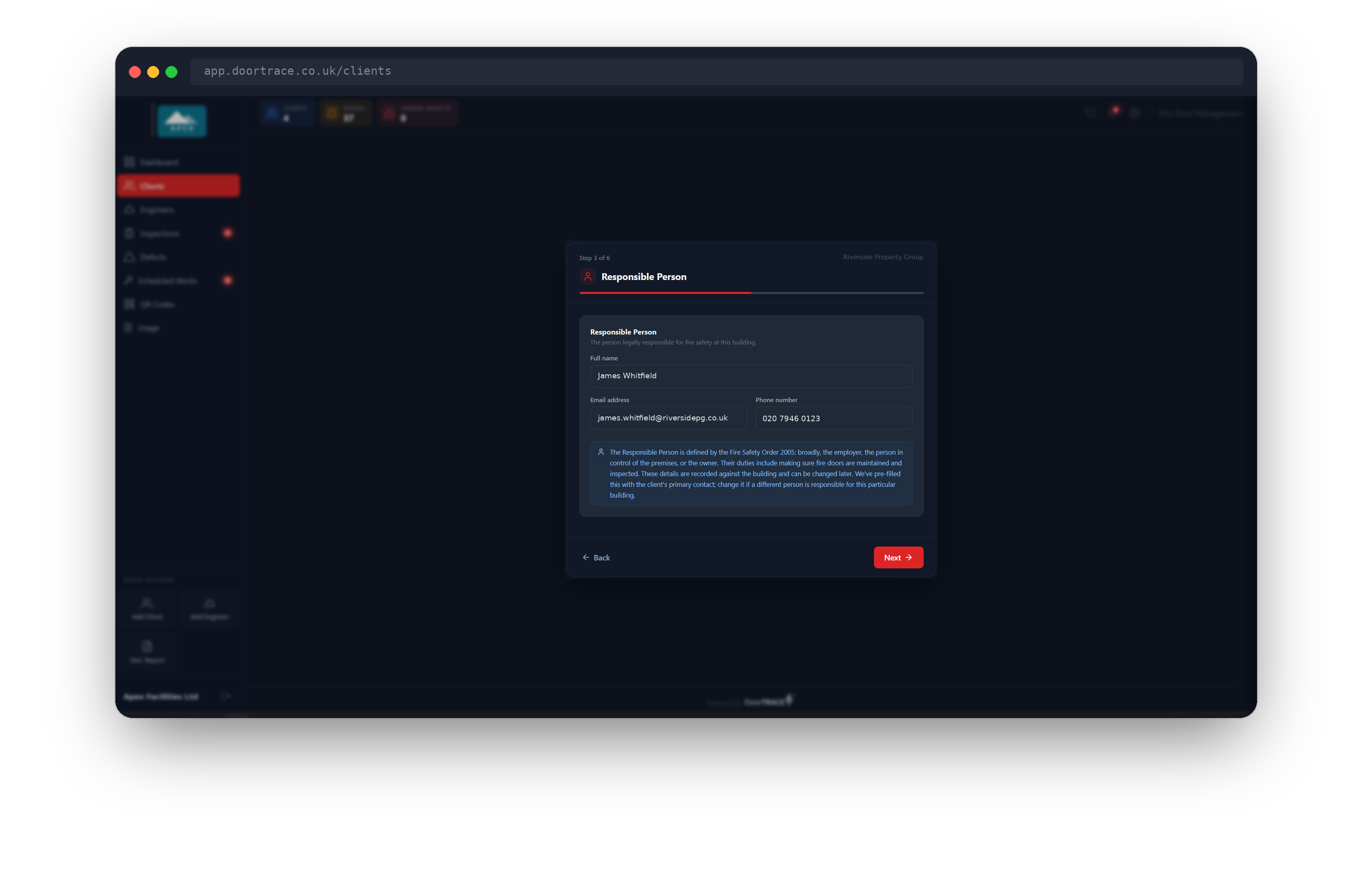
The Responsible Person is defined by the Fire Safety Order 2005: broadly, the employer, the person in control of the premises, or the owner. Their duties include making sure fire doors are maintained and inspected. The Full name, Email address and Phone number are filled in for you from the client's primary contact; change them if a different person is responsible for this particular building. All three are optional, but an email address or phone number you do enter must be in a valid format. These details are recorded against the building and can be changed later.
Page 4: Assign an engineer
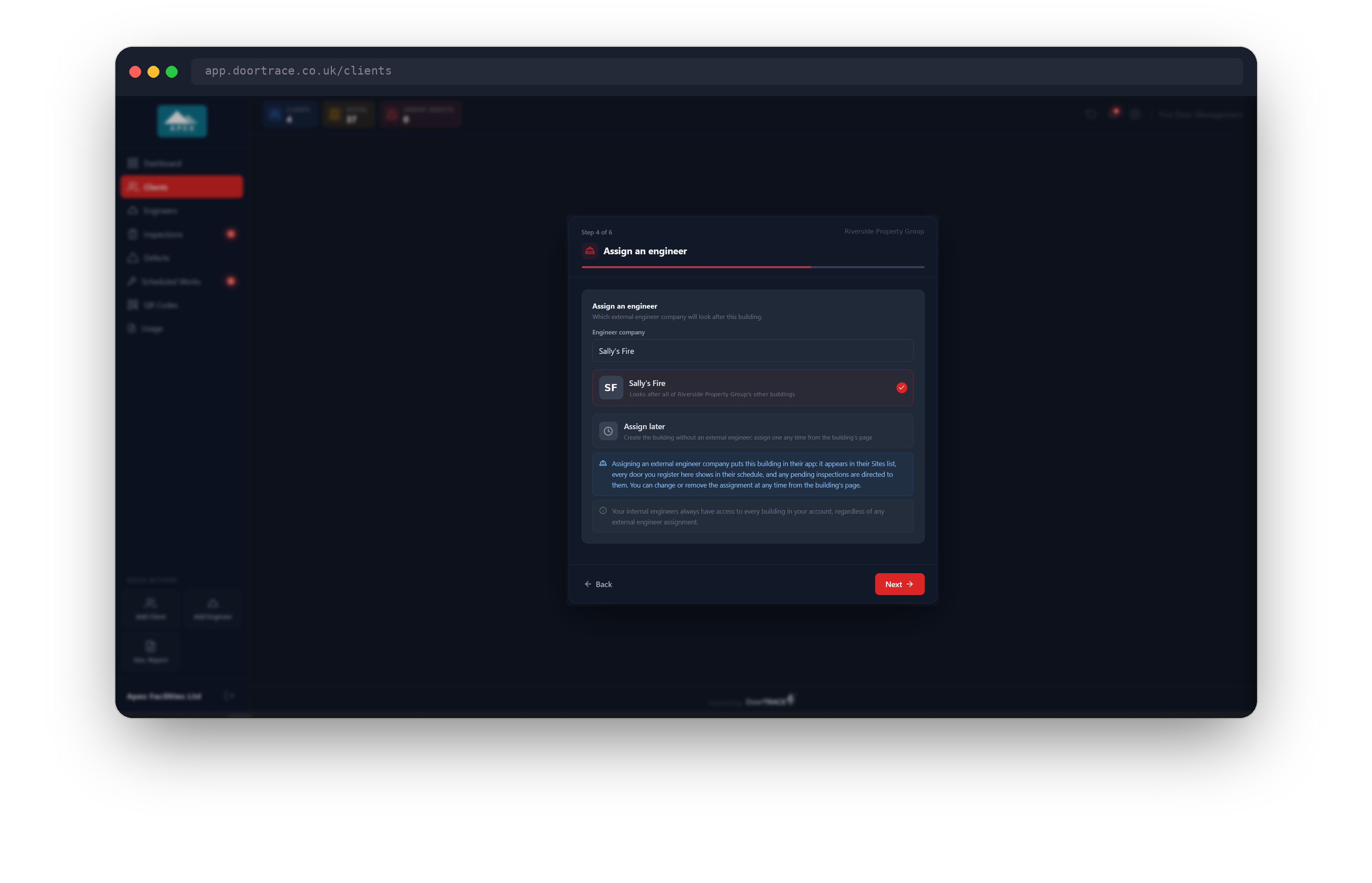
Choose an Engineer company from the list, or pick Assign later to create the building without one. The list only contains external engineer companies that are ready to be given work. If every other building under this client already uses the same engineer company, that company is selected for you and marked "Looks after all of [client]'s other buildings". Assigning a company puts this building in their app: it appears under My Sites and every door you register here shows on their Schedule tab. You can change or remove the assignment at any time from the building's page.
Tip: Your own internal engineers always have access to every building in your account, whatever is chosen here, so they never need to be assigned.
If no external engineer companies are registered yet, this page tells you so. Register them on the Engineers page, then assign one from the building's page.
Page 5: Engineer site notes
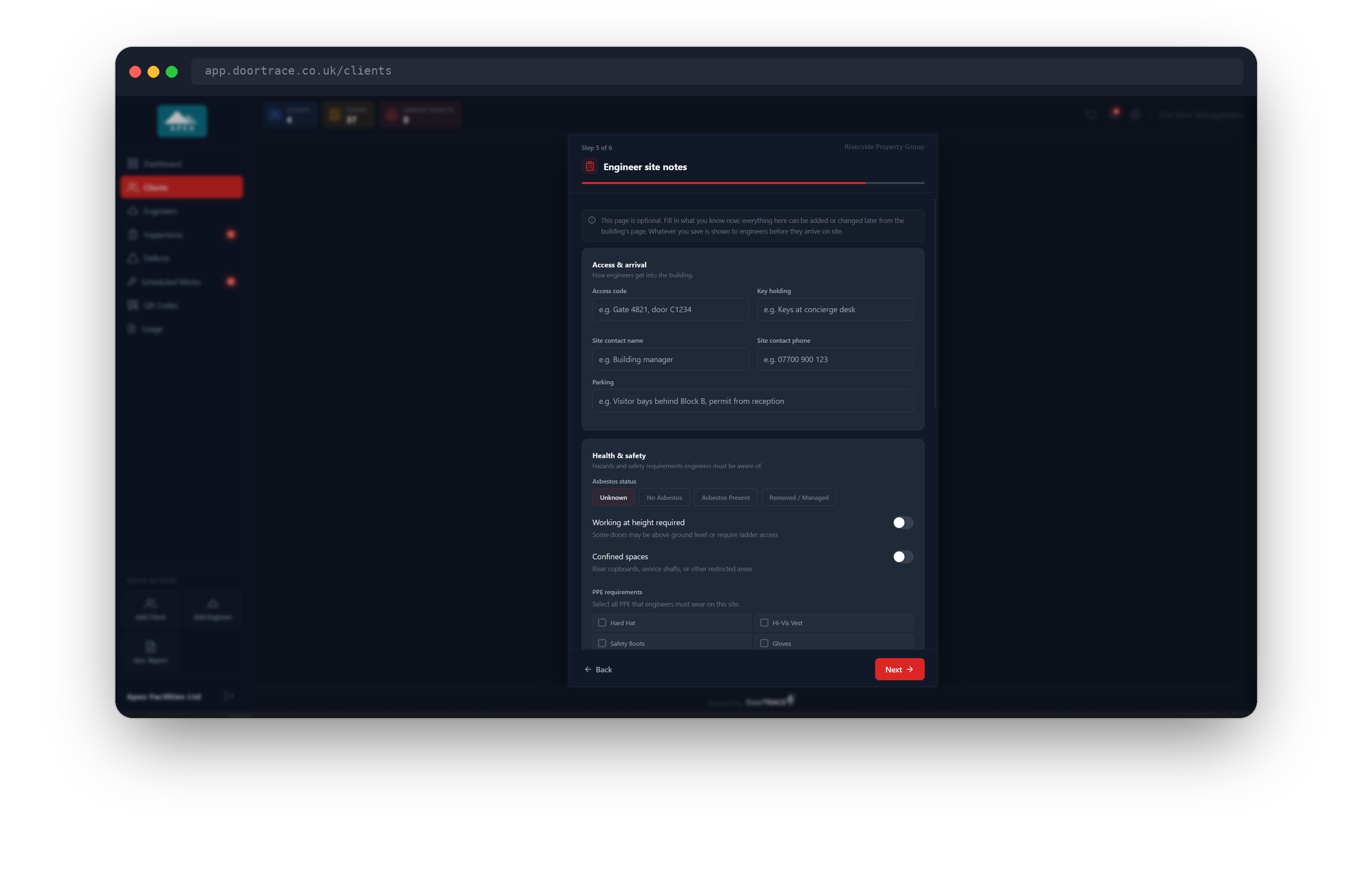
This page is optional. Whatever you save here is shown to engineers in the app before they arrive on site, and it can all be added or changed later from Engineer Notes on the building's page. The four cards are Access & arrival (access code, key holding, site contact and phone, parking), Health & safety (asbestos status, working at height, confined spaces, PPE requirements and other hazards), On-site security (security contact and phone, sign-in on arrival, CCTV and any other security notes) and Anything else for the engineer.
Important: If you set the asbestos status to Asbestos Present, a box opens for the location, type and precautions required, and engineers see a warning before arriving.
Page 6: Notes, and creating the building
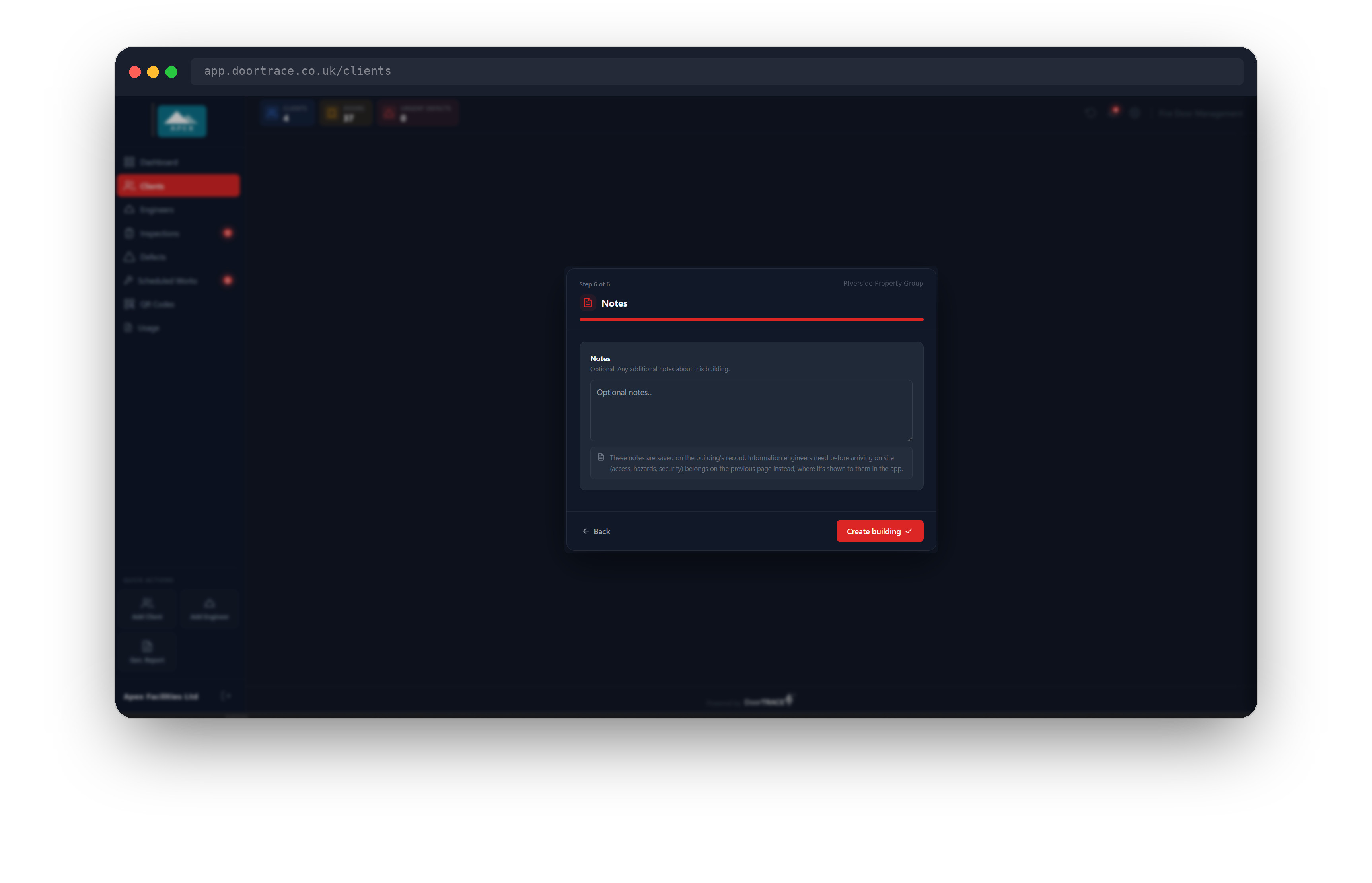
The last page holds optional free-text notes saved on the building's own record, for anything that is not for the engineer. Information engineers need before arriving (access, hazards, security) belongs on the previous page instead, where it is shown to them in the app. When you are ready, click Create building.
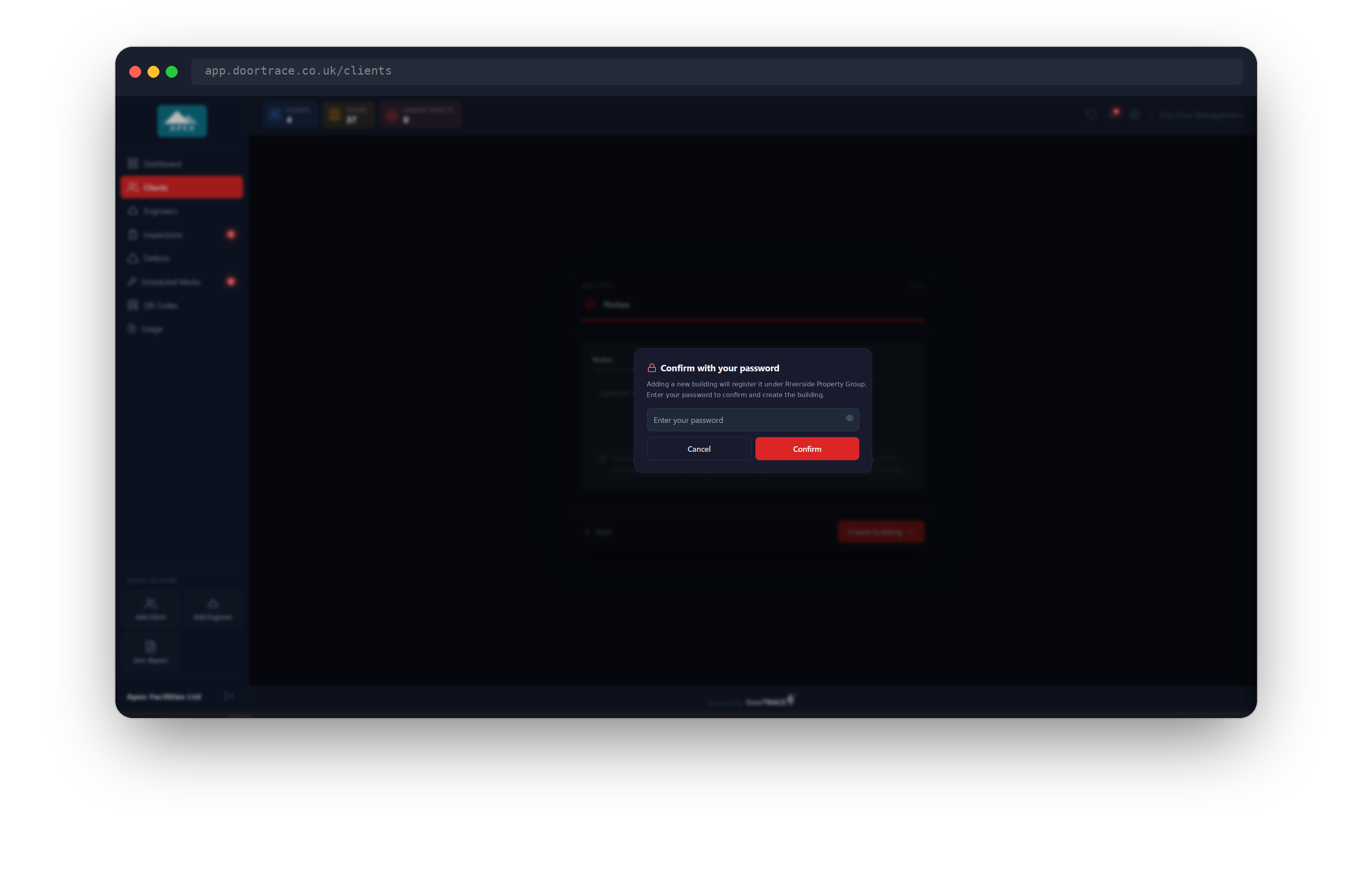
You will be asked for your portal password to confirm. The building is created as soon as the password is accepted, the engineer you chose is assigned, and any site notes you entered are saved with it. If you left a required field empty on an earlier page, the wizard takes you back to that page and highlights it instead of asking for your password.
After the building is created
The success card confirms the building has been created and registered under the client. If you assigned an engineer company, an Engineer panel names them. The What's next panel points to the two things a new building unlocks: registering its fire doors, and assigning QR tags to those doors as they are registered. Click Go to building to open the building's page.
If something goes wrong
- Incorrect password. Please try again. The password box stays open; nothing has been created yet.
- A building with this name already exists under this client. Each client's building names must be unique, ignoring capital letters. Change the name on page 1 and try again. Two different clients can share a building name.
- Building created, but [engineer] could not be assigned. The building exists, but the engineer's status changed between opening the wizard and creating the building (for example, their documents were unapproved or they were paused). Assign an engineer from the building's page once they are ready again.
- The engineer site notes could not be saved. The building exists, but the notes did not. Open Engineer Notes on the building's page to enter them again.
What's next
With the building in place, see Managing a building for its page, the engineer assignment controls, and the building report.
Still can't find the answer?
Send us a message and we'll help. We respond within one working day.