FM Portal guides
FM Portal · External engineers
Approving an engineer's documents
Last updated 27 Sept 2026
When an external engineer accepts your invitation, they appear on your Engineers page under Pending Approval. Their certifications and insurance are held and updated by DoorTrace, but the decision to work with them is yours: nothing can be assigned to them, and they cannot sign in to your company in the app, until you have opened every document and approved them. This guide covers the review, approval and rejection, and what happens when a document changes after you have approved it.
Before you start
- This guide is about external engineer companies. Your own engineers share your company's app login and have no documents to approve here; see App access for your own engineers.
- You need the engineer to have accepted your invitation. An engineer who has not yet accepted shows as Pending Acceptance, not Pending Approval. See Adding an engineer for invitations.
- Approving and rejecting both ask for your portal password.
Finding engineers waiting for approval
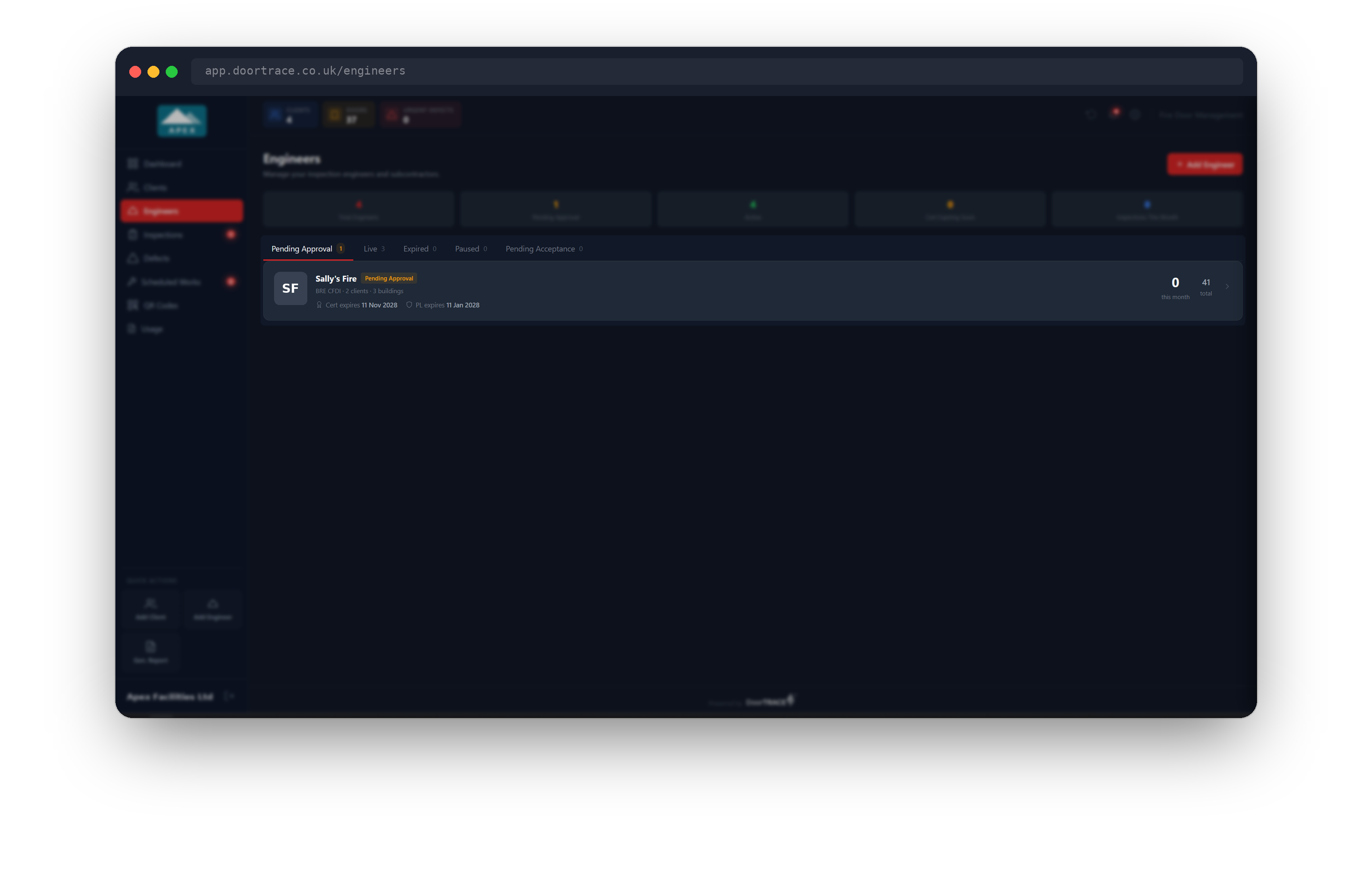
Open Engineers in the sidebar. If anyone is waiting for you, the page opens straight on the Pending Approval tab with an amber count on the tab, and the Pending Approval tile at the top shows the same number. Each waiting engineer has a Pending Approval badge next to their company name. Click the card to open their page.
The Review Documents window
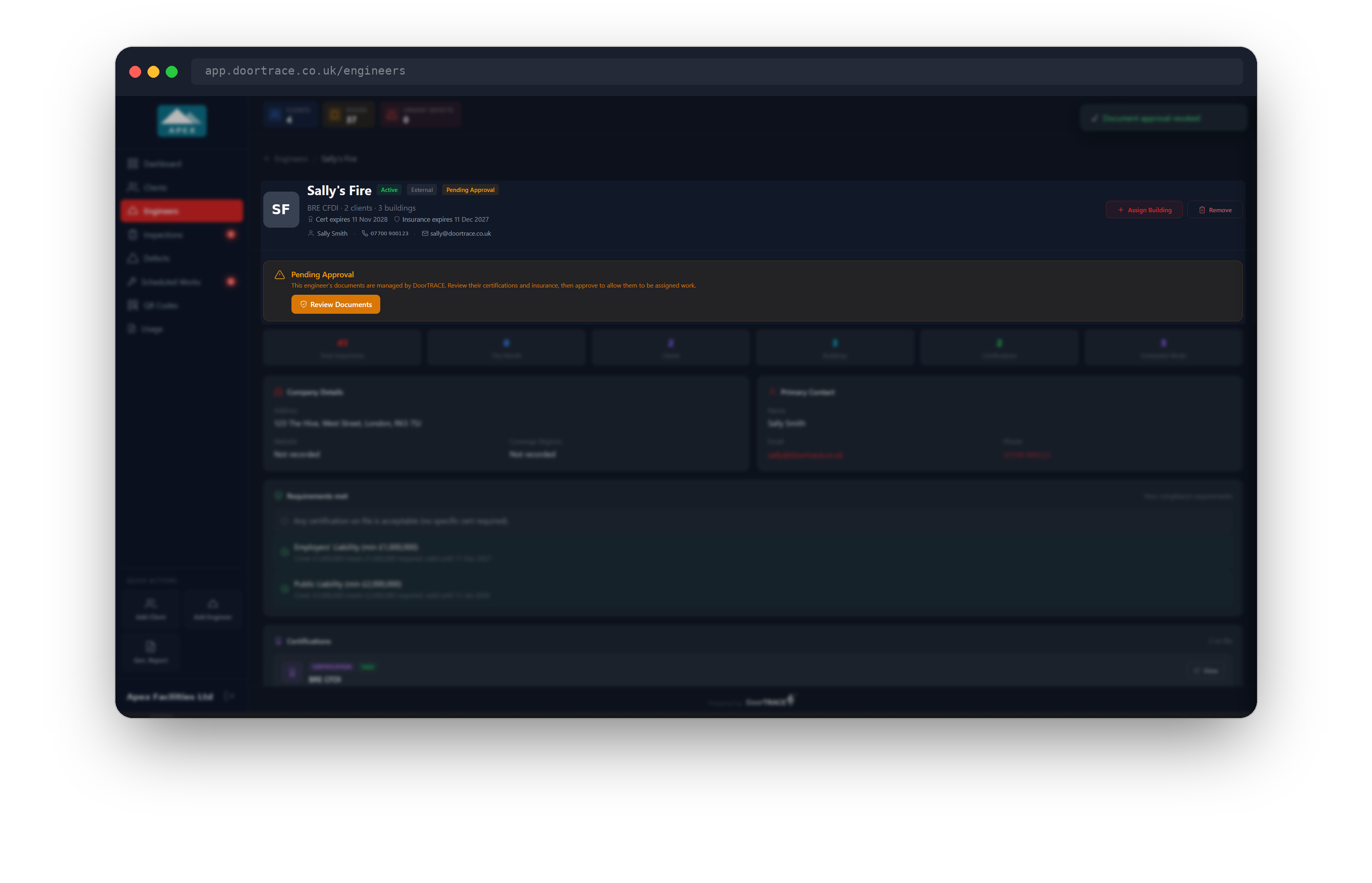
The Review Documents window opens on its own the first time you open the page of an engineer who is waiting for approval. If you close it, the amber Pending Approval banner at the top of the page has a Review Documents button to open it again. The engineer's page also carries a Pending Approval badge next to their name, and the rest of the page (details, documents, sites) is there to read while you decide.
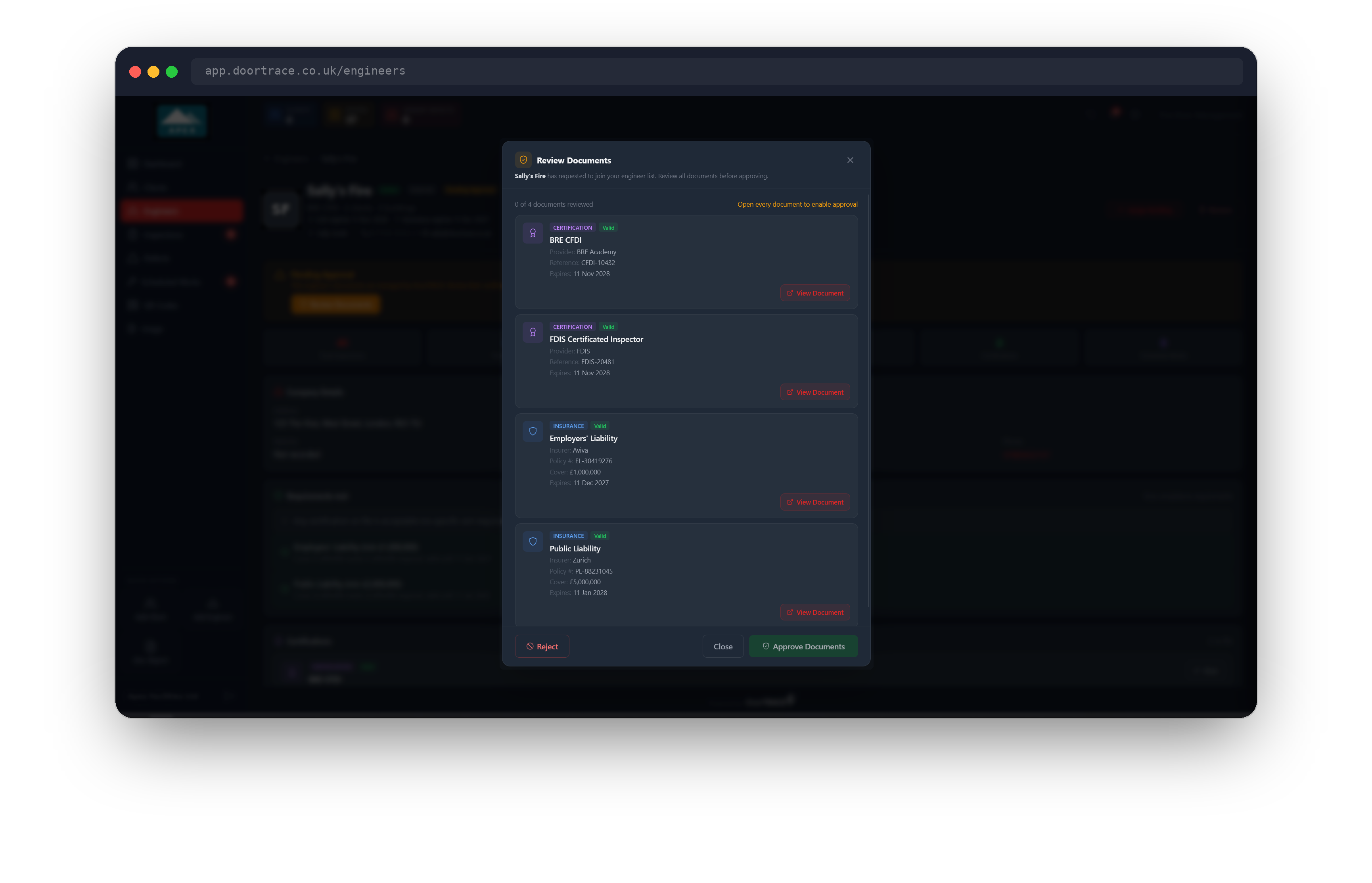
The window lists every certification and insurance document DoorTrace holds for the engineer. Each card shows the document type, the issuing body or insurer, the certificate or policy number, the cover amount for insurance, and the expiry date. A badge on each card gives its state: Valid, Expiring Soon (within 60 days), Expired or No Expiry. The line above the cards counts how many you have reviewed, and the note beside it reminds you that every document must be opened before you can approve.
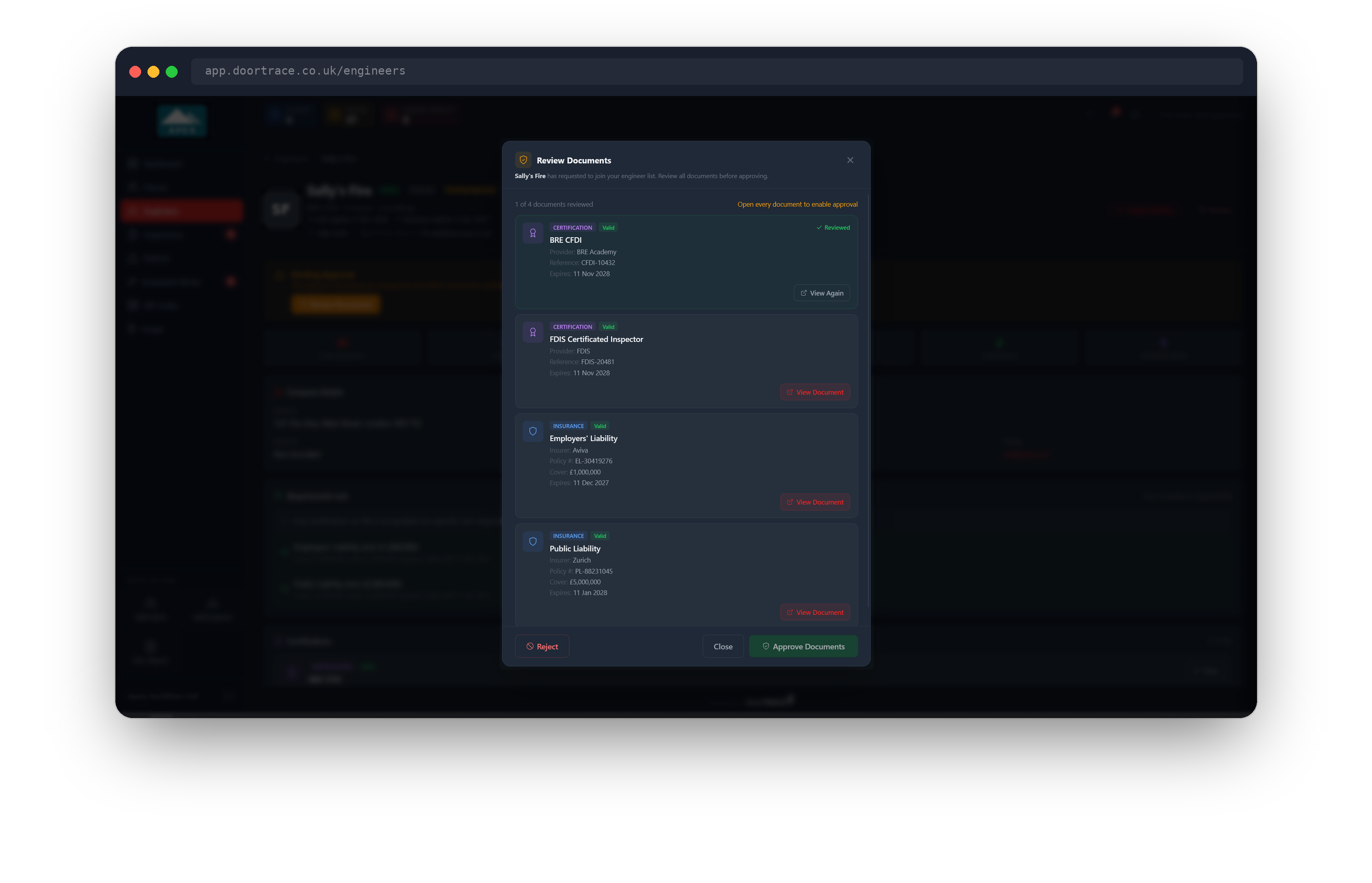
Click View Document on a card to open the file in a new browser tab. When you come back, the card has turned green with a Reviewed tick and the button now reads View Again. Work through every card. A document that DoorTrace has recorded without a file shows No file attached instead of a button and does not hold up approval. The green Approve Documents button stays greyed out until every document has been opened.
Tip: The expiry badge is the only judgement the portal makes for you. Whether the cover amount, the issuing body or the certification level is good enough for your company is your decision, so open and read each file rather than relying on the summary.
If the engineer has no documents at all, the window says so and approval is not possible. Their documents are managed by DoorTrace, so come back once documents have been added, or reject them.
Approving
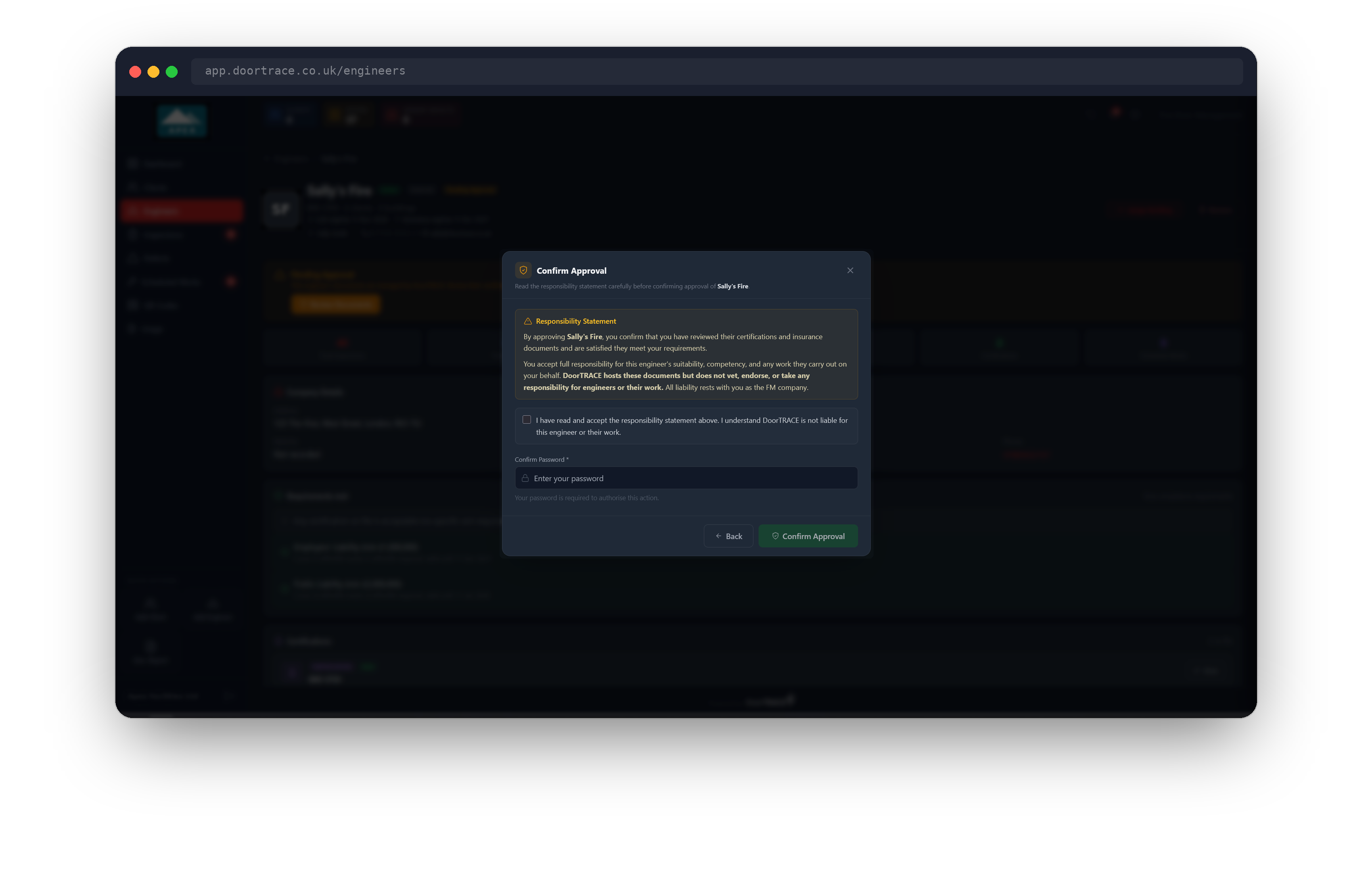
Once every document is reviewed, click Approve Documents. The window changes to Confirm Approval and shows the responsibility statement. In short: by approving, you confirm you have reviewed the engineer's certifications and insurance and are satisfied they meet your requirements, and you accept full responsibility for their suitability, competency and any work they carry out on your behalf. DoorTrace hosts the documents but does not vet, endorse or take responsibility for engineers or their work. Read it, tick the box to accept it, enter your portal password and click Confirm Approval.
Important: You cannot approve without accepting the statement. It is the same statement the engineer receives in their approval email, so both sides have the same record of where responsibility sits.
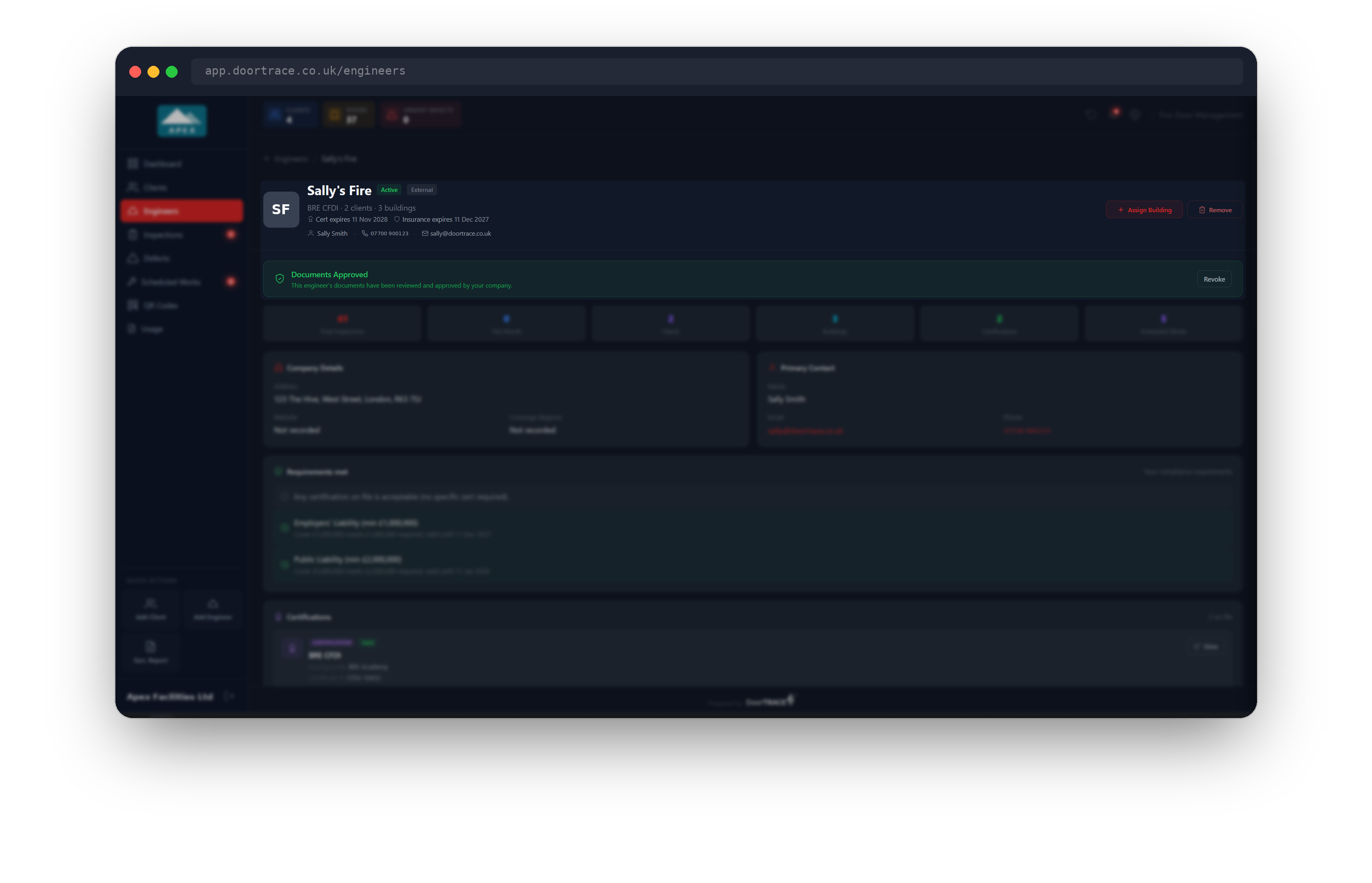
The engineer's page now shows a green Documents Approved banner and they move from Pending Approval to the Live tab on the Engineers page (or to Expired, if one of their documents has already passed its expiry date). They can now sign in to your company in the DoorTrace app, and you can assign them buildings and remedial work.
The engineer receives an email from compliance@doortrace.co.uk with the subject "Approved by <your company>". It names you as the person who approved them and repeats the note on responsibility.
Rejecting
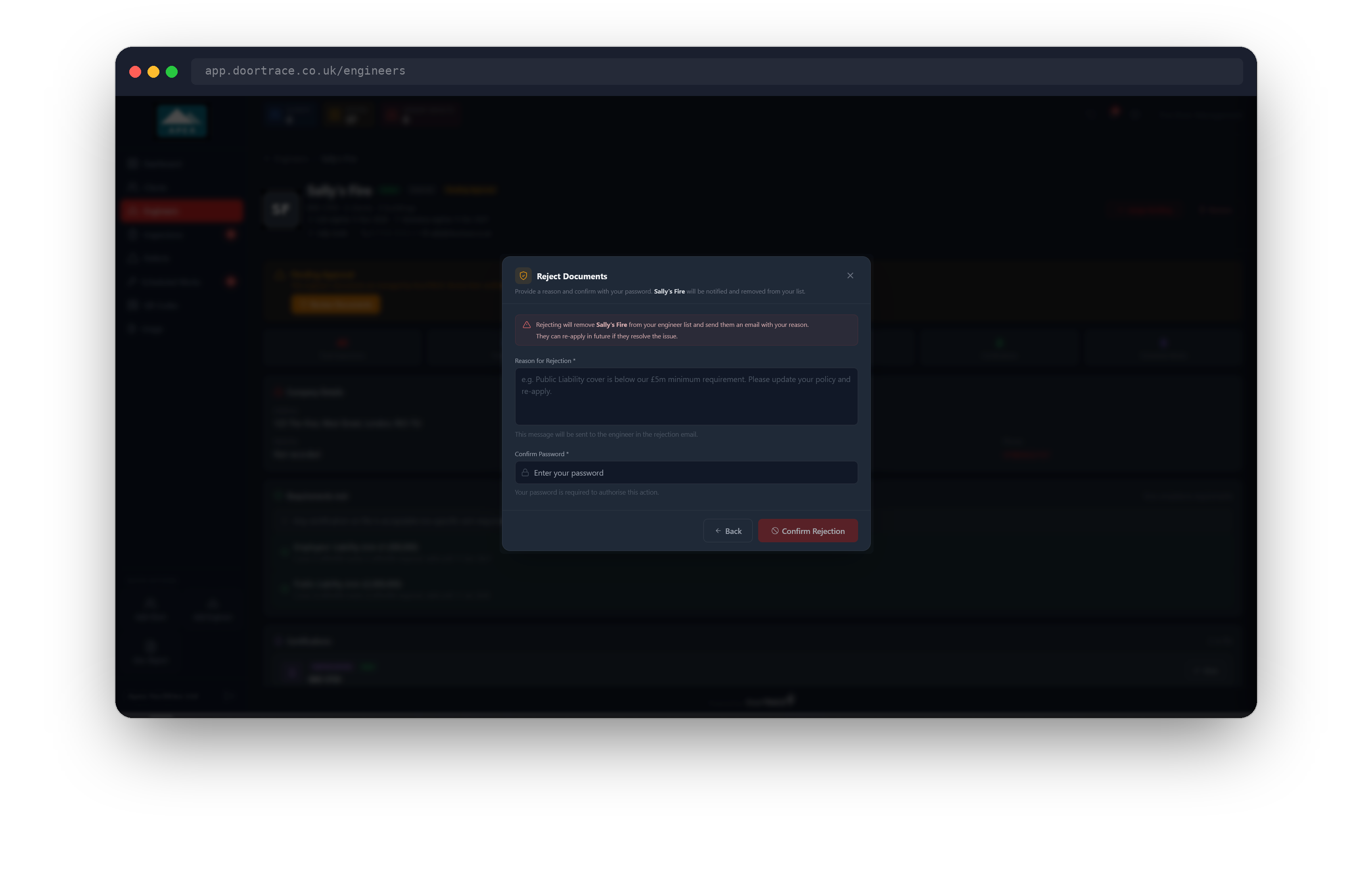
If the documents do not meet your standards, click Reject at the bottom left of the Review Documents window. The window changes to Reject Documents. Type a reason for the engineer, for example that their Public Liability cover is below your minimum, enter your portal password and click Confirm Rejection. The reason is sent to the engineer word for word, so write it as you would in an email.
Rejecting removes the engineer from your Engineers page, with the same tidy-up as Remove: they are taken off any building they were assigned to, any inspections booked for them are unassigned, and any remedial work scheduled with them goes back to open (and those doors to Requires Action) so you can rebook it. Their DoorTrace account is not affected and other companies who work with them are not affected either. They receive an email from compliance@doortrace.co.uk with the subject "Document review update from <your company>", giving your reason and explaining that you can re-invite them once the issue is resolved.
Tip: Rejecting is not final. If the engineer updates their documents, invite them again from Add Engineer and the review starts from the beginning.
When documents change after approval
DoorTrace updates engineers' documents as they renew insurance or gain certifications. Whenever one of an approved engineer's documents is added, changed or removed, your approval is reset. You receive an email from compliance@doortrace.co.uk, "Re-approval needed for <engineer>", naming the document that changed, and the engineer goes back to Pending Approval. Until you re-approve, they cannot sign in to your company or be assigned new work. Work already assigned to them is left as it is. Whether the new document is good enough for your company is your decision, so open it and read it as you did the first time.
Open their page and the Review Documents window explains that their documents have changed since your last approval. Only the changed documents are shown, each with a Changed since last approval tag, and only those need opening before Approve Documents turns green. The documents you approved before are tucked behind a View previously approved documents link if you want to look again. If a document was removed rather than changed, the window says so and asks you to review everything that is now on file.
If the engineer drops to no certifications at all, or no insurance at all, DoorTrace pauses them everywhere: every company's approval is reset, you receive an email with the subject "<engineer> access paused: missing certification" (or insurance), and the engineer shows under the Paused tab. Once DoorTrace has uploaded a replacement, they return to Pending Approval for you to review.
Withdrawing an approval
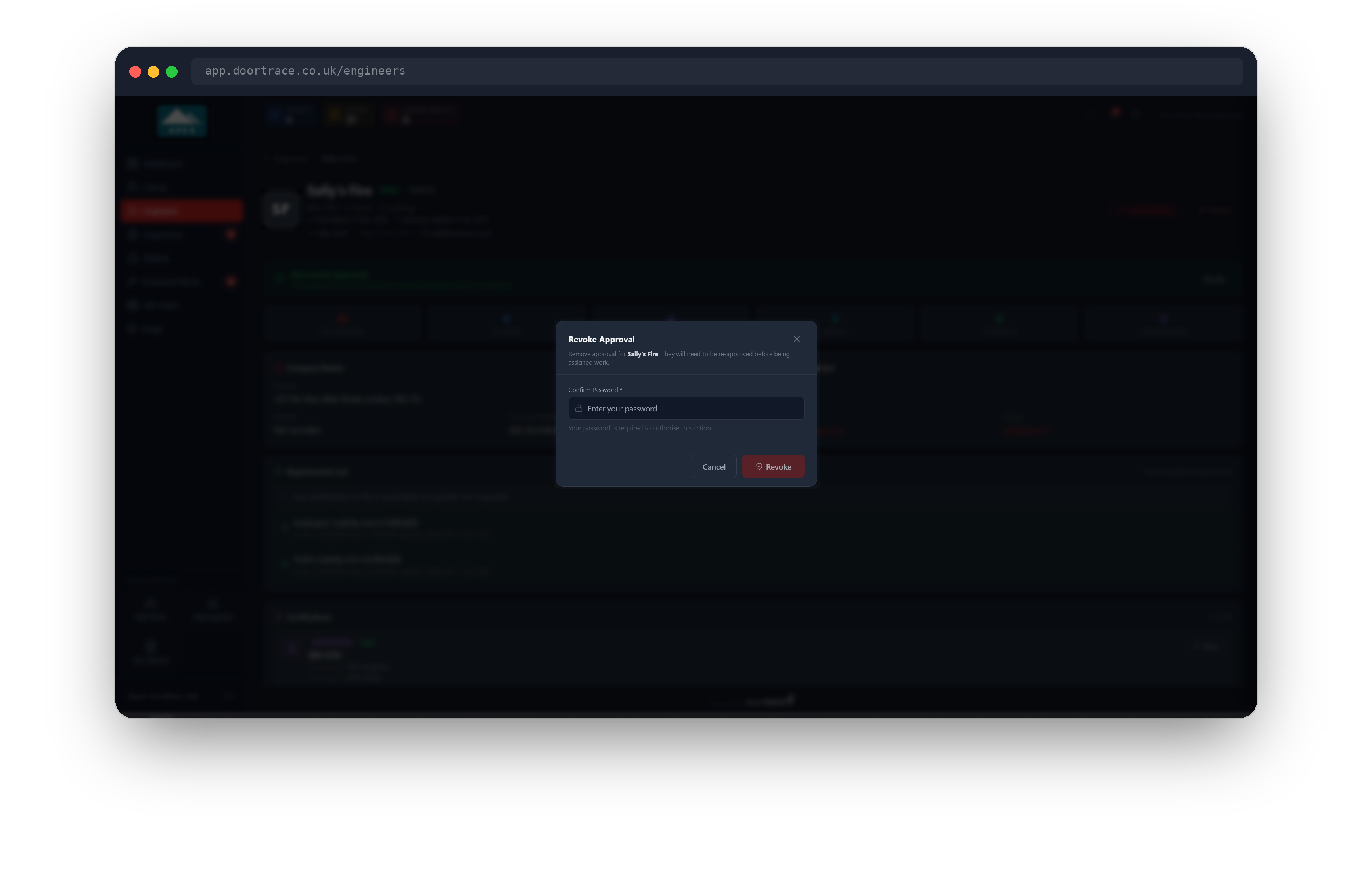
You can withdraw an approval yourself at any time. On the engineer's page, click Revoke on the green Documents Approved banner, enter your portal password and click Revoke. The engineer goes back to Pending Approval, is refused sign-in to your company, and any session they have open ends within a few minutes. Existing assignments are left in place; if you also want those cleared, use Remove instead (see Managing an engineer). No email is sent to the engineer when you revoke, so tell them yourself if they need to know.
Troubleshooting
Approve Documents stays greyed out. Every document must be opened. Check the counter above the cards: if it does not read "3 of 3 documents reviewed" (or whatever the total is), find the card without the green Reviewed tick and click View Document.
A document will not open. The portal shows "Failed to load document" or "Failed to open document" under the cards. Try again; if it keeps failing, close the window and reopen it from the Review Documents button. If the file itself is missing, contact DoorTrace.
"Incorrect password." Approve, reject and revoke all check your portal password. Re-enter it and try again.
The engineer is not under Pending Approval. Check Pending Acceptance (they have not accepted your invitation yet) and Paused (they have no certifications or no insurance on file at all). Neither can be approved until that changes.
What's next
Once an engineer is approved, Managing an engineer covers assigning them buildings, seeing their inspections and scheduled work, and removing them.
Still can't find the answer?
Send us a message and we'll help. We respond within one working day.