FM Portal guides
FM Portal · Settings
Email notification preferences
Last updated 24 Sept 2026
DoorTRACE sends your company one summary email: a round-up of doors due for inspection, new defects and booked remedial work. The Notifications page in Settings is where you decide what goes into that email, whether it arrives daily or weekly, and which other people in your company receive a copy. This guide shows each setting, explains exactly what the email reports, and covers the messages you may see.
Before you start
Every company starts with every alert switched on and the summary set to Weekly, so you get one email each Monday morning covering everything. You only need this page if you want to change that. No password is asked for on this page: your choices are saved as soon as you click Save Changes, and CC addresses are saved the moment you add them.
Opening the Notifications page
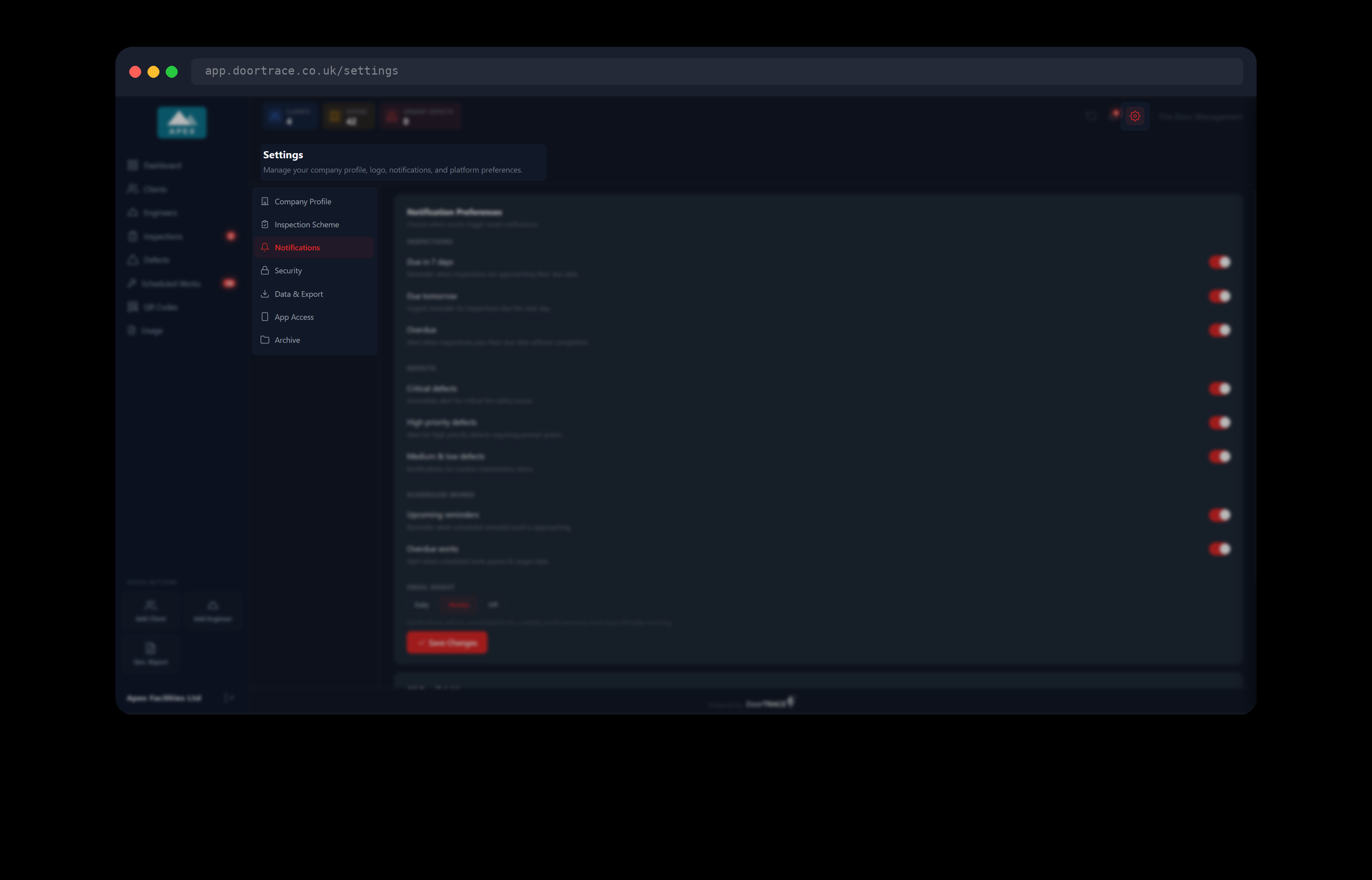
Settings is not in the menu on the left. Click the cog icon at the top right of the portal, next to the bell, then click Notifications in the list on the left of the Settings page. It is the third item, under Inspection Scheme. While your settings are being fetched you will see "Loading your notification preferences…" for a moment. The page has two boxes: Notification Preferences and CC Email Addresses.
Choosing what the email reports
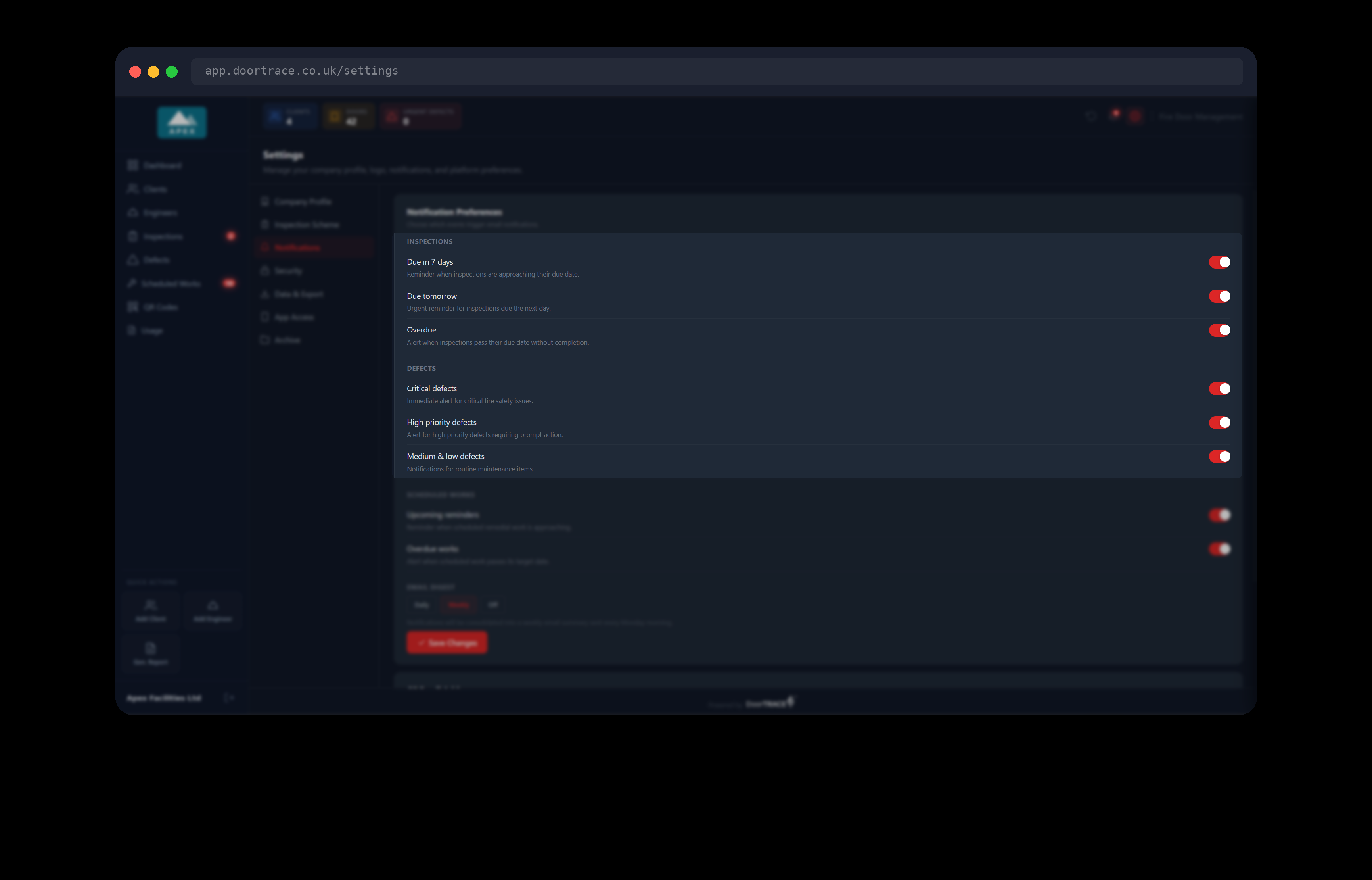
The Notification Preferences box has a row of switches under three headings. A red switch is on; a grey one is off. Each switch controls one part of the summary email. Turn a switch off and that part is left out of every email until you turn it back on.
Inspections
- Due in 7 days: doors whose next inspection falls between two and seven days from today.
- Due tomorrow: doors whose next inspection is due tomorrow.
- Overdue: doors whose next inspection date has already passed.
Defects
- Critical defects, High priority defects and Medium & low defects: new defects logged since the last email, at that priority, that have not yet had remedial work scheduled or completed. Medium and low share one switch.
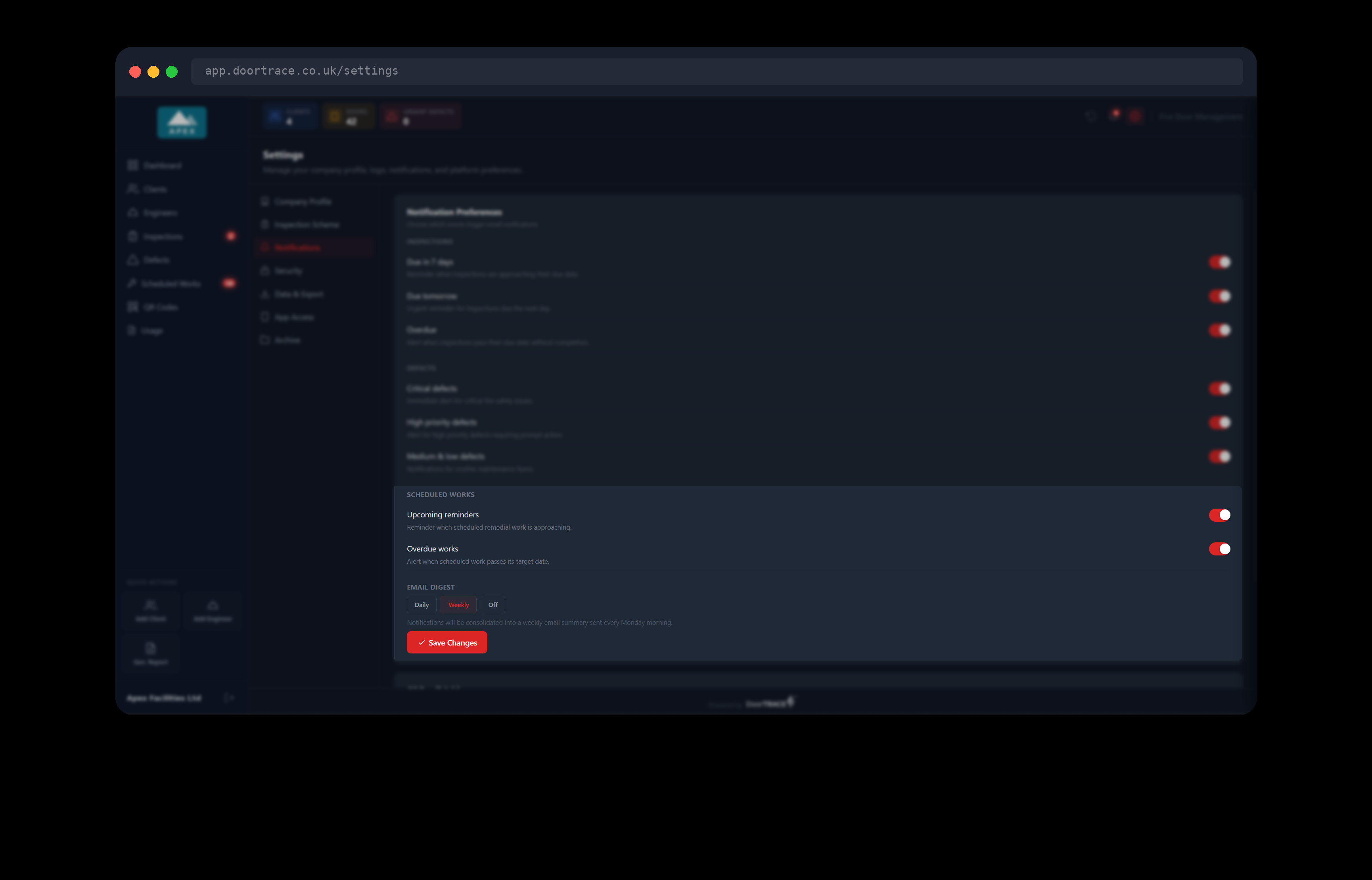
Scheduled Works
- Upcoming reminders: remedial work booked with a target date in the next seven days, including today.
- Overdue works: remedial work whose target date has passed and which has not been marked complete.
Under the switches, Email Digest sets how often the email arrives.
- Daily: one email every morning. The line below reads "Notifications will be consolidated into a daily email summary sent each morning."
- Weekly: one email every Monday morning. The line reads "Notifications will be consolidated into a weekly email summary sent every Monday morning."
- Off: no summary email at all. The line reads "Email notifications are disabled. You won't receive any notification emails."
Click Save Changes when you are done. The button shows "Saving…", then turns green and reads Saved for a moment, and "Notification preferences saved" appears at the bottom of the screen. If you leave the page without saving, your changes are not kept.
Tip: Turning every switch off does not stop the email. With the summary on and nothing selected you would still get an "All Clear" email each time. Use Off to stop the email altogether.
Copying other people in
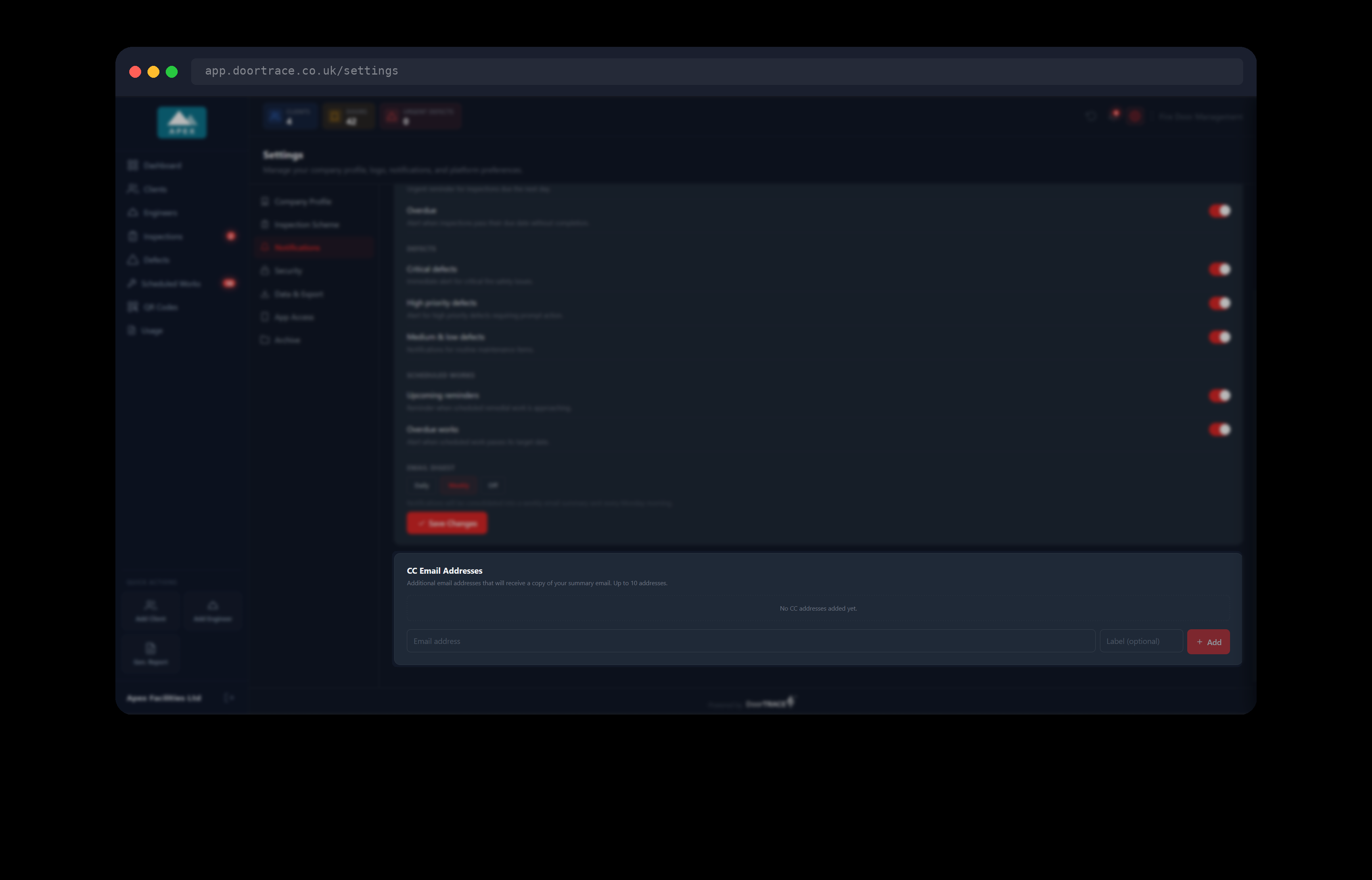
The CC Email Addresses box lists up to ten extra addresses that receive a copy of every summary email. The email itself always goes to your company's sign-in email, the one shown on Company Profile; CC addresses are added to that, not instead of it.
Type the address in Email address and, if you like, a short note in Label (optional), such as the person's name or role. Click Add, or press Enter. The address is saved straight away and appears in the list with its label underneath; "CC email added" shows at the bottom of the screen. To remove one, click the X at the right of its row. It is removed straight away and "CC email removed" shows. There is no Save button in this box.
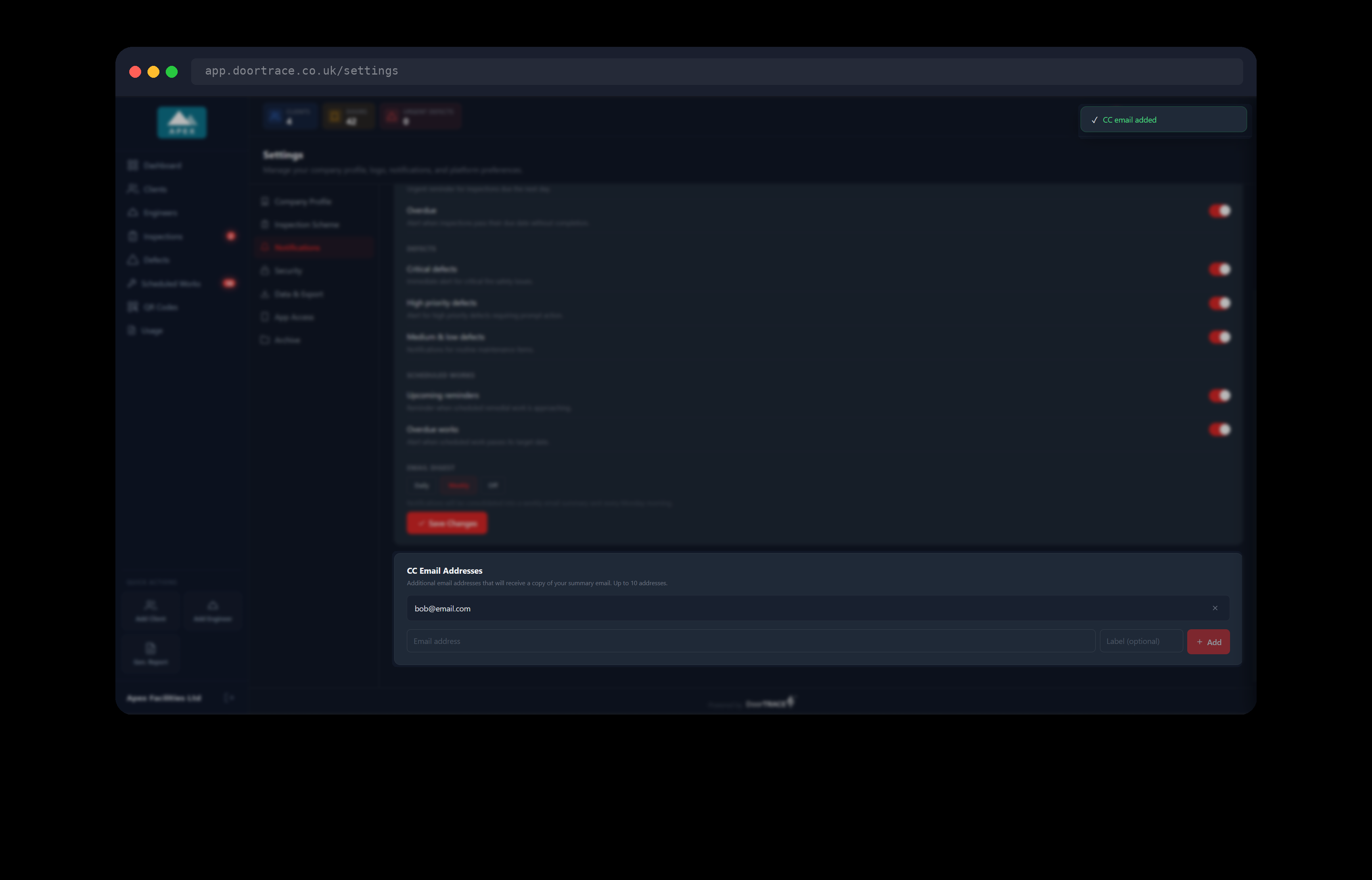
The Add button stays greyed out until you have typed something. If what you typed is not an email address you will see "Enter a valid email address" in red under the boxes. An address already in the list gives "This email is already in the list". Once you have ten addresses the add boxes disappear and a note reads "Maximum of 10 CC email addresses reached. Remove an existing address to add a new one."
What the summary email looks like
The email comes from DoorTRACE Notifications (notifications@doortrace.co.uk). Its subject line is "Weekly Summary: " or "Daily Summary: " followed by your company name. When there is nothing to report the subject is "All Clear: Weekly Summary" (or Daily) and the email simply says "No new inspections due, defects, or updates to report. Your fire door compliance is on track."
When there is something to report, the email opens with four figures: Overdue and Due Soon doors, Critical defects and New Defects. Below them come up to three sections, each shown only when its switches are on and it has something in it.
- Inspections: Overdue, Due Tomorrow and Due in 7 Days, each with a total and a line per building and door type showing how many doors and either the due date or how many days overdue. Clicking a line opens the Inspections page on the matching tile.
- New Defects: one card per defect, grouped by priority, showing the door's QR code, building, floor and what the engineer found. Clicking a card opens the Defect Register filtered to that priority.
- Scheduled Works: overdue jobs first, marked OVERDUE, then upcoming ones with their target date. Each line shows the building, who the work is booked to (an engineer company's name, or Internal team for your own engineers) and how many doors. Clicking a line opens the Scheduled Works page.
A few things worth knowing about what is counted:
- Emails go out at 7am UK time in winter and 8am in summer. The weekly email goes on Mondays only.
- Overdue doors and overdue jobs appear in every email until they are dealt with. New defects appear once: in the next email after they are logged (the weekly email looks back seven days).
- A defect that has already had remedial work scheduled by the time the email is built is not listed as a new defect.
- Work on your demo client is never included, the same as on your Usage page.
- "Overdue" in the email means the target date has passed. This is not the same as the Overdue figure on the Scheduled Works page, which counts jobs booked more than 90 days ago. See Scheduled Works for that rule.
If something goes wrong
If you see a red box that reads Your notification preferences could not be loaded (or Your CC addresses could not be loaded), the portal could not reach DoorTRACE. Check your connection and click Try again. The switches and the Save Changes button are not shown until your real settings have loaded, so you cannot save over them by mistake.
If saving fails, a red message appears at the bottom of the screen and nothing has been changed; click Save Changes again. If adding a CC address fails, the reason shows in red under the boxes and the address is not added.
What's next
Securing your account covers two-factor authentication, where you can sign in from, your active sessions and changing your password.
Still can't find the answer?
Send us a message and we'll help. We respond within one working day.