FM Portal guides
FM Portal · Inspections
Downloading inspection reports
Last updated 16 Sept 2026
Every completed inspection in DoorTRACE can be turned into a PDF. Which document you get depends on the type of inspection: a registration produces a Registration Certificate, a survey or inspection produces a full report, and a BM TRADA survey also offers the official DCS 058 Q-Mark form. This guide shows you where the download buttons are, what each file contains and how the files are named.
Before you start
Reports carry your company's details from the portal. Before you download one for a client, check that Settings holds your company name, logo, website and contact phone, because they print on every page. The client's name, logo and address come from their client record.
Open the inspection
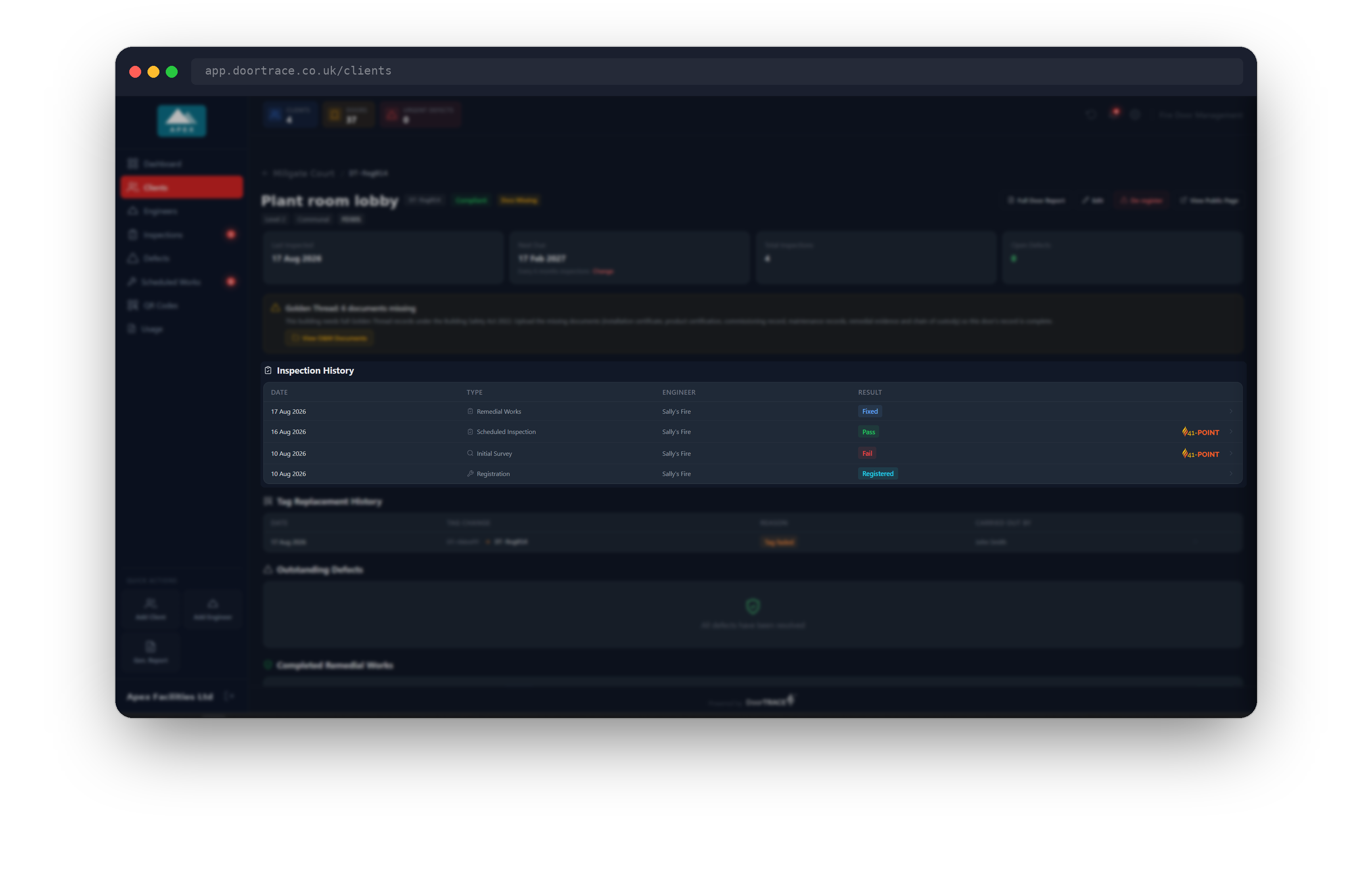
There are two ways to reach an inspection. On a door page, scroll to Inspection History and click any row. On the Inspections page, click any row of the Completed Inspections table. Both open the same inspection window, showing the date, engineer, the four summary tiles (Pass, Fail, N/A, Defects) and the checklist, grouped by category. The Defects tile counts the defects logged against this inspection in the Defect Register, so it can be higher than the number of failed checks when an engineer raised a defect without failing a check.
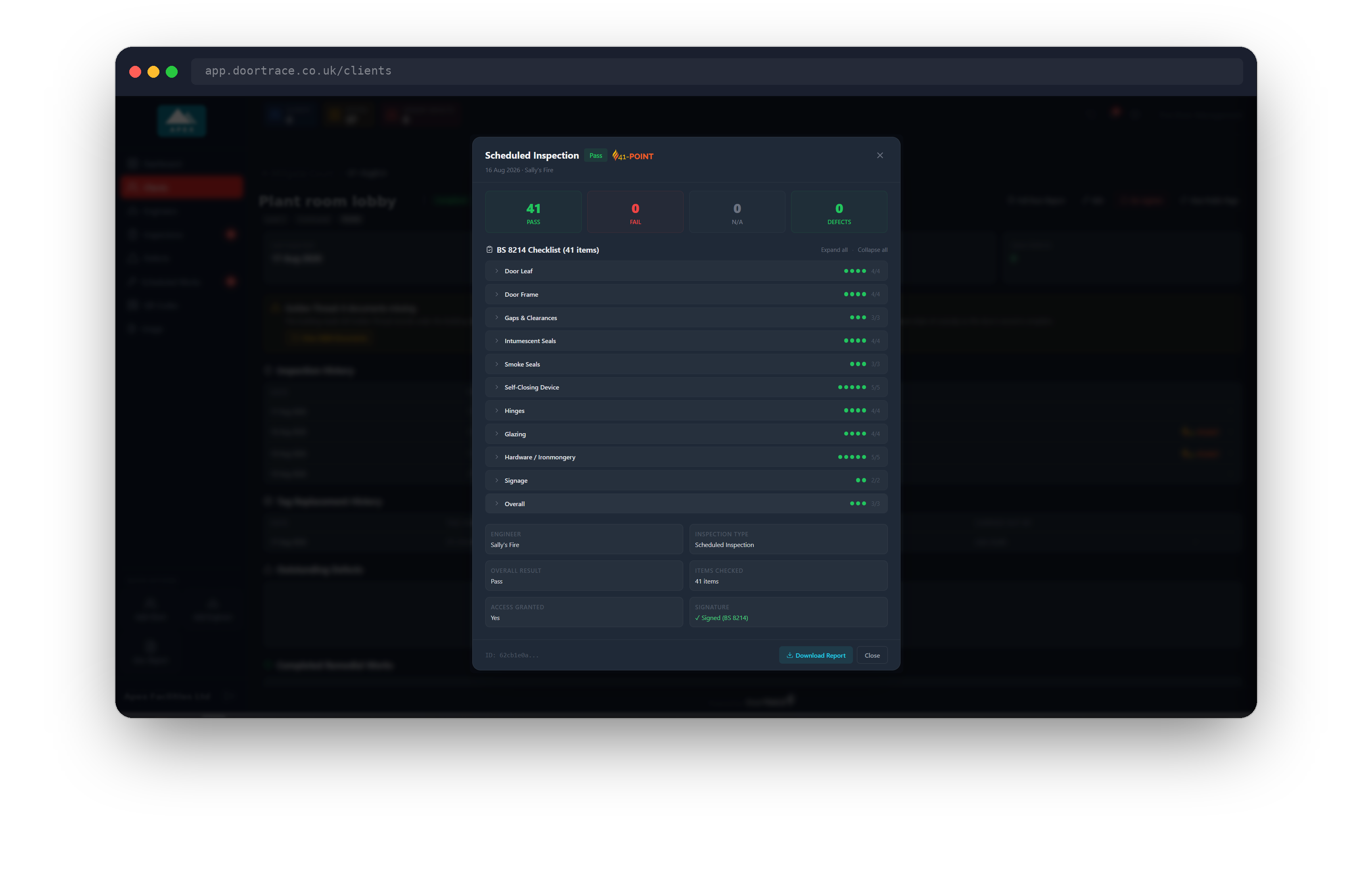
The download buttons sit in the footer of the window. Every inspection has Download Report, or Download Certificate if it is a registration. A BM TRADA survey also has Q-Mark Form. The Inspections page adds View Building, which closes the window and takes you to the door's building. The buttons are greyed out until the inspection details have loaded.
Download a report
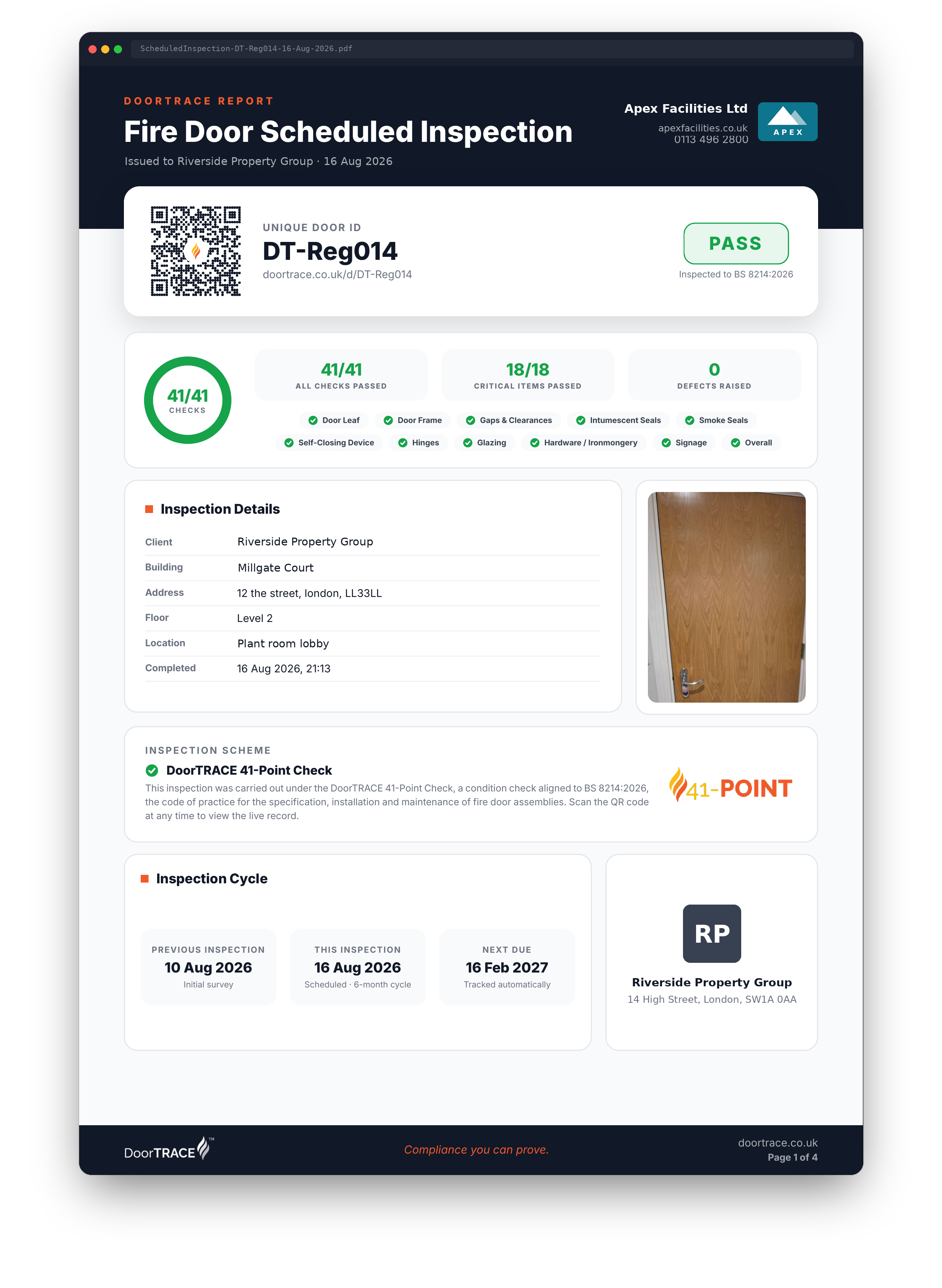
Click Download Report. The button shows Generating... while the PDF is built in your browser, then the file is saved by your browser in the usual way. Nothing is emailed and nothing is stored on the server: the report is built fresh from the live record each time, so it always reflects the door's current details, your current branding and the client's current logo.
Which report you get:
- Initial Survey: the first full survey of a door. File name
InitialSurvey-<QR code>-<date>.pdf, report referenceDT-ISV-<date>-<code>. - Scheduled, Quarterly, Annual or Ad-Hoc inspection: file name
ScheduledInspection-,QuarterlyInspection-,AnnualInspection-orAdHocInspection-<QR code>-<date>.pdf, report referenceDT-SCH-,DT-QTR-,DT-ANN-orDT-ADH-<date>-<code>. - Post-Remedial inspection: file name
RemedialWorks-<QR code>-<date>.pdf, report referenceDT-REM-<date>-<code>.
The date in the file name and reference is the date the inspection was completed, not the day you downloaded it.
What a survey or inspection report contains
Initial Survey and routine inspection reports share one layout:
- Page 1: the result (PASS, FAIL or REMEDIAL REQUIRED), the door's QR code and its live record link, the front-of-door photo, Inspection Details (client, building, address, floor, location, completed date and time) and, for an Initial Survey, Door Specification (leaf material, configuration, fire rating, closer type, manufacturer, certification reference, inspection frequency and registration date). Routine reports show Inspection Cycle instead: the previous inspection, this one and the next due date.
- Page 2: The Door, Checked (a door diagram with callouts), Key Measurements and Photographic Evidence (the gap and threshold photos, or the door gaps gauge photo for a Q-Mark survey).
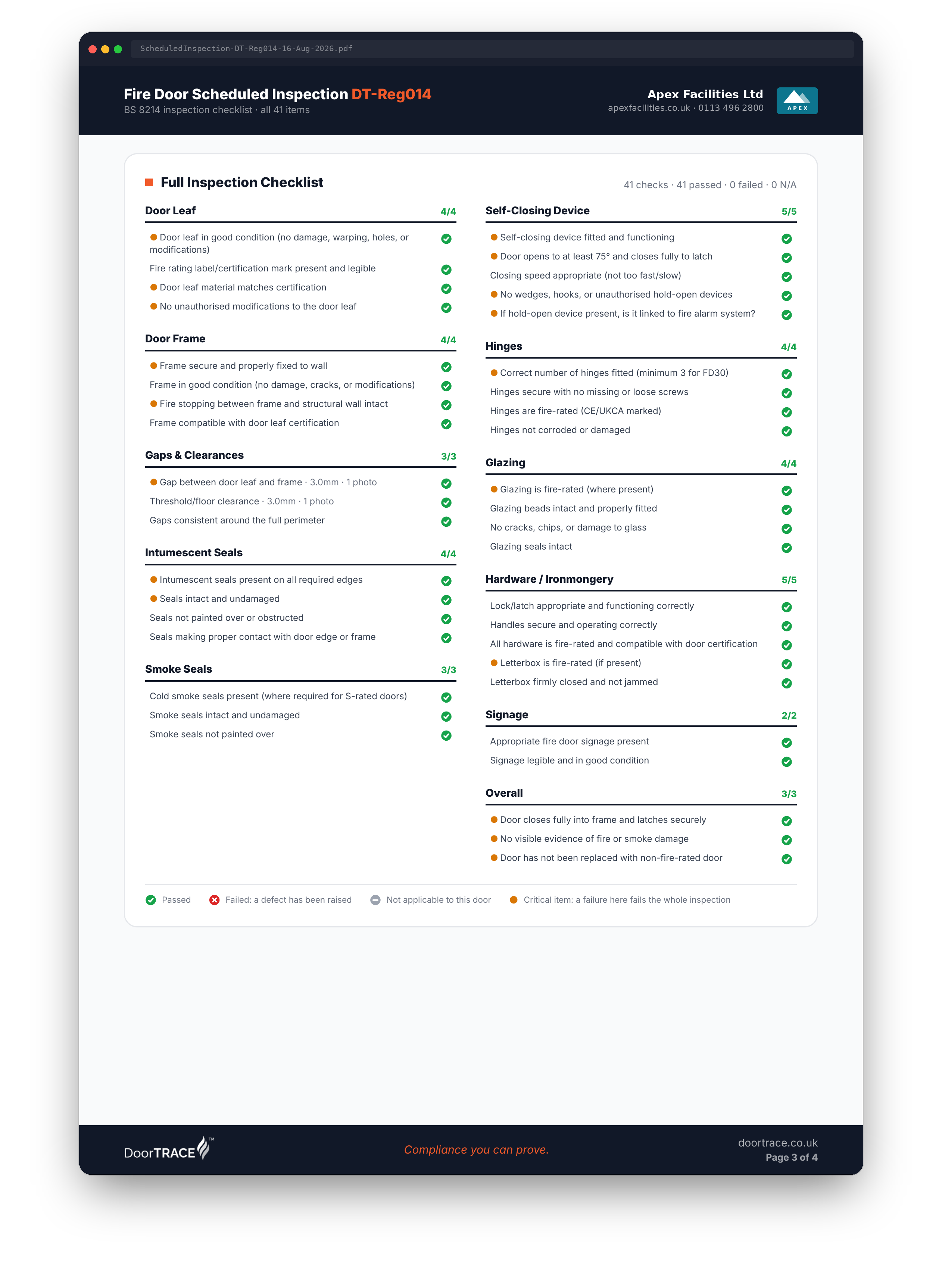
- Page 3: Full Inspection Checklist (or Doorset Condition Survey for Q-Mark), every check with its result, notes and measurements. A door assessed as nominal shows the certification check as an observation, not a failure.
- Defects pages: one card per defect logged at this inspection, four to a page, with the defect photo where one was taken. These pages only appear when defects were raised.
- Last page: the outcome, What Happens Next, the engineer's notes, signature and the Applicable Regulations for the building.
A Post-Remedial report is shorter: an overview with Verification Details and Works Timeline, then one panel per defect with BEFORE and AFTER photos and the engineer's resolution notes, then the outcome and sign-off page.
Tip: The engineer's name and company print on the report exactly as recorded. If the inspection was done by your own engineers through app access, the report shows your company name instead of an individual.
Download a Registration Certificate
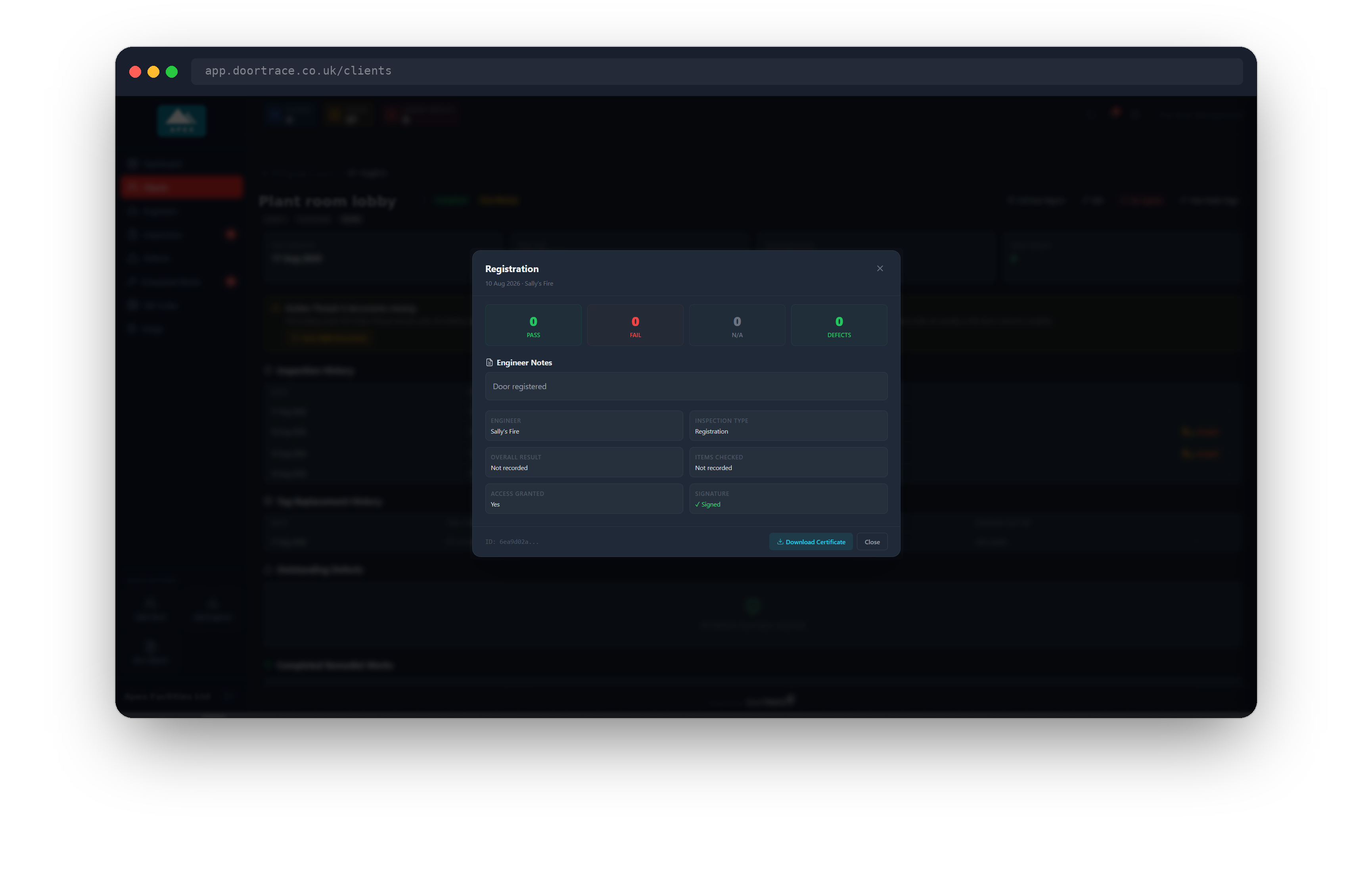
A registration has no checklist, so its window shows no checks and no result badge (the table row you opened it from shows Registered). Click Download Certificate to get the one-page Registration Certificate: file name Registration-Certificate-<QR code>.pdf, reference DT-REG-<date>-<code>. It shows the door's location and GPS position, the front-of-door photo, the branded QR code, who registered the door and when, the engineer's signature, and the regulations that apply to the building.
Download the Q-Mark form
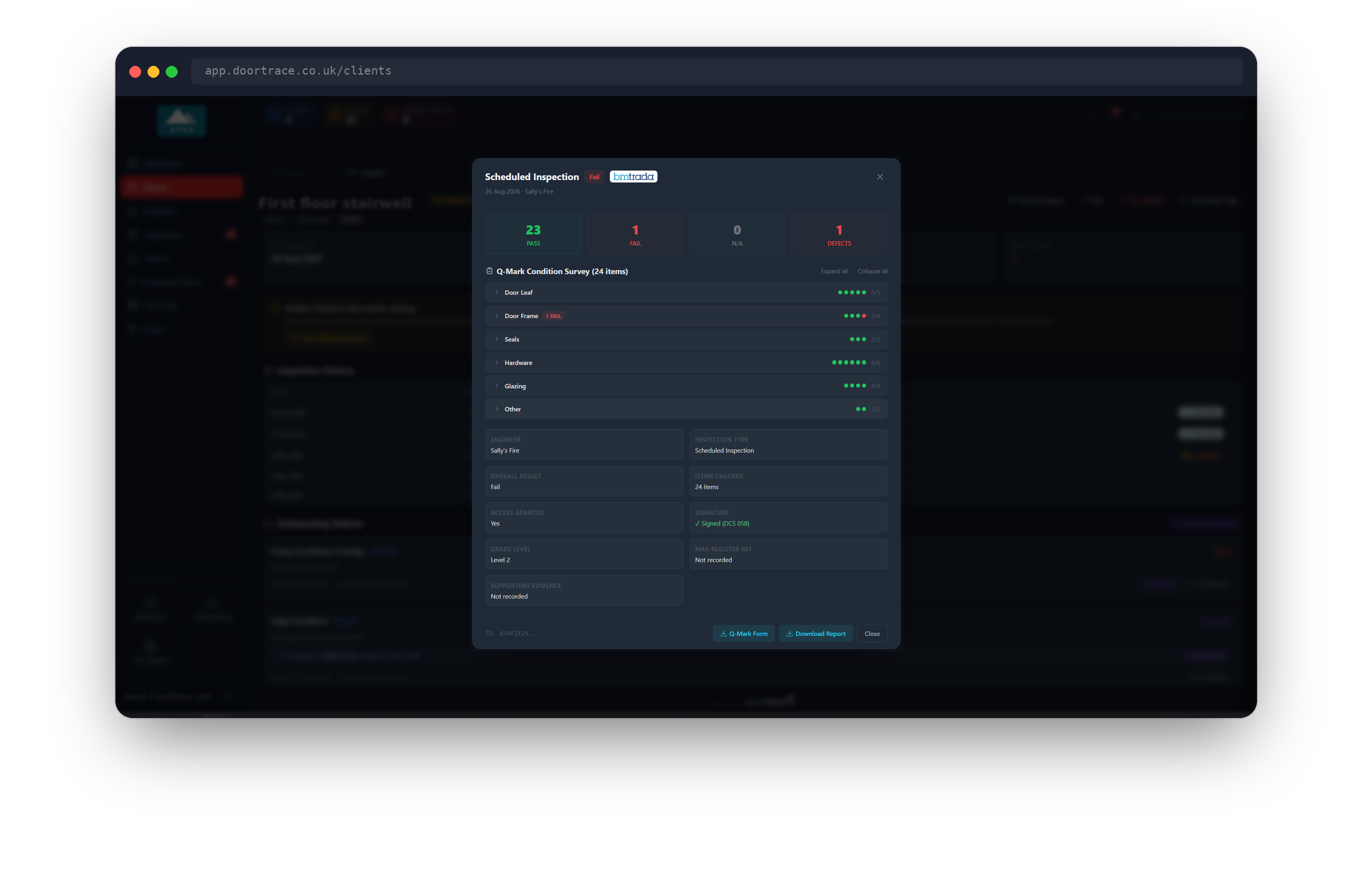
For a survey done under the BM TRADA Q-Mark scheme, the window also shows Q-Mark Form. This is the official DCS 058 Fire Door Condition Survey, laid out like the paper form: the header fields, the 24 aspects grouped by area with their results, details and ART repair codes, and the evidence grade. Unlike the other documents it is produced by the DoorTRACE server, and the button reads Downloading... while it is fetched. The file is saved as DT-INS-<date>-<code>.pdf, dated from the survey like the other reports.
Important: The DCS 058 form is the scheme's controlled document. The matching Download Report for the same survey presents the same findings in the DoorTRACE report layout, for your own records and your client's.
Download a Tag Replacement Record
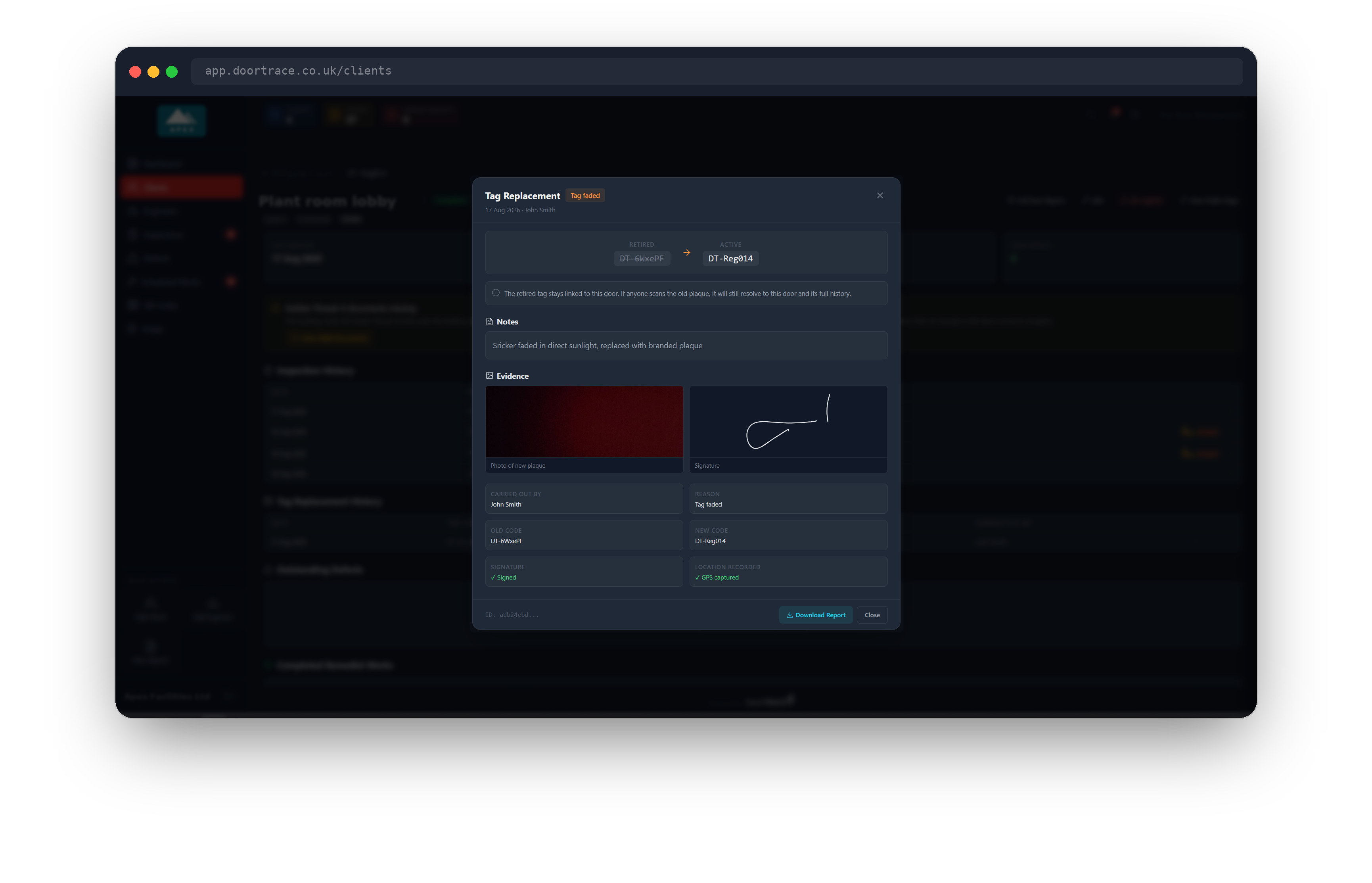
When an engineer replaces a door's QR tag, the door page lists it under its tag replacement history. Open the entry and click Download Report to get the Tag Replacement Record: file name Tag-Replacement-Record-<new code>.pdf, reference DT-RTG-<date>-<new code>. It records the retired and active codes, the reason, the engineer, the photo of the new plaque and the signature.
If a download fails
If the report cannot be built or the form cannot be fetched, a red message appears above the buttons: "The report could not be generated. Please try again." or "The Q-Mark form could not be downloaded. Please try again." Click the button again. If it keeps failing, check your internet connection and try signing out and back in.
What's next
Reports for a whole door, building or client are covered in Viewing a door, Managing a building and Managing a client. To see the defects an inspection raised and schedule the repairs, continue to The Defect Register.
Still can't find the answer?
Send us a message and we'll help. We respond within one working day.