FM Portal guides
FM Portal · Getting started
Signing in to the portal
Last updated 12 Sept 2026
The FM Portal at app.doortrace.co.uk is where you manage your clients, buildings, doors and engineers. This guide covers signing in, what to do if your account uses two-factor authentication, how to reset a forgotten password, and how to sign out.
Before you start
You need the email address and password for your DoorTRACE account. If you don't have an account yet, the Sign up link at the bottom of the sign-in screen takes you to the contact page on doortrace.co.uk, where you can book a demo or get in touch.
Signing in
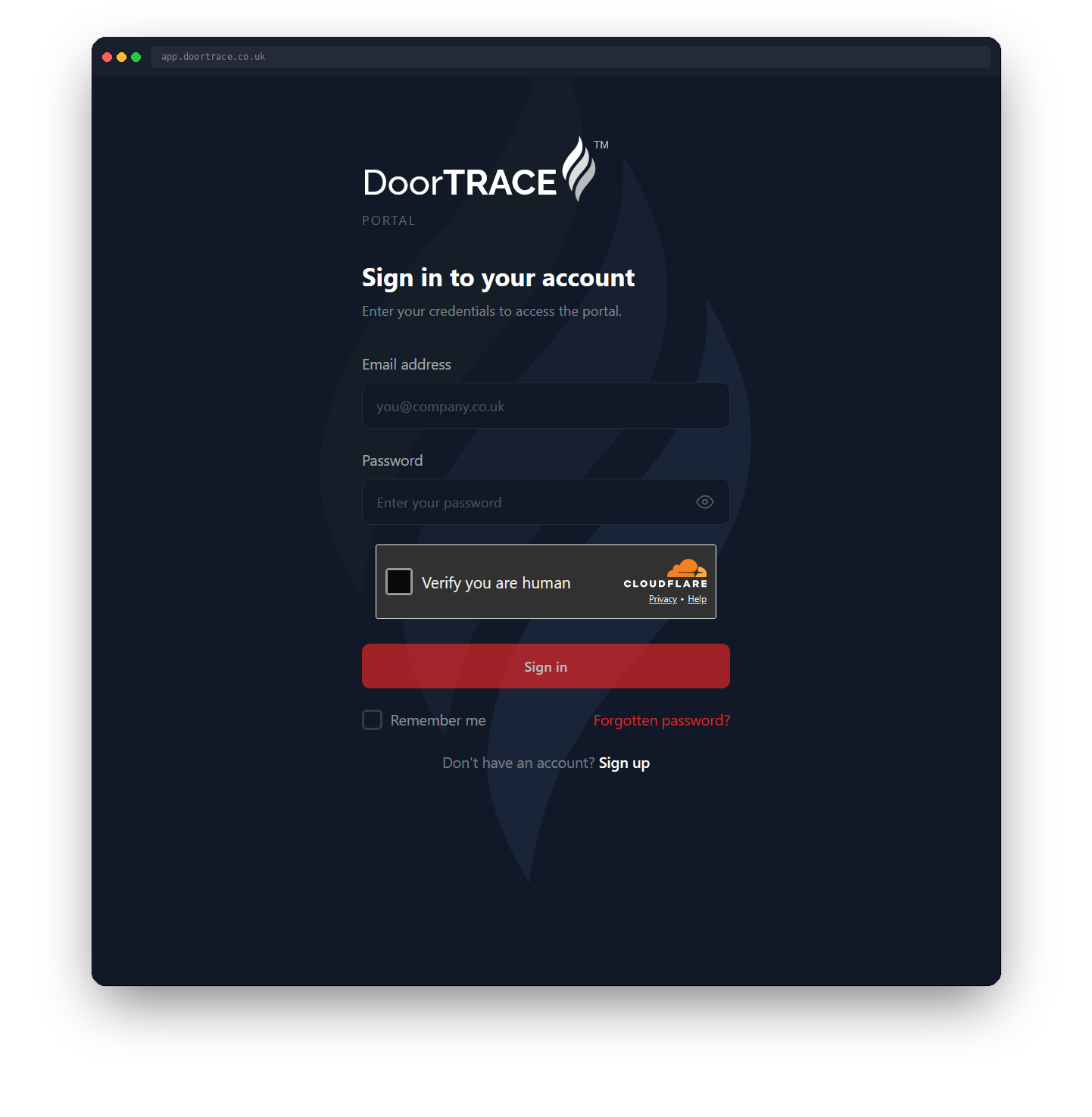
Go to app.doortrace.co.uk, or click Log in at the top of doortrace.co.uk, and enter your Email address and Password. Use the eye icon in the password box to check what you've typed. Below the password is a short security check: tick Verify you are human and wait for it to show Verified, then click Sign in.
Tick Remember me before you sign in if you want to stay signed in after closing your browser. Leave it unticked on a shared computer: you'll be signed out as soon as the browser closes.
If your email or password is wrong you'll see "Incorrect email or password. Please try again." Too many attempts in a short time shows "Too many login attempts. Please wait a moment and try again." If your account has been deactivated, or your company's DoorTRACE account is suspended or closed, the message will say so and who to contact.
Two-factor authentication
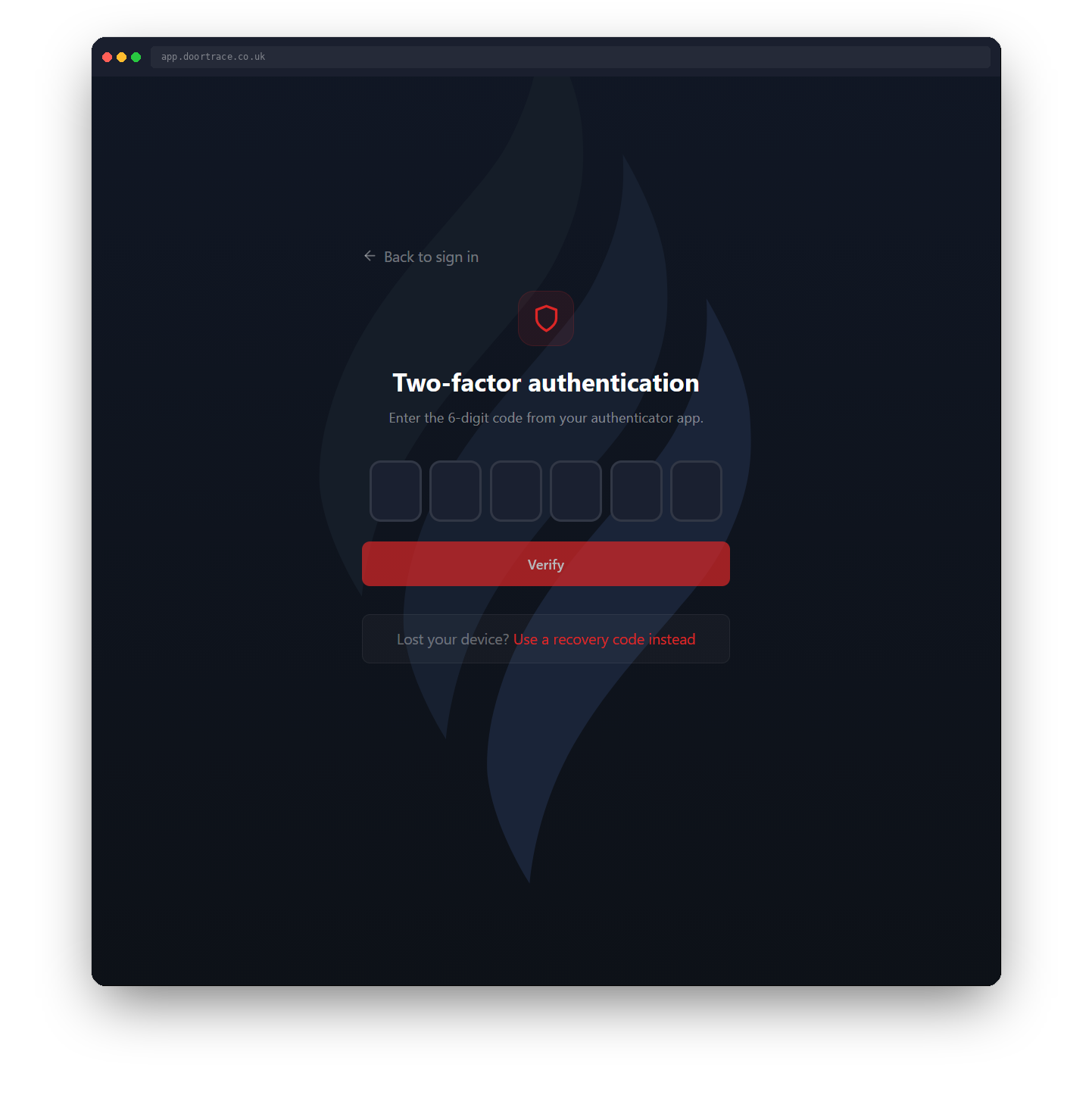
If two-factor authentication is switched on for your account, you'll see this screen after entering your password. Open your authenticator app and type the six-digit code into the boxes. The portal checks the code automatically once the last digit is entered, or you can click Verify. A wrong code shows "Invalid code. Please try again." and clears the boxes so you can try again.
The code screen stays valid for five minutes. If you take longer, click Back to sign in and enter your password again.
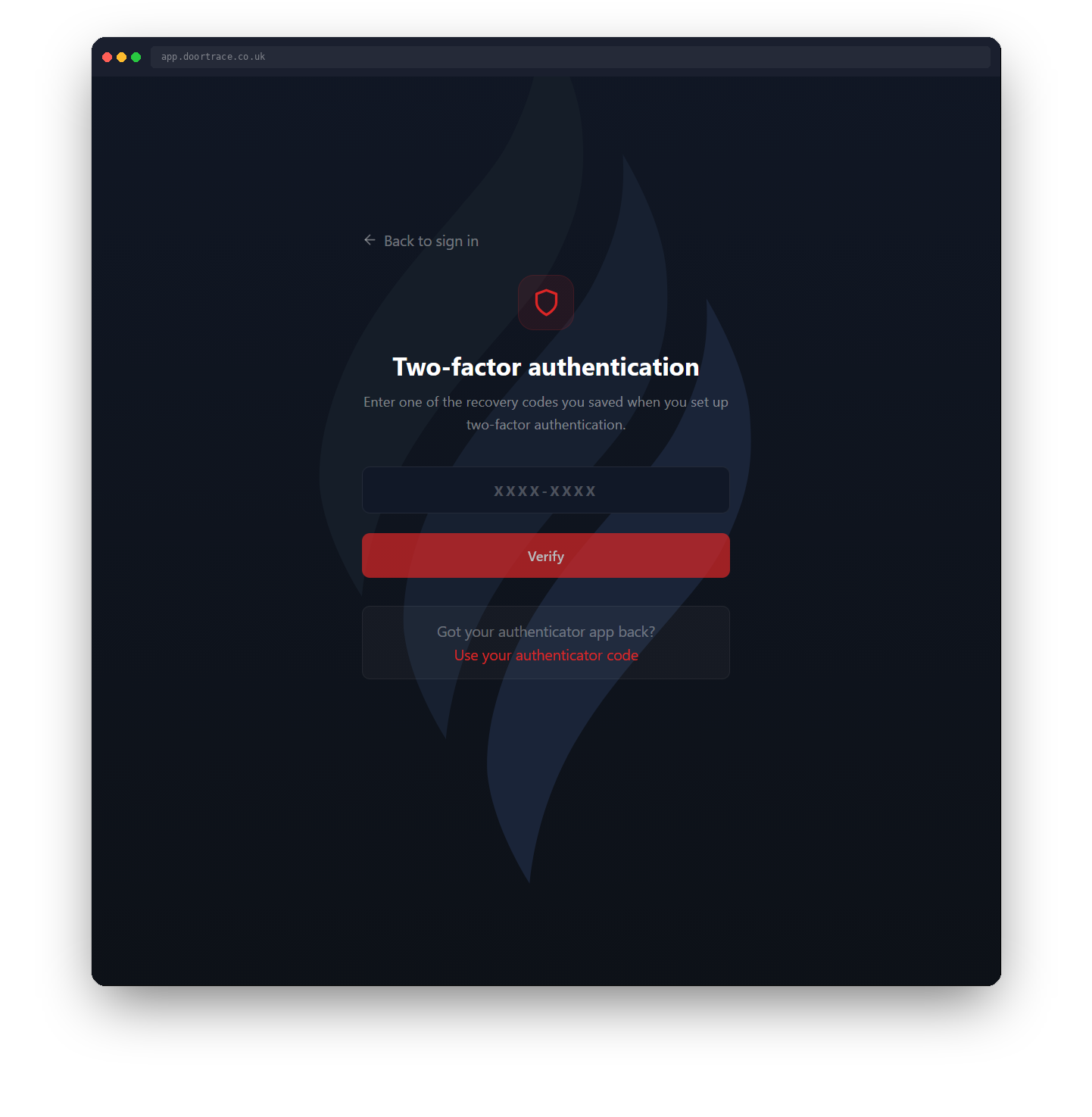
If you don't have your authenticator app, click Use a recovery code instead. Enter one of the eight recovery codes you saved when you switched on two-factor authentication, in the format XXXX-XXXX, and click Verify. Each recovery code works once. To go back to the six-digit boxes, click Use your authenticator code.
Tip: You can see how many recovery codes you have left under Settings > Security. Switching two-factor authentication off and on again gives you a fresh set of eight.
Forgotten your password?
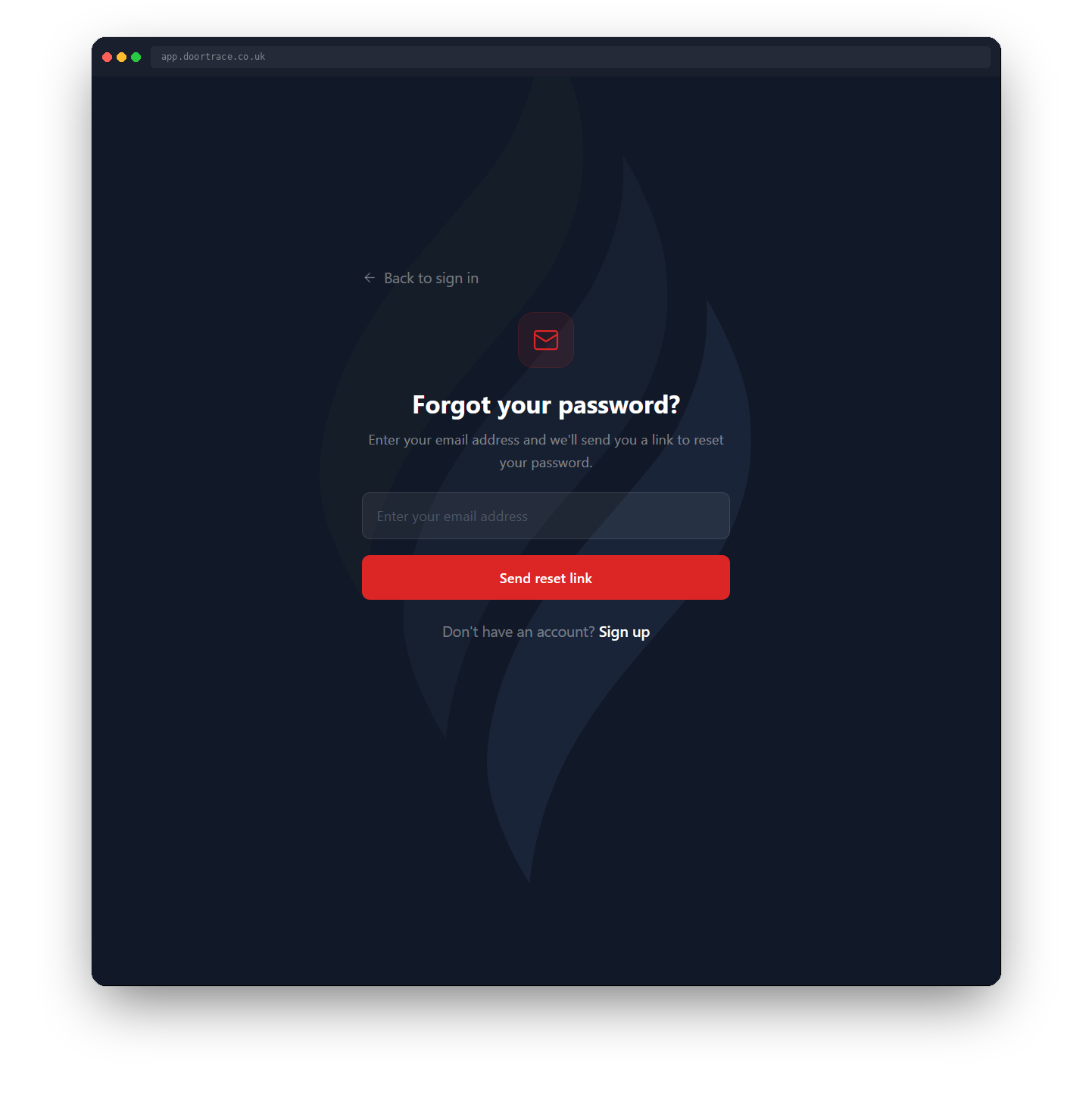
On the sign-in screen, click Forgotten password?. Enter the email address for your account and click Send reset link. If you change your mind, Back to sign in takes you back without sending anything. Requesting a new link cancels any earlier reset link that is still open.
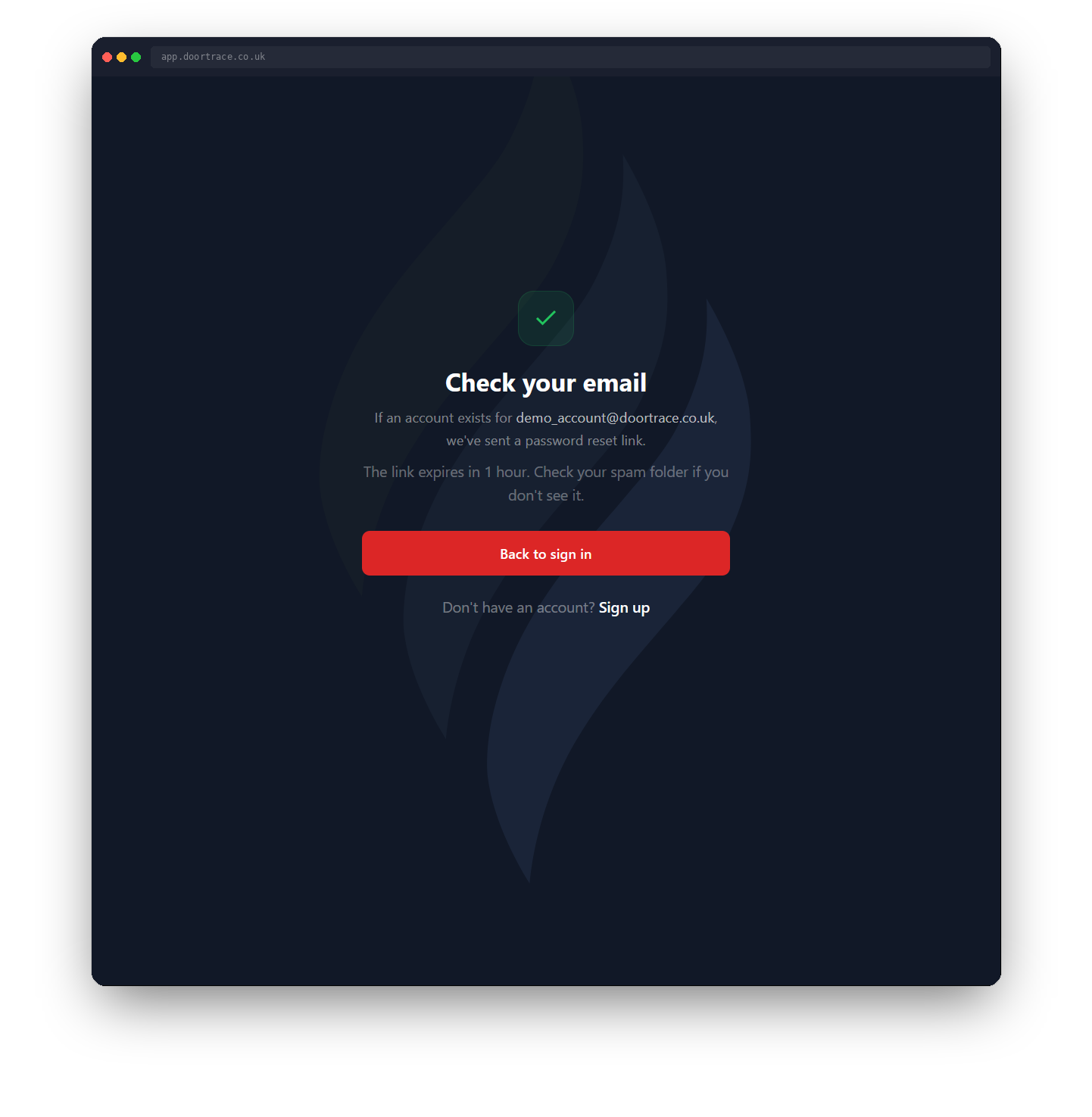
You'll see "Check your email" whether or not the address is registered, so if nothing arrives, check that you typed the address correctly and look in your spam folder. The link expires after one hour. Click Back to sign in to return to the sign-in screen while you wait.
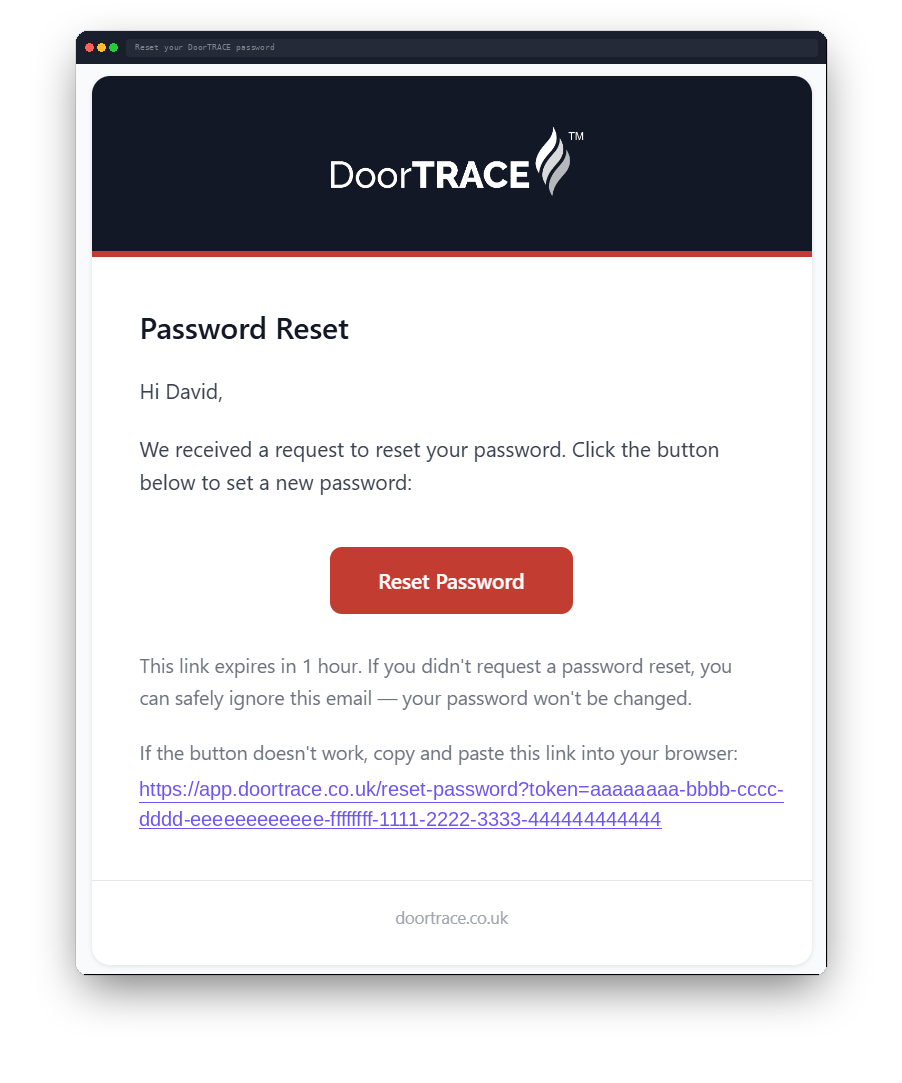
The email comes from noreply@doortrace.co.uk with the subject 'Reset your DoorTRACE password'. Click Reset Password in the email, or copy the link underneath it into your browser. If you didn't ask for a reset you can ignore the email; your password stays as it is.
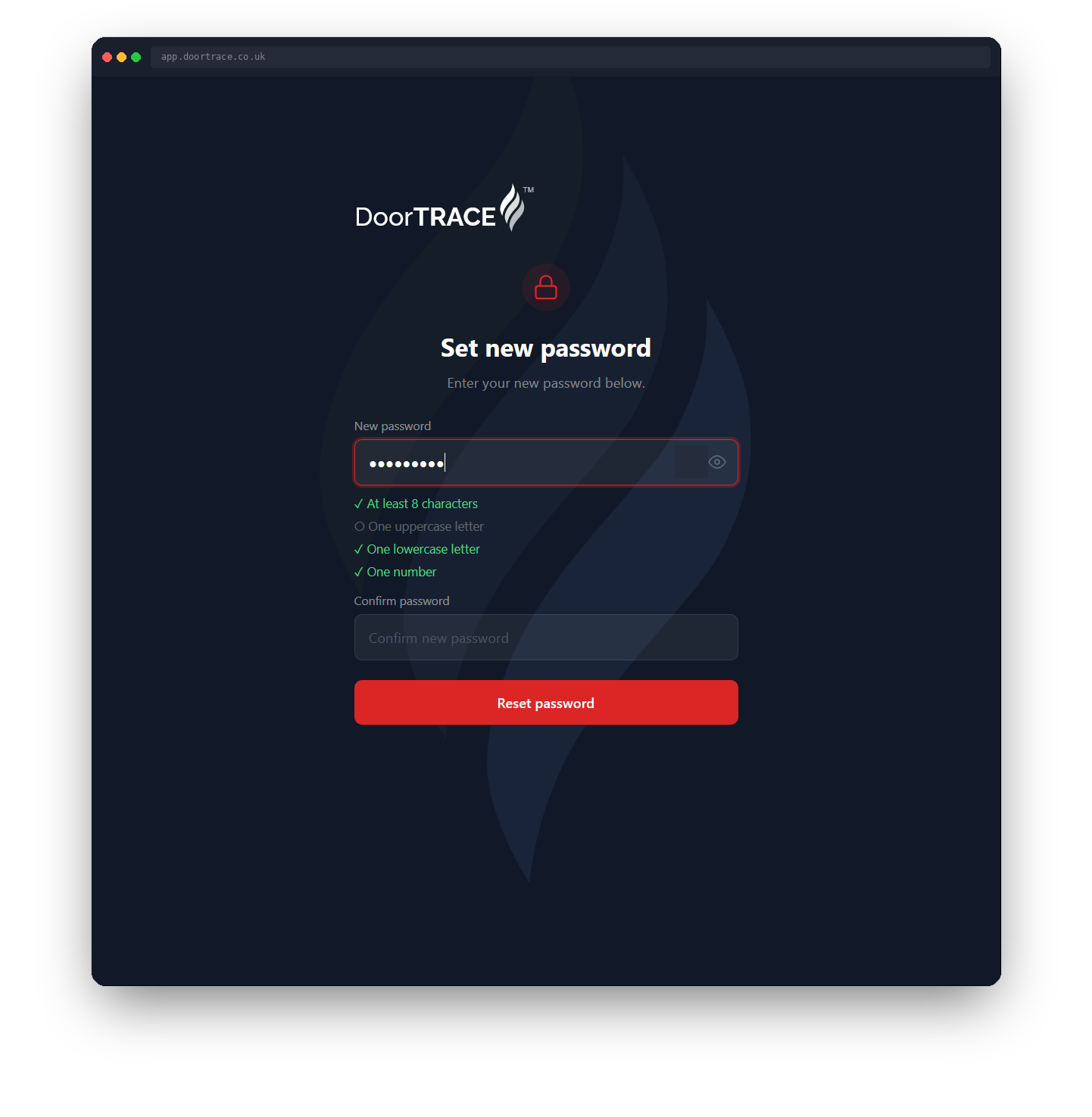
Enter your new password and confirm it, then click Reset password. Your password must be at least eight characters and include an uppercase letter, a lowercase letter and a number; the checklist under the box ticks off each rule as you type. When you see "Password reset", click Go to sign in and sign in with your new password.
Important: Resetting your password signs you out of the portal everywhere else, including any other browser or computer you were signed in on.
If you see "Invalid reset link", the link has expired or has already been used. Go back to the sign-in screen and request a new one.
If your session expires
The portal keeps your session alive while you're using it. If you've been away for a long time you may see "Session expired" when you come back. Click Sign in and enter your details again; nothing you saved earlier is lost.
Signing out
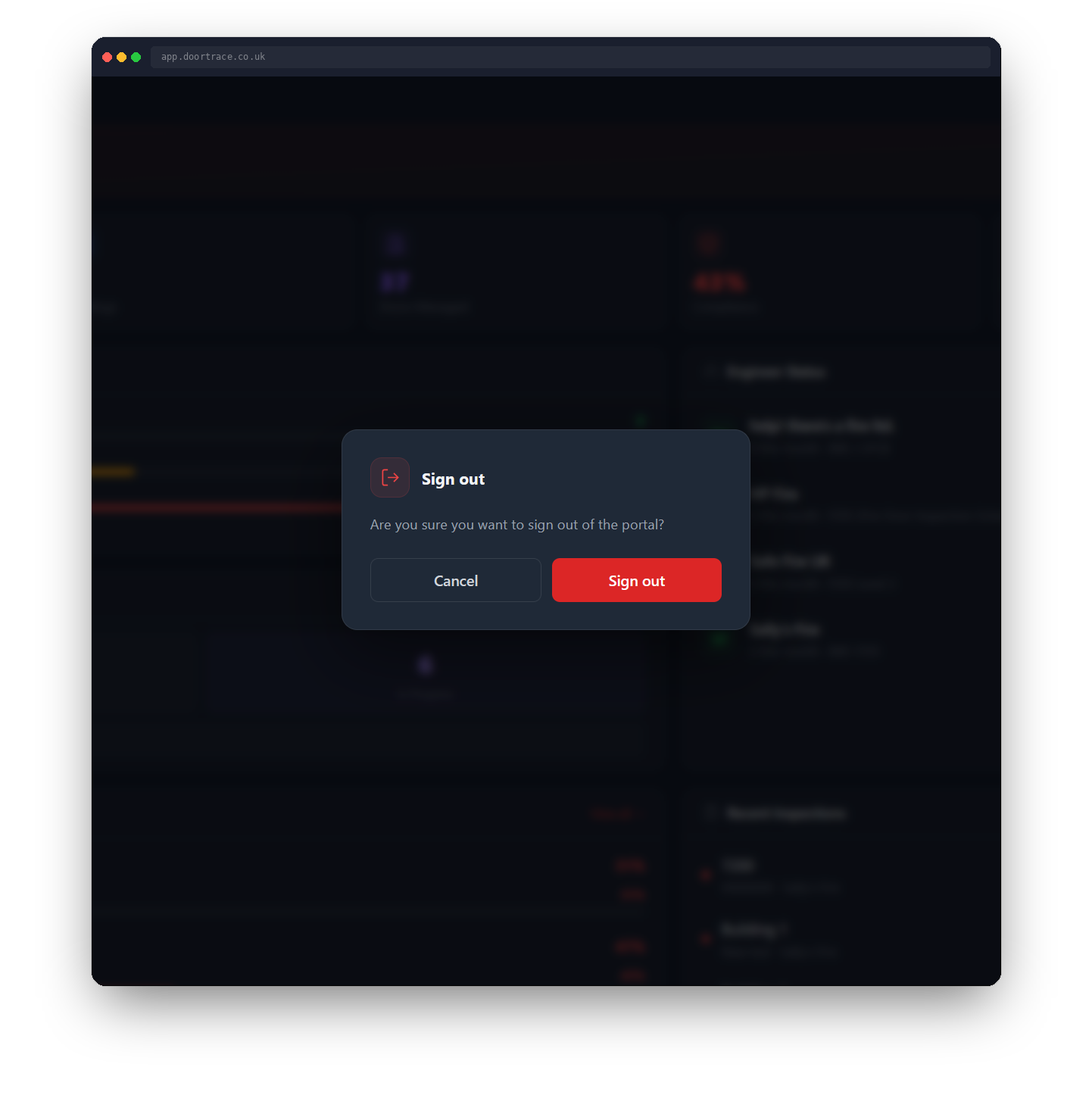
Click the sign-out icon next to your company name at the bottom of the left-hand menu. Confirm with Sign out on the dialog, or Cancel to stay signed in. Signing out also ends any other sessions you had open, so you'll need to sign in again on any other computer or browser.
What's next
Once you're in, Your dashboard walks through what you'll see first and how to read the compliance summary.
Still can't find the answer?
Send us a message and we'll help. We respond within one working day.