FM Portal guides
FM Portal · QR codes
Ordering printed plaques
Last updated 20 Sept 2026
You can request printed QR plaques from DoorTRACE without leaving the portal. You choose the type and the quantity, the portal shows the price, and the request goes straight to DoorTRACE. Nothing is charged in the portal: DoorTRACE sends an invoice afterwards.
Before you start
- Plaques are printed with your approved design and arrive without a QR code on them. You print your QR codes as labels and stick one on each plaque. Printing QR labels shows how.
- You will be asked for your portal password to confirm the order.
- The most you can request in one order is 2,000 plaques. For more than that, email plaques@doortrace.co.uk.
Find the Order Plaques card
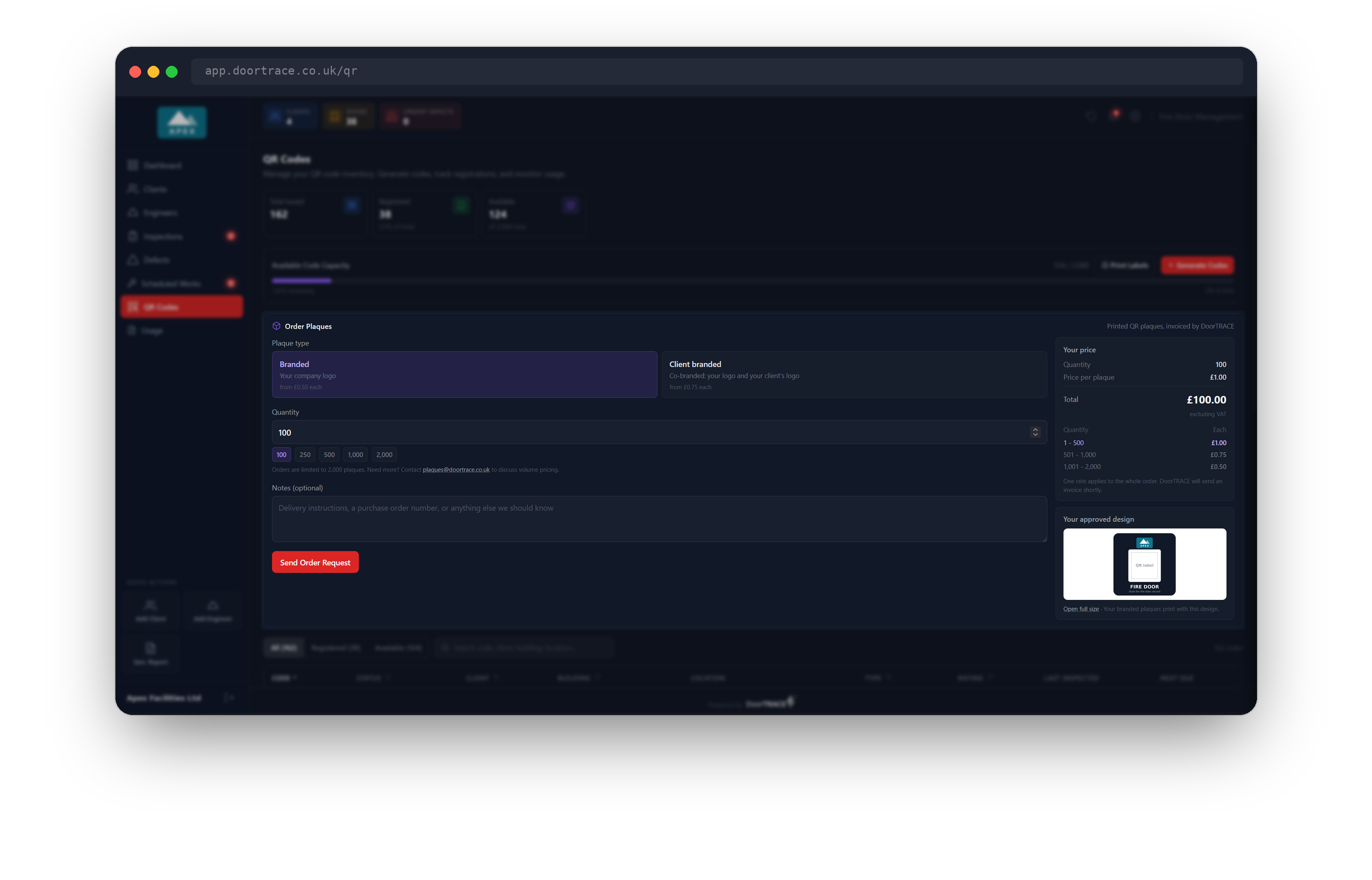
Choose QR Codes in the menu on the left. The Order Plaques card sits below the Available Code Capacity bar and above the table of codes. The line on the right of its title reads "Printed QR plaques, invoiced by DoorTRACE".
The form is on the left of the card. On the right is Your price, and below it the approved design for the plaques you are ordering.
Choose the plaque type
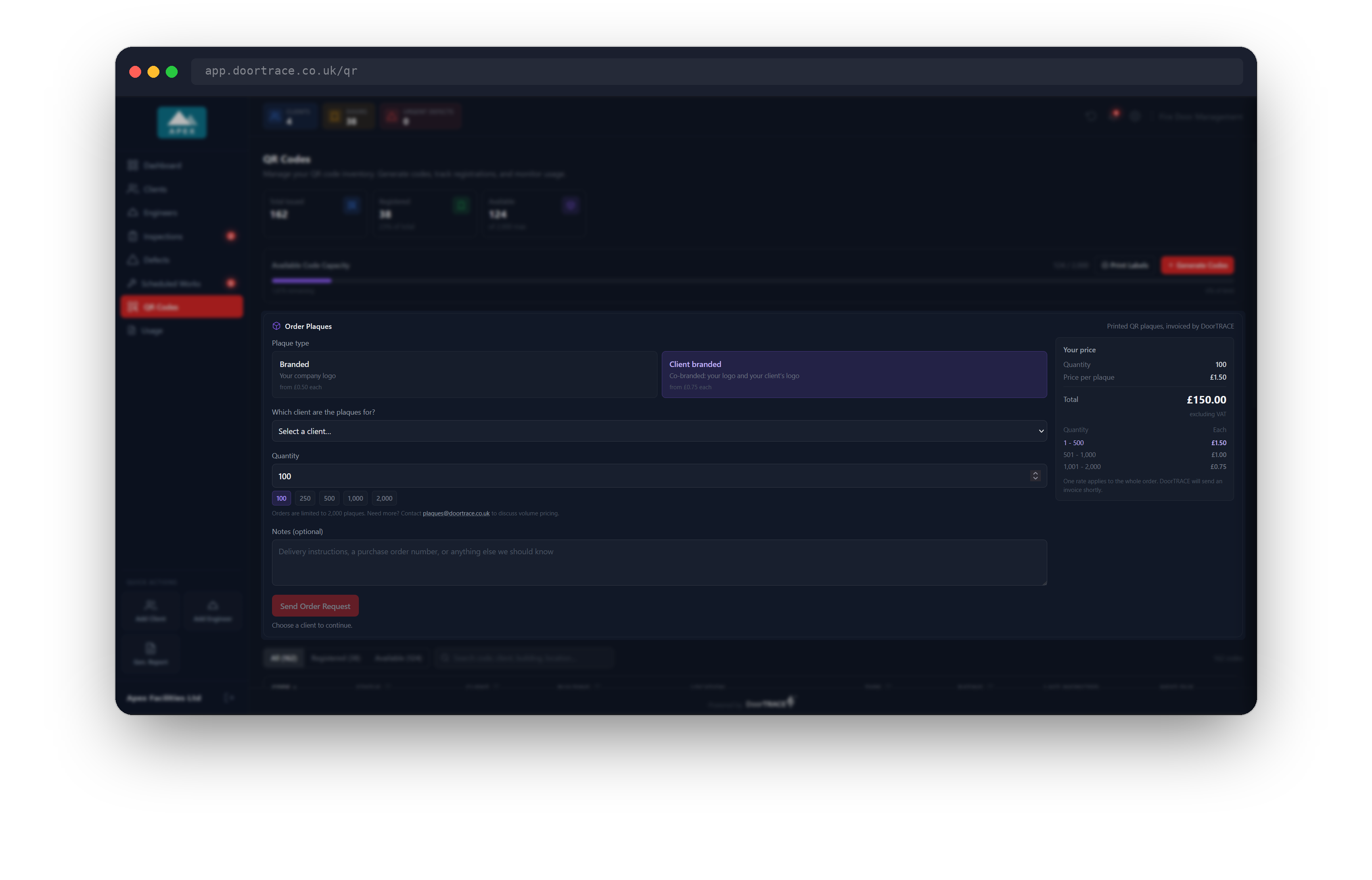
Under Plaque type there are two choices:
- Branded: "Your company logo".
- Client branded: "Co-branded: your logo and your client's logo".
Each choice shows its lowest price per plaque, starting with the word "from".
If you pick Client branded, a list appears headed Which client are the plaques for? Pick the client from Select a client…. Archived clients are not listed. A client with "(no approved design yet)" after the name can still be chosen. Until you pick one, Send Order Request is greyed out and the line "Choose a client to continue." shows under it.
If you have no clients yet, the card reads "You have no active clients yet. Add a client first, or order branded plaques."
Set the quantity and check the price
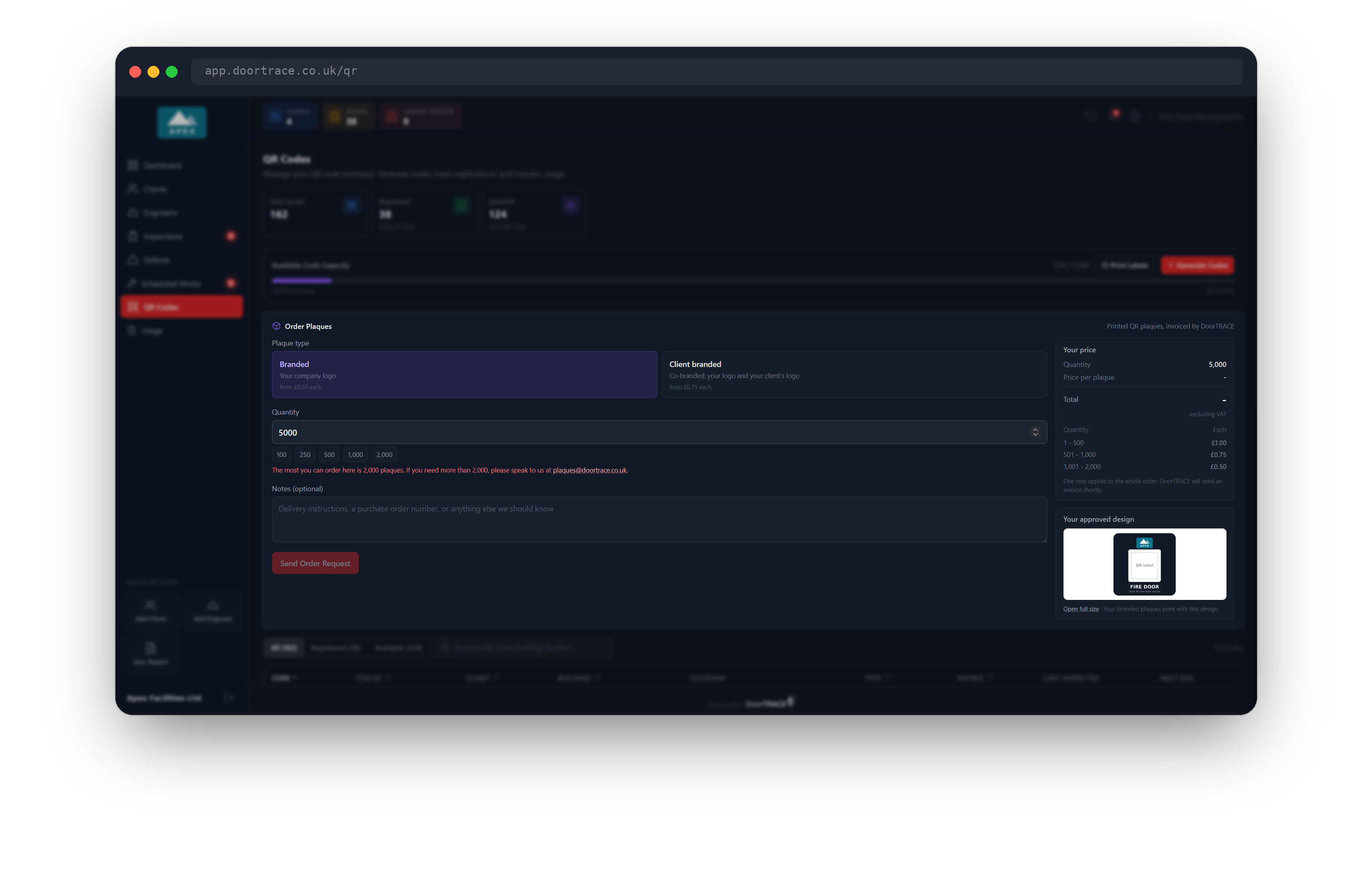
Type a number in Quantity, or use a quick pick: 100, 250, 500, 1,000 or 2,000.
Your price updates as you type. It shows Quantity, Price per plaque and the Total, "excluding VAT". The small table underneath lists the price bands, and the band your order falls in is highlighted. Larger orders cost less per plaque.
"One rate applies to the whole order." When your quantity moves into a cheaper band, every plaque in the order is charged at that lower rate, not just the ones above the step.
If you type more than 2,000, the portal does not change your number. A red line reads "The most you can order here is 2,000 plaques. If you need more than 2,000, please speak to us at plaques@doortrace.co.uk." and Send Order Request is greyed out until the number is 2,000 or less.
Check your approved design
Below the price, Your approved design shows the design DoorTRACE holds for these plaques. For Branded it is your own design, with the line "Your branded plaques print with this design." For Client branded it is the chosen client's design, with "Plaques for [client] print with this design." Open full size opens it in a new tab. If the design was supplied as a PDF, the box reads "PDF artwork on file" and Open full size opens the PDF.
Designs are added by DoorTRACE. You cannot upload one in the portal. The picture is there for reference: DoorTRACE prints from the master artwork it holds for you.
If there is no design yet, an amber box reads No approved design yet: "You can still send the request. DoorTRACE will be in touch to arrange the artwork ... before anything goes to print."
Add notes
Notes (optional) takes up to 1,000 characters. Use it for "Delivery instructions, a purchase order number, or anything else we should know". Your notes are sent to DoorTRACE with the order and are repeated in your confirmation email.
Send the order
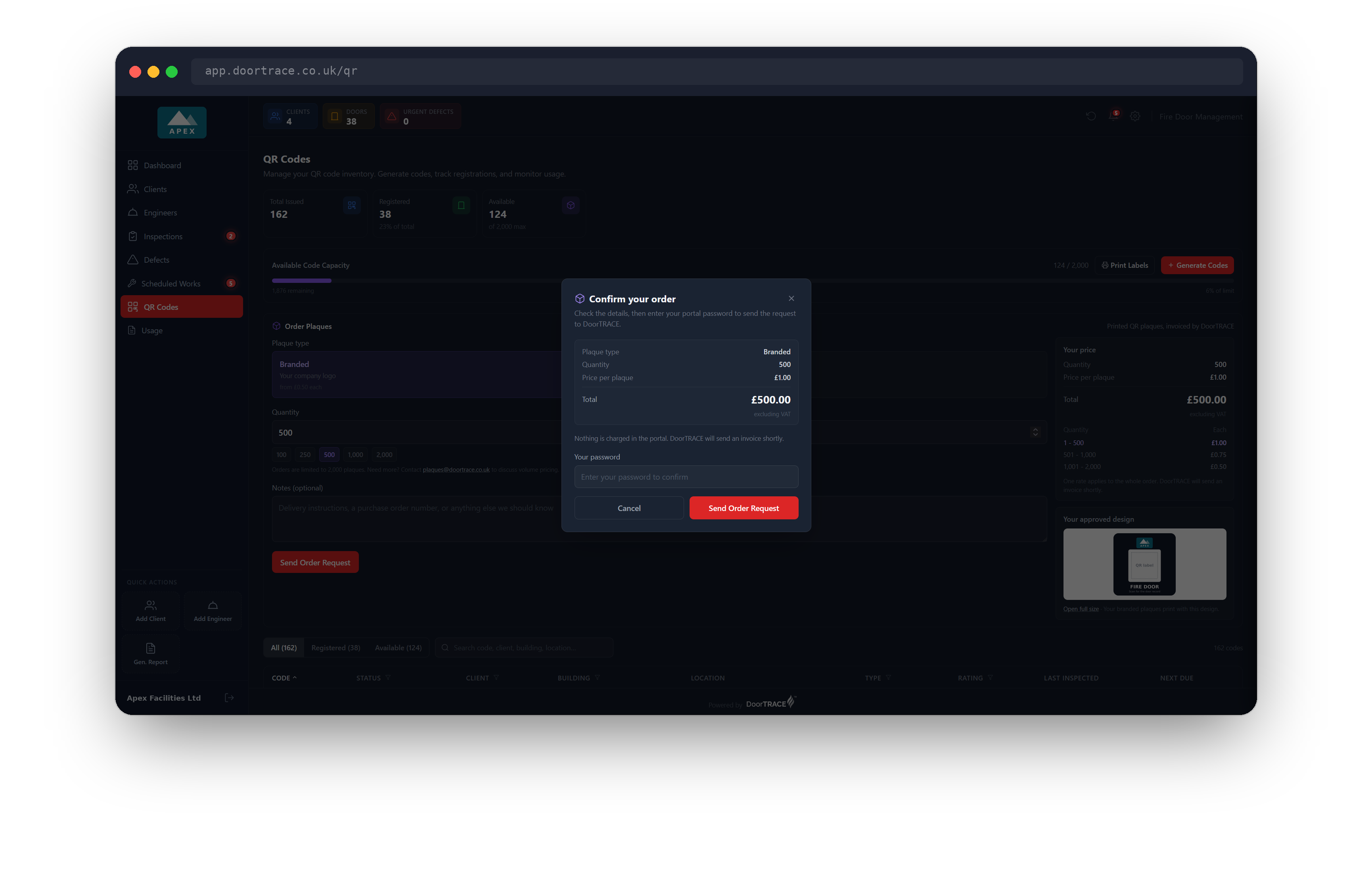
Click Send Order Request. Nothing is sent yet. A window opens titled Confirm your order, showing the Plaque type, the client on a client branded order, the Quantity, the Price per plaque and the Total excluding VAT.
Check the details, type your portal password in Your password, then click the red Send Order Request. The button reads "Sending…" while the order goes. During that time Cancel, the X and clicking outside the window are switched off.
If the password is wrong, a red message reads "Incorrect password" and nothing is sent. Type it again. To go back and change the order, click Cancel.
Important: Sending the request is your order. DoorTRACE will invoice you for it, so check the quantity and the total before you enter your password.
After you send
The window closes and a green box replaces the form: Order request sent, with your reference (it starts PLQ-), the number of plaques and the total excluding VAT, followed by "A confirmation has been emailed to you. DoorTRACE will send an invoice shortly."
The confirmation goes to the email address you sign in with. Its subject is "Your DoorTRACE plaque order request (PLQ-...)" and it lists the reference, plaque type, client, quantity, unit price, total and your notes. If DoorTRACE holds no approved design, it also says DoorTRACE will be in touch to arrange the artwork before anything goes to print. To ask a question, reply to that email: your reply goes to plaques@doortrace.co.uk.
Tip: Keep the PLQ reference. The portal does not keep a list of past plaque orders, so the confirmation email is your record.
Click Place another order to clear the form and start again.
When your plaques arrive
Plaques arrive without a QR code on them. Print your unused codes as labels, then stick one label on each plaque before it goes on a door. Printing QR labels covers the label sheets and the print settings.
If something goes wrong
- Plaque ordering could not be loaded: the card could not fetch the prices. Check your connection and click Try again.
- "Something went wrong sending your order request. Please try again shortly.": the order did not reach DoorTRACE and nothing was sent. Wait a moment and send it again.
- The green box says your confirmation email could not be sent: your order did reach DoorTRACE. Make a note of the PLQ reference shown in the box. You do not need to order again.
What's next
The next guide is Your usage.
Still can't find the answer?
Send us a message and we'll help. We respond within one working day.