FM Portal guides
FM Portal · Defects and works
Scheduled Works
Last updated 17 Sept 2026
The Scheduled Works page lists every defect that has remedial work booked against it. It shows how long each job has been booked, flags the ones that have passed 90 days, and keeps finished jobs on view for 60 days. You do not book work from this page. Booking is covered in Scheduling remedial work; this page is where you keep an eye on what happens next.
Opening Scheduled Works
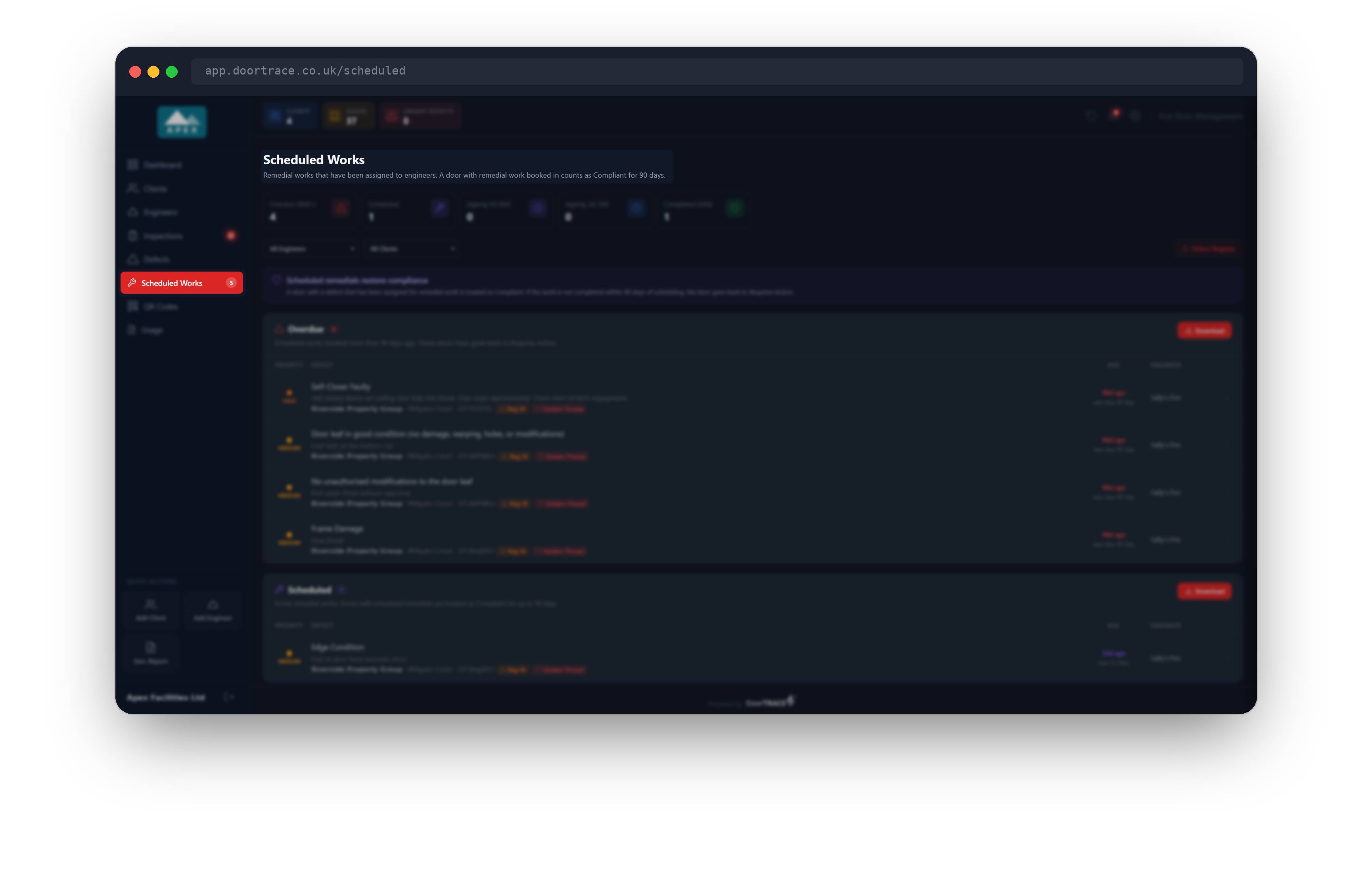
Choose Scheduled Works in the sidebar. The number beside it is the count of jobs currently booked. It is purple when everything is on track and turns red as soon as any job is overdue.
You can also get here from:
- the Scheduled Works card on your dashboard, using View all →
- the purple bar on the Defect Register page, using View scheduled works
- the View in Scheduled Works button in the window of any scheduled defect
- a notification in the bell. An overdue notification opens this page with the Overdue list fully expanded.
The five figures
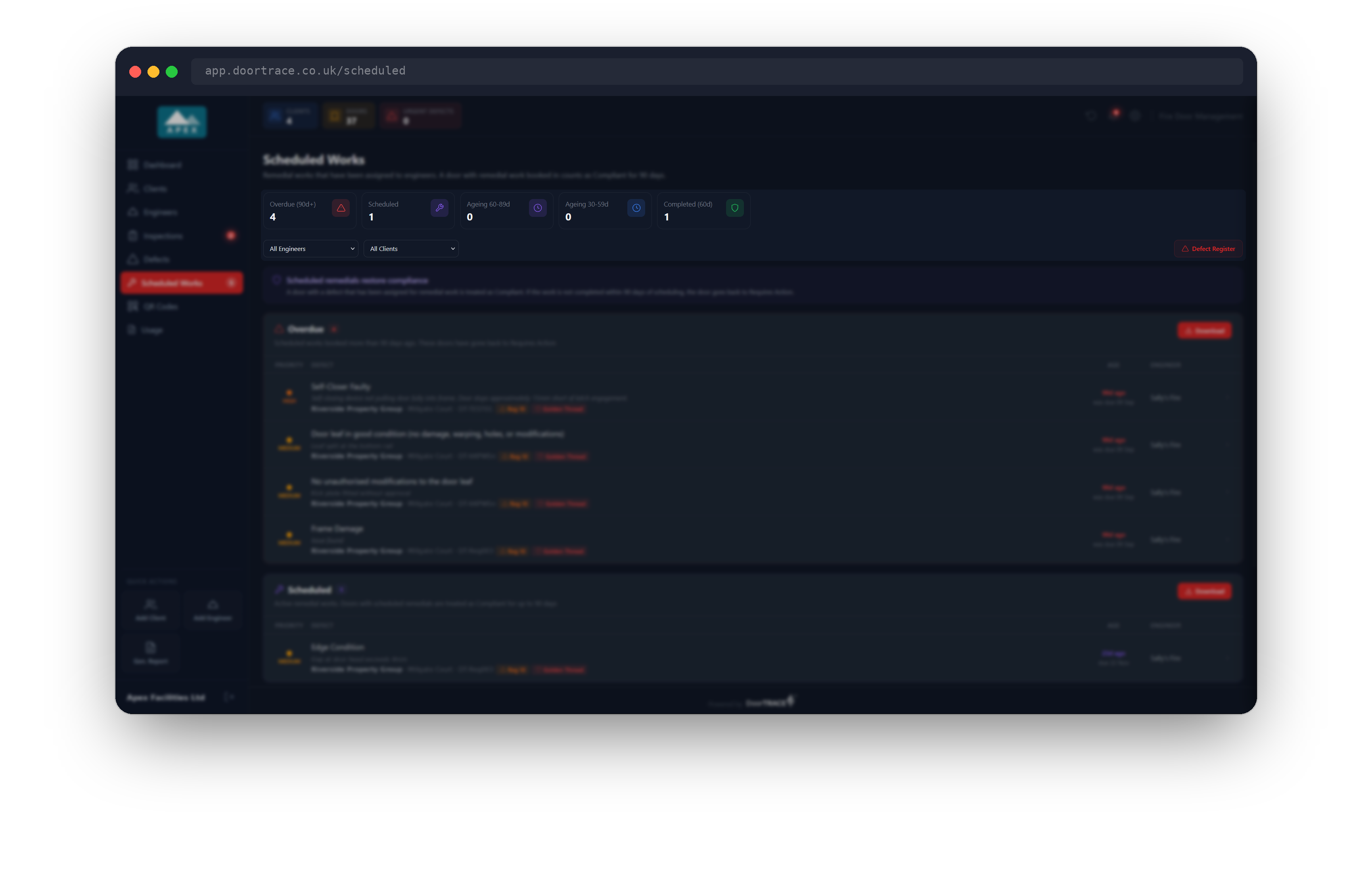
The tiles across the top cover your whole company and do not change when you filter.
- Overdue (90d+): jobs booked 90 or more days ago and still not finished. Red when there is at least one, green at zero.
- Scheduled: jobs booked less than 90 days ago.
- Ageing 60-89d: how many of those scheduled jobs are getting close to the limit. Amber when there is at least one.
- Ageing 30-59d: scheduled jobs booked between 30 and 59 days ago.
- Completed (60d): jobs finished in the last 60 days.
Below the tiles, All Engineers and All Clients narrow all three lists on the page at once. Clear filters appears when either is set. If nothing matches you will see "No matching scheduled works" with a Clear filters link. The Defect Register button on the right takes you back to your defects.
The 90-day rule
The purple note, Scheduled remedials restore compliance, explains the rule behind this page. Once remedial work is booked for a defect, the door is treated as Compliant. That allowance lasts 90 days from the day you booked the work. If the job is not finished by then, a nightly check puts the door back to Requires Action.
Important: The 90 days always run from the first booking. Setting a target date does not extend them, and using Reschedule does not restart them.
An overdue job stays on this page as scheduled. It only leaves the Overdue list when an engineer completes a post-remedial inspection for it in the engineer app. There is no way to mark a job complete from the portal: the engineer's signed inspection is the record that the work is done.
The Overdue and Scheduled lists
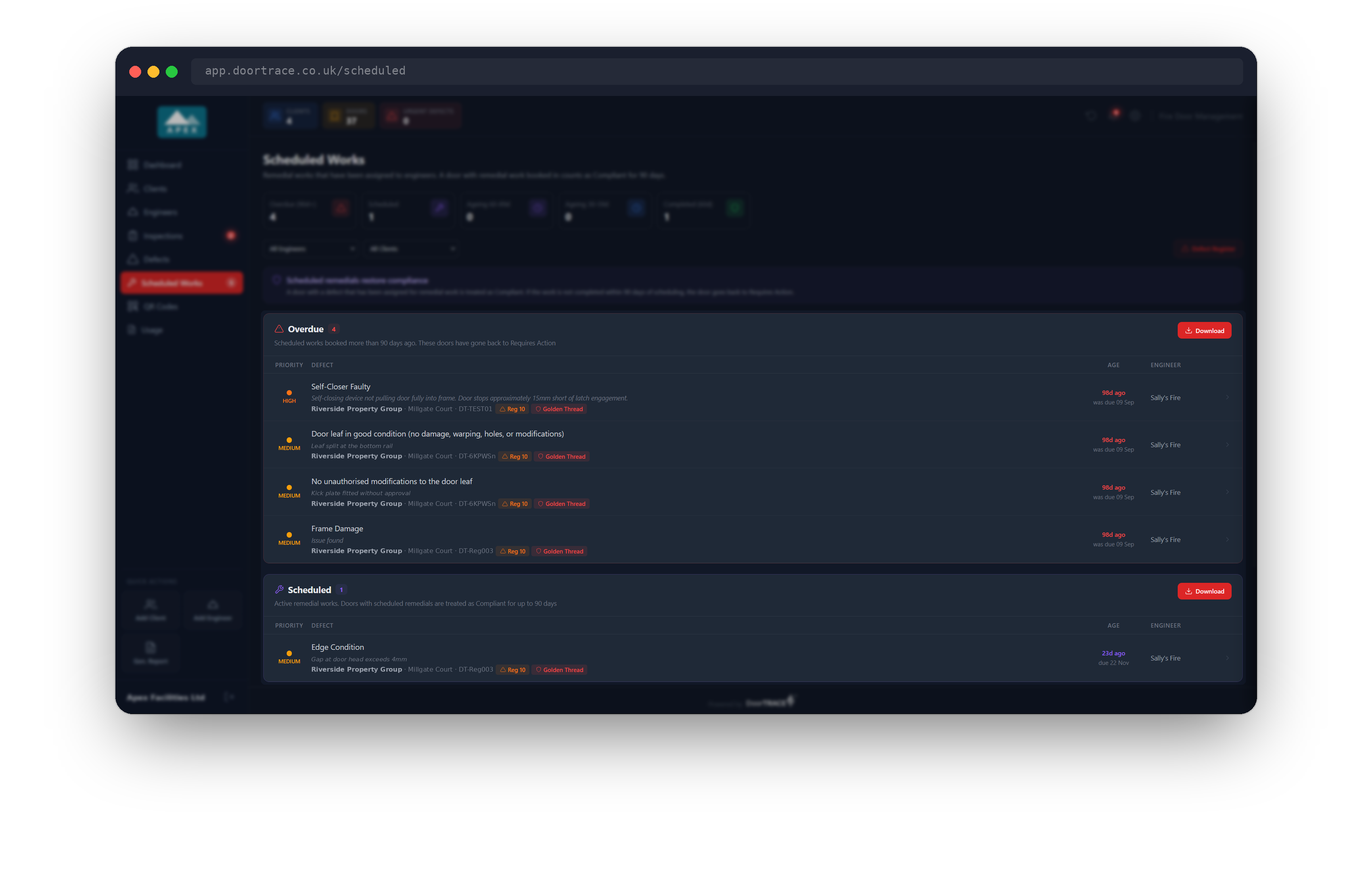
Overdue holds the jobs past 90 days. Its subtitle reminds you that these doors have gone back to Requires Action. Scheduled holds the active jobs. Both lists put the oldest booking first, show the count beside the title, and show eight rows with + N more to see the rest.
Each row shows:
- the priority (critical, high, medium or low)
- the checklist item that failed, with the engineer's note in italics beneath
- the client, building and the door's QR code, plus Reg 10 and Golden Thread badges where they apply
- Age: how long ago the work was booked, such as "23d ago". It is violet at first, amber from 60 days and red from 90. Beneath it is target and the date, if you gave a target date when booking. If you did not, it shows due and the date 90 days after booking, or was due once that date has passed.
- Engineer: the engineer the work was booked with. Work booked with your own engineers shows Internal team.
Opening a job
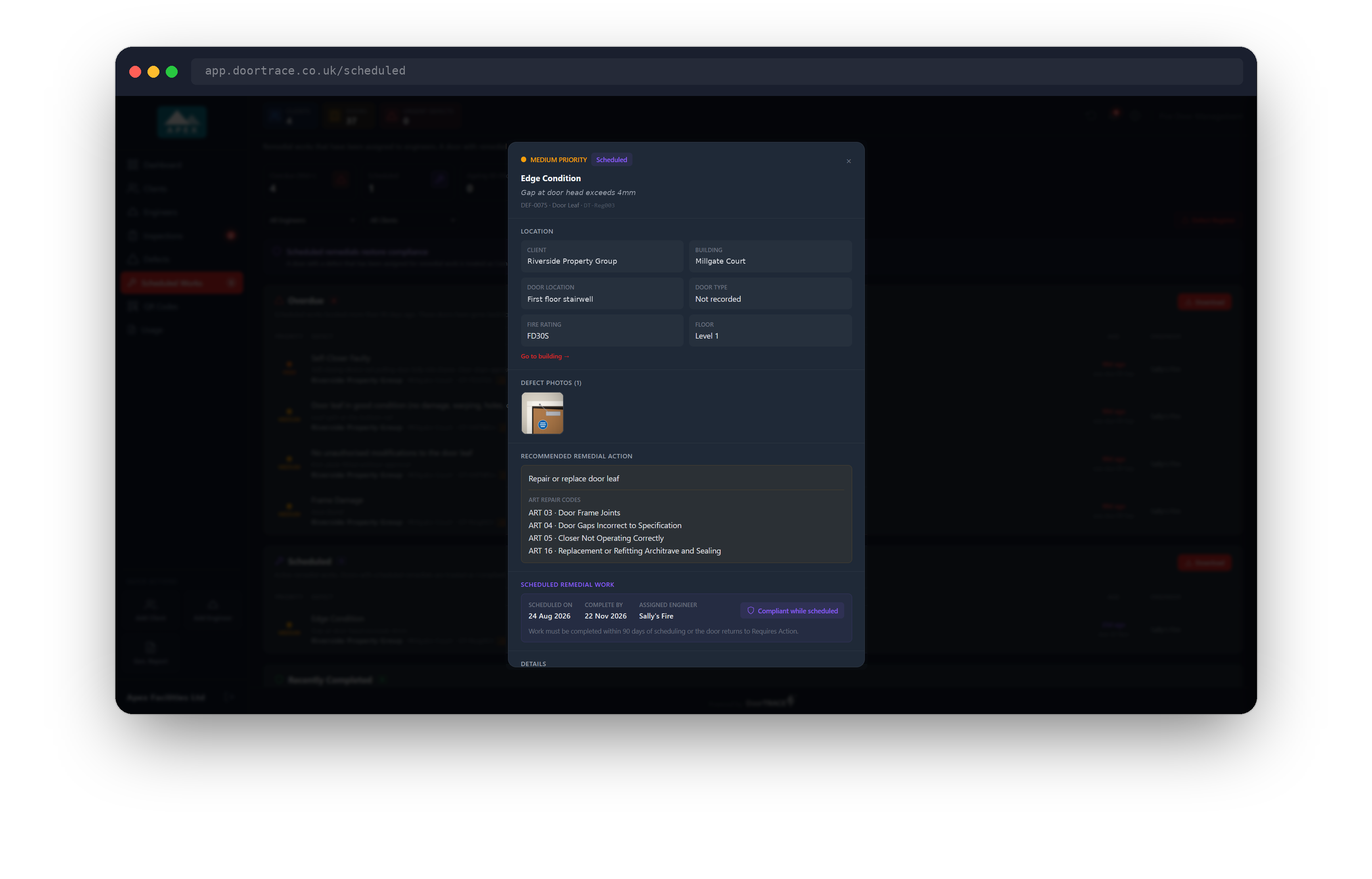
Click any row to open the defect window. It is the same window you see on the Defect Register page, so everything described in The Defect Register applies here too.
For a scheduled job, the Scheduled Remedial Work panel shows the Target Date, or Scheduled On and Complete By if no target date was given, along with the Assigned Engineer and any notes you added when booking. A purple Compliant while scheduled badge shows while the job is inside its 90 days. After that it changes to a red Overdue: door back to Requires Action.
Go to building → opens the building page. At the bottom, Defect Register takes you to your defects and Close (or the Escape key) shuts the window.
Tip: To change the engineer, target date or notes on a booking, open the door's page and use Reschedule on the defect card. See Scheduling remedial work.
Downloading a list
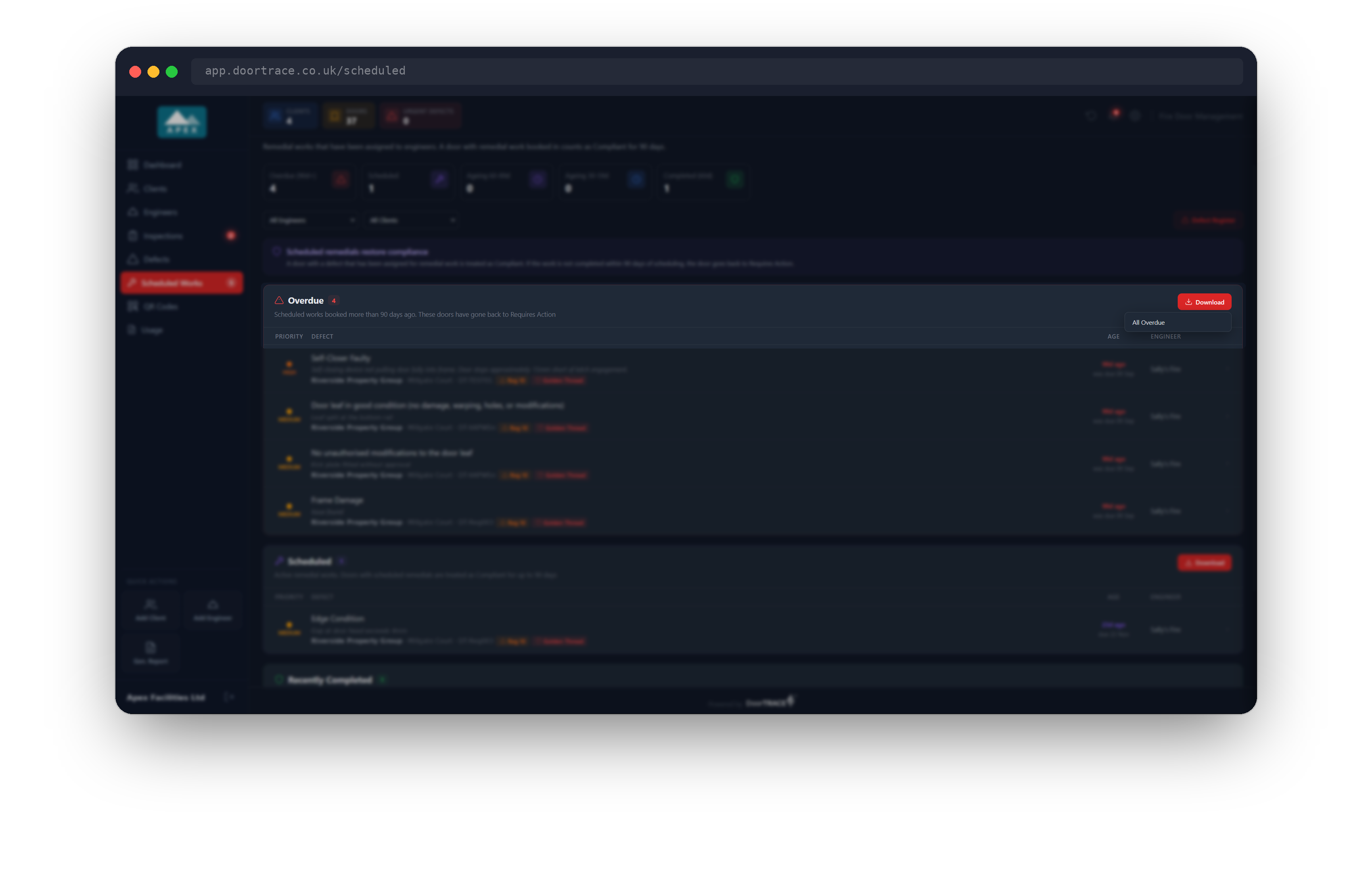
Overdue and Scheduled each have a Download button that saves a spreadsheet (CSV) of that list. If you have filtered the page, the download follows your filters.
The menu offers All Overdue or All Scheduled, then By Engineer and By Client when the list holds more than one. Files are named scheduled-works-overdue.csv and scheduled-works-scheduled.csv, with the engineer or client added when you pick one.
Each row of the spreadsheet carries the defect reference (such as DEF-0075), client, building, door, door type, category, the defect and the engineer's description, priority, Booked On, Target Date, Complete By, Assigned Engineer, Booking Notes, when the defect was raised, days open, who found it, and whether the building is higher risk or Golden Thread.
Recently Completed
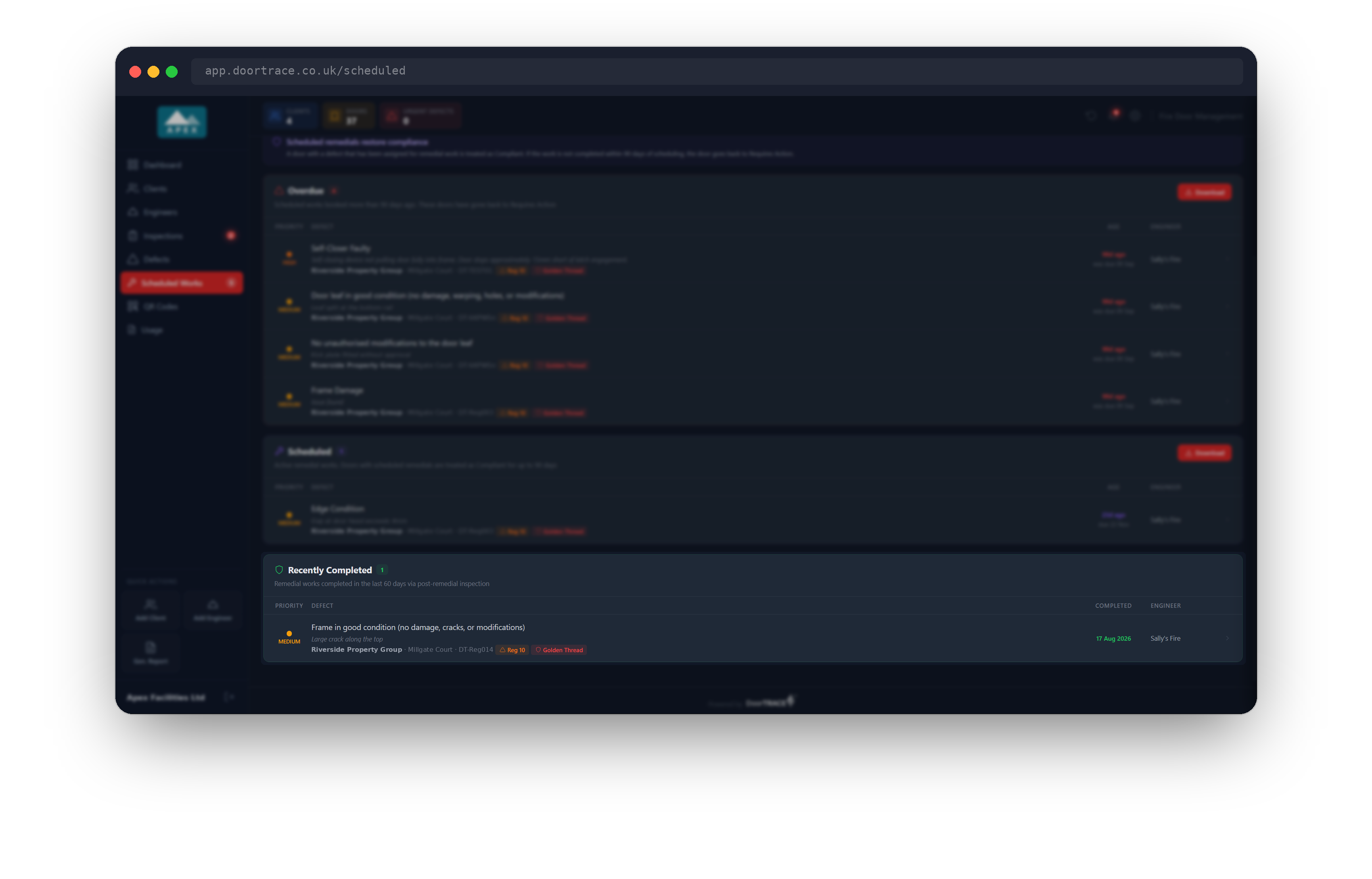
The green Recently Completed list shows remedial works finished in the last 60 days, newest first, with the date each was completed. A job appears here once the engineer has completed its post-remedial inspection in the app.
Click a row to open the same defect window. For a finished job it shows a Resolution panel with the date it was resolved, the engineer's notes and any Resolution Photos. This list has no download button.
If the page is empty
Until you book your first job, the page shows "No scheduled remedial works". Scheduling remedial work explains how to book one.
What's next
Next, learn how to keep enough QR codes ready for your engineers in Managing your QR code pool.
Still can't find the answer?
Send us a message and we'll help. We respond within one working day.