FM Portal guides
FM Portal · Defects and works
Scheduling remedial work
Last updated 16 Sept 2026
When an inspection finds a problem with a door, the door stops counting as compliant until the fix is booked in. Scheduling remedial work records who is doing the fix and, if you know it, when. As soon as every outstanding defect on a door is scheduled, the door is treated as compliant again, and stays that way for 90 days while the work is carried out. This guide covers the three places you can schedule from, what goes in the booking window, and what happens to the door afterwards.
Before you start
The engineer is not chosen in the booking window. The portal uses whoever is assigned to the building, so make sure the building has an engineer before you start (see Managing a building). If your company has its own engineers set up under Settings > App Access, the booking goes to Internal team instead when the building has no external engineer assigned.
No password is asked for when you schedule remedial work.
Where you can schedule from
You can book remedial work from three places, and the booking window is the same in each:
- Defects: one defect at a time from its details window, or several at once from the Assign Remedial Work section at the top of the page.
- Dashboard: the Schedule button on each row of the Open Defects card.
- A door page: the Schedule button on a defect card, or Reschedule on work that is already booked.
Only defects with the status Open can be scheduled. A Scheduled defect can be rebooked from the door page; a Completed defect cannot be changed.
Scheduling from the Defect Register
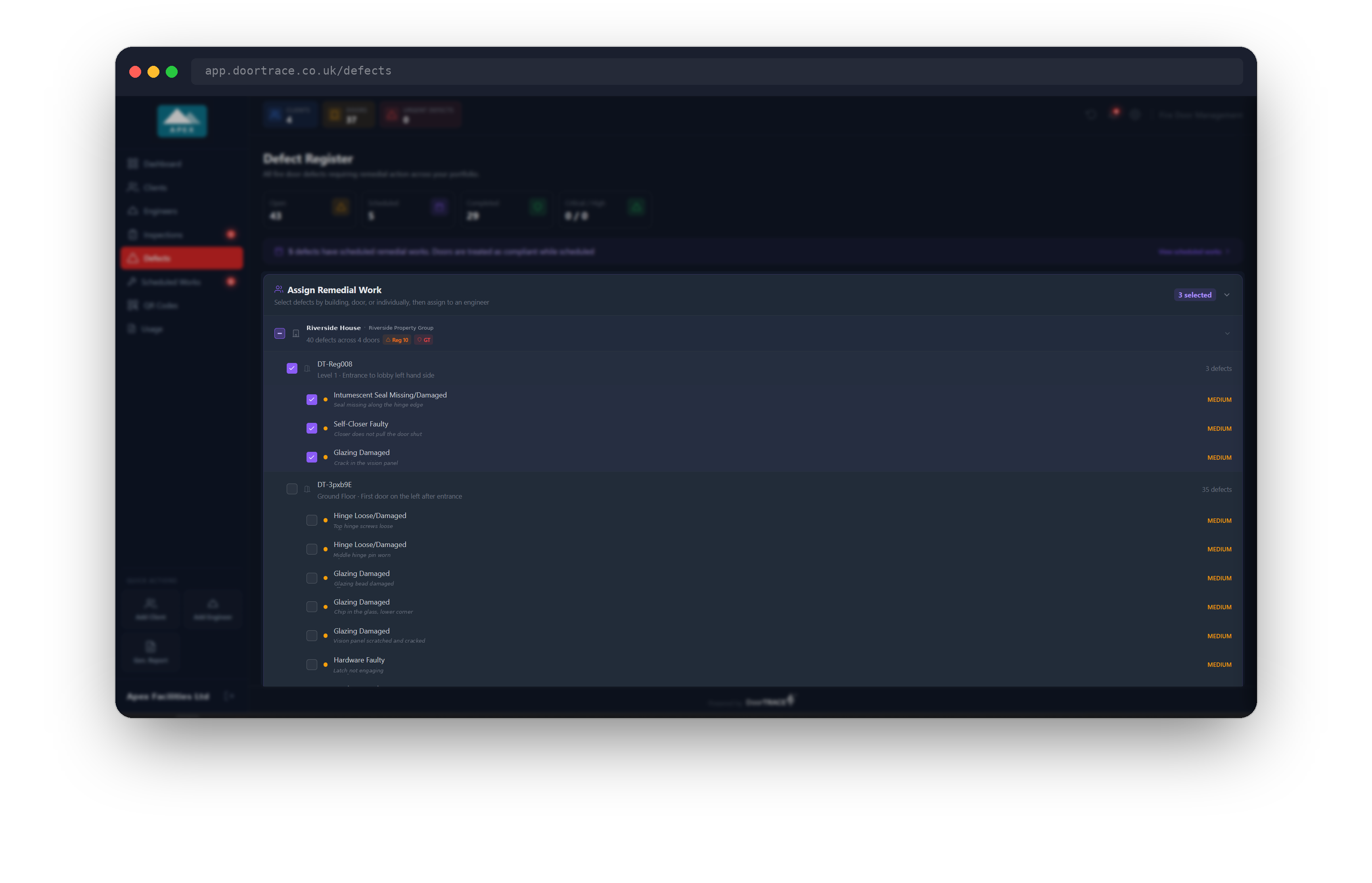
Open Defects. When you have open defects, the Assign Remedial Work section sits at the top of the page, under the four counters. It lists every open defect grouped by building, then by door. Click a building row to expand it and see its doors and their defects. Tick a building to select every open defect in it, tick a door to select all of that door's defects, or tick individual defects. A tick with a short dash in it means only some of the defects underneath are selected. The count of selected defects shows in the header, and a bar appears at the bottom of the section with Clear and Assign to Engineer. Click the section header to collapse or expand it.
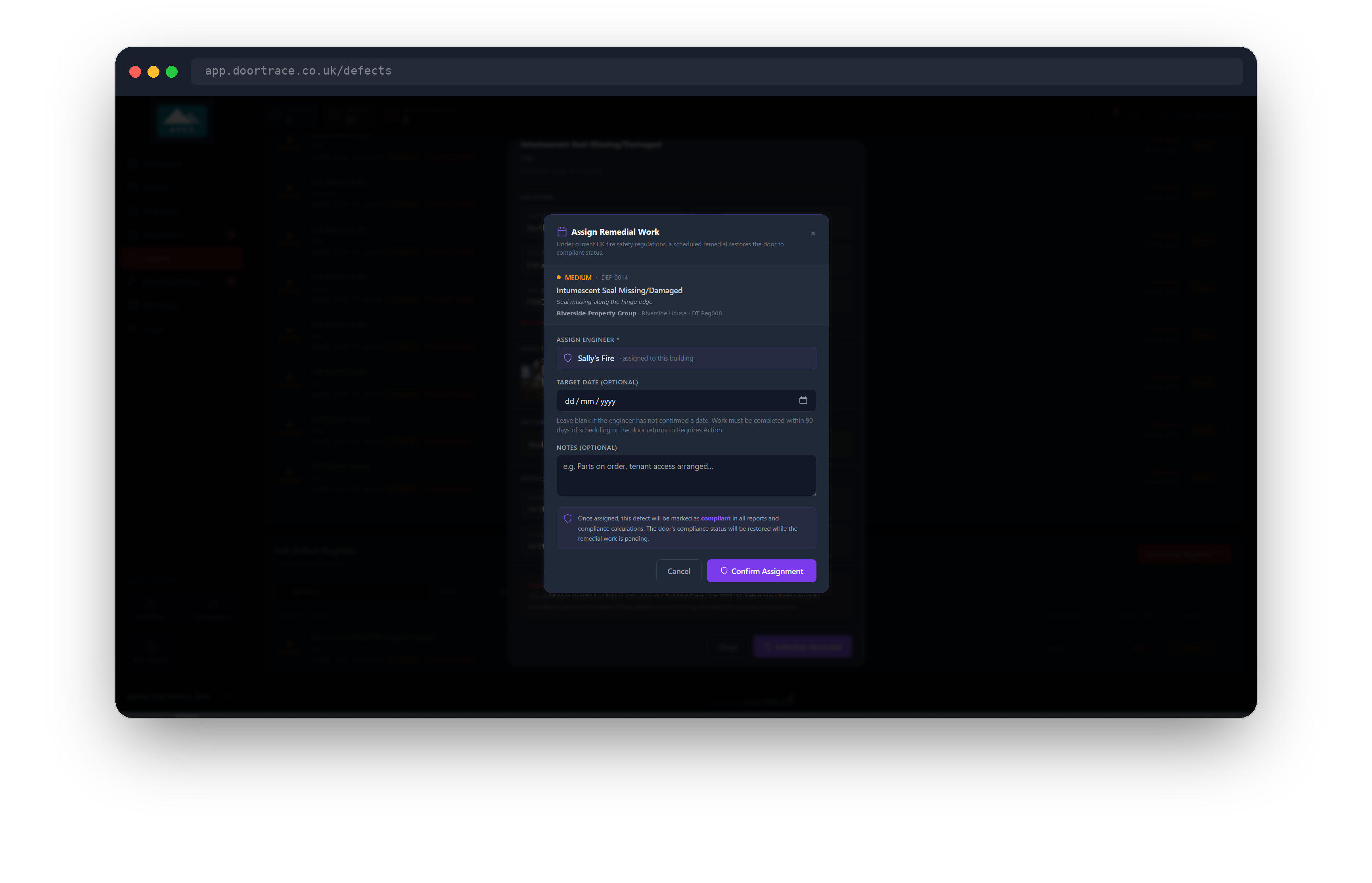
To book one defect, open it from anywhere on the Defects page and click Schedule Remedial at the bottom of its details window. The Assign Remedial Work window opens with the defect's priority, its DEF reference, the checklist item, the engineer's note, and its client, building and door. The line under the title reads: "Under current UK fire safety regulations, a scheduled remedial restores the door to compliant status."
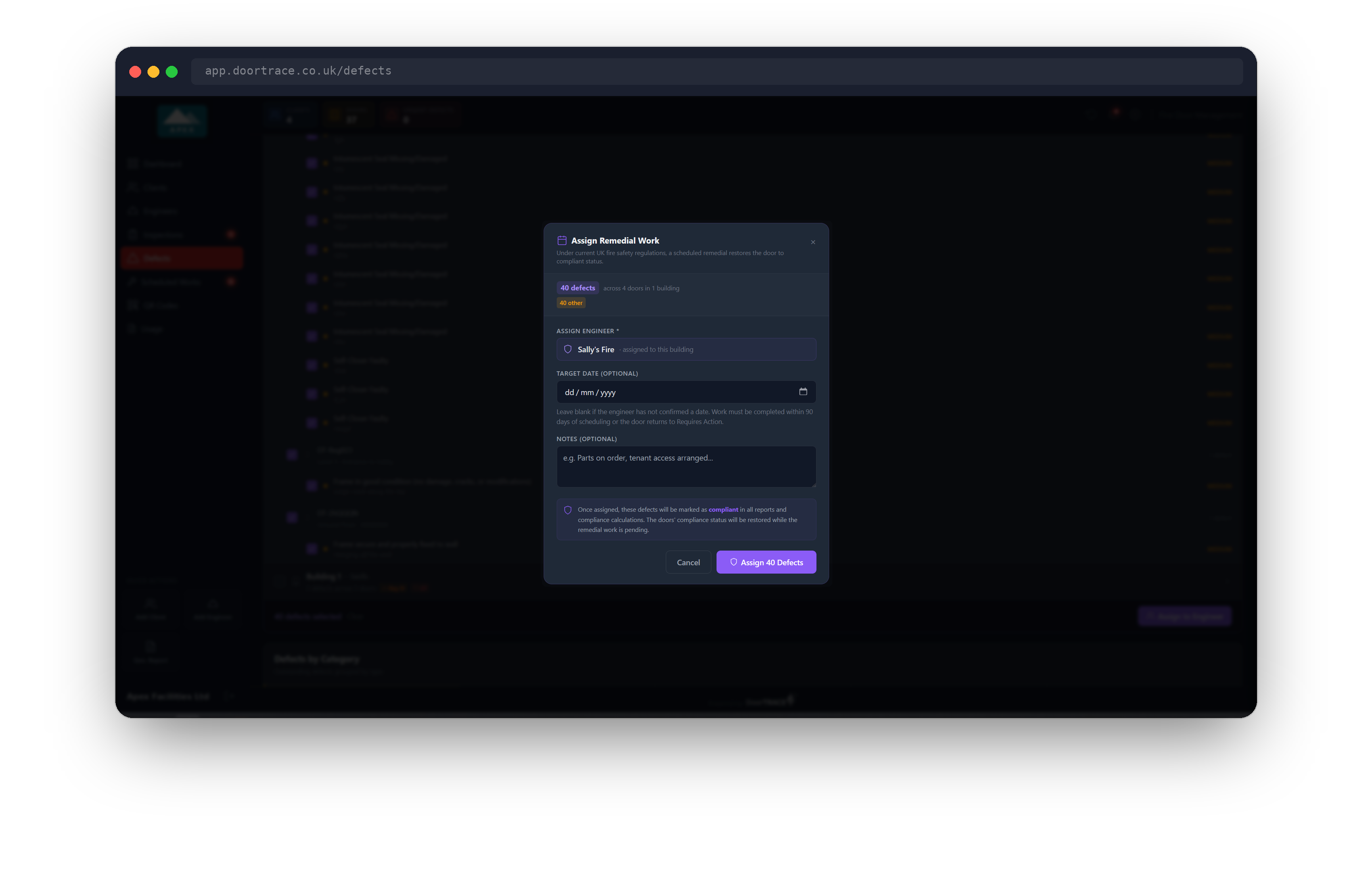
To book several at once, tick them in the Assign Remedial Work section and click Assign to Engineer. The window shows how many defects you have selected, across how many doors and buildings, with a count of critical, high and other priorities. Everything else in the window is the same as for one defect. The confirm button reads Assign N Defects rather than Confirm Assignment.
Filling in the booking window
The window has three fields:
- Assign Engineer: filled in for you. It shows the engineer assigned to the building with "assigned to this building" next to the name, or Internal team with "your own team" if the building has no external engineer but your company has its own engineers. If neither applies you will see "No engineer assigned to this building" with the note "Assign an engineer to the building first, then schedule remedial work", and the confirm button stays greyed out.
- Target date (optional): the date the engineer has agreed to do the work. It has to be today or later. Leave it blank if the engineer has not confirmed a date. The note under the box reads: "Leave blank if the engineer has not confirmed a date. Work must be completed within 90 days of scheduling or the door returns to Requires Action."
- Notes (optional): anything the engineer needs to know, for example that parts are on order or that access has been arranged.
Above the buttons, a note explains what confirming does: once assigned, the defect is marked as compliant in all reports and compliance calculations, and the door's compliance status is restored while the remedial work is pending. Click Confirm Assignment (or Assign N Defects) to save, or Cancel to close without saving.
When the booking saves, a message confirms it, for example "DEF-0014 assigned to Sally's Fire" or "12 defects assigned to Internal team". If you booked several and some could not be saved, the message tells you how many went through and that the rest are still open. Those stay ticked in the Assign Remedial Work section so you can try again.
Tip: You can tick defects from several buildings at once as long as they all have the same engineer assigned. If the buildings have different engineers, or one of them has none, the window offers Internal team if you have one, or asks you to assign an engineer first. To book different external engineers, select one building at a time.
Scheduling from the dashboard
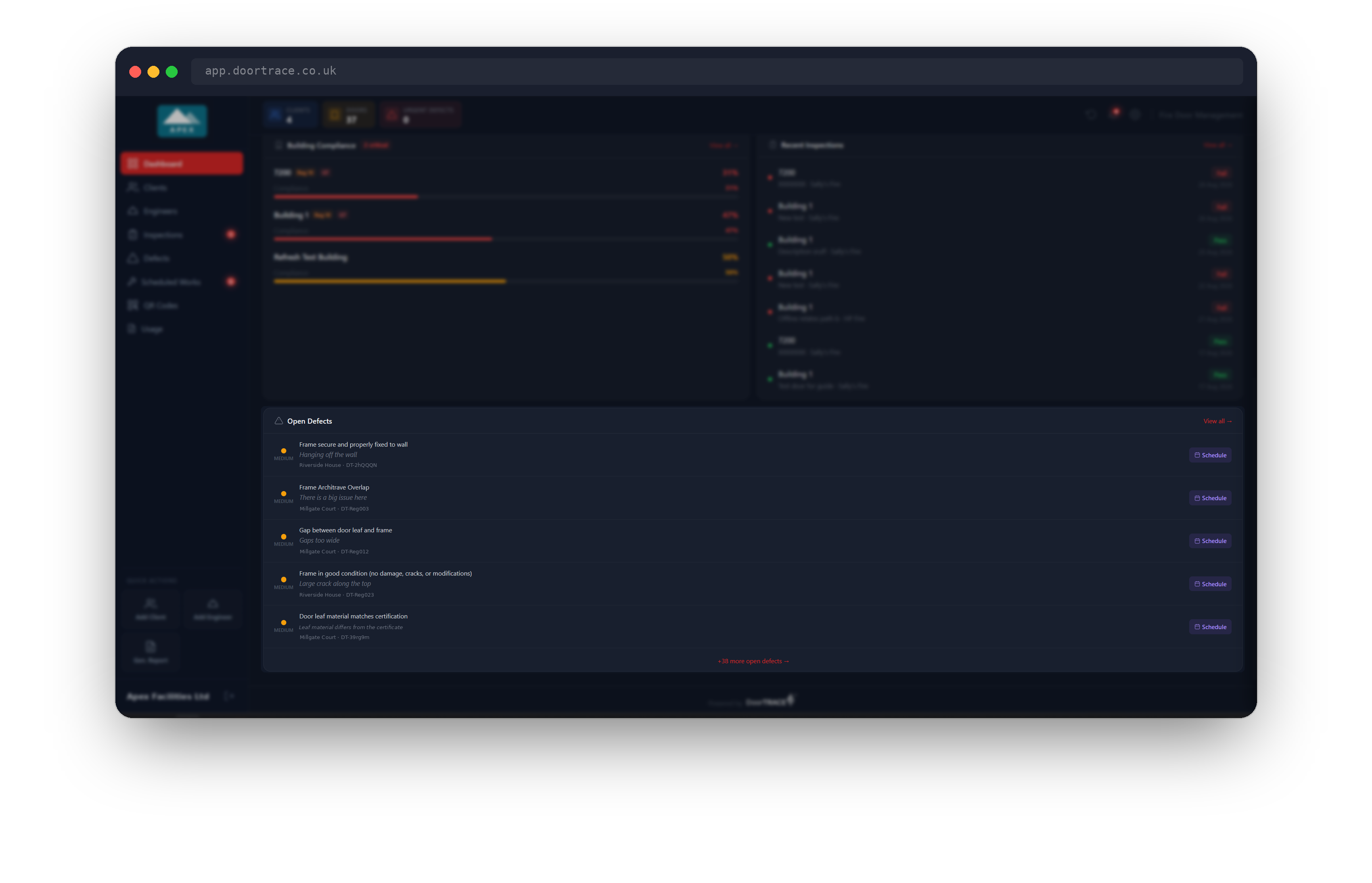
The Open Defects card at the bottom of the dashboard lists your open defects, most serious first, with a Schedule button on each row. Click it and the same Assign Remedial Work window opens for that defect, with the engineer, target date and notes fields described above. Confirming shows a message such as "Remedial work on DT-Reg014 assigned to Sally's Fire", and the dashboard reloads so the compliance figures reflect the booking.
Scheduling from a door page
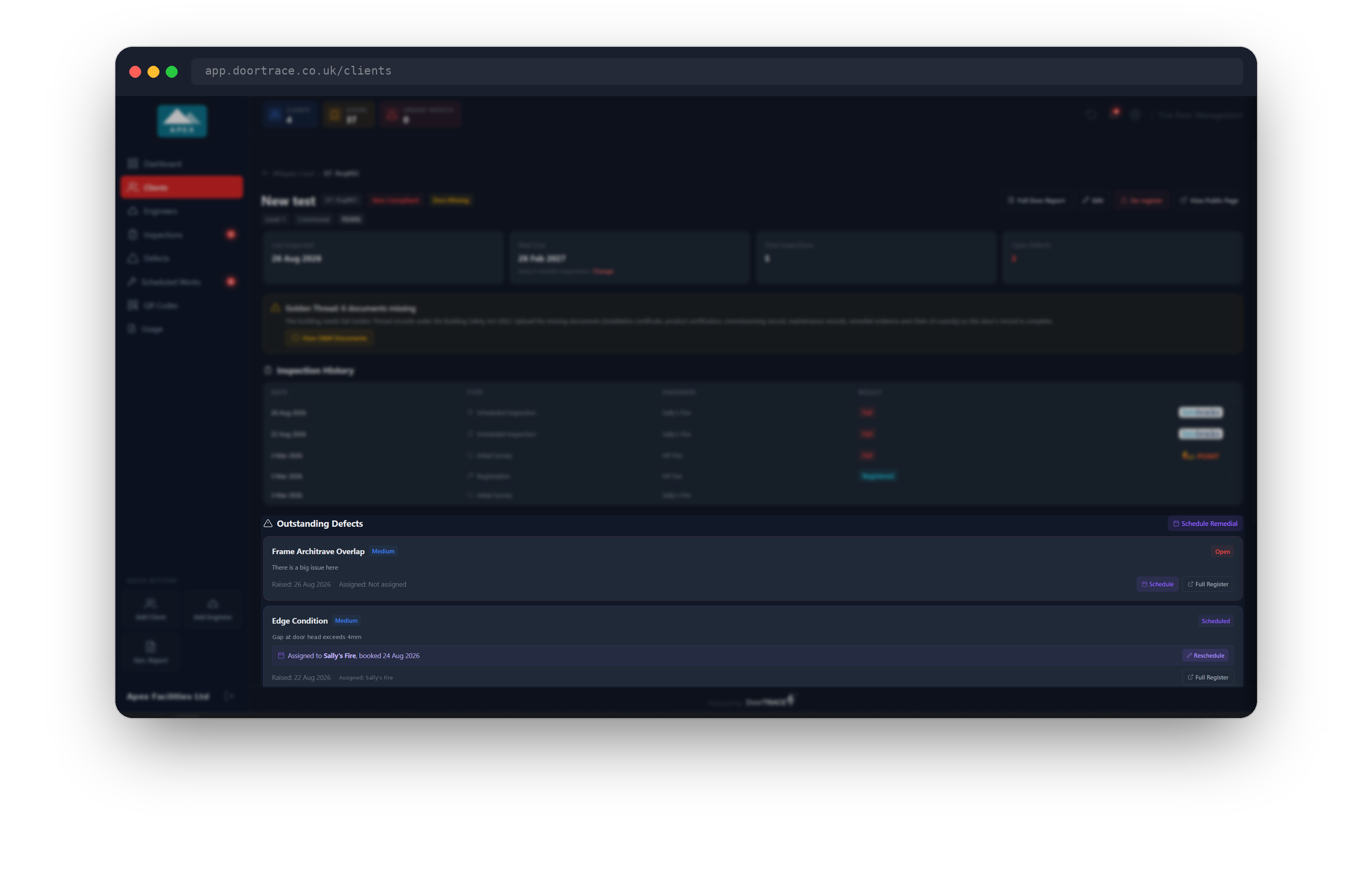
On a door page, the Outstanding Defects section lists the door's open and scheduled defects as cards. Each open defect has a Schedule button. The Schedule Remedial button in the section header opens the booking window for the first open defect on the door (or the first scheduled one, if none are open). The window here is titled Schedule Remedial Work and shows the defect's checklist item, priority and description; the fields are the same as everywhere else. Confirming shows "Remedial assigned to" and the engineer's name, and the door's Audit Trail reloads with the change.
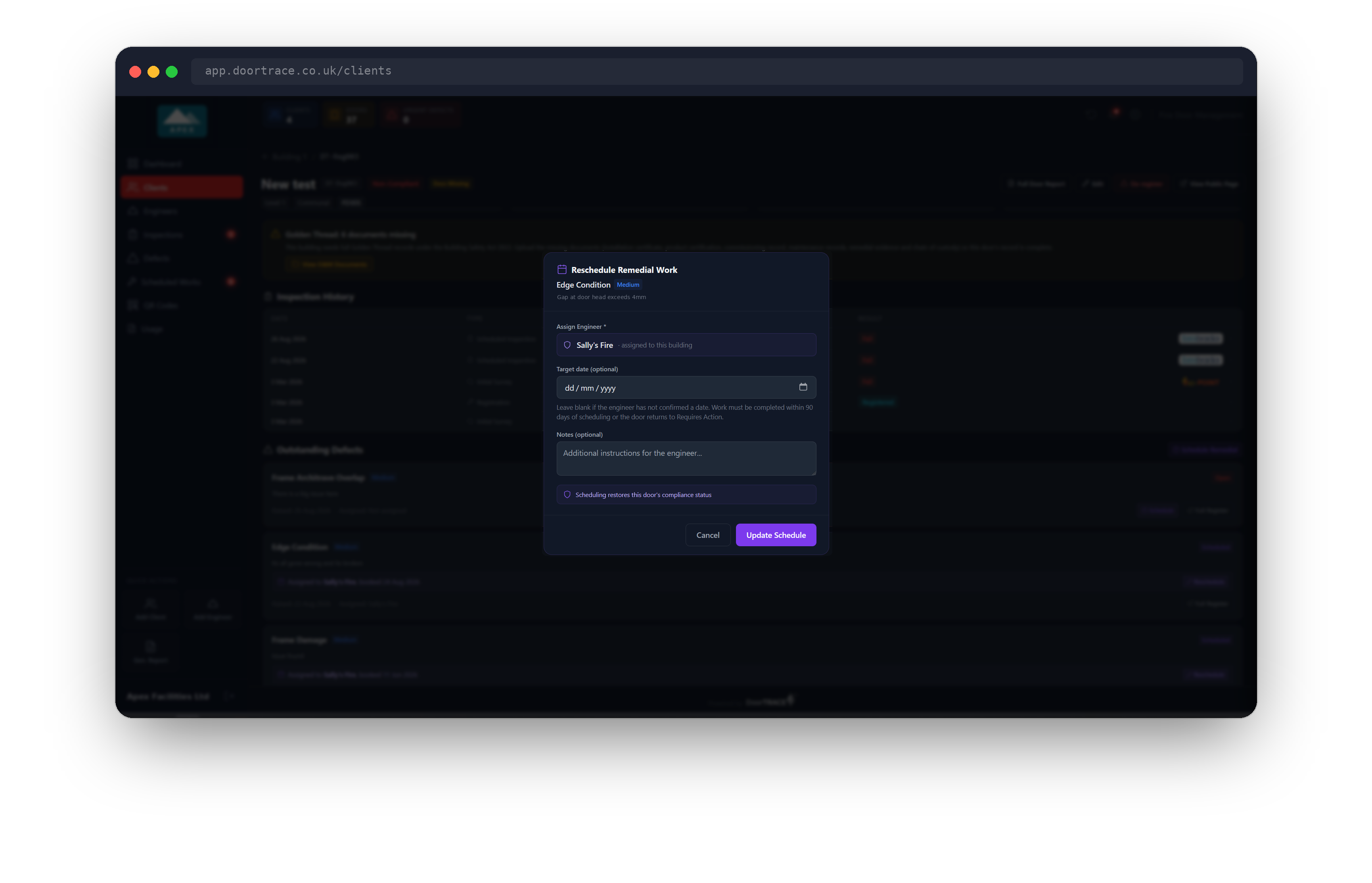
Once booked, the card shows a purple line reading "Assigned to" the engineer, followed by "target" and the date you gave, or "booked" and the day it was scheduled if you left the date blank. The card's footer shows the same engineer next to "Assigned". The Reschedule button on that line opens the window as Reschedule Remedial Work, with any target date and notes from the original booking already filled in. Change what you need and click Update Schedule. Rebooking does not restart the 90 days, which still count from the day the work was first scheduled.
What happens to the door
Scheduling changes two things. The defect's status moves from Open to Scheduled, and the portal records the day it was booked. Then, if the door has no other open defects and was showing Requires Action or Non-Compliant, its status changes to Compliant. Both changes are written to the audit log, so the Golden Thread record shows who booked the work and when. On the building page and the door page, a compliant door with booked work shows the purple badge Scheduled rather than Compliant, so you can see at a glance which doors are only compliant because work is booked.
The Defect Register's Days / Due column shows the booked defect's target date or, when none was given, the date the work must be done by (90 days from booking) in purple. Opening the defect shows a Scheduled Remedial Work panel with the Target Date, or the Scheduled On and Complete By dates, the Assigned Engineer, your notes, and the badge Compliant while scheduled. The Scheduled Works page lists every booking, and the Scheduled counter on the Defects page goes up by one.
Important: Scheduling does not resolve the defect. It stays Scheduled until the engineer completes a post-remedial inspection in the DoorTRACE Engineer app (see Post-remedial forms in the engineer app guides). A later routine inspection that passes does not clear it either.
The 90-day rule
A door only counts as compliant on the strength of a booking for 90 days. Every night the portal checks for compliant doors whose remedial work was booked 90 or more days ago and has not been completed, and puts those doors back to Requires Action. The defect itself stays Scheduled, so the booking is not lost, but the door no longer counts towards your compliance figures until the work is done. On the defect, the badge changes to Overdue: door back to Requires Action and the Complete By date turns red; on the Defect Register the date in Days / Due turns red; and on the Scheduled Works page the booking moves to the Overdue section. The dashboard's attention banner counts these as overdue works.
If the engineer changes
If you unassign an engineer from a building (see Managing a building), every booking in that building goes back to Open, including any booked to Internal team, and the target dates and notes are cleared. Those doors return to Requires Action until the work is scheduled again. The confirmation window tells you how many bookings will be affected before you go ahead.
Assigning a different engineer to the building does not touch existing bookings. They keep the name of the engineer they were booked to, so if the work should now go to the new engineer, rebook it from the door page.
Troubleshooting
- The confirm button is greyed out. Either the building has no engineer and your company has no internal engineers, or the target date is in the past. The window says which.
- The window shows "No engineer assigned to this building" but the building has one. You have selected defects from buildings with different engineers, or one of them has no engineer. Select one building at a time, or use Internal team.
- "Failed to schedule remedial work" or "Failed to assign remedial work". The save did not reach the server. Check your connection and try again; the defect is still open and nothing has changed.
- I gave a target date but the door has gone back to Requires Action. The 90 days run from the day the work was booked, not from the target date. A target date more than 90 days out does not extend the allowance.
What's next
Scheduled Works explains the page that tracks every booking by age, with the overdue, scheduled and recently completed lists and their downloads.
Still can't find the answer?
Send us a message and we'll help. We respond within one working day.