FM Portal guides
FM Portal · Clients and buildings
O&M documents
Last updated 14 Sept 2026
Every building has an O&M page for the documents that sit behind its fire doors: the operation and maintenance manual, the fire strategy, the fire risk assessment and the rest of the records an auditor will ask for. Files are uploaded once per building and kept with the building. In a Golden Thread building the same page also holds a door-by-door record of which of the six required documents you hold for each door, and that record feeds the "docs missing" counts elsewhere in the portal. This guide covers uploading, viewing, replacing and removing building documents, and keeping the door record up to date.
Before you start
Documents belong to a building, so the building must already exist. Uploads can be PDF, Word, Excel, JPEG, PNG, WebP or HEIC files up to 50MB each. The portal checks that the contents of a file match its type, so a file that has been renamed to look like a PDF is refused.
Whether the building is a Golden Thread building changes what the page shows. A Golden Thread building has one extra required document, the Building Safety Case, and the door record described later in this guide. You set that on the building's Details page.
Opening the page
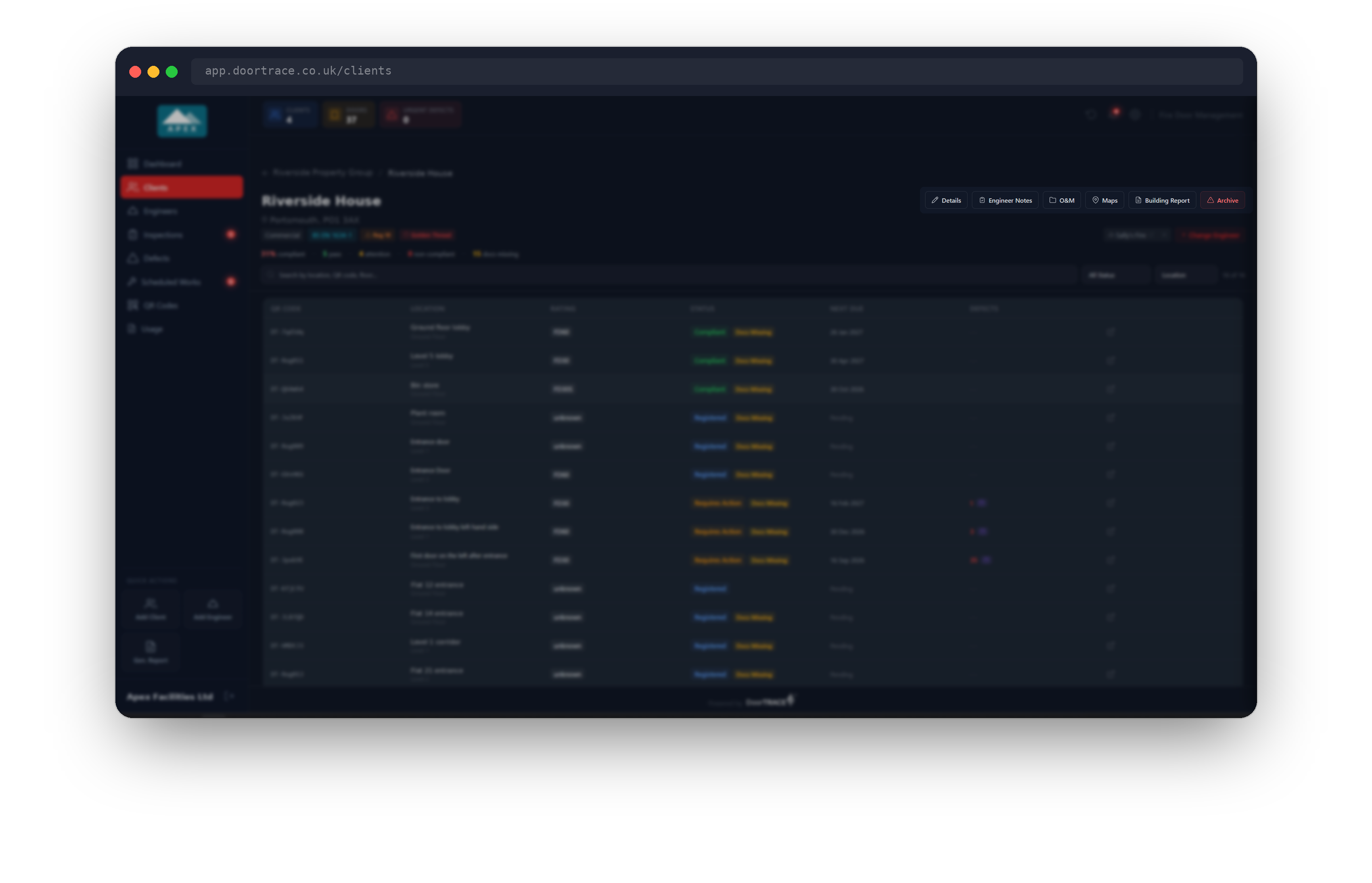
Open Clients, choose the client, then choose the building. The buttons along the top of the building page include O&M. Choose it to open the page. It is titled O&M Documents with the line "Building documentation, compliance records, and door-level certification."
Three cards sit at the top. Building Documents shows how many of the building's document slots hold a file, and below it either "All required docs uploaded" in green or the number of required documents still missing in amber. Golden Thread Door Docs, shown only for a Golden Thread building, counts the doors whose six-document record is complete. Total Files is the number of building documents uploaded. Golden Thread buildings also show a yellow Golden Thread Building banner explaining that every fire door needs a complete document chain under the Building Safety Act 2022.
The building document slots
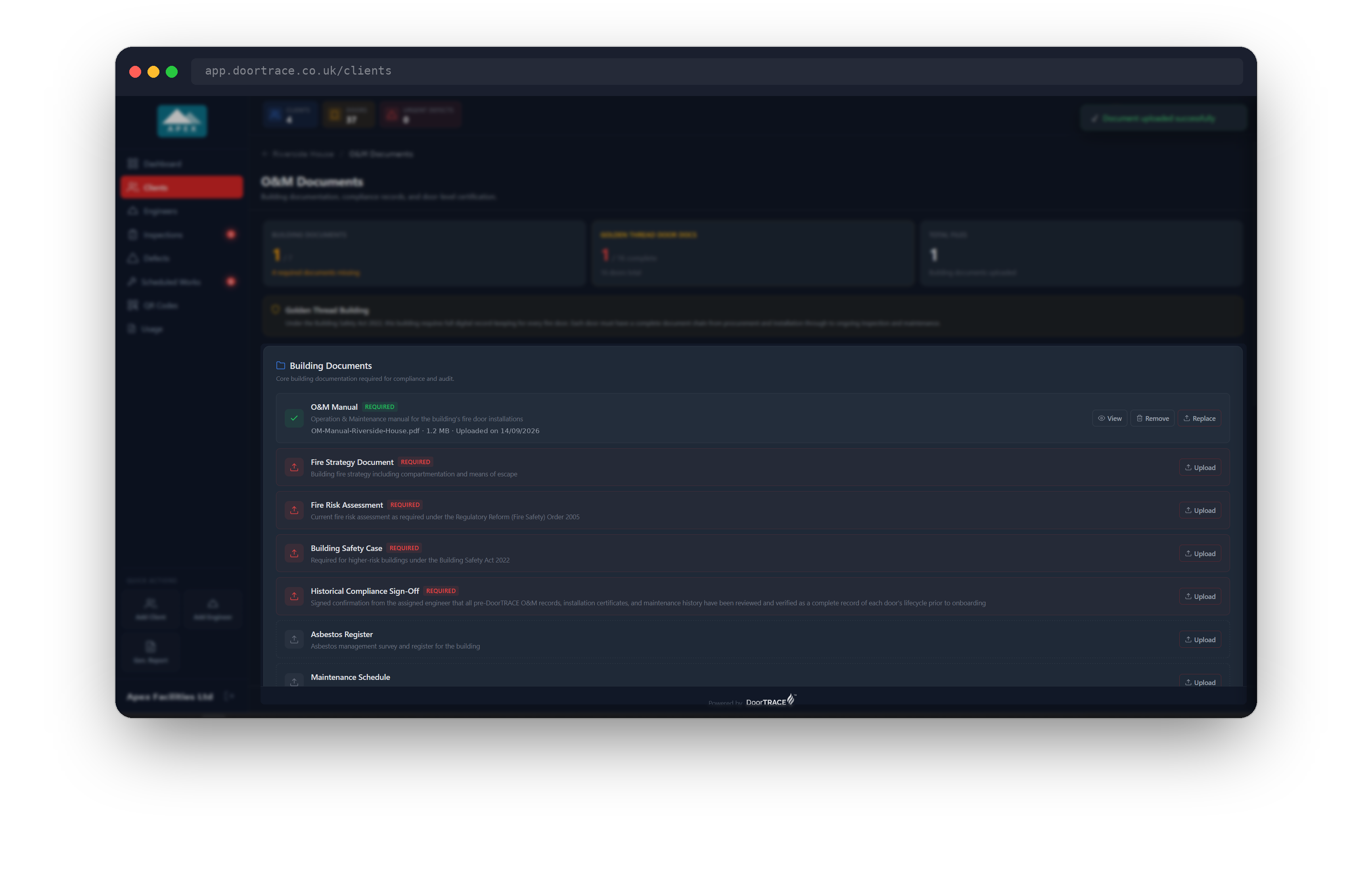
Building Documents lists one slot per document type. Five are marked Required: O&M Manual, Fire Strategy Document, Fire Risk Assessment, Historical Compliance Sign-Off and, for a Golden Thread building only, Building Safety Case. Asbestos Register and Maintenance Schedule are optional. Each slot has a one-line description of what belongs in it. An empty required slot has a red outline; an empty optional slot has a dashed outline; a filled slot shows a green tick.
To add a file, choose Upload on the slot and pick the file from your computer. The button shows "Uploading..." while the file transfers, then the message "Document uploaded successfully" appears and the slot shows the file name, its size and "Uploaded on" with the date. Every upload is recorded in the audit log.
A filled slot has three buttons. View opens the file in a new browser tab. Replace lets you pick a new file for the slot; the previous file is deleted once the new one is in place. Remove deletes the file, covered next.
Tip: The Historical Compliance Sign-Off is the assigned engineer's signed confirmation that the records from before DoorTRACE were reviewed. Upload it once at onboarding and it stays with the building.
Removing a document
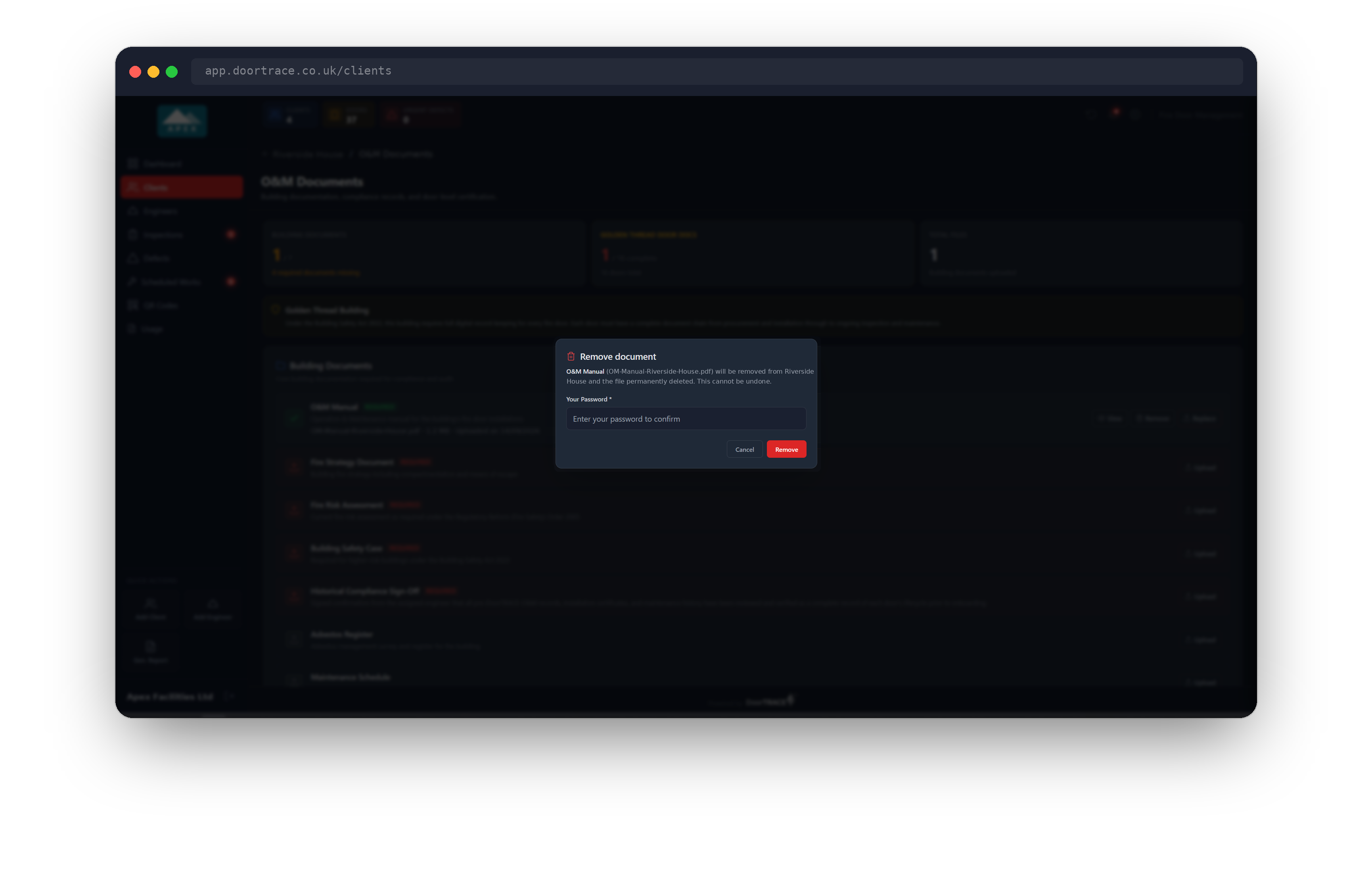
Choose Remove on a filled slot. The Remove document pop-up names the slot and the file and warns that the file will be permanently deleted and that this cannot be undone. You will be asked for your portal password to confirm. Choose Remove; the message "Document removed" appears and the slot returns to empty, ready for a new upload. Choose Cancel to keep the file.
Removing deletes the file itself, not just the entry on the page, so download a copy first with View if you may need it again. The removal is recorded in the audit log.
Important: If the page cannot load the building's existing records, it shows "Could not load the document records" with Retry and Back to building, and the slots are hidden. Uploading is turned off in that state so that a slot which already has a file does not end up with two.
The door document record (Golden Thread buildings)
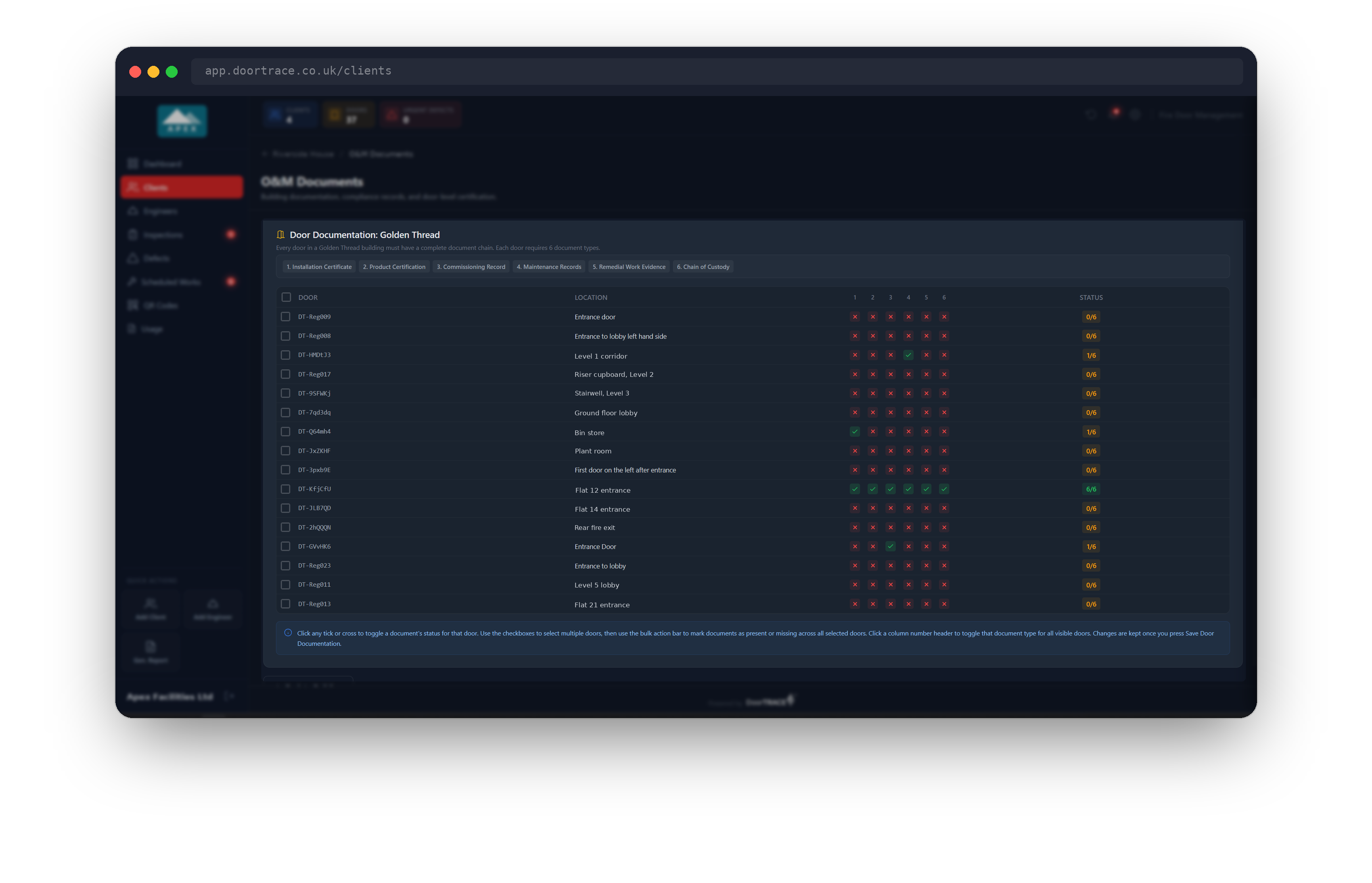
Below the building documents, a Golden Thread building shows Door Documentation: Golden Thread. The six document types every door needs are listed as a key: 1. Installation Certificate, 2. Product Certification, 3. Commissioning Record, 4. Maintenance Records, 5. Remedial Work Evidence and 6. Chain of Custody. Under the key is a grid with one row per registered door, showing its QR code, its location and a column for each of the six types. A green tick means you hold that document for that door; a red cross means you do not. The Status column counts them, in amber until all six are ticked and green once they are.
The grid shows the first 20 doors. If the building has more, a line under the grid says how many are shown, with View all doors to expand it and Show first 20 only to collapse it again.
The record is a checklist, not a file store. The files themselves stay wherever your company keeps them; the grid records that they exist for each door so the portal can report which doors are missing something.
Updating the record
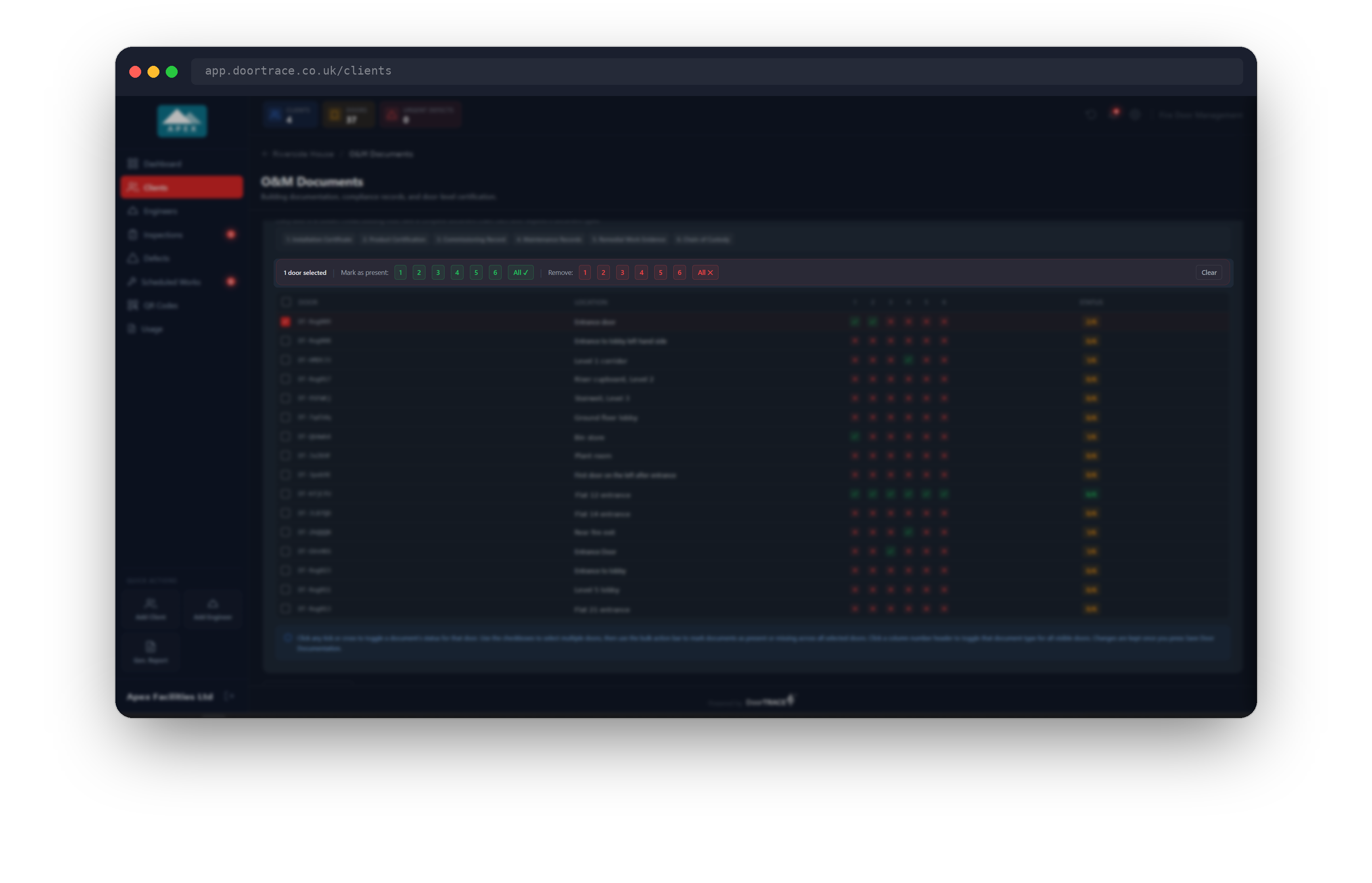
Click any tick or cross to switch it. To update several doors at once, tick the box at the left of each door row (or the box in the header row to select every door on show). A red bar appears above the grid saying how many doors are selected, with numbered buttons: under Mark as present, the green buttons 1 to 6 tick that document for every selected door and All ✓ ticks all six; under Remove, the red buttons untick in the same way and All ✕ clears the row. Clear drops the selection. Clicking a column number in the header row switches that document for every door on show, so one click can tick column 1 for all of them.
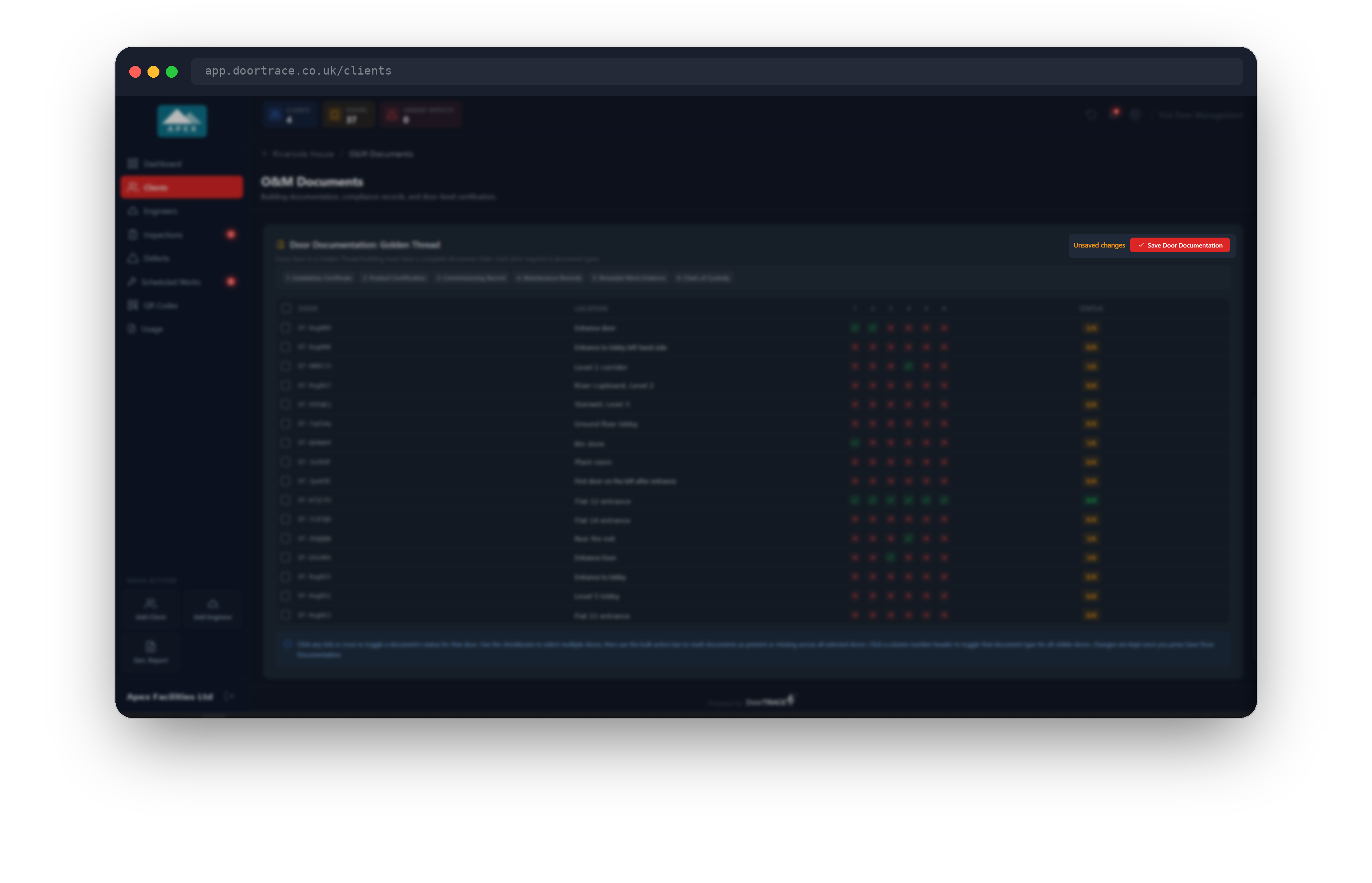
Nothing is stored until you save. As soon as the grid differs from what was last saved, the top right of the section shows Unsaved changes with a red Save Door Documentation button. Choose it; the button shows "Saving..." and then the message "Door documentation saved" appears. Saving does not ask for your password.
Once saved, the record changes what the rest of the portal says about the building. On the building page, the "docs missing" count in the summary line counts the doors that are not yet at six, the Docs Missing badge shows on those doors in the door table, and the Docs Missing filter lists them. A door's own page shows how many of the six documents are still missing, with a View O&M Documents button that brings you back here. A door with all six ticked has no badge and drops out of the count.
Leaving without saving
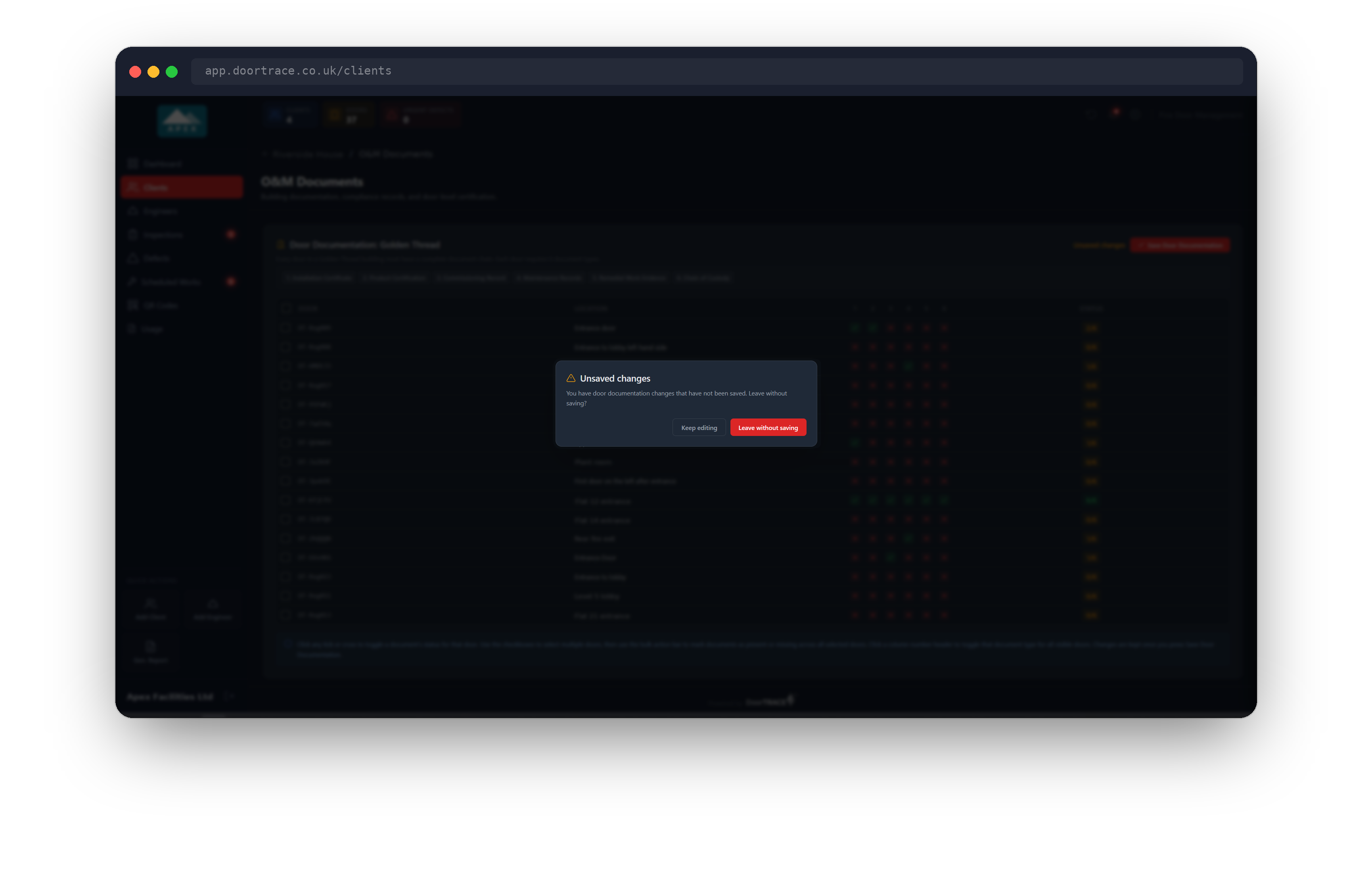
If you choose Back to Building, or the building name at the top of the page, while the grid has changes that have not been saved, the portal asks Unsaved changes: Leave without saving? Choose Keep editing to stay, or Leave without saving to go back to the building page and discard the changes to the grid.
Building documents are different: each upload, replacement and removal is saved as soon as it completes, so there is nothing to lose by leaving the page after one.
Buildings that are not Golden Thread
A building that is not a Golden Thread building has six document slots (no Building Safety Case) and no door grid. In its place a short Door Documentation section notes that the building does not require Golden Thread compliance, so there is no door-by-door document record, with a tip that keeping installation certificates and fire test evidence is still recommended. Its doors never show a Docs Missing badge.
What's next
Maps and floor plans covers the building's Maps page, where you upload the building's floor plans.
Still can't find the answer?
Send us a message and we'll help. We respond within one working day.