FM Portal guides
FM Portal · Clients and buildings
Engineer notes for a building
Last updated 14 Sept 2026
Engineer notes are the site information an engineer reads before setting foot in a building: how to get in, who to ask for, what to wear, and anything they need to know to work safely. You write them once per building in the portal, and every engineer assigned to that building sees them in the DoorTRACE engineer app, including offline. This guide covers writing and updating the notes, copying them from another building, and what the engineer sees.
Before you start
Engineer notes belong to a building, so the building must already exist. If you are adding a new building, you can fill in the same notes on the Engineer site notes page of the Add Building wizard and skip this guide until you need to change them.
Only engineers assigned to the building can read its notes. Engineers whose company runs DoorTRACE (your internal engineers) can read the notes for every building. Because the notes can hold entry codes and key-safe locations, assign engineers to a building only when you are ready for them to have that information.
Opening the notes
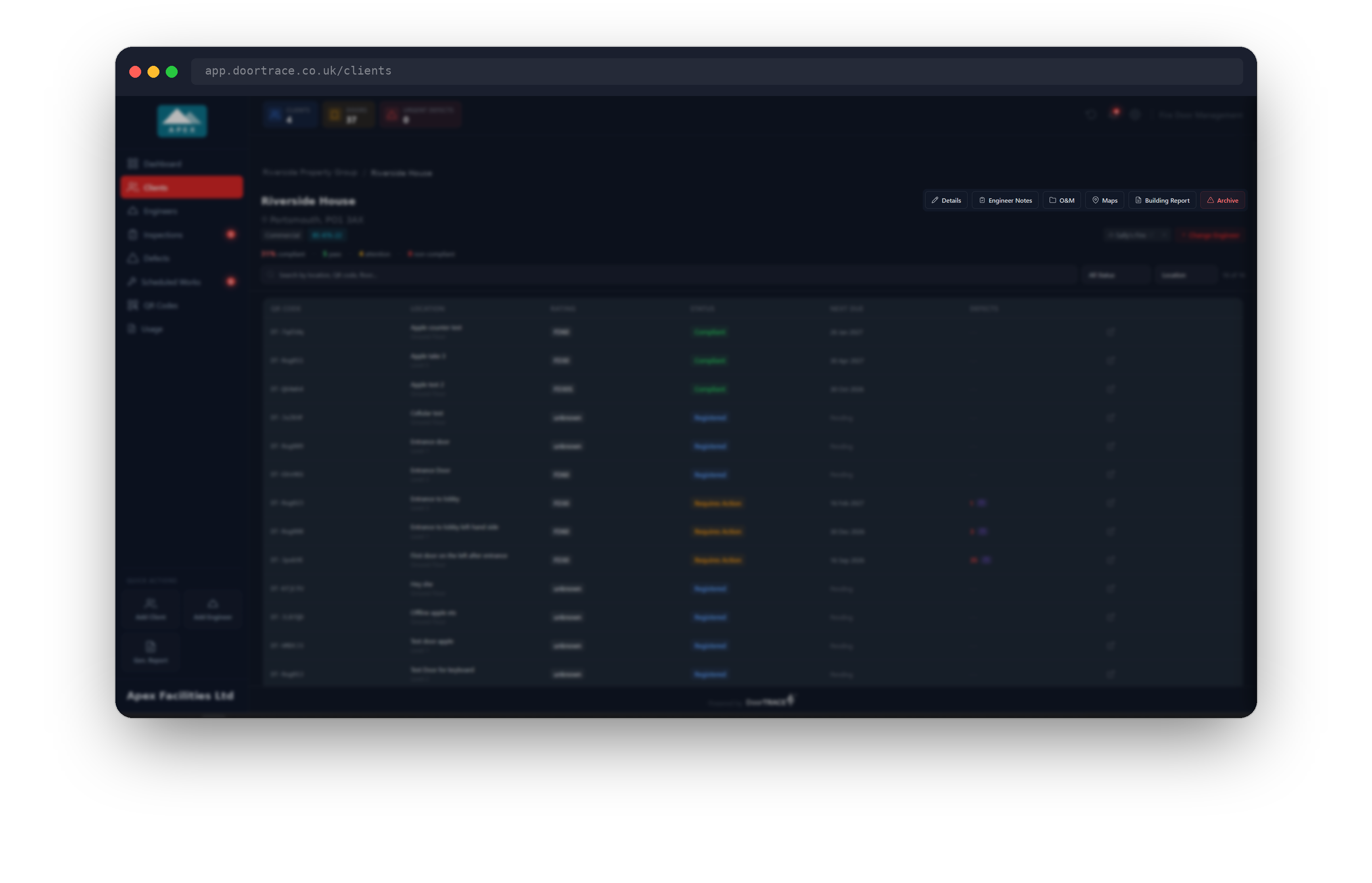
Open Clients, choose the client, then choose the building. The buttons along the top of the building page include Engineer Notes. Choose it to open the notes page. The page is titled Engineer Notes with the line "Site information for engineers and inspectors visiting this building." A blue banner reminds you that these notes are shared with engineers on the mobile app before they arrive on site, and holds the Import from Building button, covered below.
If notes have been saved before, the fields are already filled in and the top right of the page shows Last saved: with the date and time. If this is the first time, every field is empty.
Site Access
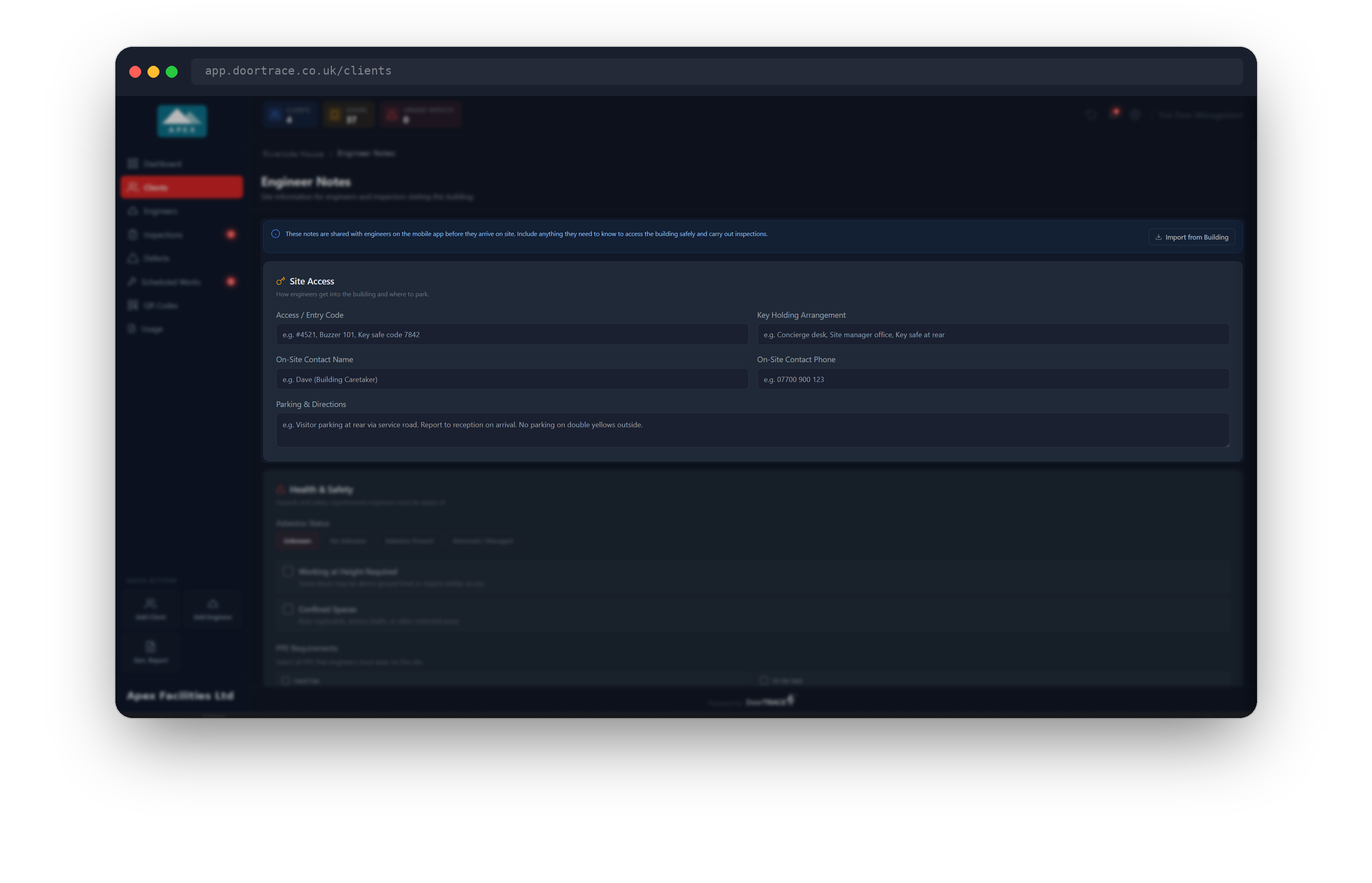
The first section is Site Access: how engineers get into the building and where to park. Fill in whichever of these you know:
- Access / Entry Code: door codes, buzzer numbers or key-safe codes.
- Key Holding Arrangement: where the keys are, for example the concierge desk or a key safe at the rear.
- On-Site Contact Name and On-Site Contact Phone: the person the engineer should ask for on arrival. In the app, the phone number is tappable to call.
- Parking & Directions: where to park and where to report.
Tip: Write the notes for someone who has never visited. "Visitor bays behind Block B, permit from reception" saves a phone call; "usual place" does not.
Health & Safety
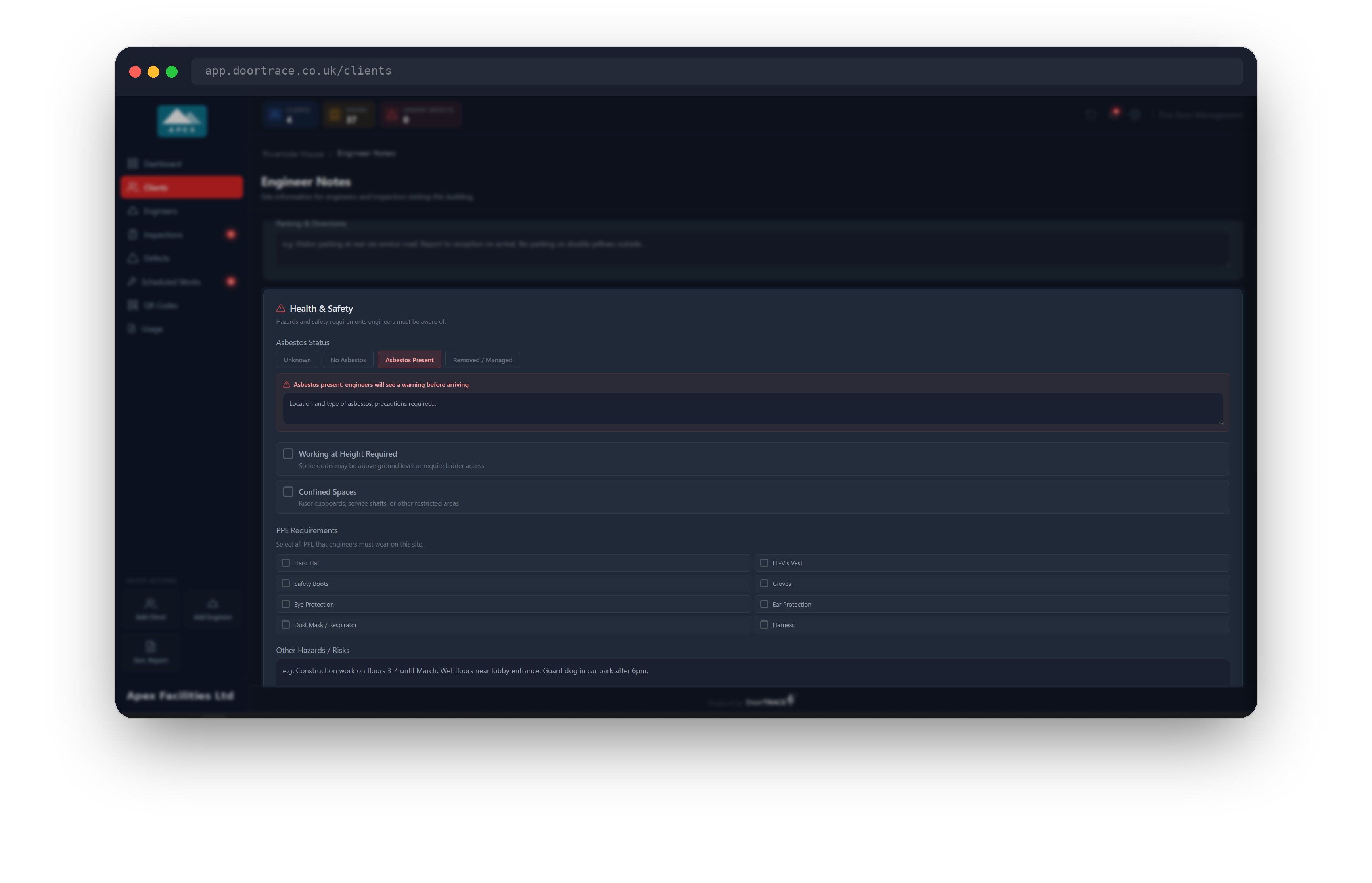
Asbestos Status has four choices: Unknown, No Asbestos, Asbestos Present and Removed / Managed. Choosing Asbestos Present opens a red panel with the line "Asbestos present: engineers will see a warning before arriving" and a box for the location, type and precautions required. That text is shown to the engineer as a warning banner in the app.
Tick Working at Height Required if some doors are above ground level or need ladder access, and Confined Spaces for riser cupboards, service shafts or other restricted areas.
Under PPE Requirements, tick everything the engineer must wear on this site: Hard Hat, Hi-Vis Vest, Safety Boots, Gloves, Eye Protection, Ear Protection, Dust Mask / Respirator and Harness. Use Other Hazards / Risks for anything temporary or unusual, such as building work on particular floors.
On-Site Security and General Notes
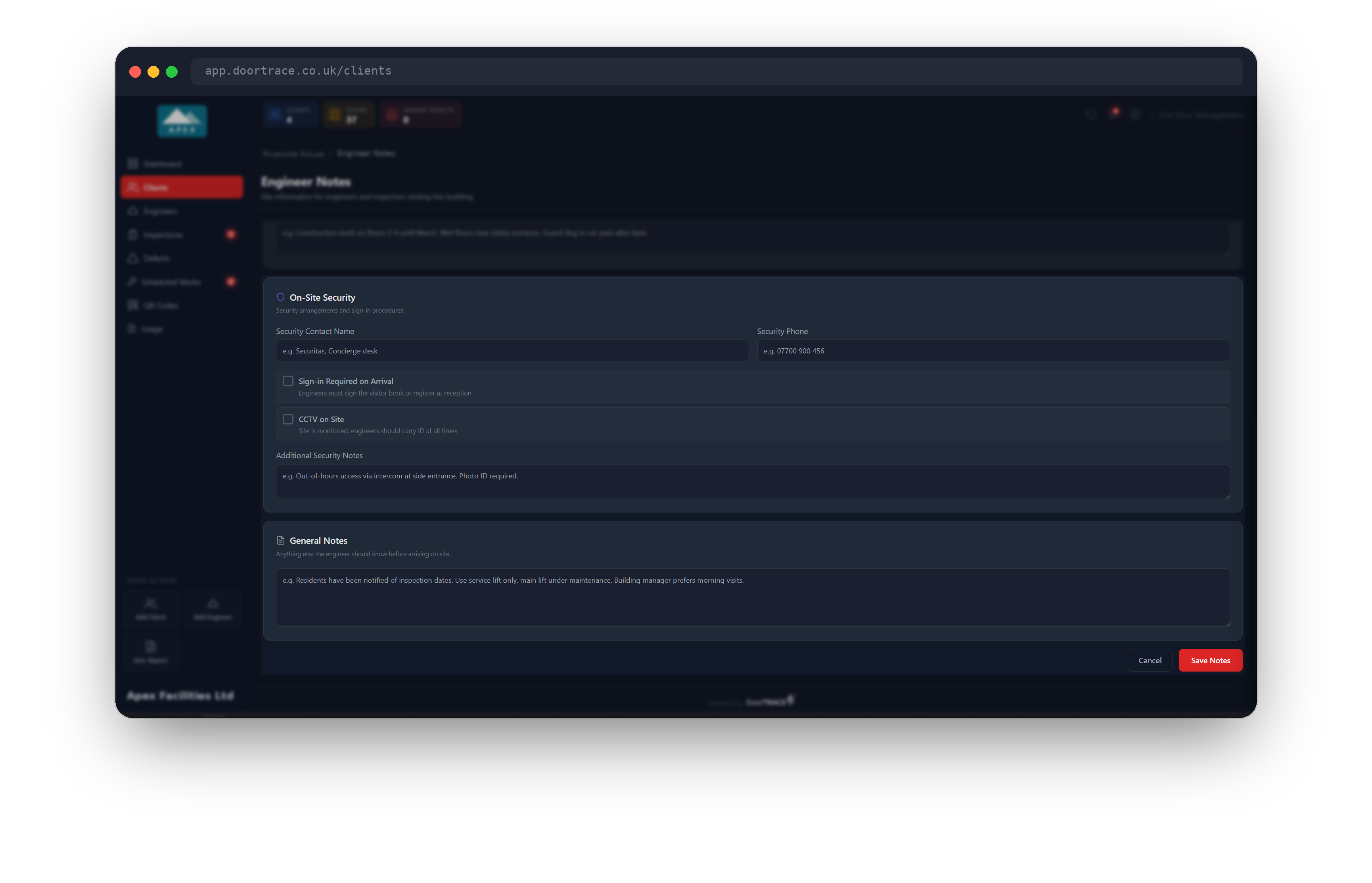
On-Site Security holds the Security Contact Name and Security Phone, plus two ticks: Sign-in Required on Arrival (the engineer must sign the visitor book or register at reception) and CCTV on Site (the engineer should carry ID at all times). Additional Security Notes covers out-of-hours arrangements and anything else the security team expects.
General Notes is free text for anything else the engineer should know, for example that residents have been told about inspection dates, or that the building manager prefers morning visits.
When you are done, choose Save Notes. You will see "Engineer notes saved" and the Last saved: time updates. Saving does not ask for your password. Engineers see the new notes the next time they open the building in the app. Every save is recorded in the audit log.
Important: A field left blank is simply not shown to the engineer. If every field is blank, the engineer sees "No site notes added yet", even if you have pressed Save Notes.
Copying notes from another building
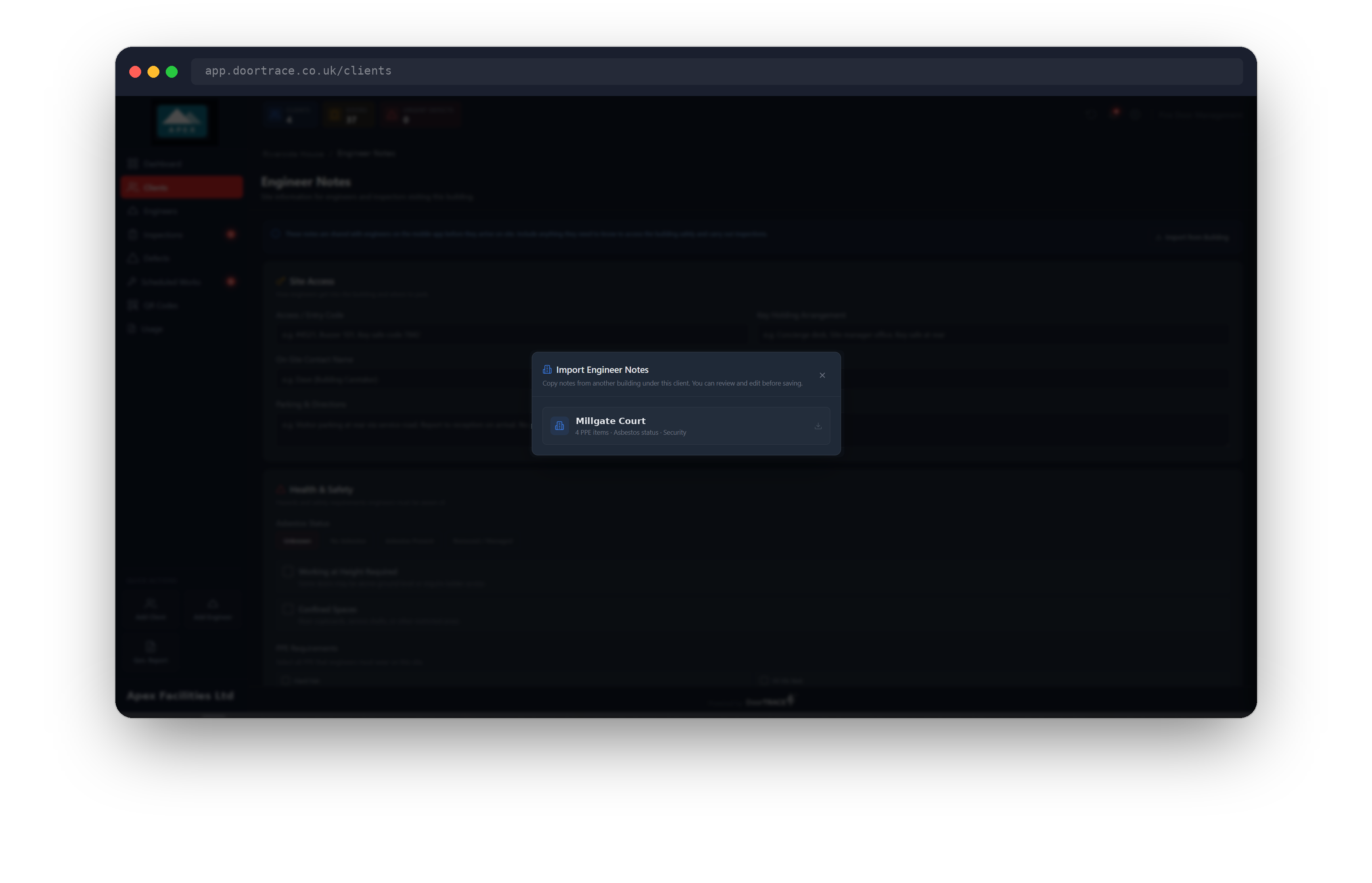
When several buildings under one client share the same arrangements, choose Import from Building in the blue banner. The Import Engineer Notes window lists every other building under the same client that already has engineer notes, with a short summary of what each contains. If none do, it says No notes to import.
Choose a building to copy its notes onto the form. If you have already typed anything, the window first asks Replace what is on the form? with the choice of Keep my notes or Replace. Nothing is saved until you press Save Notes, so you can edit the imported notes first, or leave with Cancel to throw them away. The message "Notes imported from ... : review and save when ready" confirms the copy.
Leaving without saving
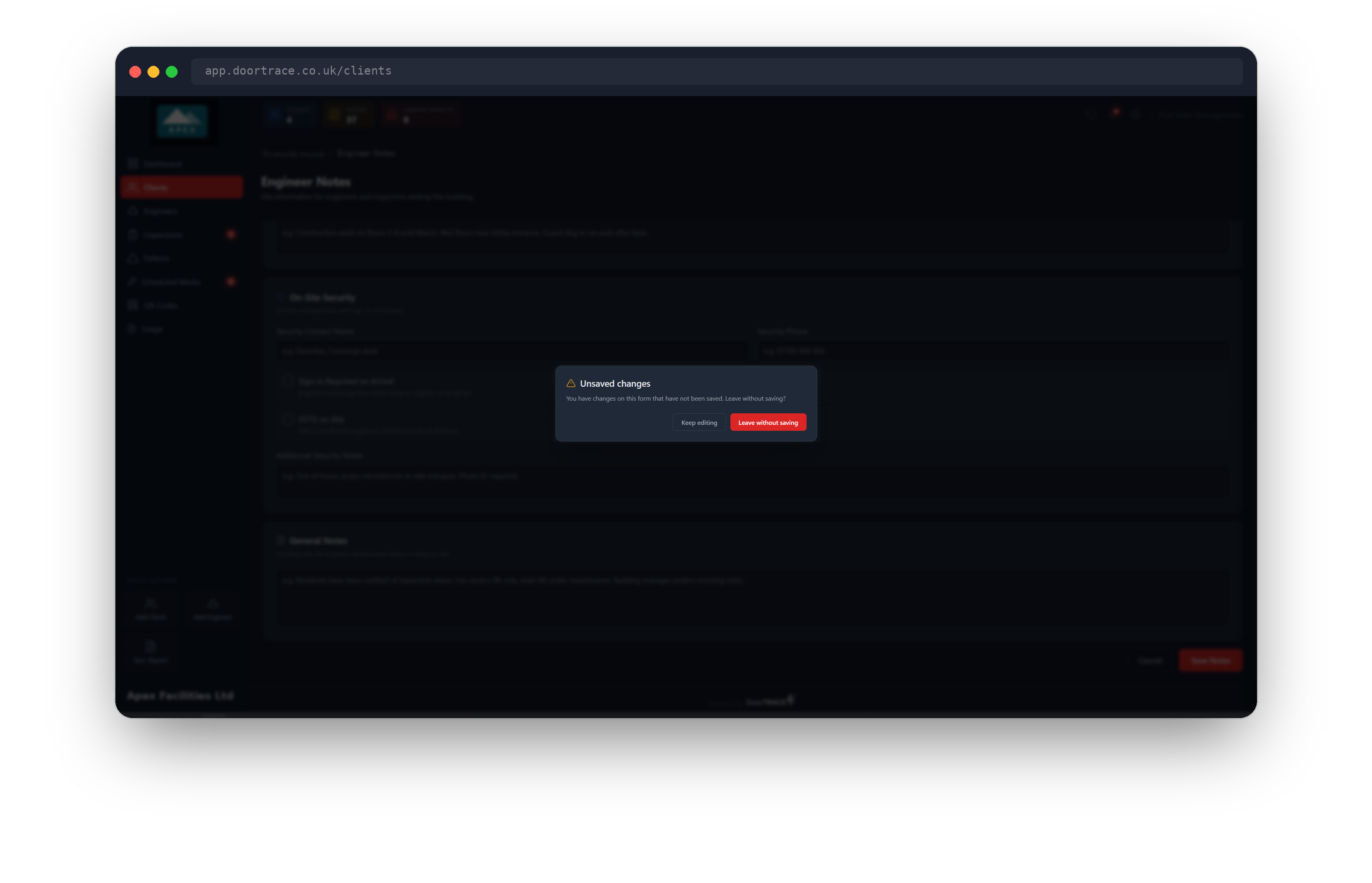
If you choose Cancel, or the building name at the top of the page, while the form has changes that have not been saved, the portal asks Unsaved changes: Leave without saving? Choose Keep editing to stay, or Leave without saving to go back to the building page and discard the changes.
If the existing notes cannot be loaded, the page shows "Could not load the existing notes" with Retry and Back to building, and the form is hidden. This protects notes that already exist: saving from an empty form in that state would create a second copy.
What the engineer sees
In the engineer app, the engineer opens My Sites, taps the client, then taps the building. Below the building overview and the responsible person, the notes appear under the same four headings: Site Access, Health & Safety, On-Site Security and General Notes. Only the fields you filled in are shown. If you chose Asbestos Present, a red Asbestos Present banner with your precautions text sits at the top of Health & Safety. Phone numbers open the phone dialler when tapped.
The notes are included when the engineer downloads offline data from the app's Home screen, so they are still available with no signal. If the engineer is offline and has not downloaded data since the notes were added, the app says "Site notes could not be loaded" and warns that access or safety notes may exist, rather than telling them there are none.
What's next
O&M documents covers the building's O&M page, where you store the operation and maintenance documents for the doors.
Still can't find the answer?
Send us a message and we'll help. We respond within one working day.