FM Portal guides
FM Portal · QR codes
Managing your QR code pool
Last updated 17 Sept 2026
Every fire door in DoorTRACE is identified by a QR code. Your company keeps a pool of codes that are ready to be printed and fixed to doors. The QR Codes page shows how many codes you hold, how many are already on doors, and lets you generate more whenever you need them.
Open the QR Codes page
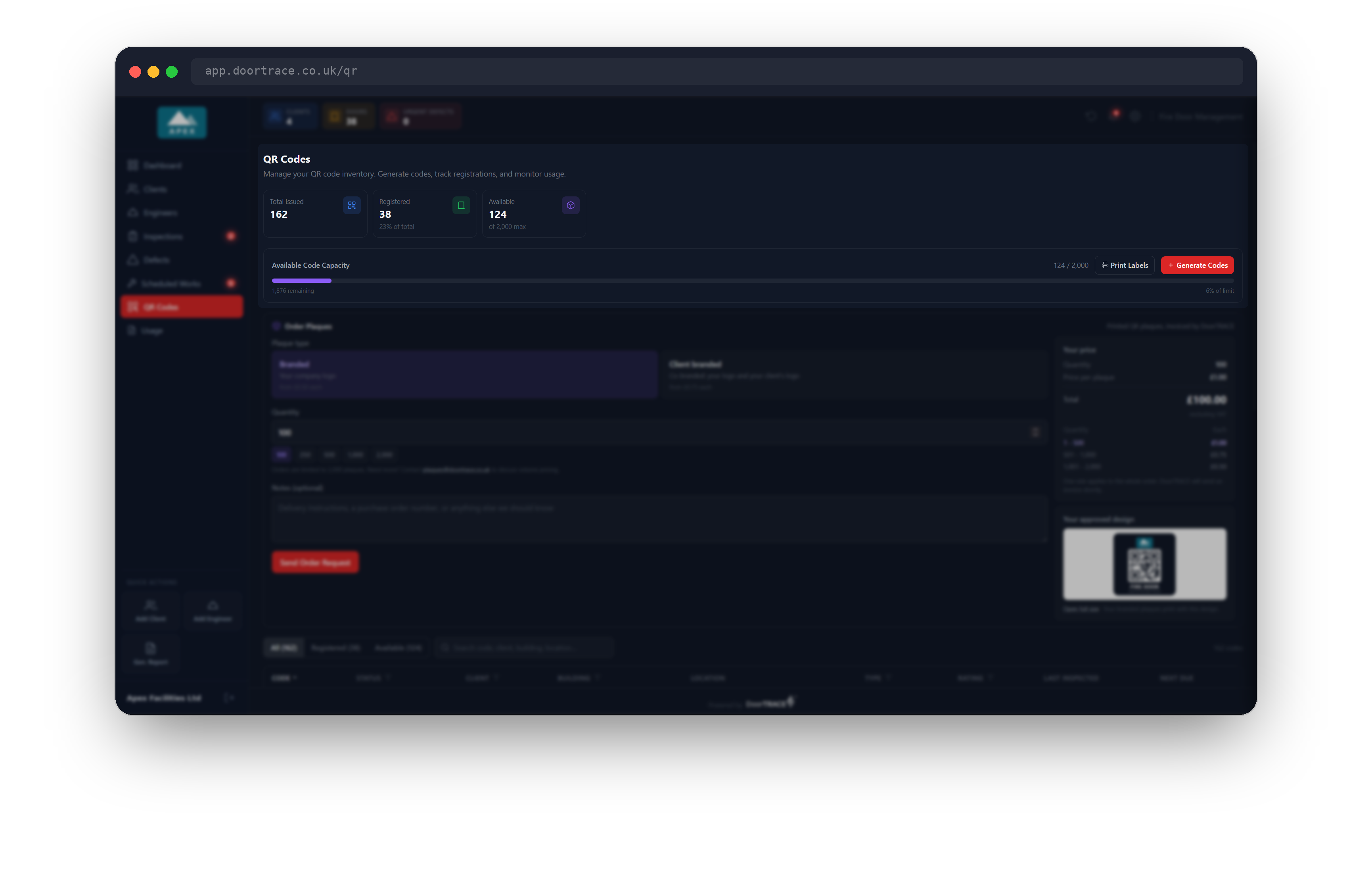
Select QR Codes in the menu on the left. Three figures sit at the top of the page:
- Total Issued is every code your company holds, used and unused.
- Registered is the number of codes that are on a door. The small line underneath shows this as a percentage of the total.
- Available is the number of unused codes waiting in your pool. The small line underneath reads "of 2,000 max".
Below the figures, the Available Code Capacity bar shows how full your pool is, with the number of codes you can still generate on the left and the percentage of the limit on the right.
Tip: The limit of 2,000 counts unused codes only. Codes that are already on doors do not count towards it.
Generate more codes
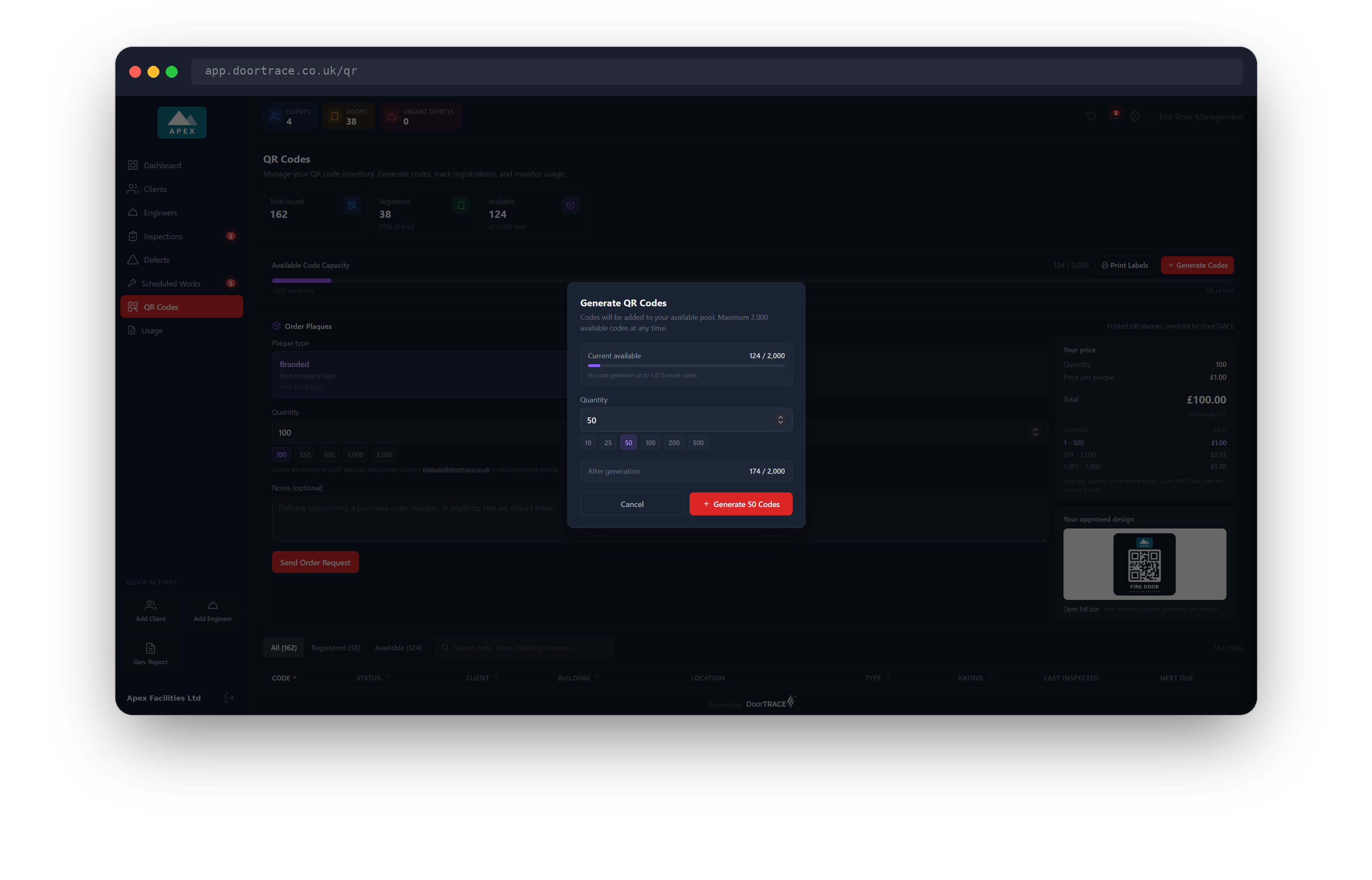
Select Generate Codes on the right of the capacity bar. The Generate QR Codes window opens and shows Current available, with a line telling you how many more codes you can generate.
- Type a number in Quantity, or select one of the quick picks: 10, 25, 50, 100, 200 or 500. You can generate between 1 and 500 codes at a time. Only the quick picks that fit in your remaining space are shown.
- Check the After generation line, which shows what your pool will hold afterwards.
- Select the red button, which reads Generate 50 Codes (or whatever number you chose).
A message confirms "50 codes generated successfully" and the new codes appear in the table as Available. You are not asked for your portal password for this step. Select Cancel to close the window without generating anything.
Once you have codes in your pool, Print Labels (next to Generate Codes) turns them into a sheet of labels, and the Order Plaques card below the bar lets you request printed plaques from DoorTRACE. Each has its own guide.
When your pool is nearly full
When your unused codes reach 90 percent of the limit, the capacity bar turns yellow and an amber notice appears at the top of the page: "You are close to the code limit", with the number you can still generate.
At the limit, the bar turns amber, the notice reads Code limit reached, and Generate Codes is greyed out. Nothing is wrong. As your engineers register doors, those codes leave the pool and the space comes back. Print Labels is greyed out only when you have no unused codes at all.
Find a code in the table
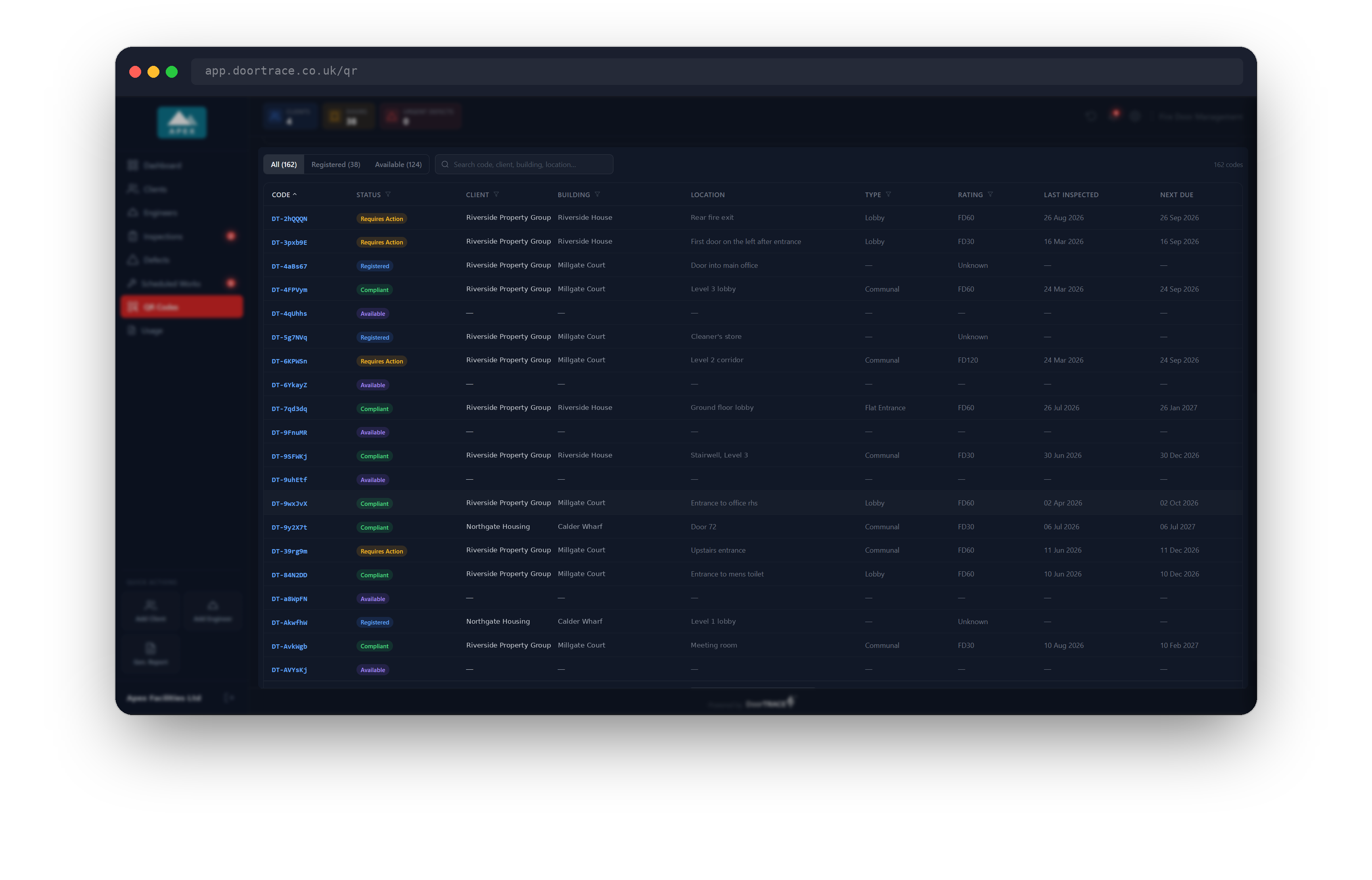
The table at the bottom of the page lists every code. The columns are Code, Status, Client, Building, Location, Type, Rating, Last Inspected and Next Due. An unused code has no door yet, so its other columns show a dash.
- The tabs All, Registered and Available each show a count. Registered lists every code that is on a door. Available lists your unused codes.
- The search box looks at the code, client, building, location, floor, door type and fire rating. Typing "flat entrance" finds every flat entrance door.
- Select any column name to sort by it. A small arrow appears next to the name. Select the same name again to reverse the order.
- The count on the right, for example "38 codes", is the number of codes that match what you have chosen.
The table shows 20 codes at a time. Select Show more at the bottom to see the next 20. When everything is on screen the line reads "Showing all 38 codes".
Filter a column
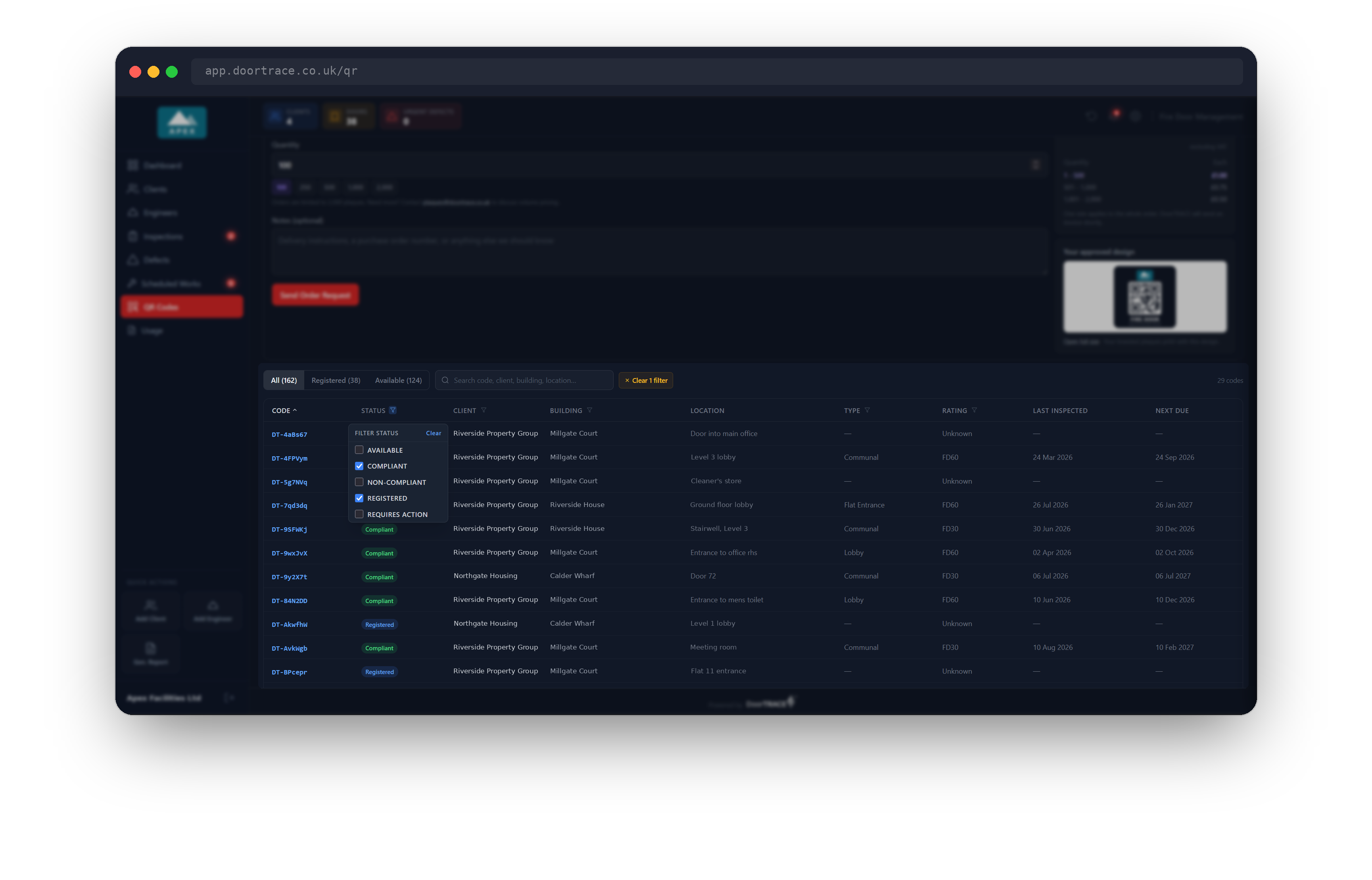
Five columns have a tiny triangle icon next to their name: Status, Client, Building, Type and Rating. Select the icon to open a small menu of tick boxes, then tick the values you want to see. You can tick more than one, and you can filter several columns at once.
The icon turns blue while a filter is set on its column. To remove one filter, open its menu and select Clear. To remove everything at once, select the amber Clear 1 filter button next to the search box. That button also empties the search box and takes you back to the All tab.
If nothing matches, the table reads "No codes match your filters".
What the Status column means
The Status column tells you where each code is in its life:
- Available: an unused code in your pool.
- Registered: the code is on a door, and the door is waiting for its first inspection. A door also goes back to this status when a whole new door is fitted during remedial work, because the new door needs a first inspection of its own.
- Compliant, Requires Action, Non-Compliant or Not Inspected: the code is on a door, and this is that door's current status.
Important: The Registered tab and the Registered status are not the same thing. The tab lists every code that is on a door, whatever the door's status. The blue Registered status marks only the doors still waiting for their first inspection.
What happens to a code when a door changes
- A door is registered. Your engineer scans an unused tag in the app and registers the door. The code moves from Available to Registered and the space in your pool comes back.
- A door is de-registered. Its code is retired for good and one new unused code is added to your pool to replace it. See Editing, rescheduling or de-registering a door.
- A tag is replaced. Your engineer fits a new tag from your pool. The old code is retired, but the old tag still opens the same door's record if anyone scans it. See Replacing a damaged QR tag in the engineer app guides.
A retired code can never be registered to a door again, and retired codes are left out of the three figures and the table.
Tip: Because de-registering a door always gives you one replacement code, your pool can sit slightly above 2,000 for a while. The page shows "0 remaining" and you can generate again once your unused codes drop below the limit.
If your codes do not load
If the page cannot reach DoorTRACE, a red notice reads Your QR codes could not be loaded and warns that the figures are not up to date. Check your internet connection, then select Try again in the notice or in the table. If your company has no codes yet, the table reads "No QR codes issued yet": select Generate Codes to make your first batch.
What's next
Your codes are no use until they are on doors. Printing QR labels shows you how to turn your unused codes into a sheet of labels ready to print.
Still can't find the answer?
Send us a message and we'll help. We respond within one working day.