FM Portal guides
FM Portal · Settings
Company profile and logo
Last updated 27 Sept 2026
Your company profile holds the details DoorTRACE uses for your company: your name, your main contact, your address, phone and website, and your logo. You were asked for most of them the first time you signed in. This guide shows where to find them again, what each one is used for, and how to change them.
Opening Settings
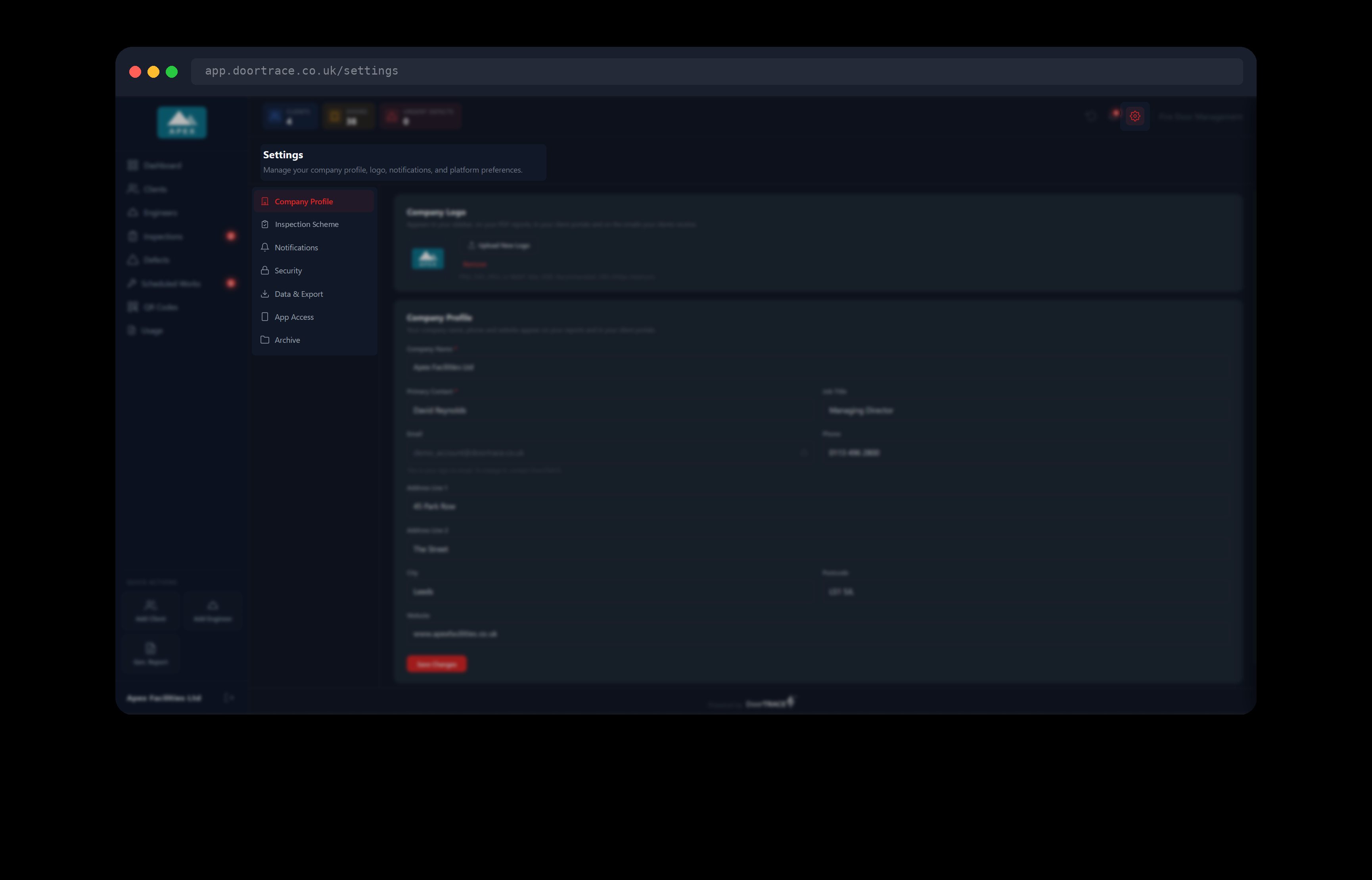
Settings is not in the menu on the left. Click the cog icon at the top right of the portal, next to the bell. The Settings page opens on Company Profile, which is the first item in the list on the left of the page. The other items in that list (Inspection Scheme, Notifications, Security, Data & Export, App Access and Archive) each have their own guide.
The Company Profile page has two boxes. Company Logo is at the top and the Company Profile form is below it. While your details are being fetched you will see "Loading your company details…" for a moment.
Adding or changing your logo
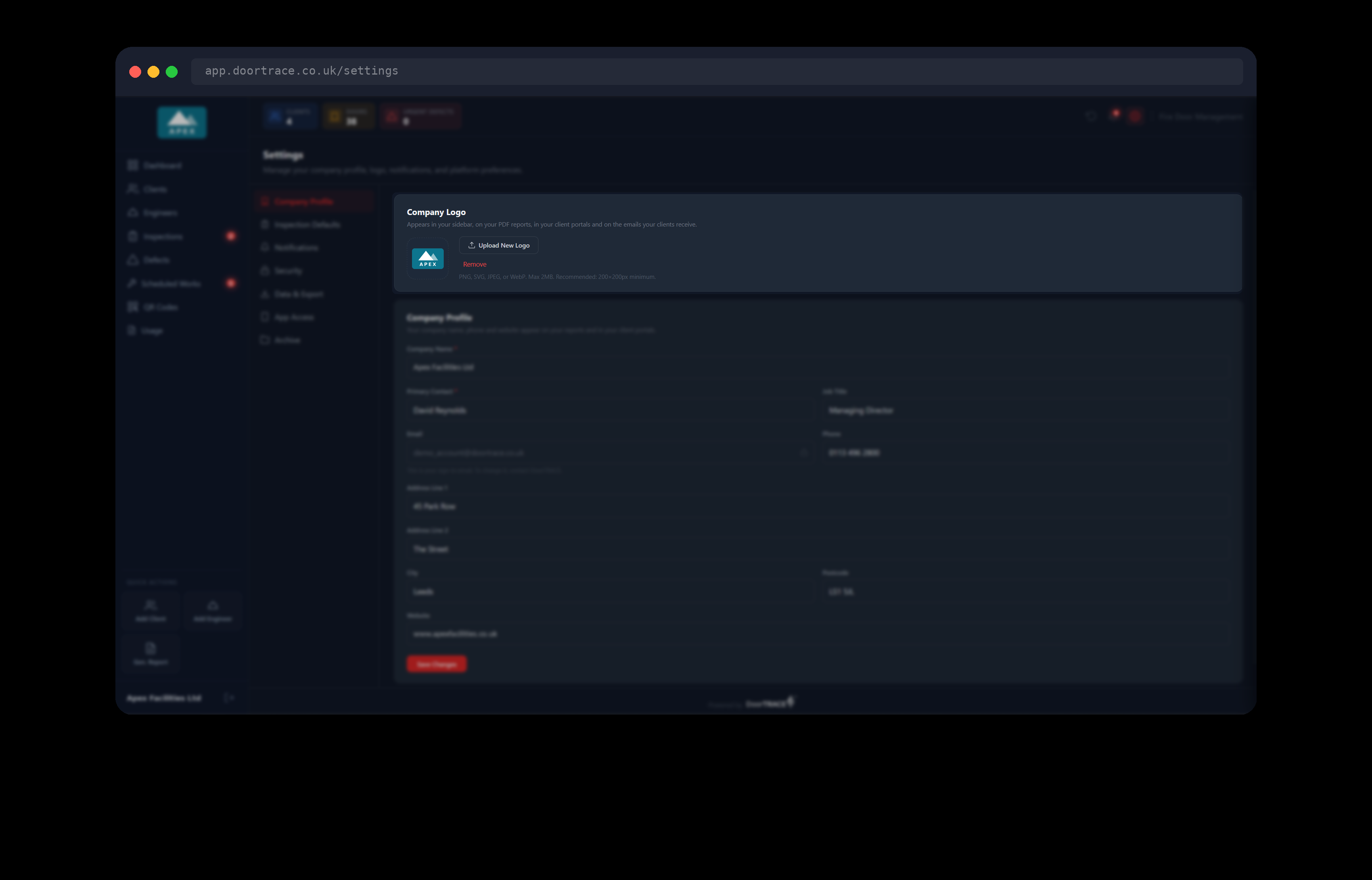
Your logo appears in the sidebar of the portal, on your PDF reports, in your client portals and on the emails your clients receive from the portal. Click Upload New Logo and choose the file from your computer. The logo is saved as soon as it has uploaded. There is no save button to press and you are not asked for your password. You will see "Logo updated successfully." and the sidebar changes straight away.
The file must be a PNG, SVG, JPEG or WebP and no larger than 2MB. A logo of at least 200 x 200 pixels is recommended so it stays sharp on reports. To swap your logo for a new one, click Upload New Logo again. The new file takes the place of the old one.
Tip: If you have not added a logo yet, the top of the sidebar shows an Add logo button. It brings you to this page.
Removing your logo
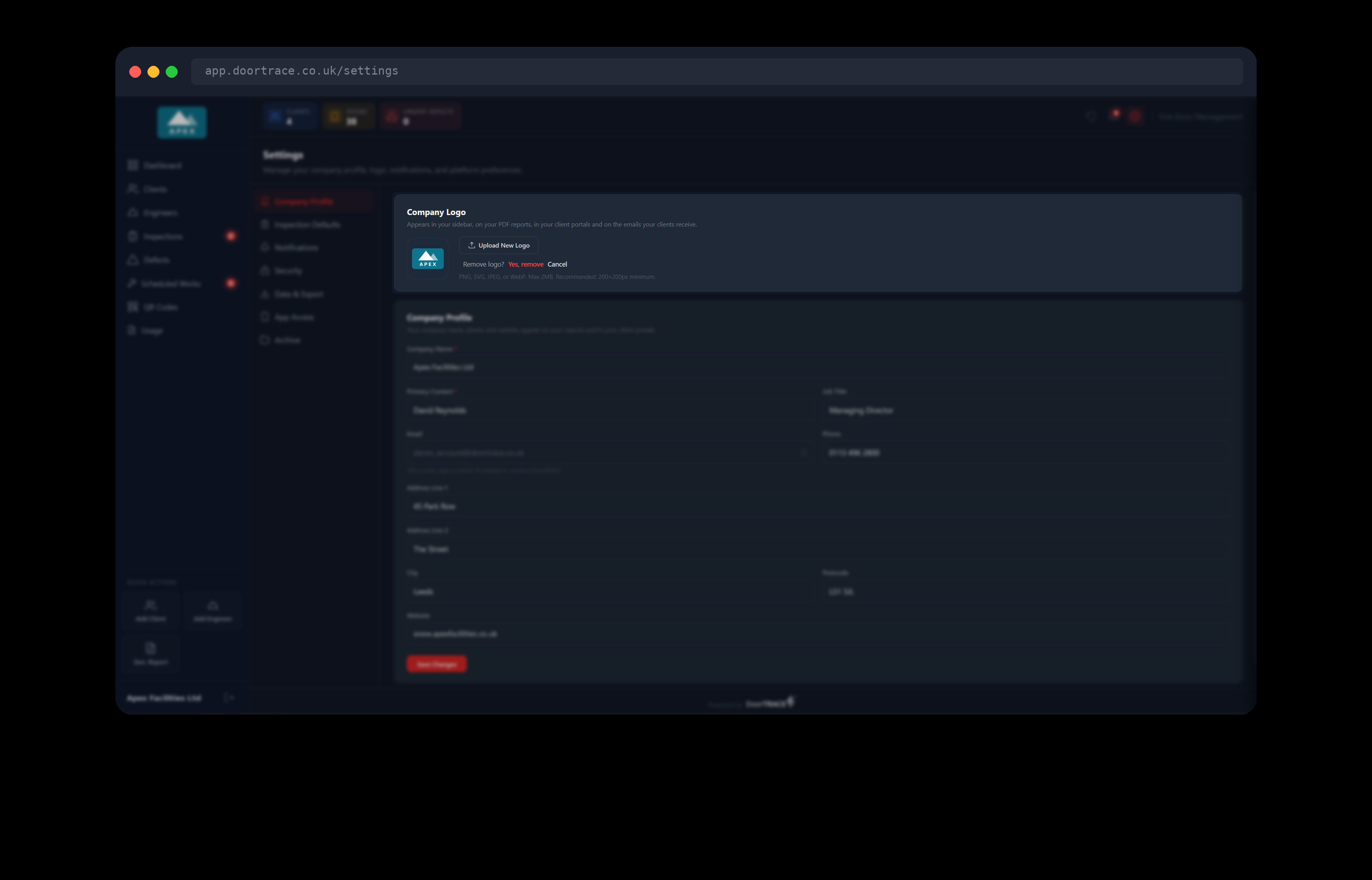
Click Remove under the upload button. The portal asks "Remove logo?" so that a slip of the mouse cannot delete it. Click Yes, remove to go ahead, or Cancel to keep your logo. After a removal you will see "Logo removed.", the box shows No logo, and the sidebar goes back to the Add logo button.
Your logo stops appearing on reports you download after that, until you upload a new one. Reports you have already downloaded are not changed.
Updating your company details
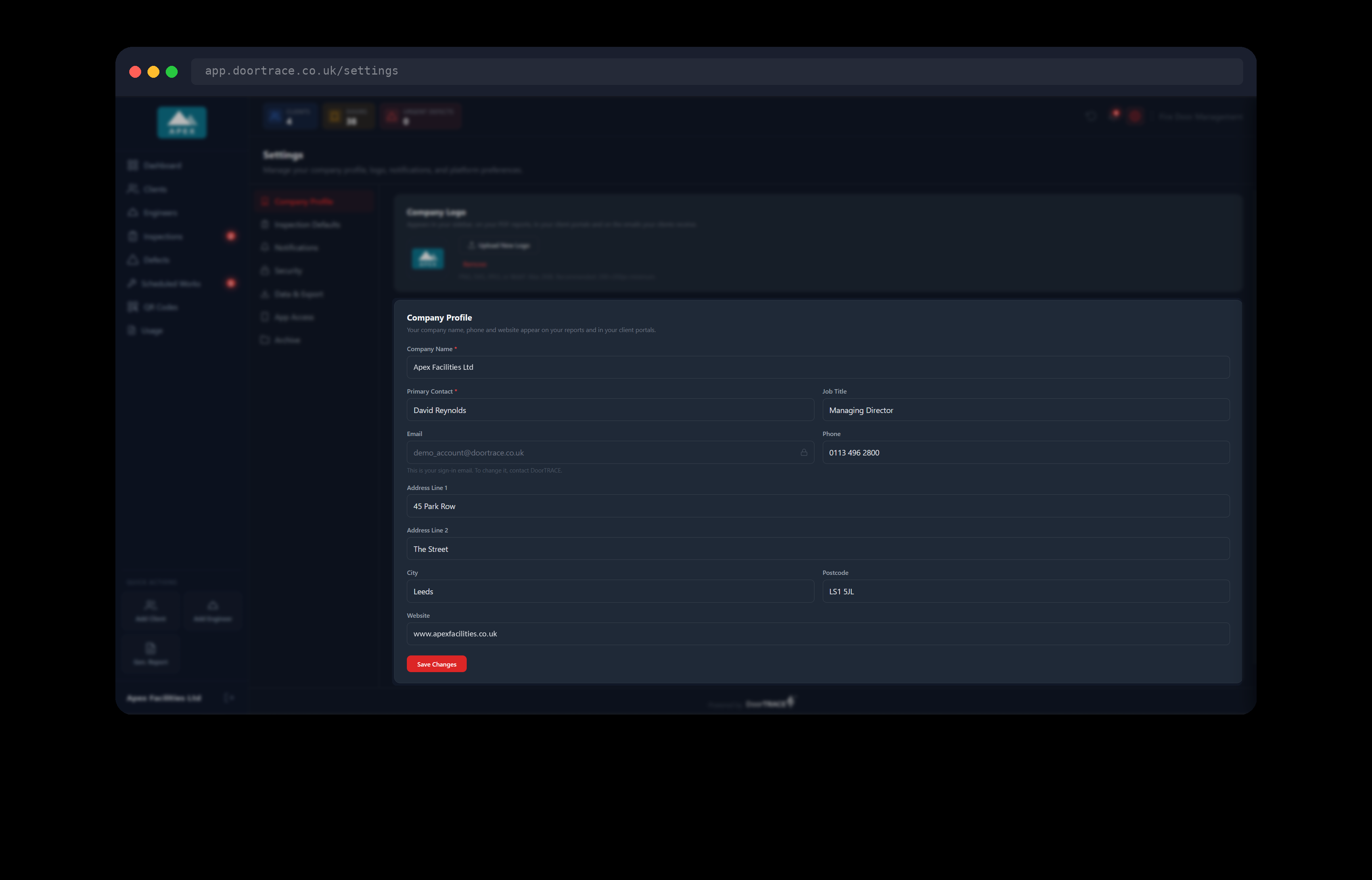
Change any of the boxes and click Save Changes at the bottom of the form. The button shows "Saving…" and then turns green and reads Saved, and you will see "Company profile saved". Nothing is kept until you click Save Changes. If you go to another page first, even another Settings page, your changes are thrown away and the form shows your saved details when you come back. You are not asked for your password on this page.
- Company Name is required. It is the name shown at the bottom of the sidebar, on your dashboard, on your reports and in your client portals.
- Primary Contact is required. It is also saved as the name on your portal login.
- Job Title, Address Line 1, Address Line 2, City and Postcode are optional.
- Phone and Website are optional. When filled in, they are printed on your reports, including the reports your clients download from their client portal, so your clients know how to reach you.
Your sign-in email
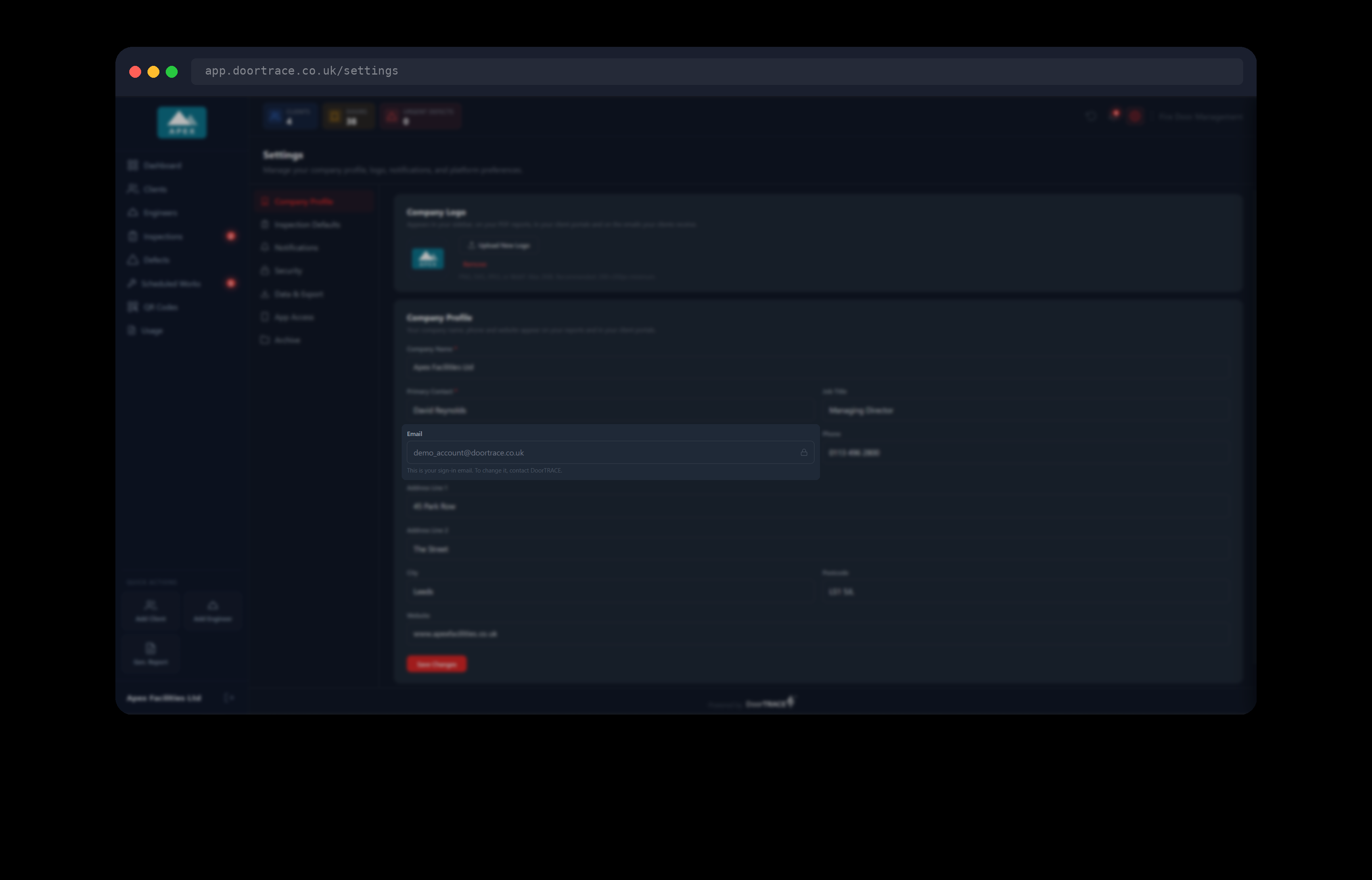
The Email box shows the email address you sign in with. It is greyed out with a small padlock because it cannot be changed from the portal. Under it you will see "This is your sign-in email. To change it, contact DoorTRACE." This keeps your account safe: nobody who finds your portal open can move your login to their own email address.
The same address is where DoorTRACE sends your monthly usage summary, described in Your usage. If the person who looks after your account changes, ask DoorTRACE to update the address so sign-in, password resets and the monthly summary all go to the right person.
If a box is marked in red
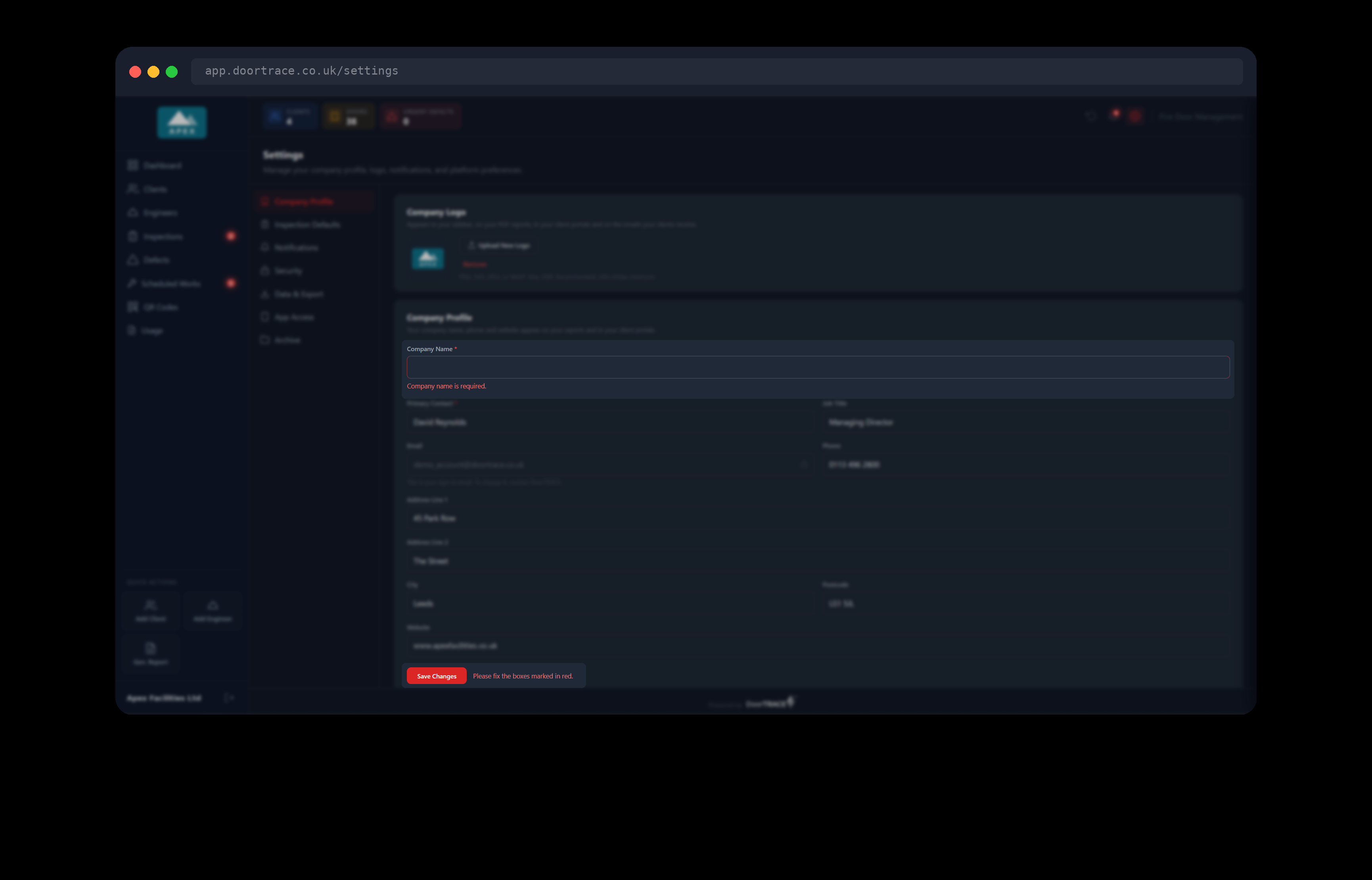
The portal checks the form when you click Save Changes. If something is wrong, nothing is saved, the box is outlined in red with a message under it, and "Please fix the boxes marked in red." appears next to the button. The message goes away as soon as you start typing in that box. The messages are:
- "Company name is required."
- "Contact name is required."
- "Please enter a valid phone number." A phone number needs 10 to 15 digits. Spaces, brackets, plus and minus are fine, for example +44 20 7946 0123. Letters are not.
- "Please enter a valid UK postcode (e.g. LS1 5HD)."
- "Please enter a valid website address (e.g. www.yourcompany.co.uk)."
If something goes wrong
If you see a red box that reads Your company details could not be loaded, the portal could not reach DoorTRACE. Check your connection and click Try again. The form and the logo box stay hidden until your details have loaded, so nothing can be saved by mistake.
If a logo will not upload, the message tells you why. "Please upload a PNG, SVG, JPEG, or WebP image." means the file is another type, for example a PDF or a Word file. "File is too large. Maximum size is 2MB." means the picture needs to be saved at a smaller size first. If the portal says the file does not match its type, the file is damaged or has the wrong ending on its name: save it again from the program you made it in and try once more.
What's next
Choosing your inspection scheme shows how to choose the survey form your own engineers work to, and explains where inspection frequencies are set.
Still can't find the answer?
Send us a message and we'll help. We respond within one working day.