FM Portal guides
FM Portal · External engineers
Adding an engineer
Last updated 16 Sept 2026
Engineers are the people who carry out inspections through the DoorTrace app. External engineers register on the app themselves, so adding one to your company is a matter of finding them in the DoorTrace directory and sending an invitation. This guide covers the Engineers page, searching the directory, sending an invitation, what the engineer sees, and what to do when the engineer is not on DoorTrace yet.
Before you start
- This page is for external engineer companies. Your own engineers use a shared app login, set up under Settings > App Access rather than here.
- The engineer needs to have registered on the DoorTrace app before you can invite them. If they have not, you can send them a prompt to sign up (see below).
- Sending an invitation does not ask for your portal password.
The Engineers page
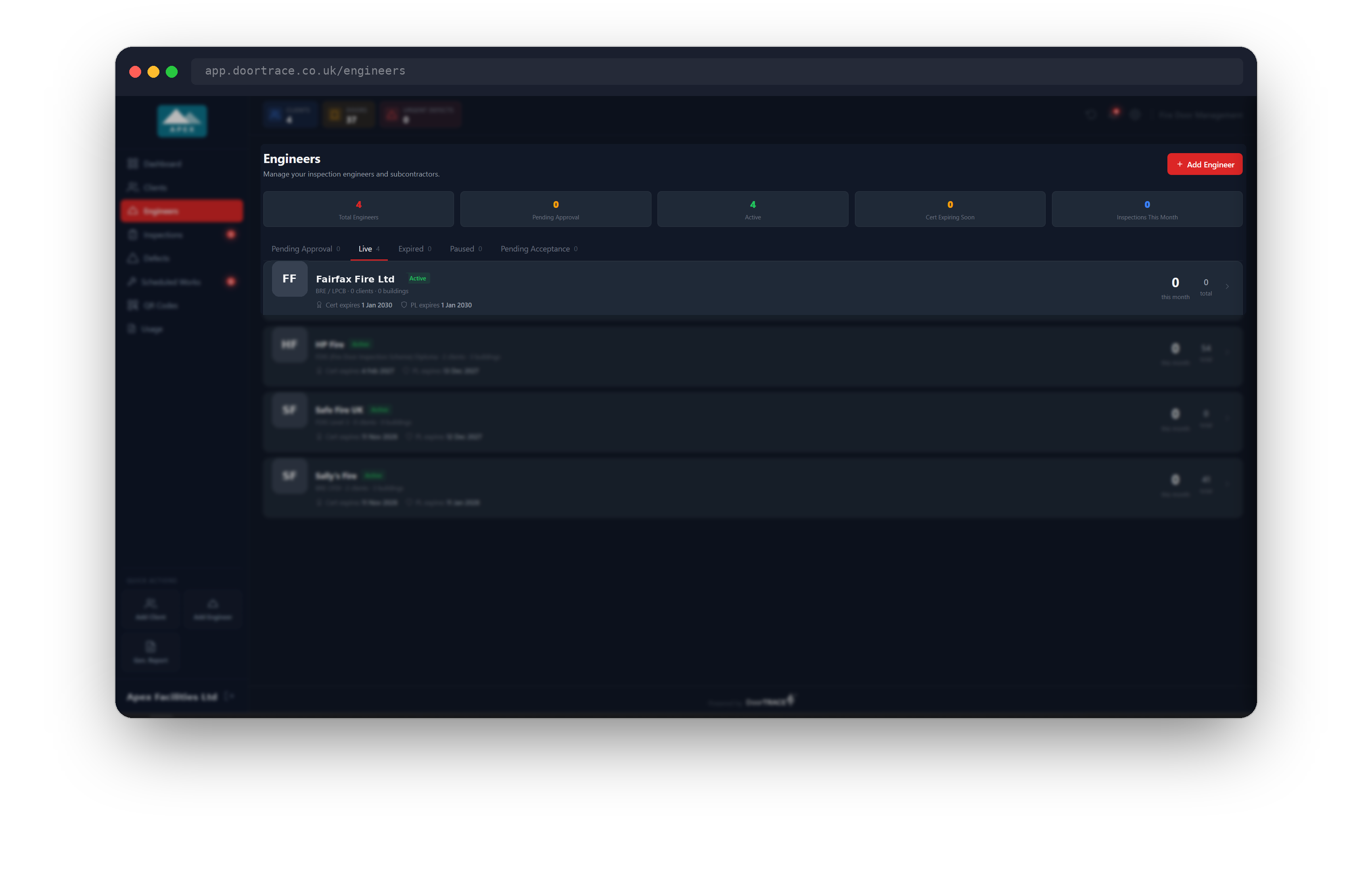
Open Engineers in the sidebar. The five tiles at the top show Total Engineers, Pending Approval, Active, Cert Expiring Soon (an approved engineer whose earliest document expires within 60 days) and Inspections This Month.
Below the tiles, every engineer sits in exactly one tab: Pending Approval (they have accepted your invitation and are waiting for you to approve their documents), Live, Expired, Paused (no certification or no insurance on file, so DoorTrace has paused their account everywhere) or Pending Acceptance (invited, not yet accepted). The page opens on Pending Approval when there is anyone in it, otherwise on Live. Each card shows the company, a status badge, the certification on file, how many clients and buildings the engineer looks after, the nearest certificate and Public Liability expiry dates, and inspection counts for this month and overall. Pending Acceptance cards are shown dimmed.
If you have no engineers yet the page shows "No engineers yet" with an Add Engineer button.
Searching the directory
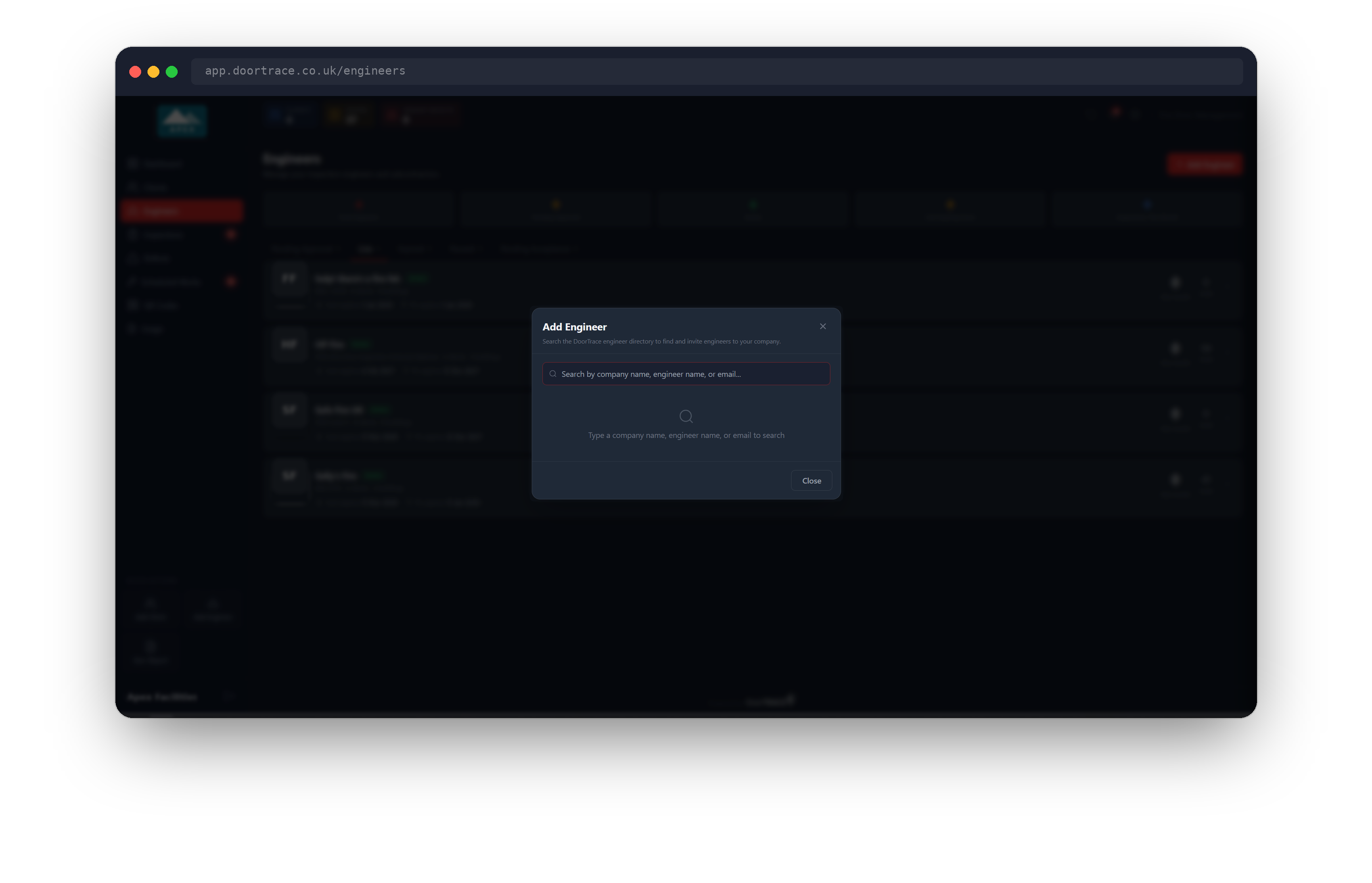
Press Add Engineer at the top right. The Add Engineer window opens with one search box: "Search by company name, engineer name, or email...". Start typing and the search runs on its own after a short pause. It matches the company name, the engineer's first name, last name or full name, or their email address, against every active engineer registered on DoorTrace.
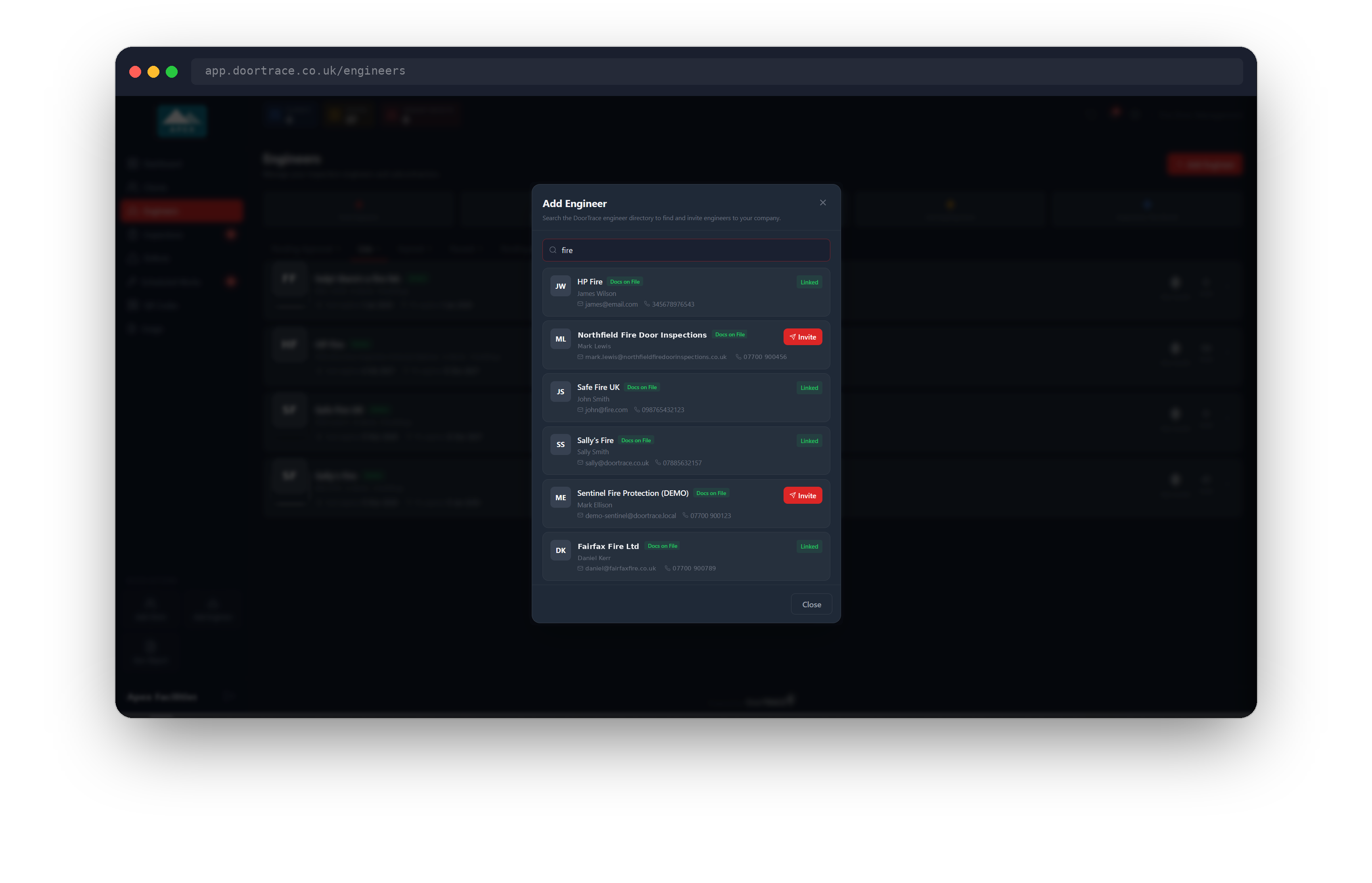
Each result shows the company name (or the person's name if no company is recorded), the person, their email and phone, and a documents badge: Docs on File, Docs Expiring (a document expires within 30 days), Docs Expired or No Docs. On the right you will see one of three things: an Invite button, Linked (already working with your company) or Pending (you have already invited them and they have not answered yet).
Tip: The documents badge is what DoorTrace has on file for the engineer. Whether those documents meet your requirements is decided when you approve them, covered in the next guide.
Sending an invitation
Press Invite on the engineer's card. The button reads "Sending..." and then the card shows "Invitation sent to <their email>" with a Pending tag. The engineer is added to your Pending Acceptance tab straight away, and you can carry on searching or press Close.
The engineer receives an email from noreply@doortrace.co.uk titled "<your company> has invited you to DoorTRACE". It explains that your company would like to add them as an engineer, with an Accept Invitation button and a Decline this invitation link, and says the invitation expires in 7 days.
If you press Invite for someone who is already linked or already invited, the window shows "This engineer is already linked to your company" or "An invitation has already been sent to this engineer".
What happens next
When the engineer accepts, they see a confirmation page saying they will be able to see your work in the app once you have reviewed and approved their documents. In the portal they move from Pending Acceptance to Pending Approval the next time the page loads, and the Pending Approval tab shows a count. You are not emailed when someone accepts, so check the tab.
If the engineer declines, the link is removed and they drop off your Engineers page. You can invite them again later from Add Engineer.
If 7 days pass without an answer the invitation link stops working and shows the engineer an "Invitation Expired" page. Search for them again in Add Engineer: the Invite button is offered again and pressing it sends a fresh link.
Important: Accepting an invitation does not give the engineer any work. They cannot be assigned to a building until you have approved their documents, and while DoorTrace has no certification or no insurance on file for them at all, their account is paused and they cannot sign in to the app.
When the engineer is not on DoorTrace yet
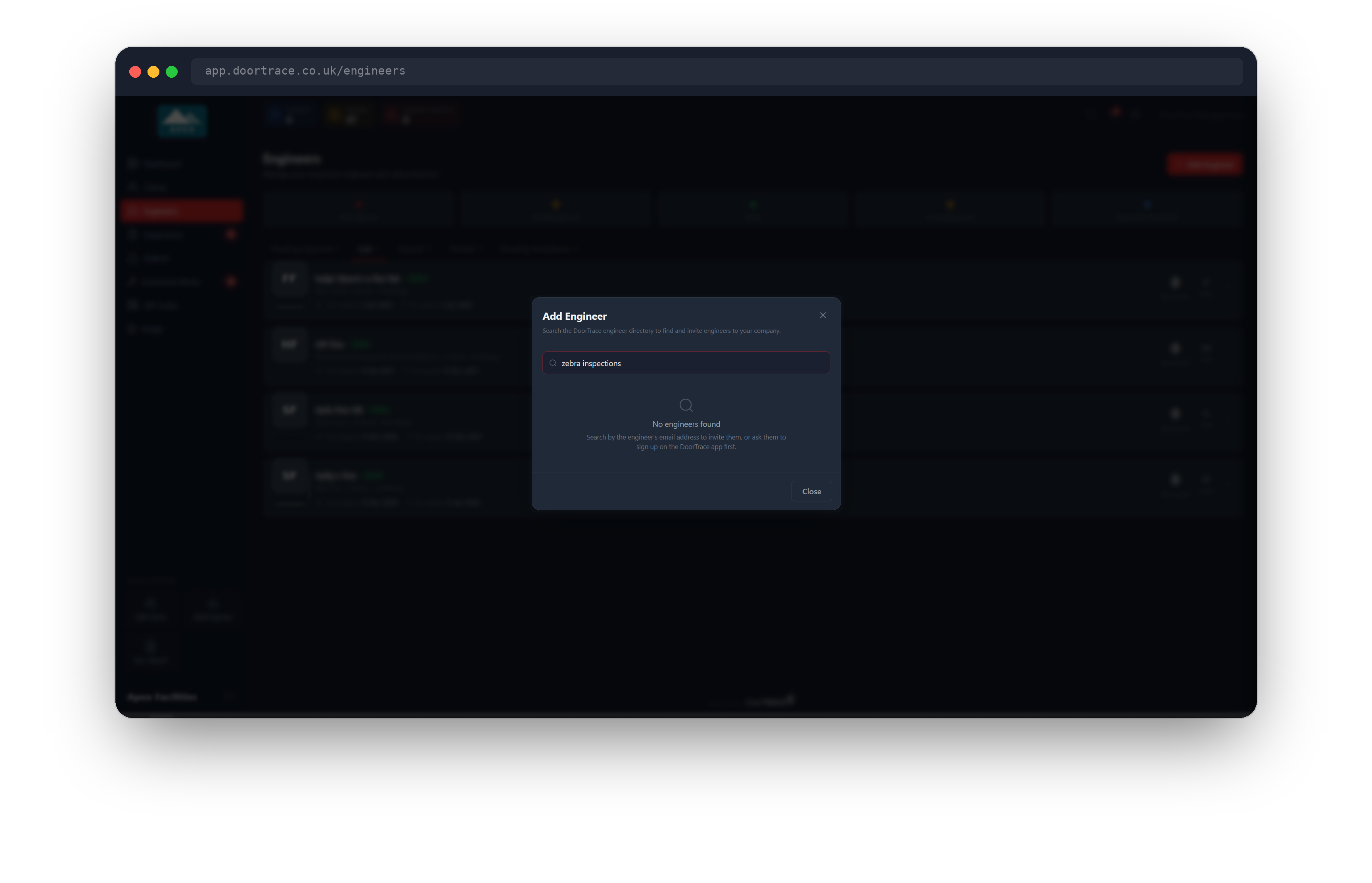
If nothing matches a name or company, the window shows "No engineers found" and suggests searching by the engineer's email address, or asking them to sign up on the DoorTrace app first.
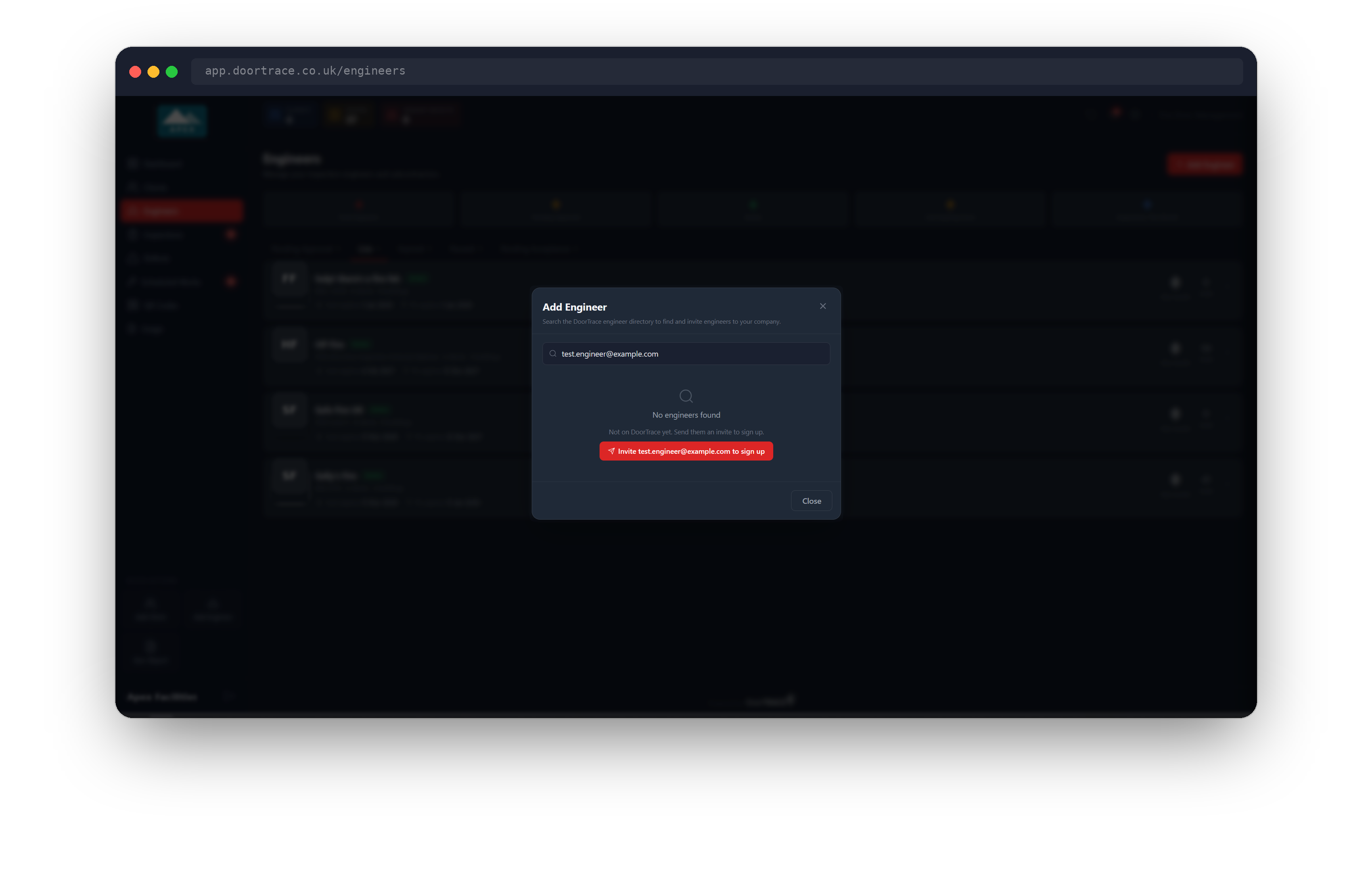
Search by their email address instead. If that email is not registered, the window says "Not on DoorTrace yet. Send them an invite to sign up." with an Invite <email> to sign up button. Pressing it sends an email from noreply@doortrace.co.uk titled "<your company> would like to add you on DoorTRACE", with App Store and Google Play links and a note to let you know once they have registered. The window then shows "Sign-up invite sent to <email>".
This is only a prompt. Nothing is created in your portal and the engineer does not appear in any tab. Once they have registered, come back to Add Engineer, search for them and press Invite as normal.
Two other messages can appear when you search by email:
- "<company> is already on DoorTrace": DoorTrace allows one account per engineer company, identified by the company's email domain. The message names the account holder and their email. Ask your engineer to contact that person for their login details, then invite the account holder. This does not apply to personal email providers such as Gmail or Outlook.
- "This email already has a DoorTrace account": the address is registered but not as an engineer you can invite. Check the address with the engineer.
If you cannot find an engineer
- The directory only lists active engineer accounts. An engineer who registered but never sent DoorTrace any documents is removed automatically after 30 days and will need to register again.
- Search is a simple text match. Try part of the company name, the surname on its own, or the email address.
- An engineer who declined your invitation can be found and invited again.
What's next
Once the engineer has accepted, their documents are waiting for you in the Pending Approval tab. Approving an engineer's documents covers reviewing them, approving, and what happens if you reject.
Still can't find the answer?
Send us a message and we'll help. We respond within one working day.