FM Portal guides
FM Portal · Defects and works
The Defect Register
Last updated 16 Sept 2026
The Defect Register lists every fire door defect an engineer has logged across your buildings. It shows you which ones need attention first, groups them by type so you can see patterns, and lets you download any slice of the list as a spreadsheet. Every defect has a short reference, DEF-0001 upwards, that you can quote to an engineer or a client. This guide walks the page from top to bottom and then opens a single defect. Scheduling the work itself is covered in the next guide.
Before you start
Defects are created by engineers in the DoorTRACE app when an inspection item fails. You cannot add a defect from the portal, and you cannot close one from the portal either: a defect is only completed when an engineer passes a post-remedial inspection on that door. If there are no defects on your account yet, the page shows No defects recorded with a short explanation of where they come from.
The summary cards
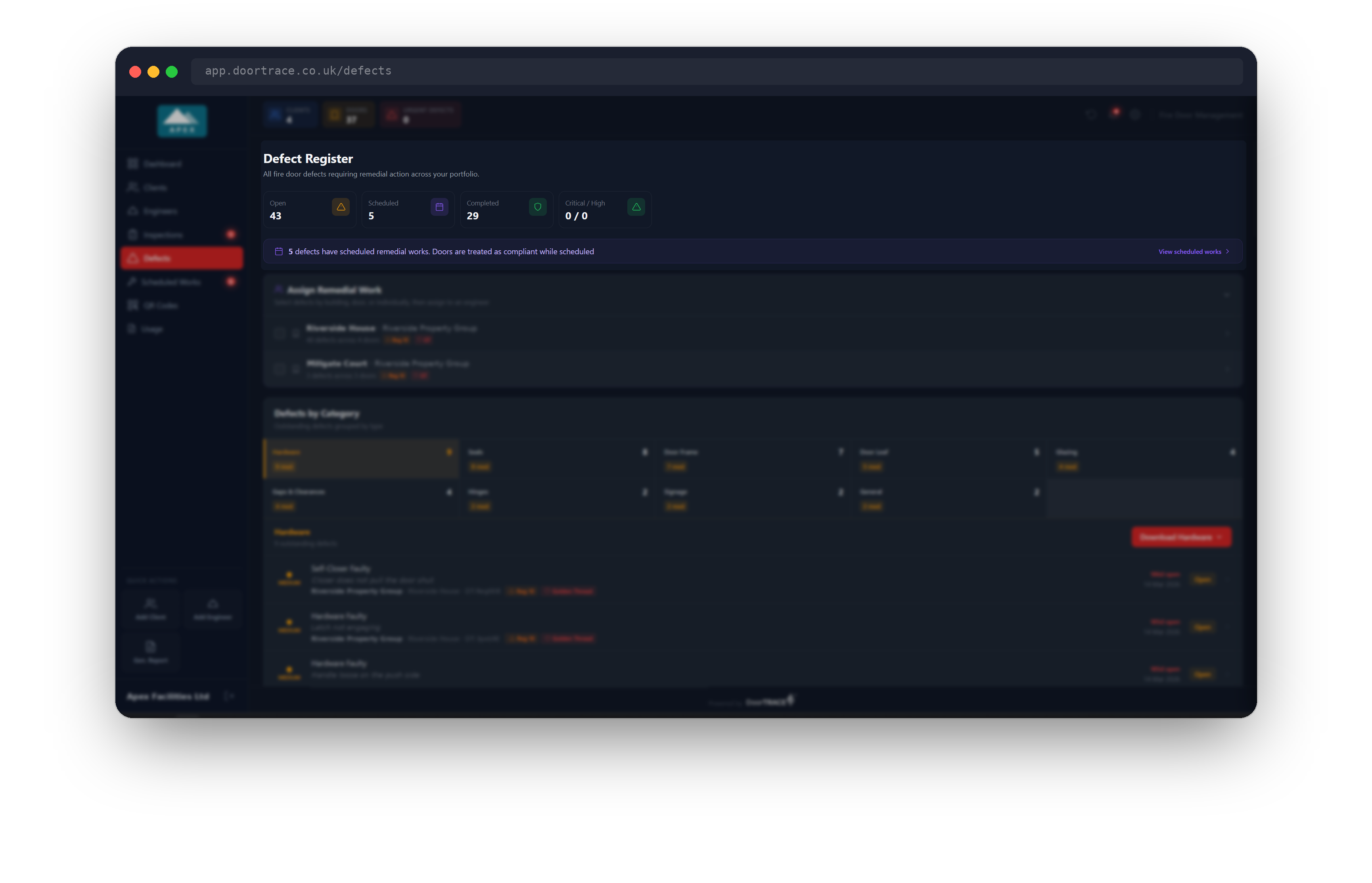
Open Defects in the sidebar. The page is headed Defect Register with four cards across the top:
- Open: defects nobody has scheduled work for yet.
- Scheduled: defects with remedial work assigned to an engineer.
- Completed: defects closed by a passing post-remedial inspection.
- Critical / High: the number of open critical defects, then open high-priority defects. The card turns red when there is at least one critical defect open, and green when there are none.
When any defects are scheduled, a purple bar underneath tells you how many and reminds you that those doors are treated as compliant while the work is pending. Click View scheduled works on that bar to go to the Scheduled Works page.
Assign Remedial Work
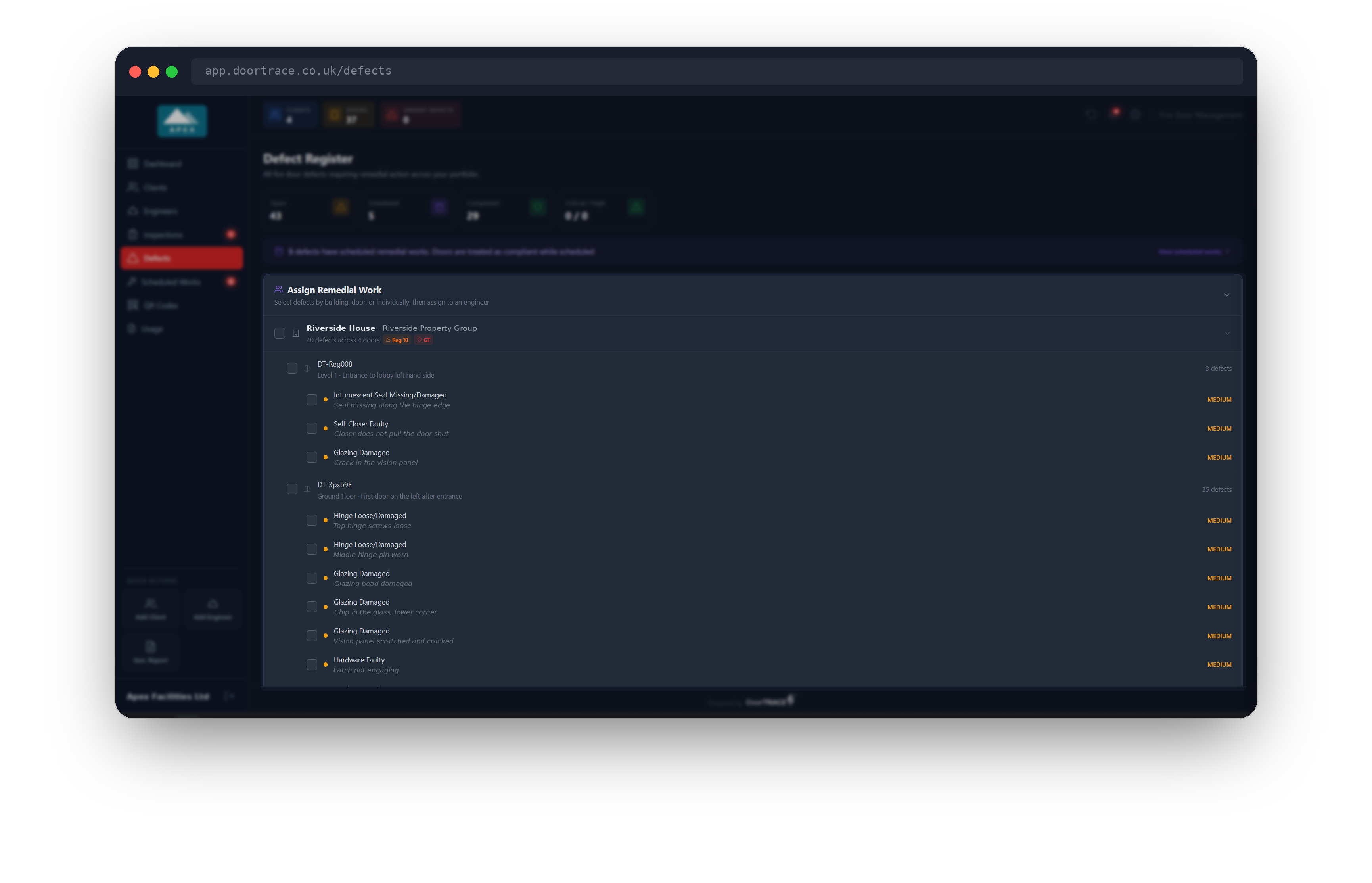
The Assign Remedial Work section lists every open defect grouped by building, then by door. Each building row shows how many defects it has across how many doors, with a red count for critical defects and an orange count for high, plus a Reg 10 or GT badge when the building is over 11 metres or a Golden Thread building. Click a building row to expand it and see its doors and the individual defects on each one.
Tick boxes work at all three levels: tick a building to select every open defect in it, tick a door to select everything on that door, or tick single defects. A partly selected building or door shows a short dash instead of a tick. A bar at the bottom of the section counts what you have selected, with Clear to start again and Assign to Engineer to open the assignment window. Click the section header to collapse it out of the way. Assigning work is covered in Scheduling remedial work.
Requires Immediate Attention
This section only appears when you have open critical or high-priority defects, and its subtitle tells you how many of each. It shows the first eight; if there are more, click + N more urgent defects to see the rest and Show less to fold them away again. Each row shows the priority, the defect, the engineer's note in italics underneath, and the client, building and door it belongs to (the door is shown by its QR code). The number of days the defect has been open sits on the right and changes colour as it ages: grey for the first week, amber after 7 days, red after 21.
Click any row to open the defect. The Download Urgent button gives you these defects as a spreadsheet; the download options are the same on every section and are described below.
Defects by Category
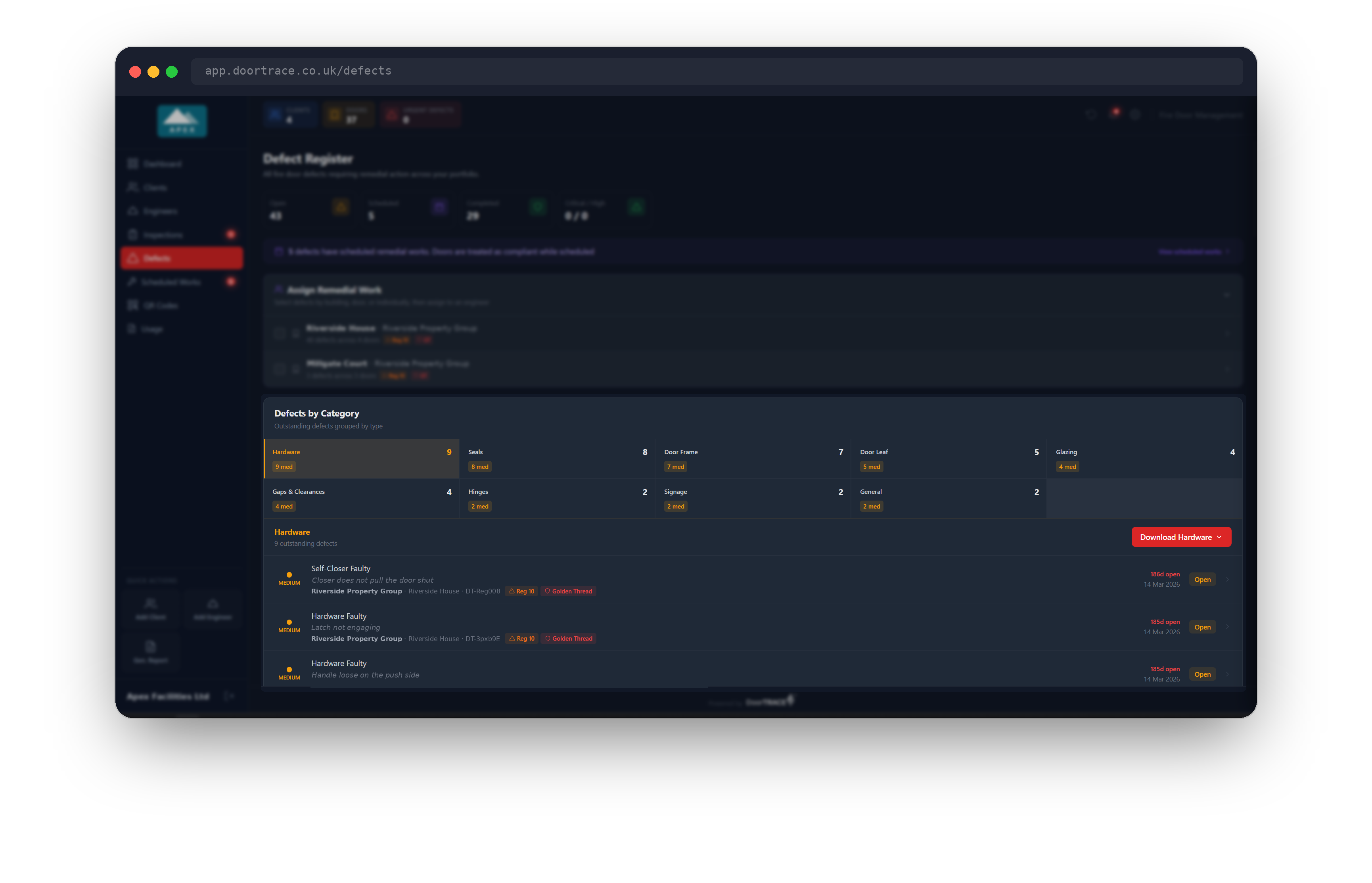
Defects by Category groups your outstanding defects (open ones, not scheduled or completed) by the type of fault: Seals, Hardware, Hinges, Glazing, Signage, Door Leaf, Door Frame, Gaps & Clearances or General. Each tile shows the total for that category and how many are critical, high, medium and low. The categories are ordered by size, largest first, and the largest is selected when the page opens.
Click a tile to list that category's defects underneath it, eight at a time with a + N more link, and a Download button named after the category. This is the quickest way to spot a pattern, for example a run of self-closer faults across one building.
The Full Defect Register
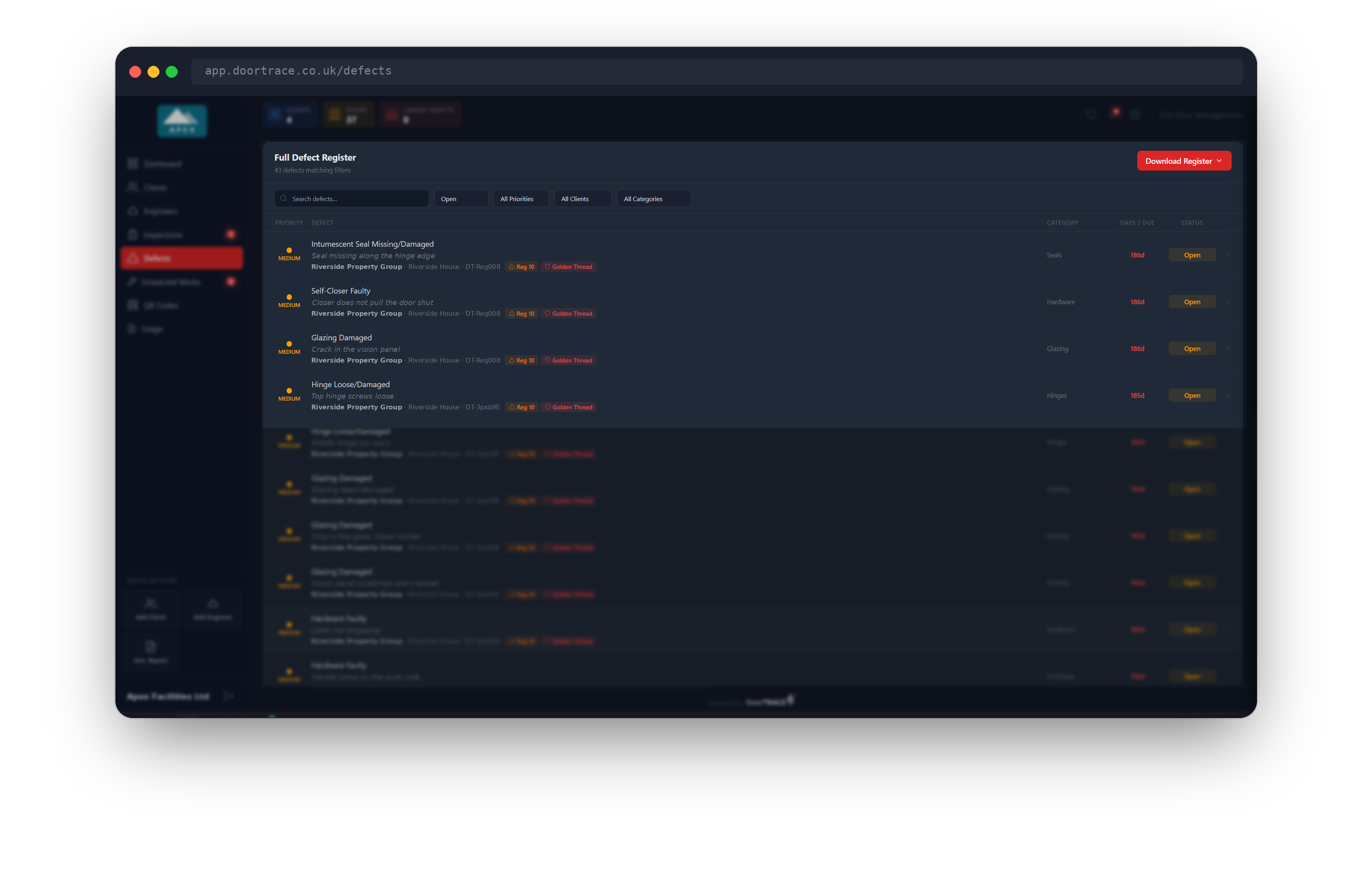
The Full Defect Register at the bottom of the page is the complete list. It opens showing open defects only, so change the first drop-down to All Statuses to see everything, or pick Scheduled or Completed. The other drop-downs filter by priority, client and category, and the search box matches the defect headline, the engineer's note, the building, the door code, the client and the reference (so typing DEF-0031 finds that one defect). The subtitle counts how many defects match the current filters.
Each row shows the priority, the defect and where it is, the category, a Days / Due column and the status badge. For an open defect the column shows how many days it has been open, coloured the same way as the urgent list. For a scheduled defect it shows a date in purple instead: the target date if one was given when the work was assigned, otherwise the date the work must be completed by (90 days after it was scheduled). The date turns red once that deadline has passed. The register shows up to 50 rows at a time, so use the filters to narrow a long list. If nothing matches you will see No defects match your current filters.
Downloading a spreadsheet
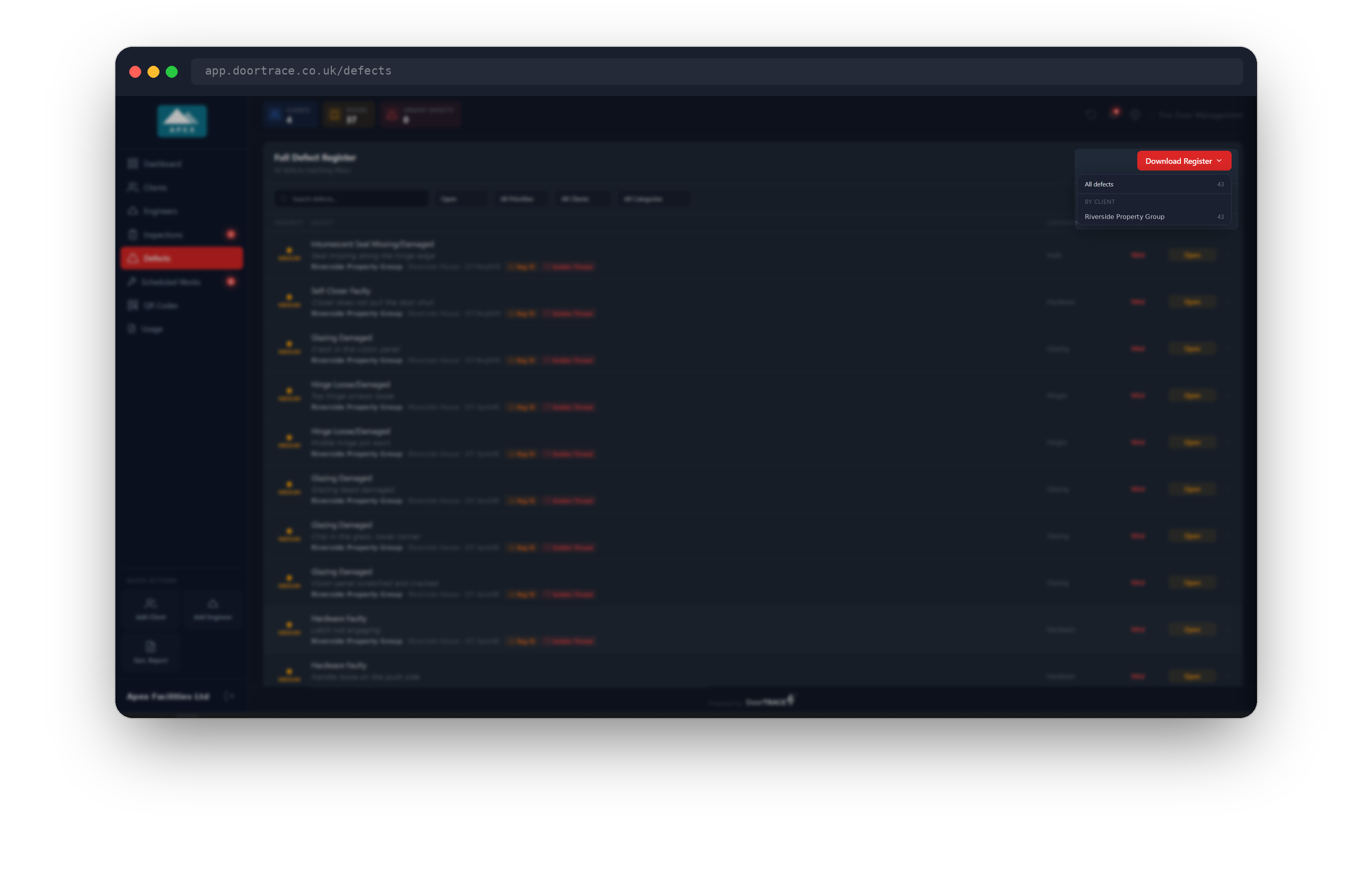
Every section has a red download button: Download Urgent, Download followed by the category name, and Download Register. Each one opens the same menu:
- All defects downloads everything in that section (for the register, everything that matches your current filters).
- By Priority appears when the section contains more than one priority, with one download per priority.
- By Client gives one download per client.
Every option saves a CSV file that opens in Excel. Each row carries the reference (DEF-0001 style), client, building, door, door type, category, description, priority, status, recommended action, date raised, days open, engineer, whether the building is higher-risk or Golden Thread, and the scheduled date and engineer where work has been assigned. The file name says what you picked, for example defect-register-all.csv or urgent-defects-critical.csv.
Tip: to send a client only their own defects, filter the register to that client first, or use By Client in the download menu.
Opening a defect
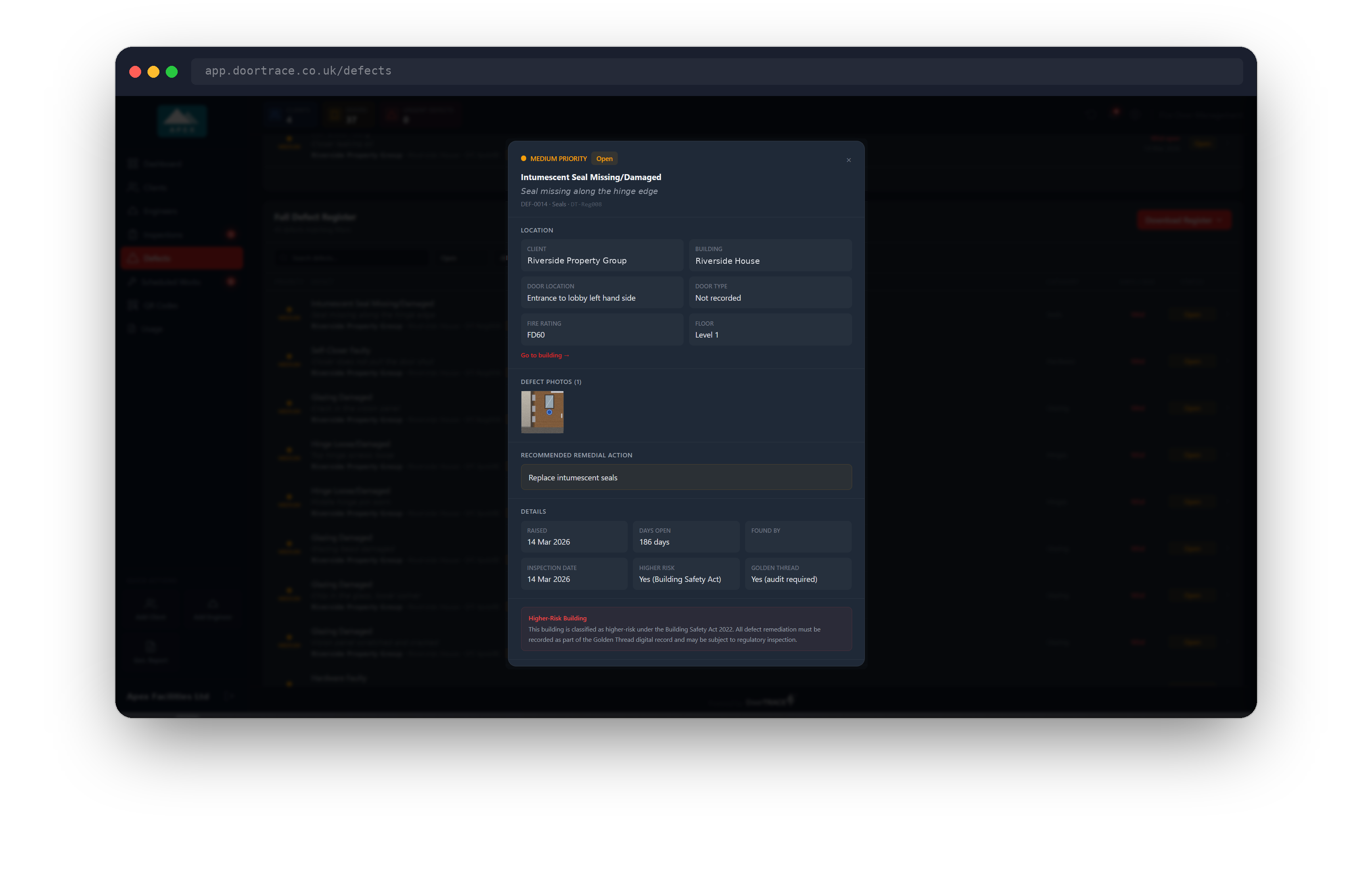
Click any row in any section to open the defect. The window starts with the priority and status, the defect headline, the engineer's note, and a line with the reference, the category and the door's QR code. Underneath:
- Location: the client, building, door location, door type, fire rating and floor, with a Go to building link that takes you to the building page in Clients. A detail the engineer never recorded shows as Not recorded.
- Defect Photos: any photos the engineer took, as thumbnails. Click one to open it full size in a new tab.
- Recommended Remedial Action: the engineer's recommendation, with an estimated cost if they gave one. Defects raised under the BM TRADA Q-Mark scheme also list the ART repair codes here.
- Details: when the defect was raised, how many days it has been open, who found it, the inspection date, and whether the building is higher-risk or Golden Thread. Higher-risk buildings also get a note explaining that the repair must be recorded as part of the Golden Thread record.
The buttons at the bottom depend on the status. An open defect has Schedule Remedial, which opens the same assignment window as the tick-box section.
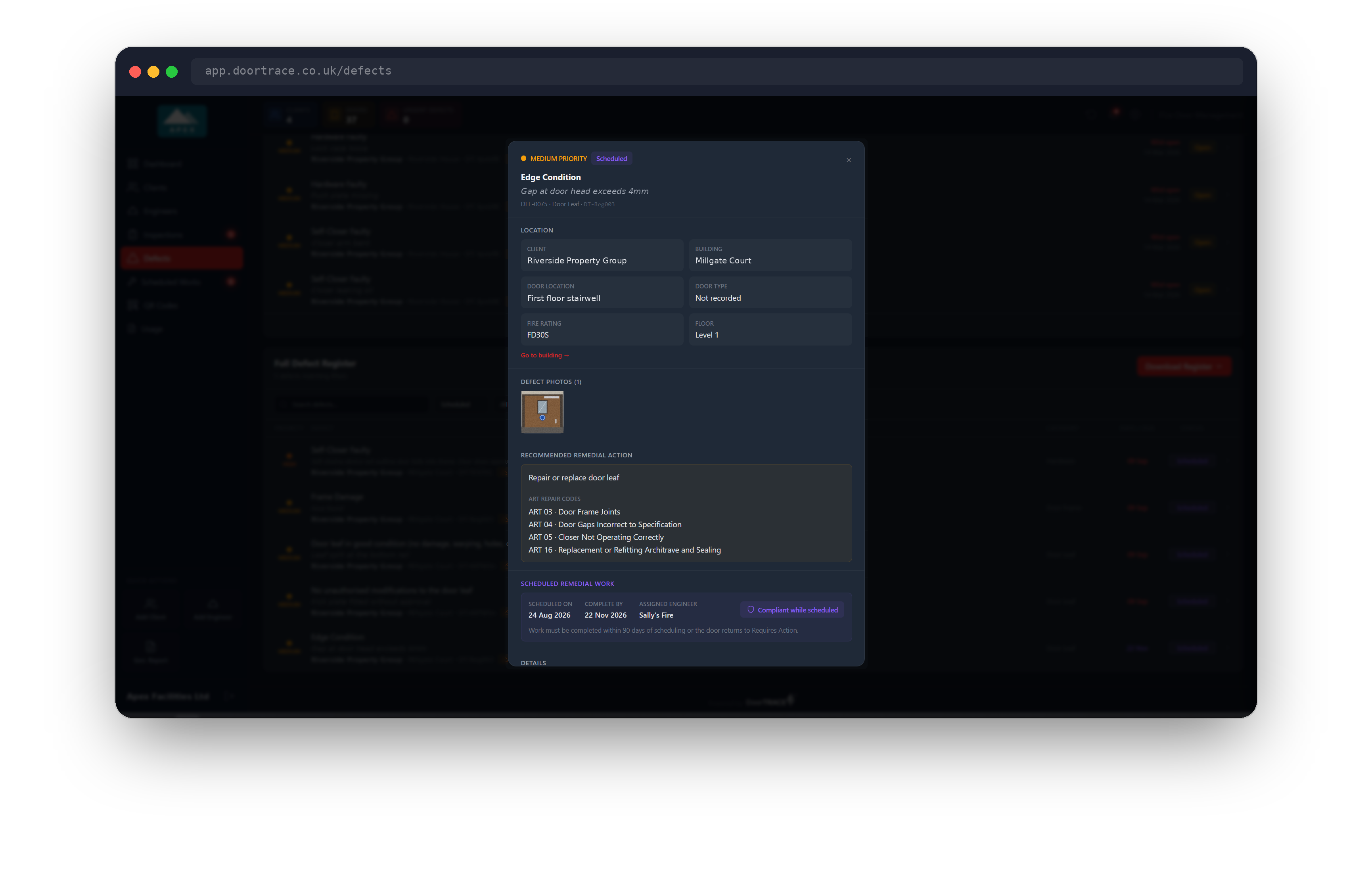
A scheduled defect shows a purple Scheduled Remedial Work panel. If a target date was given when the work was assigned it shows as Target Date; if not, the panel shows Scheduled On (the day the work was assigned) and Complete By, 90 days later. Either way you see the Assigned Engineer, any notes, and the label Compliant while scheduled, because a door with scheduled work counts as compliant while the work is pending. If the 90 days pass without a post-remedial inspection, the door goes back to Requires Action overnight and the panel changes to Overdue: door back to Requires Action, with the Complete By date in red. The defect stays scheduled until an engineer completes the work and passes a post-remedial inspection. The button on a scheduled defect is View in Scheduled Works.
A completed defect shows a green Resolution panel with the date it was resolved, who verified it, any resolution notes and the post-remedial photos, and only a Close button. Press Escape or click outside the window to close it.
Defects in your summary email
If you receive the daily or weekly summary email from DoorTRACE Notifications (notifications@doortrace.co.uk), titled 'Daily Summary: ' or 'Weekly Summary: ' followed by your company name, new defects appear in its New Defects section, grouped by priority. Clicking a defect in the email opens the Defect Register with the priority filter already set to that priority. Which priorities the email includes is a notification preference, covered in Email notification preferences.
What's next
Once you know which defects matter most, Scheduling remedial work shows you how to assign them to an engineer, and what that does to the door's compliance status while the work is pending.
Still can't find the answer?
Send us a message and we'll help. We respond within one working day.