FM Portal guides
FM Portal · Clients and buildings
Managing a building
Last updated 14 Sept 2026
Once a building is registered, its page in the portal is where you keep an eye on its fire doors, decide which engineer company looks after it, keep its details up to date and, when the day comes, archive it. This guide covers the building page itself. Engineer site notes, O&M documents and maps and floor plans each have their own guide.
Opening a building
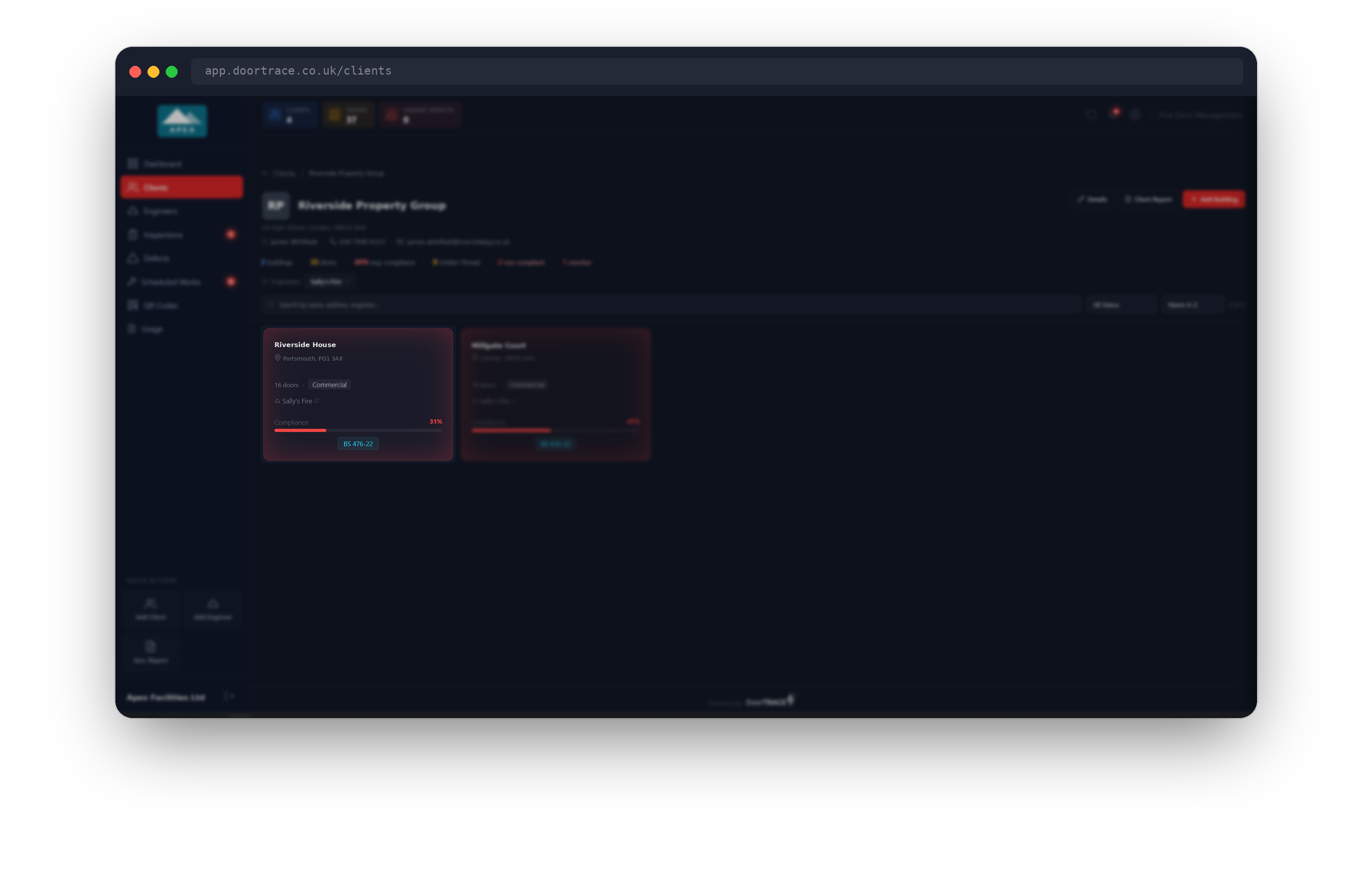
Open Clients, then the client. Each building has a card showing its name, address, number of doors, type, the assigned engineer (if there is one) and a compliance bar. A Reg 10 or Golden Thread badge appears on buildings where those rules apply. Above the cards you can search by name, address or engineer, filter by status (All Status, Compliant, Needs Attention, Non-Compliant, Golden Thread) and sort. Click a card to open the building.
What the building page shows
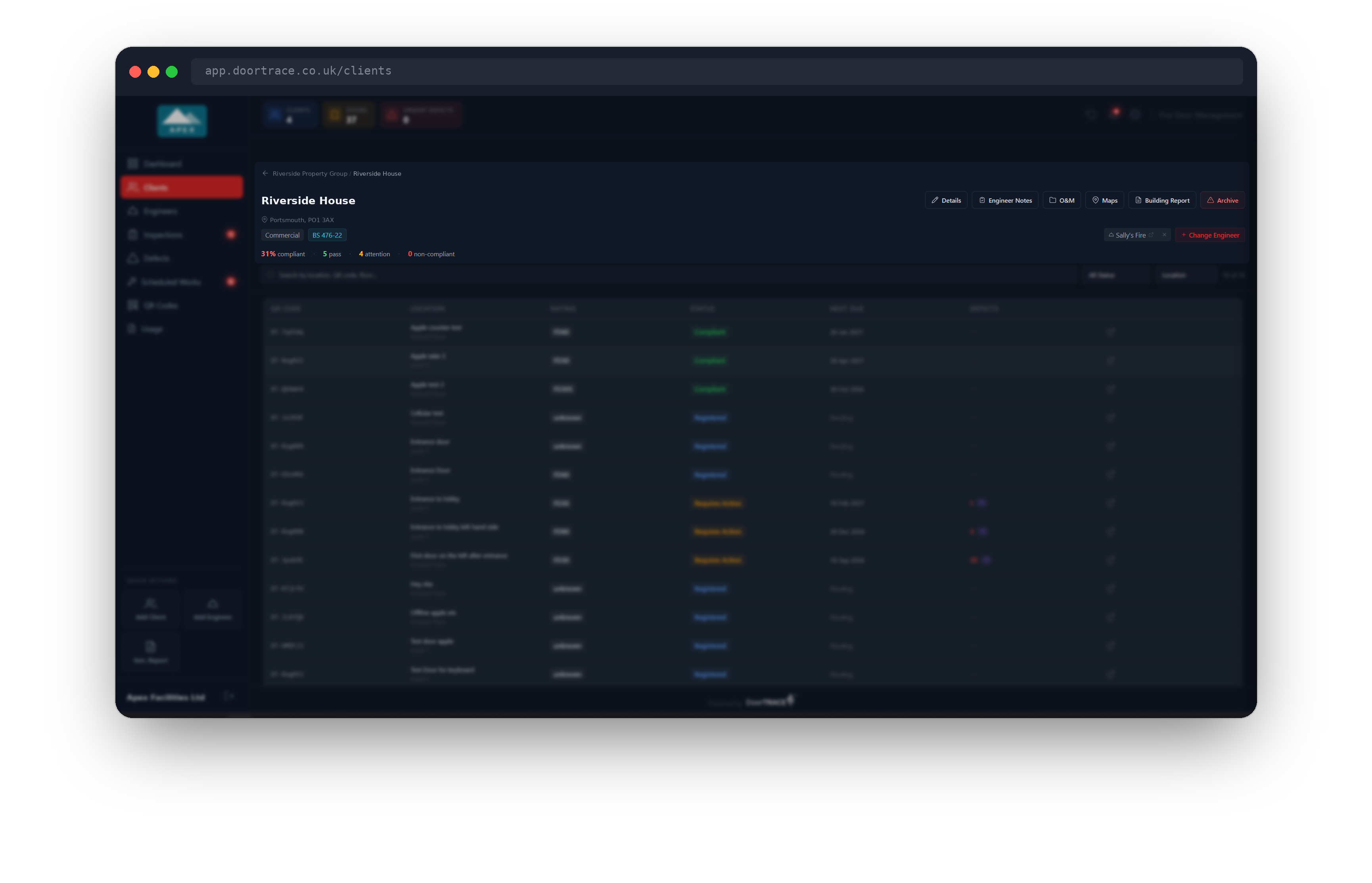
The building name sits at the top with the action buttons Details, Engineer Notes, O&M, Maps, Building Report and Archive. Under the address you'll see the building type, its standard badge, the Reg 10 and Golden Thread badges where they apply, and on the right the assigned engineer company with the Assign Engineer or Change Engineer button. Click the engineer's name to jump to their page.
The line below gives the building's compliance at a glance: the percentage compliant, then how many doors pass, need attention and are non-compliant. Three more counts only appear when they are above zero: not inspected, docs missing (Golden Thread buildings only) and nominal.
Tip: The Golden Thread badge turns red as soon as any door in a higher-risk building is not compliant. These buildings are held to 100% door compliance.
Finding a door
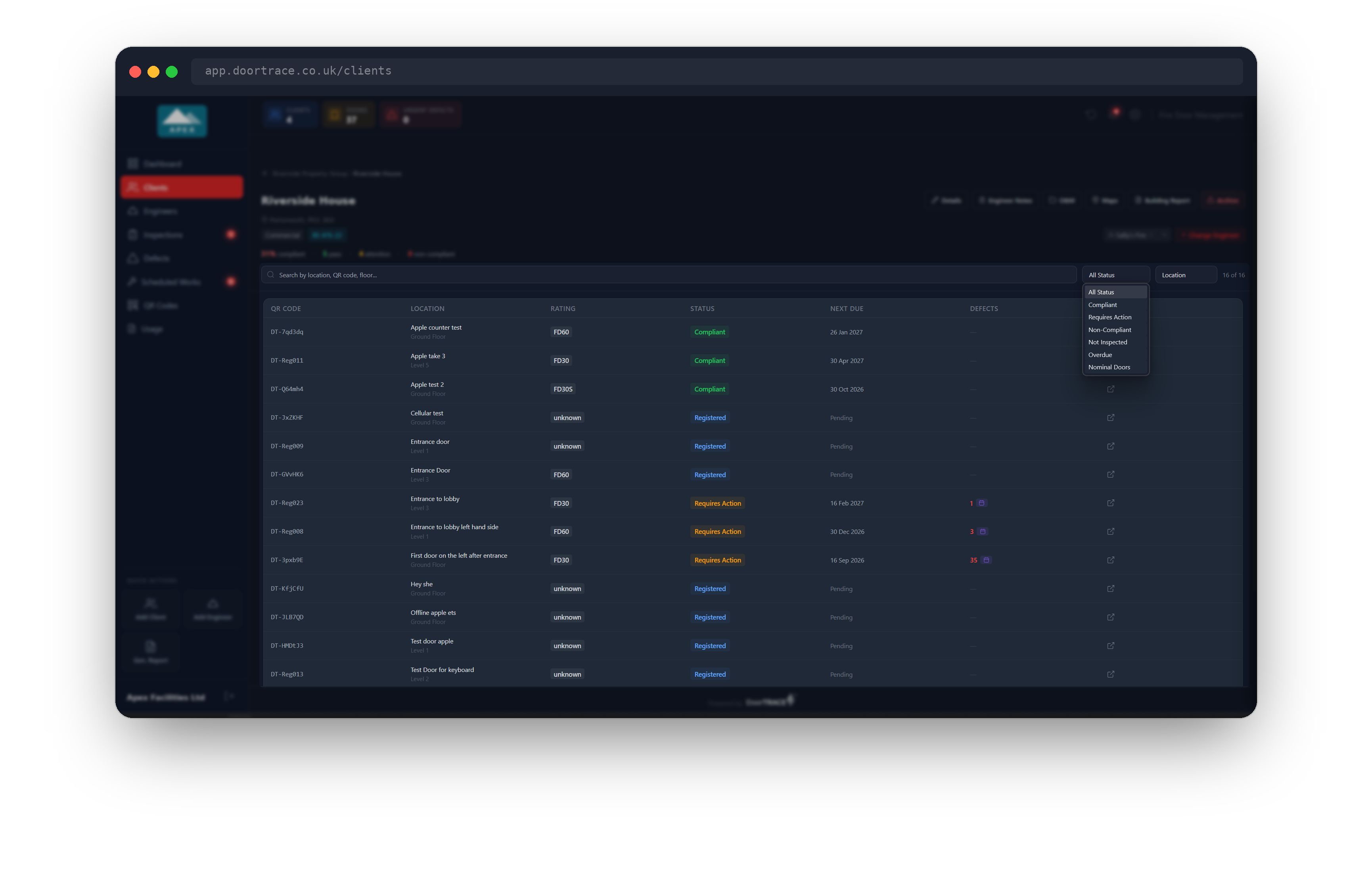
Every registered door is listed in the table with its QR code, location and floor, fire rating, status, next inspection due and open defect count. Type in the search box to match a location, QR code or floor. The status filter offers All Status, Compliant, Requires Action, Non-Compliant, Not Inspected, Overdue and Nominal Doors, with Docs Missing added on Golden Thread buildings. Sort by Location, Status, Overdue First or Most Defects. The count on the right shows how many doors match.
A few things worth knowing about the table:
- A door whose rating was assessed from its construction rather than a certificate carries a Nominal tag next to the rating.
- A compliant door with remedial work already scheduled shows as Scheduled rather than Compliant.
- Next Due is red when the inspection is overdue and reads Pending for a door that has no due date yet.
- A red number in Defects is the count of open and scheduled defects. The small calendar button next to it opens the door so you can schedule remedial work.
- The link icon at the end of the row opens the door's page on doortrace.co.uk in a new tab.
The table shows up to 50 doors at a time. Use the search and filter to narrow a larger building down.
Click any row to open the door. See Viewing a door for what you'll find there.
Assigning or changing the engineer
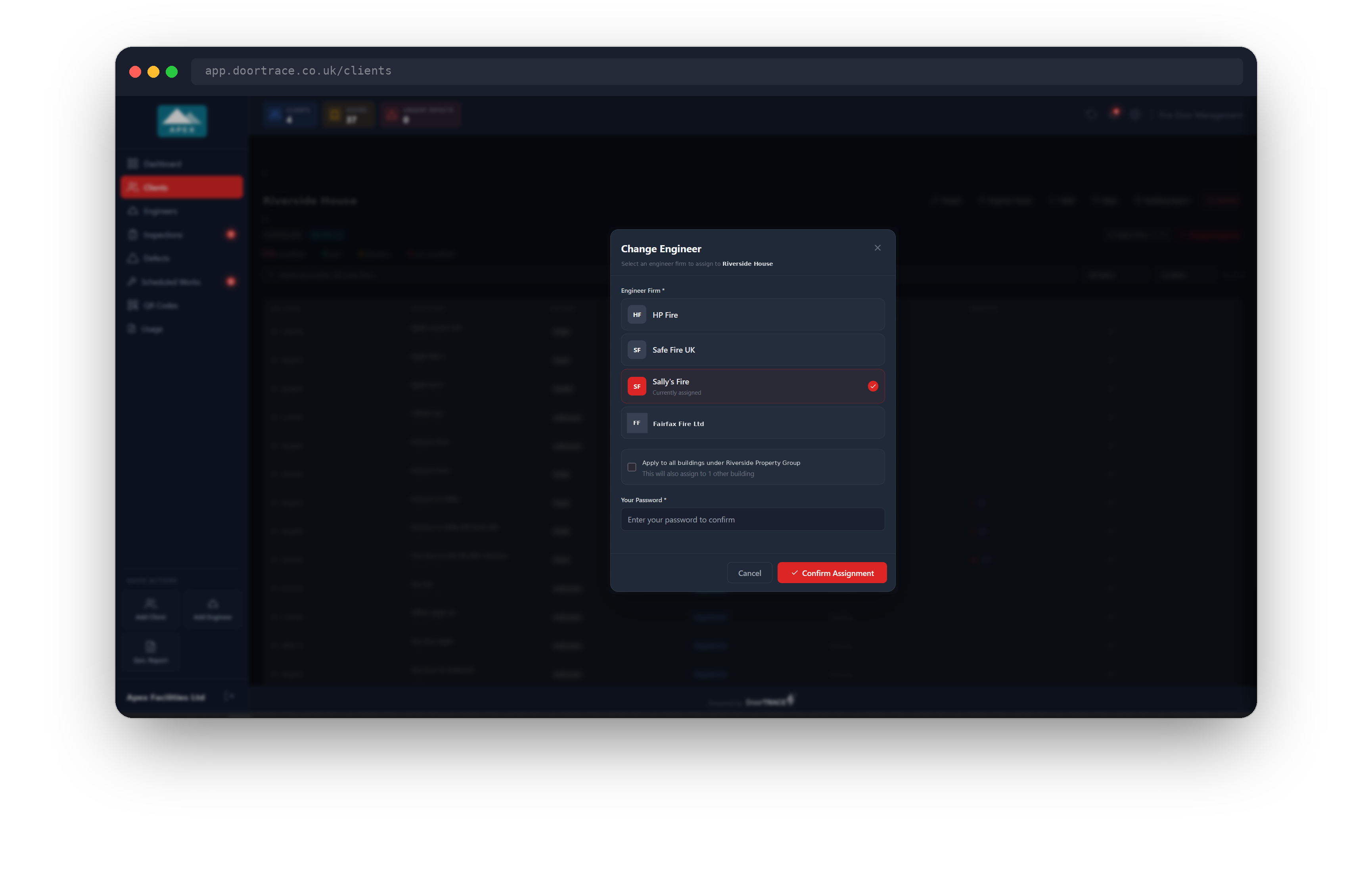
Click Assign Engineer (or Change Engineer if one is already assigned). The box lists the engineer companies you can assign: external engineers who have accepted their invitation, had their documents approved and are not paused. The current one is marked Currently assigned. Pick a company. If the client has other buildings, tick Apply to all buildings under the client to assign the same company everywhere in one go. You will be asked for your portal password to confirm, then click Confirm Assignment.
Assigning an engineer moves any inspections still waiting to be done on this building's doors to that company, and the building appears in their app. It replaces the previous assignment; the history is kept in the building's audit trail.
Important: Engineers whose company runs DoorTRACE do not need assigning. They can see every building already.
Unassigning an engineer
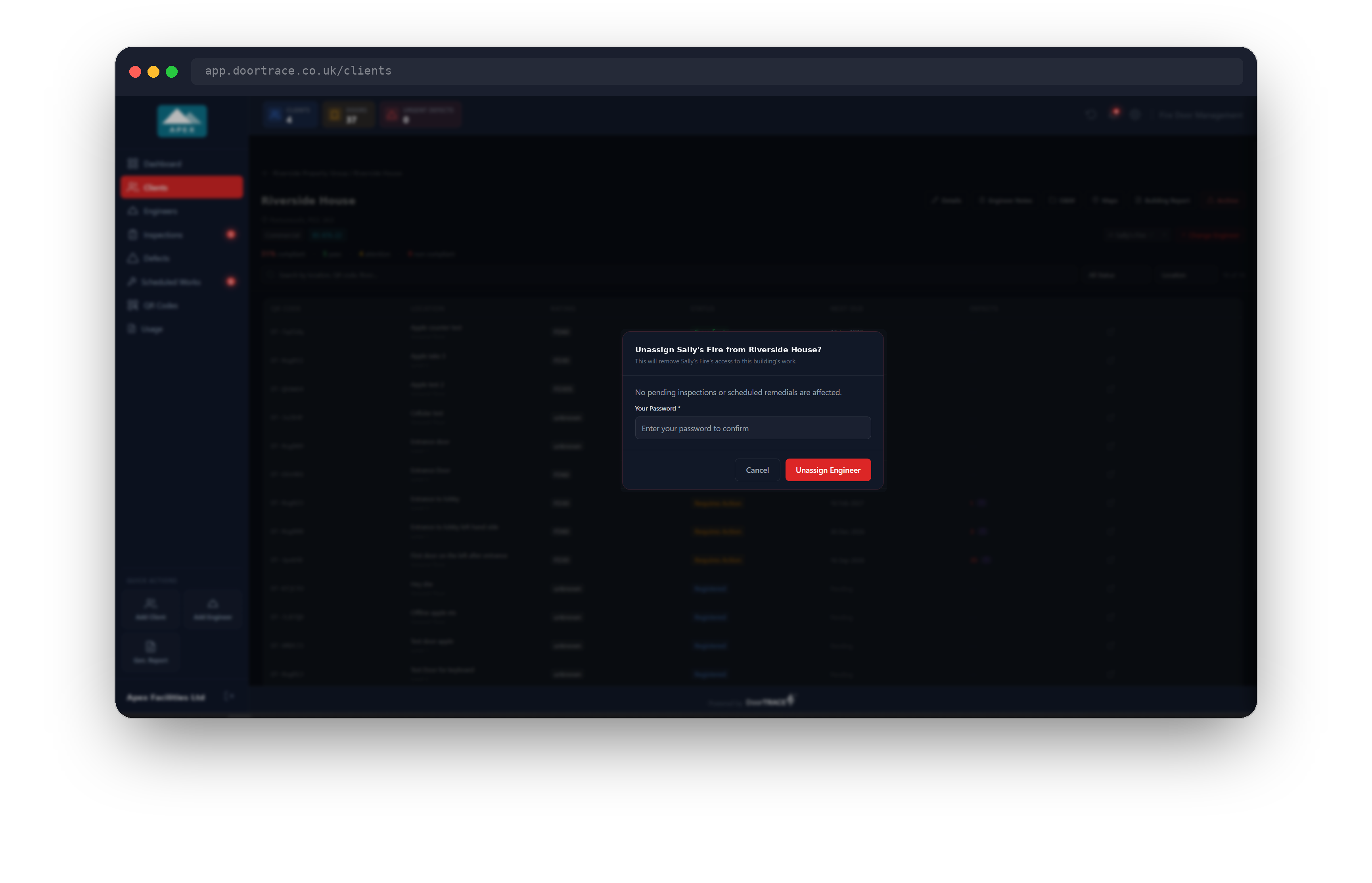
To remove an engineer without choosing a replacement, click the small x on the engineer's name. Before anything changes, the portal checks what would be affected and tells you: how many pending inspections will be unassigned, and how many scheduled remedials will go back to being open defects. Those doors return to Requires Action until the work is scheduled again. If nothing is affected it says so. You will be asked for your portal password to confirm. Click Unassign Engineer to go ahead, or Cancel.
Editing building details
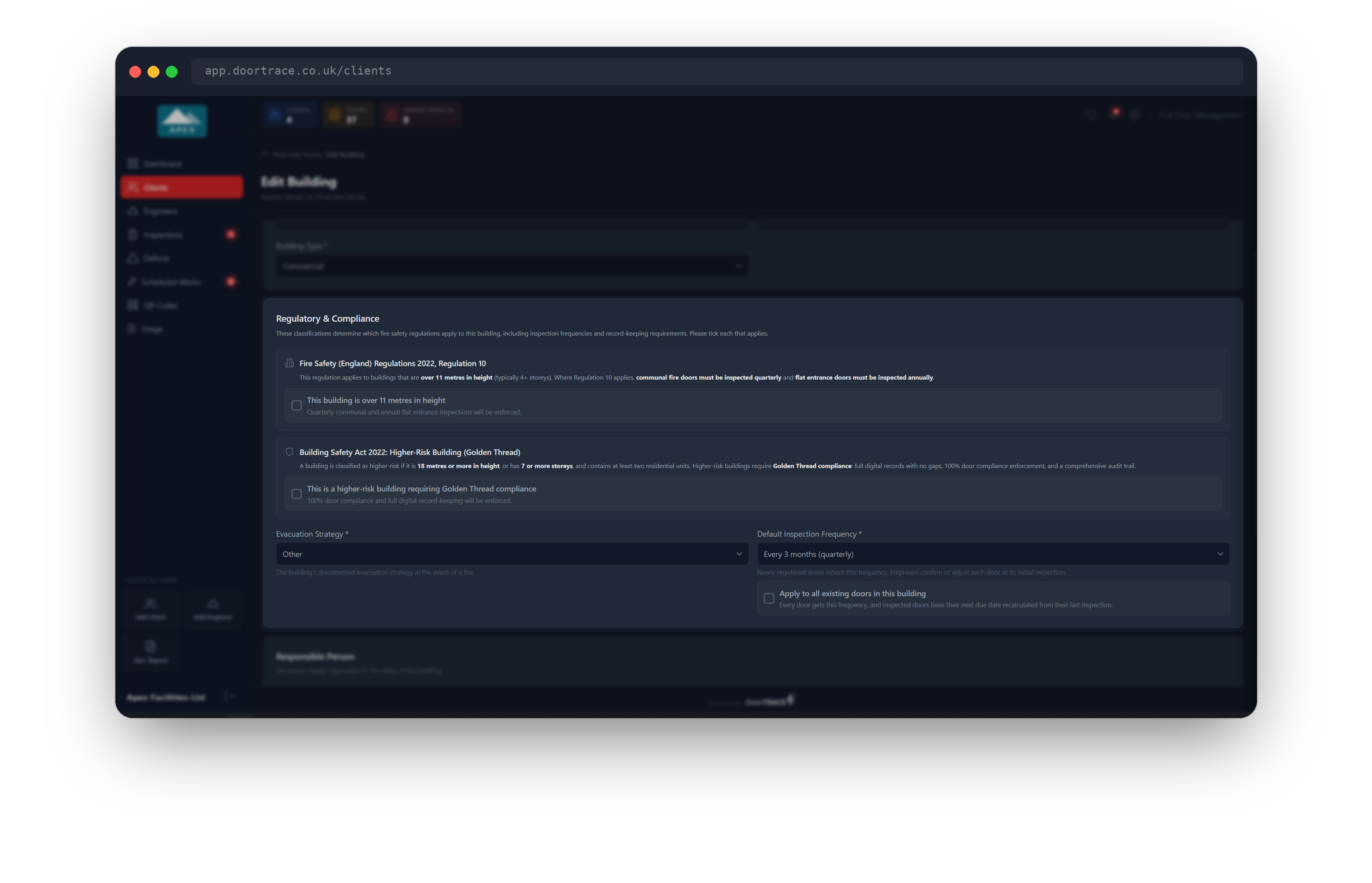
Click Details to open the Edit Building page. It has the same sections as when you added the building: Building Details (name, address, city, postcode and building type), Regulatory & Compliance, Responsible Person and Notes. Change what you need and click Save Changes. You will be asked for your portal password to confirm.
In Regulatory & Compliance, ticking the higher-risk (Golden Thread) box also ticks and locks the over 11 metres box, because a higher-risk building is always over 11 metres. Untick Golden Thread first if you need to change the height setting.
If you change the Default Inspection Frequency, a tick box appears: Apply to all existing doors in this building. Leave it unticked and only doors registered from now on use the new frequency. Tick it and every door in the building gets the new frequency, with inspected doors having their next due date recalculated from their last inspection. Doors that have never been inspected keep their current due date. The confirmation message tells you how many doors were updated.
Tip: Two buildings under the same client cannot share a name. If you rename a building to a name that is already in use for that client, the save is refused with "A building with this name already exists under this client".
Downloading the Building Report
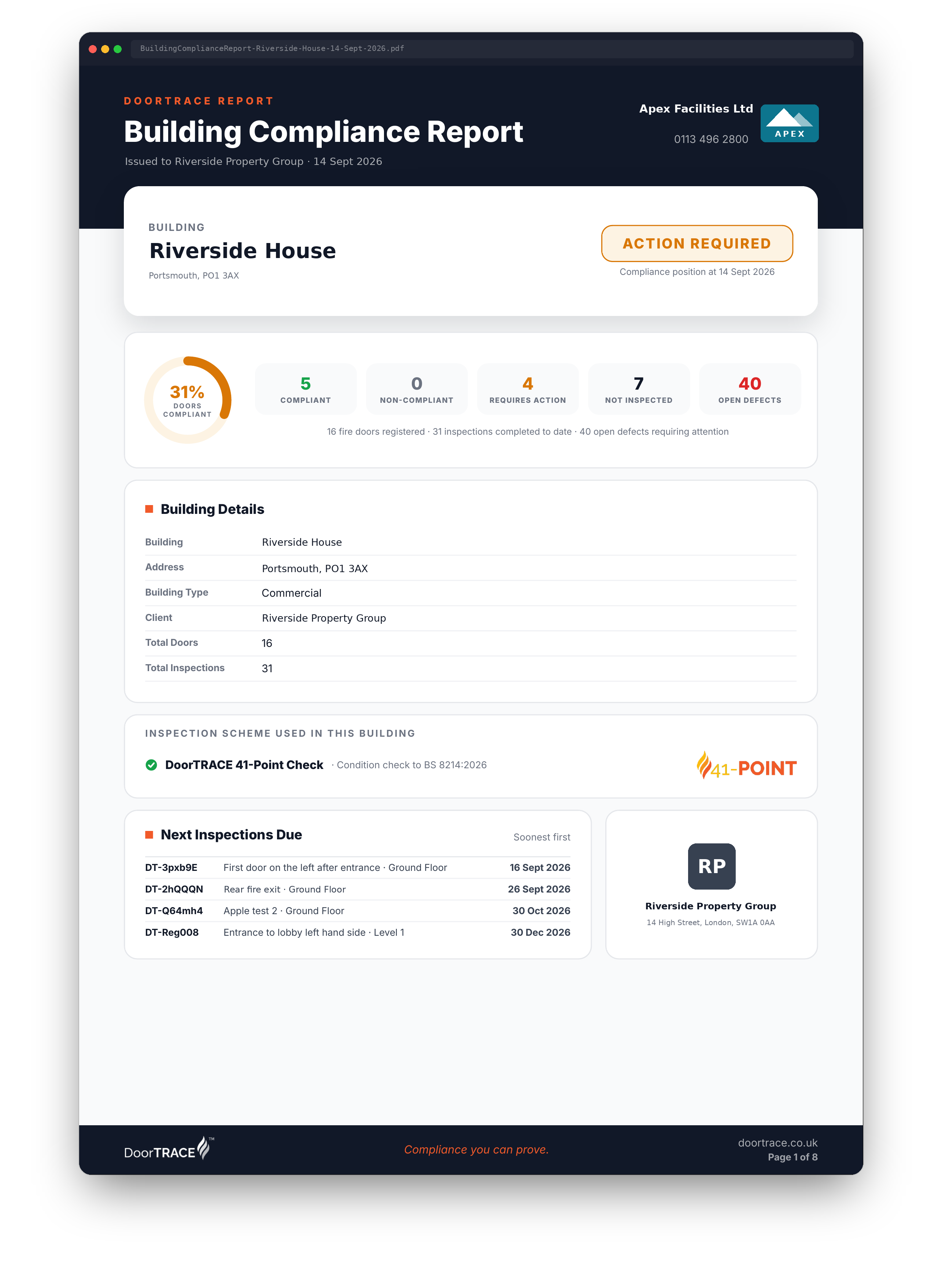
Click Building Report to download a PDF summary of the building. The button reads Generating... while it works; larger buildings take longer because the portal reads every door's history. The file is named BuildingComplianceReport, followed by the building name and the date, and covers Building Details, Next Inspections Due, the Door Register, Open Defects, an Understanding This Report page, Related Reports and About This Report. If something goes wrong the button briefly shows Failed; try again.
Individual inspection and door reports are downloaded from the door page rather than bundled into this report. See Downloading inspection reports.
Archiving a building
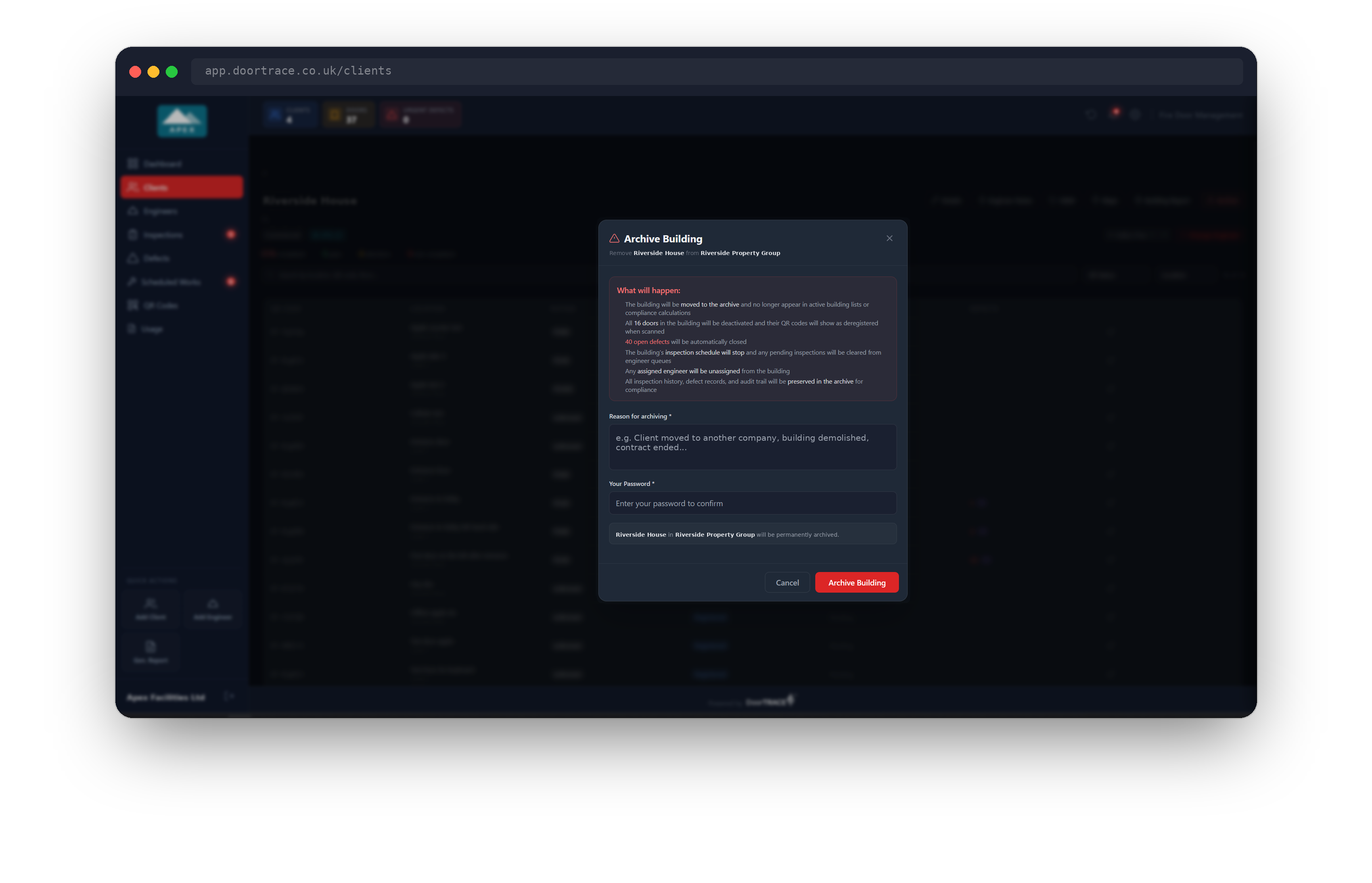
Click Archive when a building leaves your care. The box spells out what will happen: the building moves to the archive and drops out of active lists and compliance figures, all its doors are deactivated, any open defects are closed, its inspection schedule stops and pending inspections leave the engineer's queue, the assigned engineer is unassigned, and every inspection, defect and audit record is kept. Enter a Reason for archiving (required) and your portal password, then click Archive Building.
You'll be taken back to the client page with a message confirming how many doors were deactivated and defects closed. Archived buildings are listed on the archive page in a read-only state, where you can see their details and counts as they were at the time. See The archive.
Important: Archiving cannot be undone from the portal. If a building is only changing hands to another engineer company, use Change Engineer instead.
What's next
Tell engineers what they need to know before they arrive: Engineer notes for a building.
Still can't find the answer?
Send us a message and we'll help. We respond within one working day.