FM Portal guides
FM Portal · Getting started
Your dashboard
Last updated 13 Sept 2026
The Dashboard is the first page you see after signing in. It brings together your compliance figures, the engineer companies you work with, the buildings that need attention and the defects still open, all in one place. Every card links through to the page where you can act on what it shows. This guide walks through the page from top to bottom.
The header bar
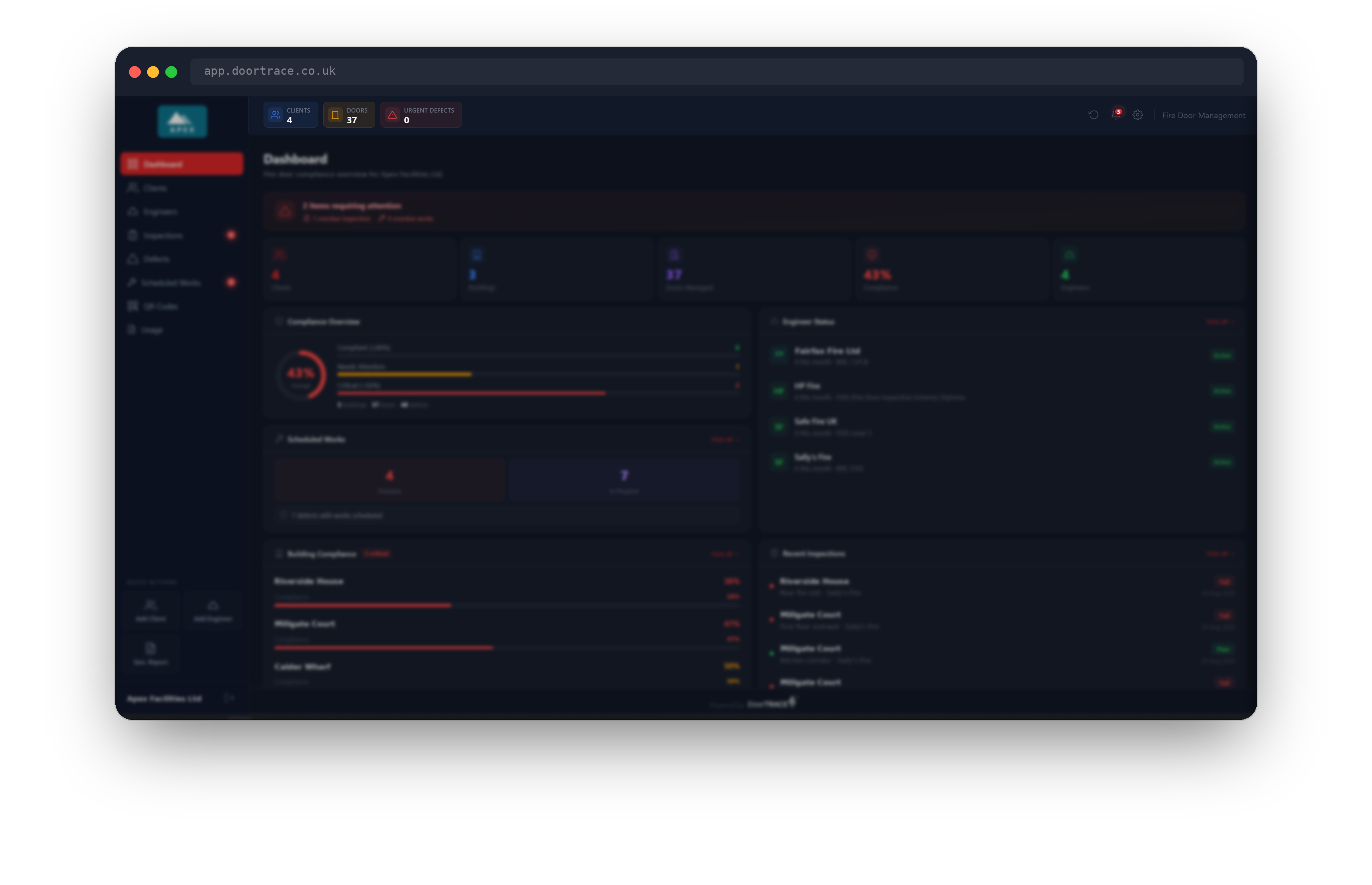
The bar across the top stays in place on every page. On the left are three figures: Clients, Doors and Urgent Defects. Each is a link: Clients opens the Clients page, Doors opens QR Codes and Urgent Defects opens Defects. An urgent defect is one with Critical or High priority that has not yet been completed or scheduled.
On the right are the refresh button, the notification bell and the settings cog. The portal reloads its data whenever you move between pages, every 60 seconds while it is open, and whenever you switch back to its browser tab. Use the refresh button if you want to be sure you are looking at the latest figures right now.
Items requiring attention
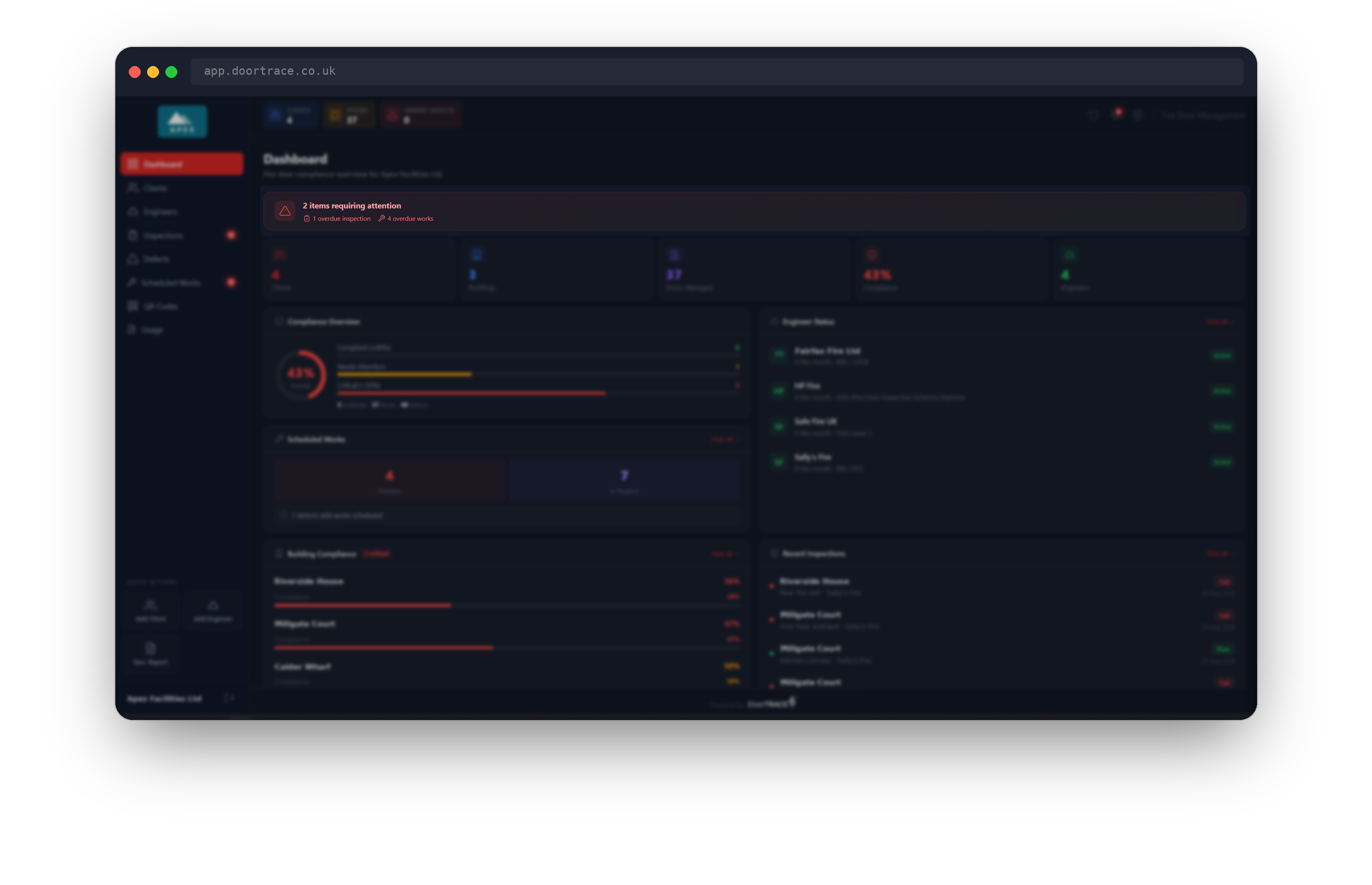
When something needs your attention, a red banner appears under the page title. It only shows when there is something to list, so a clean dashboard has no banner. Each line is a link to the page where you can deal with it:
- overdue inspections: doors whose next inspection date has passed. Opens Inspections.
- critical defects: open or scheduled defects with Critical priority. Opens Defects.
- overdue works: remedial work booked 90 or more days ago and still not completed. Opens Scheduled Works.
- engineer alerts: engineer companies that are expired, suspended or incomplete, or whose certificate or insurance expires within 30 days. Opens Engineers.
The five figures
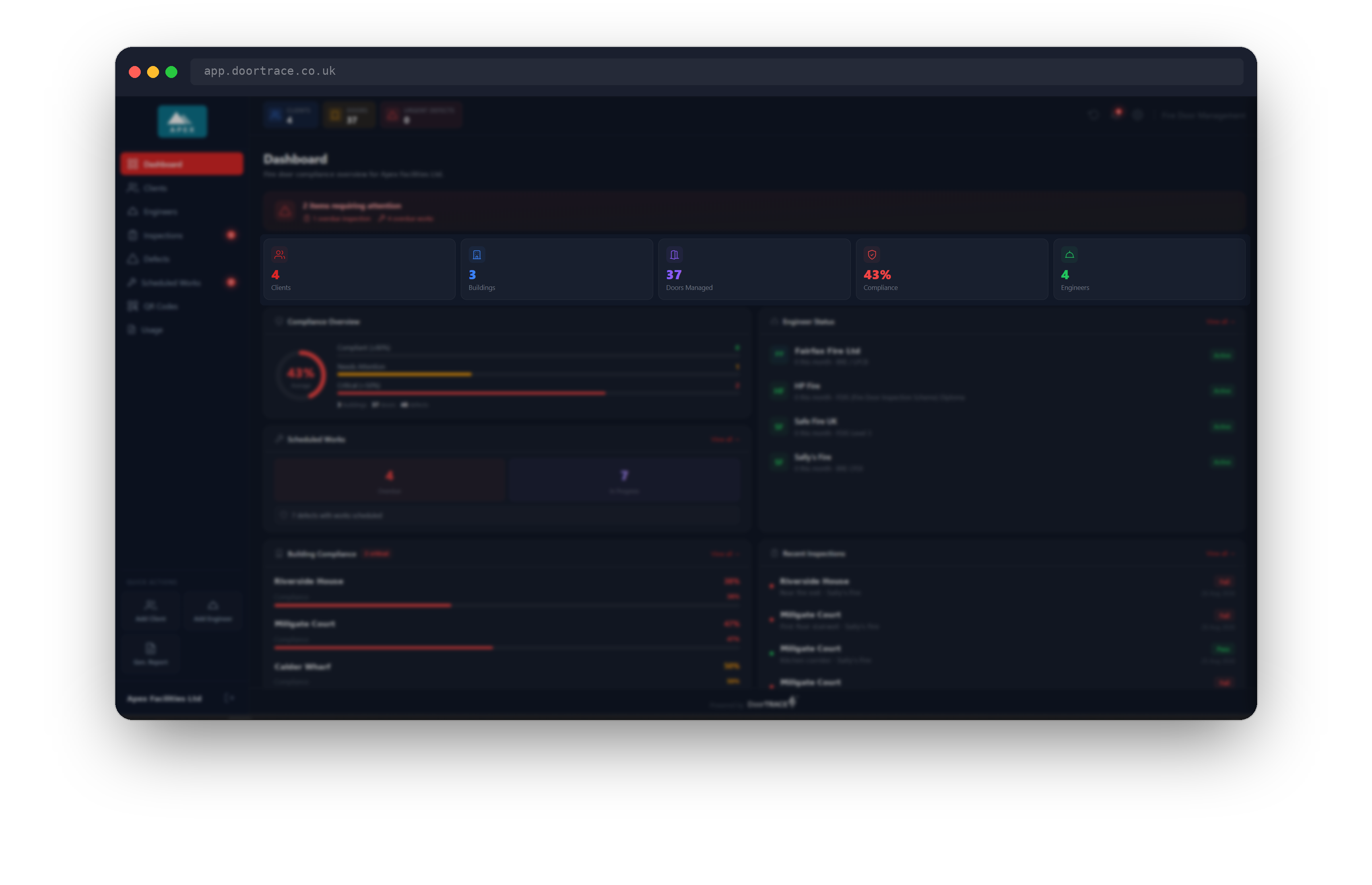
Beneath the banner are five cards summarising your account.
- Clients, Buildings and Doors Managed count your active clients, buildings and registered doors. Clients and Buildings open the Clients page.
- Compliance is the share of your doors that are currently Compliant, calculated across every building and weighted by the number of doors in each. It shows green at 85 percent and above, amber from 50 to 84 percent and red below 50 percent.
- Engineers counts the engineer companies whose status is Active. It opens the Engineers page. Your own internal engineers are managed under Settings and are not counted here.
Compliance Overview
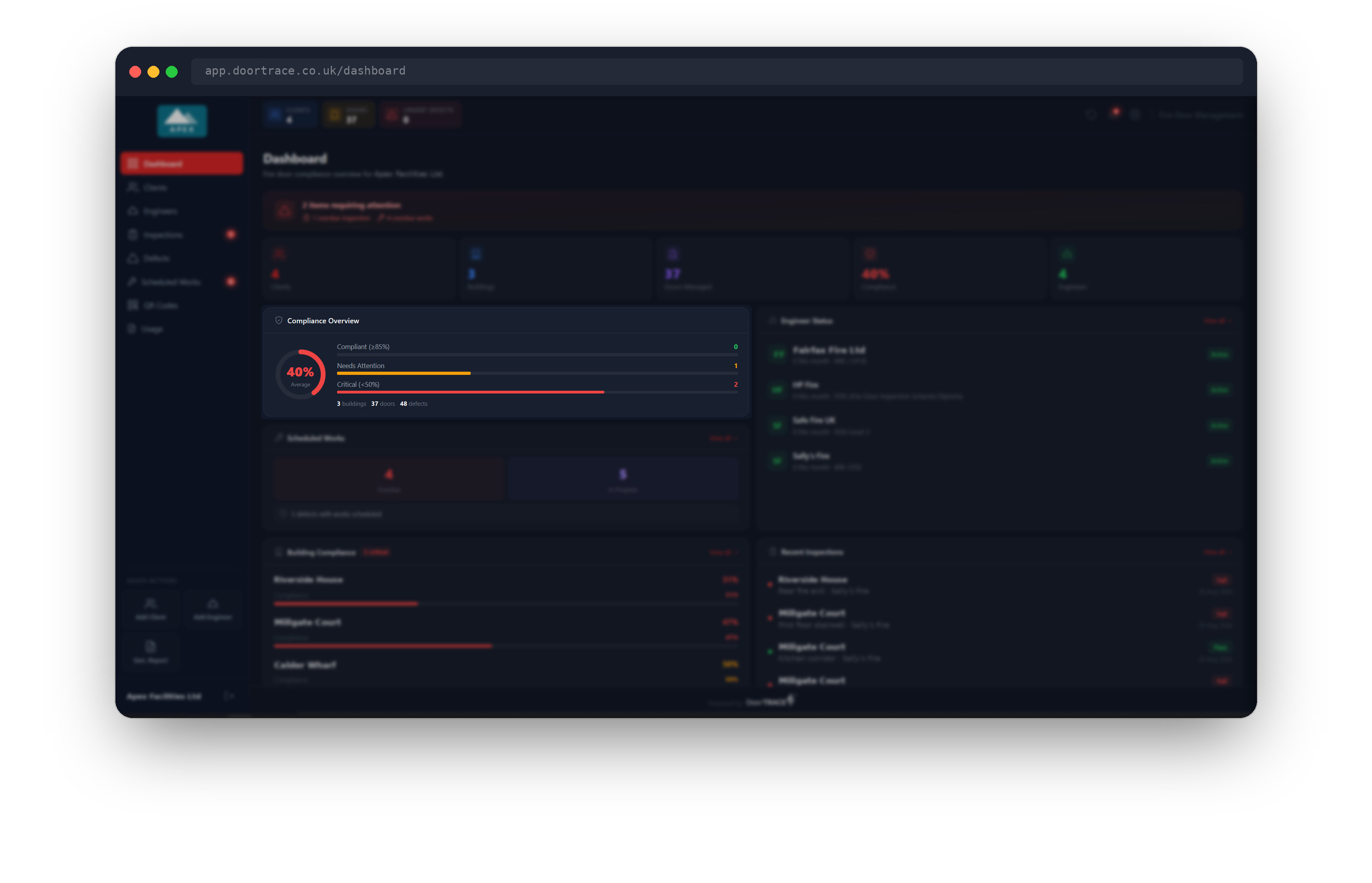
The ring repeats your Compliance figure. Beside it, your buildings are grouped into three bands with a bar showing how many fall into each:
- Compliant (≥85%): buildings at 85 percent or above.
- Needs Attention: buildings between 50 and 84 percent.
- Critical (<50%): buildings below 50 percent that have doors registered.
The totals underneath count your buildings, doors and open defects. The defects total includes defects that are Open or Scheduled.
Scheduled Works
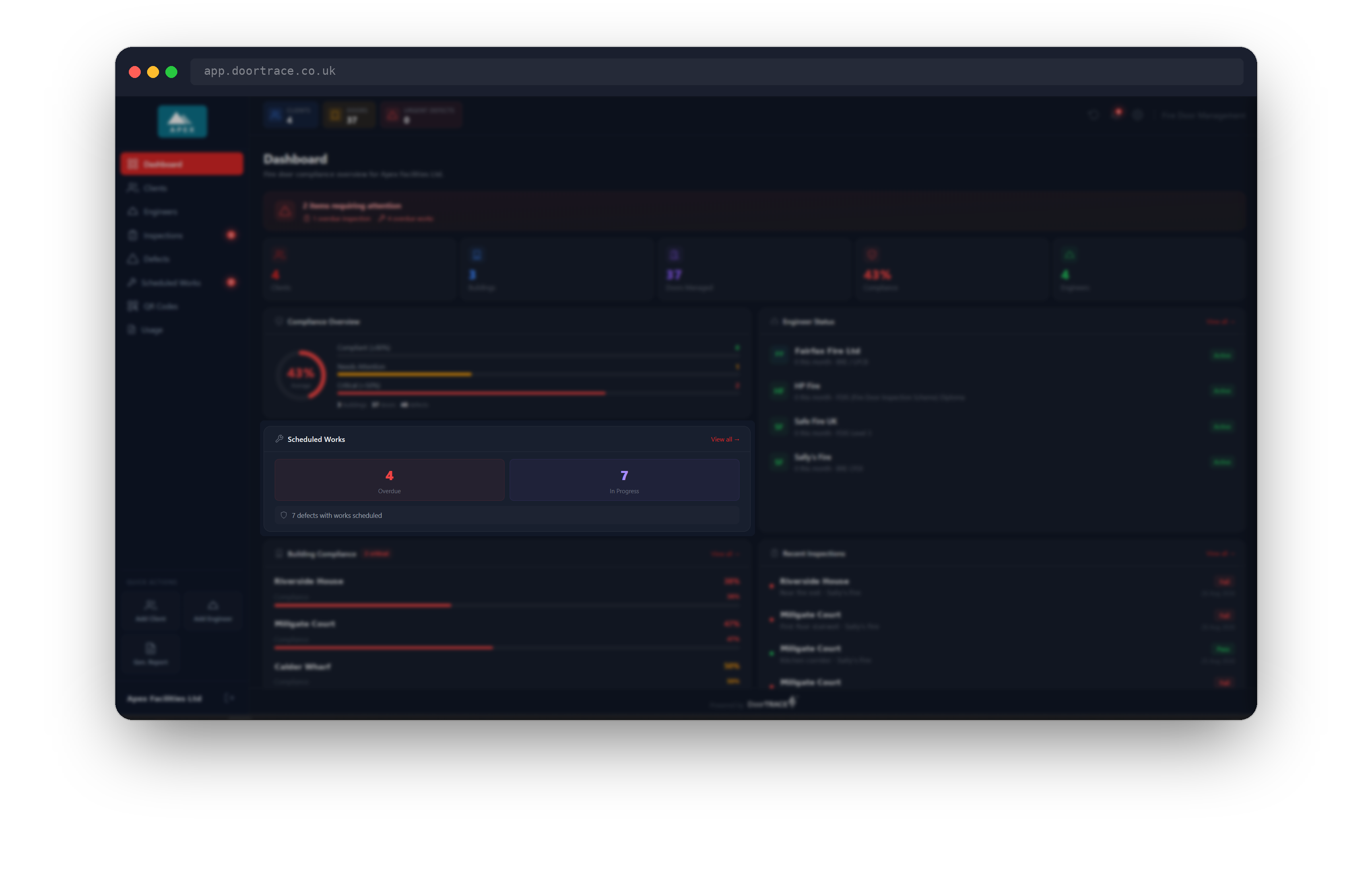
This card tracks remedial work you have scheduled with an engineer company. In Progress is the number of defects currently in Scheduled status. Overdue is how many of those were booked 90 or more days ago and are still not completed; the tile turns red when it is above zero. View all opens the Scheduled Works page, where each job can be followed through to completion.
Engineer Status
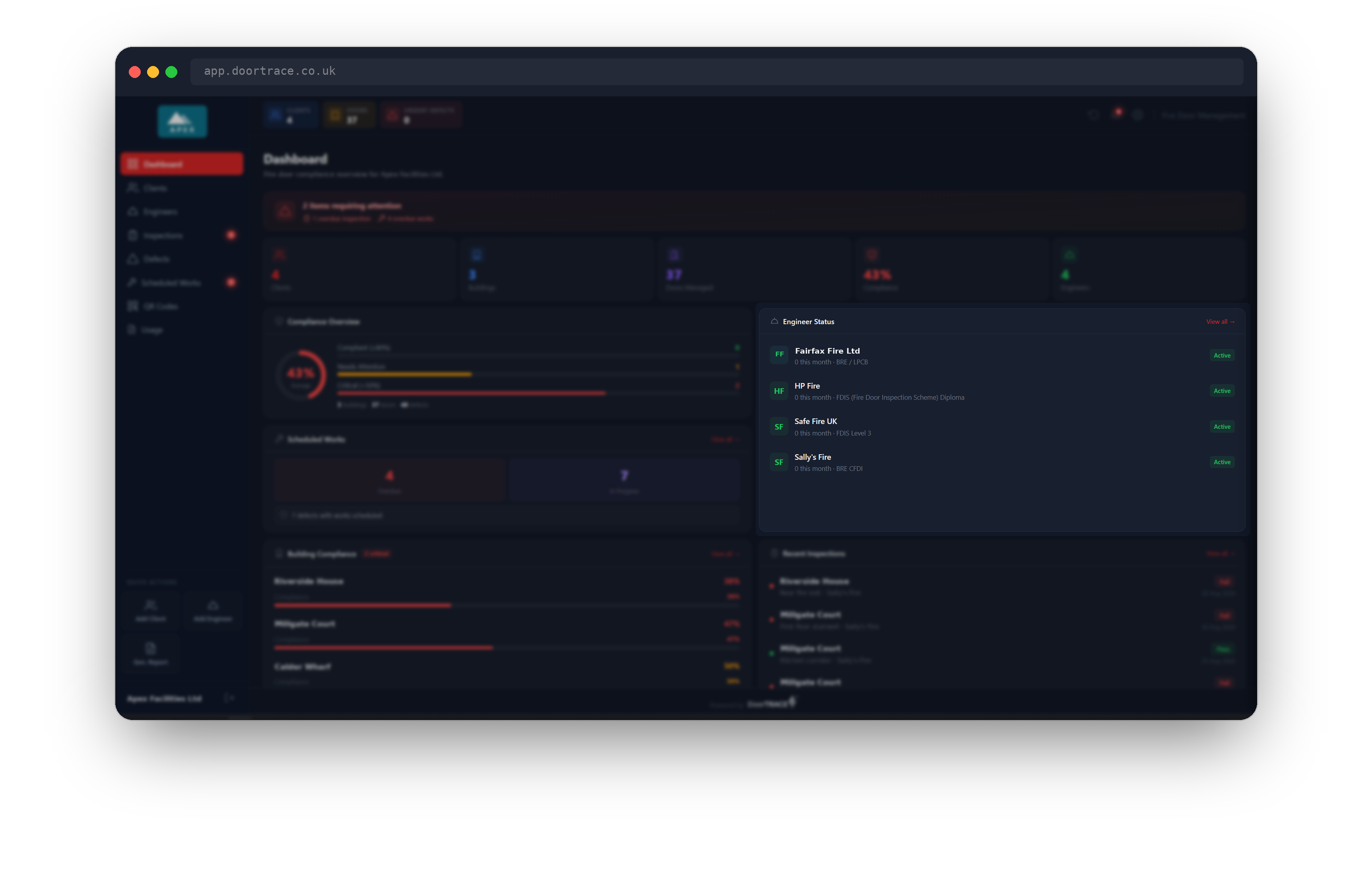
Each engineer company you work with is listed with the number of inspections it has completed this calendar month and its main certification. The badge on the right shows its status: Active, Expired, Suspended or Incomplete. An expired company shows which documents have lapsed: Cert Expired, Insurance Expired or Cert & Insurance Expired.
An extra badge appears when action is coming up. Cert expires or Insurance expires, whichever document runs out first, with a number of days, shows amber inside 60 days and red inside 30. Setup needed means the company's account is not yet complete, and Suspended repeats a suspended status. Click any row, or View all, to open the Engineers page.
Building Compliance
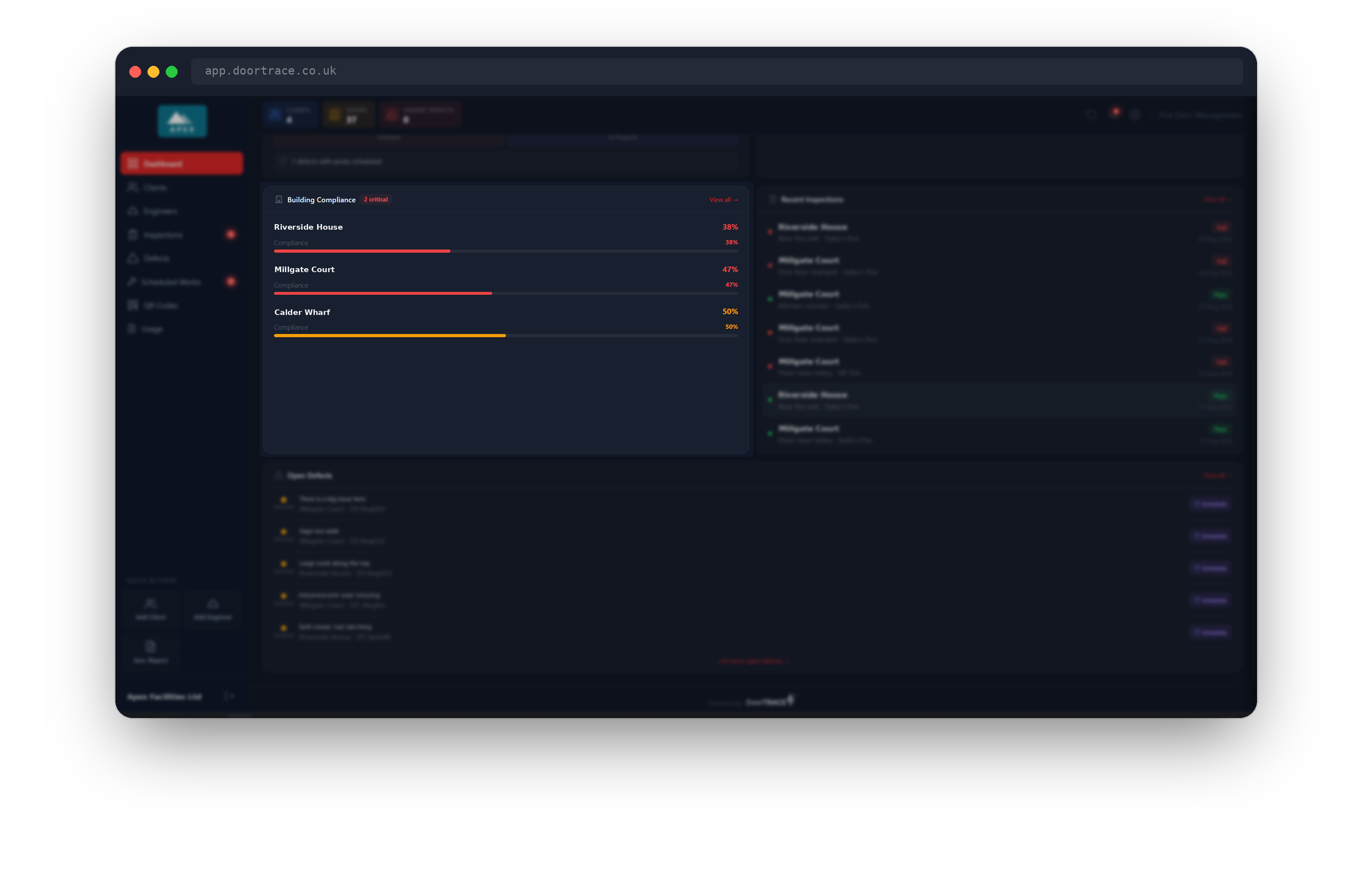
This card lists the buildings that need the most work: any building under 85 percent, lowest first, up to six at a time. A critical badge in the header counts buildings below 50 percent. Two tags can appear next to a building name: Reg 10 for a building over 11 metres, where Regulation 10 of the Fire Safety (England) Regulations 2022 applies, and GT for a higher-risk building under the Building Safety Act 2022, where Golden Thread record-keeping applies. Both are set when the building is added.
When every building is at 85 percent or above, the card reads All buildings above 85% compliance. Click any building, or View all, to open the Clients page.
Recent Inspections
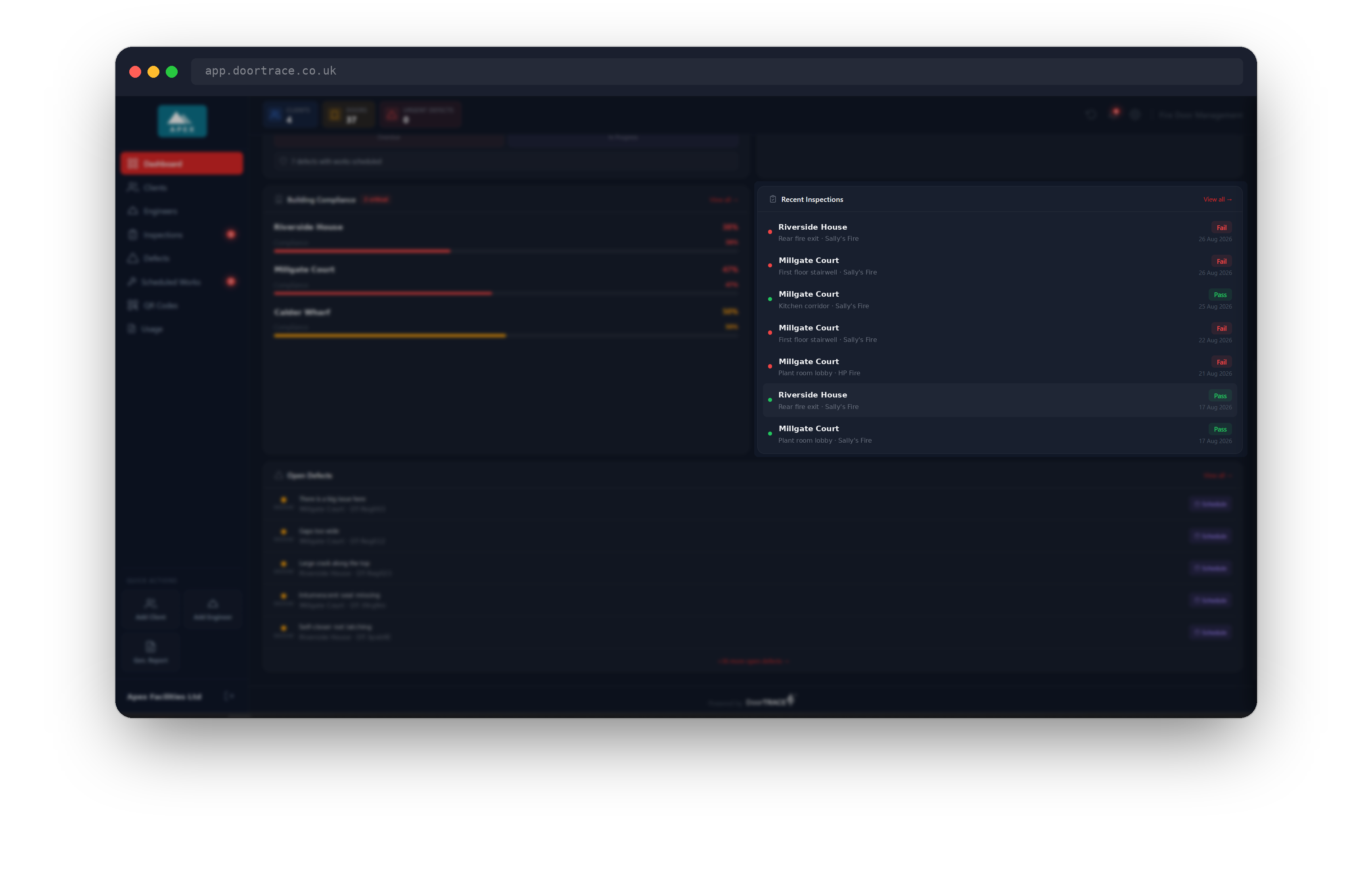
The seven most recent completed inspections across all your clients appear here, newest first. Each shows the building, the door location, the engineer company that carried it out, the result and the date. The result badge is Pass, Fail or Remedial. Fail means at least one checklist item failed and the door is now Non-Compliant. Remedial means every item passed but the engineer logged one or more defects, so the door is Requires Action until they are dealt with. Click a row, or View all, to open the Inspections page, where you can see the full checklist for any inspection.
Open Defects
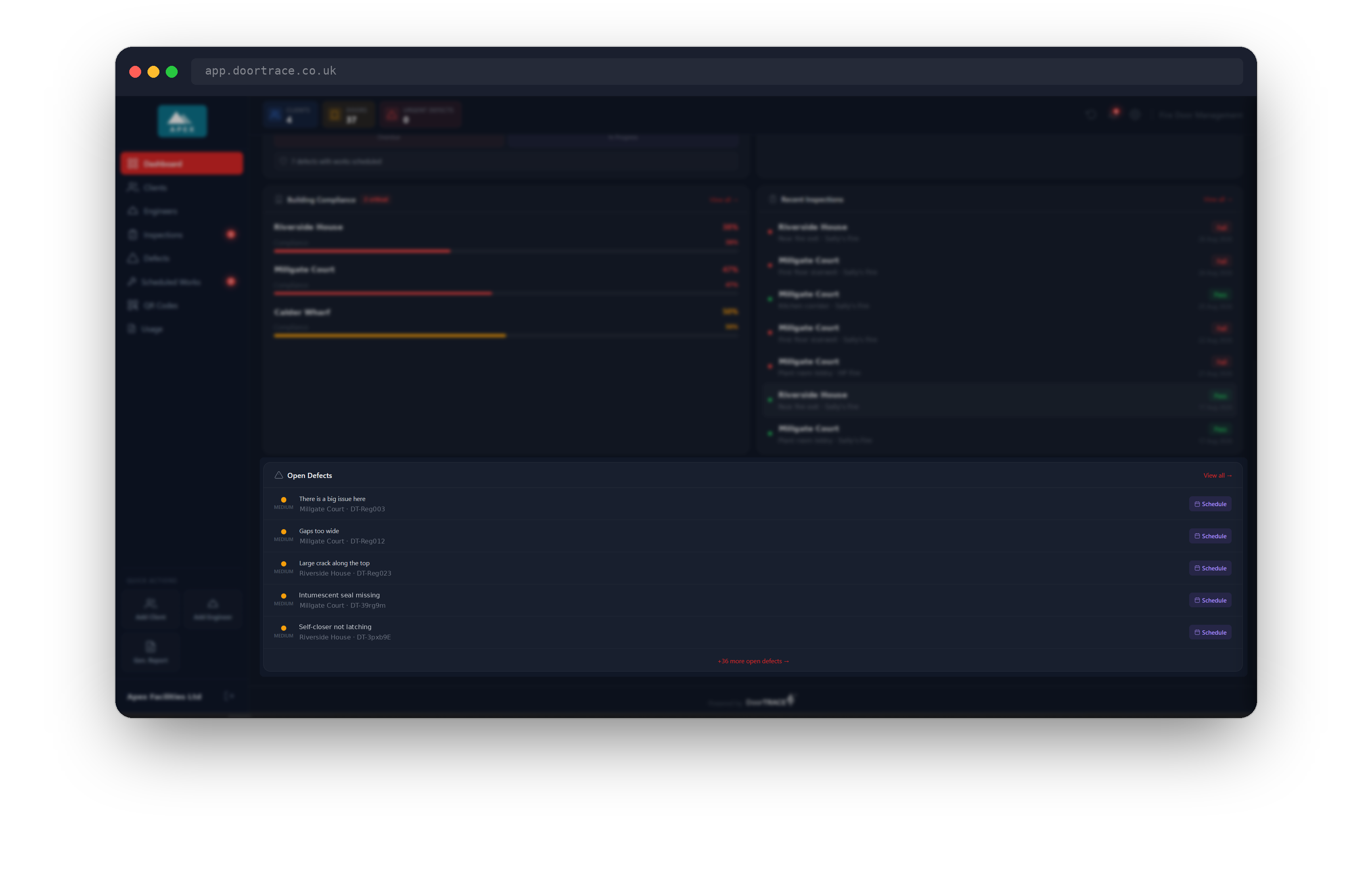
The bottom card lists up to five Open defects, highest priority first, with a critical badge in the header when any are critical. Each row shows the priority, the description and the building and door it belongs to. Click the description to open the Defects page, or the more open defects link at the foot of the card when there are more than five.
Each row also has a Schedule button, so you can arrange remedial work without leaving the dashboard.
Scheduling remedial work from the dashboard
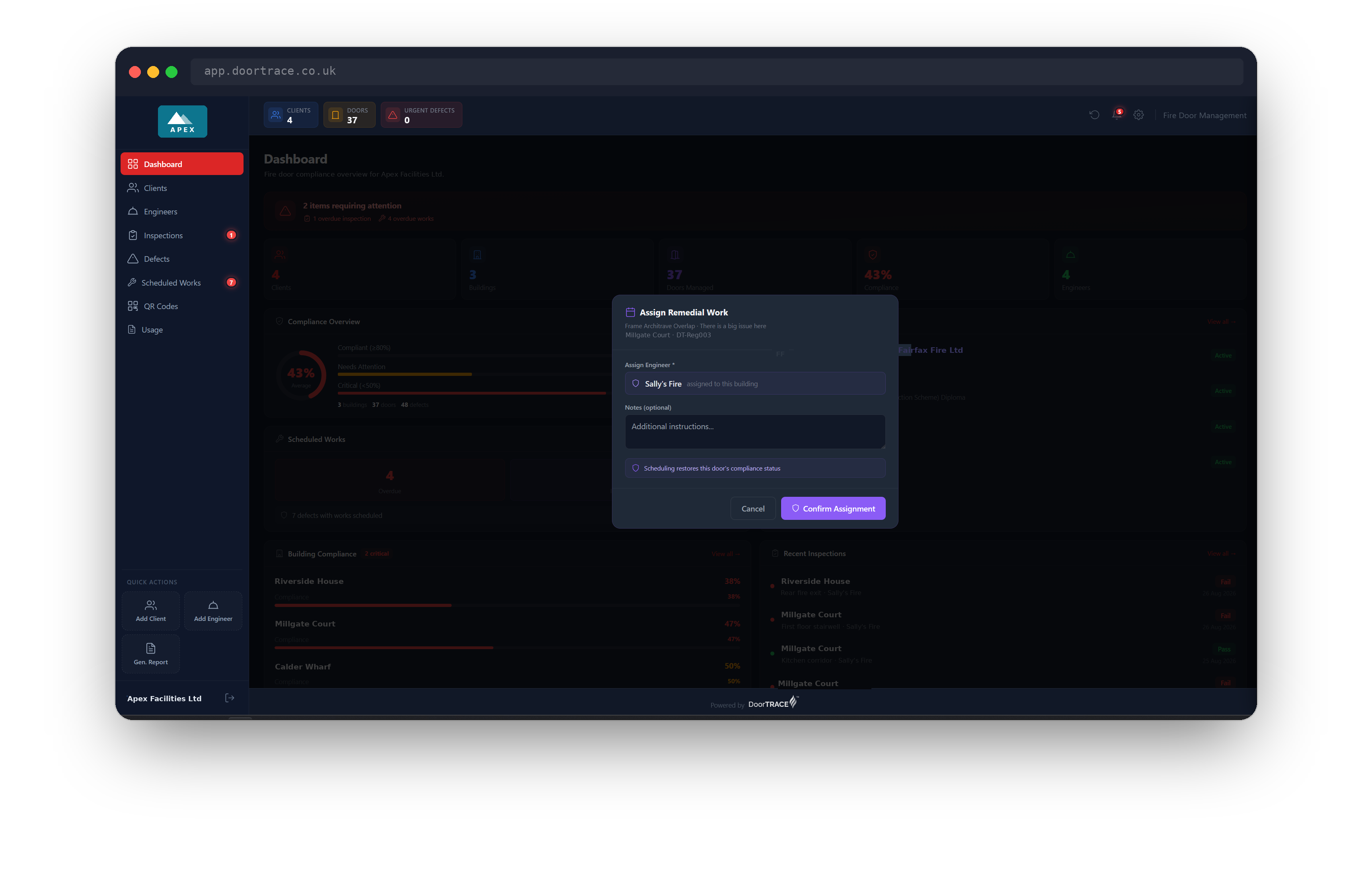
Click Schedule on a defect to open Assign Remedial Work. The window names the checklist item and the door. Under Assign Engineer it shows who the work goes to: the engineer company assigned to that building, or, if none is assigned and your company has its own engineers, Internal team. Add any instructions under Notes (optional) and click Confirm Assignment. The defect moves to Scheduled status and the job appears on the Scheduled Works page. Once every defect on that door is scheduled or completed, the door counts as Compliant while the work is booked in, and your compliance figures update straight away. That allowance lasts 90 days: if the work is still not done by then, the door goes back to Requires Action and the job shows as overdue.
Important: If the building has no engineer assigned and your company has no internal engineers set up, the window says No engineer assigned to this building and Confirm Assignment is unavailable. Either assign an engineer company to the building from its page under Clients, or add your own engineers under Settings, then come back and schedule the work.
Including or hiding your demo client
If your account has a demo client, an Include demo client in figures switch appears to the right of the page title. Your demo client exists so you and your team can practise without being charged. With the switch on, its buildings, doors, defects and compliance scores count towards the figures on the dashboard and in the header bar. With it off, they are left out of those figures, but the client stays in your client list and its defects and inspections stay on their pages. Nothing is deleted either way, and demo work is never billed.
Changing the switch affects everyone in your company, not just you. You will be asked for your portal password to confirm.
Quick actions
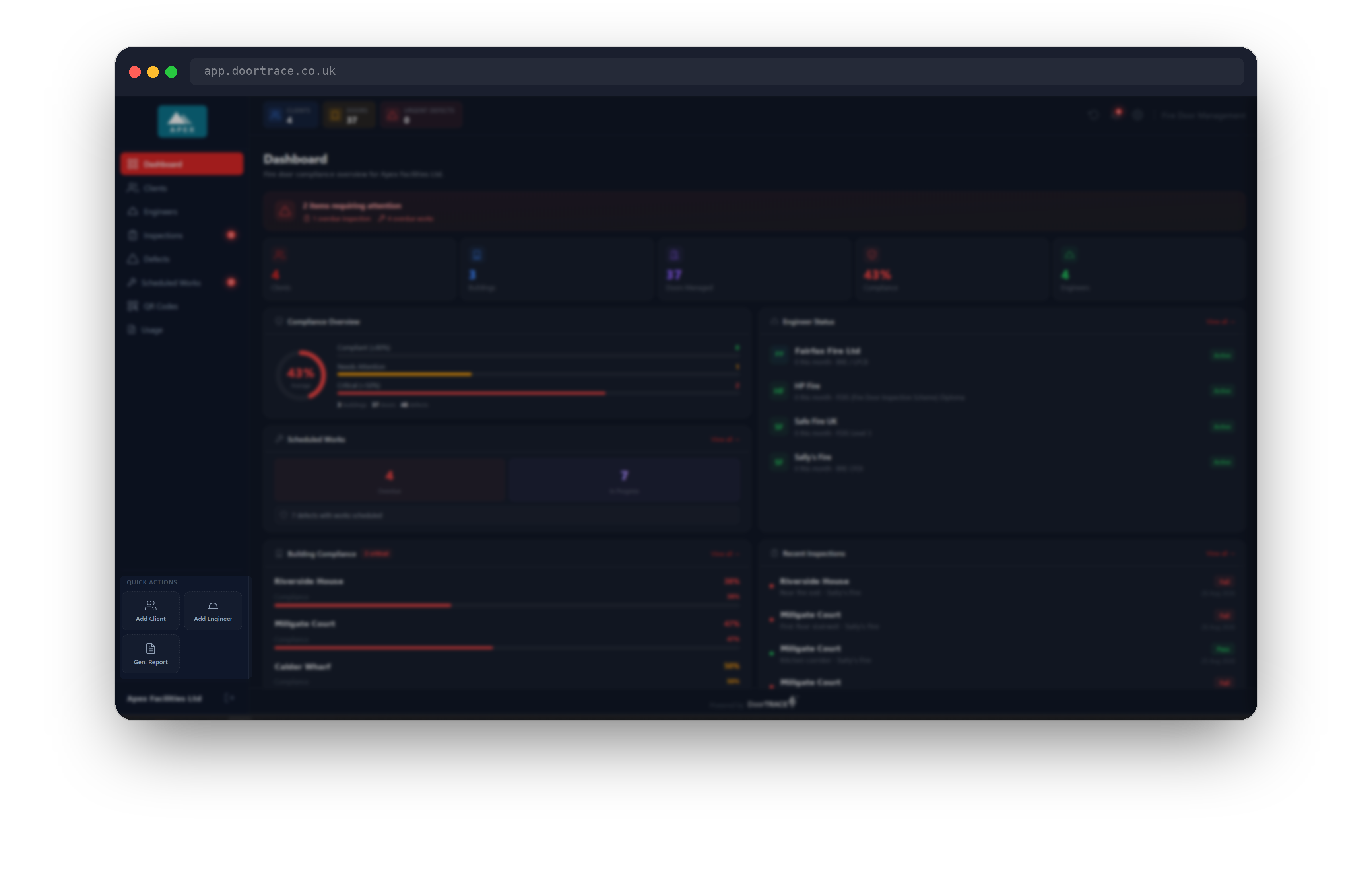
At the foot of the sidebar, three Quick Actions are available from any page. Add Client opens the Clients page with the new client form ready. Add Engineer does the same on the Engineers page. Gen. Report opens Generate Report, where you search for and pick a client; the portal then opens that client's report, which downloads as a PDF. Each of these has its own guide.
What's next
The bell in the header bar collects everything the dashboard is telling you into a single list you can work through. Notifications in the portal explains how it works.
Still can't find the answer?
Send us a message and we'll help. We respond within one working day.