FM Portal guides
FM Portal · Usage
Your usage
Last updated 23 Sept 2026
The Usage page shows every scan recorded under your account and tells you which of them are billable. It shows counts only. There are no prices on the page, and nothing on it can be changed, so you can open it as often as you like.
Before you start
It helps to know what DoorTRACE means by a scan, because that is what the page counts.
- A billable scan is a completed initial survey or a completed routine inspection. One inspection is one scan, however many issues it finds.
- Registering a door is free. Registrations are shown on the page in their own column, but they are never added to a billable figure.
- Completing a post-remedial form is free. Only inspections are charged, so the work that puts a failed door right costs nothing to record. Post-remedial forms are shown in their own column but are not added to a billable figure. Forms completed before September 2026 were billable at the time, so the figures for those earlier months still include them.
- Anything done under a demo client is free and is left off the page altogether. A demo client is the one with the small grey Demo badge on your Clients page. It is there so you and your team can practise without being charged, and that is true whichever way the Include demo client in figures switch on your dashboard is set.
- Replacing a QR tag, downloading reports and using floor plans are not scans. They are free and do not appear on this page.
- A survey only counts once the engineer has completed it. One that was started and never submitted is not counted.
Important: A scan is counted in the month it reaches DoorTRACE. If an engineer works without signal on the last day of the month and their phone uploads the work the next day, that scan counts in the new month.
Opening the Usage page
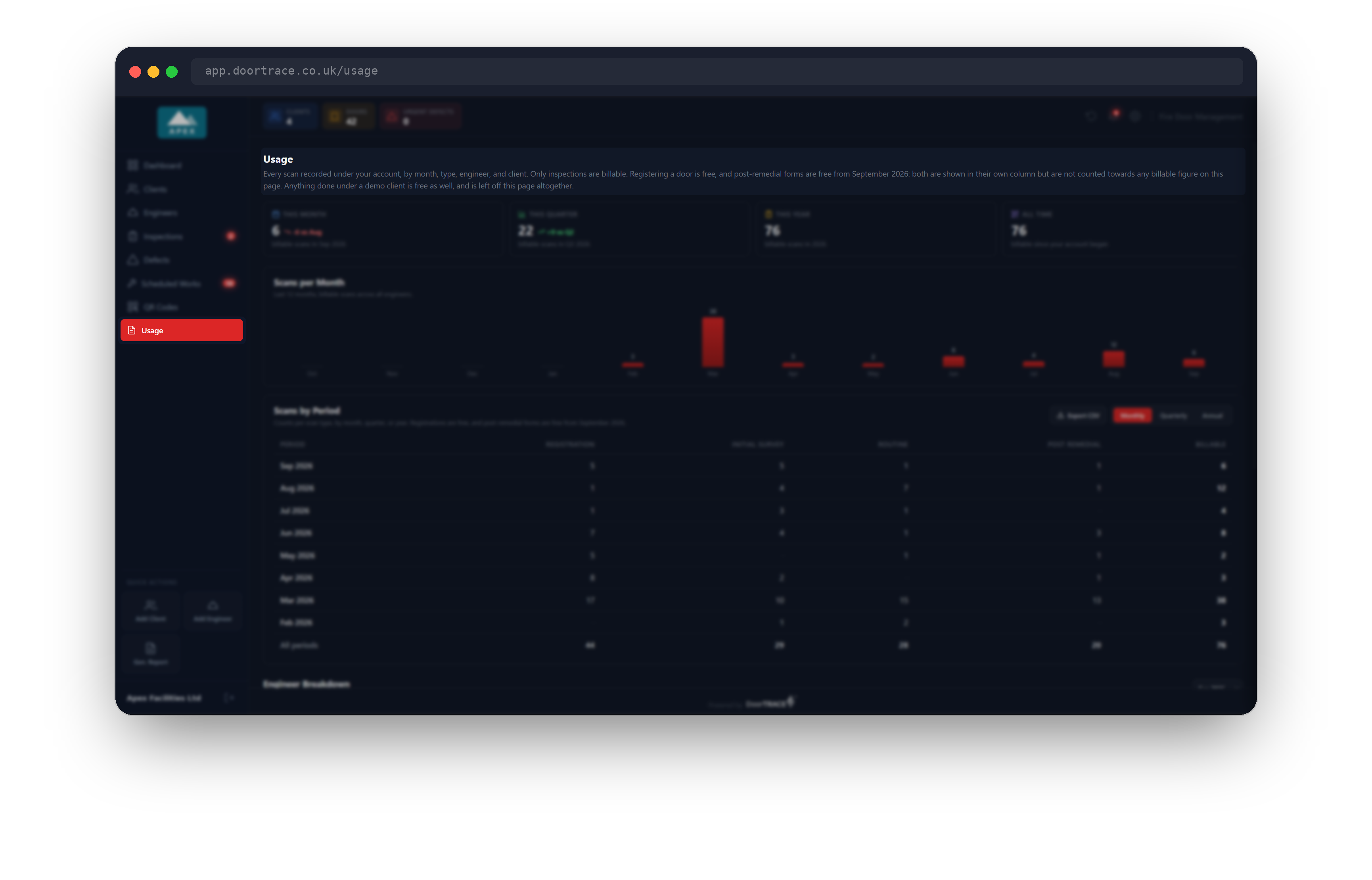
Choose Usage in the menu on the left. It is the last item, below QR Codes. The page opens with a short reminder that only inspections are billable, that registering a door and post-remedial forms are free, and that demo client work is left off the page. While the figures are loading you will see Loading usage. The page always shows your whole history, from the day your account began, so there is nothing to set before you can read it.
The four figures at the top
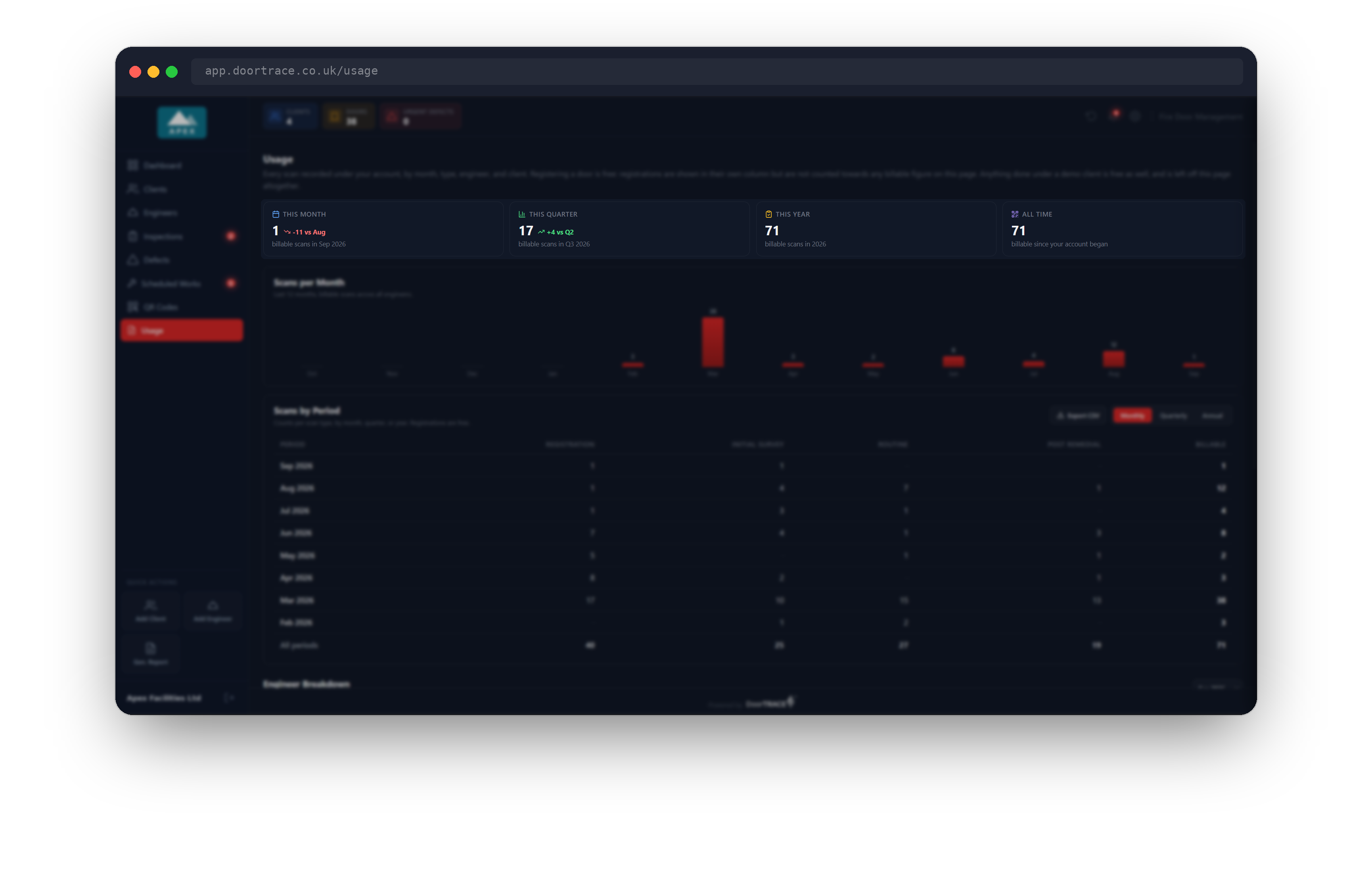
The four boxes across the top count billable scans only.
- This Month, This Quarter and This Year each show the count so far, with the period named underneath.
- All Time is every billable scan since your account began.
Beside the first three numbers is a small comparison with the period before, for example +12 vs Aug. A green arrow means you have done more than last time, a red arrow means fewer, and a grey dash means the same. This Year only shows a comparison once you have scans from the year before.
Scans per Month
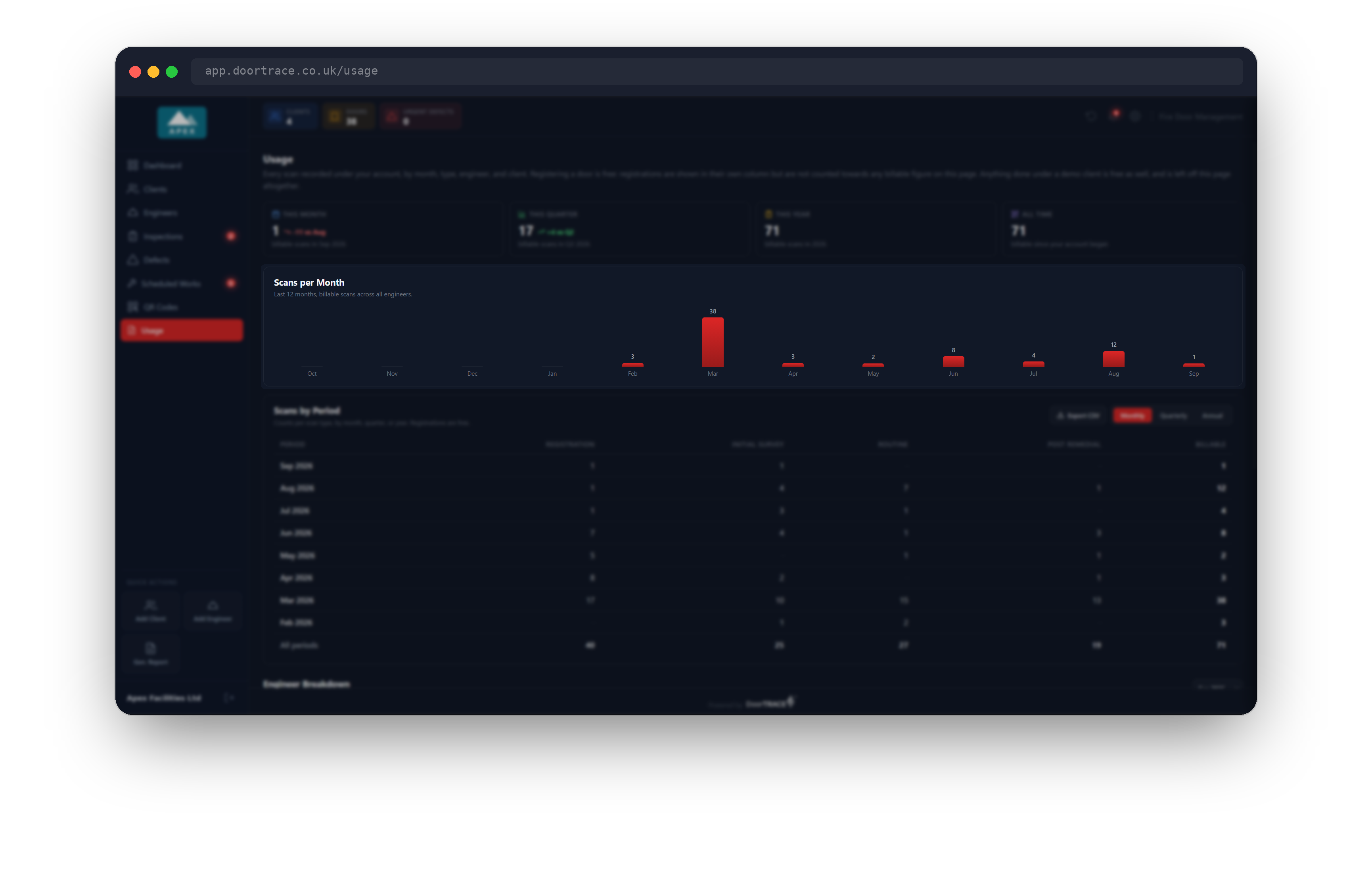
This chart shows your billable scans for each of the last 12 months, across all engineers, ending with the current month. The number above each bar is the count for that month. A month with no billable scans shows a faint flat line and no number. Free scans are left out of the bars, so the chart always agrees with the four figures above it and with the Billable column in the tables below.
Scans by Period
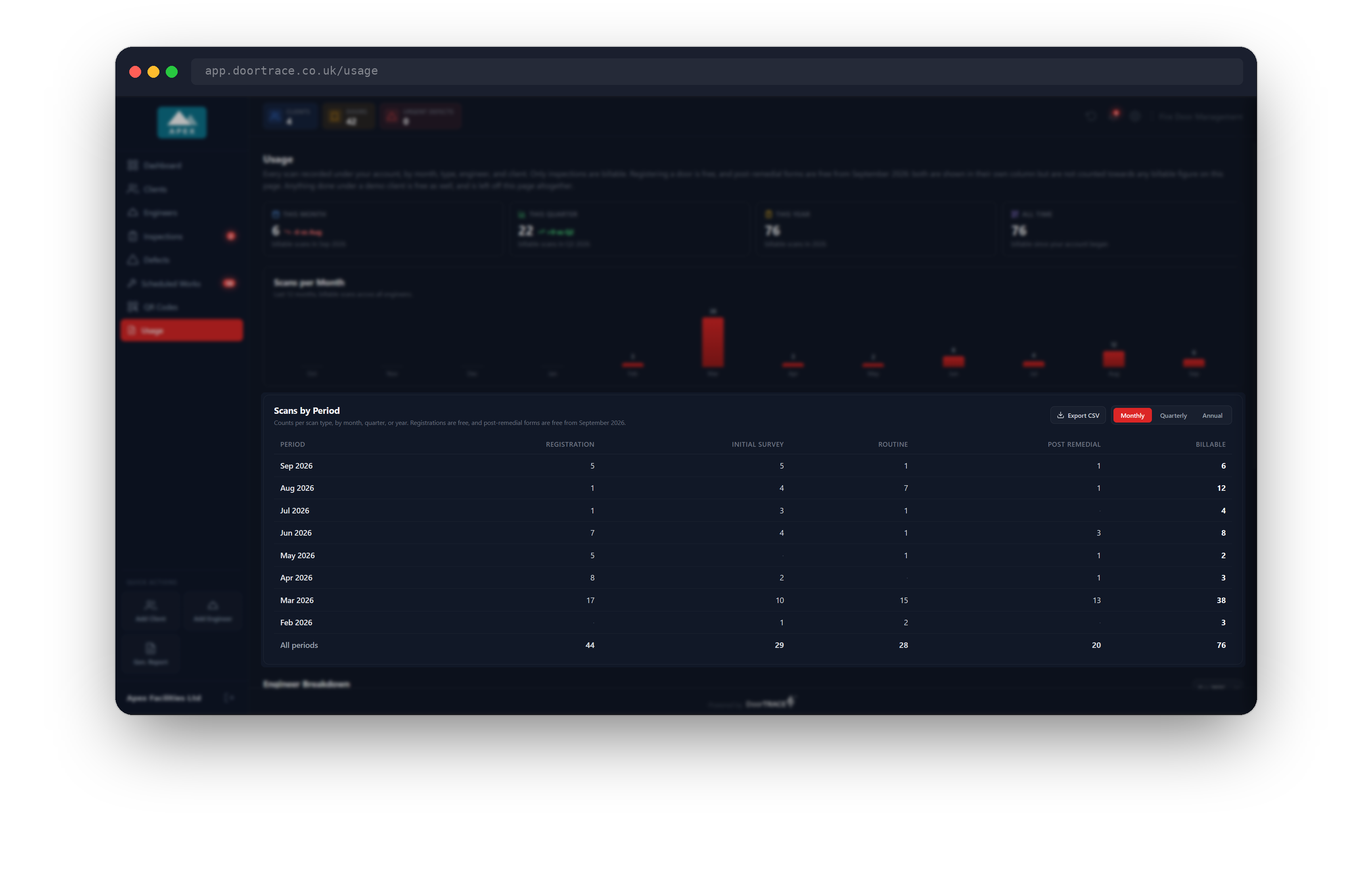
This table breaks your scans down by type. The columns are Registration, Initial Survey, Routine, Post Remedial and Billable. The newest period is at the top, and the bottom row, All periods, adds everything up. A faint dot means zero.
Billable is Initial Survey plus Routine. Registration and Post Remedial are shown for your information only, so the four type columns will not add up to the Billable column. For months before September 2026, when post-remedial forms were still billable, the Billable column includes them.
Use Monthly, Quarterly or Annual to change how the rows are grouped. This choice is for the whole page: the Engineer Breakdown and Client Breakdown further down follow it too.
Tip: Click Export CSV to save the table you are looking at as a spreadsheet file. The file is named after the view, for example
usage-monthly.csv, and includes the All periods row.
Engineer Breakdown
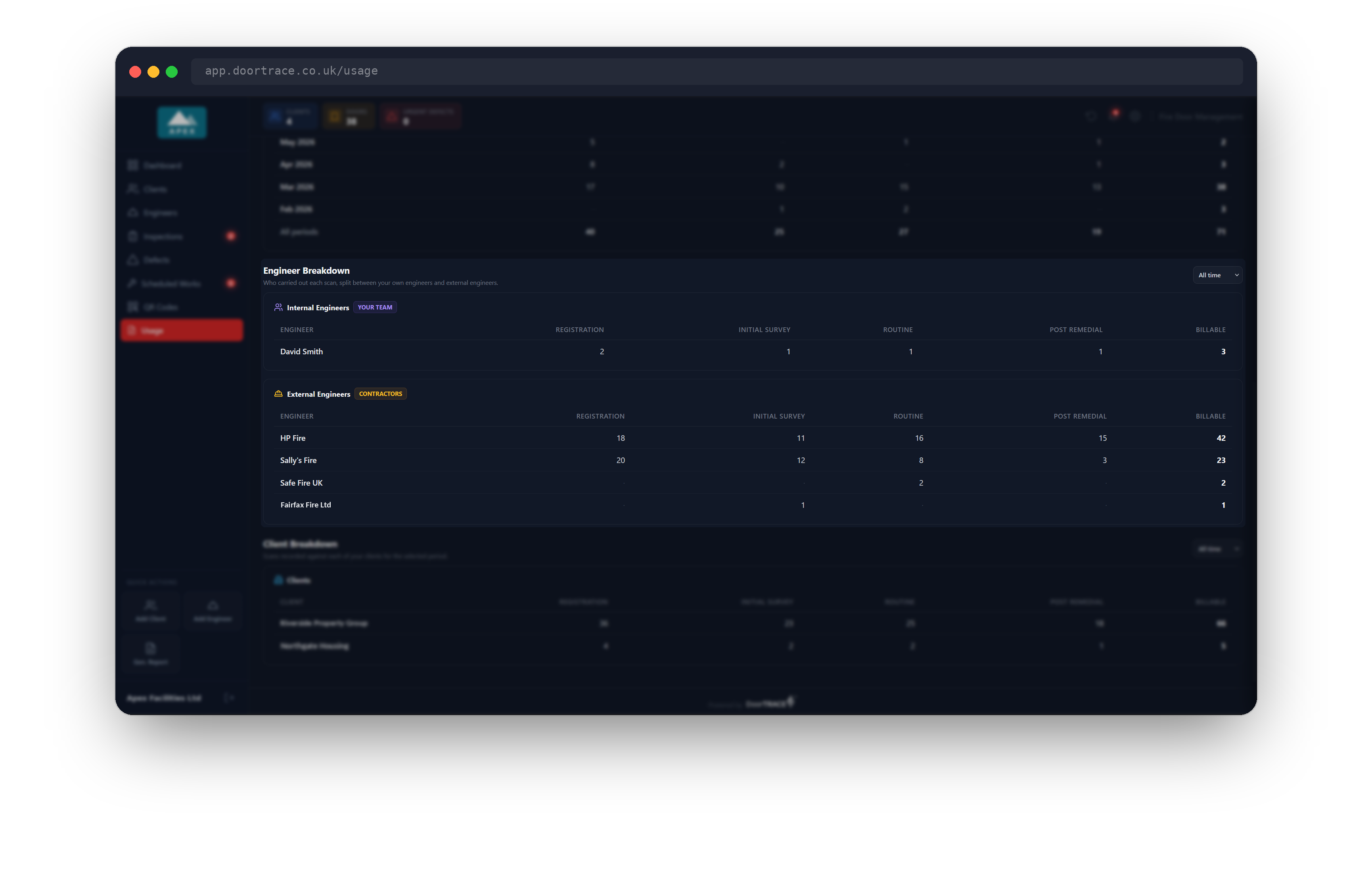
This section shows who carried out each scan. It has the same columns as the table above, in two boxes.
- Internal Engineers (marked YOUR TEAM) are your own engineers. They share one app login, so each person is listed by the name they signed with when they completed the work. If no name was given, the row reads Name not recorded.
- External Engineers (marked CONTRACTORS) are listed by their company name. If DoorTRACE holds no company name for an engineer, their own name is shown instead.
The list at the top right of the section chooses the period. It opens on the current month, quarter or year, to match the buttons above, and you can pick an earlier period or All time. Engineers are sorted with the most billable scans first, and an engineer with nothing in the chosen period is not listed. An engineer you have since removed still appears against the work they did.
Tip: Your own engineers are grouped by the exact name they sign with. If one person signs as "John Smith" on one job and "J Smith" on the next, they will show as two rows. Ask your engineers to sign the same way each time.
Client Breakdown
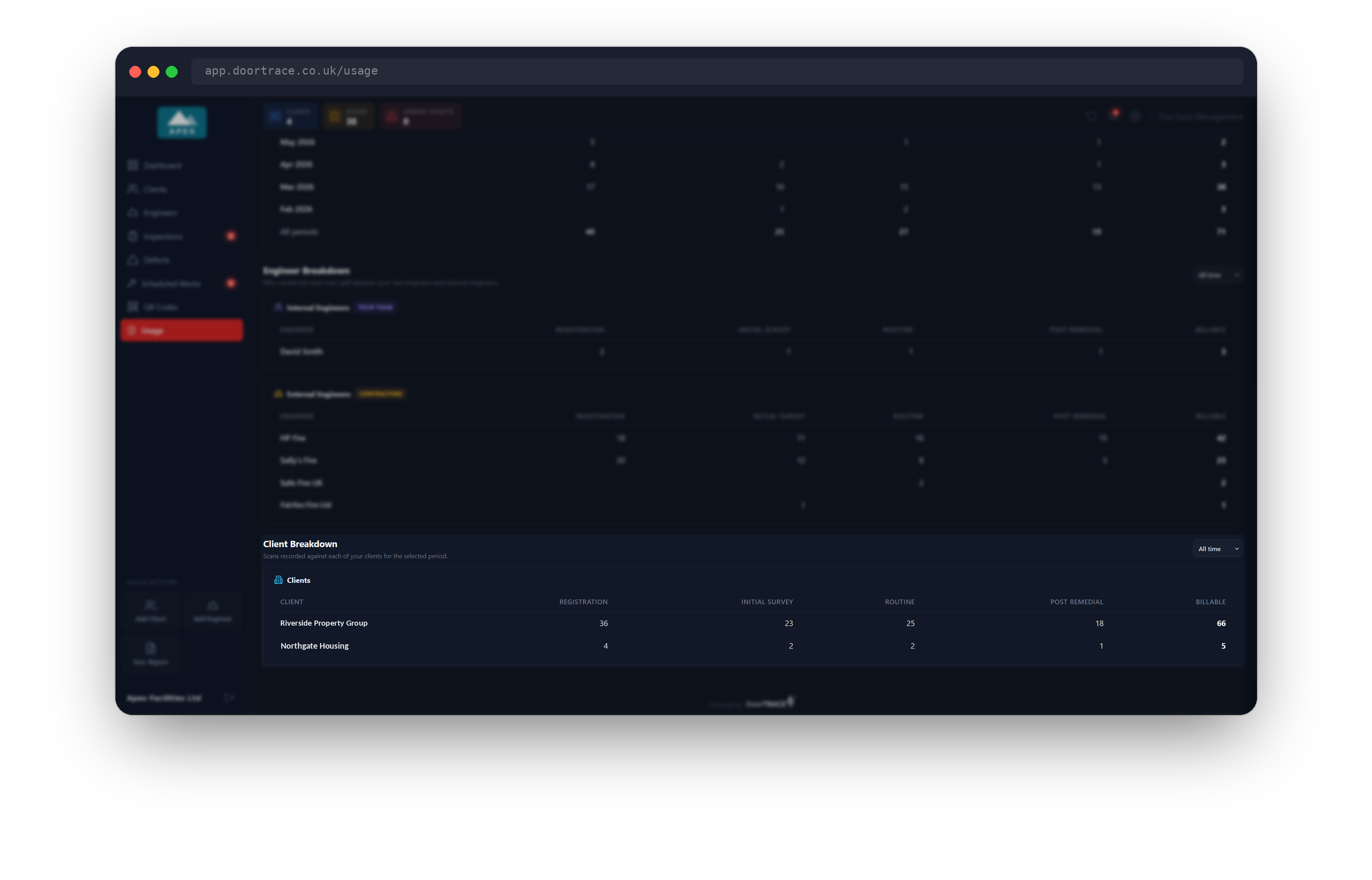
This table shows the scans recorded against each of your clients, which is useful when you pass the cost of inspections on to them. It has its own period list at the top right, which works in the same way as the one for engineers. Clients are sorted with the most billable scans first, and a client with nothing in the chosen period is not listed. A client you have archived still appears for the periods when work was done for them.
Your demo client never appears here, because demo work is not counted. If a scan cannot be matched to a client, it is grouped under Unassigned so the totals still agree with the rest of the page.
Your monthly usage email
Early on the 1st of each month, DoorTRACE emails a summary of the month just ended to your company's contact email address. The subject is Your DoorTRACE Usage Summary followed by the month, and it comes from noreply@doortrace.co.uk.
The email lists your scans by type, with registrations marked Registration (not billable) and post-remedial forms marked Post Remedial (not billable), and then your Billable scans total. Below that it shows how many were done by your internal team and how many by external engineers, with each engineer's billable count. It is sent every month, even when there were no scans. The figures come from the same place as the Usage page, so the two always agree. If you have a question about your account, the email gives the address to write to: accounts@doortrace.co.uk.
If the page will not load
If the figures cannot be fetched you will see a red box that says Could not load your usage data. Please try again. Click Retry. If it keeps happening, check your internet connection and try again.
What's next
The next guide is Company profile and logo.
Still can't find the answer?
Send us a message and we'll help. We respond within one working day.