FM Portal guides
FM Portal · Settings
Exporting your data
Last updated 26 Sept 2026
Everything your engineers record in DoorTRACE belongs to you, and the Data & Export page in Settings is where you take a copy of it. You choose one of four exports, DoorTRACE prepares a ZIP file in the background and emails you a link to download it. The same page explains how long your records are kept and what happens if you ever close your account. This guide covers each of the three boxes on the page.
Before you start
Exports are emailed to your company's sign-in email address, shown in the first box on the page. Nothing on this page asks for your password. An export is a copy: requesting one changes nothing in the portal, so you can take one as often as you like.
Opening the Data & Export page
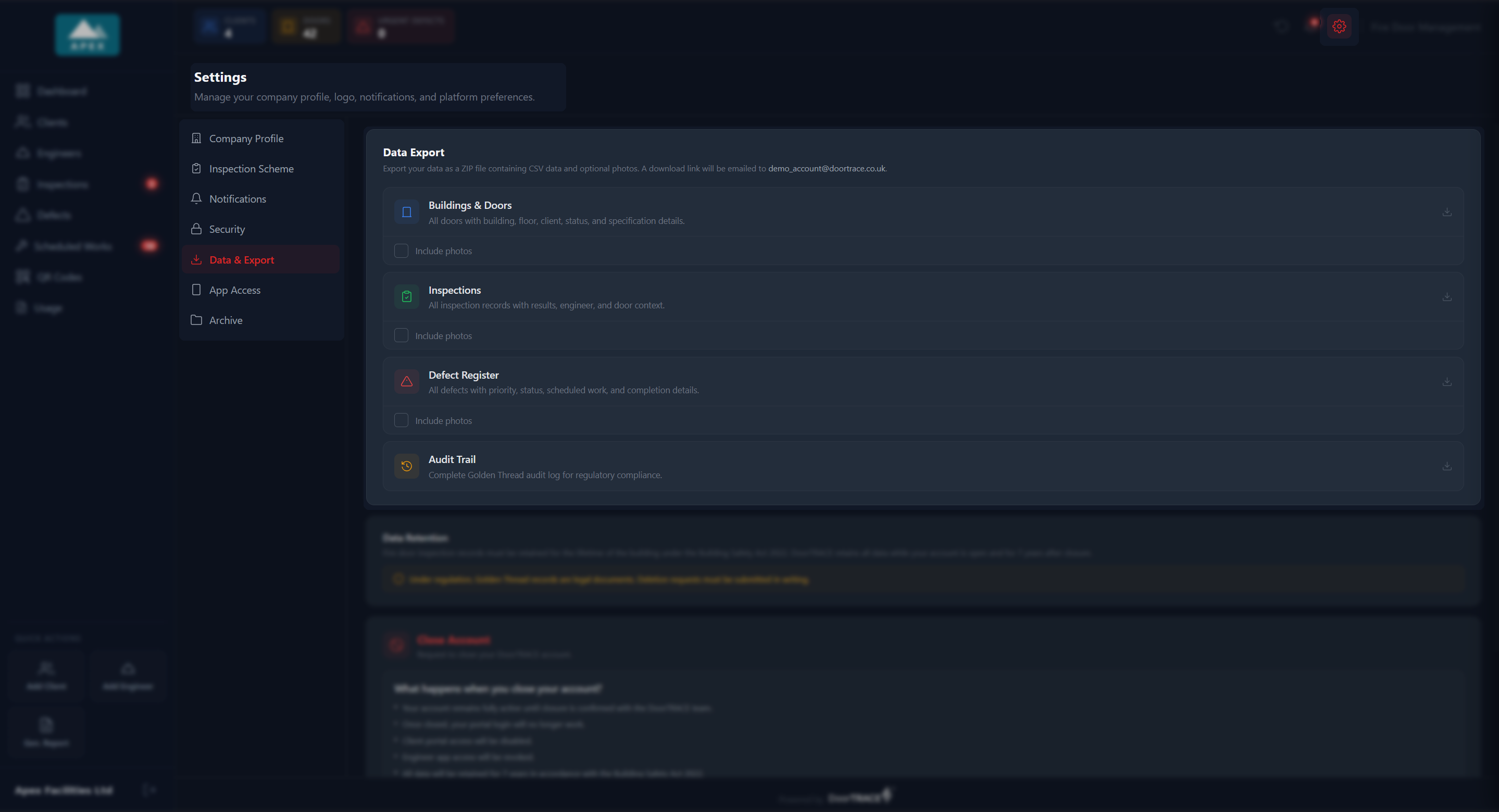
Click the cog icon at the top right of the portal, next to the bell, then click Data & Export in the list on the left of the Settings page. It is the fifth item, under Security. The page has three boxes, top to bottom: Data Export, Data Retention and Close Account.
The four exports
The Data Export box lists four exports. Each gives you a ZIP file holding one spreadsheet file (a CSV, which opens in Excel) and, for the first three, the photographs if you tick them:
- Buildings & Doors: one row for every door currently on your register, with its QR code, location, door type, fire rating, status, building, floor, client, manufacturer, installation date, certification reference, leaf material, leaf configuration, closer type, inspection frequency, last inspection, next due, notes and the date it was registered. With photos: each door's reference photograph.
- Inspections: one row for every inspection record, including registrations and surveys on doors that have since been removed, with the date completed, type, result, the door's details, building, floor, client, the engineer's name, whether access was granted, access notes and notes. Registrations show a blank result, because a registration has no pass or fail. With photos: every photograph taken against a checklist item.
- Defect Register: one row for every defect, open or not, with its type, priority, status, description, recommended action, estimated cost, the door's details, building, floor, client, the scheduled engineer ("Internal team" or the engineer's name, once work has been booked), scheduled date, resolution date and notes, the inspector who found it and the inspection date. With photos: the photographs taken when the defect was found and when it was put right.
- Audit Trail: one row for every entry in your Golden Thread audit log, with the date, what was changed, the action, the fields that changed, who did it and the connection's IP address. There is no photo option for this one.
Every export covers your whole company, including anything recorded under your demo client. Values appear as DoorTRACE stores them, so a status reads non_compliant and a fire rating that was never established reads unknown.
Including the photographs
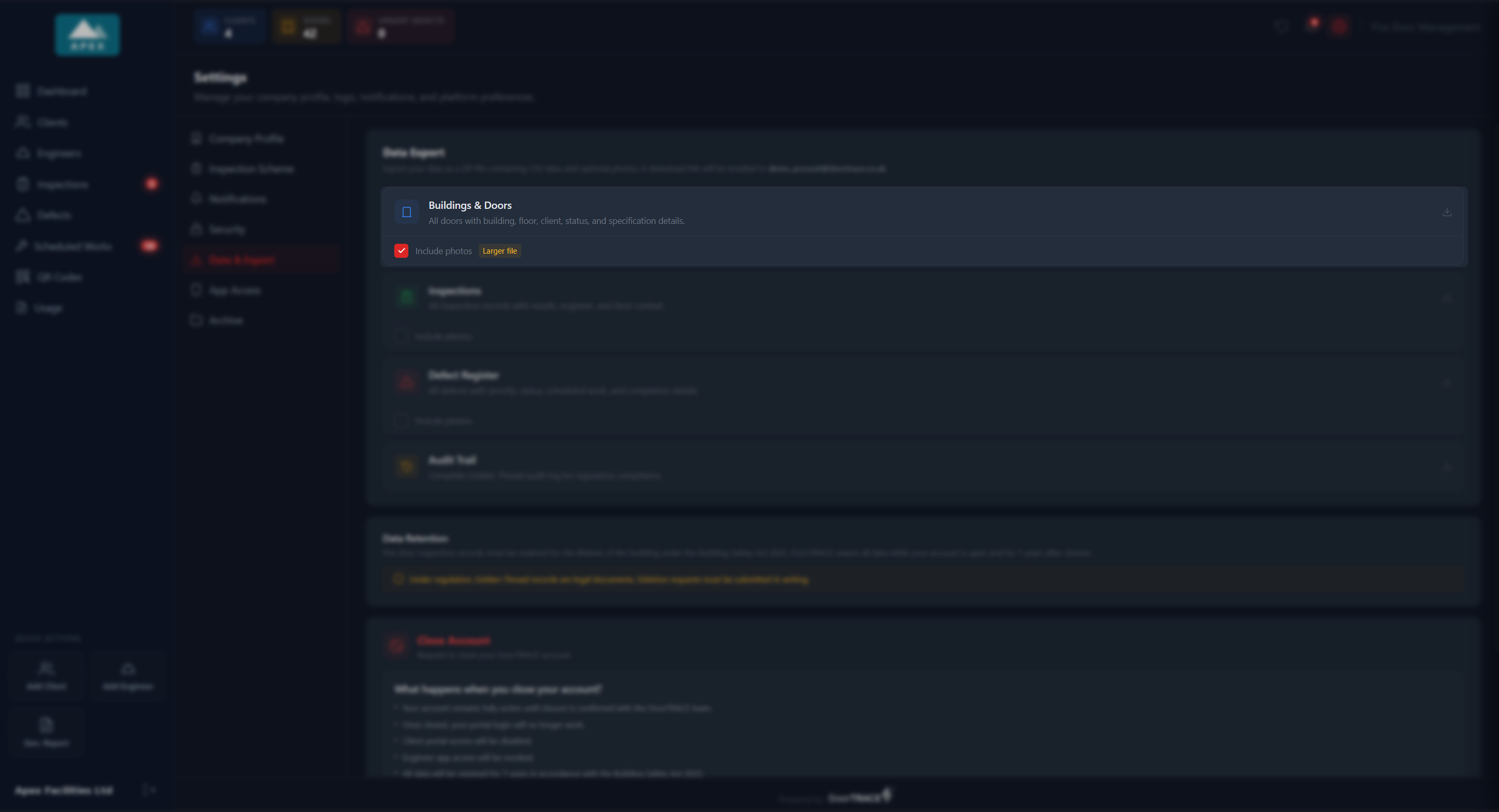
Under Buildings & Doors, Inspections and Defect Register there is an Include photos tick box. Tick it and an amber Larger file tag appears as a reminder that photographs make the ZIP much bigger; a company with a few hundred inspected doors can have thousands of them. Each export has its own tick box, and the tick only lasts while you are on the page.
Requesting an export
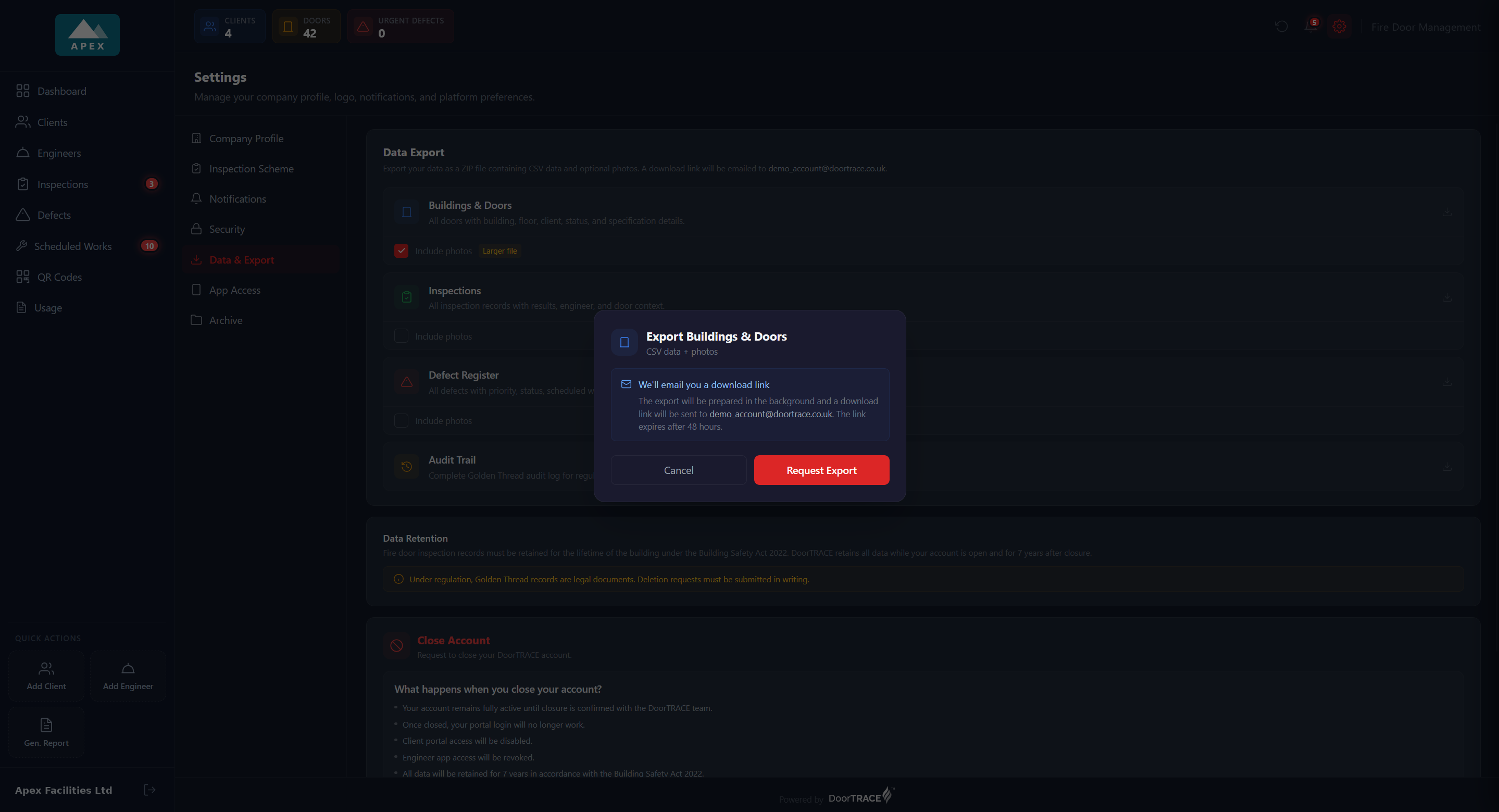
Click the export you want. A window opens headed Export and the name of the export, with CSV data + photos or CSV data only under it depending on the tick box. It reminds you that the download link will be sent to your sign-in email and that the link expires after 48 hours. Click Request Export to go ahead, or Cancel (or click anywhere outside the window) to close it with nothing sent.
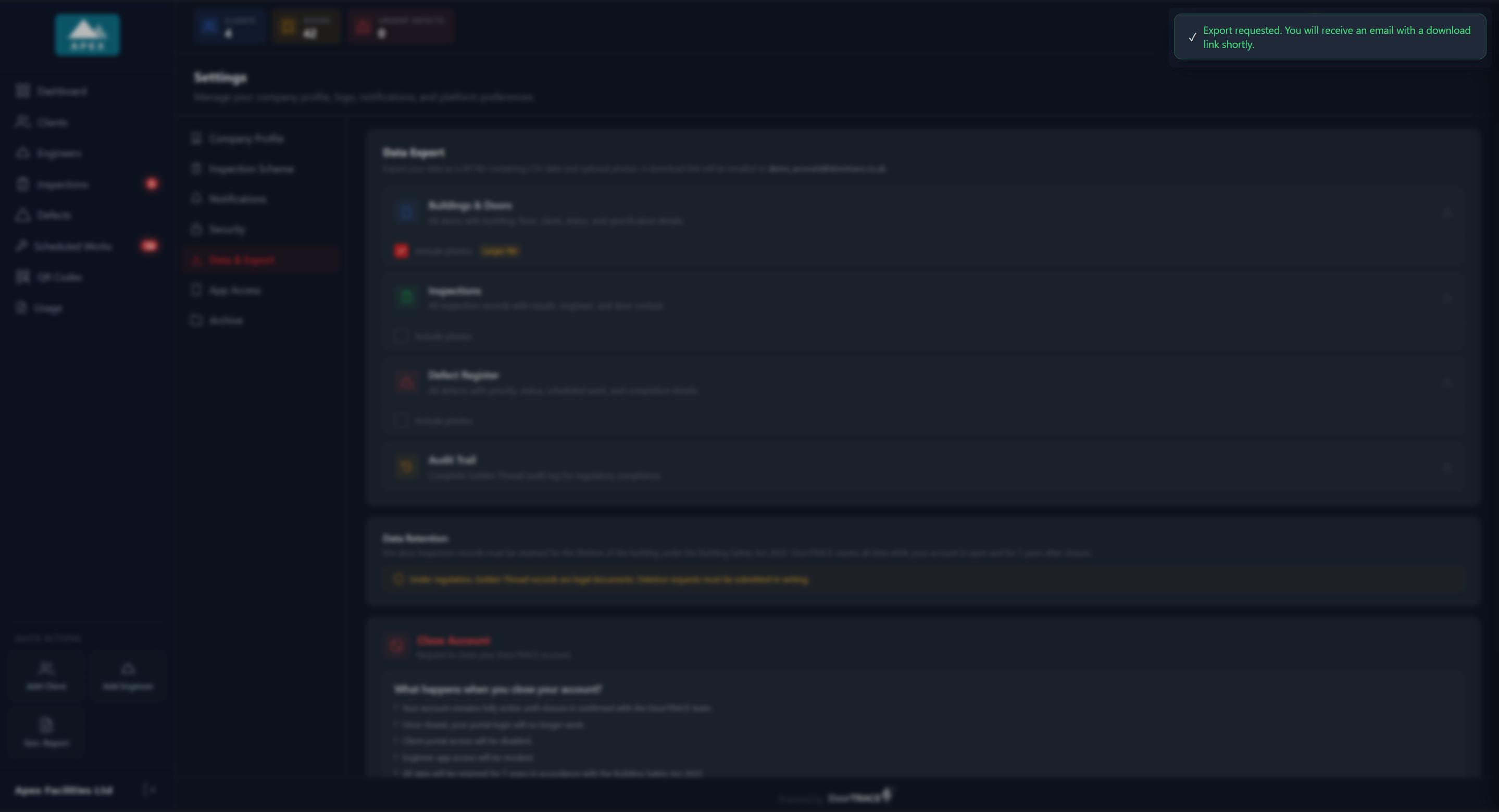
"Export requested. You will receive an email with a download link shortly." confirms in green at the top right of the screen. The other three exports are greyed out for the moment it takes to send the request, then everything is available again. DoorTRACE prepares the file in the background, so you can leave the page, or the portal, straight away.
Only one export of each kind can be in progress at a time. If you click the same one again before the first has finished, a red message reads "An export of this type is already in progress. Please wait for it to complete." You can still request a different one.
The email and the download
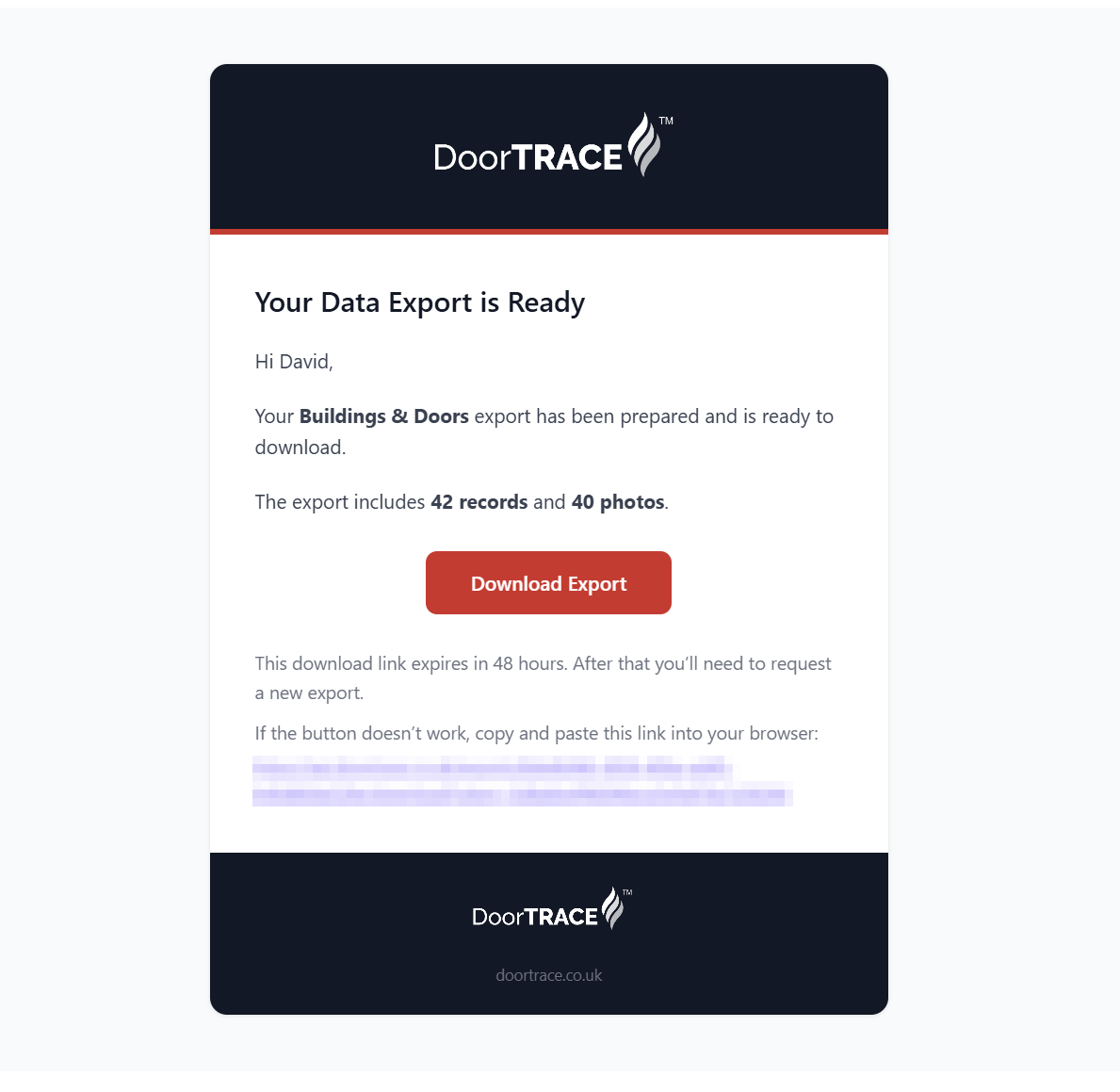
When the file is ready you receive an email from DoorTRACE Data (data@doortrace.co.uk) titled "Your DoorTRACE data export is ready". It names the export, tells you how many records it holds and, with photos, how many photographs, and has a red Download Export button. The same link is written out underneath in case the button does not work in your email program. An export with photographs takes longer to prepare than one without.
Click Download Export and the ZIP file downloads. It is named after the export and the date, for example doortrace-defects-2026-09-26.zip. Inside you will find:
- The spreadsheet file, named after the export:
doors.csv,inspections.csv,defects.csvoraudit.csv. - With photos, a
photosfolder. Every photograph is named after the door's QR code, soDT-3Emppc_reference.jpgis that door's reference photograph,DT-3Emppc_2026-09-21_a1b2c3d4_2.jpgis the second photograph from an inspection of it on 21 September 2026, andDT-3Emppc_DEF-0007_defect_1.jpgandDT-3Emppc_DEF-0007_resolution_1.jpgare the before and after photographs of defect DEF-0007.
If a photograph listed against a record is missing from DoorTRACE's storage, the email says how many could not be included, and the rest of the export is unaffected.
Important: The download link works for 48 hours from the time the email is sent. After that it shows "Download link has expired. Please request a new export from your DoorTRACE settings." Simply request the export again from this page. Anyone who has the link can use it within those 48 hours, so treat the email as you would the file itself.
If an export cannot be prepared, you receive an email titled "DoorTRACE data export failed" instead, saying which export it was and why. Request it again; if it fails a second time, contact DoorTRACE at support@doortrace.co.uk.
How long your records are kept
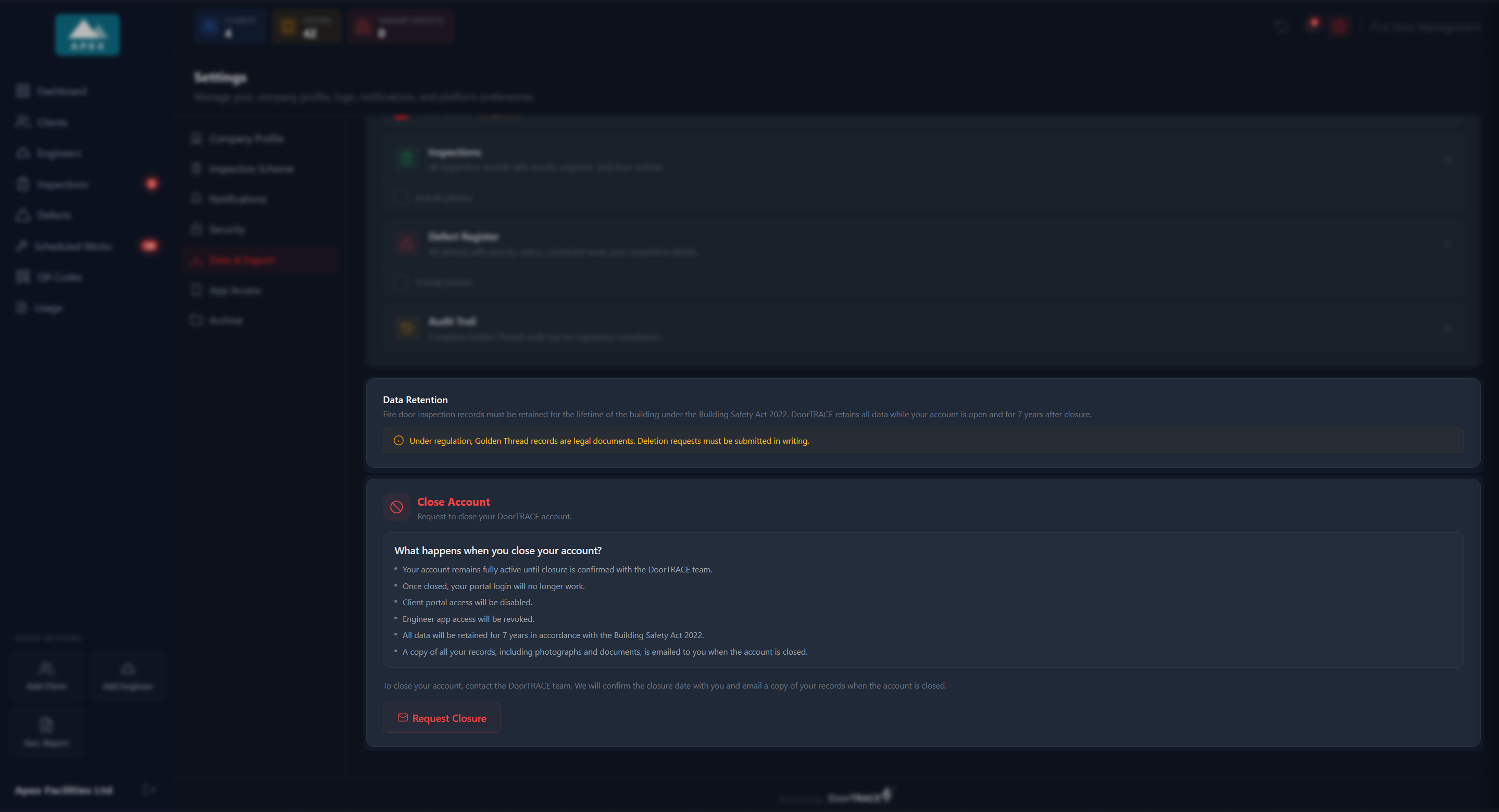
The Data Retention box explains that fire door inspection records must be kept for the lifetime of the building under the Building Safety Act 2022. DoorTRACE keeps all of your data for as long as your account is open, and for 7 years after it closes. Golden Thread records are legal documents, so nothing on this page lets you delete them: a request to delete anything must be made to DoorTRACE in writing.
Closing your account
The Close Account box sets out what happens if you decide to leave DoorTRACE:
- Your account stays fully active until the closure has been confirmed with the DoorTRACE team.
- Once closed, your portal login stops working, your clients can no longer sign in to their client portals, and your engineers lose access to your company in the engineer app.
- All of your data is kept for 7 years, as above.
- A copy of all of your records, including every photograph and document, is emailed to you when the account is closed. You do not need to export anything first, though you can if you want a copy in the meantime.
Click Request Closure to start. It opens a new message in your email program addressed to support@doortrace.co.uk with the subject "Account Closure Request"; nothing happens in the portal itself. The DoorTRACE team will confirm the closure date with you and email your records when the account is closed.
What's next
App access for your own engineers sets up the shared engineer app login for your in-house engineers.
Still can't find the answer?
Send us a message and we'll help. We respond within one working day.