FM Portal guides
FM Portal · QR codes
Printing QR labels
Last updated 18 Sept 2026
A QR code is no use until it is on a door. Print Labels on the QR Codes page turns the unused codes in your pool into a PDF laid out for Avery L7120-25 label sheets. The portal keeps count of how many times each code has been printed, so the codes you have never printed always go first and you are warned before any code is printed a second time.
Before you start
- You need unused codes in your pool. If you have none, Print Labels is greyed out. See Managing your QR code pool to generate some.
- You need Avery L7120-25 label sheets. These are A4 sheets of square labels, 35 x 35mm, 35 labels to a sheet. This is the only label layout the portal makes.
- You need a printer that takes A4 sheets.
Open the Print QR Labels window
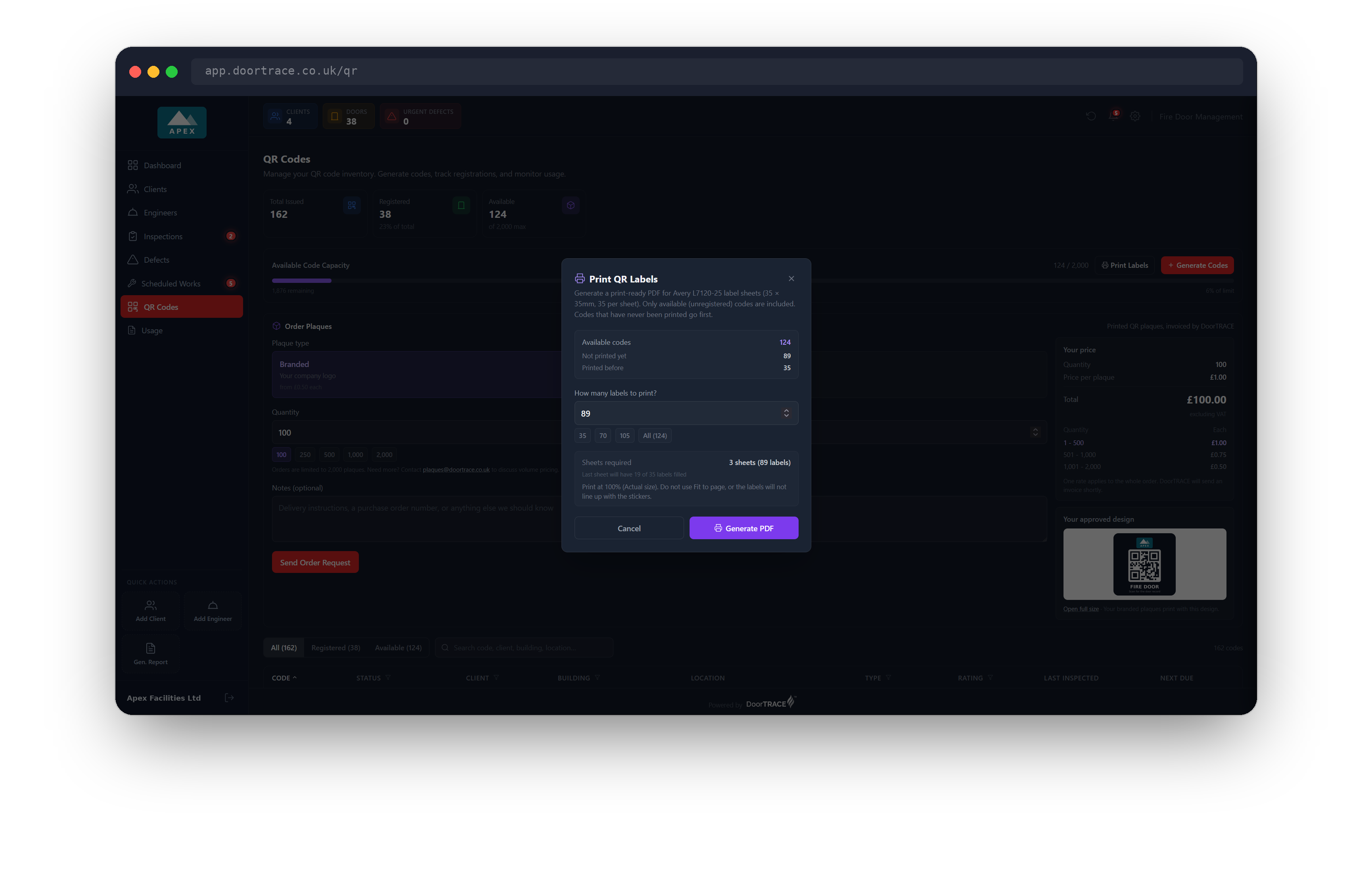
Select QR Codes in the menu on the left, then select Print Labels on the right of the Available Code Capacity bar, next to Generate Codes. The Print QR Labels window opens.
Three lines at the top tell you where you stand:
- Available codes is the number of unused codes in your pool. Only unused codes can be printed. A code that is already on a door is never included.
- Not printed yet is how many of those have never been put on a label sheet.
- Printed before is how many have been on a label sheet at least once.
The window opens with the Not printed yet number already filled in, so the quickest route is to print exactly the codes that have no label yet. You are not asked for your portal password anywhere in this window.
Choose how many labels to print
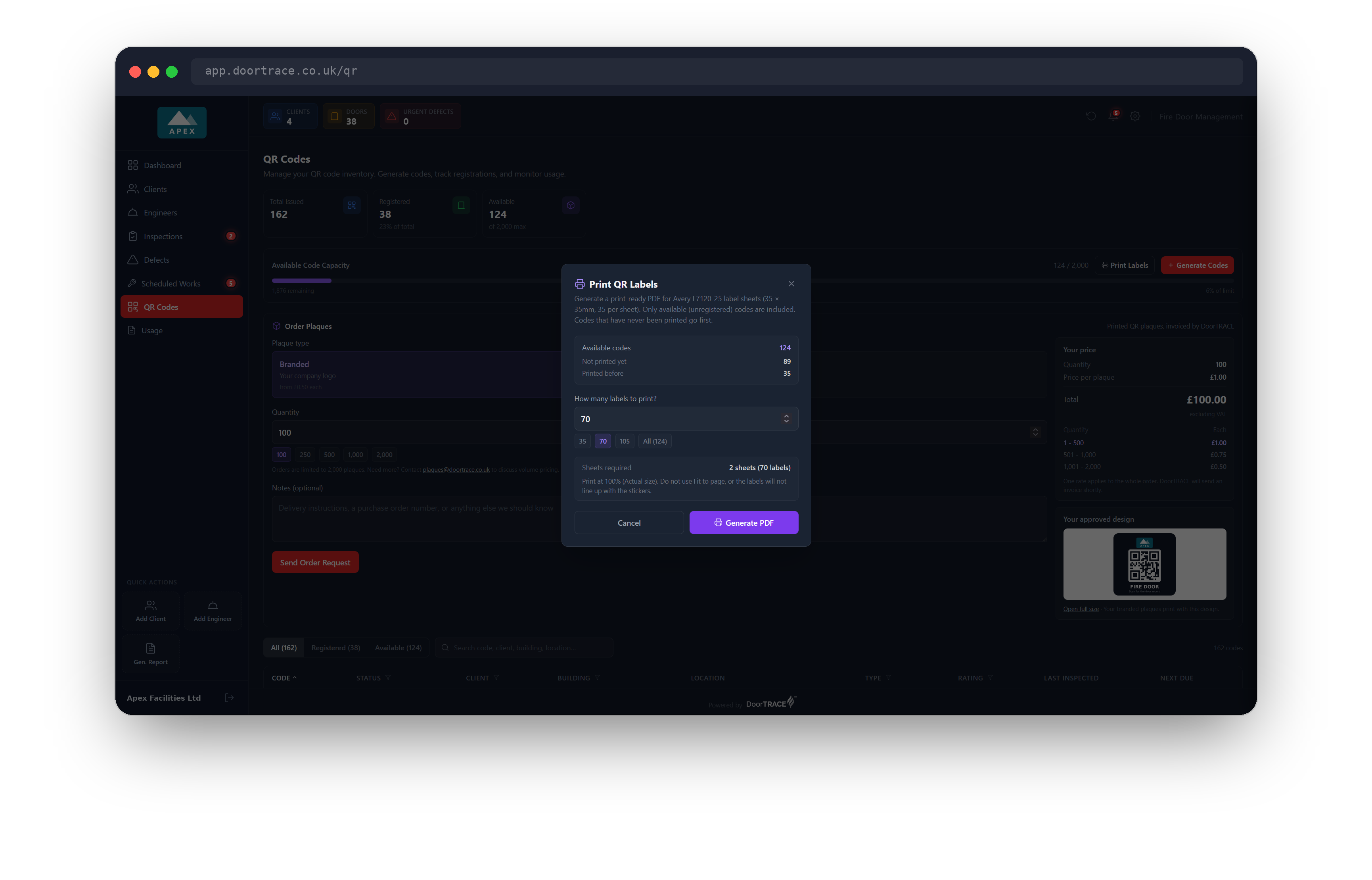
Type a number under How many labels to print?, or select one of the quick picks. The quick picks are whole sheets: 35, 70, 105, 140, 175 and 350, plus All, which shows your full number of unused codes in brackets. Only the quick picks that you have enough codes for are shown. You cannot ask for more labels than you have unused codes.
The Sheets required line shows how many label sheets to load, for example "2 sheets (70 labels)". If your number does not fill the last sheet, a small line underneath tells you, for example "Last sheet will have 19 of 35 labels filled".
You do not pick individual codes. The portal chooses them for you: codes that have never been printed come first, then codes printed once, then twice, and so on.
Tip: Every PDF starts at the top left label of the first sheet and fills each row from left to right. A half-used sheet cannot be finished off by a later print, so print in whole sheets where you can.
If some labels have been printed before
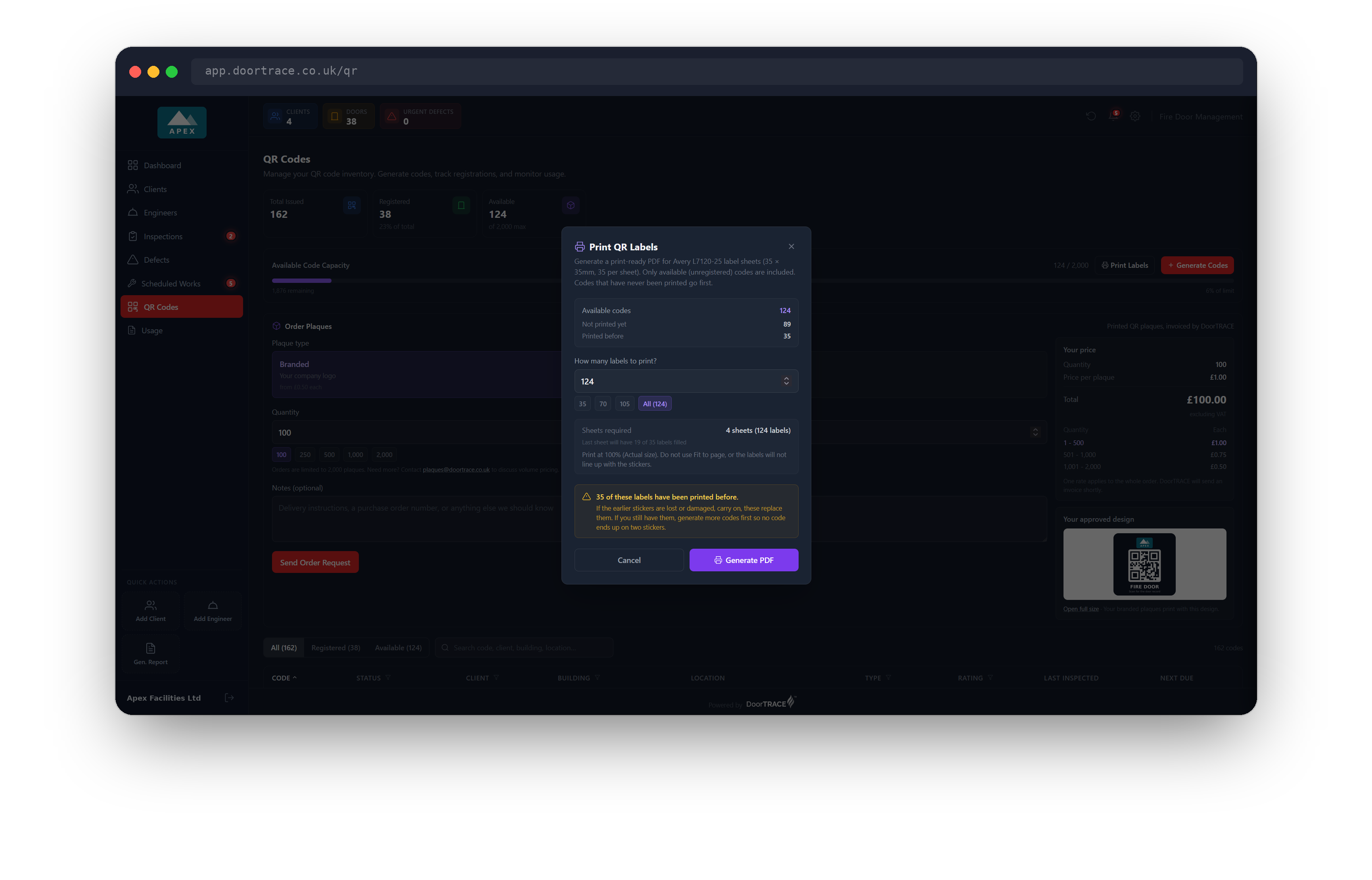
If you ask for more labels than your Not printed yet number, the extra ones have to come from codes that already have a label somewhere. An amber warning appears in the window, for example "35 of these labels have been printed before."
What you do next depends on where the earlier labels are:
- The earlier labels are lost or damaged. Carry on. The new labels replace them.
- You still have the earlier labels. Select Cancel, generate more codes first, then come back and print. Each code is meant for one door only, and this keeps the same code from ending up on two labels.
The warning does not stop you printing. It is there so that a repeat is always your choice and never a surprise. To avoid repeats altogether, lower the number until it is no more than Not printed yet.
Make the PDF
Select the purple Generate PDF button. A progress bar reads "Generating labels" and counts up, for example "20 / 35". While it runs, Cancel, the cross in the corner and clicking outside the window are all switched off so that a print cannot be cut short half way.
When it finishes:
- Your browser downloads a file named DoorTRACE-QR-Labels- followed by today's date, for example DoorTRACE-QR-Labels-2026-09-18.pdf.
- A message confirms what was made, for example "PDF generated: 35 labels across 1 sheet".
- The window closes, and every code in the PDF now counts as printed. The next time you open Print Labels, Not printed yet has gone down by the number you printed.
Important: The portal does not keep a copy of your PDF and there is no way to download a past print again. Keep the file until the labels are safely on your doors.
Print the sheets
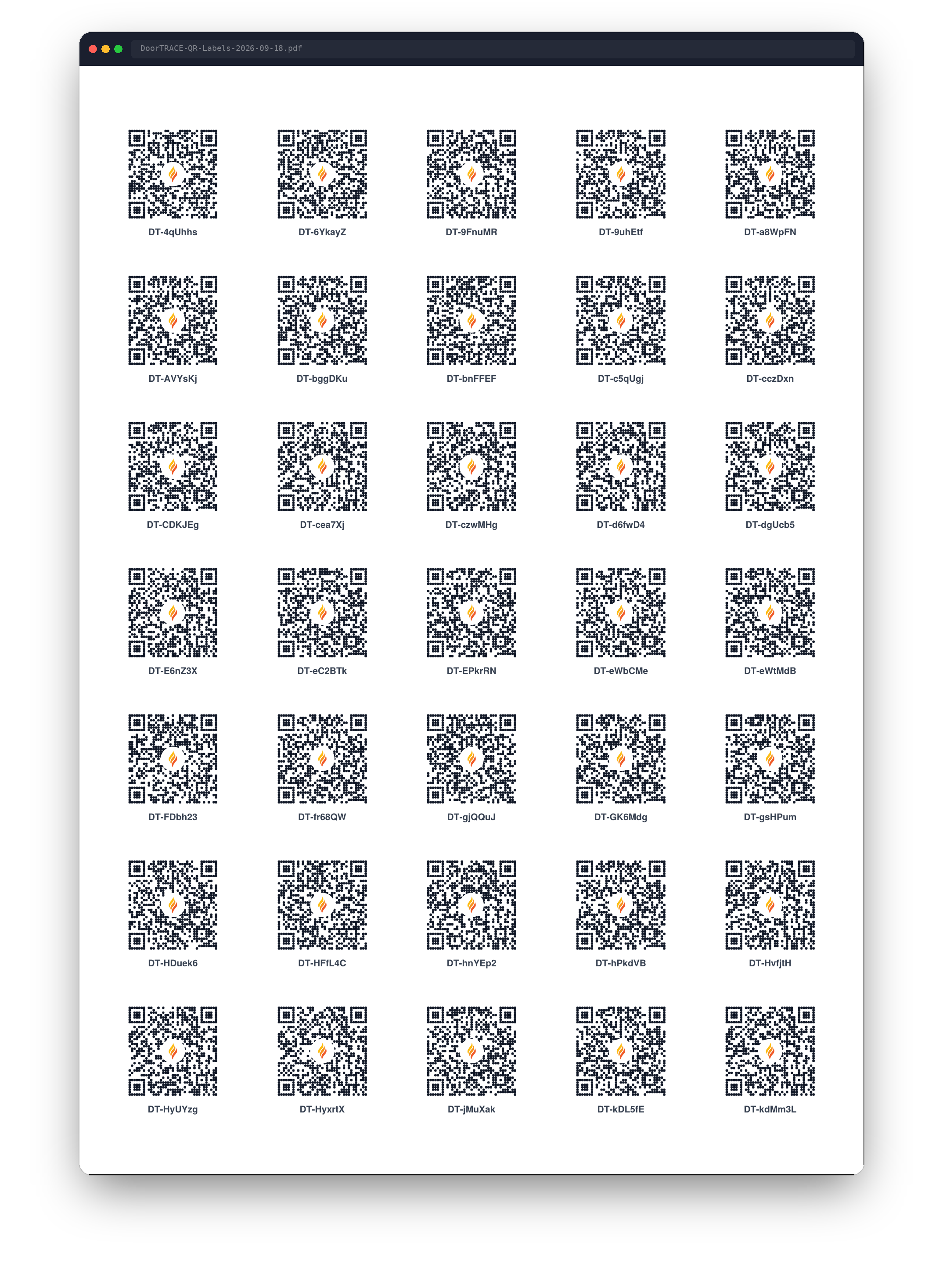
Open the PDF, load your Avery L7120-25 sheets into the printer, and print.
Important: Print at 100% (Actual size). Do not use Fit to page, or the labels will not line up with the stickers.
Each page of the PDF is one A4 sheet: five labels across and seven down. Every label carries the DoorTRACE QR code, with the flame mark in the middle, and the code itself printed in small bold letters underneath. Every code begins with "DT-". The printed code is useful if a label ever gets scuffed: it can still be read by eye and matched to the Code column on the QR Codes page.
If you have not used these sheets in your printer before, it is worth printing the first page on plain paper and holding it against a label sheet to the light. If the squares line up, carry on with the real sheets.
After printing
Hand the labels to your engineers. A label does nothing until an engineer fixes it to a door, scans it in the engineer app and registers the door. At that moment the code moves from Available to Registered on the QR Codes page and leaves your pool. See Registering a door in the engineer app guides.
Printing does not change anything else. Printed codes stay in your pool as Available until they are registered, and they still count towards your limit of 2,000 unused codes.
If you see "These figures have just changed"
Just before the PDF is made, the portal checks your print counts one more time. DoorTRACE can also print labels for your company, and both use the same count. If some of your labels were printed somewhere else in the moment since you opened the window, an amber notice reads These figures have just changed and nothing is made.
Nothing has gone wrong. The three lines at the top of the window now show the new numbers. Check them, change your number if you need to, and select Generate PDF again.
If the print was not recorded
If the PDF downloads but the portal cannot save which codes were in it, the window stays open with a red notice: Your labels downloaded, but the print was not recorded.
Your PDF is fine and you can print it. The risk is next time: because the count was not saved, the portal may offer the same codes again without warning you. Keep this PDF, check your internet connection before printing any more labels, and do not print from the window again until the labels from this PDF have been used or thrown away.
If a red message appears and no file downloads at all, nothing was made and nothing was counted. Check your connection and select Generate PDF again.
What's next
Labels are the quick way to get codes onto doors. For a permanent finish, Ordering printed plaques shows you how to request branded plaques from DoorTRACE.
Still can't find the answer?
Send us a message and we'll help. We respond within one working day.