FM Portal guides
FM Portal · Settings
Choosing your inspection scheme
Last updated 20 Sept 2026
Your inspection scheme decides which survey form your own engineers are given in the engineer app when they inspect a door. Every company starts on DoorTRACE Standard. A company that holds BM TRADA Q-Mark certification can switch to the Q-Mark survey instead. This guide shows where the setting is, how to switch in either direction, and exactly what changes when you do. It also explains where inspection frequencies are set, because they are not on this page.
Before you start
Only switch to BM TRADA Q-Mark if your company holds current, valid BM TRADA Q-Mark certification covering fire door inspection. DoorTRACE does not check your certification. You sign a declaration instead, and it is recorded permanently. You will also need your portal password.
Opening the Inspection Scheme page
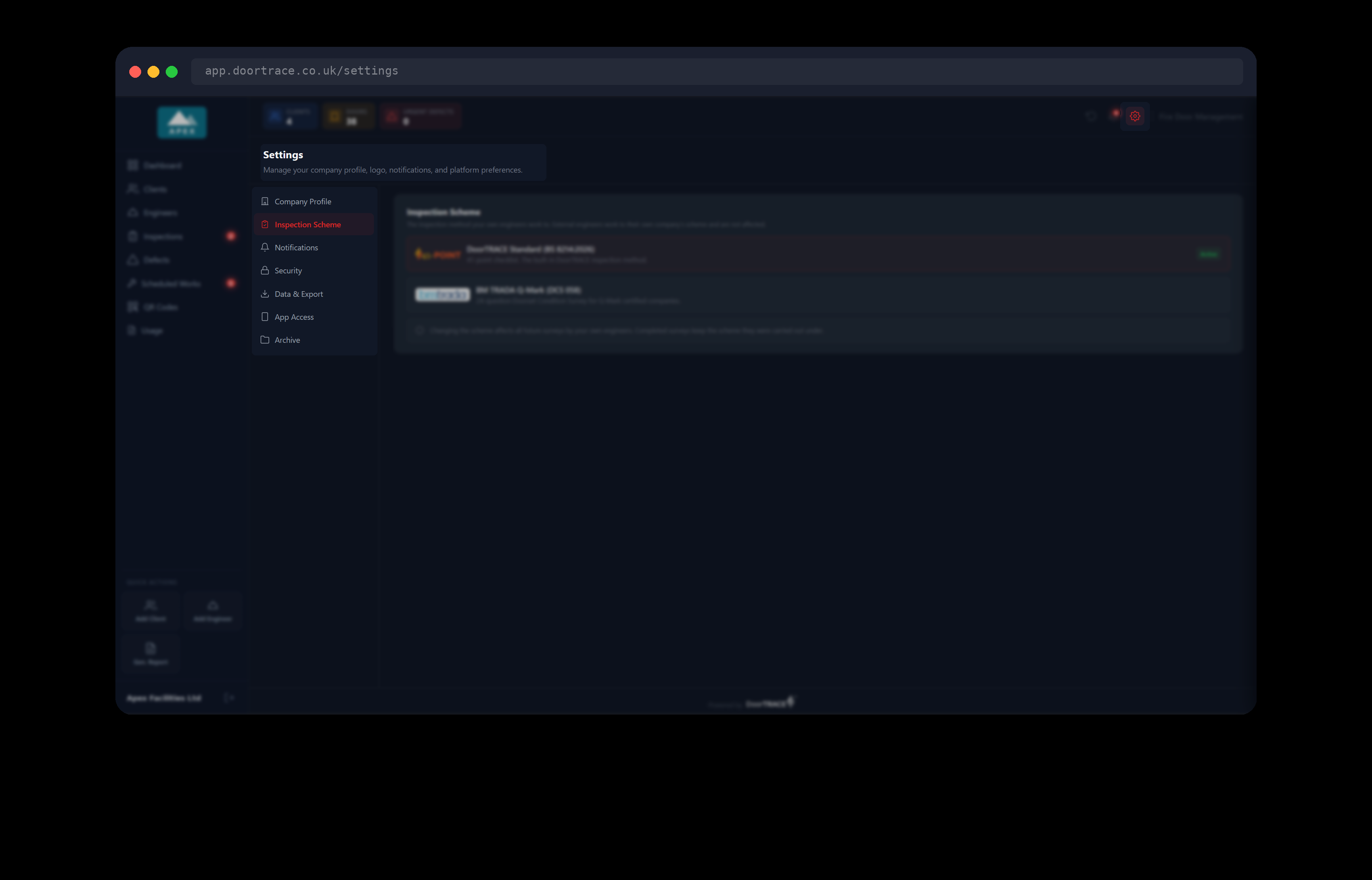
Settings is not in the menu on the left. Click the cog icon at the top right of the portal, next to the bell, then click Inspection Scheme in the list on the left of the Settings page. It is the second item, under Company Profile. While your details are being fetched you will see "Loading your inspection scheme…" for a moment. The page has one box, Inspection Scheme, which shows both schemes.
The two schemes
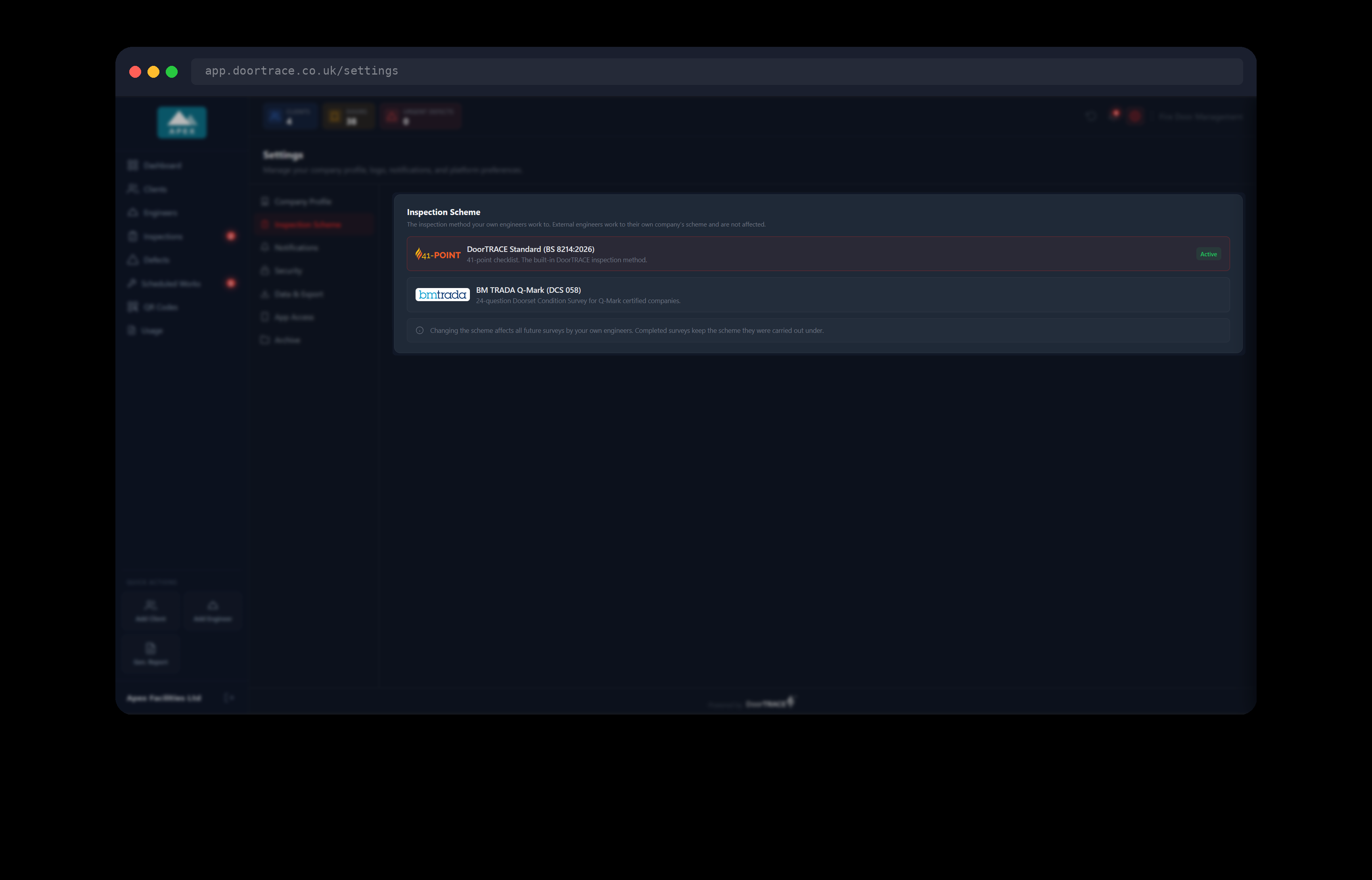
The scheme your company is on has a red outline and a green Active label.
- DoorTRACE Standard (BS 8214:2026) is the 41-point checklist, the built-in DoorTRACE inspection method. Every company starts here.
- BM TRADA Q-Mark (DCS 058) is the 24-question Doorset Condition Survey for Q-Mark certified companies.
The scheme applies to your own engineers only: the people who sign in to the engineer app with your company's app login, which is covered in App access for your own engineers. External engineers work to their own company's scheme, which they choose in the app, so nothing you do here changes the form they use. Your own engineers cannot change the scheme in the app. If they try, the app tells them it is set by their company.
Switching to BM TRADA Q-Mark
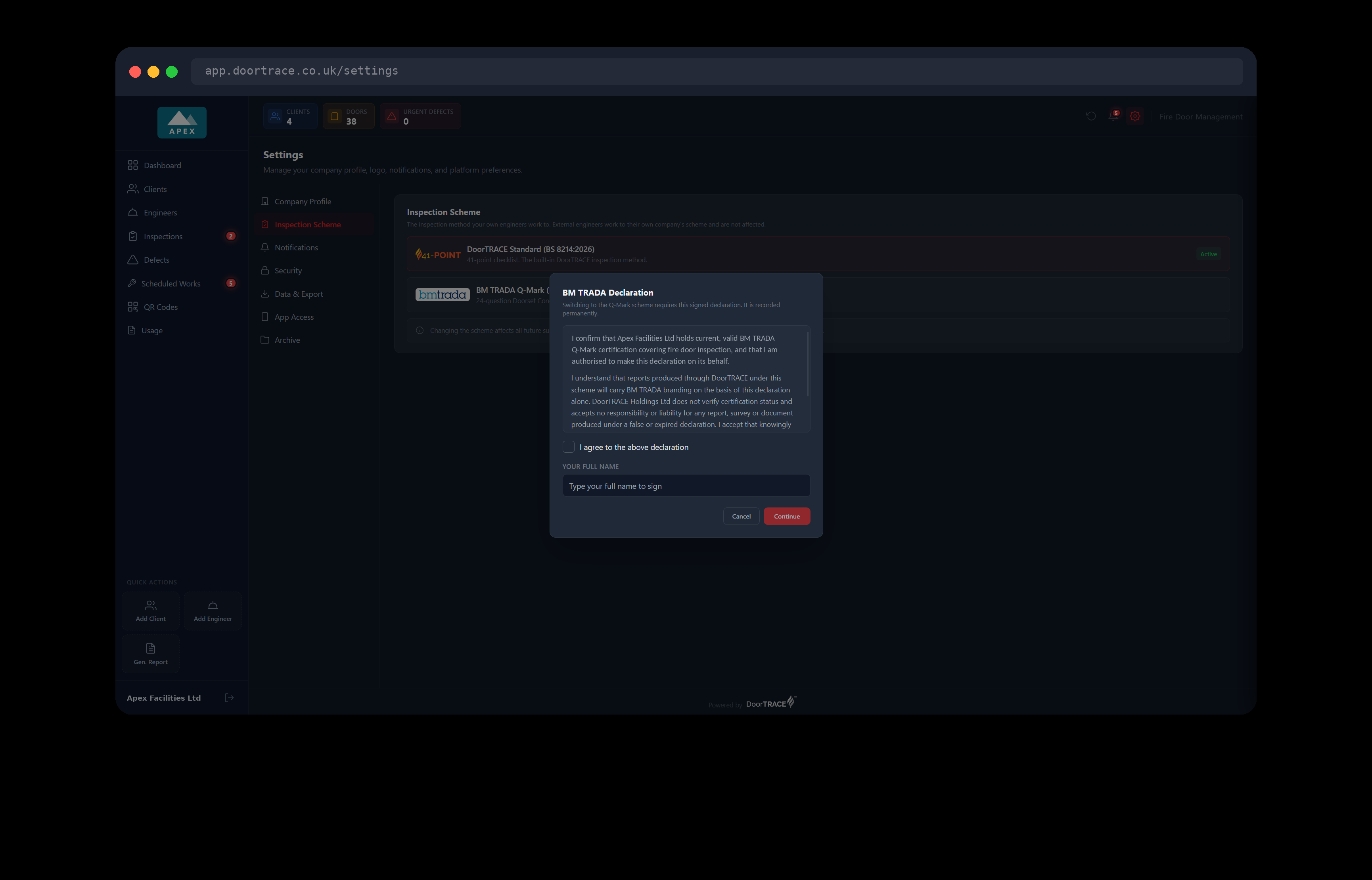
Click BM TRADA Q-Mark (DCS 058). The BM TRADA Declaration window opens with the line "Switching to the Q-Mark scheme requires this signed declaration. It is recorded permanently." Read the declaration. In it you confirm that your company, shown by name, holds current, valid BM TRADA Q-Mark certification covering fire door inspection, and that you are authorised to say so on its behalf. It also makes clear that your reports will carry BM TRADA branding on the strength of this declaration alone, that DoorTRACE does not verify your certification, and that responsibility for the declaration being true rests with you and your company.
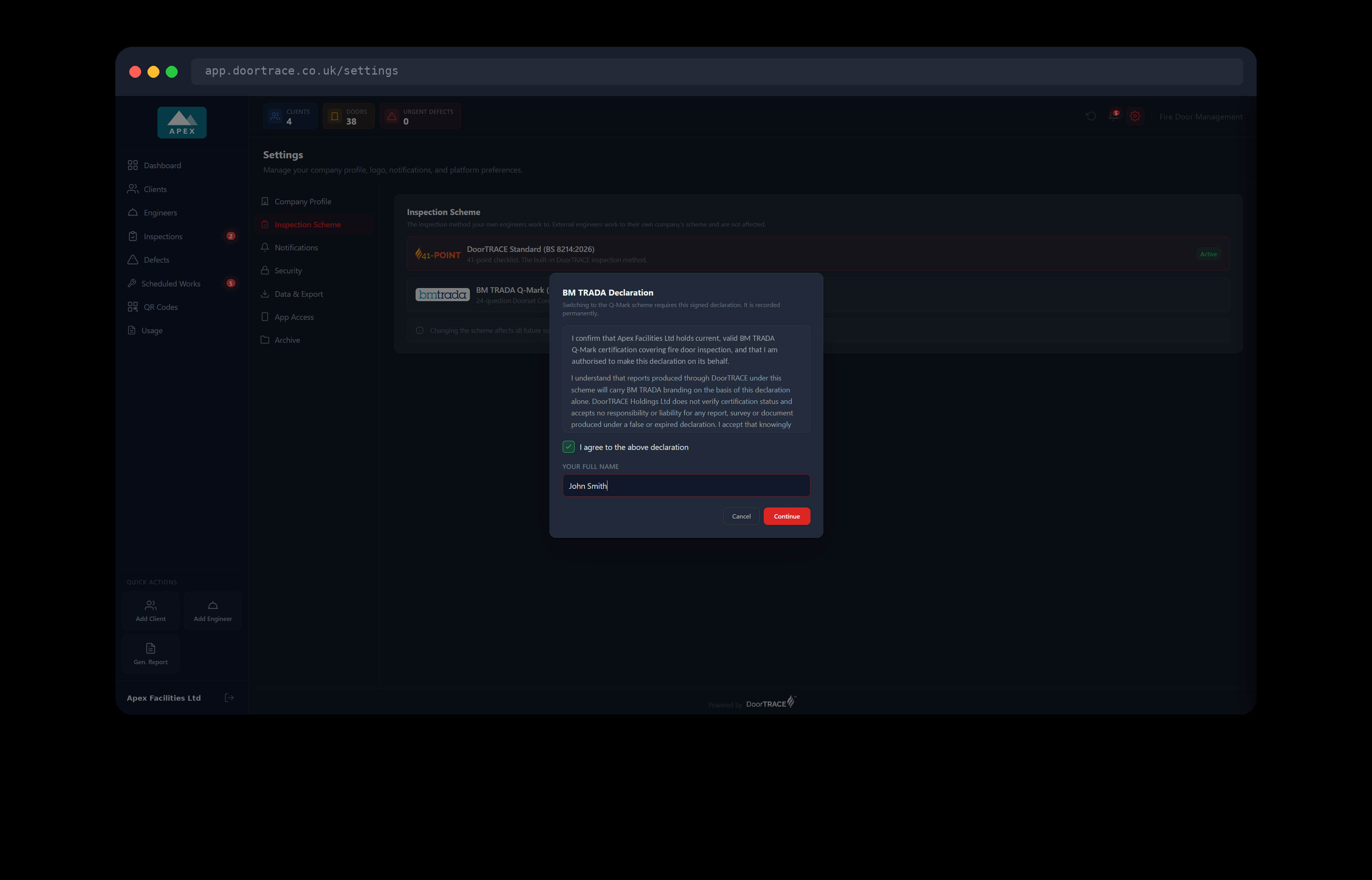
Tick I agree to the above declaration and type your name in Your Full Name. The Continue button stays greyed out until you have done both. Click Continue to move on to the password window, or Cancel to stop. DoorTRACE keeps a permanent record of every accepted declaration: the wording you agreed to, the name you typed and the login that made it. Nothing is recorded until your password has been accepted in the next step.
Confirming with your password
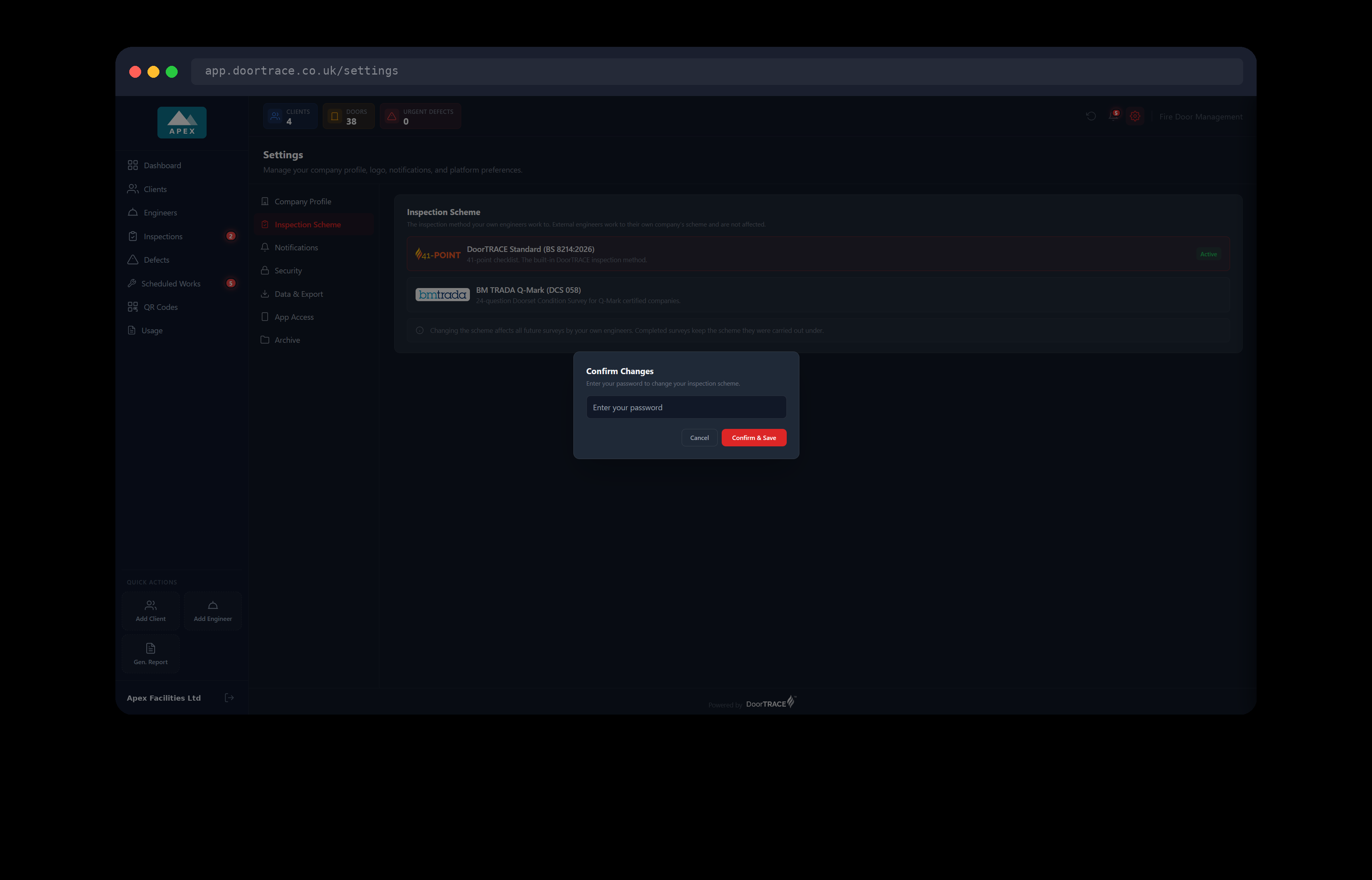
The Confirm Changes window asks for your portal password. Type it and click Confirm & Save. The button shows "Saving…", the window closes, and you will see "Inspection scheme updated". The Active label moves to the new scheme straight away. If you click Cancel here instead, nothing is changed, and a declaration you had just signed is thrown away without being recorded.
Switching back to DoorTRACE Standard
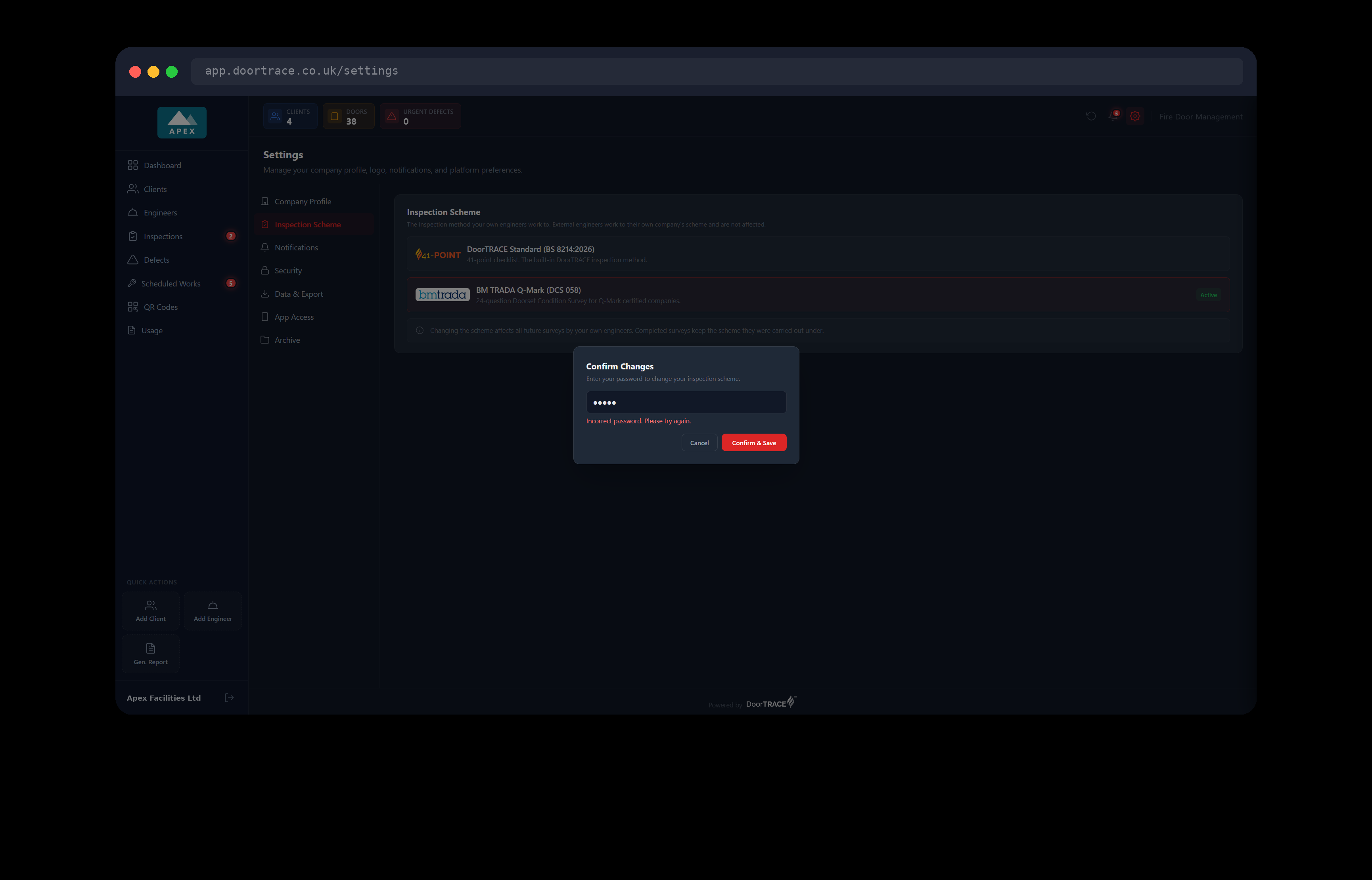
Click DoorTRACE Standard (BS 8214:2026). There is no declaration this way round, so you go straight to the Confirm Changes window. If you mistype your password you will see "Incorrect password. Please try again." The window stays open so you can try again, and nothing has been changed or recorded. If you later switch to Q-Mark again, you will be asked to sign a new declaration. One is recorded every time a company moves to the Q-Mark scheme.
What changes after a switch
The change applies to surveys, which means initial surveys and routine inspections.
- The next survey one of your own engineers starts while their phone has a signal uses the new form. There is nothing for them to set up.
- A phone with no signal keeps using the form it last downloaded until it is back online.
- A survey that is already under way is finished on the form it was started on.
- Completed surveys keep the scheme they were carried out under. Nothing in your history changes.
In the portal, every survey shows which scheme it was done under. A Q-Mark survey has a BM TRADA mark beside it in the list on the Inspections page. When you open it, the questions are headed Q-Mark Condition Survey and there is a Q-Mark Form button that downloads the official DCS 058 form. A standard survey has the 41-point mark and is headed BS 8214 Checklist. Downloading inspection reports covers the reports for both.
Where inspection frequencies are set
How often a door is inspected is not a company-wide setting, so it is not on this page. It is set in three places:
- On the building. Each building has a Default inspection frequency, chosen when you add the building and changed from Edit on the building page. Newly registered doors take it. See Adding a building and Managing a building.
- At the initial survey. The engineer confirms or changes the Inspection Frequency for each door during its initial survey.
- On the door. Click Change under Next Due on the door page. See Editing, rescheduling or de-registering a door.
Important: DoorTRACE never changes a frequency for you. In a building marked as over 11 metres, the portal and the app show an amber Regulation 10 warning when a communal door is set to be checked less often than quarterly. It is a warning only. The choice, and the legal duty, stay with you.
If something goes wrong
If you see a red box that reads Your inspection scheme could not be loaded, the portal could not reach DoorTRACE. Check your connection and click Try again. Neither scheme is shown as Active until your real setting has loaded, so you cannot be misled about which one you are on.
If the password window shows a message other than the wrong password one, for example because your connection dropped, nothing has been changed. Click Confirm & Save again, or Cancel and start again from the scheme you want.
What's next
Email notification preferences shows how to choose which emails DoorTRACE sends you, and how often.
Still can't find the answer?
Send us a message and we'll help. We respond within one working day.