FM Portal guides
FM Portal · Doors
Editing, rescheduling or de-registering a door
Last updated 20 Sept 2026
Once a door has been registered, three things about it can be changed from its page in the portal: its details (where it is, what type it is and its fire rating), how often it is inspected, and whether it is still in service at all. Each change is confirmed with your portal password and written to the door's audit trail, so there is always a record of who changed what and when. This guide covers all three. If you have not yet found your way around the door page, start with Viewing a door.
Before you start
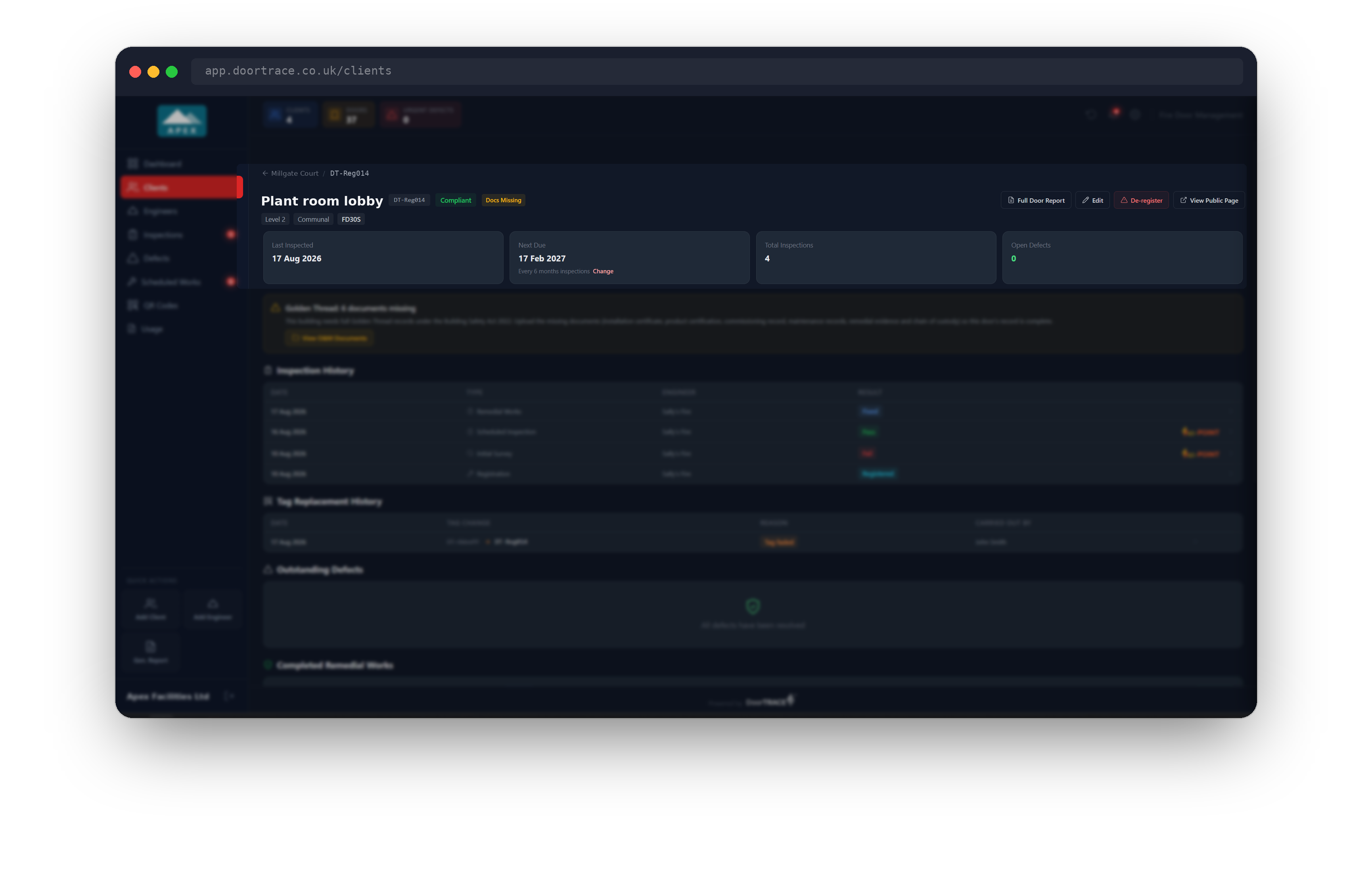
Open the door's page: go to Clients, open the client, open the building, then click the door's row in the door table. The Edit and De-register buttons are in the header at the top right of the page, and the Change link for the inspection frequency sits under the date on the Next Due card. You will be asked for your portal password to confirm each of these changes.
Editing a door's details
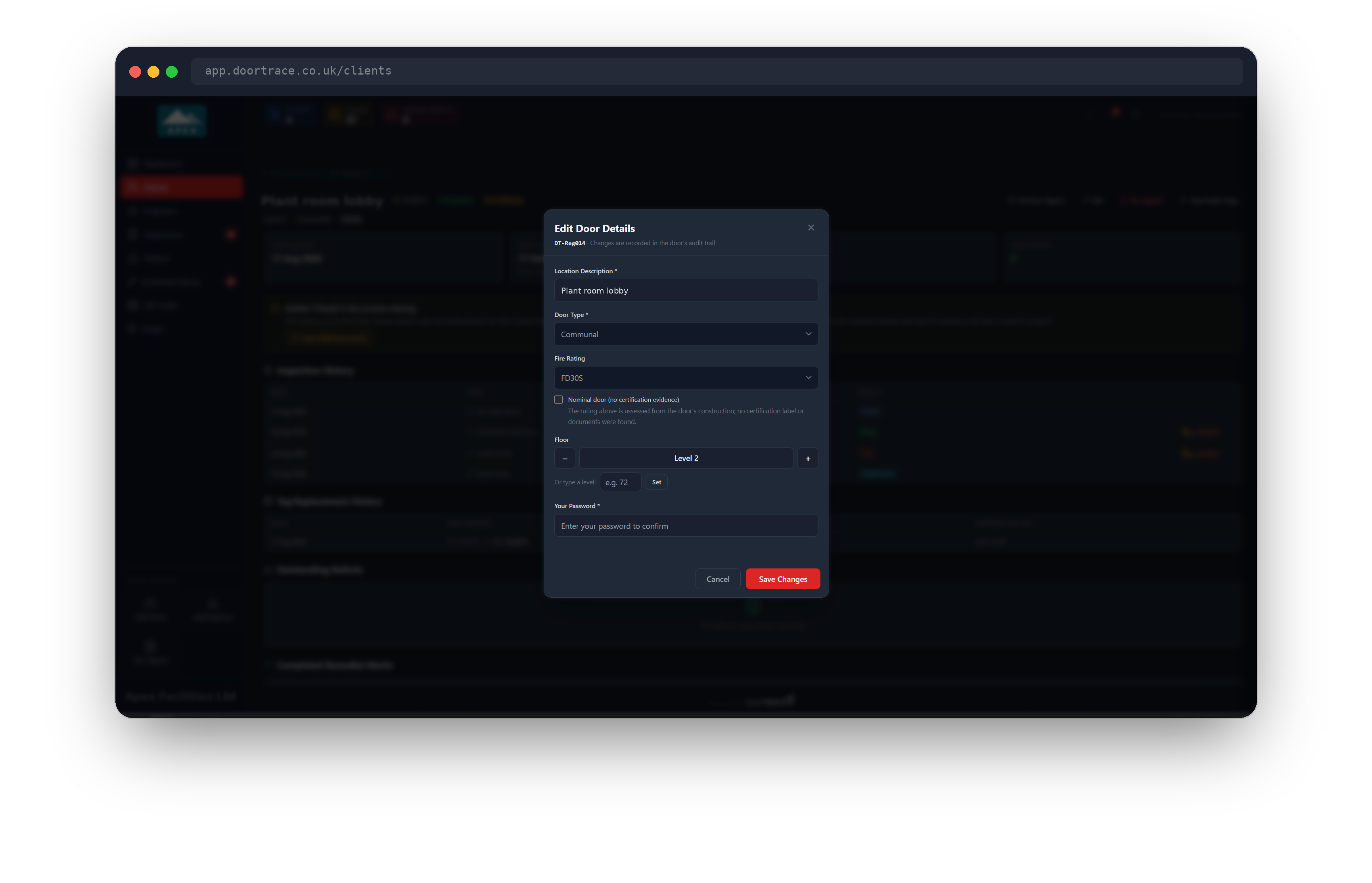
Click Edit in the header. The Edit Door Details pop-up loads the door's current record and shows four fields:
- Location Description: the plain-English description of where the door is, such as "Flat 12, bedroom 3". This is what appears as the door's name everywhere in the portal and on reports. It cannot be left blank.
- Door Type: Communal, Flat Entrance, Service, Stairwell, Lobby, Private Bedroom or Other.
- Fire Rating: FD30, FD30S, FD60, FD60S, FD90, FD120 or Unknown. Under it is a tick box, Nominal door (no certification evidence), for a door whose rating was assessed from its construction because no certification label or documents were found. Ticking it adds the Nominal badge to the door page; unticking it removes the badge.
- Floor: see the next section.
Change what you need, enter your password and click Save Changes. Only the fields you changed are sent, and the button reads Saving... while your password is checked and the change is saved, then Updated as the pop-up closes. The header and badges on the door page update straight away, and a new Door Updated line appears at the top of the Audit Trail listing which fields changed. If you have not changed anything, the pop-up says No changes to save.
Moving a door to another floor
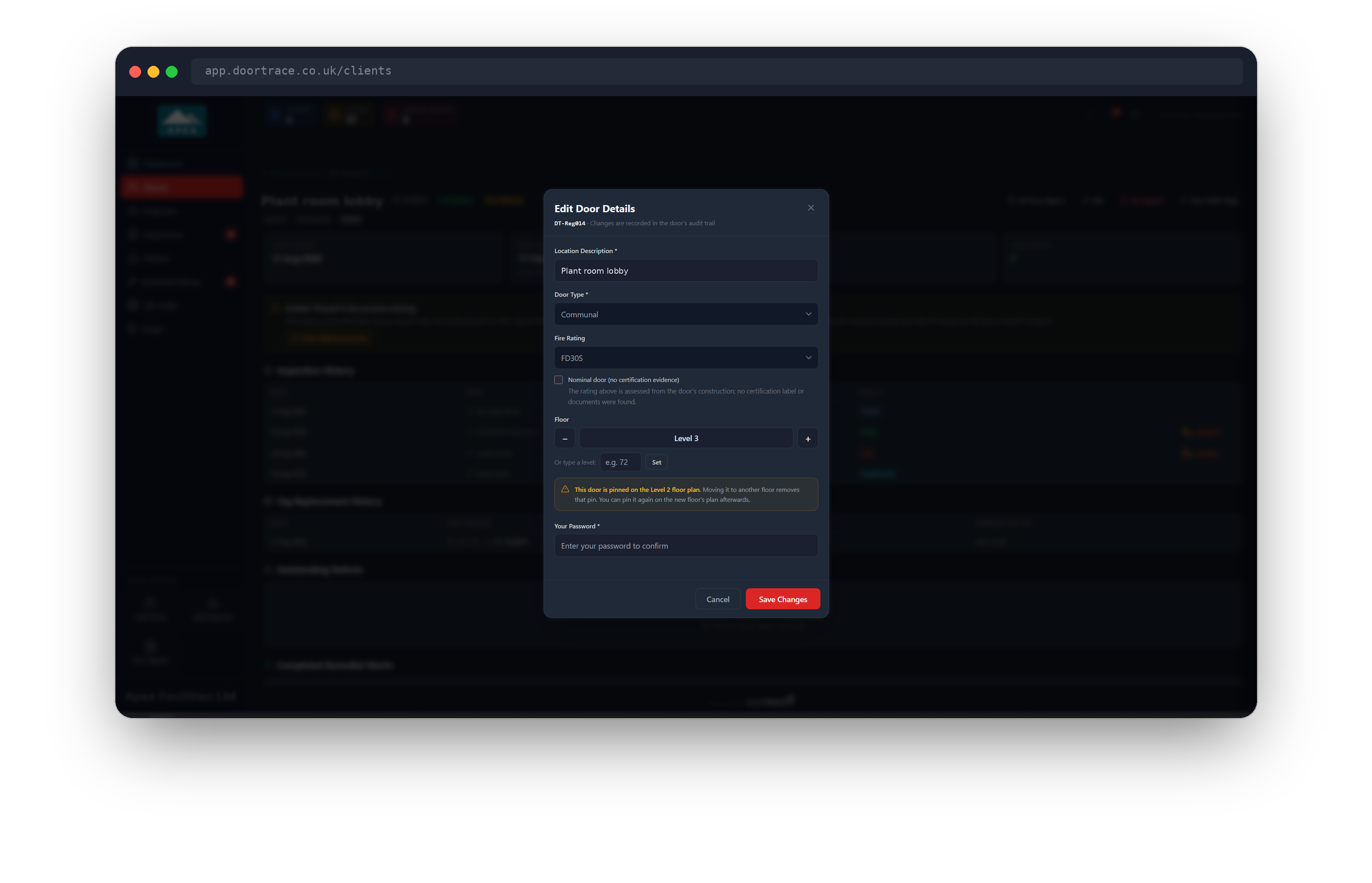
The Floor control works the same way as in the engineer app. The − and + buttons step through the building's floors one at a time, from Basement 20 up through Lower Ground, Ground Floor and Level 1 to Level 100, with Roof Level at the top. To jump straight to a level, type its number in the Or type a level box and click Set (or press Enter): a positive number is a level, 0 is the ground floor, and a negative number is a basement. If the building does not yet have a floor with that name, it is created for you when you save.
If the door is pinned on a floor plan, an amber note appears as soon as you move it off its current floor: This door is pinned on the [floor] floor plan. A pin is a position on one floor's plan, so moving the door removes the pin. You can place it again on the new floor's plan afterwards; see Pinning doors on a floor plan. The removal is recorded in the Audit Trail as its own entry.
Tip: A door on a floor with a non-standard name (one that is not "Ground Floor", "Level 3", "Basement 1" and so on) keeps that floor unless you deliberately step or type a new one.
Changing how often a door is inspected
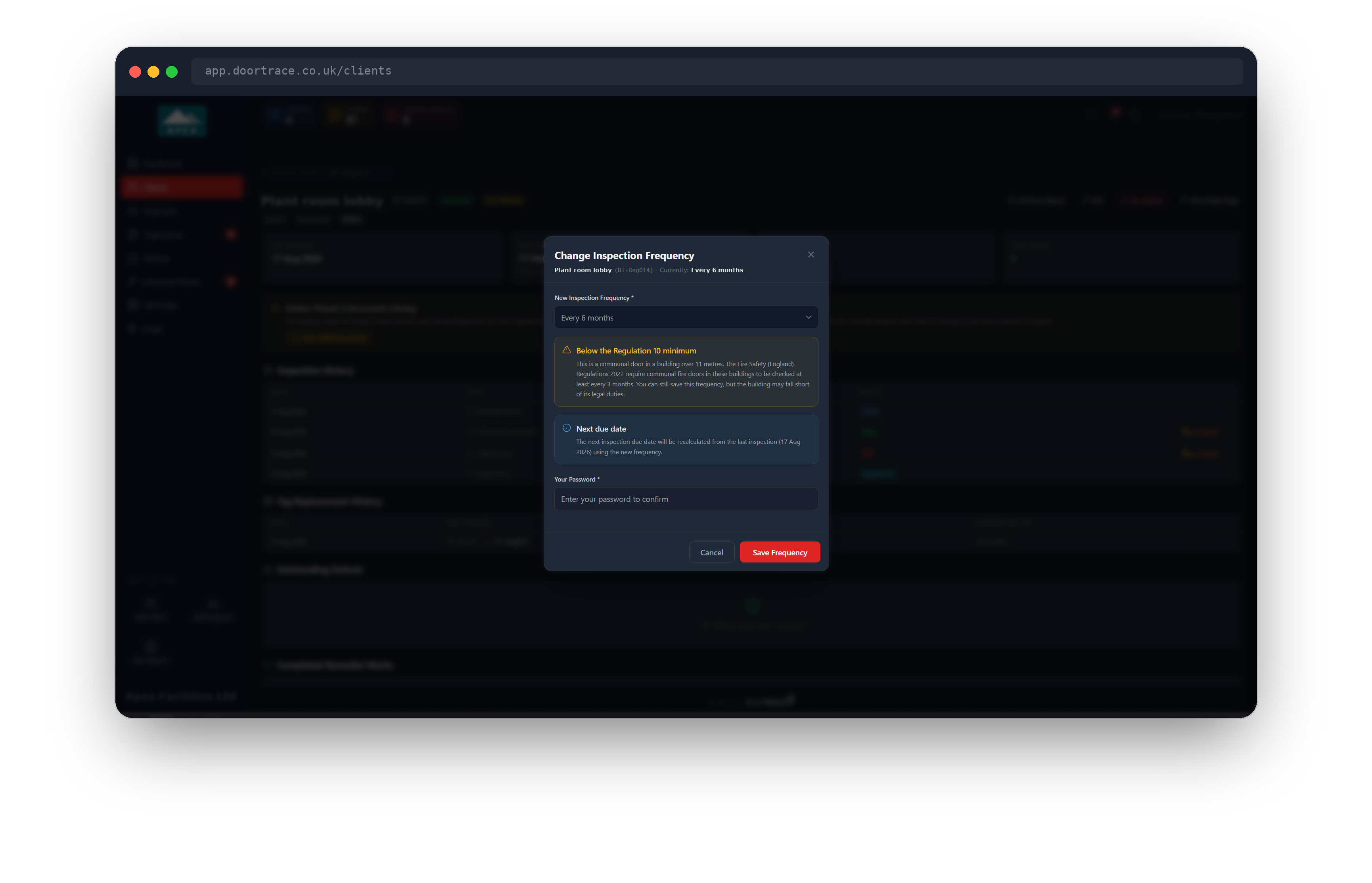
Every door has its own inspection frequency, which drives its Next Due date. To change it, click Change under the date on the Next Due card. The Change Inspection Frequency pop-up shows the current setting and offers four choices: Every month, Every 3 months (quarterly), Every 6 months or Every 12 months (annual). Pick one, enter your password and click Save Frequency. Choosing the frequency the door already has gives This is already the current frequency.
A blue Next due date note explains what happens to the due date. If the door has been inspected, the next due date is recalculated from the date of the last inspection using the new frequency, so a door last inspected on 17 August set to every 6 months becomes due on 17 February. If the door has never been inspected, its due date stays as it is and the new frequency applies from the first completed inspection. The Next Due card updates as soon as the pop-up closes, and the change is recorded in the Audit Trail.
Important: For a communal, stairwell or lobby door in a building over 11 metres, choosing anything longer than every 3 months shows an amber Below the Regulation 10 minimum warning. The Fire Safety (England) Regulations 2022 require communal fire doors in those buildings to be checked at least quarterly. The portal lets you save the longer frequency anyway, but the building may then fall short of its legal duties, so treat the warning as a prompt to check before you save.
The building also has a default frequency, set when it was added and changeable on its Edit Building page. That default is only applied to a door when the door is registered, or when the building's default is saved with the option to apply it to every door in the building; in that case it replaces the frequency set here. See Managing a building.
De-registering a door
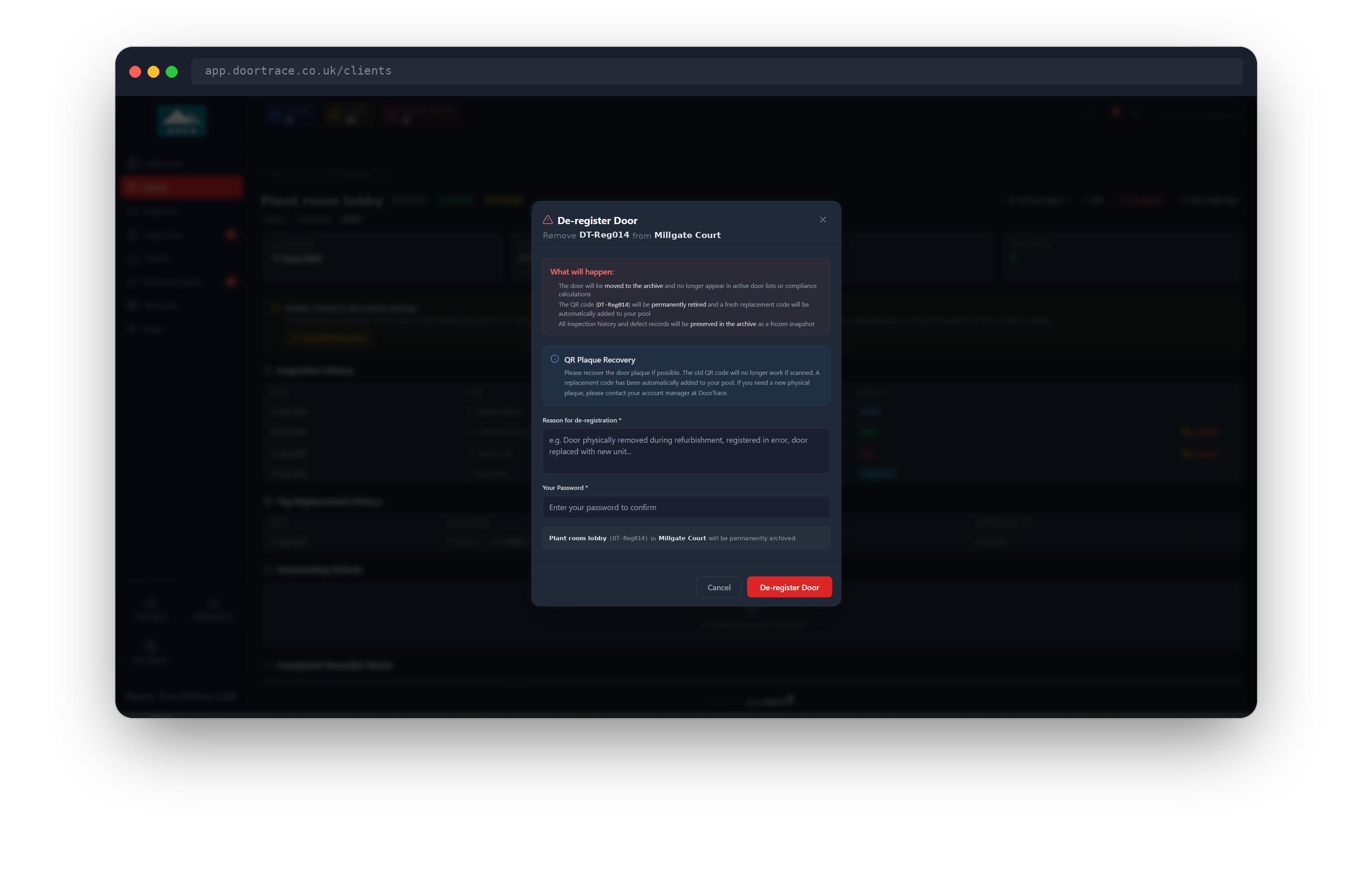
De-register a door when it has been physically removed, replaced with a new unit, or was registered in error. Click De-register in the header. The De-register Door pop-up explains exactly what will happen before you confirm:
- The door is moved to the archive and no longer appears in door lists or compliance calculations.
- Its QR code is permanently retired and a replacement code is added to your QR code pool automatically.
- Any defects that are open or scheduled are closed automatically. The pop-up shows how many.
- All inspection history and defect records are kept in the archive as a frozen snapshot.
The QR Plaque Recovery box asks you to recover the plaque from the door if you can, because the old code will no longer work when scanned: anyone scanning it is told the door has been de-registered. If you need a new physical plaque, contact your account manager at DoorTrace.
Type a Reason for de-registration (this is required and is kept with the archived record), enter your password and click De-register Door. The button reads De-registering... and then Archived, and you are returned to the building page with the message Door de-registered and archived. The door disappears from the building's door table and its counts.
Important: De-registering cannot be undone from the portal. The archived record, including the reason and who de-registered the door, can be viewed under Settings in The archive. If the door is still in place and simply needs different details, use Edit instead.
If something goes wrong
- Incorrect password means the password you typed does not match your portal login. Try again.
- Failed to load door details. Please close and try again. appears in the Edit pop-up if the door's record could not be fetched. Close it, check your connection and open it again.
- Failed to update door, Failed to update inspection frequency or Failed to de-register door means the change was not saved. Nothing is partly applied: try again, and if it keeps failing, contact DoorTrace support.
- If you moved a door to another floor and its pin is gone, that is expected: see Moving a door to another floor above.
What's next
To bring an engineer company into your portal so they can inspect your doors, see Adding an engineer.
Still can't find the answer?
Send us a message and we'll help. We respond within one working day.