FM Portal guides
FM Portal · External engineers
Managing an engineer
Last updated 27 Sept 2026
Every engineer company you work with has its own page in the portal. It brings together their contact details, documents, the buildings they are assigned to, their scheduled works and their recent inspections. This guide covers reading that page, assigning buildings to an engineer, and removing an engineer from your company. Approving documents is covered in Approving an engineer's documents.
Before you start
- This guide is about external engineer companies. Your own engineers share your company's app login, set up under Settings > App Access; see App access for your own engineers.
- The engineer must be on your Engineers page. To add one, see Adding an engineer.
- Assigning buildings and removing an engineer both ask for your portal password.
Opening an engineer's page
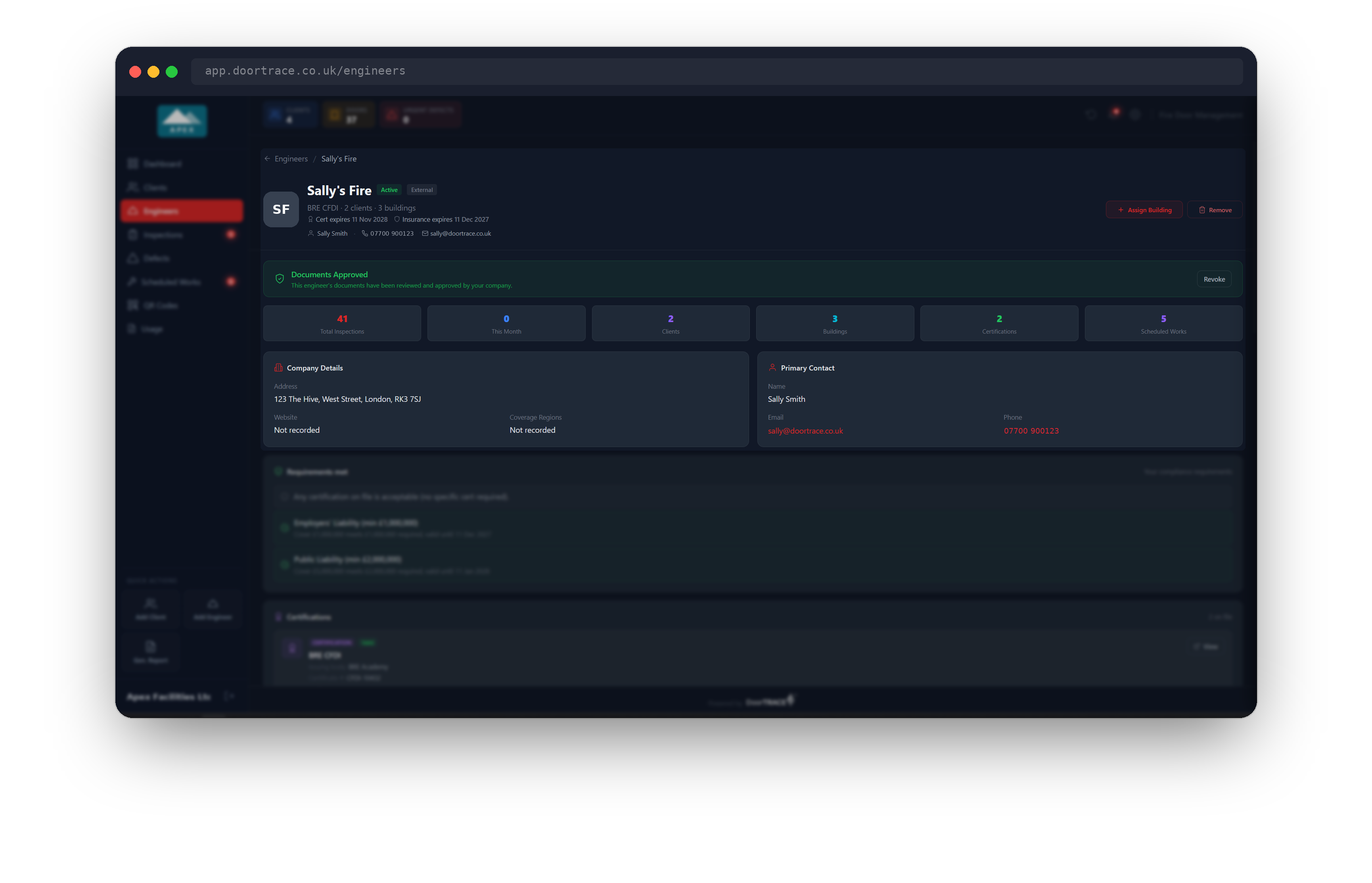
On the Engineers page, click an engineer's card. The page opens with the company name, their status badges and their contact person, phone and email across the top. Under the name you will see their first certification (or No certification recorded), followed by how many of your clients and buildings they are assigned to, and the dates their nearest certification and insurance expire. An expiry date turns amber when it is within 60 days and red once it has passed.
Two buttons sit on the right: Assign Building and Remove. To go back to the list, click Engineers in the top left.
Below the header, six cards show Total Inspections, This Month, Clients, Buildings, Certifications and Scheduled Works. The Company Details card shows the address, website and coverage regions the engineer has given DoorTRACE, and Primary Contact shows their named contact. Anything the engineer has not supplied reads Not recorded. You cannot edit these details: the engineer manages them through DoorTRACE.
Certifications and Insurance are explained in Approving an engineer's documents. View opens a document in a new tab.
Assigned Sites
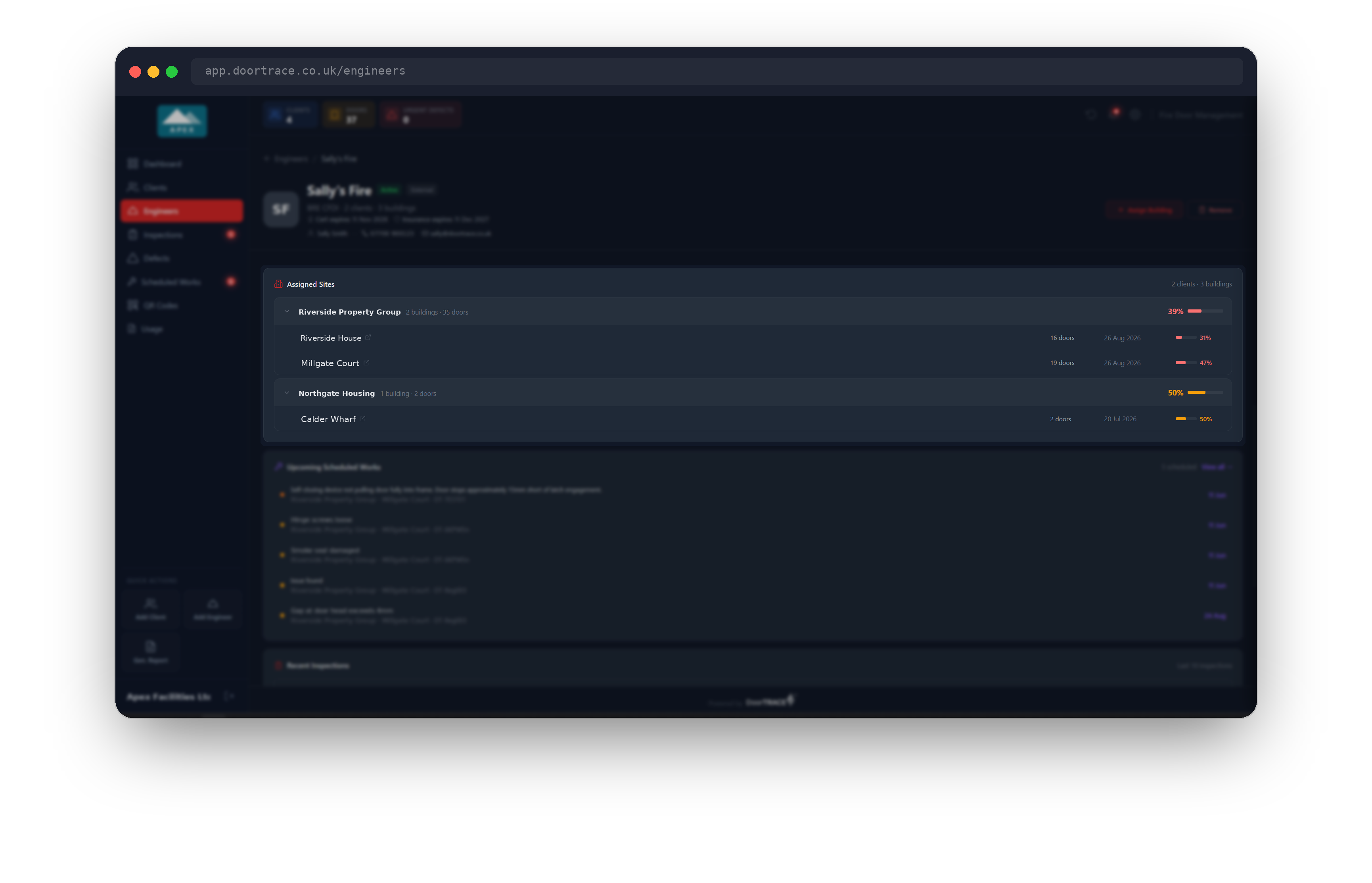
Assigned Sites lists every building the engineer is currently assigned to, grouped by client. Each client row shows how many buildings and doors that adds up to, and the average compliance across them. Click a client to expand it. Each building row shows the number of doors, the date the engineer last inspected there (or Not inspected), and the building's compliance.
Click a building to jump straight to its page under Clients. If the engineer is not assigned to anything yet, the card reads No sites assigned yet.
Tip: An engineer is assigned to a building, not to a client. Assigning them to one of a client's buildings does not assign them to the rest.
Assigning buildings
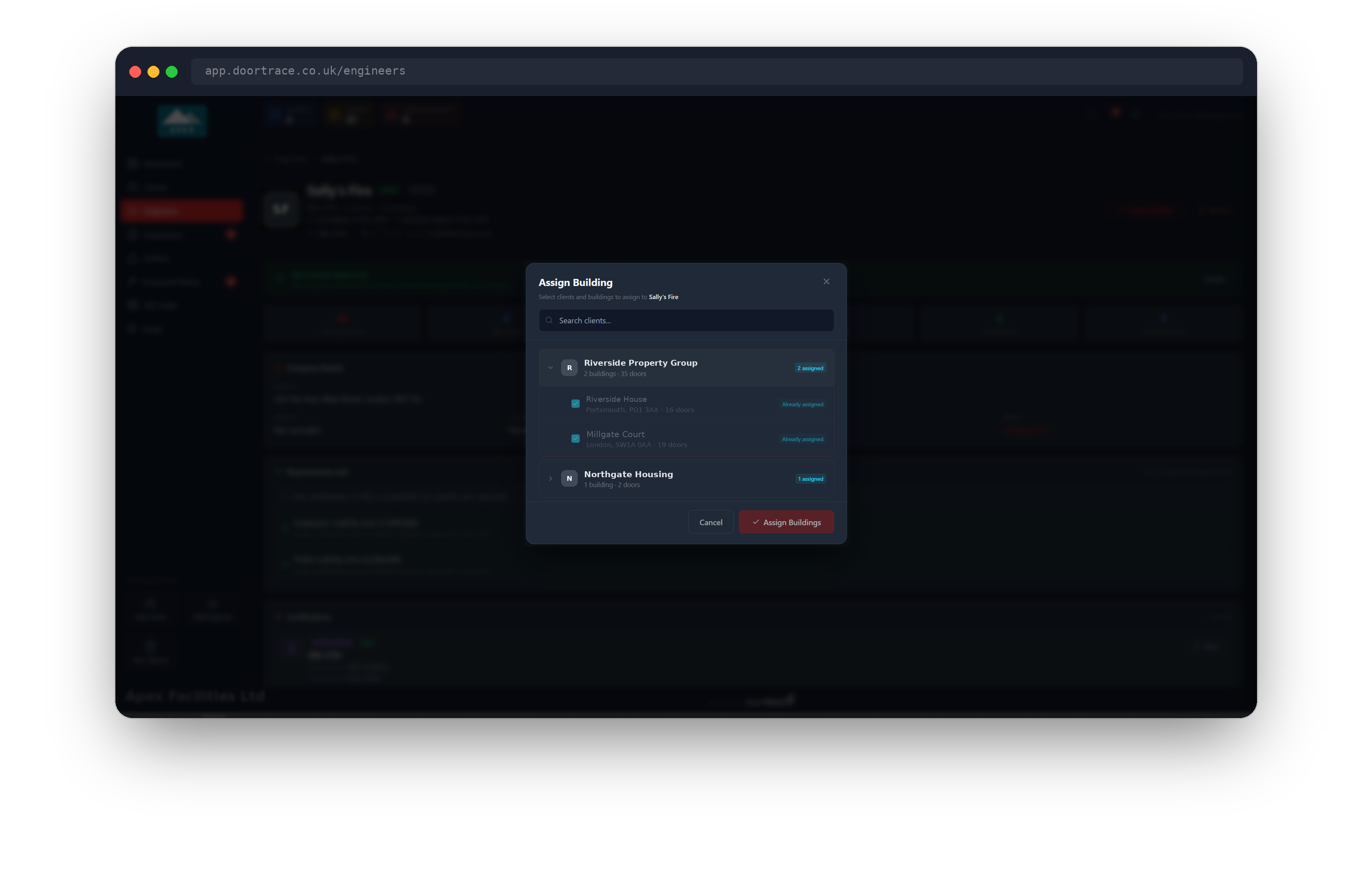
Click Assign Building. The window lists your clients with a building and door count for each. Use Search clients... to narrow the list, then click a client to see its buildings. Tick the buildings you want. Buildings the engineer already has are greyed out and marked Already assigned; when a client has more than one building still available, Select all available buildings ticks them in one go.
As you tick, the client row shows +n new, and a summary at the bottom confirms how many buildings across how many clients will be assigned. Enter your password under Confirm Password and click Assign n Buildings.
Assigning a building does three things:
- The engineer becomes the building's assigned engineer. A building has one assigned engineer at a time, so anyone previously assigned is replaced.
- Any inspections still pending on that building move to the new engineer.
- The change is written to the building's audit trail.
The building then appears in the engineer's app. Scheduled remedial work is not moved; see Scheduling remedial work.
Important: The portal will not assign work to an engineer who cannot do it. If you see This engineer's documents have not been approved yet. Approve their documents before assigning them work., approve their documents first. This engineer has not accepted your invitation yet means they have not clicked the link in their invitation email. An engineer with no certifications or no insurance on file at all is paused and cannot be assigned until DoorTRACE has their documents.
Upcoming Scheduled Works
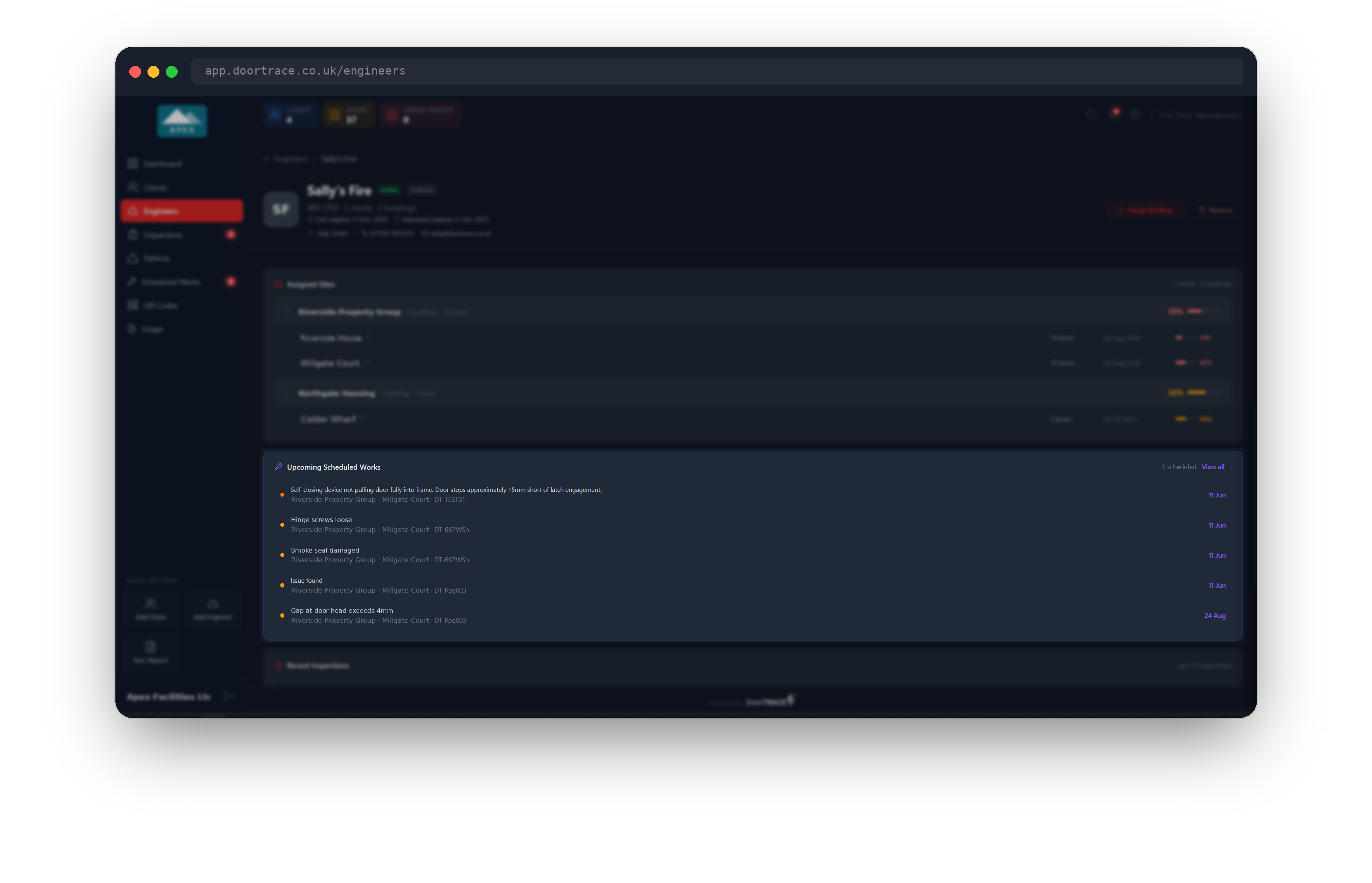
If any remedial work is booked with this engineer, an Upcoming Scheduled Works card appears above Recent Inspections. It shows up to five jobs with their priority dot, description, client, building and door, and a date: the target date if one was set when the work was scheduled, otherwise the date it was booked. Click any row, or View all, to open the Scheduled Works page. Work is matched to the engineer by company name, so it is the same list you will see under their name on that page.
Recent Inspections
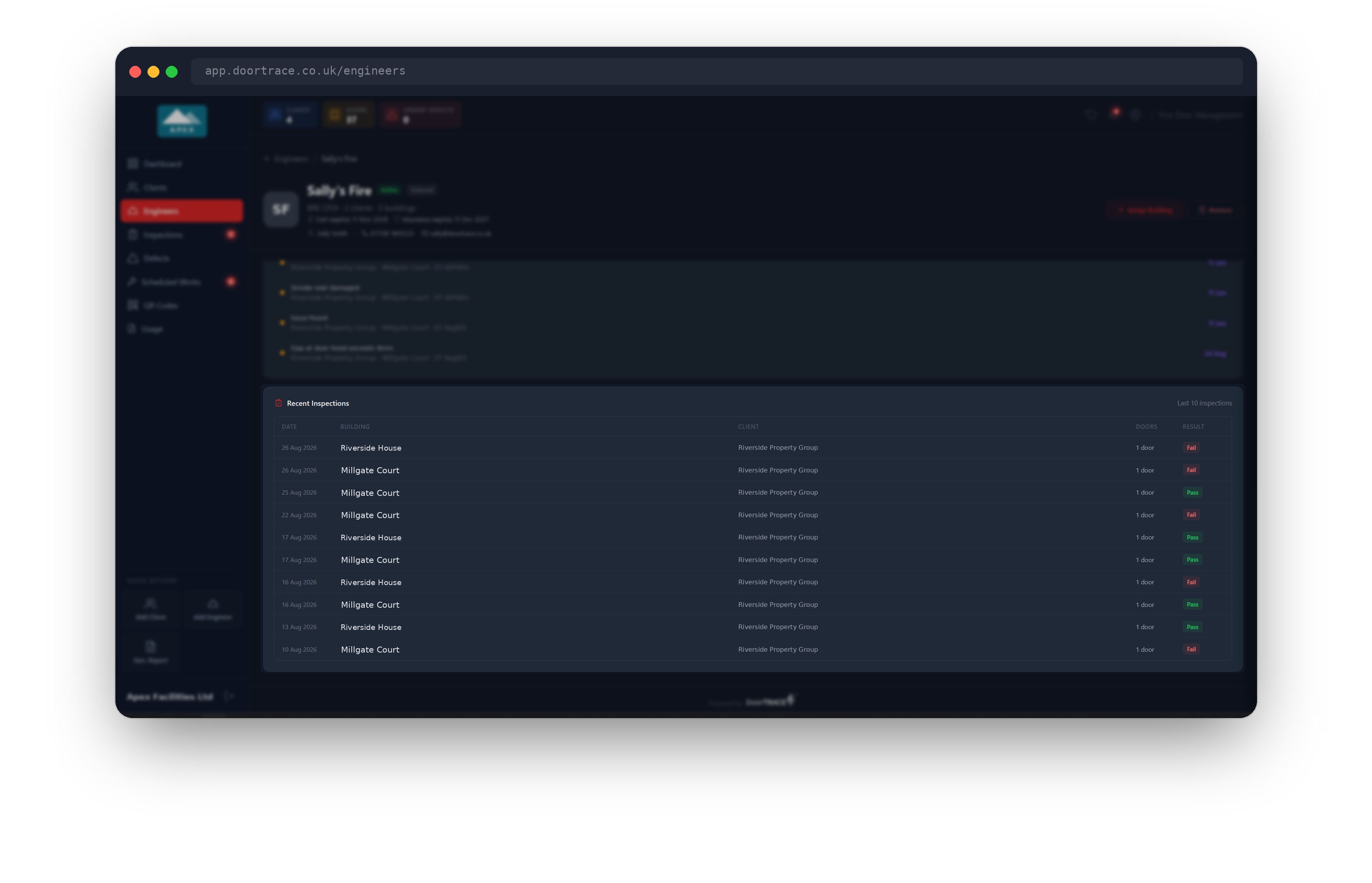
Recent Inspections lists the engineer's most recent completed inspections with the date, building, client and result (Pass, Fail or Remedial). Each row is one door. An engineer who has not inspected for you yet shows No inspections recorded yet.
Removing an engineer
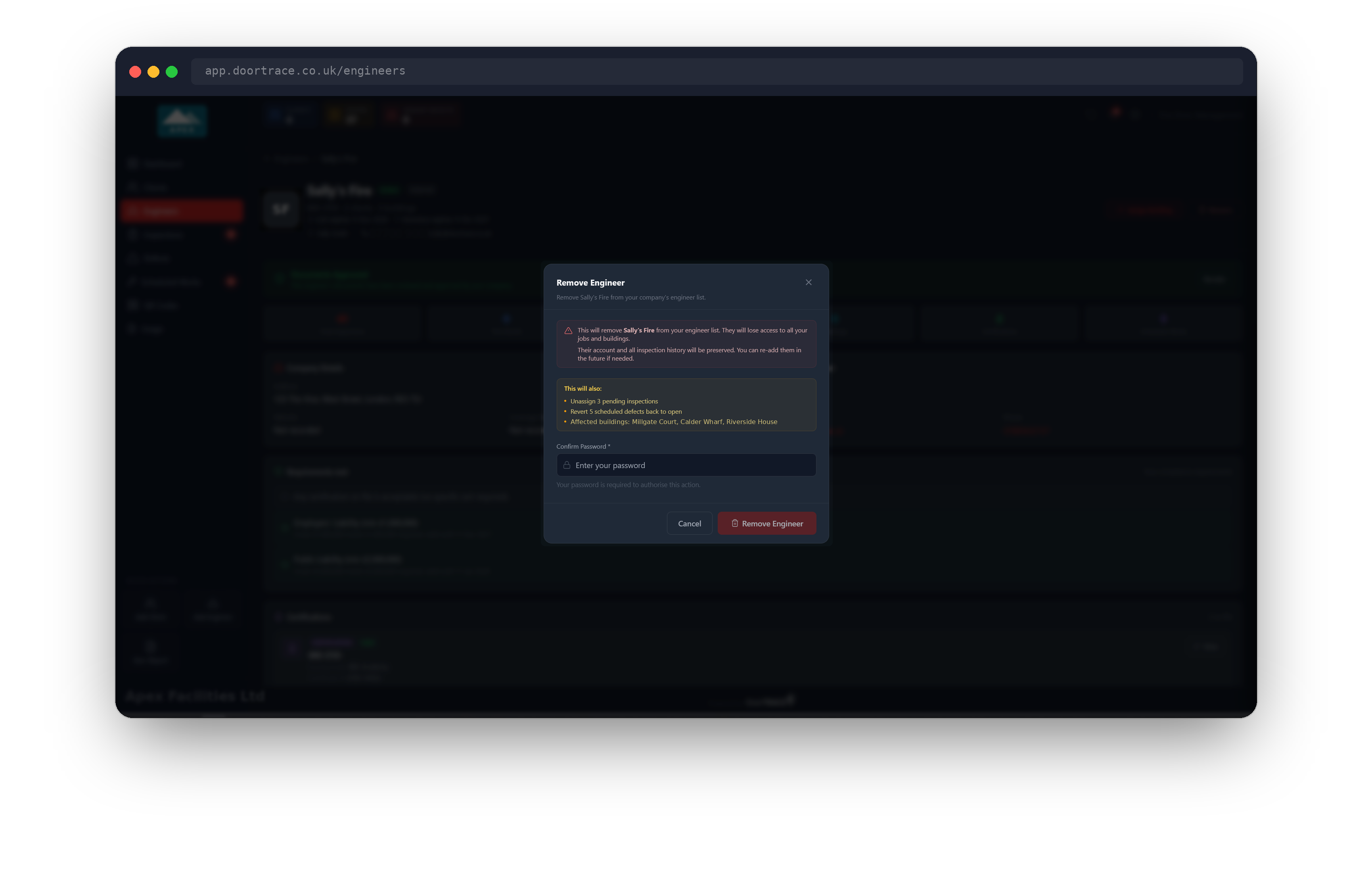
Click Remove in the header. The portal checks what the removal will affect (Checking impact...) and then lists it under This will also:, for example pending inspections that will be unassigned, scheduled defects that will go back to open, and the buildings affected. If nothing is affected, that list does not appear.
Enter your password under Confirm Password and click Remove Engineer. Removing an engineer:
- Takes them off your engineer list and off every building they were assigned to.
- Unassigns any inspections they had not yet completed.
- Puts any remedial work booked with them back to Open, and the doors involved back to Requires Action, so you can book it with someone else.
- Signs them out of the app.
Their account and every inspection they have completed for you are kept, so your history and reports are unchanged. No email is sent. You can add them again later from Add Engineer.
Tip: You can also use Remove on an engineer who has not accepted your invitation yet. It cancels the invitation.
If you see...
- Incorrect password: the password you entered does not match your portal login. Try again.
- Assigned 2 buildings before an error: the first buildings were assigned, then one failed. Open Assign Building again to see what is still available and try the rest.
What's next
The Inspections page shows every inspection across your buildings, including the ones these engineers have scheduled.
Still can't find the answer?
Send us a message and we'll help. We respond within one working day.