FM Portal guides
FM Portal · Getting started
Notifications in the portal
Last updated 13 Sept 2026
The notification bell in the top bar collects the things across your account that need a decision from you: overdue inspections, buildings with low compliance, urgent defects, remedial work that has run past its allowance, and engineer companies whose documents need attention. Every notification is worked out from the same live figures as your dashboard, and every one is a link to the page where you can act on it. This guide explains what the bell shows and how to work through it.
The bell
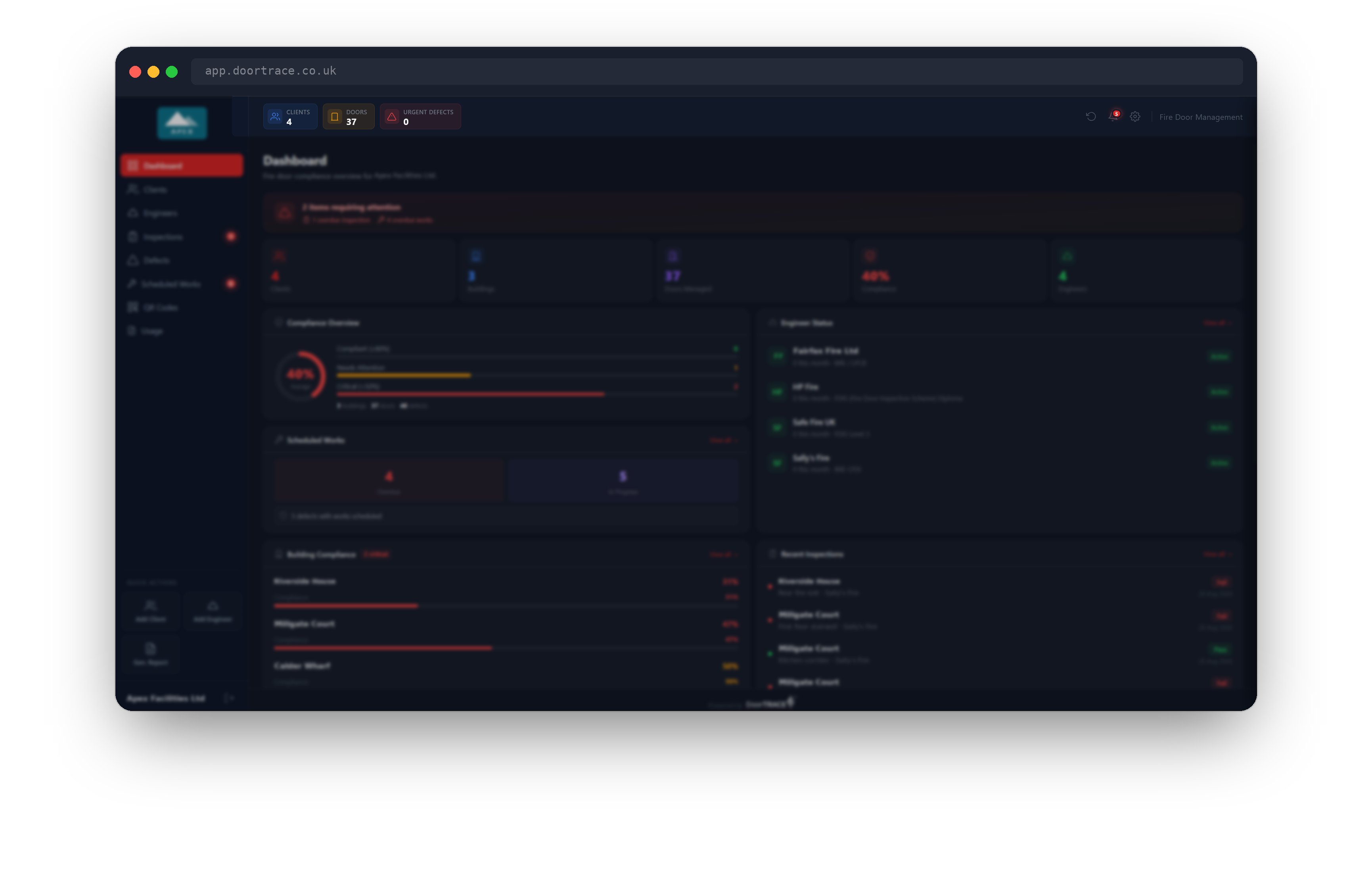
The bell sits in the top bar, between the refresh button and the settings cog, so it is available on every page. When you have unread notifications a red count appears on the bell (it shows 99+ above 99) and the bell gives a small shake every few seconds until you open it. If any unread notification is critical, the count glows red.
Click the bell to open the panel. Click it again, press Escape, click the X in the panel, or click anywhere on the darkened page behind it to close it. The panel always opens on the All tab.
The panel
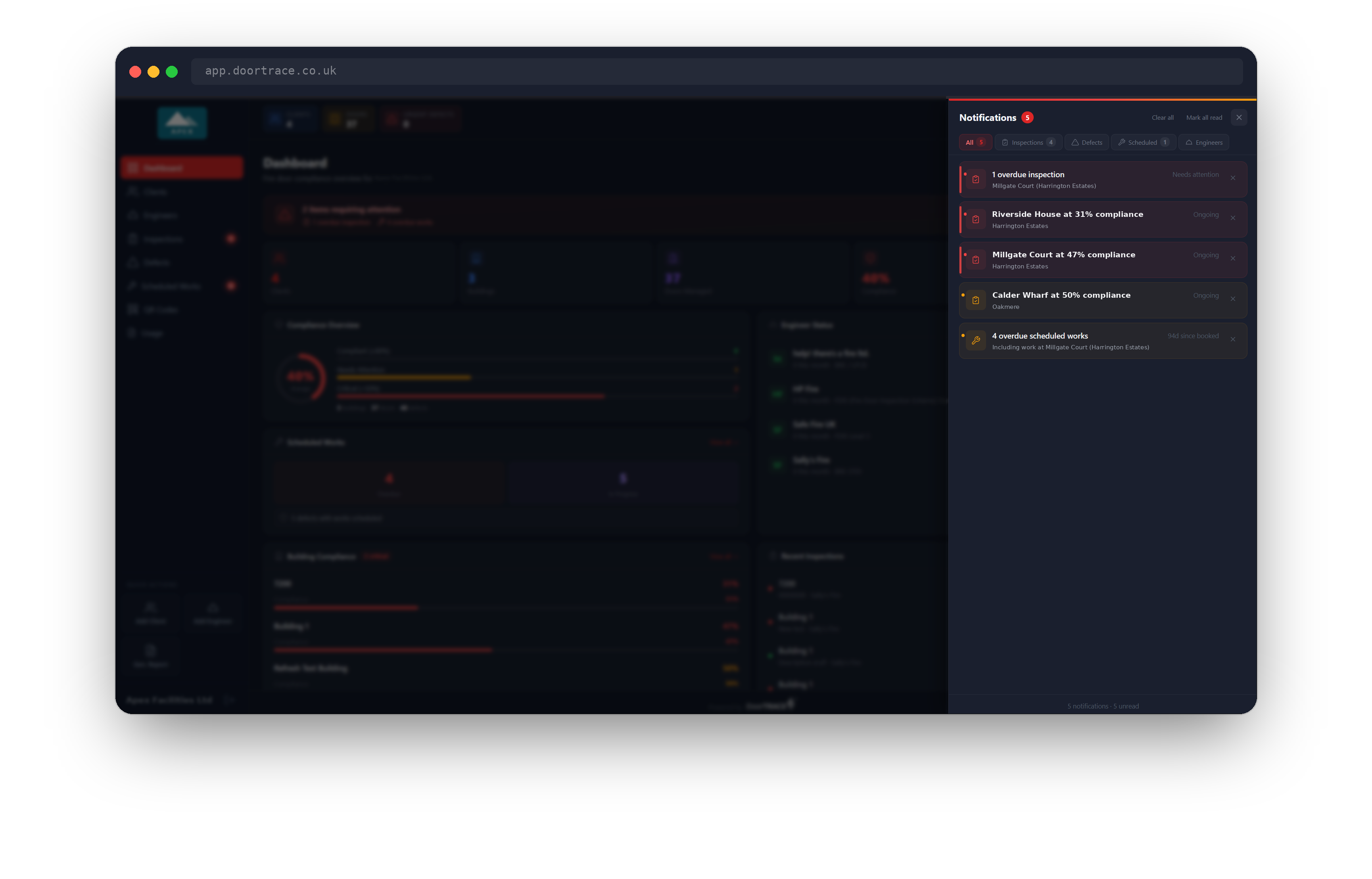
The panel slides in from the right. At the top is the title with your unread count, then Clear all and Mark all read where they apply, then five tabs: All, Inspections, Defects, Scheduled and Engineers. Each tab shows how many notifications it holds. Below the tabs, notifications are listed with the most serious first: critical ones have a red bar down the left edge, then amber warnings, then blue information.
An unread notification shows its title in bold with a coloured dot beside the icon. Once read, it fades to grey but stays in the list. On the right of each one is a short label: a real figure where the portal has one, such as 12d open for a defect, 94d since booked for remedial work or 21d remaining for an expiring document, or a plain Needs attention, Ongoing, On track or Action required where there is nothing to count. The footer shows how many notifications are in the list and how many are still unread.
What each notification means
The portal builds the list from your live data every time it reloads, so what you see always matches your dashboard. Notifications are grouped into tabs by what they are about.
Inspections holds two kinds. Overdue inspections are listed one line per building, up to five buildings with the most overdue doors first. A door is overdue when its next inspection date is in the past; doors that have never been inspected are not counted. If more than five buildings have overdue doors, a sixth line totals the rest. Low compliance lines appear for up to six buildings that have doors and sit below 85 percent compliance, with the lowest first. Below 50 percent the line is critical; from 50 to 84 it is a warning. This is the same rule as the Building Compliance card on the dashboard. A building's compliance is the share of its registered doors that are currently Compliant.
Defects holds at most two lines, both counting defects that are still Open (scheduled and completed defects are not included). One line counts your Critical defects and names the one that has been open longest; the other counts High priority defects. Medium and low priority defects never raise a notification.
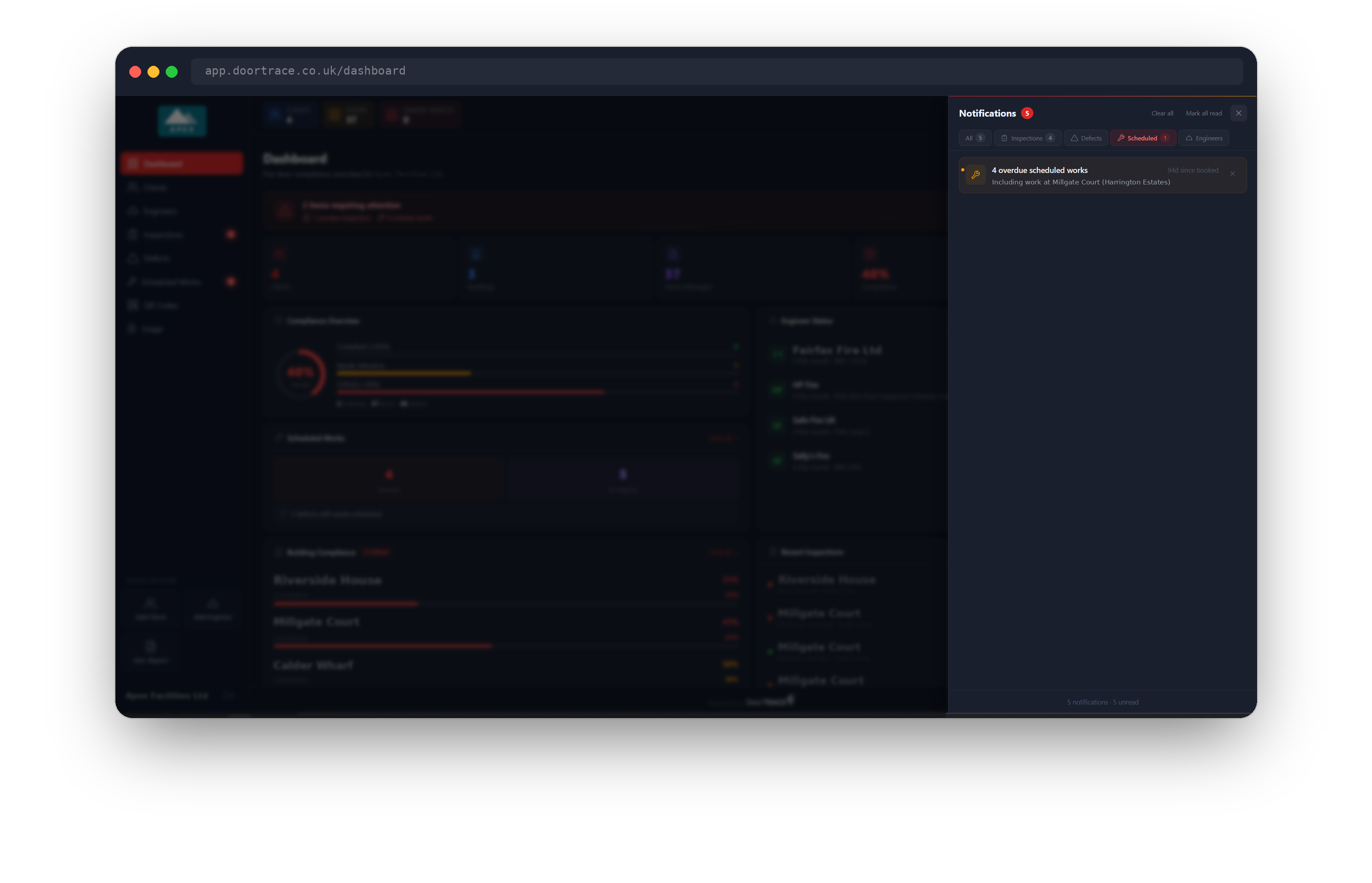
Scheduled holds one line. If any remedial work was booked in 90 or more days ago and is still not completed, the line counts those overdue jobs, names the oldest and shows how many days it has been. This is the same 90-day rule the dashboard and the Scheduled Works page use: a door with booked remedial work counts as Compliant for 90 days, and after that it goes back to Requires Action. If nothing is overdue but you have work booked, the line simply reports how many jobs are in progress and that all are on track.
Engineers holds one line per external engineer company that needs attention. Your own internal engineers, managed under Settings, never appear here. A company whose documents have expired, whose account has been suspended, or which has not yet uploaded both a certification and insurance gets a critical line marked Action required. A company with missing documents cannot sign in to the engineer app until they are uploaded. An active company whose earliest document expiry is within 60 days gets a countdown line naming that document, for example Fairfax Fire Ltd: Public Liability expires in 21 days. The line is amber until 30 days remain and red after that. The expiry counted is the earliest across all of that company's certifications and insurance.
Acting on a notification
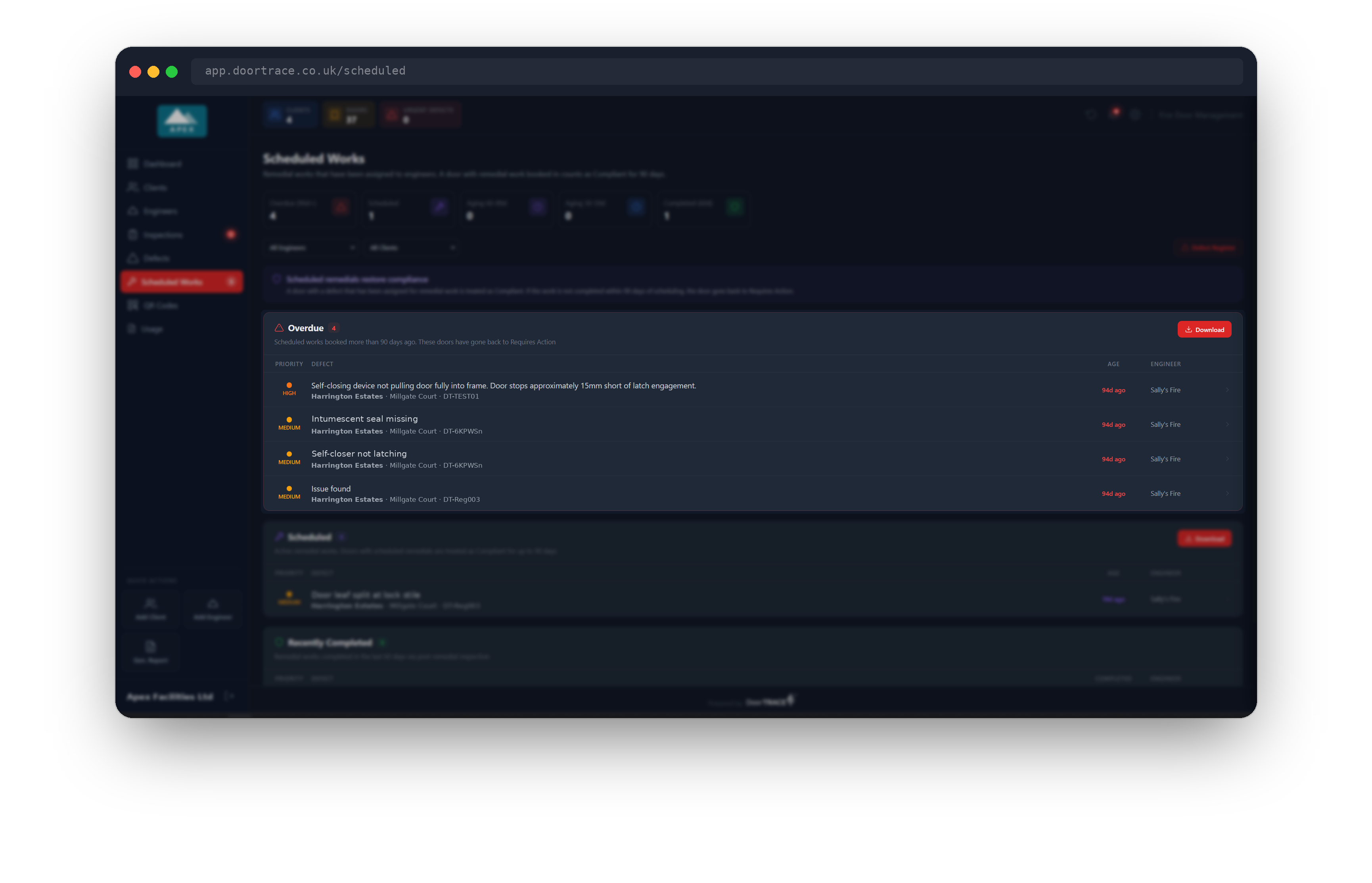
Every notification is a link. Click anywhere on it and the panel closes and the portal takes you to the right place, marking the notification as read on the way:
- An overdue inspection or low compliance line opens that building's page under Clients.
- A critical or high defect line opens the Defect Register, already filtered to that priority.
- The overdue remedial work line opens Scheduled Works with the Overdue section expanded. The on-track line opens Scheduled Works.
- An engineer line opens that engineer company's page.
Hover over a notification and a small arrow appears on the right to show it will take you somewhere.
Marking read and clearing
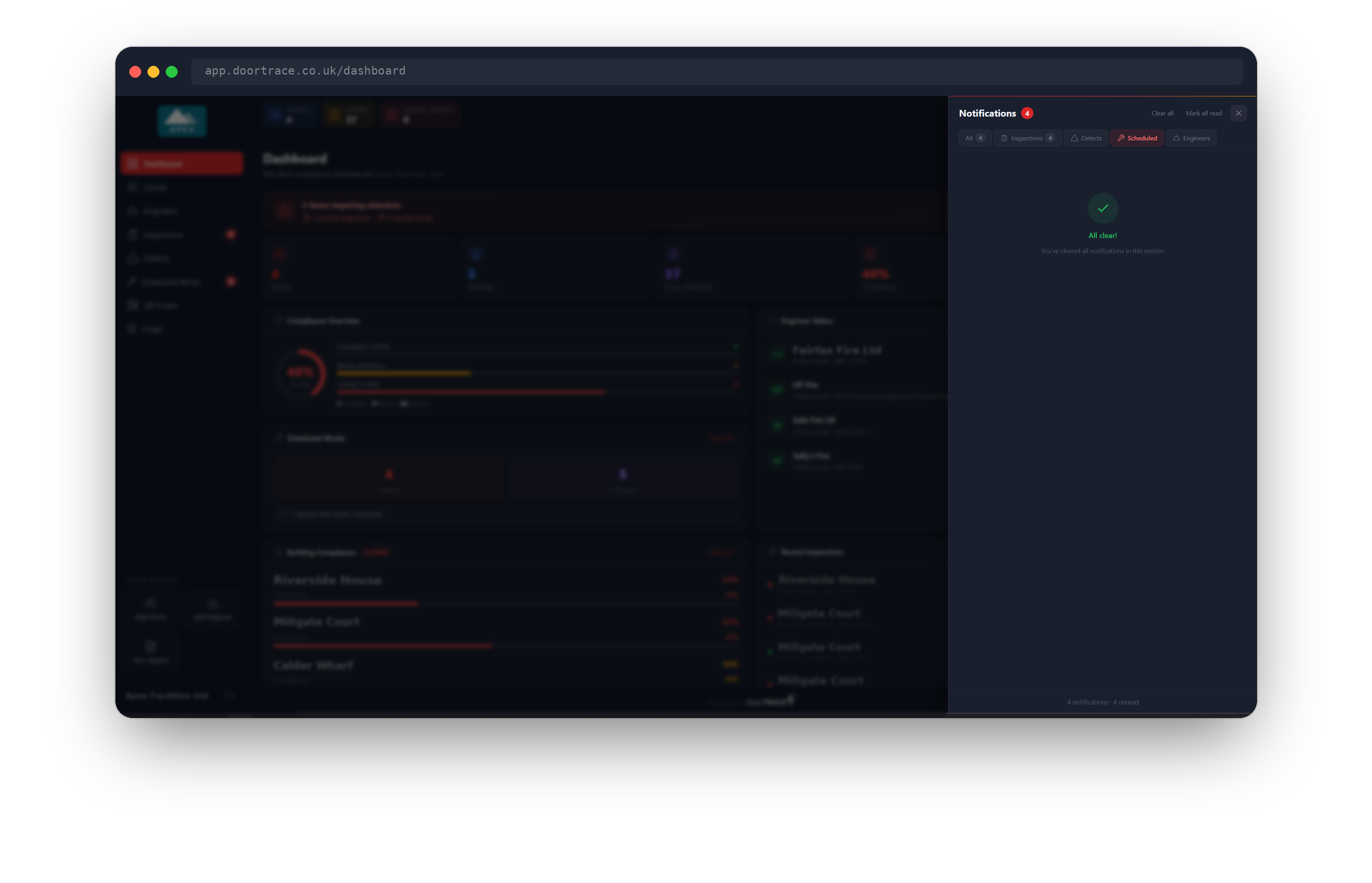
Clicking a notification marks it read. Mark all read marks every notification in the tab you are looking at as read, without going anywhere. Click the X on a single notification to dismiss it, or Clear all to dismiss everything in the tab you are looking at. On the All tab, both buttons act on everything. A dismissed notification disappears from the list; if you clear every notification in a tab, the tab shows All clear! with a green tick.
Read and dismissed notifications are saved to your company's account, not to your browser. Sign in on another computer and they stay read or cleared, and colleagues in your company see the same list you do. The portal fetches this state when you sign in and each time you press the refresh button in the top bar. If a change cannot be saved, you will see a message saying so, and that notification will show again next time you sign in.
A dismissed notification is tied to the figures it reported. When those figures change, for example a second critical defect is raised or the count of overdue inspections at a building changes, the notification returns as a new unread item so nothing is missed. An expiry countdown stays dismissed until the document is renewed or the line turns red at 30 days. A cleared notification that has not changed in six months will also show again. Clearing a notification does not change anything on the underlying page: the defect, inspection or job is still there and still needs dealing with.
What's next
Adding a client is the next guide.
Still can't find the answer?
Send us a message and we'll help. We respond within one working day.