FM Portal guides
FM Portal · Internal engineers
Managing your internal engineers
Last updated 30 Sept 2026
Once your own engineers have their logins, everything you need to look after them is on the Internal tab of the Engineers page. This guide covers sending a new password, removing an engineer, adding someone back, booking remedial work to your internal team, and where an internal engineer's work shows up in the portal.
Before you start
- Open Engineers in the sidebar. The page opens on the Internal tab, with one card for each of your engineers.
- Resetting a password and removing an engineer both ask for your portal password to confirm.
- An internal engineer has no page of their own, no documents and no buildings to assign. The two buttons on their card, Reset password and Remove, are all there is to manage.
- To add an engineer, see Adding an internal engineer.
Sending a new password
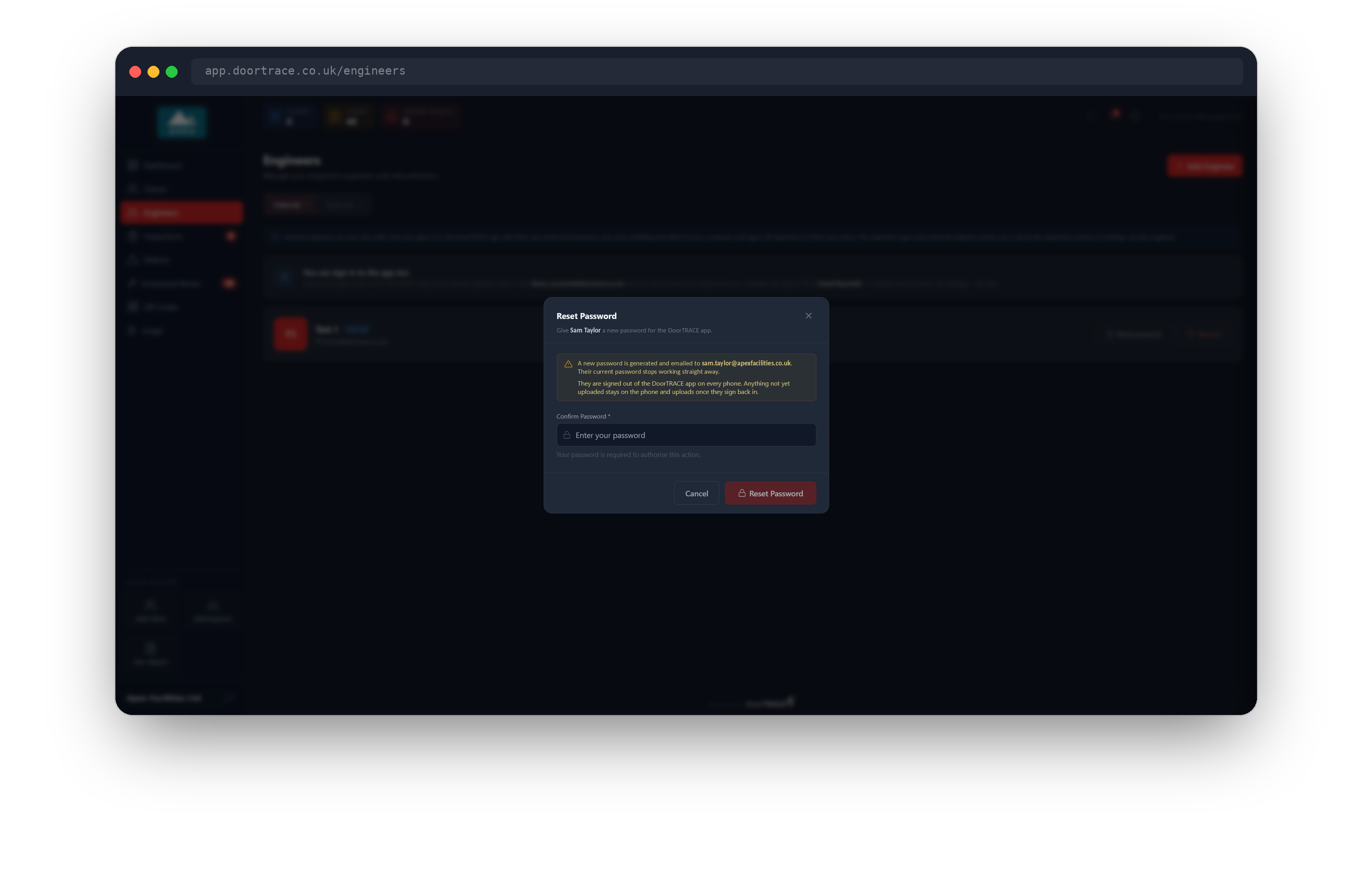
Use this when an engineer cannot sign in, or when you want to be sure nobody else is using their login. Press Reset password on the engineer's card. The Reset Password window explains what will happen:
- A new password is generated and emailed to the engineer. You never see it.
- Their current password stops working straight away.
- They are signed out of the DoorTRACE app on every phone. Anything not yet uploaded stays on the phone and uploads once they sign back in.
Type your portal password under Confirm Password and press Reset Password. The window then shows "A new password has been emailed to" followed by their address. Press Done.
The engineer receives an email titled "Your DoorTRACE password has been reset" with the new password. They can change it to one of their own in the app under Profile, then Settings, then Change Password.
Important: If the window says the password was reset "but the email with the new password could not be sent", the old password no longer works and the engineer has not received the new one. Press Reset password again in a few minutes.
Tip: An engineer who has simply forgotten their password can sort it out themselves. They tap Forgotten password? on the app sign-in screen and a reset link is emailed to them.
Removing an engineer
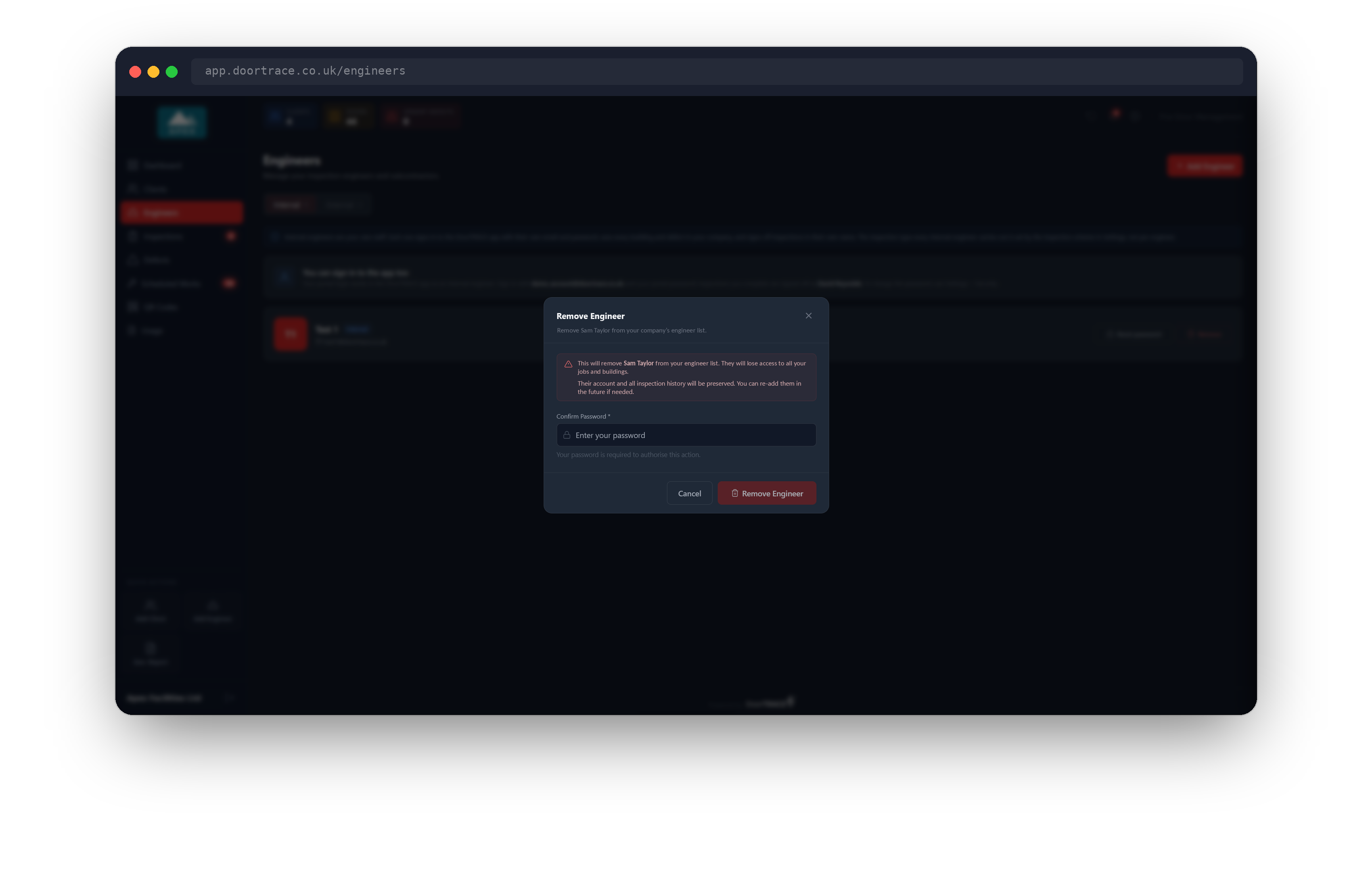
Use this when an engineer leaves your company or should no longer have access. Press Remove on their card. The Remove Engineer window checks what the removal will affect, then shows:
- The engineer will lose access to all your jobs and buildings.
- Their account and all inspection history will be preserved. Every inspection and report they signed off stays exactly as it is, in their name.
Type your portal password under Confirm Password and press Remove Engineer. The window confirms the engineer has been removed, and their card disappears from the Internal list.
What happens on the engineer's phone:
- They are cut off the next time they do anything in the app. The app returns to the sign-in screen with the message "This login has been removed. Contact the company you work for if you think this is a mistake."
- Their password no longer signs in.
Work booked to Internal team is not affected. It stays booked and the rest of your internal engineers still see it.
Important: Make sure the engineer's phone has uploaded everything before you remove them. Work still waiting to upload on a removed engineer's phone does not upload.
Adding someone back
If a removed engineer returns, add them again with Add Engineer on the Internal tab, using the same email address. The window shows "Login reactivated." and a new password is emailed to them. Their earlier inspections were never removed, so their history carries on under the same name.
Booking work to your internal team
When you schedule remedial work, the Assign Remedial Work window offers two choices under Assign Engineer:
- The engineer company assigned to the building, marked "assigned to this building". This is selected for you when the building has one.
- Internal team, marked "your own team".
Choose Internal team to give the job to your own people. It appears in the app for every internal engineer, and for you if you sign in to the app with your portal login. Whoever attends completes the post-remedial form and the job is signed off in their name. External engineers do not see work booked to Internal team.
You cannot book a job to one named internal engineer. Internal team is shared by all of them. Scheduling remedial work covers the booking window in full.
Where their work appears
- Door pages and the Inspections page show the engineer's own name against each inspection they completed.
- Reports print the engineer's name as an authorised engineer for your company.
- Usage: under Engineer Breakdown, the Internal Engineers box (marked YOUR TEAM) has one row for each engineer's name, with their registrations, inspections and post-remedial forms. Work you do in the app yourself is listed there too, under your own name. See Your usage.
Internal engineers are billed exactly like external ones: only completed inspections are billable.
If a survey is stuck on an engineer's phone
If a completed survey cannot upload because the phone has had no signal, DoorTRACE emails the engineer to let them know. You receive your own copy at your sign-in email, naming the engineer and the door, so you can chase it up. The survey is not lost: it stays on the phone until it uploads.
What's next
Adding an engineer starts the External engineers section: finding an outside engineer company in the DoorTRACE directory and inviting them to work with you.
Still can't find the answer?
Send us a message and we'll help. We respond within one working day.