FM Portal guides
FM Portal · Internal engineers
Adding an internal engineer
Last updated 30 Sept 2026
Internal engineers are your own staff. Each one has their own login for the DoorTRACE app, sees every building in your company, and signs off inspections in their own name. This guide covers the Internal tab of the Engineers page, adding an engineer, the email they receive, what they can do in the app, and how you can use the app yourself.
Before you start
- You need the engineer's first name, last name and their own email address. Two engineers cannot share an address, and an address already used on DoorTRACE is refused.
- You will be asked for your portal password to confirm.
- Internal engineers have no documents to upload and nothing to approve. They can work as soon as they have signed in.
- There is no limit on the number of engineers you can add.
- For engineer companies you bring in from outside, see Adding an engineer.
The Internal tab
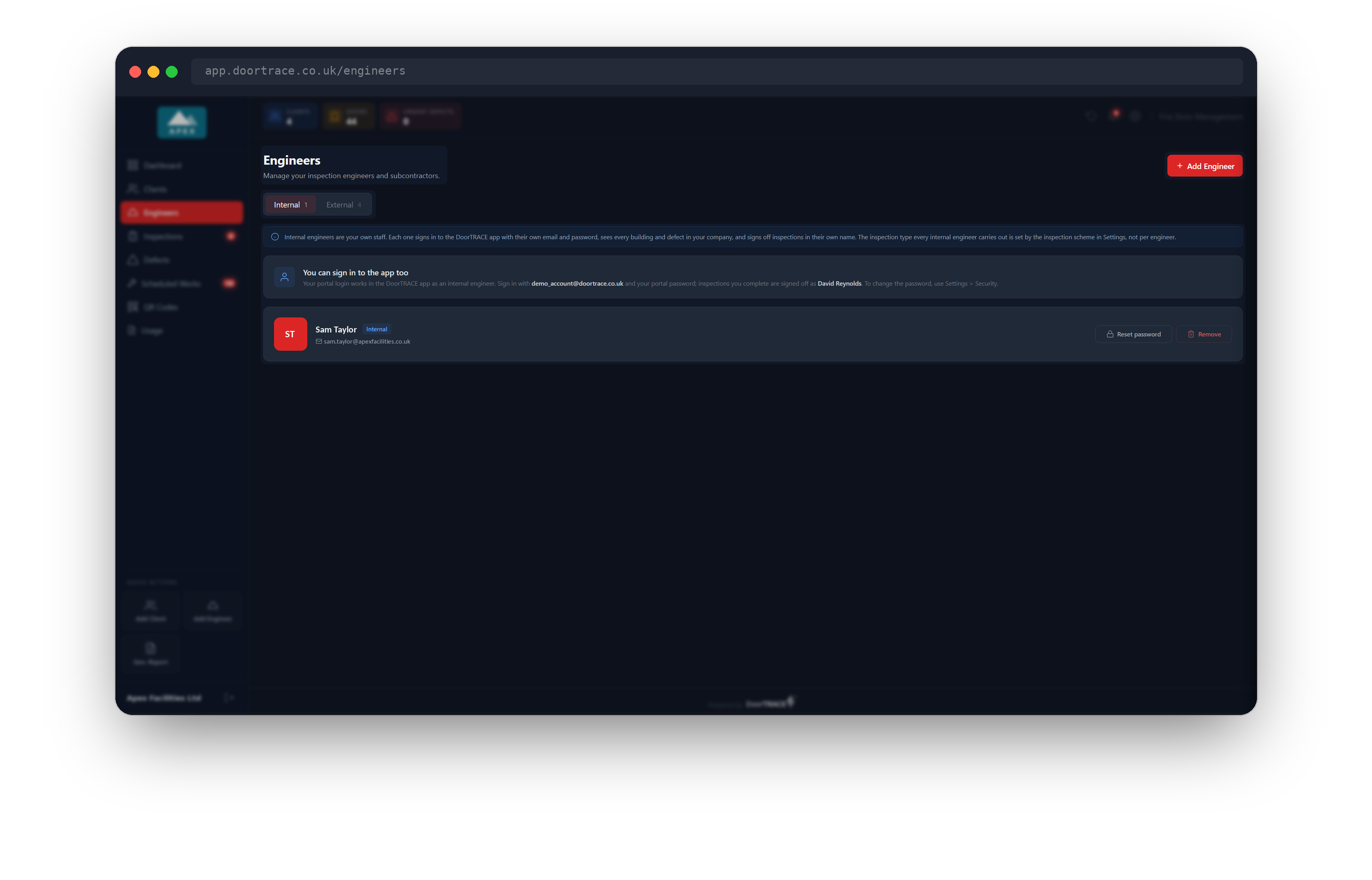
Open Engineers in the sidebar. At the top of the page a switch offers Internal and External, each with a count. The page opens on Internal.
A blue note at the top explains what an internal engineer is. Under it, the box You can sign in to the app too shows your own sign-in email and the name your work is signed off in (see "Using the app yourself" below). Your engineers are listed beneath, one card each, in name order. Each card shows the engineer's name, an Internal badge, their email address, and two buttons: Reset password and Remove.
If you have not added anyone yet, the list shows "No internal engineers yet" with an Add Internal Engineer button.
Adding an engineer
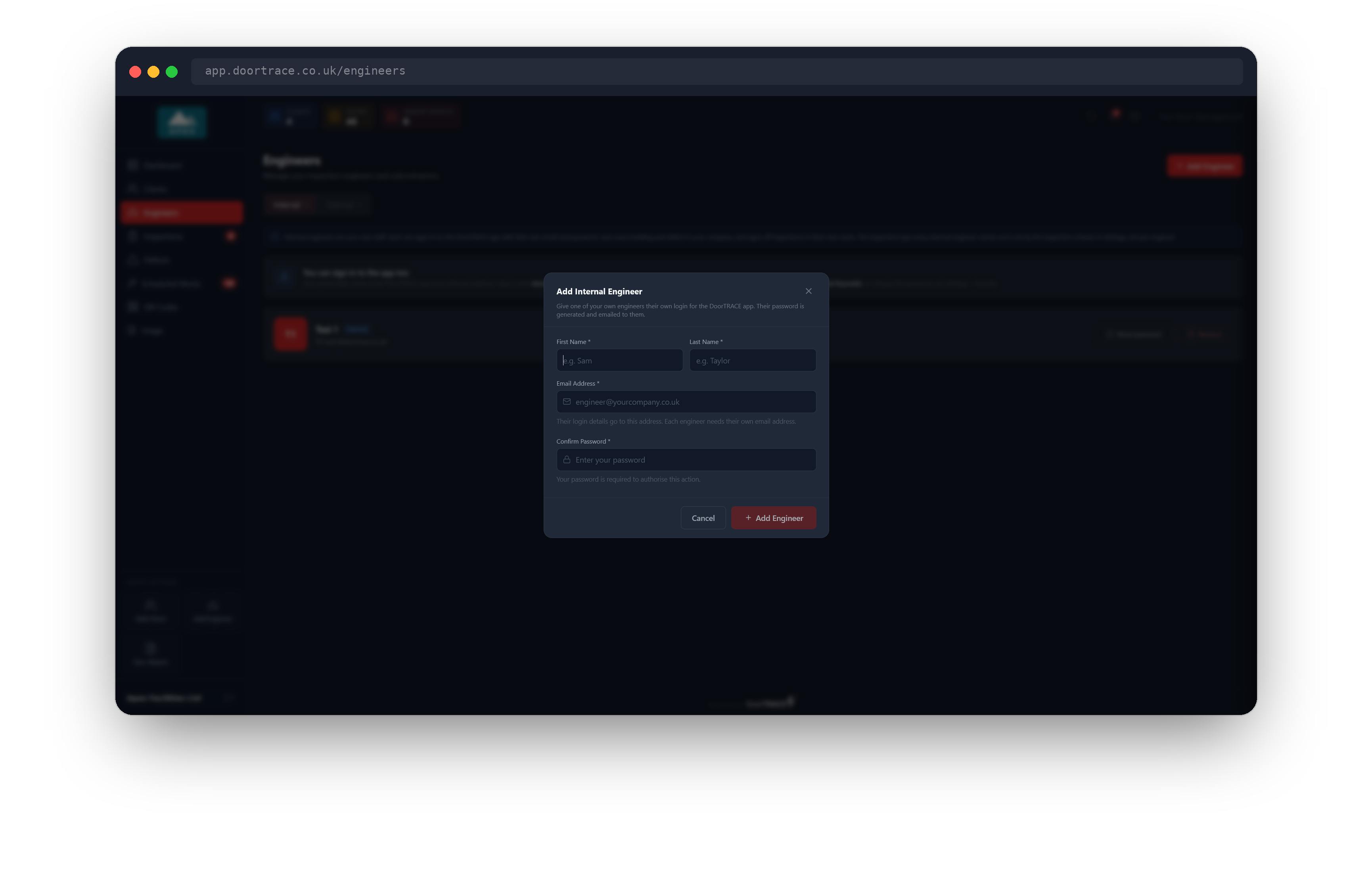
With the Internal tab showing, press Add Engineer at the top right of the page. The Add Internal Engineer window opens. Fill in:
- First Name and Last Name. This is the name printed on every inspection and report the engineer signs off, so enter it as it should appear.
- Email Address. Their login details are sent here, and it is what they sign in with.
- Confirm Password. This is your own portal password.
Press Add Engineer. The button reads "Adding..." while the login is created.
The window then shows "Login created. Their login details have been emailed to" followed by the engineer's address. Press Done. The engineer is now on your Internal list.
You never see or choose the engineer's password. DoorTRACE generates it and emails it straight to them.
Important: If the window says the login was created "but the email with their login details could not be sent", the engineer is on your list but has no password yet. Use Reset password on their card to send a fresh one.
Messages you might see
- "That email address is already in use on DoorTRACE. Each engineer needs their own email address." The address belongs to another DoorTRACE login, for example an external engineer or a portal user. Use a different address for this engineer.
- "This engineer is already on your internal engineers list." They already have a login. Use Reset password if they cannot sign in.
- "Login reactivated." The address belongs to an engineer you removed in the past. Their login is switched back on with a new password, which is emailed to them.
- "Incorrect password. Please try again." The portal password you typed is wrong. Nothing has been created.
What the engineer receives
The engineer gets an email from noreply@doortrace.co.uk with the subject "Welcome to DoorTRACE: Your Login Details". It names your company, shows their sign-in email and generated password, and gives three steps: download the DoorTRACE app from the App Store or Google Play, sign in with the email and password shown, and start scanning QR codes on site.
The email asks them to change the generated password to one of their own once they are signed in. In the app that is Profile, then Settings, then Change Password. If they forget their password later, they can tap Forgotten password? on the app sign-in screen, or you can send them a new one with Reset password.
What an internal engineer can do in the app
- They sign in with their own email and password and go straight into your company.
- They see every building and every door in your company. You do not assign buildings to internal engineers.
- They can register doors, carry out inspections, complete remedial work and replace QR tags. The survey form they are given is the one set under Settings > Inspection Scheme.
- Everything they sign off carries their own name. The name is filled in for them and cannot be changed in the app.
- Remedial work reaches their phone when it is booked to Internal team in the portal. Every internal engineer sees the same Internal team jobs.
- Reports show the engineer's name as an authorised engineer for your company.
Using the app yourself
Your own portal login also works in the DoorTRACE app, as an internal engineer. Sign in to the app with your portal email and portal password. Anything you complete is signed off in the name on your account, which is shown in the You can sign in to the app too box.
You do not appear as a card on the Internal list, and you cannot be removed from it. To change your password, use Settings > Security in the portal.
Tip: If you have two-factor authentication switched on for the portal, the app does not ask for the code. The portal still does.
What's next
Managing your internal engineers covers sending a new password, removing an engineer who has left, booking work to your internal team and where their work appears in the portal.
Still can't find the answer?
Send us a message and we'll help. We respond within one working day.