FM Portal guides
FM Portal · Inspections
The Inspections page
Last updated 16 Sept 2026
The Inspections page brings together every inspection your engineers have completed, across every client and building, alongside the doors that are overdue or coming due. Use it to check how inspections are going month to month, find a particular record quickly, and see at a glance what needs booking next.
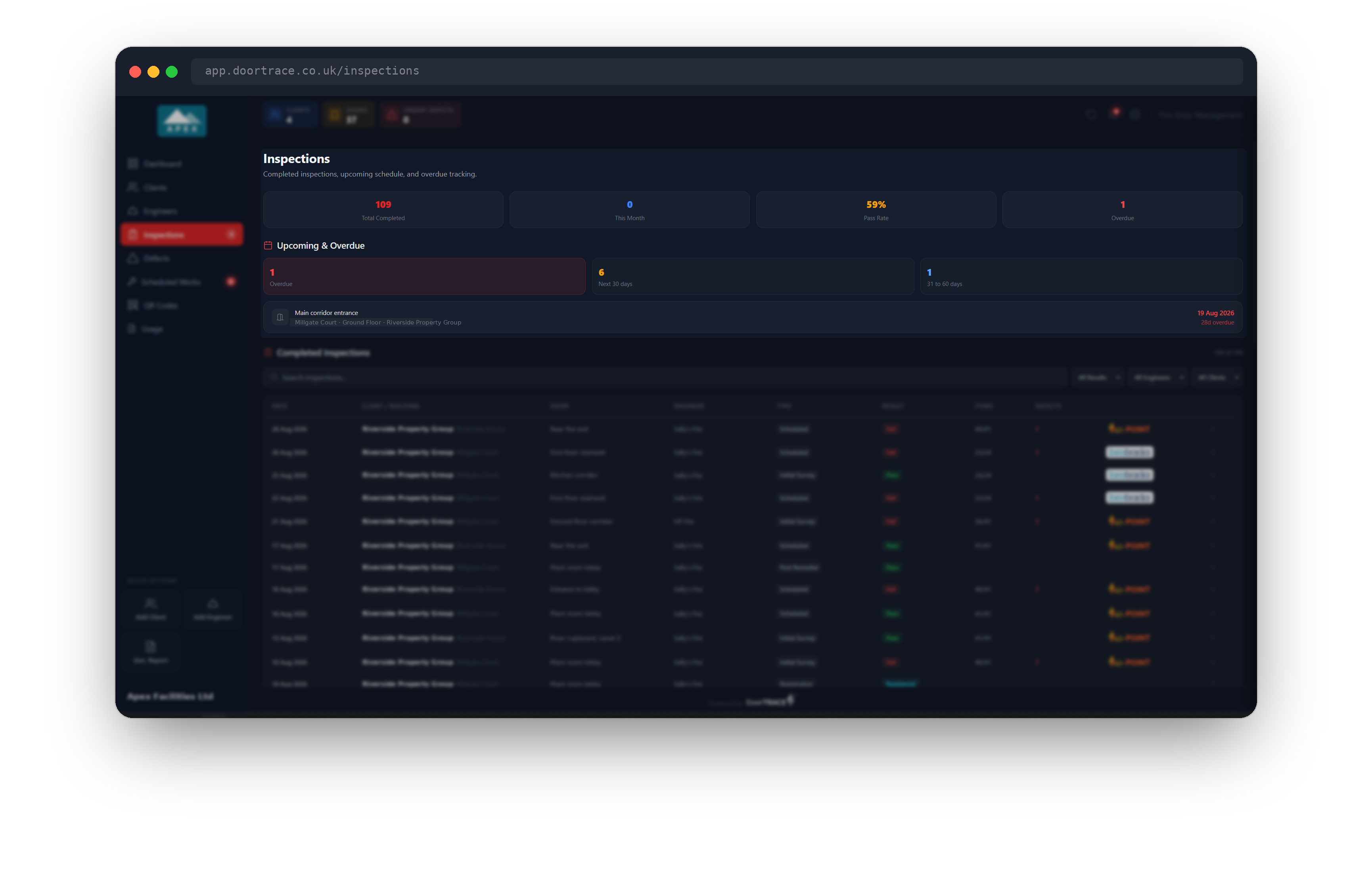
The four figures
Across the top of the page are four figures for your whole portfolio:
- Total Completed: every inspection that has been completed, including door registrations.
- This Month: how many of those were completed in the current calendar month.
- Pass Rate: the share of inspections that passed. Registrations are left out of this figure because they carry no pass or fail result. The figure is green at 85 percent and above, amber from 50 to 84, and red below 50.
- Overdue: doors whose next inspection date has passed. This is the same number the dashboard shows.
Upcoming and overdue
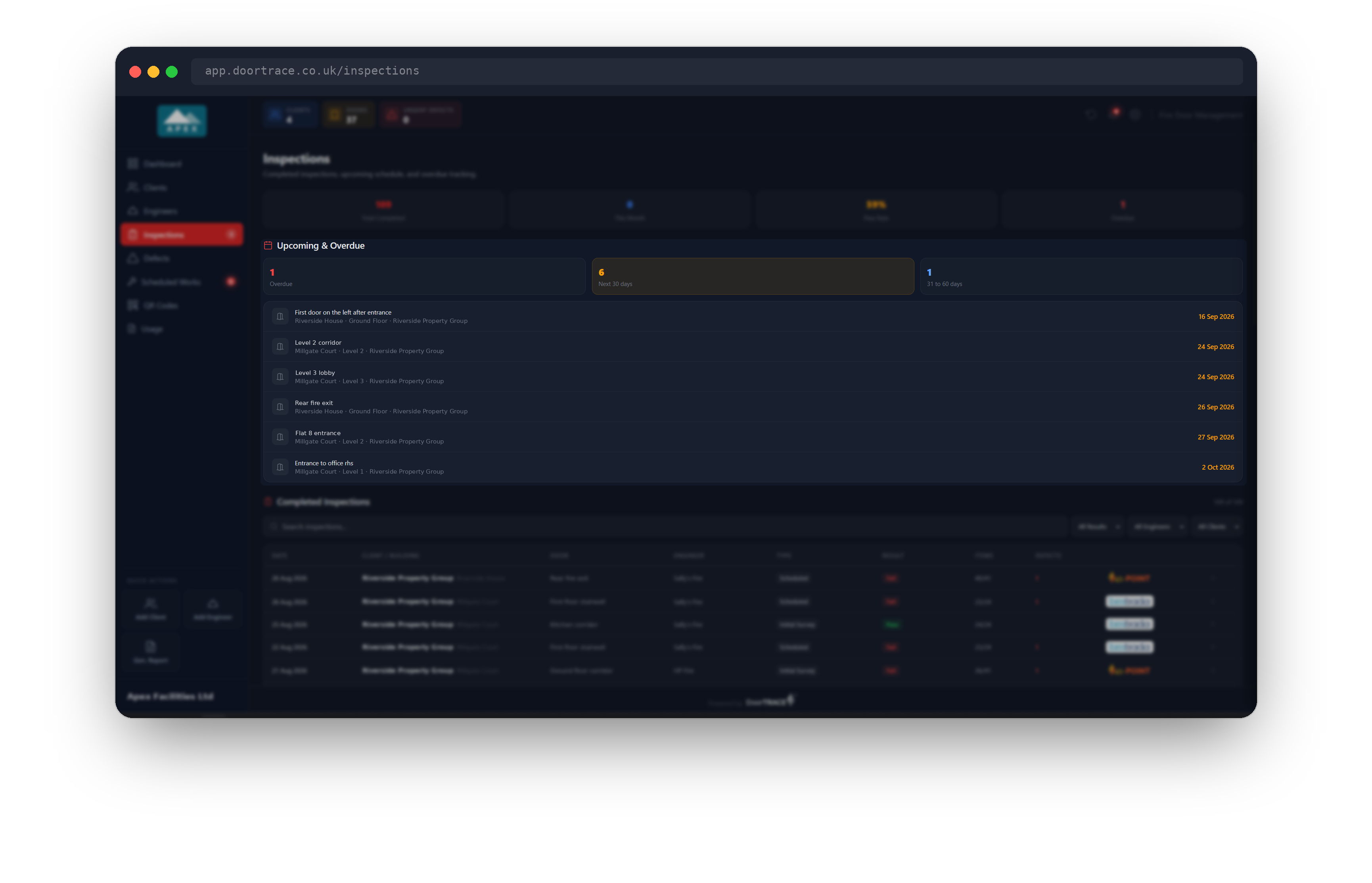
Under Upcoming & Overdue are three tiles: Overdue, Next 30 days and 31 to 60 days. Each shows a count. Click a tile to list its doors below: the door's location, then its building, floor and client, with the due date on the right. Overdue doors also show how many days they are past due. The Overdue tile is selected when you open the page.
Each door's due date is set automatically when its last inspection is completed, based on the door's inspection frequency, so a door that has never been inspected does not appear here yet. If no door falls in any of the three windows, the section says No upcoming inspections instead.
A tile lists up to 20 doors, then a line saying how many more there are. The rows are for reading only; to open a door, go to its building through Clients.
Completed inspections
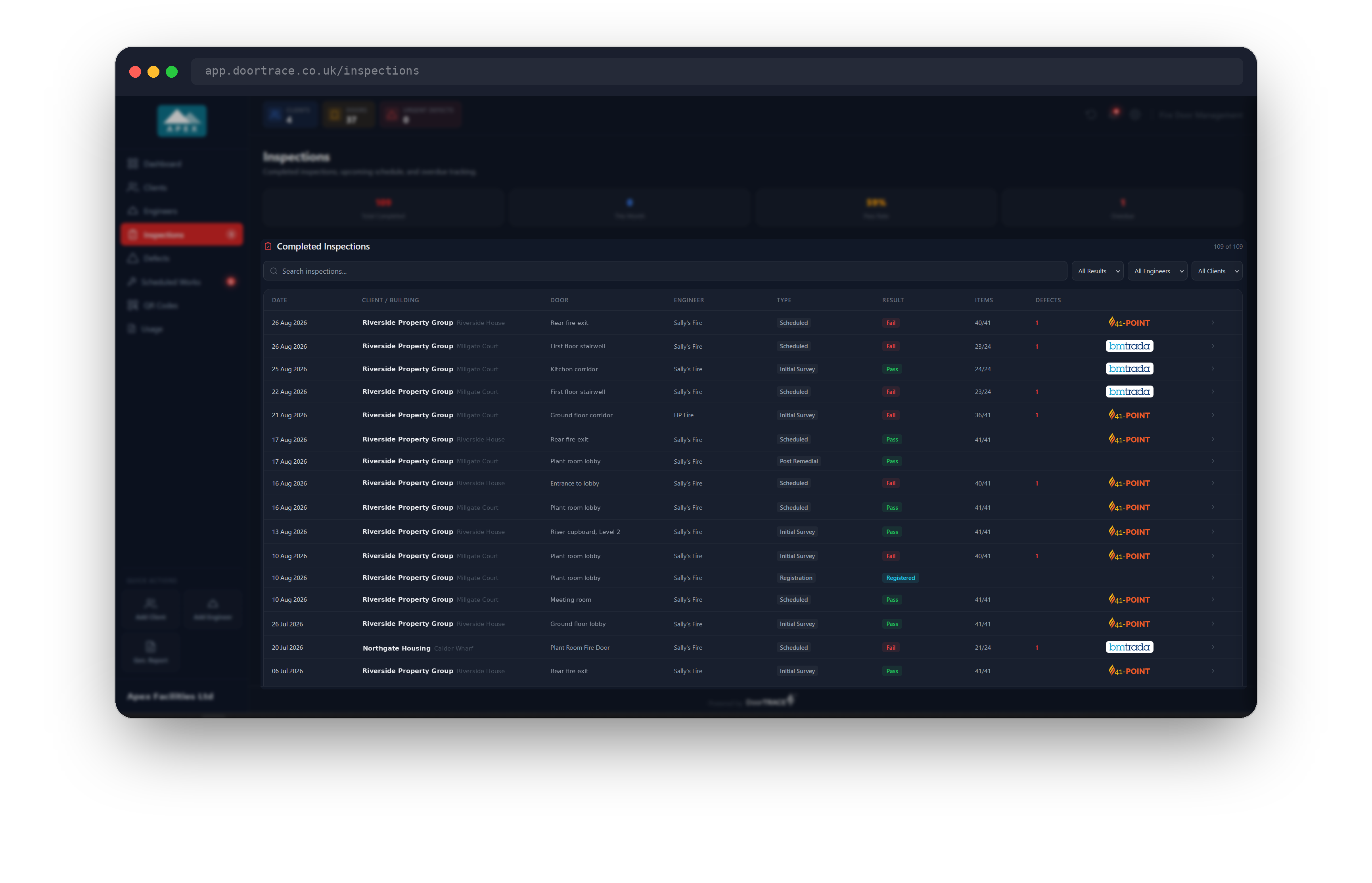
Below the schedule is the Completed Inspections table, newest first, with a count on the right such as 109 of 109 showing how many rows match your current filters. Each row shows:
- Date: when the inspection was completed.
- Client / Building.
- Door: the door's location description, or its QR code if no location was recorded.
- Engineer: the engineer company that carried it out.
- Type: Quarterly, Annual, Scheduled, Ad Hoc, Post Remedial, Initial Survey or Registration.
- Result: Pass, Fail or Remedial. A door registration shows Registered instead, because registering a door records its details rather than testing it.
- Items: checklist items passed out of the total, for example 40/41. Registrations have no checklist, so this is blank.
- Defects: in red, the number of defects raised from that inspection. Blank when there were none.
- A scheme badge on the right: the DoorTRACE 41-point mark for a BS 8214 inspection, or the BM TRADA mark for a Q-Mark condition survey.
The table shows up to 50 rows. If more match, a line under the table reads Showing 50 of the total and asks you to refine your filters.
Finding an inspection
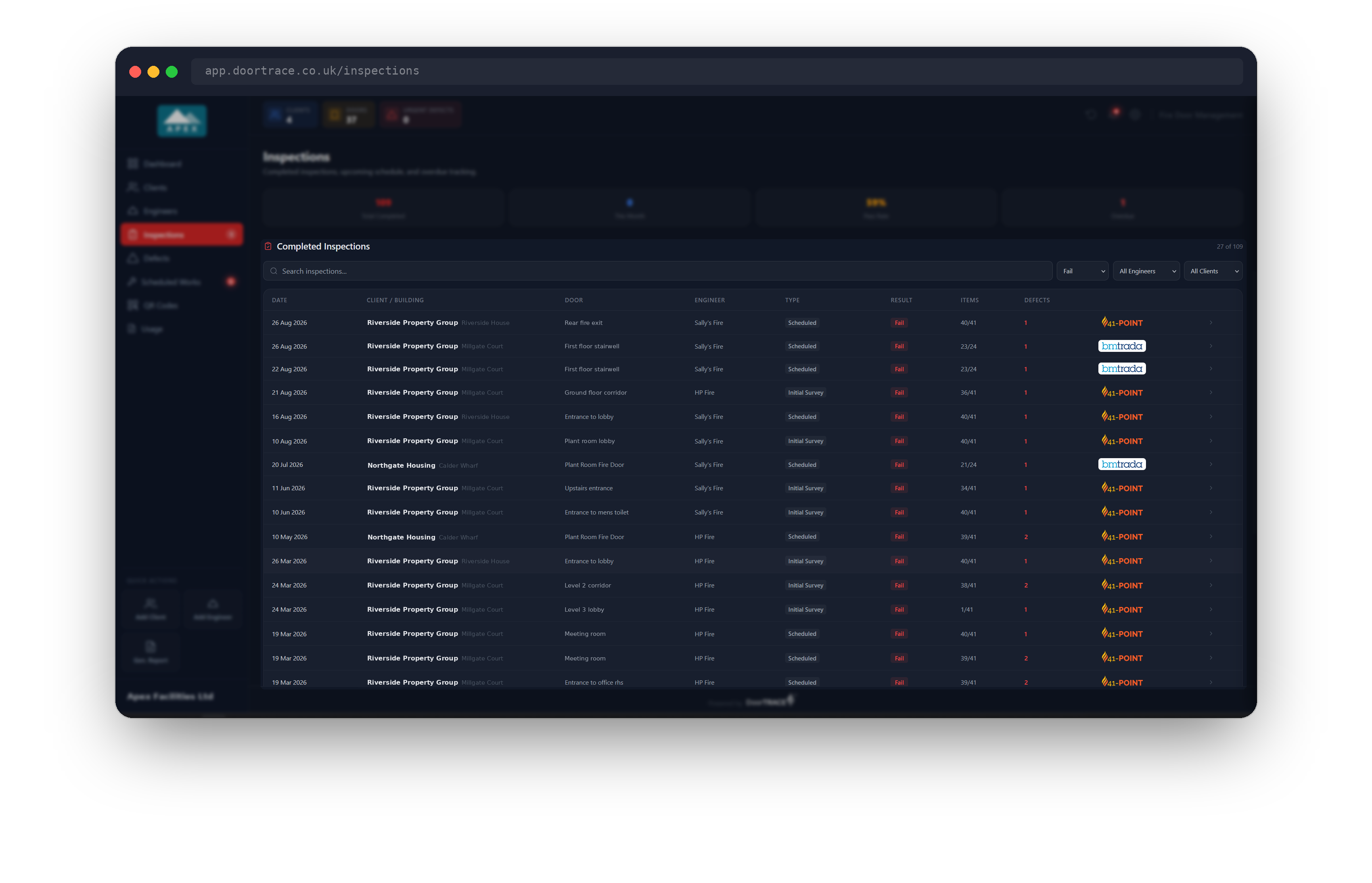
Above the table:
- Search inspections matches the client, building, door location and engineer columns as you type.
- All Results narrows to Pass, Fail or Remedial.
- All Engineers and All Clients list the names that appear in the table.
The filters combine, and the count on the right updates as you change them. If you arrive here from a client's page, that client is already selected.
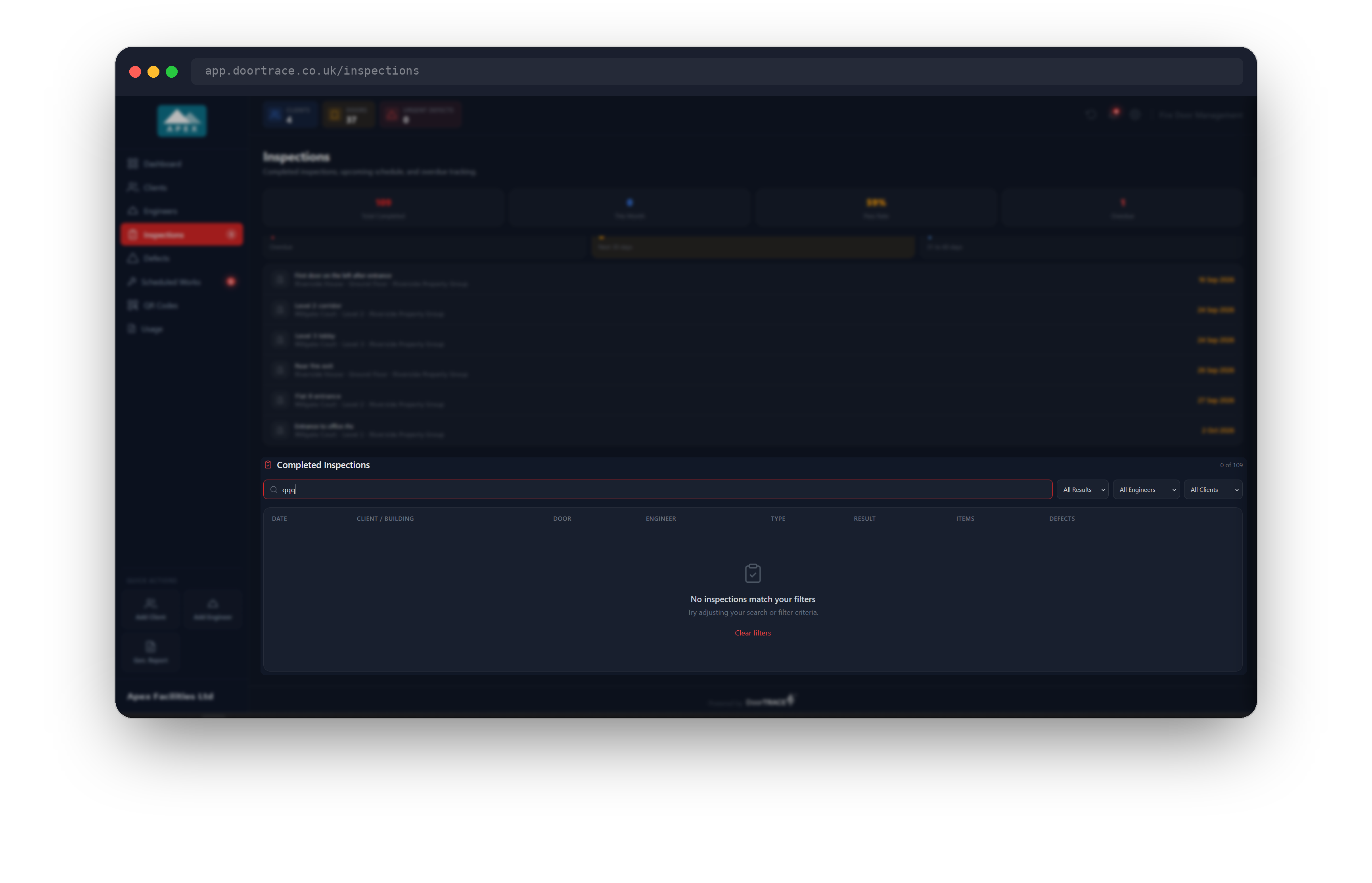
If nothing matches, the table shows No inspections match your filters with a Clear filters link that resets the search and all three lists at once. A company with no completed inspections at all sees No inspections yet with a note that inspections appear here once engineers start inspecting doors in the app.
Opening an inspection
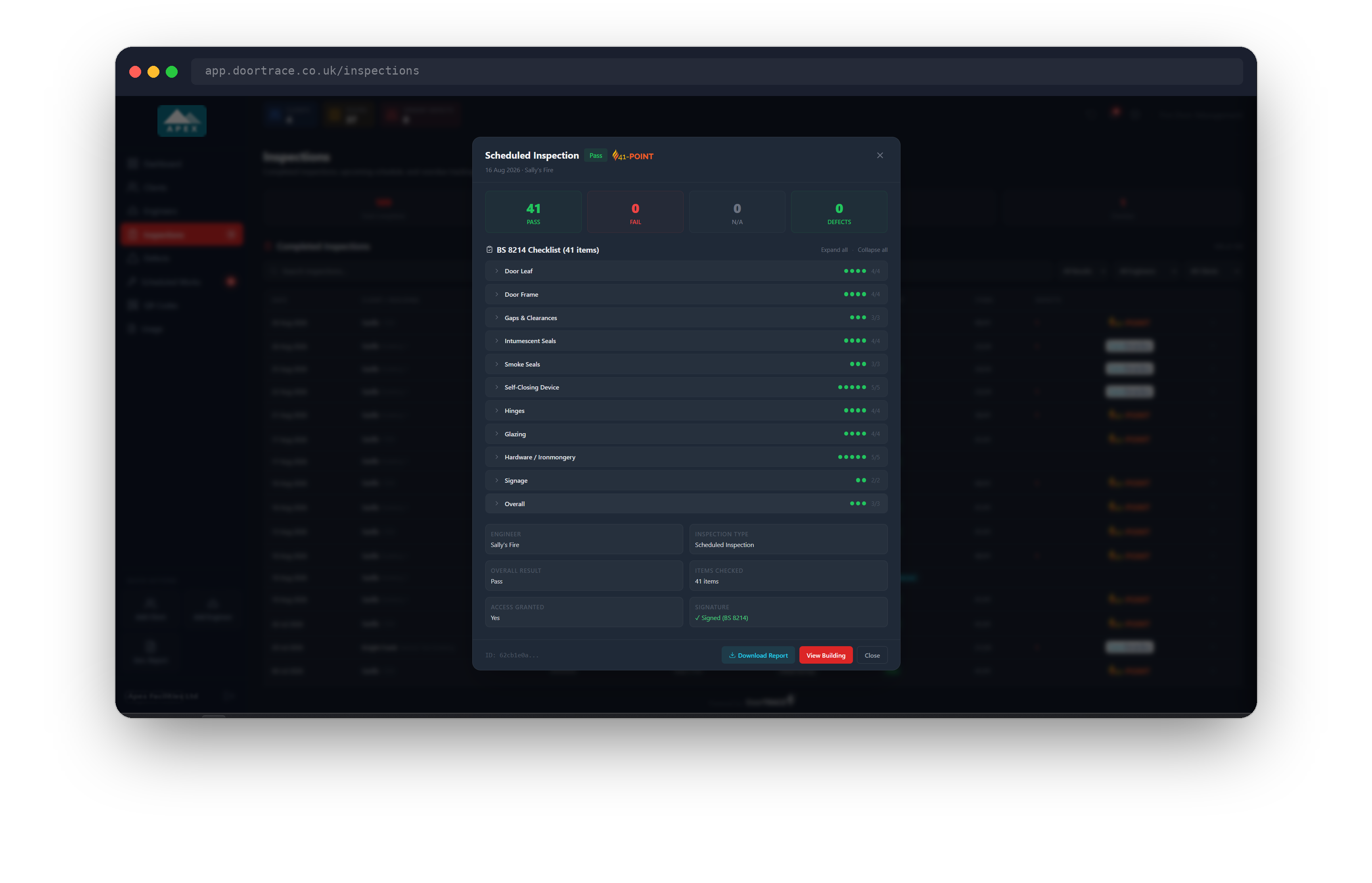
Click any row to open the inspection in the same window the door page uses. It loads the full checklist, grouped by category, with any notes, measurements and photos the engineer recorded, and the same summary counts as the door page. The window is described in full in Viewing a door.
The footer of the window has Download Report (or Download Certificate for a registration), Q-Mark Form for a BM TRADA survey, View Building, which takes you to the door's building, and Close. The reports are covered in the next guide.
Getting here from your summary email
If your notification digest is switched on, DoorTRACE sends a summary from notifications@doortrace.co.uk titled Daily Summary: <your company name> or Weekly Summary: <your company name>. Its Inspections heading links to this page. The Overdue row opens the page with the Overdue tile selected; the Due Tomorrow and Due in 7 Days rows open it on Next 30 days. Switching the digest on and off is covered in Email notification preferences.
What's next
Downloading inspection reports explains the reports and certificates you can download from the inspection window.
Still can't find the answer?
Send us a message and we'll help. We respond within one working day.