FM Portal guides
FM Portal · Doors
Viewing a door
Last updated 14 Sept 2026
Every registered door has its own page in the portal. It brings together everything recorded against that door: its details and status, every inspection, any tag replacements, defects and the remedial work done to fix them, and a log of changes to the record. This guide walks through each part of the page. Editing the door, changing how often it is inspected and de-registering it are covered in the next guide.
Opening a door page
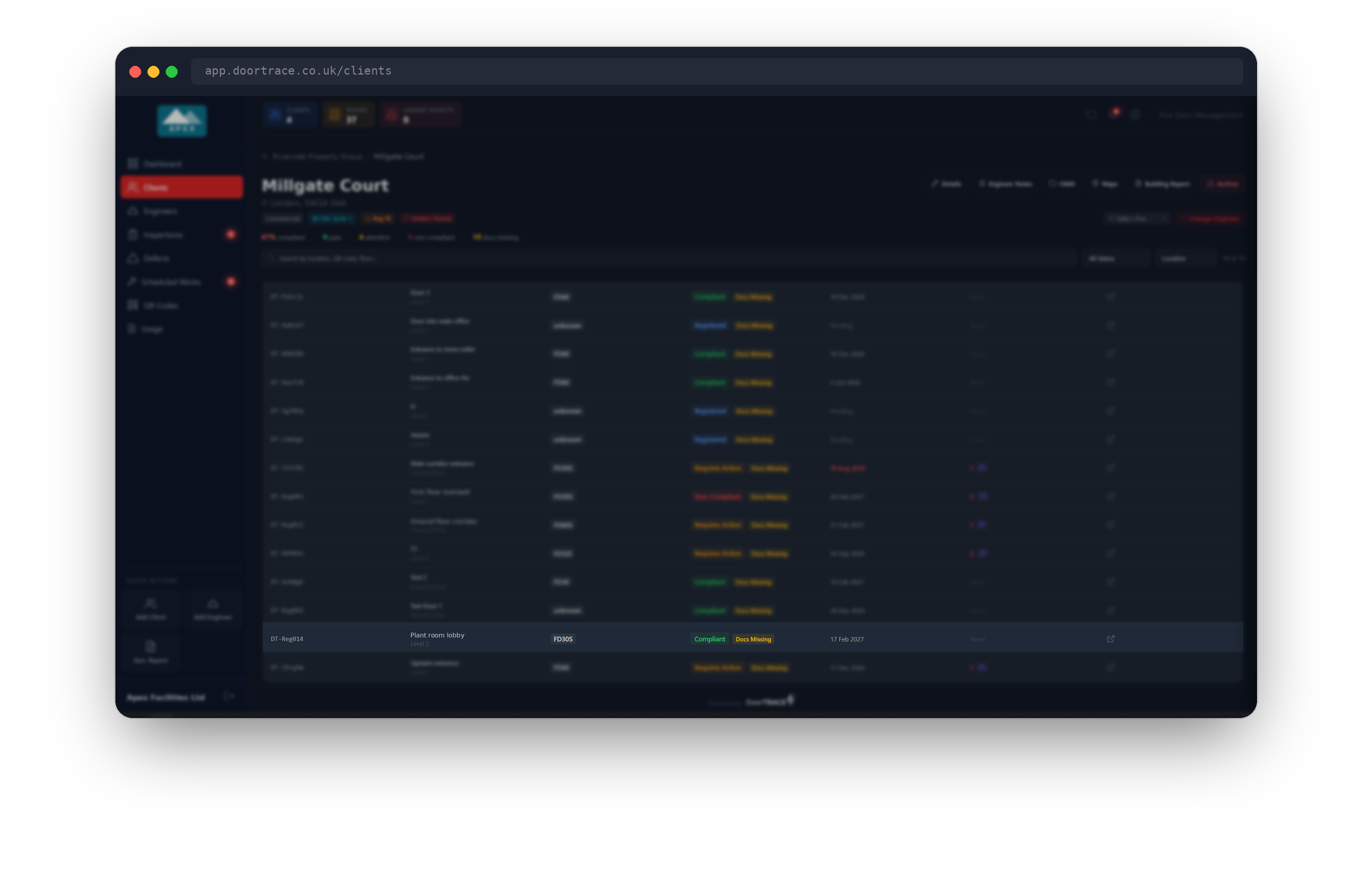
Go to Clients, open the client, then open the building. The door table lists every active door in the building. Click any row to open that door's page. The calendar button in the Defects column does the same thing, so you can jump straight to a door that has defects to deal with.
At the top of the door page, the breadcrumb shows the building name (click it to go back) and the door's QR code.
The door header
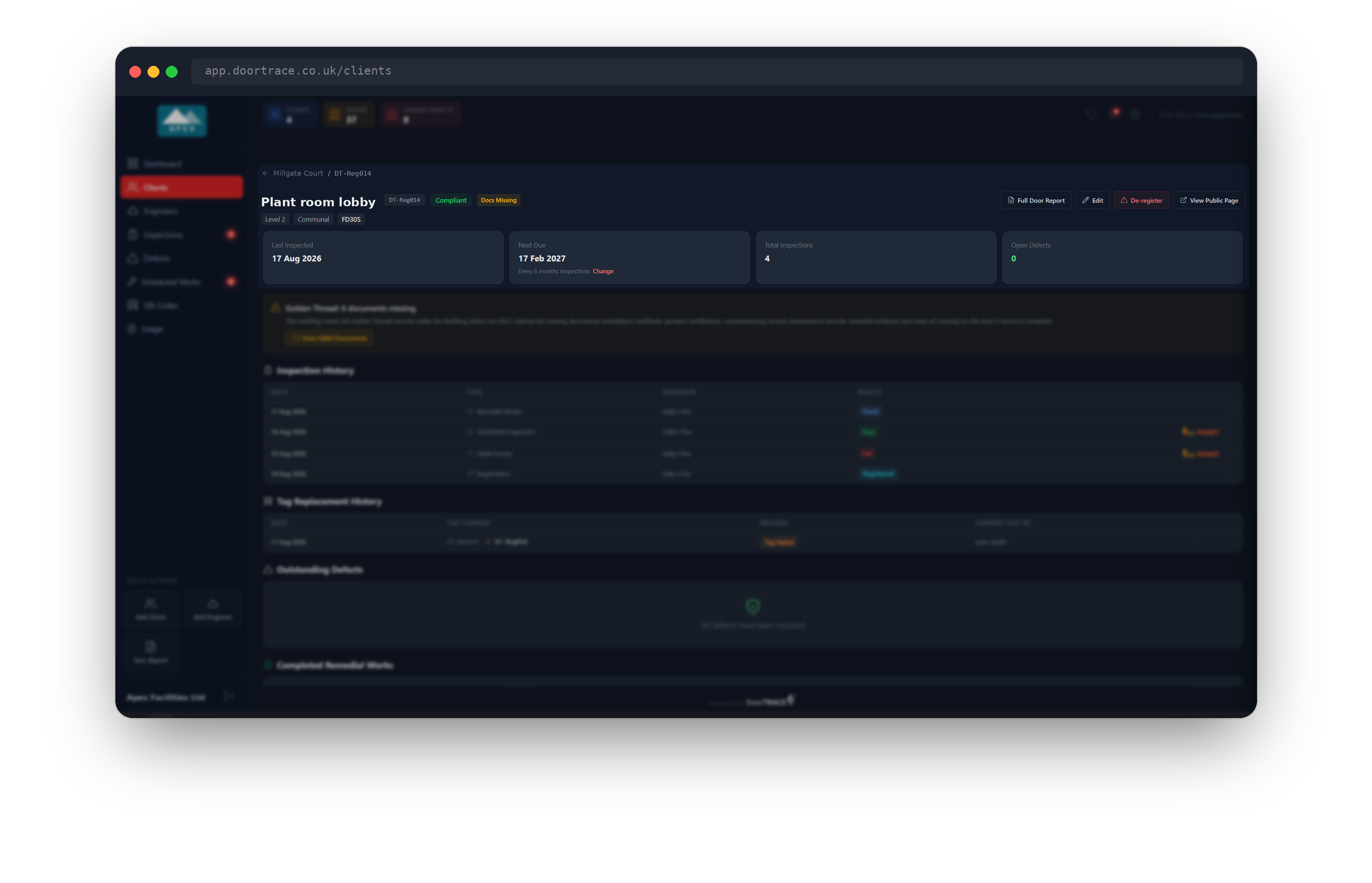
The heading is the door's location description, followed by its QR code and a status badge. The status is one of Compliant, Requires Action, Non-Compliant, Not Inspected or Registered. A compliant door with remedial work booked shows Scheduled instead.
Below the heading are badges for the floor, the door type and the fire rating. A Nominal badge appears when the rating was assessed from the door's construction rather than a certification label: hover over it for the explanation. In a Golden Thread building, a Docs Missing badge appears next to the status when any of the six required documents have not been ticked off on the O&M Documents page.
The buttons on the right are Full Door Report, Edit, De-register and View Public Page. The report and the public page are covered below; Edit and De-register are in the next guide.
The four summary cards
Under the header are four cards:
- Last Inspected: the date of the most recent inspection, or Never.
- Next Due: when the next inspection is due, with OVERDUE in red once the date has passed. Under the date you can see how often the door is inspected (for example Every 6 months inspections) with a Change link, which is covered in the next guide. A door that has never been inspected shows Pending.
- Total Inspections: how many records are in the inspection history, including the registration record.
- Open Defects: defects that are open or have remedial work scheduled. It turns red when there are any, green at zero.
Golden Thread documents
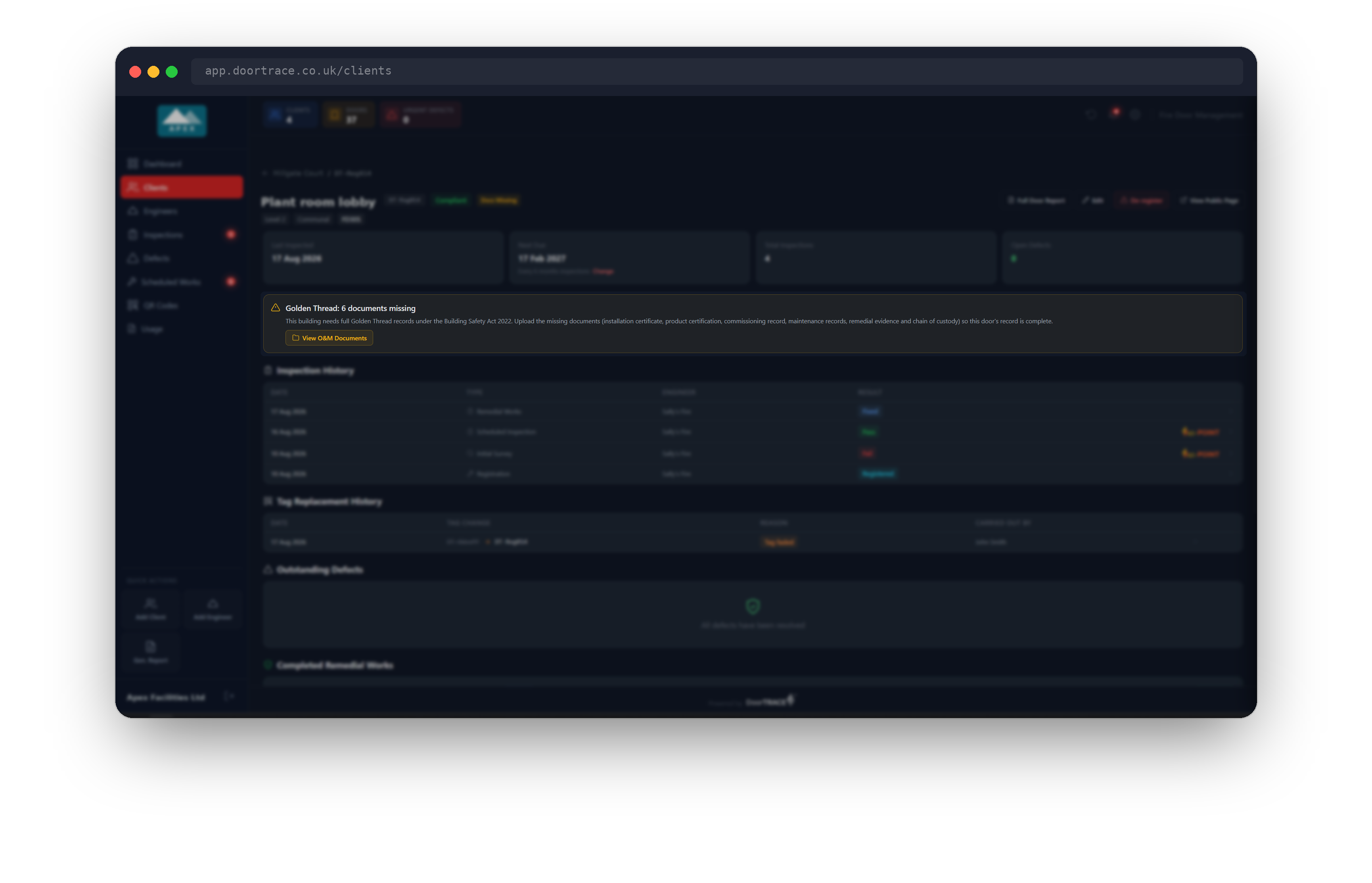
On a door in a Golden Thread building with documents missing, a yellow panel reads Golden Thread: n documents missing and lists the six document types: installation certificate, product certification, commissioning record, maintenance records, remedial evidence and chain of custody. The View O&M Documents button takes you to the building's O&M Documents page, where the ticks are recorded. See O&M documents for how that page works. Doors in other buildings never show this panel.
Inspection History
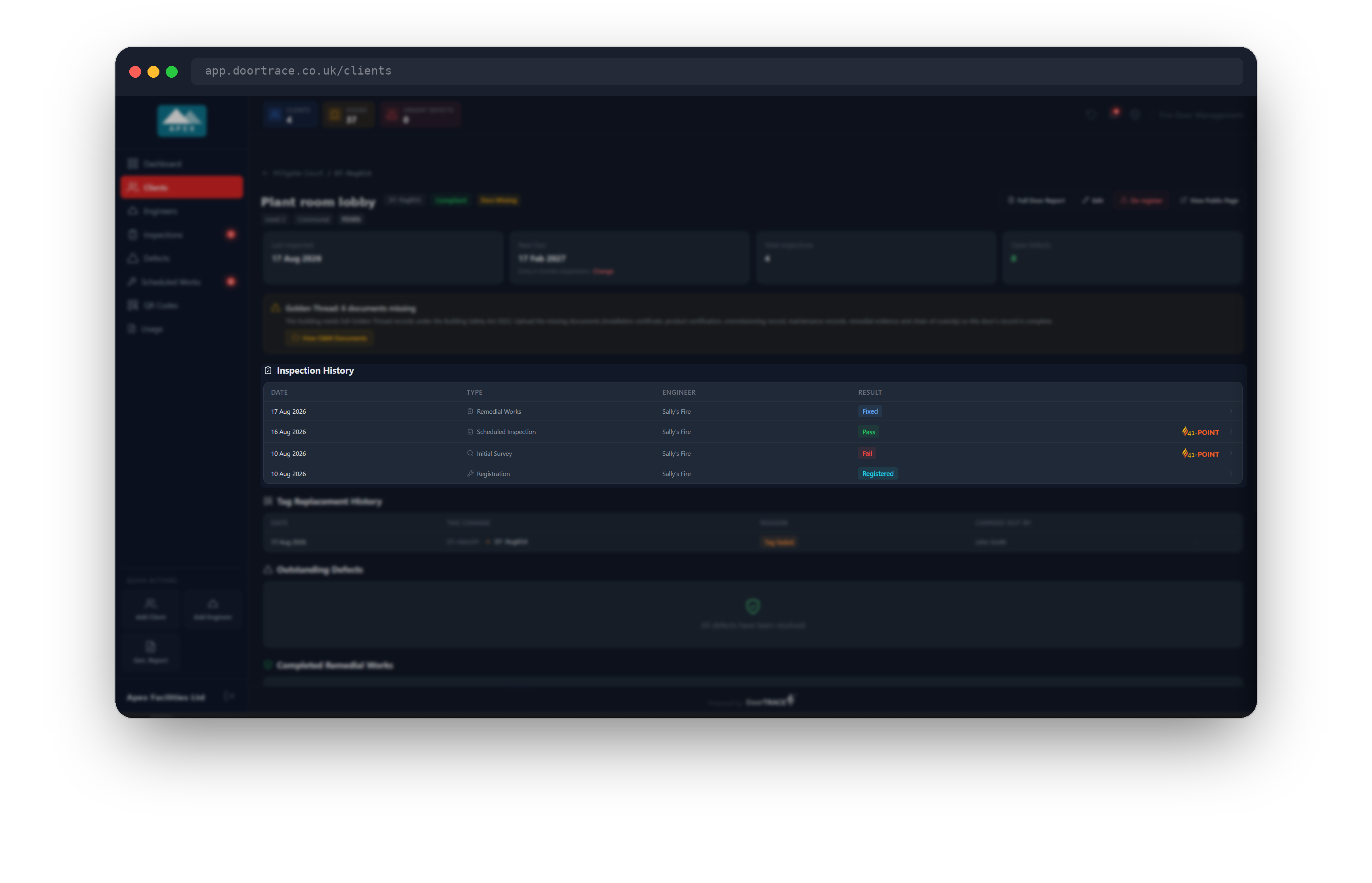
This table lists every record for the door, newest first, with the date, the type of record, the engineer and the result. The types you will see are Registration, Initial Survey, Scheduled Inspection, Routine Quarterly, Routine Annual, Ad-Hoc and Remedial Works. Results are Pass, Fail or Remedial Required; a registration shows Registered, and a remedial works record that passed shows Fixed. Where an inspection was done under a scheme, the right-hand end of the row carries the scheme mark: the DoorTRACE 41-Point mark for a standard BS 8214 inspection, or the BM TRADA Q-Mark for a Q-Mark condition survey. Registrations carry no mark.
An inspection that has been booked in the app but not yet carried out also appears here, dated when it was created and with no result badge until it is completed. It counts towards Total Inspections.
Click a row to open the full record.
Inspection detail
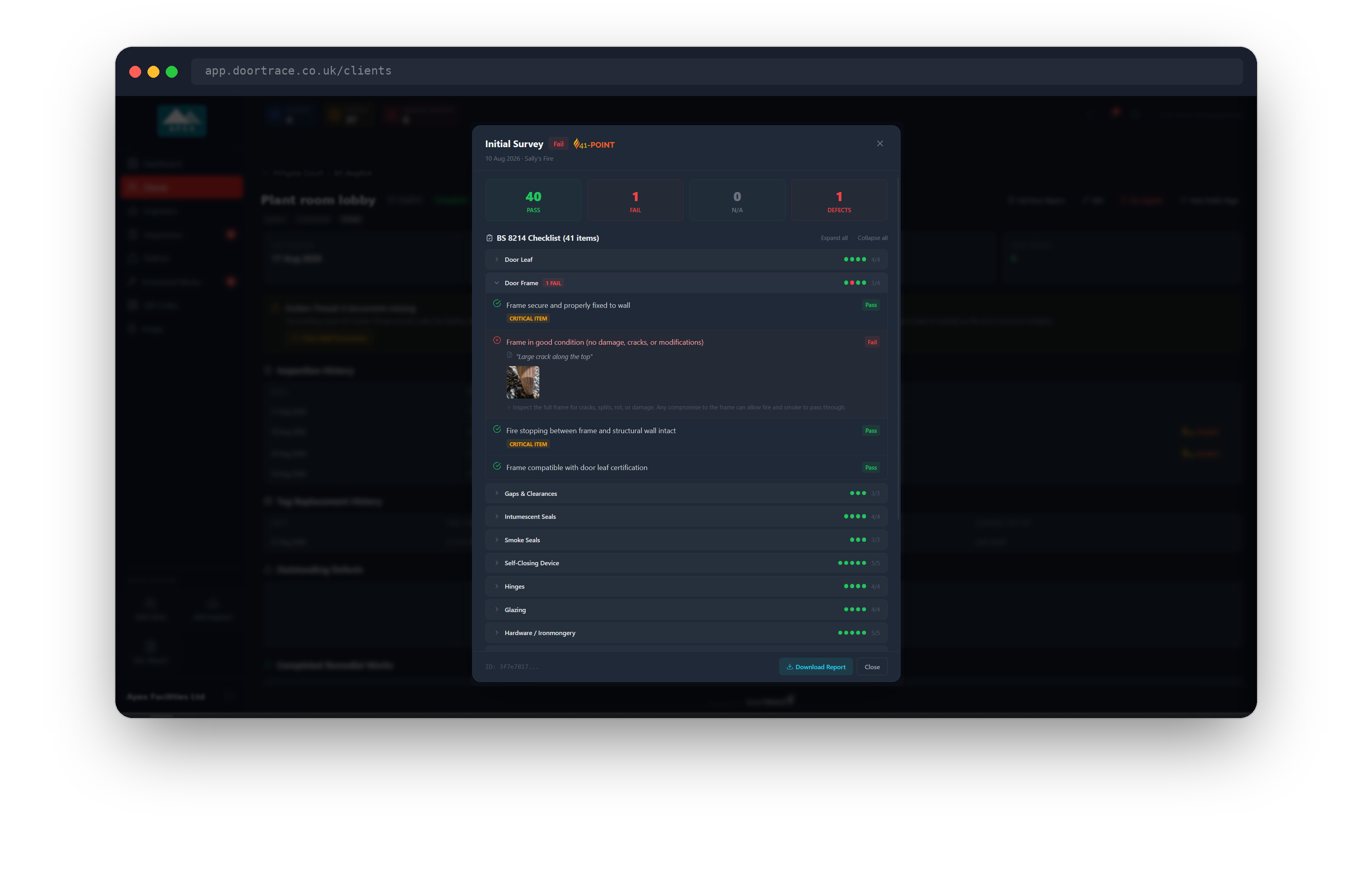
The pop-up opens with the record type, its result and scheme mark, and the date and engineer. Four counters show Pass, Fail, N/A and Defects for the checklist. Below that the checklist is grouped by category under the heading BS 8214 Checklist or Q-Mark Condition Survey, with the number of items. Each category shows a dot per item and a passed count; click a category to open it, or use Expand all and Collapse all. A category with failures is marked n FAIL in red.
Inside a category, each item shows its result badge, any note the engineer wrote, any measurement, any photos (click a photo to see it full size) and, for a failed item, a short explanation of why it matters. On a nominal fire door, the certification label item is marked Not evidenced with a Nominal door note explaining that this is an observation, not a defect.
Under the checklist you may see Engineer Notes, then a grid of details: Engineer, Inspection Type, Overall Result, Items Checked, Access Granted and Signature. A Q-Mark survey adds Grade Level, RMA Register Ref and Supporting Evidence. If the engineer recorded access notes, they appear in an Access Notes box.
The footer has Download Report, which builds the PDF report for that record in your browser. For a registration record the button reads Download Certificate and produces the registration certificate instead. A Q-Mark survey also has a Q-Mark Form button, which downloads the official DCS 058 form. See Downloading inspection reports for what each report contains.
Tag Replacement History
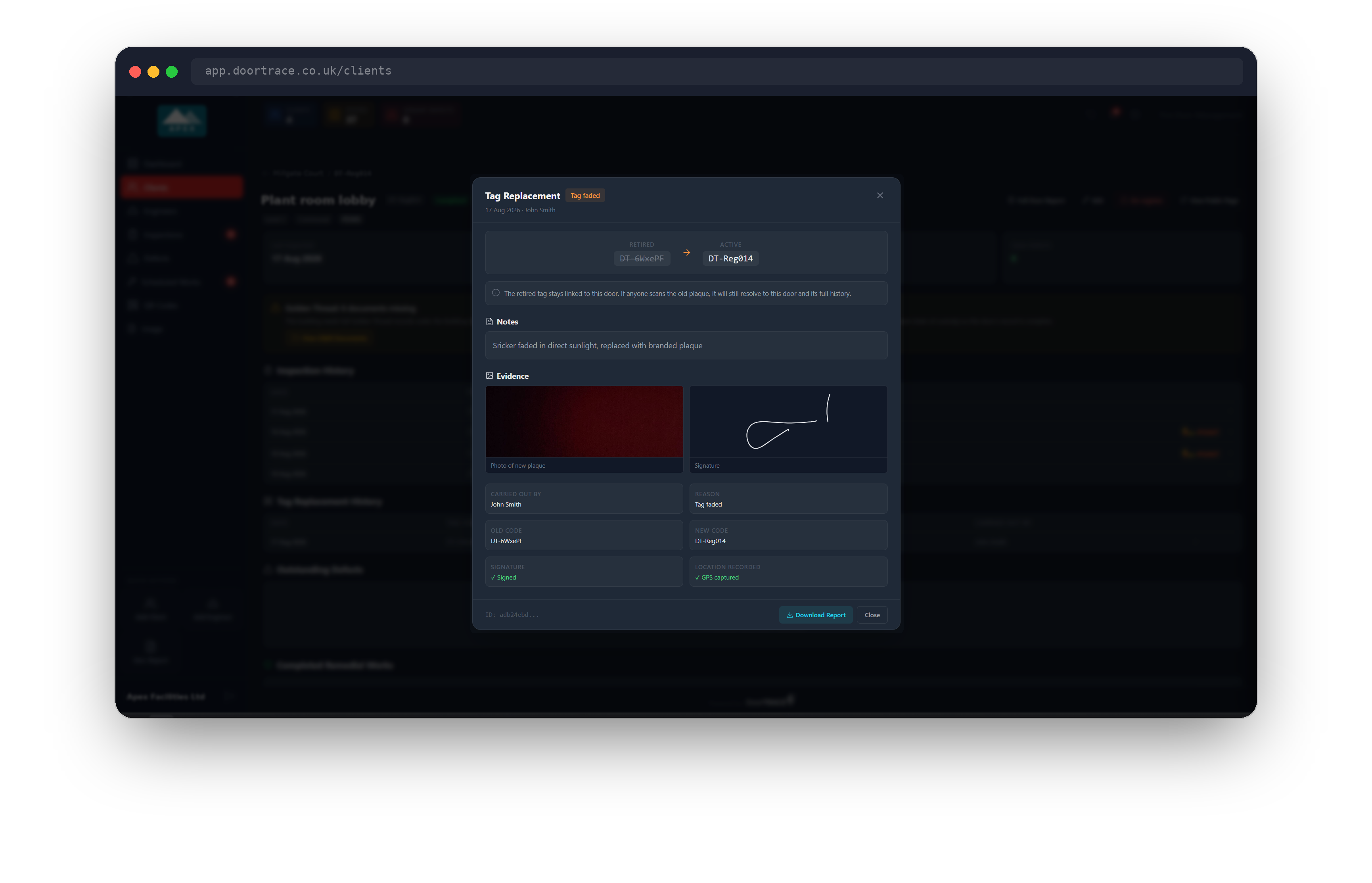
This section only appears when the door's QR tag has been replaced by an engineer. Each row shows the date, the retired code struck through with an arrow to the new code, the reason (New plaque fitted, Tag damaged, Tag faded, Door replaced or Other) and who carried it out. Click a row for the full record: the retired and active codes, any notes, the photo of the new plaque and the engineer's signature (click either to enlarge), and a details grid including whether a GPS location was captured. Download Report produces the tag replacement record as a PDF.
Tip: The retired tag stays linked to the door. If anyone scans the old plaque, the public page still opens for this door and tells them the tag was replaced.
Outstanding Defects
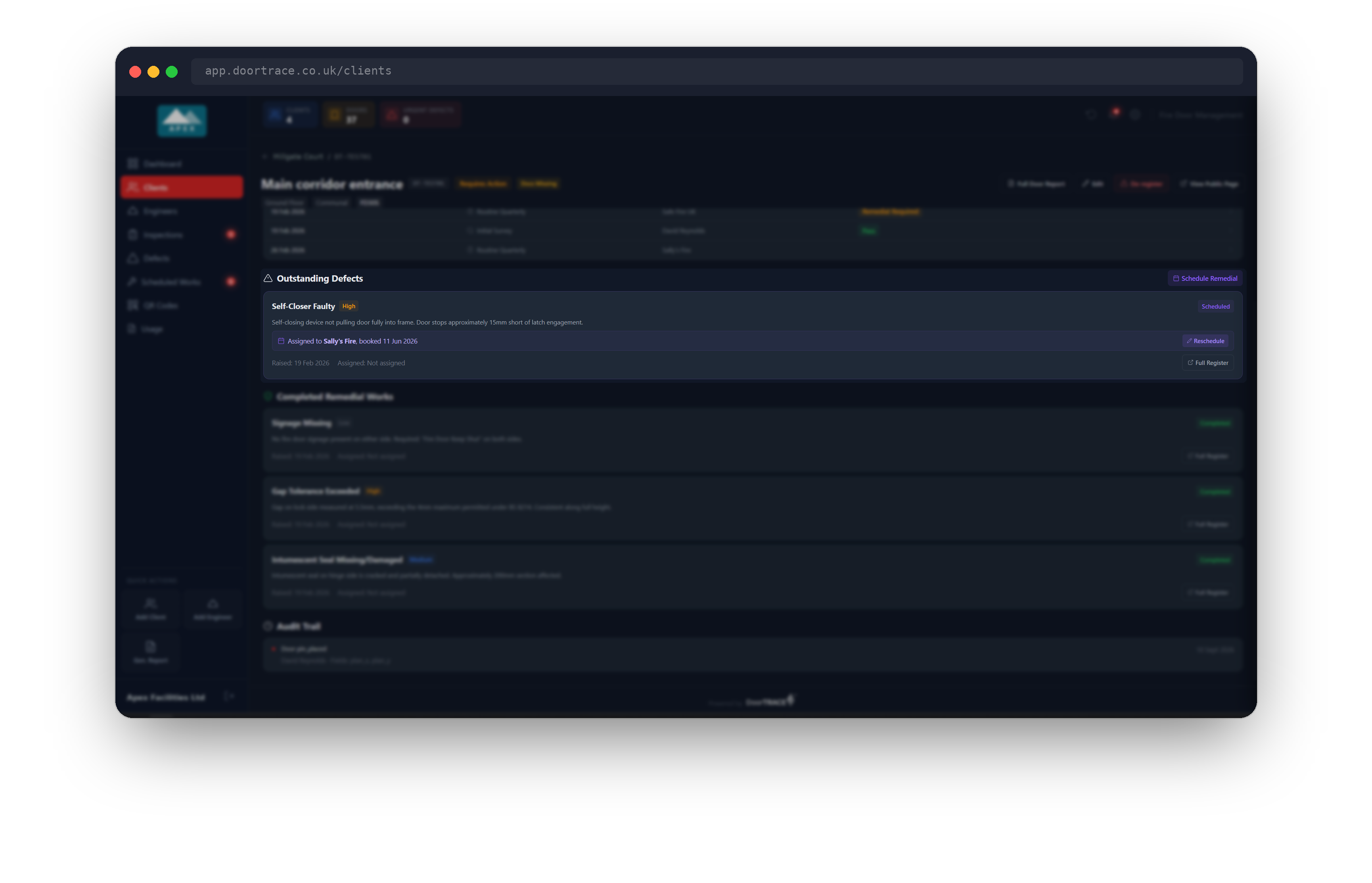
Every defect that has not yet been fixed is listed here as a card. Each card shows the checklist item that failed (or the defect type), a priority badge (Critical, High, Medium or Low), a status badge (Open or Scheduled), the engineer's description, and when it was raised and who it is assigned to. An open defect has a Schedule button; a scheduled one shows Assigned to [engineer], booked [date] with a Reschedule button. Full Register opens the Defect Register page. The Schedule Remedial button at the top of the section opens the scheduling pop-up for the first open defect. Scheduling is covered in Scheduling remedial work.
When nothing is outstanding, the section shows No defects recorded, this door is in good condition, or All defects have been resolved if there were defects in the past.
Completed Remedial Works
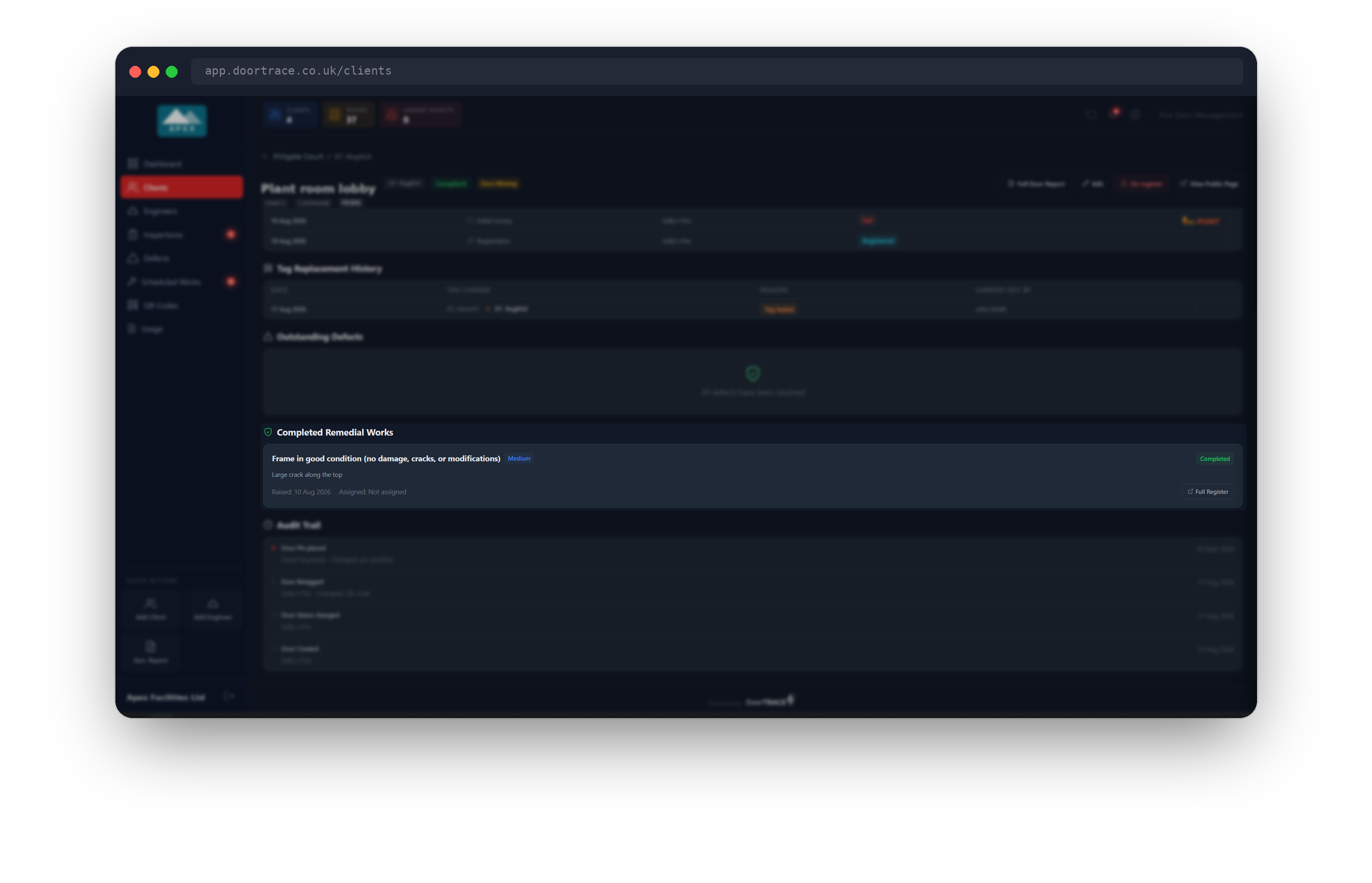
Defects that have been fixed move down to this section, marked Completed. A defect is only completed when an engineer submits a post-remedial form for it in the app; a later passing inspection does not close it. This section only appears when there is at least one completed defect.
Audit Trail
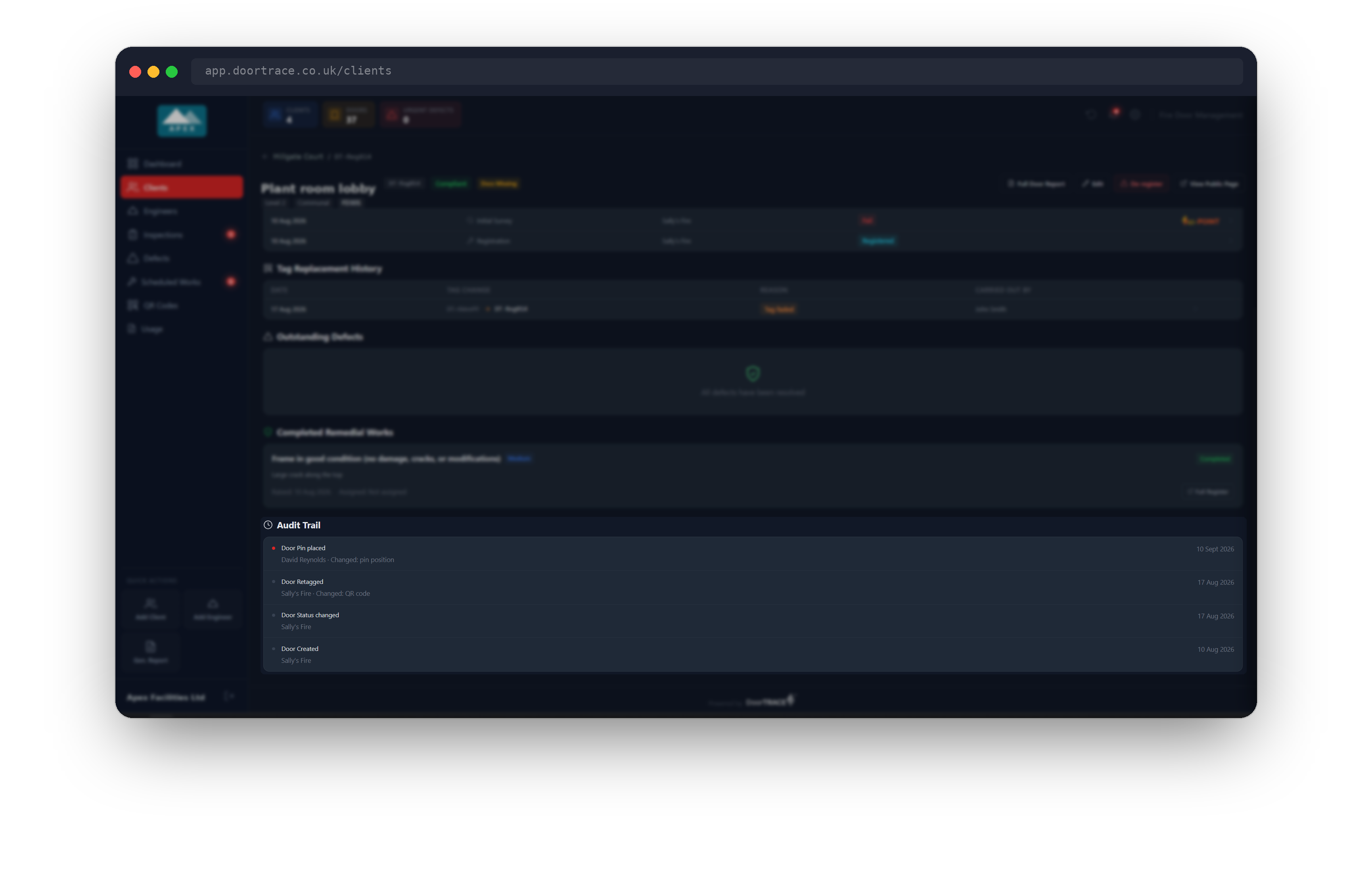
The audit trail lists changes to the door's own record, newest first: when it was created, each time its details were updated, its status changed, its tag was replaced or its floor plan pin was placed, along with who made the change and what changed (for example Changed: QR code). Inspections and defects have their own records above, so they do not appear here. The section is hidden until there is at least one entry.
Full Door Report
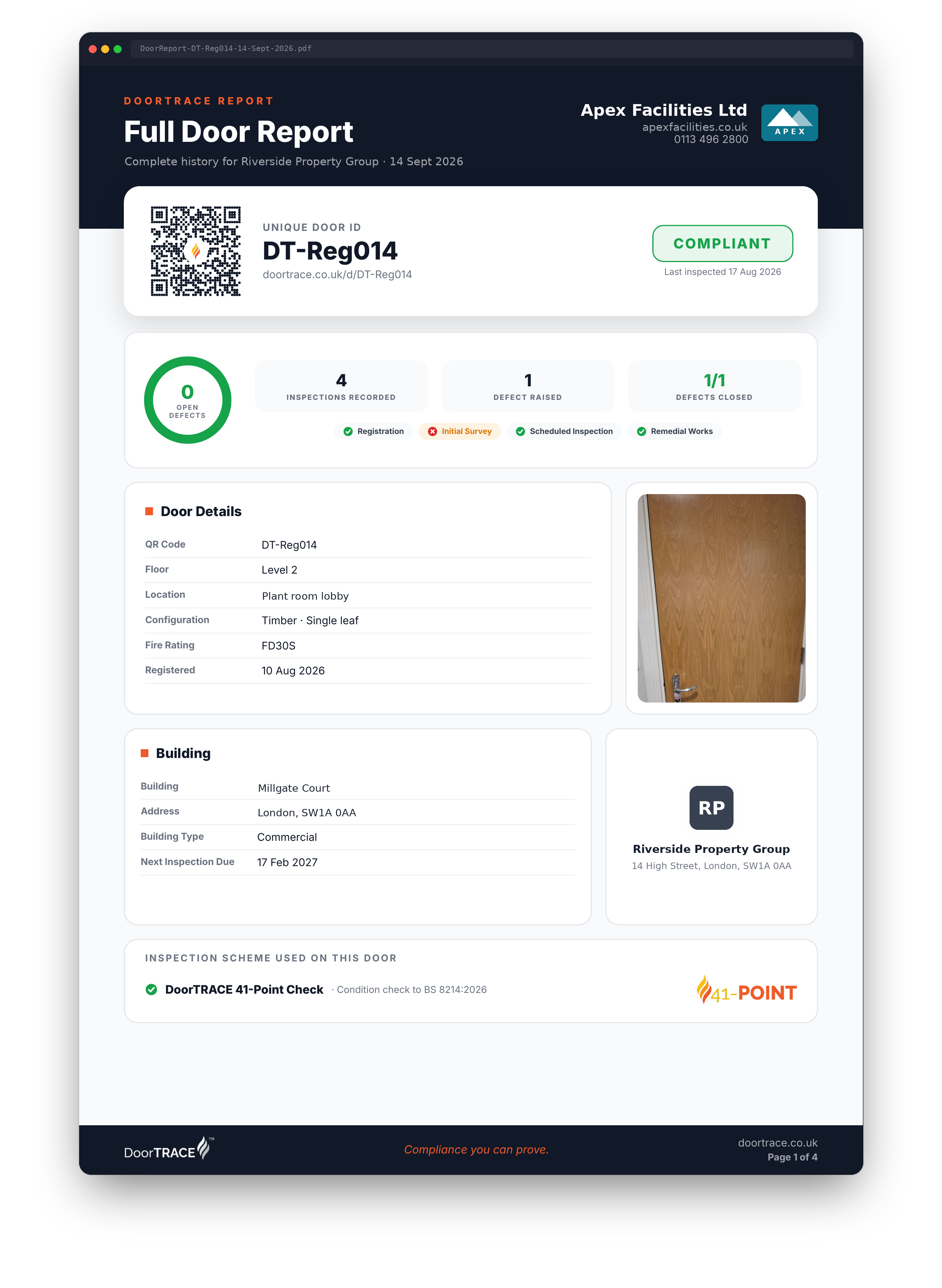
Full Door Report builds a PDF summary of the whole door in your browser and downloads it as DoorReport-[code]-[date].pdf. While it builds, the button reads Generating...; if it cannot be built it briefly reads Failed, so try again. The report has an overview page with the door's details, the building, your company and the client, the door's status and counts of inspections and defects; an Inspection History page listing every record with its report reference; a Tag Replacement History page when the tag has been replaced; a Defects page listing every defect raised and whether it is open or fixed; and a closing page listing the individual reports available for the door, notes on reading the report and the regulations that apply.
The public page
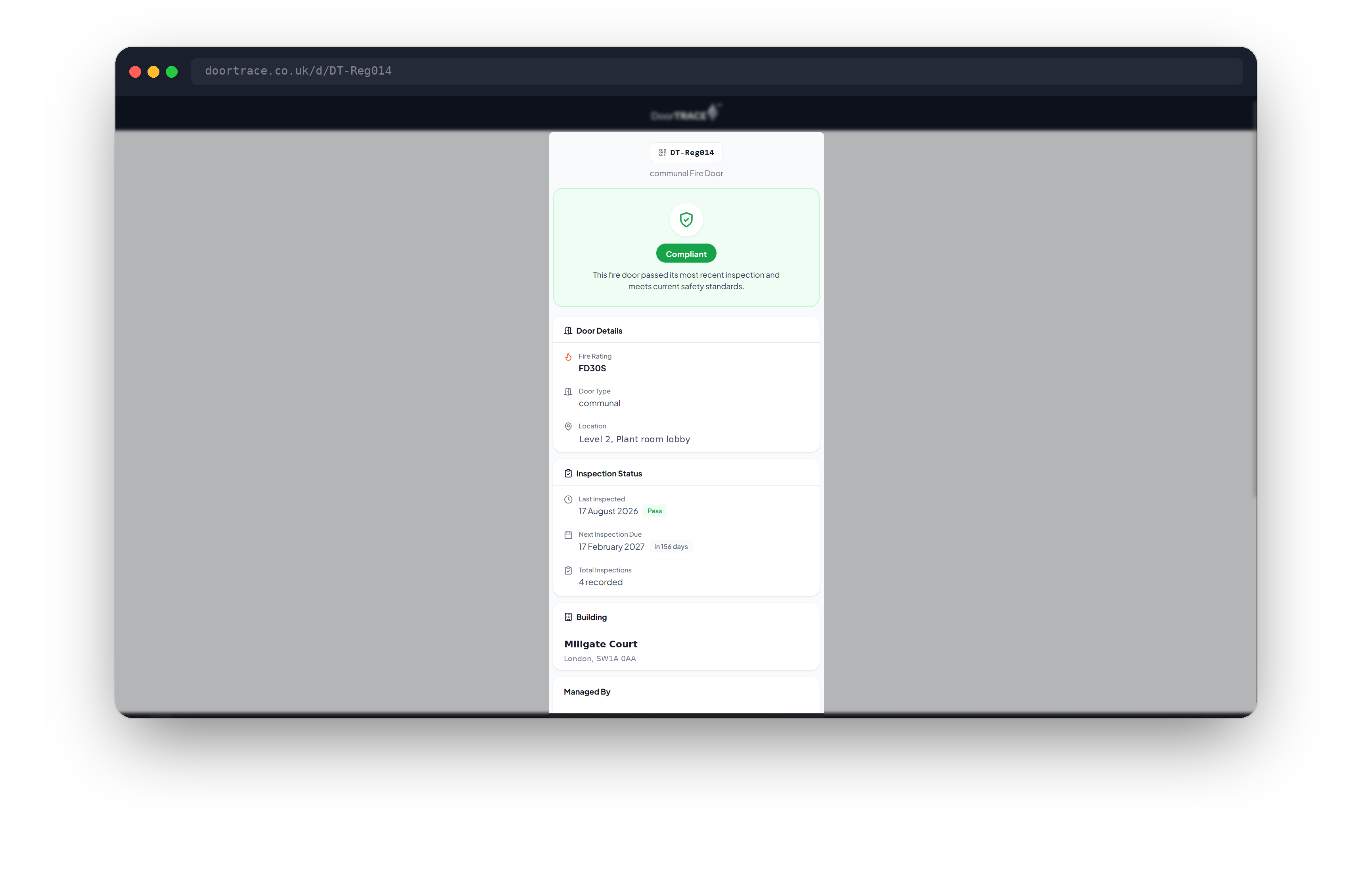
View Public Page opens doortrace.co.uk/d/[code] in a new tab. This is the page anyone sees when they scan the QR plaque on the door. It shows the code, the door type, a status banner, the door details (fire rating, type and location), the inspection status (last inspection and result, next due and how many days away, and the number of inspections), the building name and address, and your company's name and phone number under Managed By. A Report an Issue with This Door button starts an email to your company with the door code and location filled in. If remedial work is scheduled, a Remedial Work card shows how many issues are being resolved and the engineer assigned. No inspection detail, photos or defect descriptions are shown publicly.
If the history does not load
If the portal cannot fetch the door's history, the page shows Couldn't load this door's history with a Retry button in place of the tables. Check your connection and click Retry. The page never shows empty tables in place of a failed load, so an empty Inspection History always means there are no records.
What's next
To change a door's details or inspection frequency, or to remove a door from service, see Editing, rescheduling or de-registering a door.
Still can't find the answer?
Send us a message and we'll help. We respond within one working day.