FM Portal guides
FM Portal · Clients and buildings
Building notes for your client
Last updated 12 Oct 2026
Building Notes are for anything your client needs to know that applies to the whole building rather than to one door: a heritage statement, a disclaimer, the approach agreed for a listed building. You write them once on the building, and they print as the last section of the Building Compliance Report, both when you download the report and when your client downloads it from their own portal. This guide covers where to write the notes, how to format them, and what your client sees.
Before you start
Important: Your client reads these notes. Never enter access codes, key safe numbers or anything private here. Information for engineers belongs in Engineer Notes, which only engineers see. See Engineer notes for a building.
Building Notes are optional. A building with no notes simply has no Building Notes section in its report.
Where to write them
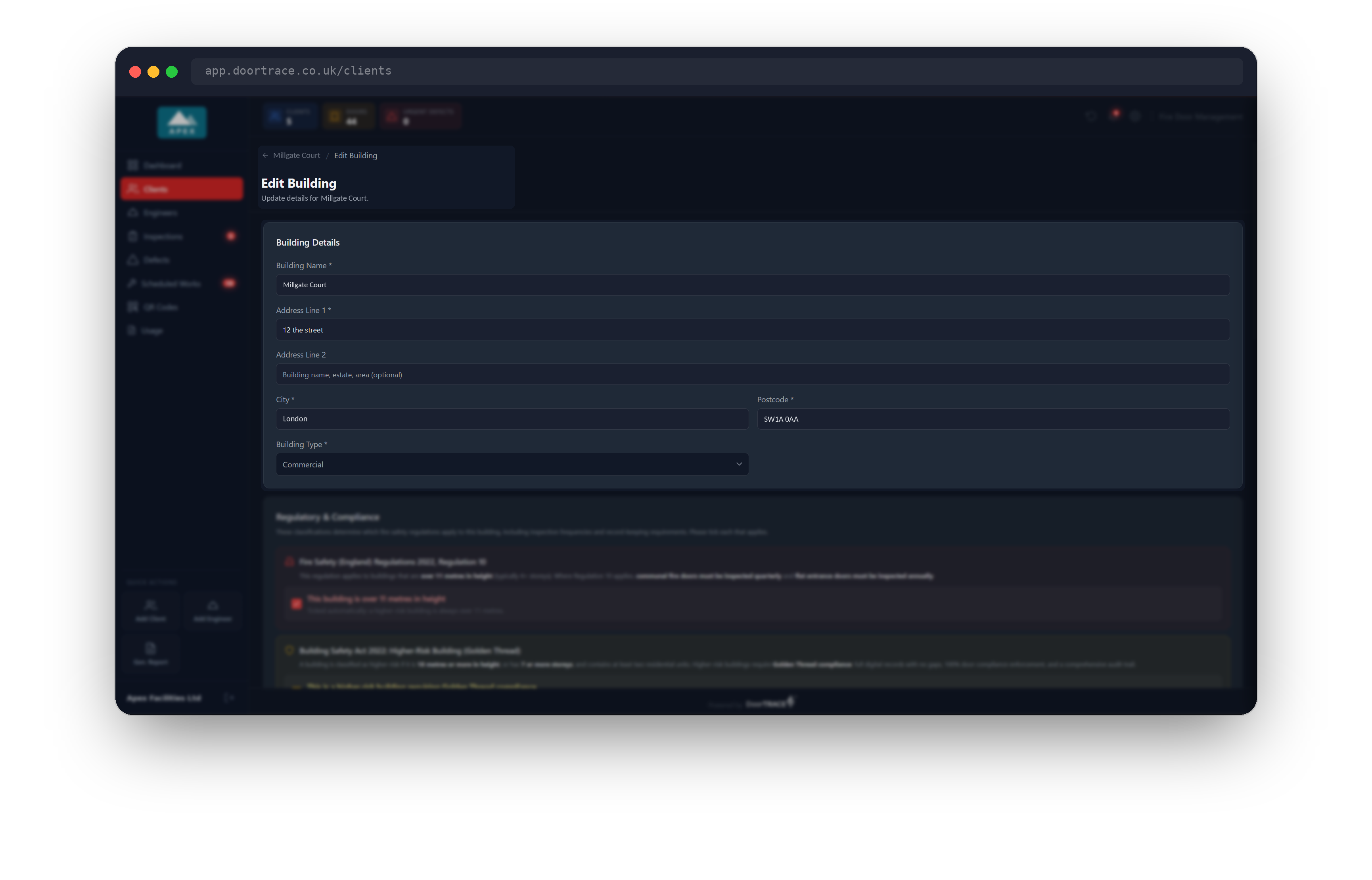
Open Clients, choose the client, then choose the building. Click Details at the top of the building page to open the Edit Building page, and scroll down past Building Details, Regulatory & Compliance and Responsible Person. Building Notes is the last section on the page, just above the Save Changes button.
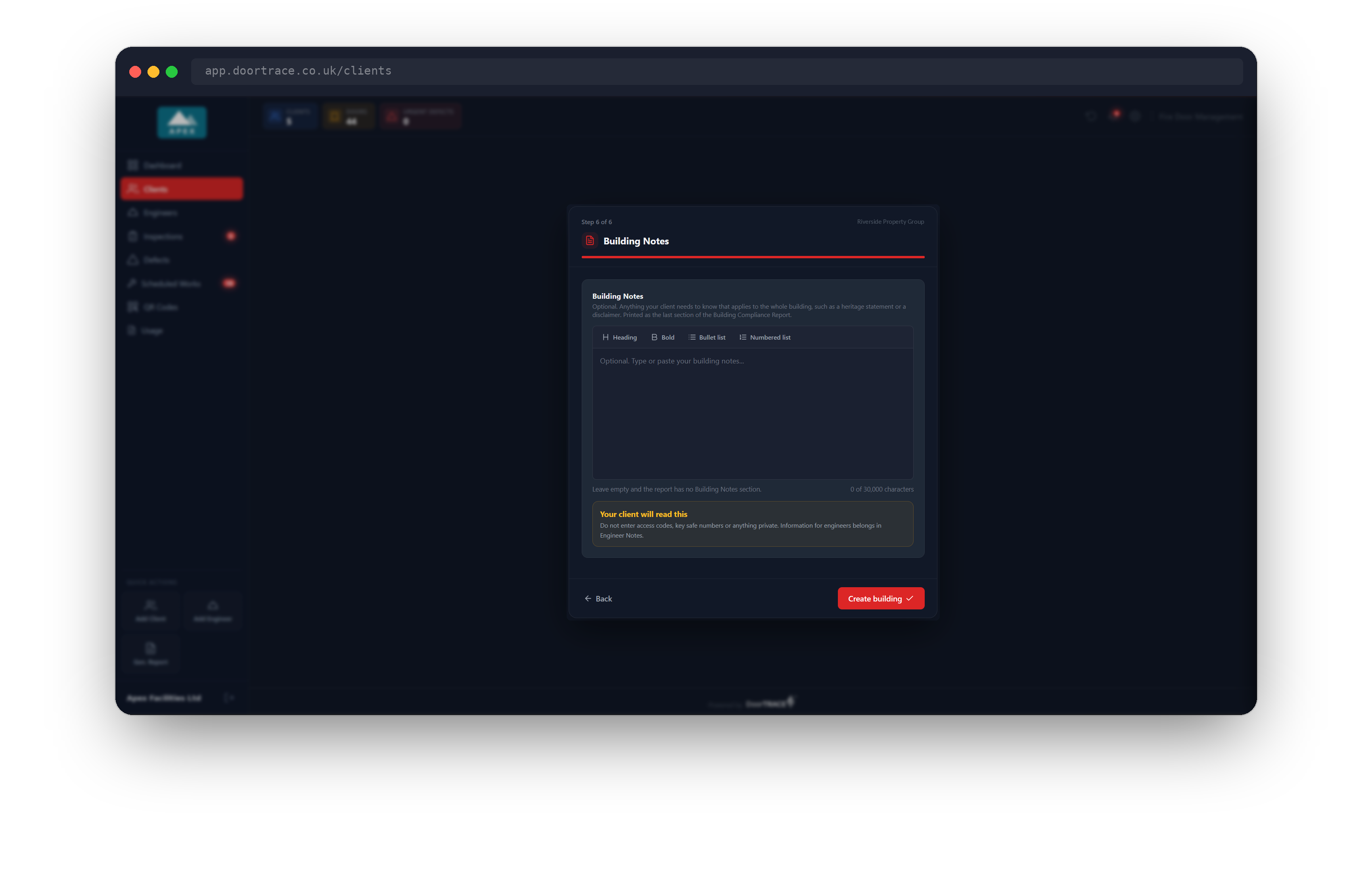
You can also write the notes while you are adding a new building. The sixth and last page of the Add Building wizard is Building Notes, with the same box and the same buttons. Fill it in or leave it empty, then click Create building. See Adding a building for the rest of the wizard.
Writing and formatting your notes
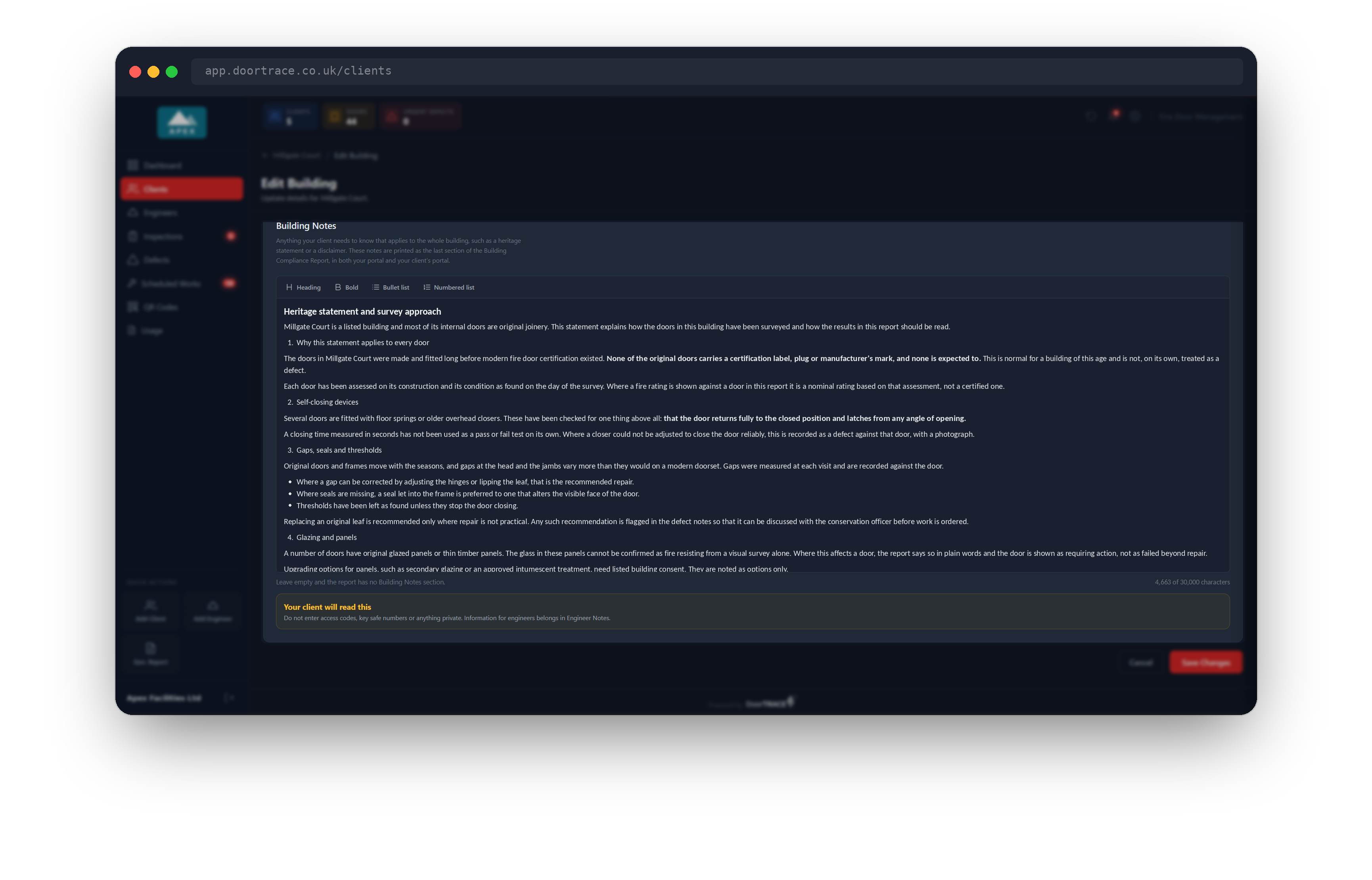
Click in the box and type. An empty box reads "Optional. Type or paste your building notes...". Press Enter to start a new paragraph. Under the box, on the left, a line reminds you: "Leave empty and the report has no Building Notes section." On the right is a count of the characters used, and below that an amber panel headed Your client will read this.
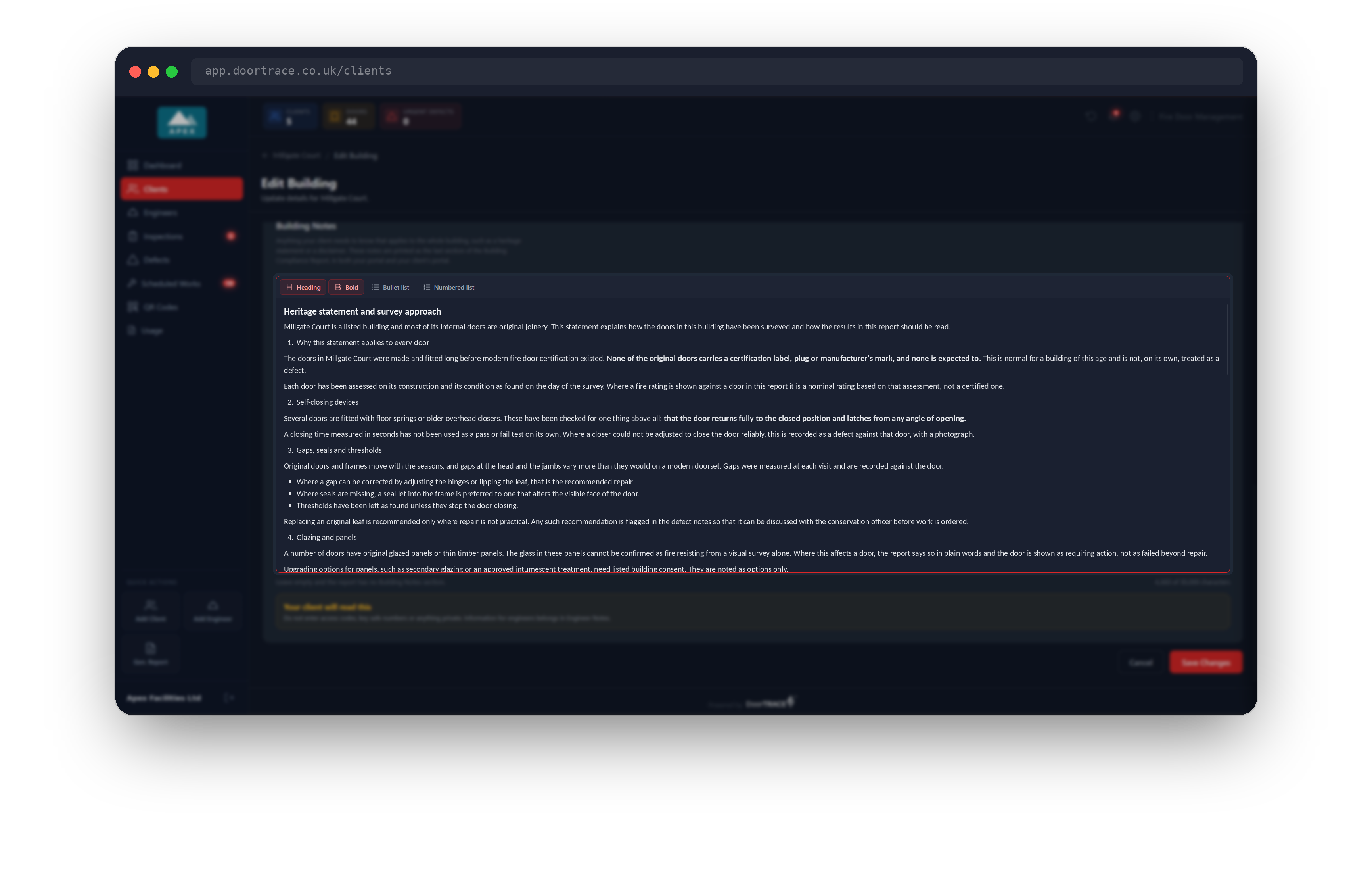
Four buttons sit along the top of the box:
- Heading turns the line you are on into a heading. Click it again to turn the line back into ordinary text.
- Bold makes the selected words bold.
- Bullet list starts a list with bullet points.
- Numbered list starts a numbered list.
A button lights up red when it applies to the place your cursor is, so you can always see how a line is set. Headings, bold, bullets and numbers are the only formatting there is. Italics and underlining are not available, so that what you see in the box is what prints on the report.
Pasting from another document
You can paste text from an email, a Word document or a PDF. Pasting keeps the words, the paragraphs, bullet lists and numbered lists. It does not keep fonts, colours or sizes, and headings and bold do not come across either: after pasting, click on each heading line and choose Heading, and select any words that should stand out and choose Bold.
Tip: After pasting a long document, read it through in the box once. It is quicker to fix a heading here than to find it on page 8 of a report your client has already downloaded.
The character limit
Building Notes can hold up to 30,000 characters, which is several pages of a report. The count under the box shows how much you have used, for example "4,663 of 30,000 characters". If you go over, the count turns red and reads "Too long to save, shorten the notes." The notes cannot be saved until they are back under the limit: on the Edit Building page, Save Changes lists "Building Notes can be at most 30,000 characters." under Please fix the following errors.
Saving
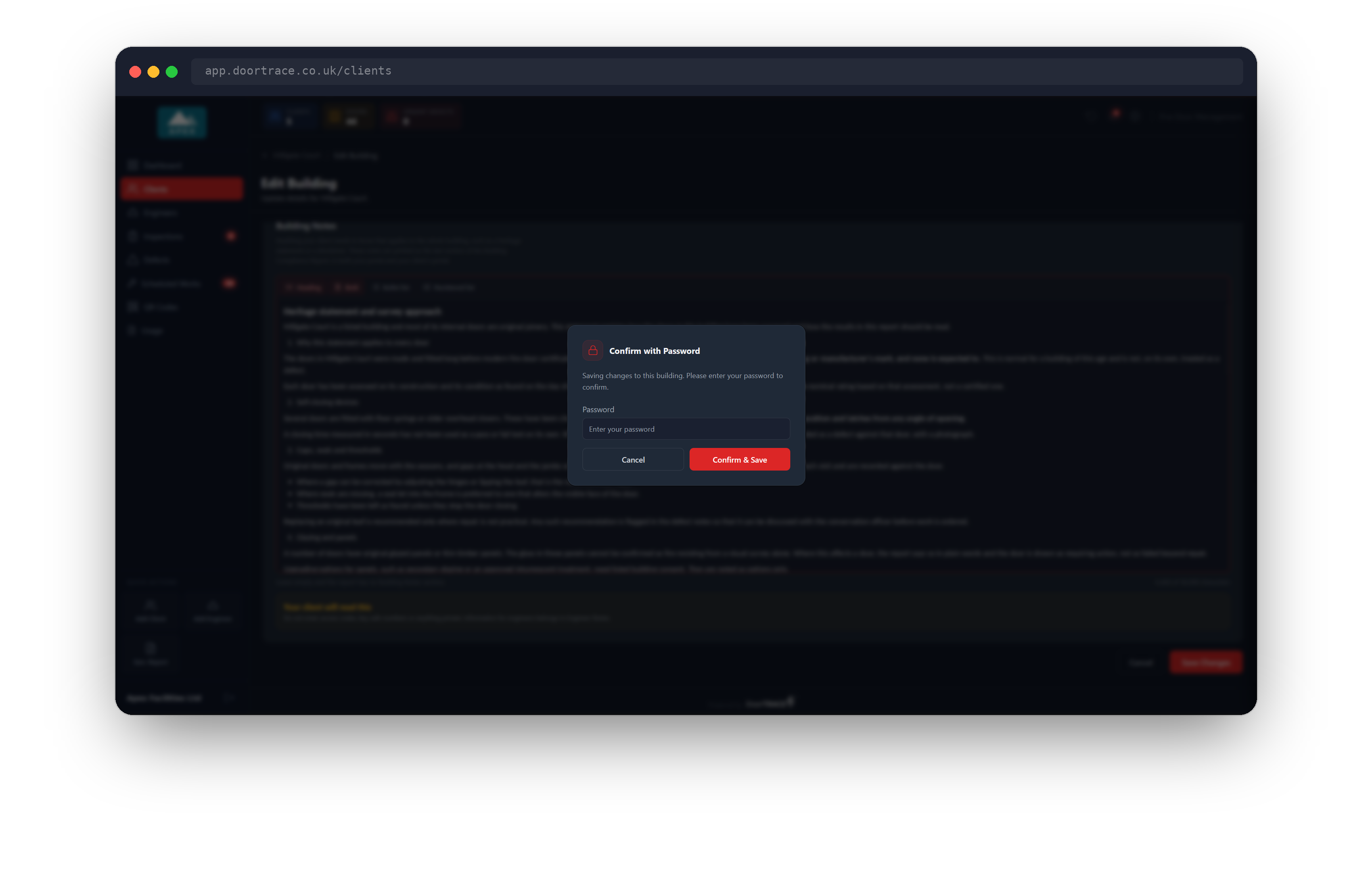
Click Save Changes at the bottom of the Edit Building page. You will be asked for your portal password to confirm. Enter it in the Confirm with Password window and click Confirm & Save. The message "Building updated successfully" confirms the save. If the password is wrong, the window stays open with "Incorrect password. Please try again." and nothing is saved.
In the Add Building wizard the notes are saved with the building itself, when you click Create building and confirm with your password.
How the notes look on the report
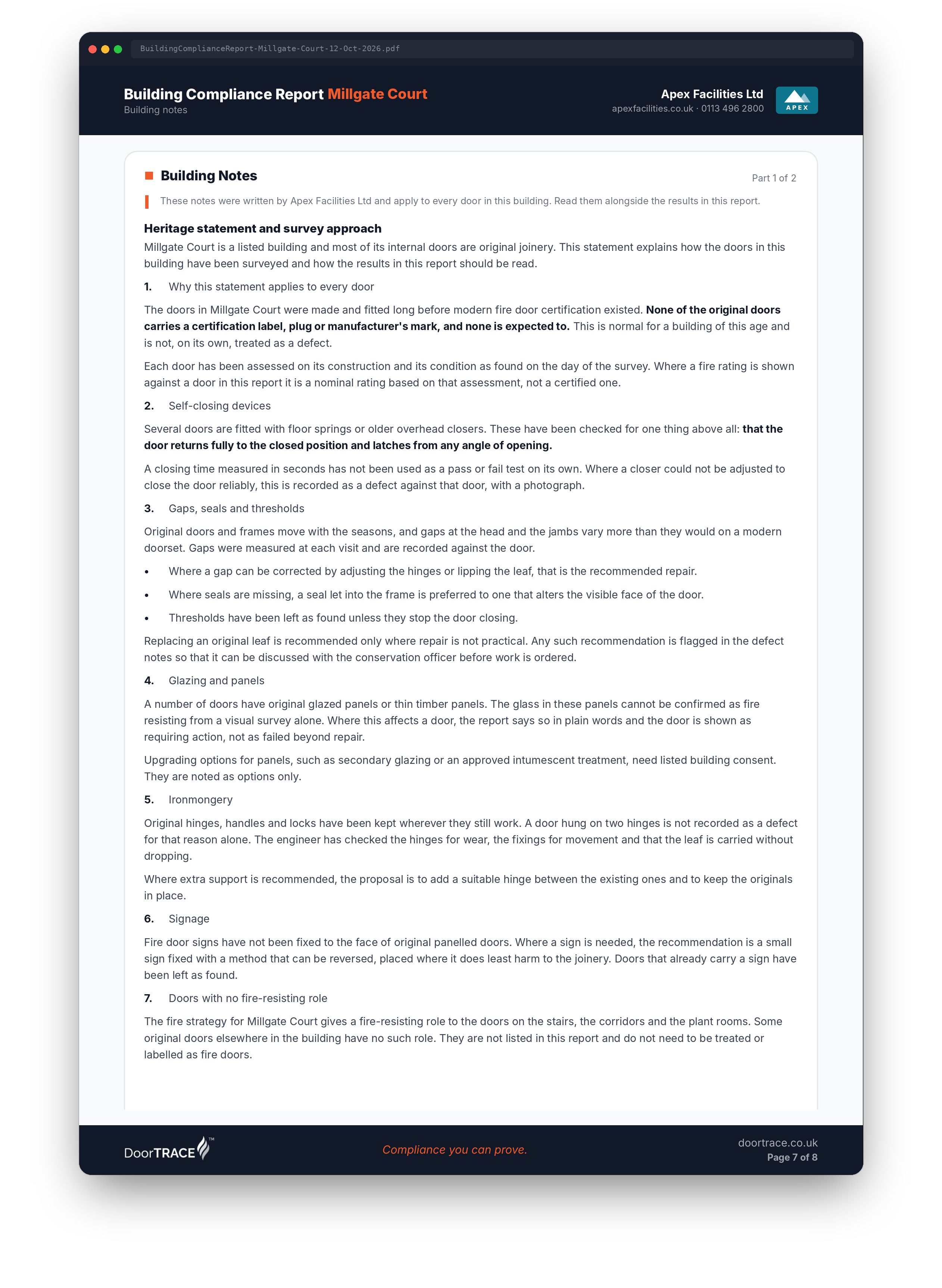
Click Building Report on the building page to download the Building Compliance Report. When the building has notes, the report ends with a section titled Building Notes. Under the title a line tells the reader who wrote them: "These notes were written by" your company name "and apply to every door in this building. Read them alongside the results in this report." Your headings, bold words, bullet points and numbers then print as you set them.
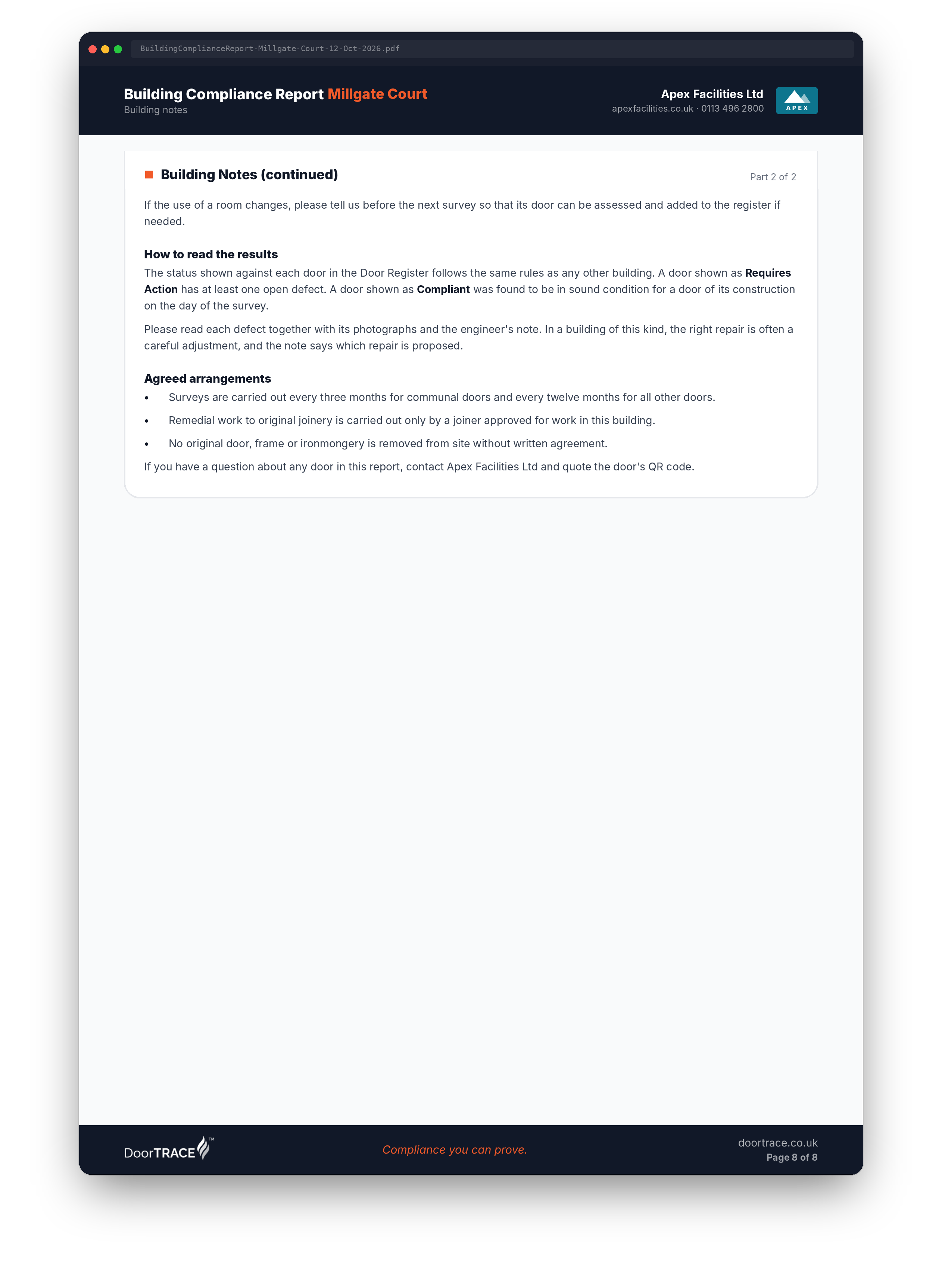
Long notes run on to as many pages as they need. Each page carries the report header and footer, the title changes to Building Notes (continued), and the top right corner shows where the reader is, for example "Part 2 of 2". Your client's copy of the report, downloaded from their own portal, has exactly the same section.
Changing or removing the notes
Open Details again, change the text and save. The next report anyone downloads uses the new notes; reports already downloaded do not change. To remove the notes altogether, delete everything in the box and save. The report then has no Building Notes section.
What's next
O&M documents covers the building's O&M page, where you store the operation and maintenance documents for the building and its doors.
Still can't find the answer?
Send us a message and we'll help. We respond within one working day.