FM Portal guides
FM Portal · Settings
The archive
Last updated 13 Oct 2026
Nothing in DoorTRACE is ever deleted. When you de-register a door, or archive a client or a building, the record leaves your working pages and moves to the Archive, where it is kept in a frozen, read-only state. This guide shows you how to find those records, what each one holds, and how to get a report on any of them.
Opening the Archive
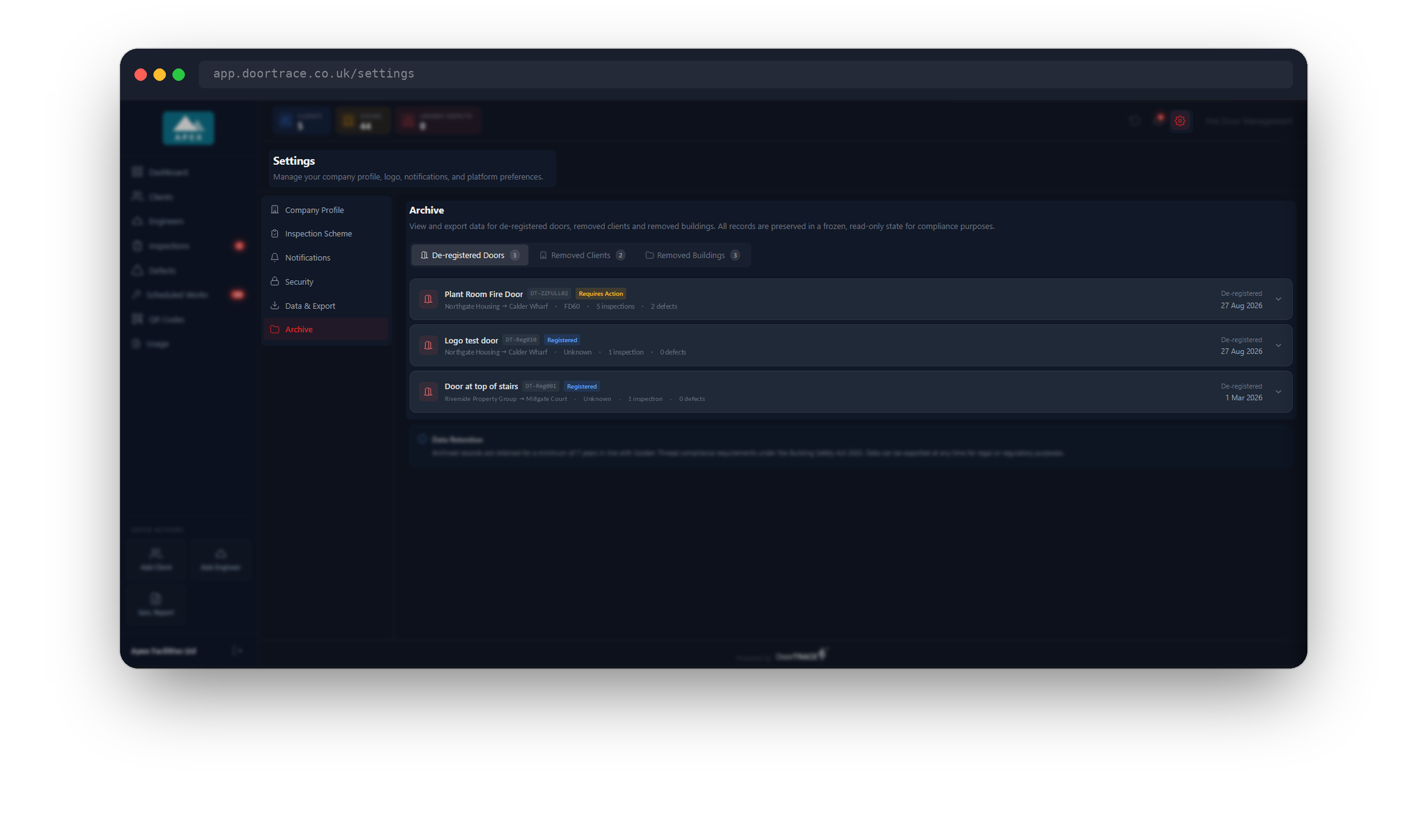
Click the cog at the top right of the portal to open Settings, then choose Archive, the last item in the Settings menu.
The page has three tabs:
- De-registered Doors: doors you de-registered one at a time from the door page.
- Removed Clients: clients you archived.
- Removed Buildings: buildings you archived.
A tab shows a number beside its name once it holds at least one record. Click a row on any tab to open it, and click it again to close it. Nothing on this page asks for your portal password, because nothing here can be changed.
Important: There is no restore. A record in the Archive cannot be brought back to your working pages, so check before you de-register a door or archive a client or building.
Where a record ends up
Which tab a record sits on depends on how it was removed.
- A door you de-registered on its own is listed under De-registered Doors. See Editing, rescheduling or de-registering a door.
- A building you archived is listed under Removed Buildings. Its doors are not listed one by one under De-registered Doors. They stay inside the building, and the building's report covers them. See Managing a building.
- A client you archived is listed under Removed Clients. Its buildings were archived with it, so they are listed under Removed Buildings as well. Its doors stay inside those buildings. See Managing a client.
If someone scans the QR tag of any archived door, in the engineer app or with a phone camera, the scan shows the door as de-registered.
De-registered doors
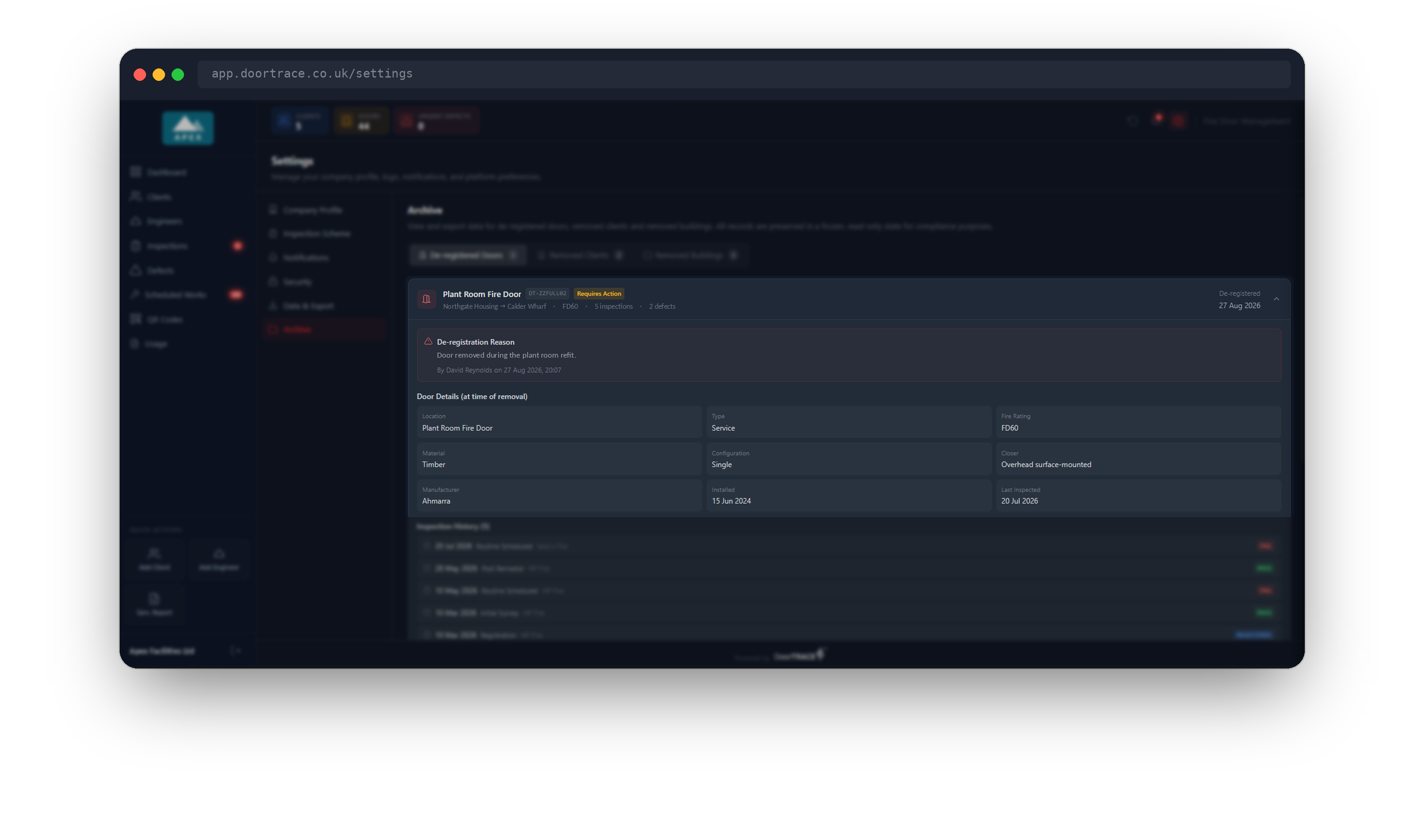
Each row shows the door's location, its QR code, the status it had when it was de-registered, the client and building, the fire rating, how many inspections and defects are on record, and the date it was de-registered.
Open a row to see the frozen record:
- De-registration Reason: the reason that was typed, who de-registered the door, and the date and time.
- Door Details (at time of removal): the details the door held on that day, such as Location, Type, Fire Rating, Material, Configuration, Closer, Manufacturer, Installed and Last Inspected. A detail that was never filled in is left out.
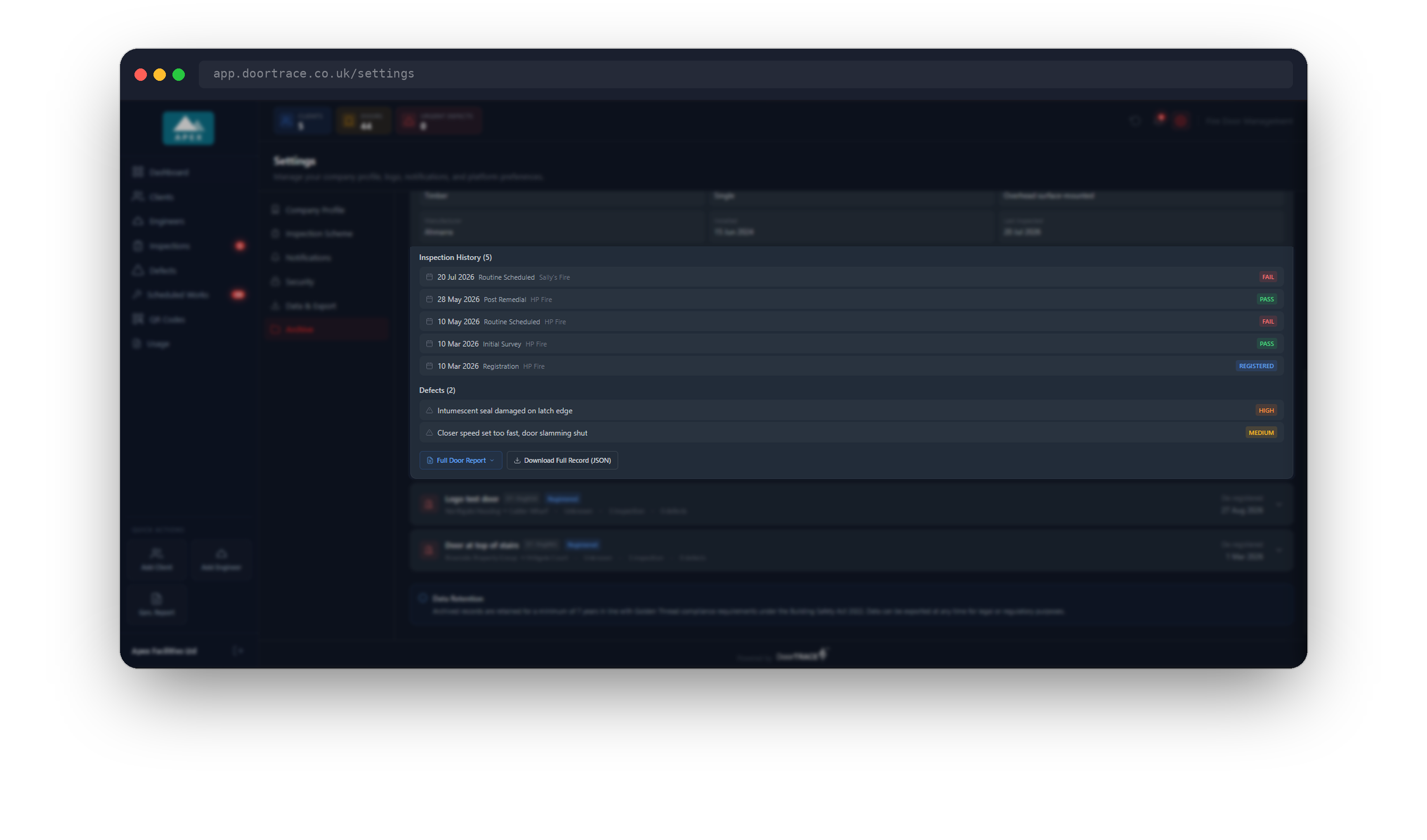
Below the details you will find:
- Inspection History, with the number of records in brackets. Each line gives the date, the kind of record, the engineer and the result. The door's registration is in this list too and carries a blue REGISTERED badge in place of a result. The first 10 records are shown.
- Defects, with the number in brackets. Each line gives the defect and its priority. The first 5 are shown.
When a door has more records than the page shows, a line reads "+ N more. Download the full record below." Two buttons sit at the bottom:
- Full Door Report makes a PDF of the door's whole history. See "Requesting a report" below.
- Download Full Record (JSON) saves the complete frozen record to your computer as a data file, for your own records or for a regulator who asks for the raw data.
Removed clients
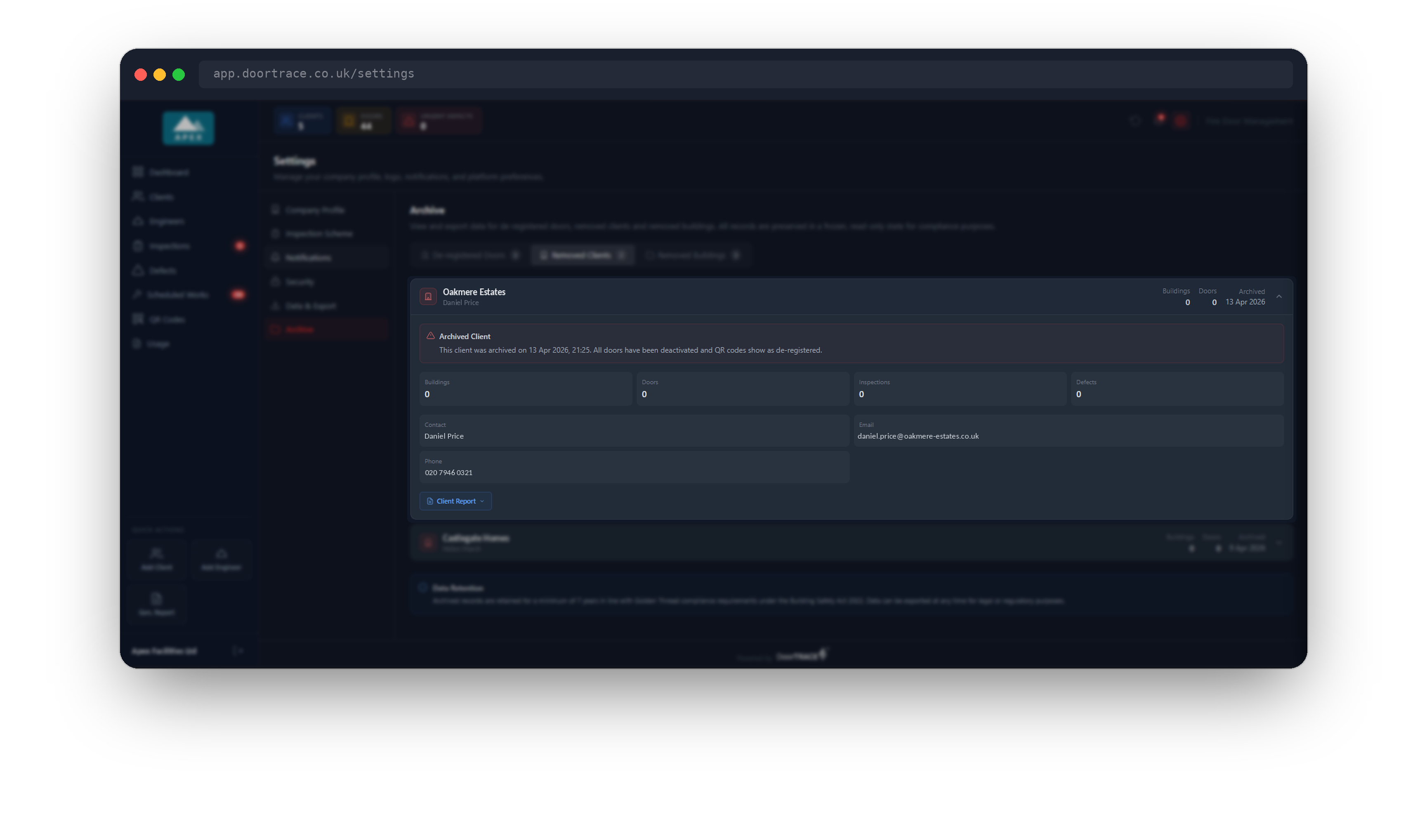
Each row shows the client's name, the contact, the number of Buildings and Doors, and the date the client was archived.
Open a row to see the Archived Client box, which gives the date and time the client was archived and confirms that all its doors have been deactivated and their QR codes show as de-registered. Under it are four figures, Buildings, Doors, Inspections and Defects, followed by the contact details that were on record and the date of the Last Inspection.
The Client Report button at the bottom makes a report covering the client's buildings and doors.
Removed buildings
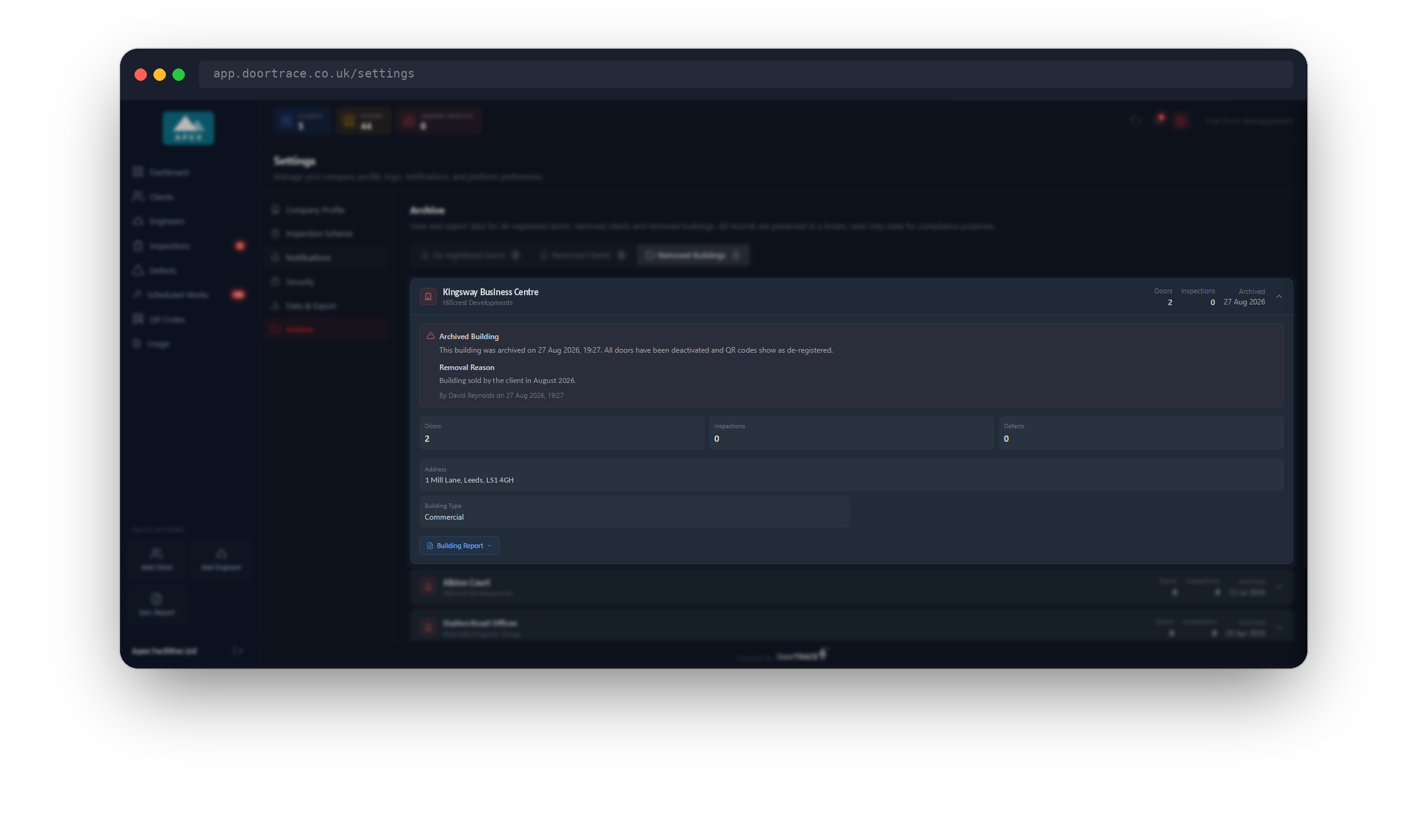
Each row shows the building's name, its client, the number of Doors and Inspections, and the date the building was archived.
Open a row to see the Archived Building box. It gives the date and time the building was archived, then the Removal Reason that was typed and who archived it. A building that was archived together with its client shows "Client archived:" and the client's name as its reason.
Under the box are three figures, Doors, Inspections and Defects, followed by the Address, the Building Type and the date of the Last Inspection where these were on record.
The Building Report button at the bottom makes a report covering every door in the building.
Important: A building with no doors has nothing to report on. If you ask for its Building Report, you receive an email saying the report could not be made.
Requesting a report
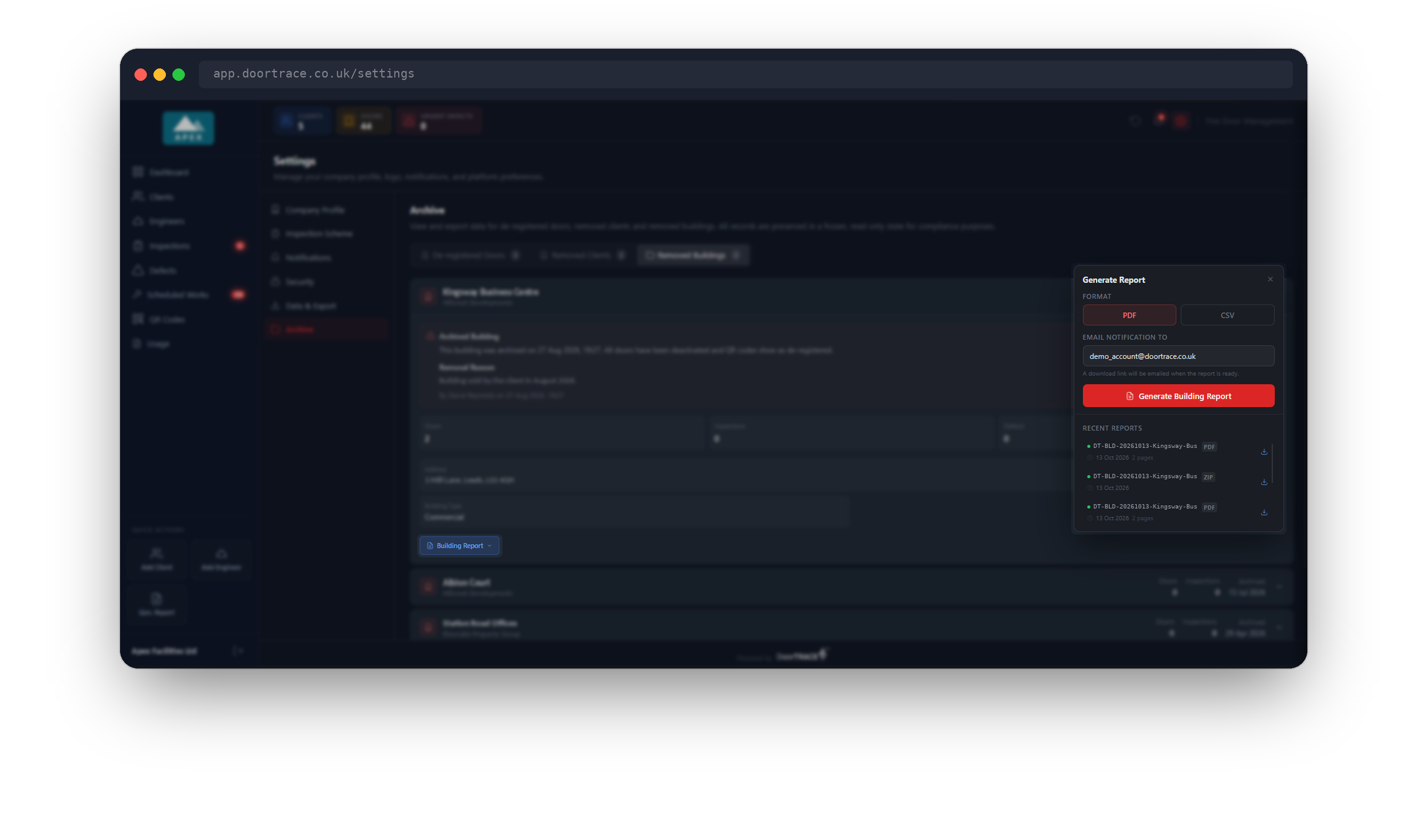
Reports on archived records are made in the background and sent to you by email, so you can carry on working while a large one is prepared.
- Open the door, client or building and click Full Door Report, Client Report or Building Report. The Generate Report panel opens.
- For a client or a building, choose the Format: PDF or CSV. A Full Door Report is always a PDF, so it has no Format choice.
- Check the address under Email notification to. It starts as your sign-in email, and you can type a different address.
- Click the red Generate button.
The button turns green and reads Requested, and a Report requested note confirms the address the email will go to.
What CSV gives you. A CSV report arrives as one ZIP file of spreadsheet files. For a building the ZIP holds six files (building, doors, inspections, defects, engineers and engineer documents) and a folder with one registration photo for each door that has one. For a client it holds five files (client, buildings, doors, engineers and engineer documents) and no photos.
The email and the download link
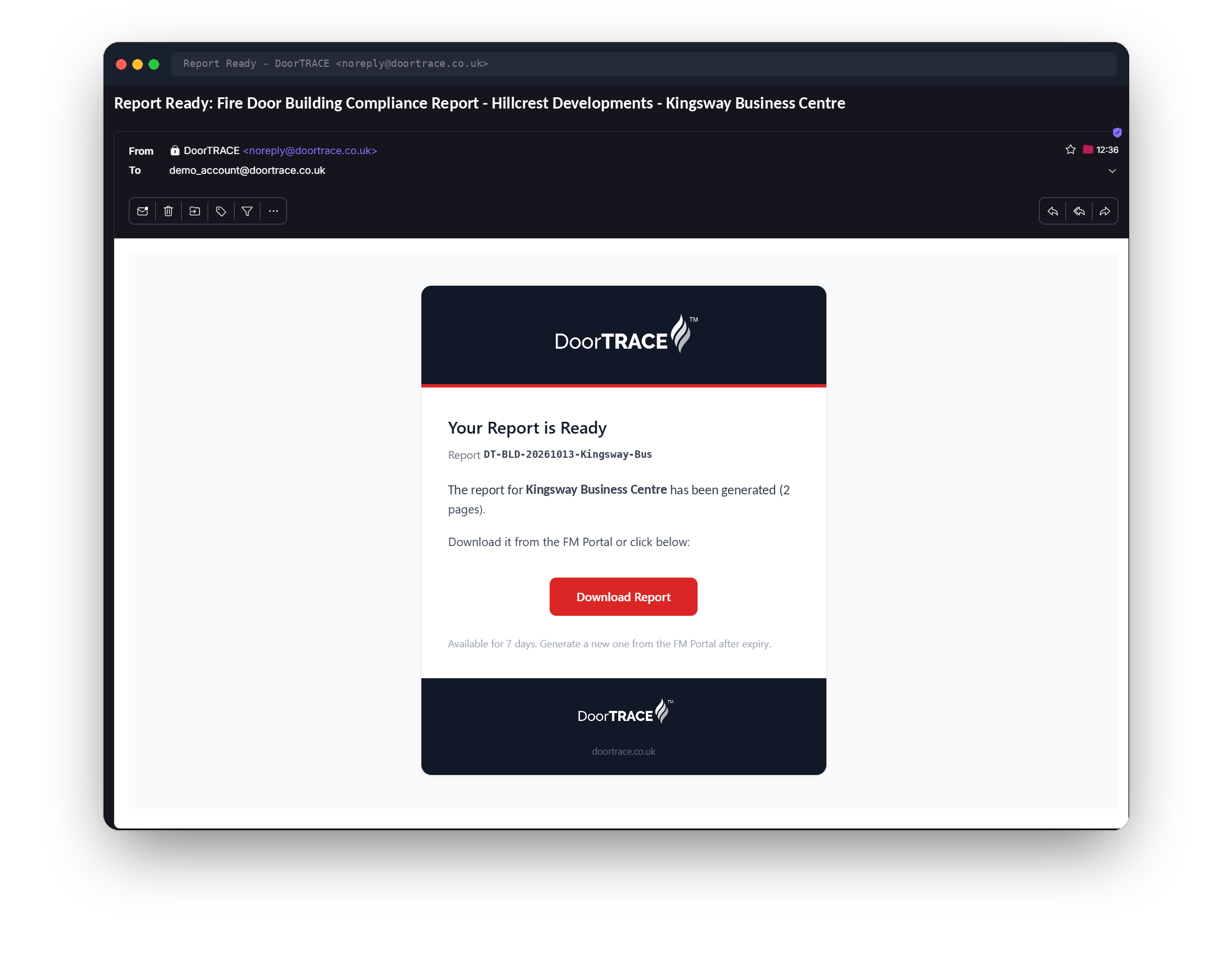
When the report is ready you receive an email from DoorTRACE noreply@doortrace.co.uk. The subject starts "Report Ready:" and names the report, for example "Report Ready: Fire Door Building Compliance Report - " followed by the client and the building. A CSV report has "(CSV)" at the end of the subject.
The email is headed Your Report is Ready, gives the report reference, and has a red Download Report button. A PDF opens in your browser and a ZIP file downloads.
Important: The link in the email works without signing in to the portal, so anyone you forward the email to can open the report. The link works for 7 days from the time you asked for the report. After that, request a new one.
If a report cannot be made, you receive an email with the subject "Report could not be made:" followed by the report reference. It gives the reason in plain words and asks you to request the report again. If it fails a second time, email support@doortrace.co.uk and quote the report reference.
Recent Reports
Once a record has had a report requested, the Generate Report panel shows Recent Reports under the red button: the last 5 reports your company asked for on that door, client or building. Each line gives the report reference, a PDF or ZIP tag and the date. On the right of each line you will see one of these:
- In progress: the report is still being made. Close the panel and open it again to see whether it has finished.
- A download arrow: the report is ready. Click the arrow to download it straight from the portal.
- Expired: the report is more than 7 days old. Request a new one.
- Failed: the report could not be made. Request it again.
Data Retention
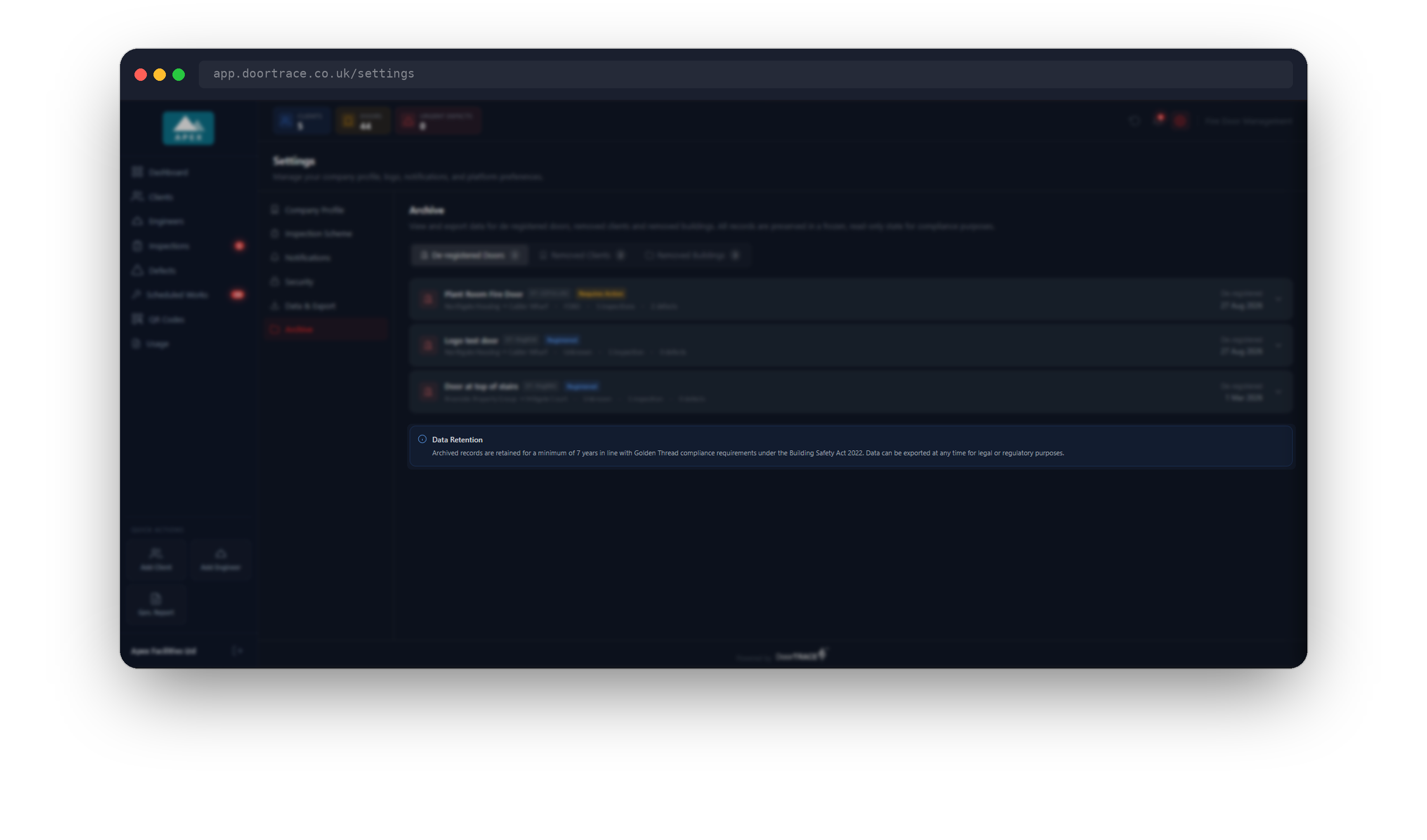
At the foot of every tab a Data Retention box reads: "Archived records are retained for a minimum of 7 years in line with Golden Thread compliance requirements under the Building Safety Act 2022. Data can be exported at any time for legal or regulatory purposes."
You do not need to do anything to keep archived records. They stay on this page, and you can request a report on any of them whenever you need one.
If a list does not load
Each tab loads on its own. If one cannot be loaded you see a red box, for example Your archived doors could not be loaded, with "Check your connection and try again." and a Try again button. This is not the same as an empty Archive. A tab with nothing in it says so plainly, for example No archived doors.
If an opened door reads "This door's details could not be loaded. Check your connection and try again.", click Try again under that message.
What's next
This is the last guide in the Settings section. To take a copy of your live records as well, see Exporting your data.
Still can't find the answer?
Send us a message and we'll help. We respond within one working day.