FM Portal guides
FM Portal · Reports
Report packs, many reports in one zip
Last updated 16 Oct 2026
A report pack is one zip file holding many PDF reports: every report for a client, for a building, or for the doors you pick. You choose what to cover and which reports to include, the portal makes every PDF for you in the background, and emails you a link when the zip is ready. Each PDF in the pack is exactly the one you would get by downloading it from the door, building or client page yourself.
Before you start
- Report packs are made from completed inspections only. An inspection that has not been finished on the phone is not in any report.
- A pack is made from the records as they stand when you press Build report pack. A door inspected after that is not in the pack. Make a new pack to include it.
- Up to three packs can be waiting or being made at the same time for your company. If you ask for a fourth, the portal says "Three report packs are already being made for your company. Wait for one to finish, or cancel one, then try again."
- The download link lasts 7 days. After that the zip is deleted and you can make the pack again with one click.
Open the Reports page
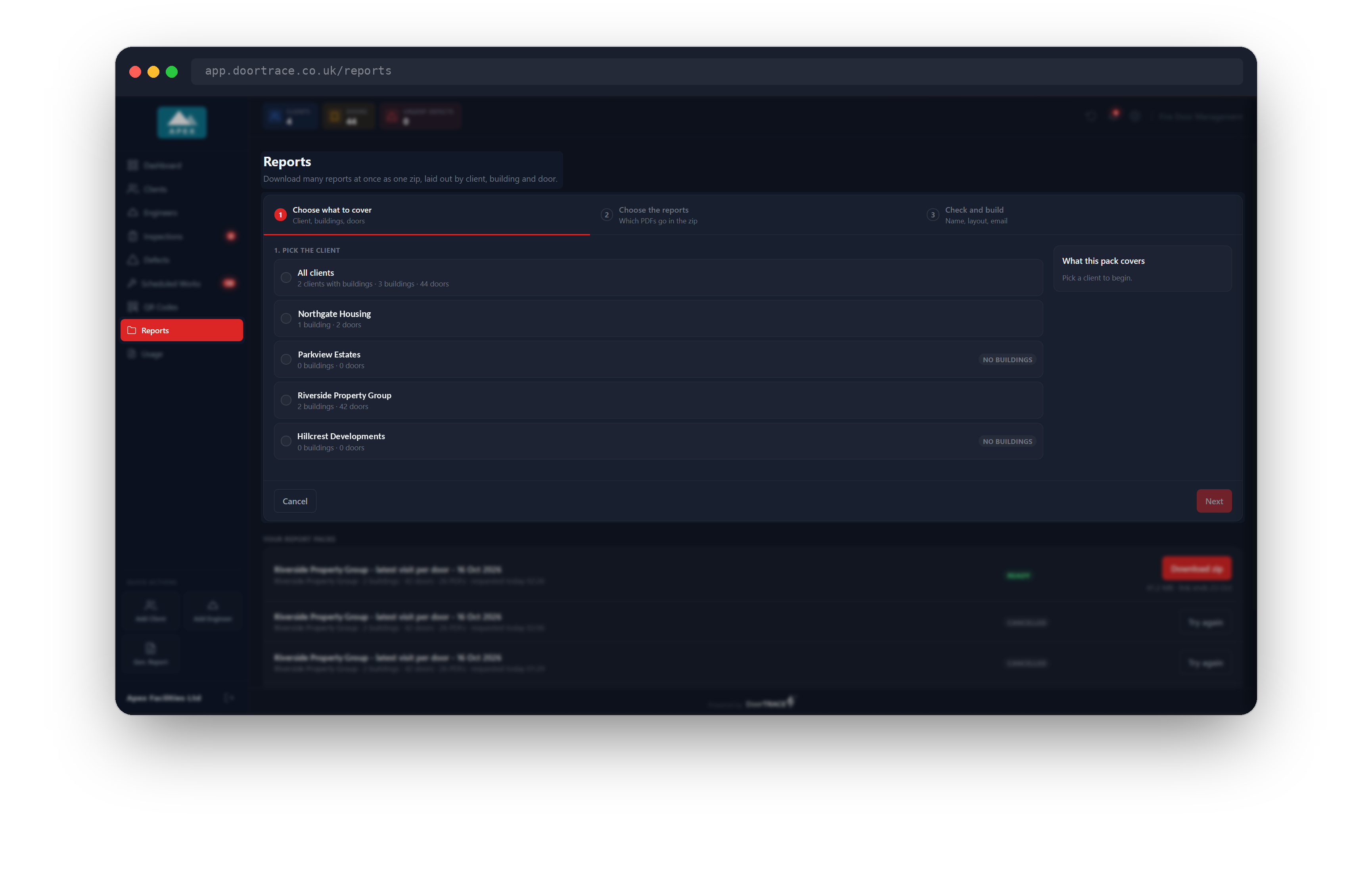
Choose Reports in the menu on the left, below QR Codes. The page opens on the first step of a three-step card: Choose what to cover, Choose the reports, Check and build. Below the card, Your report packs lists every pack your company has asked for, newest first.
The card is open whenever you arrive on the page. If you close it with Cancel, a red New report pack button at the top right brings it back.
Step 1: choose what to cover
Under 1. Pick the client, choose All clients or one client. The line under each name shows how many buildings and doors it has. All clients counts only the clients that have at least one building. A client with no buildings carries a No buildings tag and cannot be reported on.
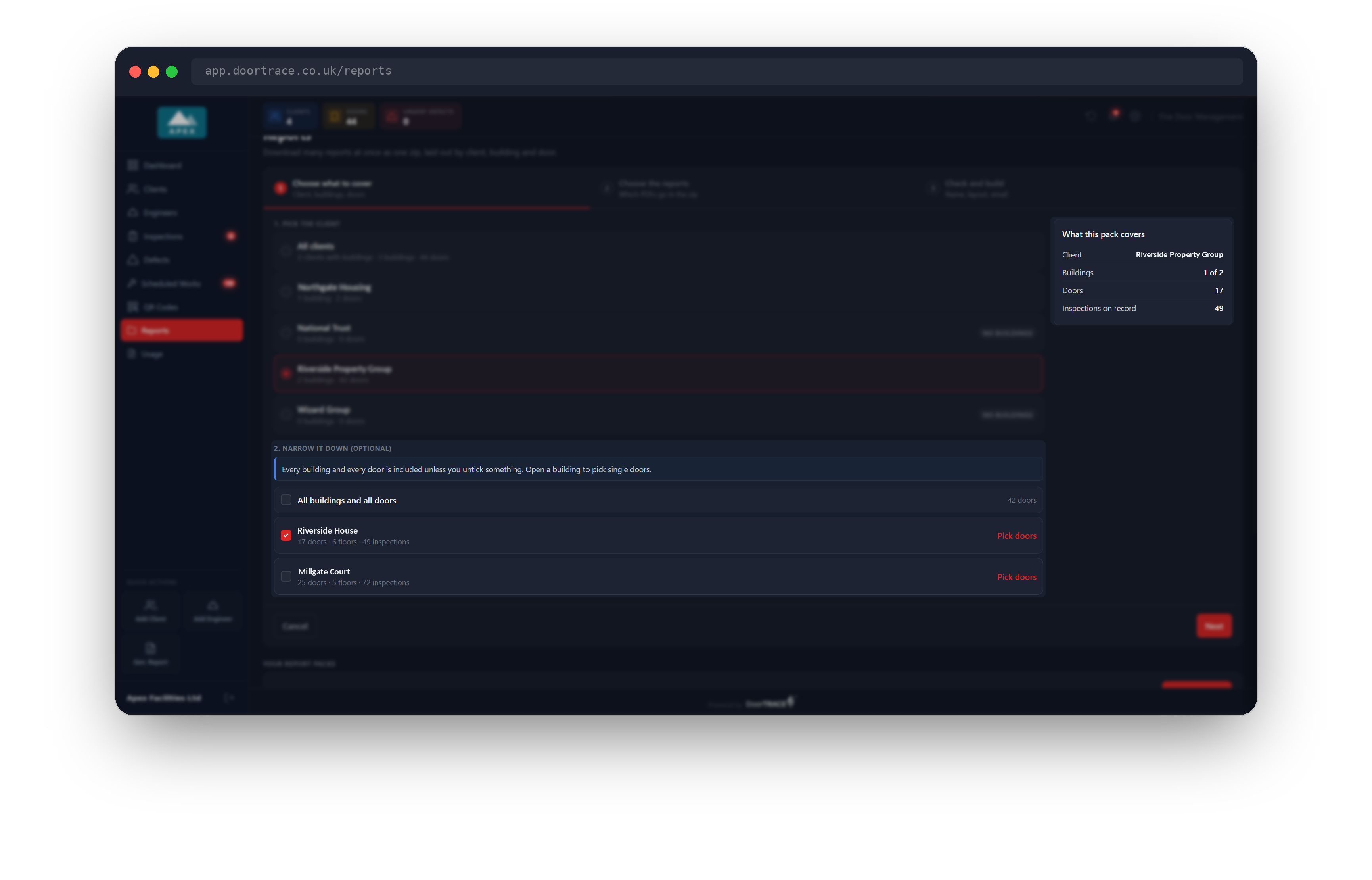
Once a client is chosen, 2. Narrow it down (optional) lists its buildings. Everything is in to begin with: All buildings and all doors is ticked, and every building shows its doors, floors and inspections on record. Untick a building to leave it out. In the picture one of the two buildings has been unticked, so the panel on the right reads "1 of 2" buildings.
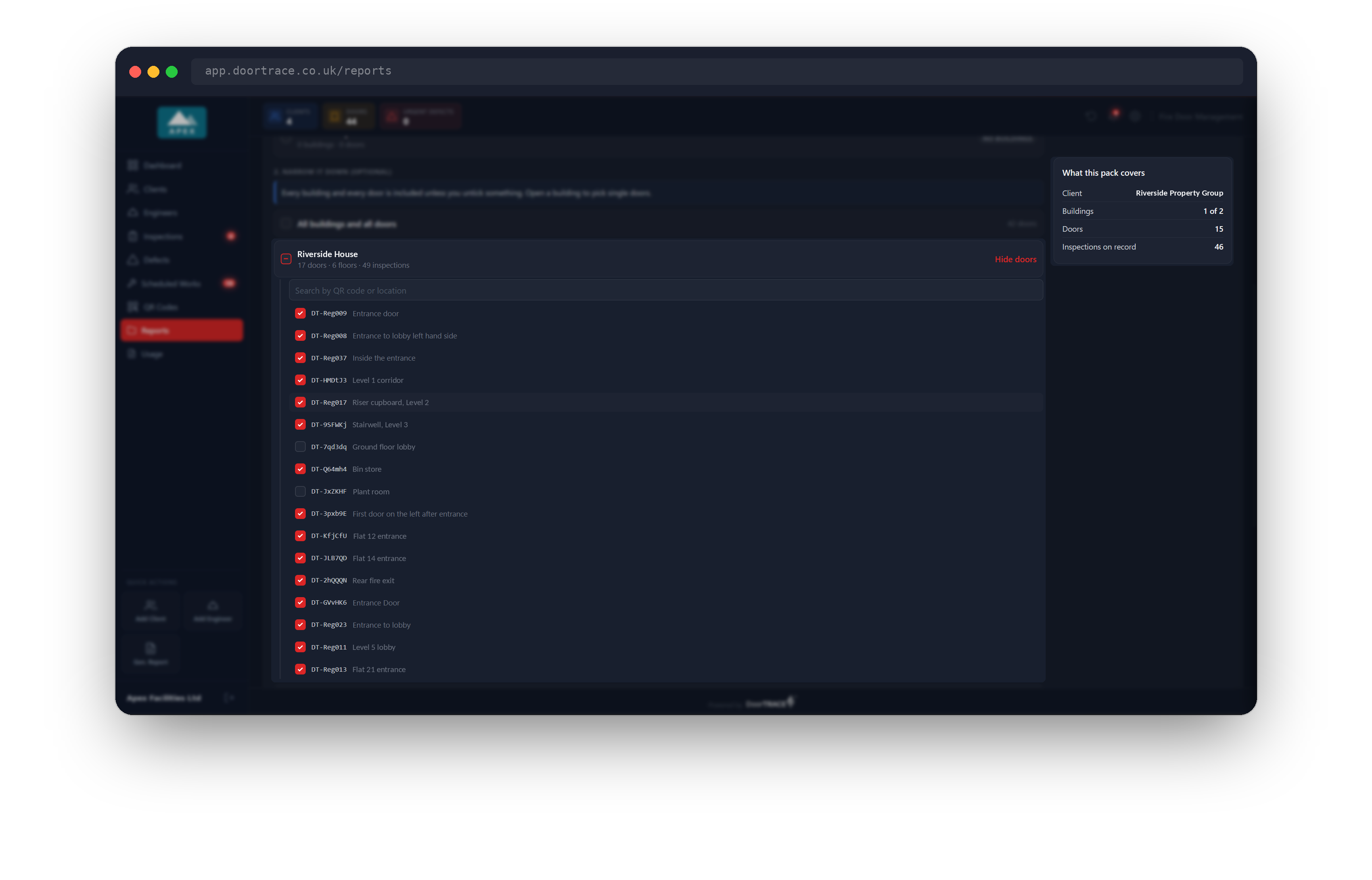
To leave out single doors, click Pick doors on the right of a building. Its doors are listed by QR code and location, each with a tick box, and a search box at the top finds a door by its code or its location. Untick the doors you do not want. Click Hide doors to close the list. A building with no registered doors reads "This building has no registered doors yet."
The panel on the right, What this pack covers, keeps count: the client, the buildings covered (for example "3 of 4"), the doors, and the completed inspections on record for those doors. Next stays grey until at least one door is covered.
Tip: Leaving a door out changes what the pack can hold. A building gets its building reports only when every one of its doors is in, and a client gets the Client Report only when every building and every door is in. Step 2 shows you where that applies.
Step 2: choose the reports
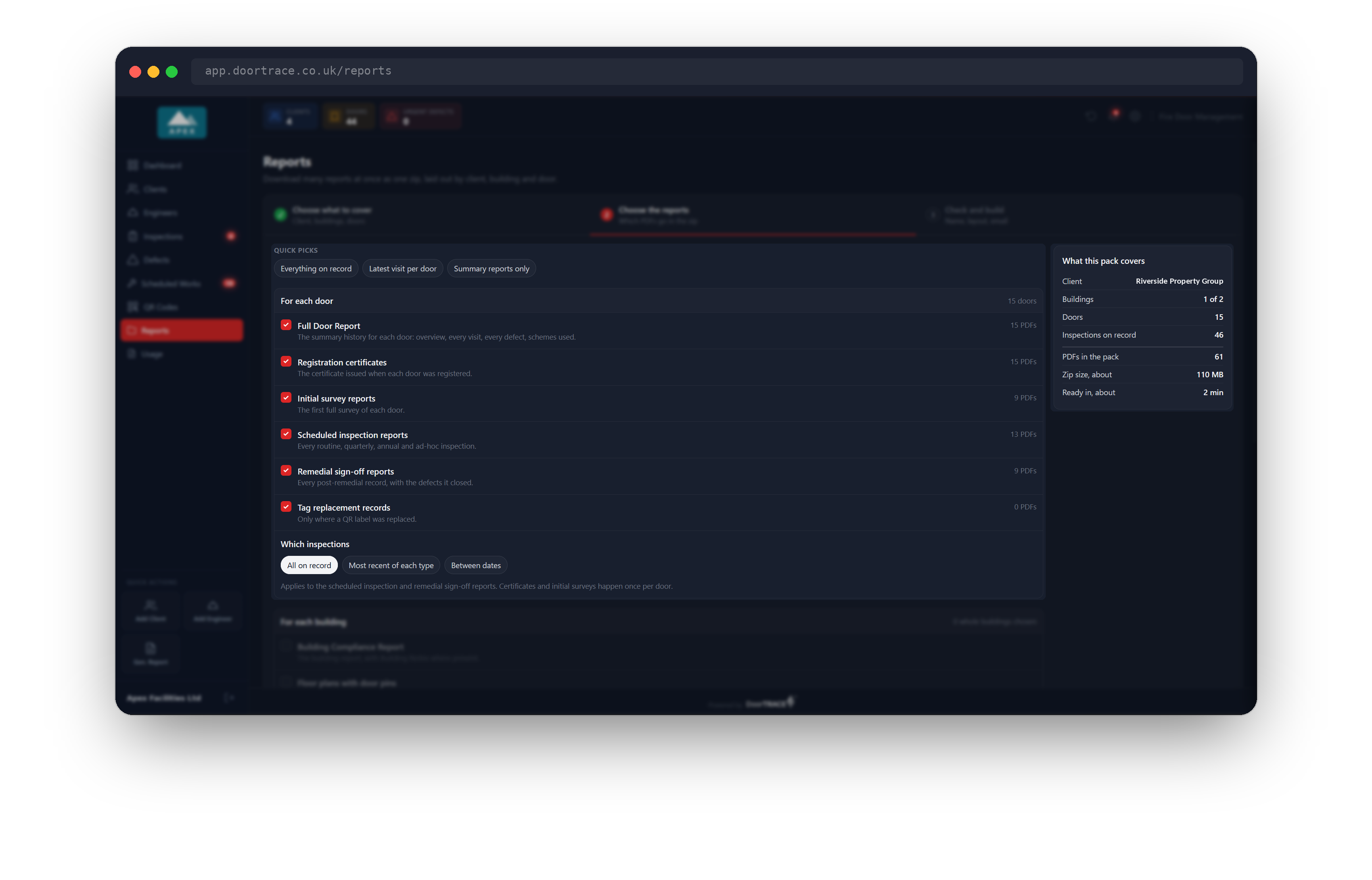
The quickest way is a Quick pick at the top:
- Everything on record: every report of every kind, for every door, building and client covered.
- Latest visit per door: the most recent scheduled inspection report and the most recent remedial sign-off report for each door, and nothing else.
- Summary reports only: the Full Door Report for each door, the Building Compliance Report for each whole building, and the Client Report for a whole client.
You can tick and untick individual reports after a quick pick, or ignore the quick picks and choose by hand.
For each door lists six reports. Each row shows how many PDFs it adds to the pack while it is ticked.
- Full Door Report: the summary history of the door, with every visit, every defect and the schemes used.
- Registration certificates: the certificate issued when the door was registered.
- Initial survey reports: the first full survey of the door.
- Scheduled inspection reports: every routine, quarterly, annual and ad-hoc inspection.
- Remedial sign-off reports: every post-remedial record, with the defects it closed.
- Tag replacement records: only where a QR label was replaced.
Which inspections decides how many of each door's records go in: All on record, Most recent of each type, or Between dates, which shows a from date and a to date. The choice applies to the scheduled inspection and remedial sign-off reports. A certificate and an initial survey happen once per door, so they are not affected.
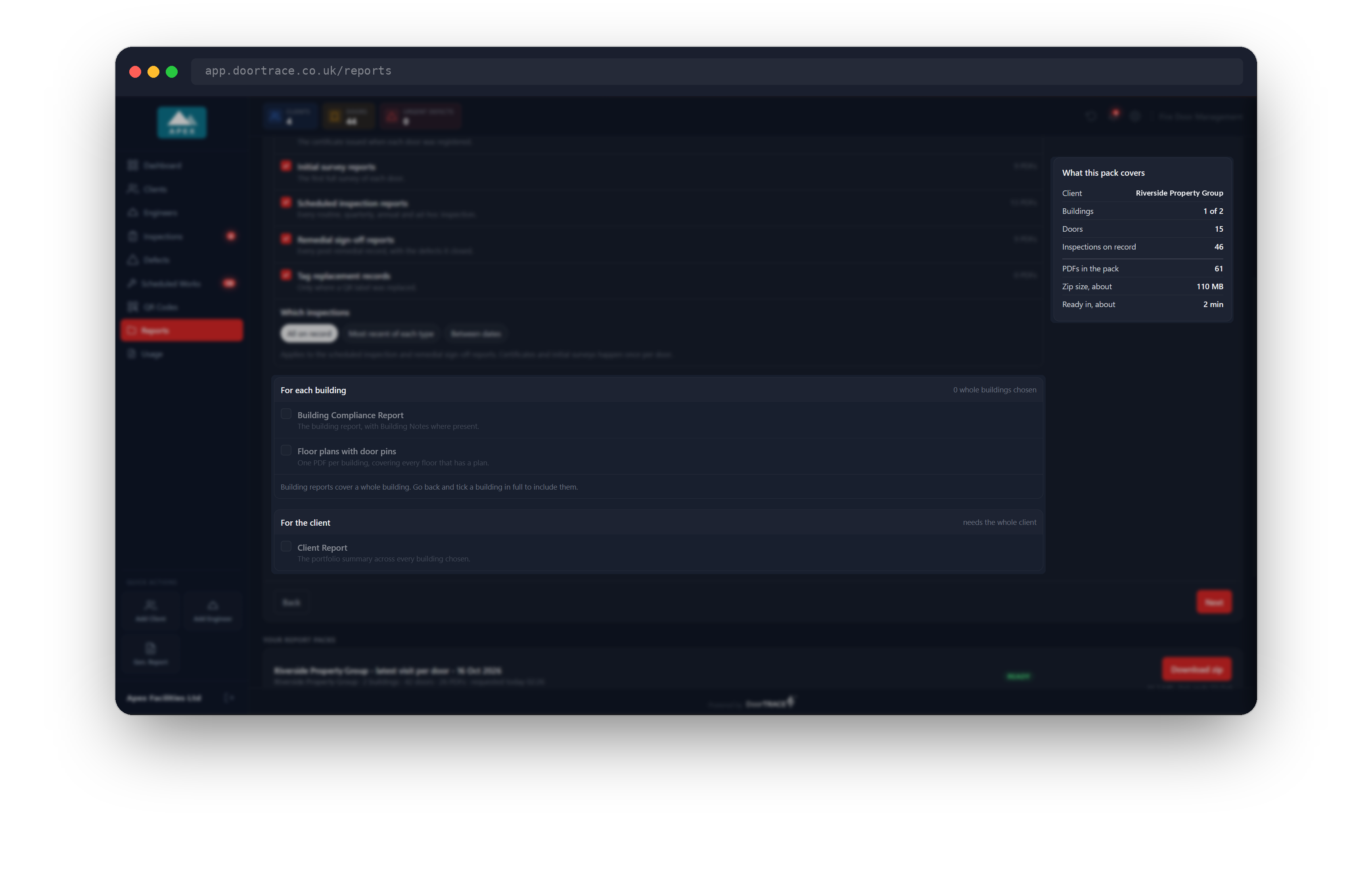
For each building offers the Building Compliance Report (with Building Notes where you have written them) and Floor plans with door pins (one PDF per building, covering every floor that has a plan). Both need a whole building. If every building in the pack has a door left out, the two rows are greyed and the note reads "Building reports cover a whole building. Go back and tick a building in full to include them."
For the client offers the Client Report, the portfolio summary. It needs the whole client: every building in and no door left out. Under All clients the heading reads For each client and one Client Report is made per client.
The panel on the right now also shows PDFs in the pack, the exact number the pack will hold, with a rough Zip size and Ready in time. The size and time are estimates; the PDF count is not.
Step 3: check and build
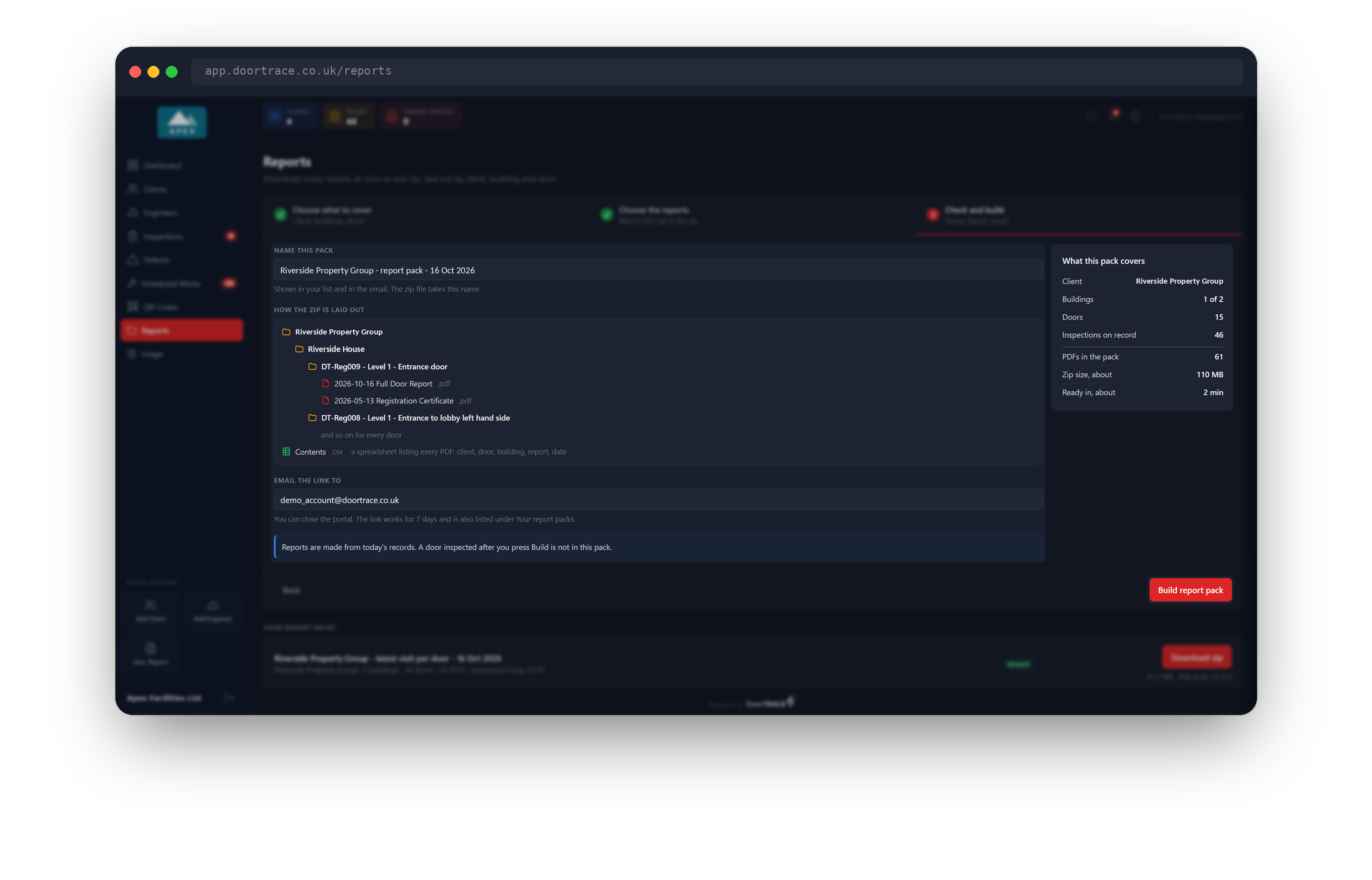
Name this pack is filled in for you from your choices, for example "Riverside Property Group - report pack - 16 Oct 2026", or "- everything on record -" after that quick pick. Change it if you like, up to 120 characters. The name shows in your list, in the email, and on the zip file.
How the zip is laid out shows the folders the zip will hold, using the real names of the first client, building and door in the pack. The layout is always client, then building, then one folder per door named with its QR code, floor and location. Inside the door folder each PDF is named by the date of the record and the report, so they read as a timeline: "2026-08-10 Registration Certificate", "2026-08-10 Initial Survey Report", "2026-08-16 Scheduled Inspection". The building and client reports are dated the day the pack was made. Contents at the bottom is a spreadsheet (a .csv file) listing every PDF with its client, building, door, floor, location, record date and whether it was made.
Email the link to starts as the address you sign in with. You can send the link to someone else by typing their address instead. The email is the only copy they get; the pack is also listed on this page for you.
Press Build report pack. The button reads "Requesting…" for a moment, the card closes, and a green message says "Report pack requested. We will email you when it is ready."
Important: Anyone who has the link in the email can download the zip without signing in, for 7 days. Treat the email as you would the reports themselves.
While the pack is being made
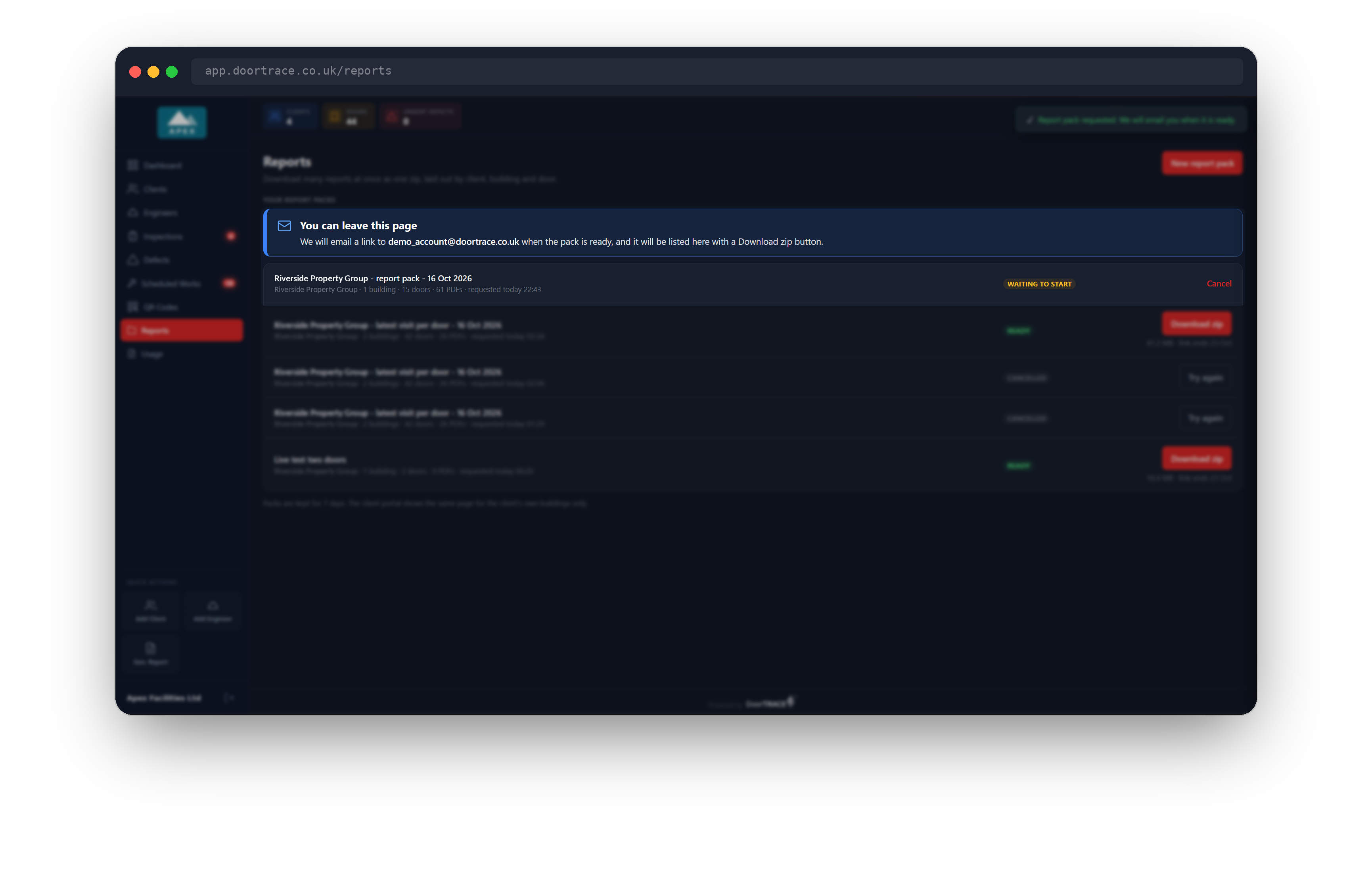
The new pack appears at the top of Your report packs as Waiting to start. A blue box above the list reads You can leave this page: the portal emails the link when the pack is ready, and the pack stays in the list with a Download zip button. You do not need to keep the page open.
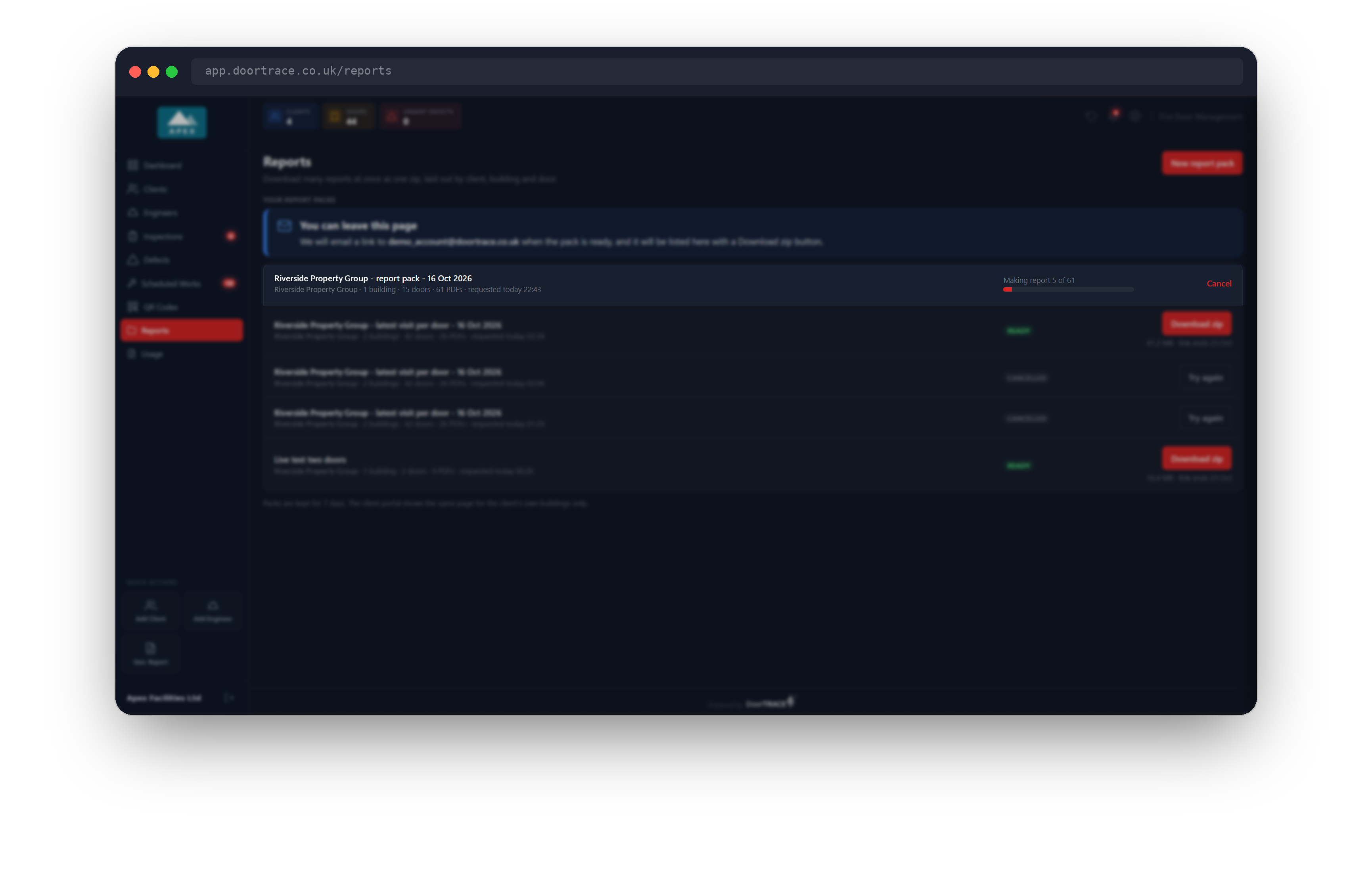
Within a few seconds the row changes to Making report 5 of 61, with a progress bar that moves as each PDF is made. A small pack is ready in a minute or two. A pack with many photographs takes longer, because each photograph is prepared for the PDF on the way in.
To stop a pack, click Cancel on its row. A pack that has not started is cancelled at once. One that is being made reads "Stopping after this report" and stops when the current PDF is finished. A cancelled pack shows Cancelled with a Try again button, which asks for the same pack again.
Download the zip
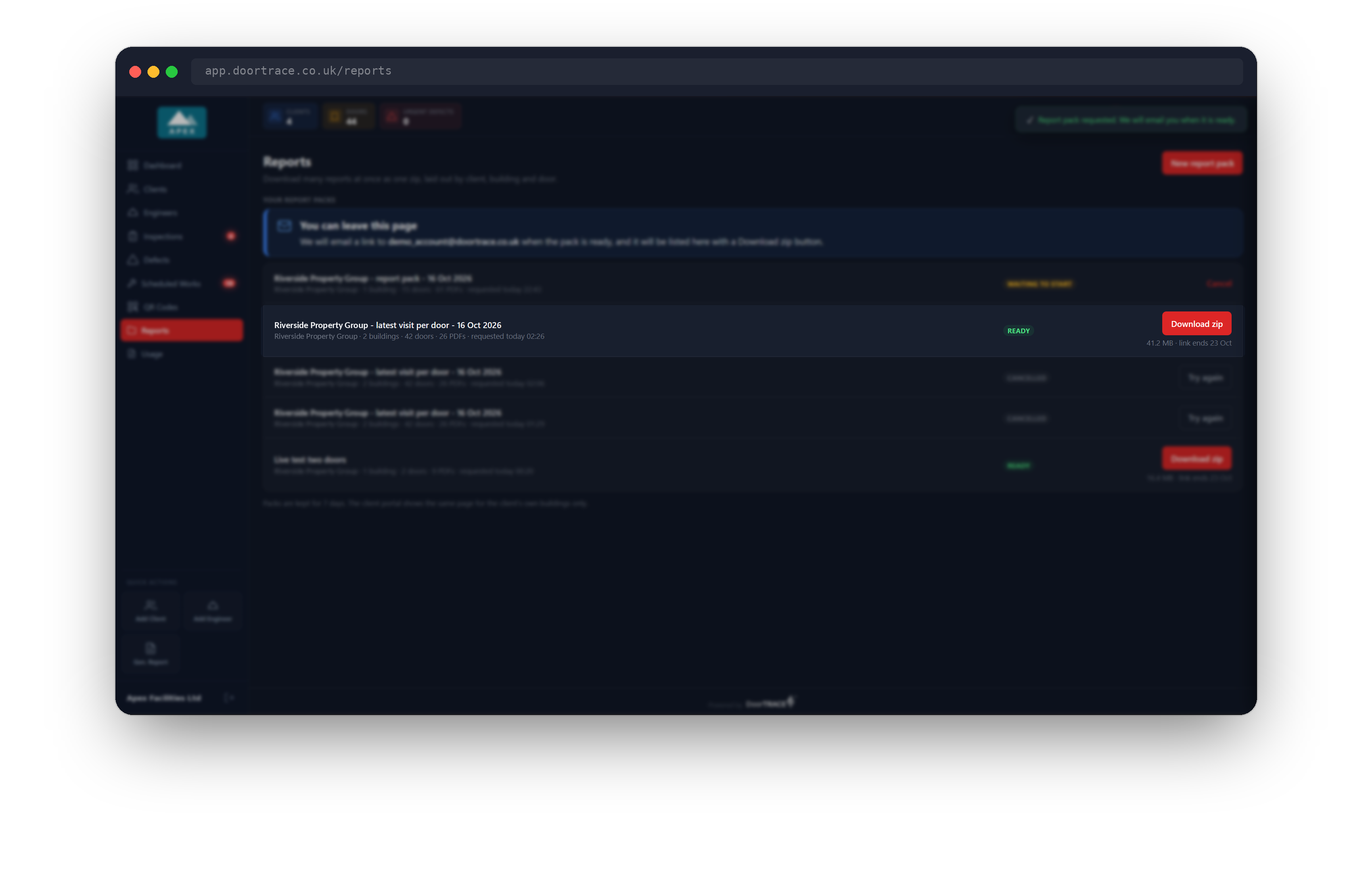
When the pack is ready its row shows Ready, a red Download zip button, the size of the zip and the day the link ends, for example "41.2 MB · link ends 23 Oct". Click Download zip to save it. The file is named after the pack and the day it was made.
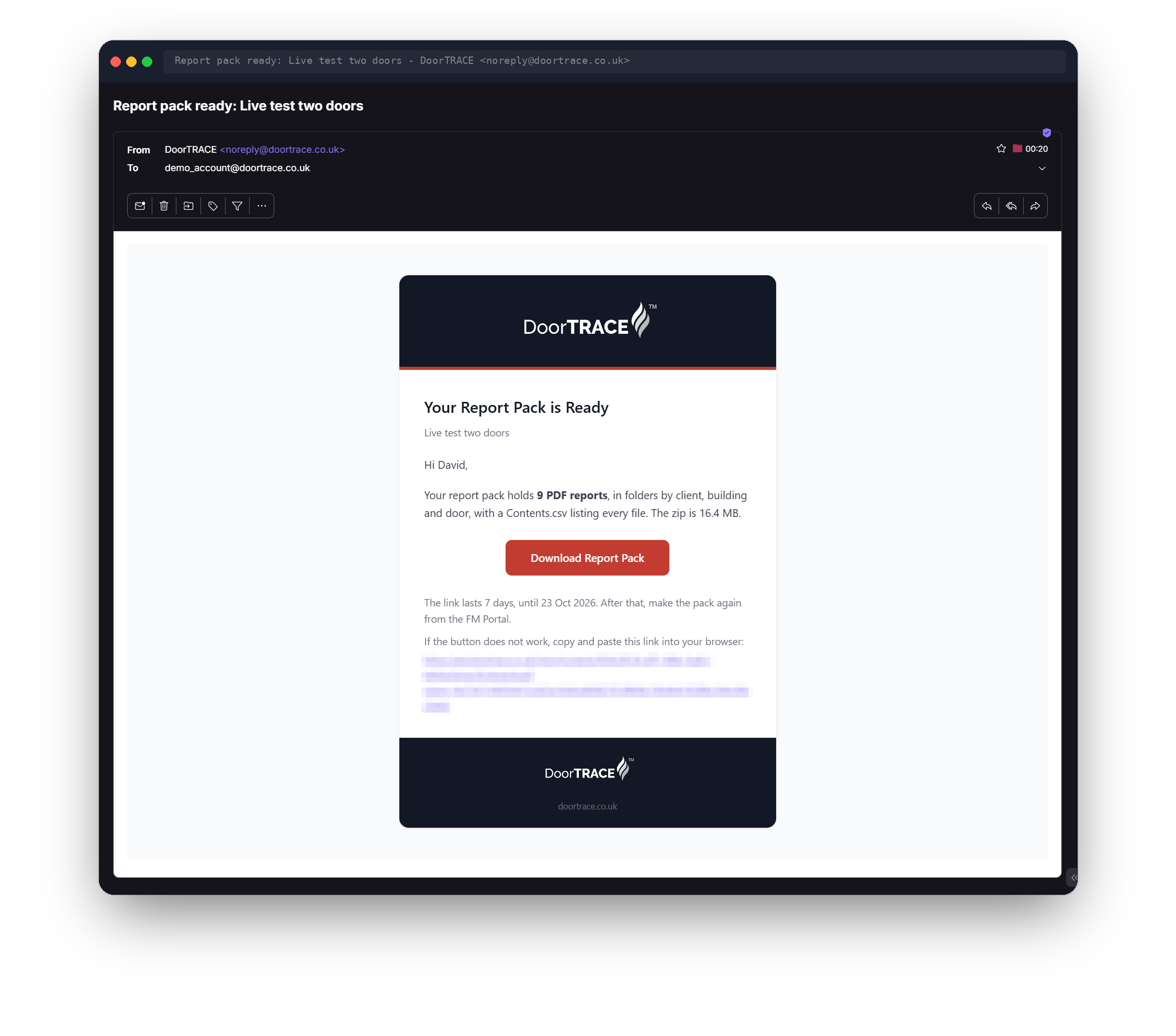
The email comes from DoorTRACE (noreply@doortrace.co.uk) with the subject "Report pack ready:" followed by the pack name. It says how many PDF reports the pack holds, across how many buildings and doors, the size of the zip, and has a red Download Report Pack button. The link lasts 7 days and the email gives the date it ends.
Unzip the file to see the folders. Open Contents.csv in Excel for a list of every PDF and where it is.
If a report in the pack could not be made
The pack is still delivered when one report in it cannot be made. The usual reason is a building with no floor plan attached: Floor plans with door pins was ticked, and the row in Contents.csv reads "Could not be made: No floor has a plan attached yet". The email lists each such report, with its reason, in an amber box. Every other PDF in the pack is complete.
Expired packs
After 7 days the zip is deleted and the row shows Expired with a Make again button. Make again asks for the same pack with the same choices, made from the records as they stand today, and adds it to the top of the list as a new pack.
What your clients see
The client portal has a Reports line in its menu too, and the same three steps, limited to that client's own buildings and doors. There is no client to pick, the email always goes to the address the client user signs in with, and a client login that can see only some of the buildings is not offered the Client Report. Packs your clients ask for do not appear in your list, and yours do not appear in theirs. Nothing is charged for a report pack from either portal.
If something goes wrong
- "Could not load your doors" inside the card: the list of doors did not arrive. Check your connection and click Try again.
- "Could not load your report packs": the list below the card did not arrive. Click Try again. The packs themselves are safe.
- A red line above Back and Build report pack: the portal would not accept the request, for example because three packs are already being made. The line says why. Fix it and press Build report pack again.
- Could not be made: the row shows the reason, and an email with the subject "Report pack could not be made:" and the pack name says the same. Click Try again. If it fails a second time, email support@doortrace.co.uk and quote the pack name.
- "This download link has expired" when you open an old email: make the pack again from the Reports page.
What's next
The next guide is Your usage.
Still can't find the answer?
Send us a message and we'll help. We respond within one working day.